Antivir (Free Guide) - Tutorial
Antivir Removal Guide
What is Antivir?
Antivir is an application that should be a great tool for the system security

Antivir is a misleading anti-spyware application that reports false or exaggerated system security threats and infections to make you think that your computer is infected with malware. Once installed, it will simulate system scans and display a list of infections but won't let you remove those supposed infections unless you pay for a full version of the program. The report lists various infections not related to your machine and once you click the Fix Now button a purchase form appears. As you can see, the main goal of this misleading application is to trick you into purchasing the program. This is nothing more but a scam. Do not pay for it and uninstall it from your computer as soon as possible, if you noticed the intruder already added on the PC.
| Name | Antivir |
|---|---|
| Type | Rogue anti-spyware program |
| Issues | Applications like this rely on false scan results filled with fake reports about malware infections to promote other tools |
| Danger | Users can end up paying for the full version of this tool and suffer monetary losses |
| Distribution | Freeware bundling, promotional advertisements, other PUPs |
| Removal and system help | The system can e cleaned with anti-malware tools that remove the app fully. But altered registry entries and other system files require help from apps like FortectIntego |
Antivir is promoted through the use of random promotional ads that come mostly from fake online anti-malware scanners. Of course, scammers use other misleading methods to promote their bogus products. Social engineering is a very popular distribution method too. You shouldn't accept invitations or open links received from unknown people.
The program can be downloaded from various platforms that rely on advertisements, promotional material. Torrent sites and similar services rely on software bundling method that is often used to spread adware-type intruders around. This rogue security tool often is included as the additional piece that cannot be removed unless you click Advanced or Custom options and control all the included programs on the list.

When installed, PUPs download the rogue application and displays fake security alerts. Those fake security alerts or notifications will state that your computer is infected, for example: “Warning! Identity theft attempt detected”. Other fake notification states:
Trojan:W32/Inject is a large family of malware that secretly makes changes to the Windows Registry. Variants in the family make also makes changes to other running processes.
Furthermore, Antivir may block legitimate anti-spyware software and block security-related websites. There shouldn't be any doubts about this bogus application – it must be removed upon detection. Most importantly, do not purchase the application yourself. Otherwise, you will simply lose your money.
Make sure to get rid of the shady tool
If your computer is infected with this rogue tool, please use the removal guide below to remove Antivir manually for free. Also, make sure to scan your PC with a legitimate system optimization application to remove the remains or additionally installed malware and repair any damage.
You may remove virus damage with a help of FortectIntego. SpyHunter 5Combo Cleaner and Malwarebytes are recommended to detect potentially unwanted programs and viruses with all their files and registry entries that are related to them.
Getting rid of Antivir. Follow these steps
Uninstall from Windows
-
Click Start → Control Panel → Programs and Features (if you are Windows XP user, click on Add/Remove Programs).

-
If you are Windows 10 / Windows 8 user, then right-click in the lower left corner of the screen. Once Quick Access Menu shows up, select Control Panel and Uninstall a Program.

-
Uninstall Antivir and related programs
Here, look for Antivir or any other recently installed suspicious programs. -
Uninstall them and click OK to save these changes.


Delete from macOS
-
If you are using OS X, click Go button at the top left of the screen and select Applications.

-
Wait until you see Applications folder and look for Antivir or any other suspicious programs on it. Now right click on every of such entries and select Move to Trash.


Remove from Microsoft Edge
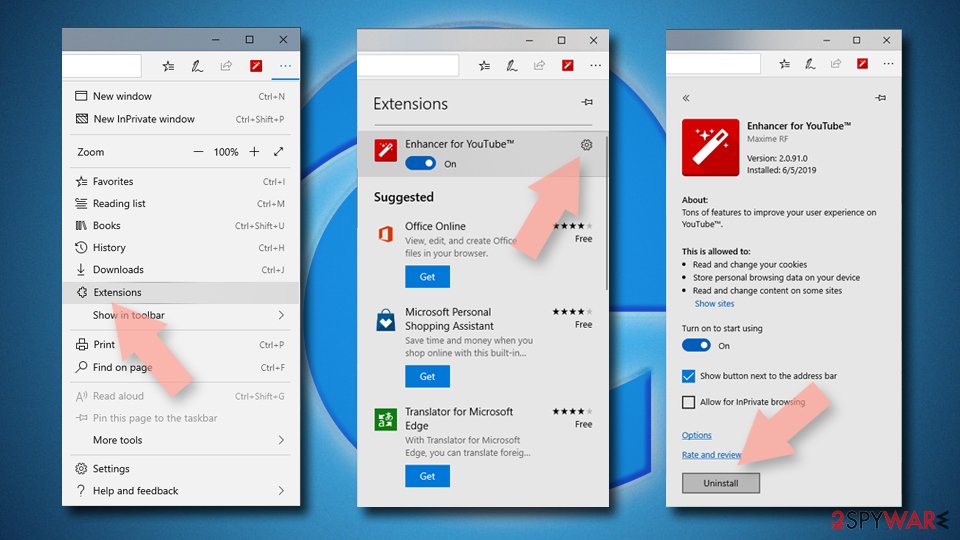
Delete unwanted extensions from MS Edge:
- Select Menu (three horizontal dots at the top-right of the browser window) and pick Extensions.
- From the list, pick the extension and click on the Gear icon.
- Click Remove.

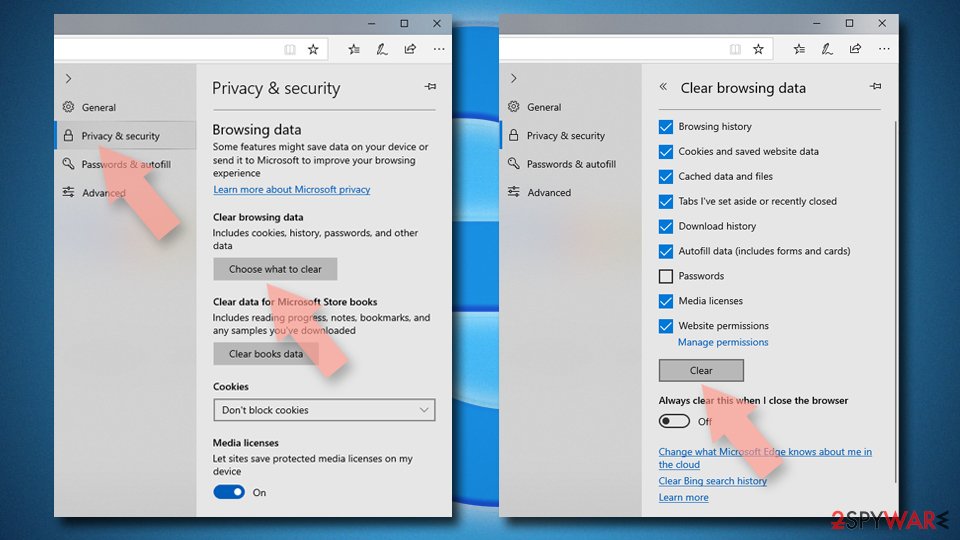
Clear cookies and other browser data:
- Click on the Menu (three horizontal dots at the top-right of the browser window) and select Settings > Privacy, search, and services..
- Under Clear browsing data, pick Choose what to clear.
- Select Cookies and other site data and Cached images and files. (apart from passwords, although you might want to include Media licenses as well, if applicable) and click on Clear.

Restore new tab and homepage settings:
- Click the menu icon and choose Settings.
- Then find On startup section.
- Click Remove next to any suspicious startup page.
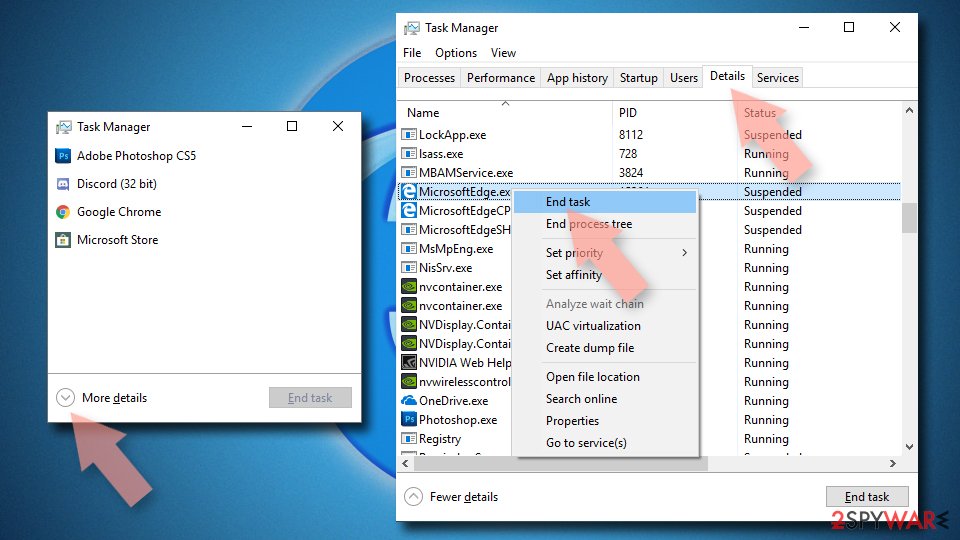
Reset MS Edge if the above steps did not work:
- Press on Ctrl + Shift + Esc to open Task Manager.
- Click on More details arrow at the bottom of the window.
- Select Details tab.
- Now scroll down and locate every entry with Microsoft Edge name in it. Right-click on each of them and select End Task to stop MS Edge from running.

Instructions for Chromium-based Edge
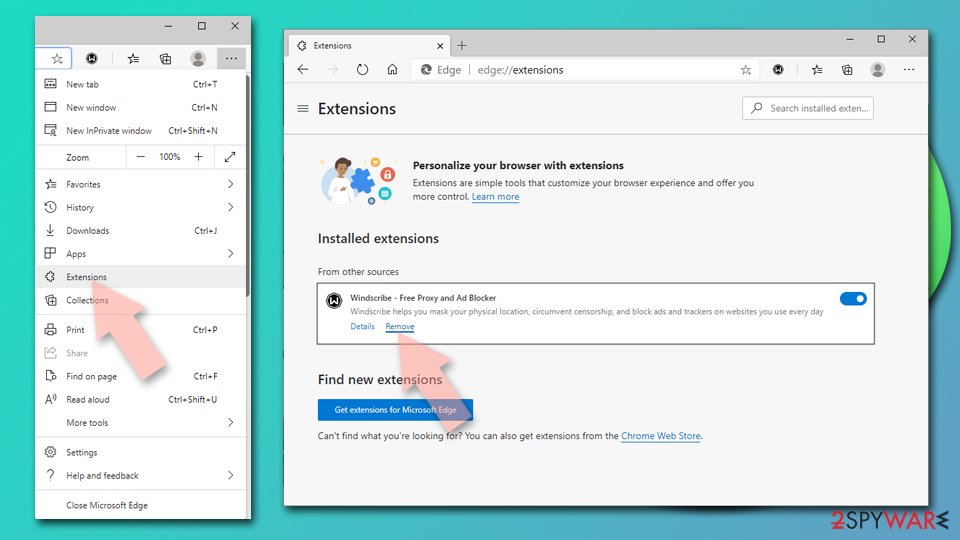
Delete extensions from MS Edge (Chromium):
- Open Edge and click select Settings > Extensions.
- Delete unwanted extensions by clicking Remove.

Clear cache and site data:
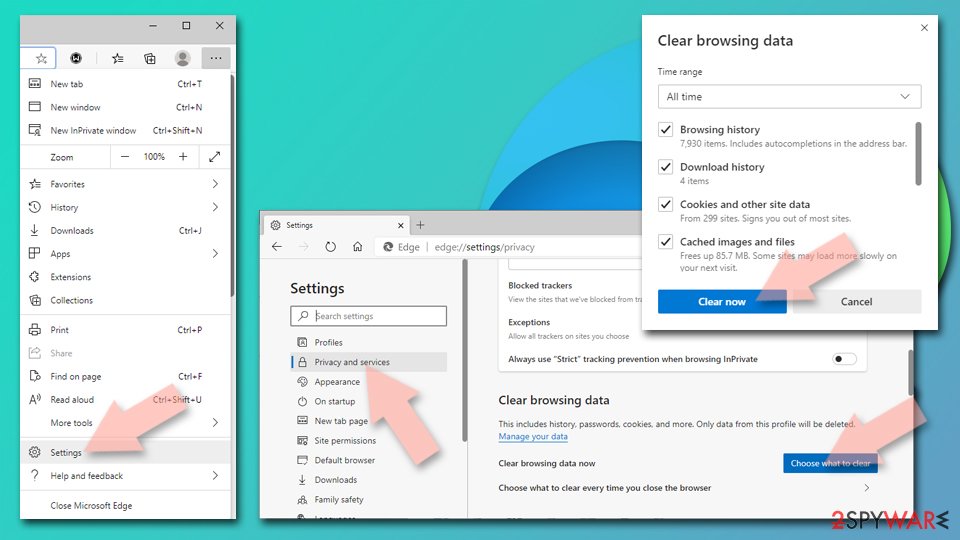
- Click on Menu and go to Settings.
- Select Privacy, search and services.
- Under Clear browsing data, pick Choose what to clear.
- Under Time range, pick All time.
- Select Clear now.

Reset Chromium-based MS Edge:
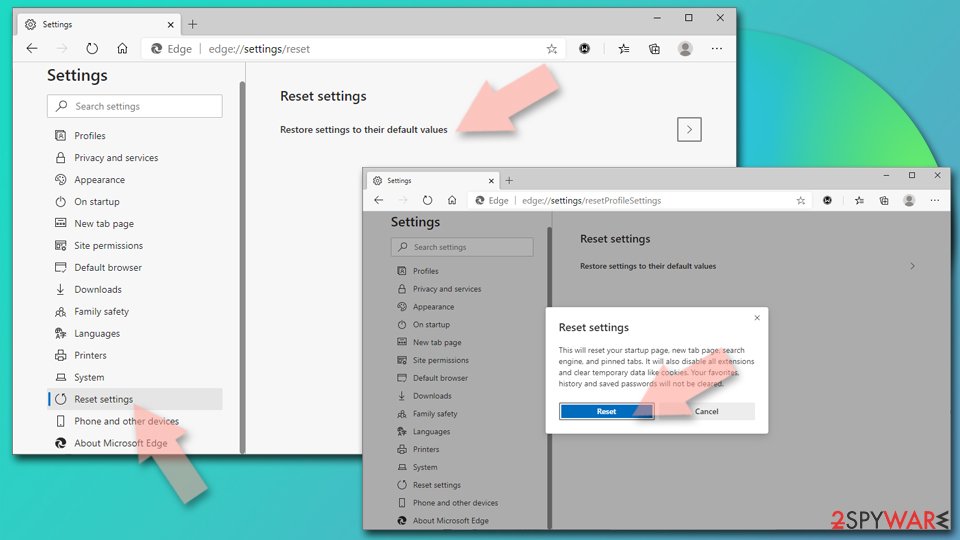
- Click on Menu and select Settings.
- On the left side, pick Reset settings.
- Select Restore settings to their default values.
- Confirm with Reset.
- This will disable extensions and reset startup pages but will not delete bookmarks, saved passwords, or browsing history.

Remove from Mozilla Firefox (FF)
Remove dangerous extensions:
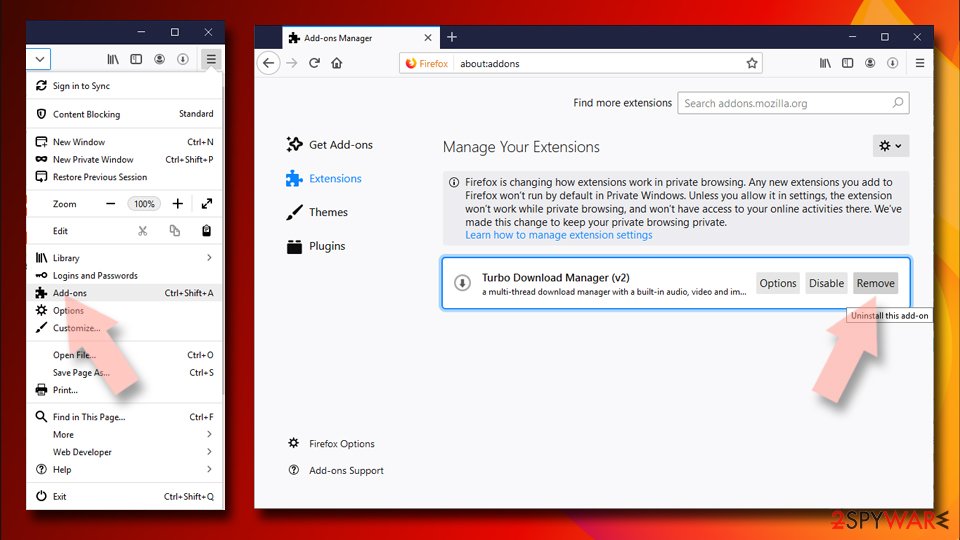
- Open Mozilla Firefox browser and click on the Menu (three horizontal lines at the top-right of the window).
- Select Add-ons.
- In here, select the unwanted extension and click Remove.

Reset the homepage:
- Click three horizontal lines at the top right corner to open the menu.
- Choose Settings.
- Under Home, set your preferred homepage and new tab settings.
Clear cookies and site data:
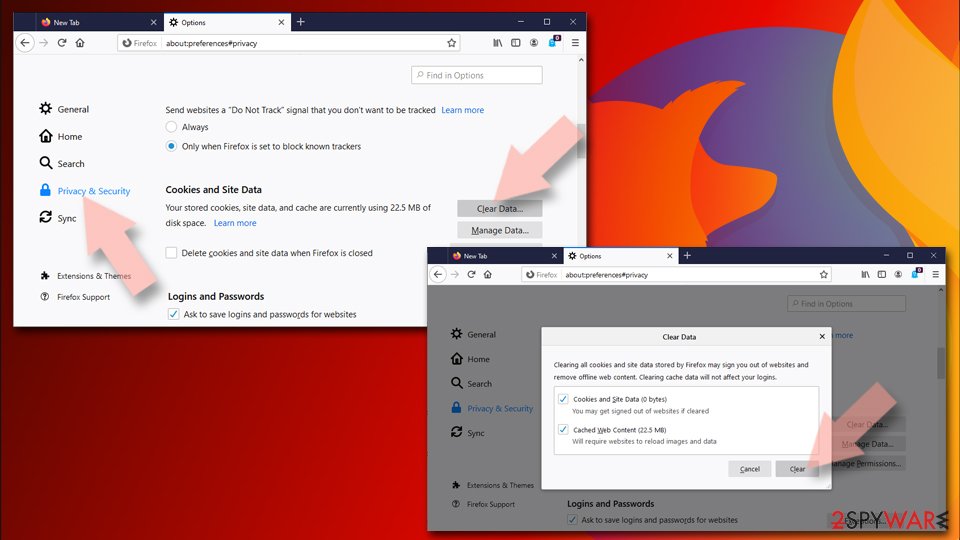
- Click Menu and pick Settings.
- Go to Privacy & Security section.
- Scroll down to locate Cookies and Site Data.
- Click on Clear Data…
- Select Cookies and Site Data and Temporary cached files and pages, then click Clear.

Reset Mozilla Firefox
If clearing the browser as explained above did not help, reset Mozilla Firefox:
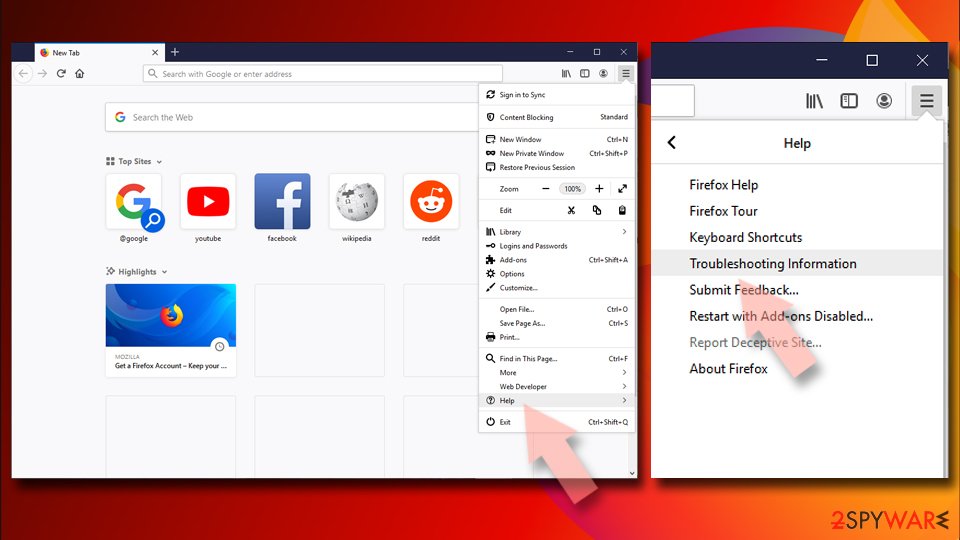
- Open Mozilla Firefox browser and click the Menu.
- Go to Help and then choose Troubleshooting Information.
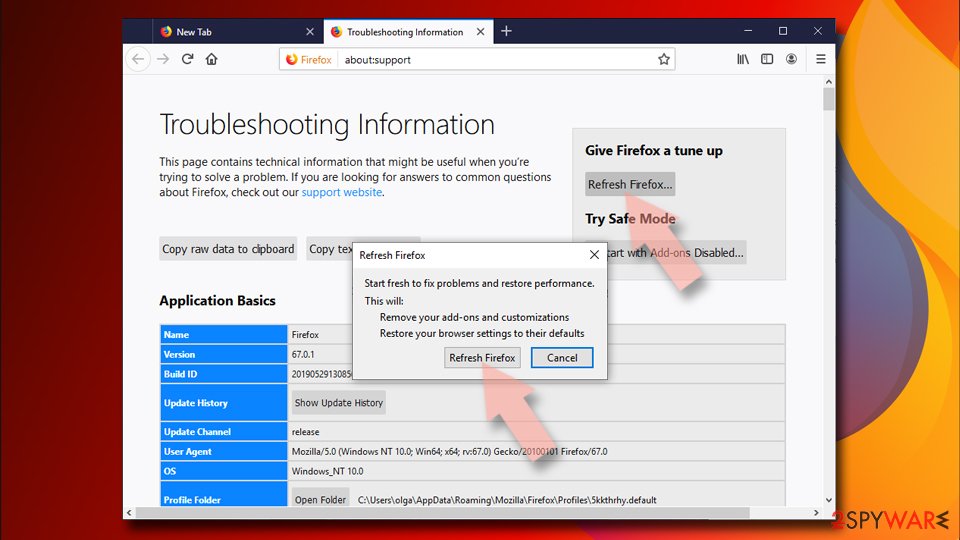
- Under Give Firefox a tune up section, click on Refresh Firefox…
- Once the pop-up shows up, confirm the action by pressing on Refresh Firefox.


Remove from Google Chrome
Delete malicious extensions from Google Chrome:
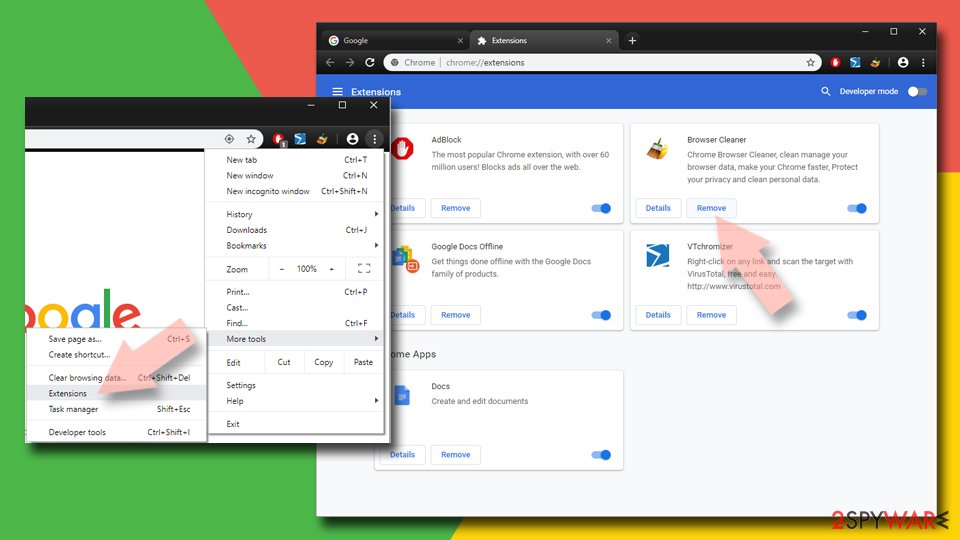
- Open Google Chrome, click on the Menu (three vertical dots at the top-right corner) and select More tools > Extensions.
- In the newly opened window, you will see all the installed extensions. Uninstall all suspicious extensions related to the unwanted program by clicking Remove.

Clear cache and web data from Chrome:
- Click on Menu and pick Settings.
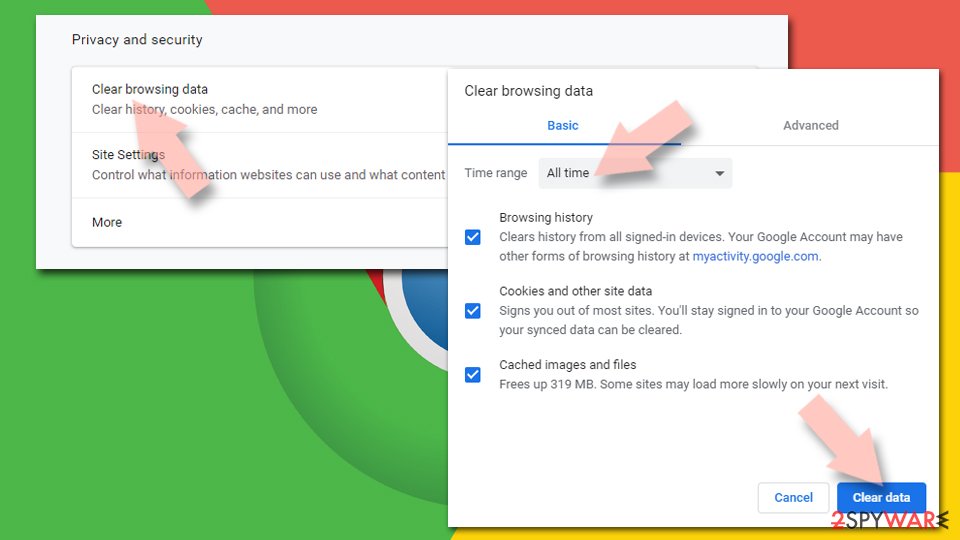
- Under Privacy and security, select Clear browsing data.
- Select Browsing history, Cookies and other site data, as well as Cached images and files.
- Click Clear data.

Change your homepage:
- Click menu and choose Settings.
- Look for a suspicious site in the On startup section.
- Click on Open a specific or set of pages and click on three dots to find the Remove option.
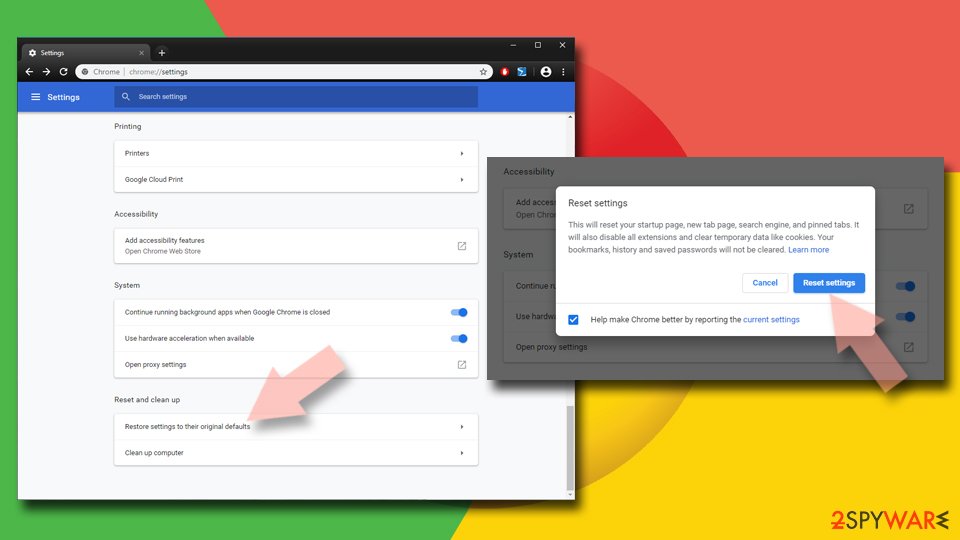
Reset Google Chrome:
If the previous methods did not help you, reset Google Chrome to eliminate all the unwanted components:
- Click on Menu and select Settings.
- In the Settings, scroll down and click Advanced.
- Scroll down and locate Reset and clean up section.
- Now click Restore settings to their original defaults.
- Confirm with Reset settings.

Delete from Safari
-
Remove dangerous extensions
Open Safari web browser and click on Safari in menu at the top left of the screen. Once you do this, select Preferences.
-
Here, select Extensions and look for Antivir or other suspicious entries. Click on the Uninstall button to get rid each of them.

-
Reset Safari
Open Safari browser and click on Safari in menu section at the top left of the screen. Here, select Reset Safari....
-
Now you will see a detailed dialog window filled with reset options. All of those options are usually checked, but you can specify which of them you want to reset. Click the Reset button to complete Antivir removal process.


After uninstalling this potentially unwanted program (PUP) and fixing each of your web browsers, we recommend you to scan your PC system with a reputable anti-spyware. This will help you to get rid of Antivir registry traces and will also identify related parasites or possible malware infections on your computer. For that you can use our top-rated malware remover: FortectIntego, SpyHunter 5Combo Cleaner or Malwarebytes.
How to prevent from getting rogue antispyware
Protect your privacy – employ a VPN
There are several ways how to make your online time more private – you can access an incognito tab. However, there is no secret that even in this mode, you are tracked for advertising purposes. There is a way to add an extra layer of protection and create a completely anonymous web browsing practice with the help of Private Internet Access VPN. This software reroutes traffic through different servers, thus leaving your IP address and geolocation in disguise. Besides, it is based on a strict no-log policy, meaning that no data will be recorded, leaked, and available for both first and third parties. The combination of a secure web browser and Private Internet Access VPN will let you browse the Internet without a feeling of being spied or targeted by criminals.
No backups? No problem. Use a data recovery tool
If you wonder how data loss can occur, you should not look any further for answers – human errors, malware attacks, hardware failures, power cuts, natural disasters, or even simple negligence. In some cases, lost files are extremely important, and many straight out panic when such an unfortunate course of events happen. Due to this, you should always ensure that you prepare proper data backups on a regular basis.
If you were caught by surprise and did not have any backups to restore your files from, not everything is lost. Data Recovery Pro is one of the leading file recovery solutions you can find on the market – it is likely to restore even lost emails or data located on an external device.

If this free guide helped you and you are satisfied with our service, please consider making a donation to keep this service alive. Even a smallest amount will be appreciated.