Cyber Security (Removal Guide) - Free Instructions
Cyber Security Removal Guide
What is Cyber Security?
Cyber Security is fake antispyware program that shows fake malware alerts

Cyber Security is a misleading application promoted through the use of Trojans that deliberately display fake security alerts or impersonate online anti-spyware scanners to convince you that your computer is infected with malware. Once the rogue is installed, it would perform fake scans, which should confirm victims' fears that their machines are heavily infected.
The sole goal of this malicious software is to compromise Windows machine and make it seem like it is infected by viruses and other parasites. In reality, the only infection on the system is Cyber Security. Thus, never spend money on this bogus security tool as it can not protect you from malware. If anything, it is malware itself.
| Name | Cyber Security |
| Type | Rogue antivirus, malware, scam |
| Family | Total Security |
| Distribution | Fake online scanners, already installed Trojans, or other methods |
| Operation | Shows fake scan results and false positives to make users purchased the full version of the rogue, losing money in the process |
| Removal | Use instructions below to uninstall the program. Alternatively, a reputable antivirus program should be able to delete it for you automatically |
| System fix | Rogue security programs can straight out damage Windows system files; if you experience crashes and other system malfunctions, use FortectIntego to fix them |
Usually, Trojans hijack web browsers and display fake alerts about serious system security threats. Then it prompts you to scan your PC with a program to detect and remove those supposed infections.
Once installed, this parasite may seriously compromise your computer. It can block system tools and programs as well as security programs. This is a very typical rogue antispyware behavior and one of the main reasons why you might have to access Safe Mode in order to remove it effectively with SpyHunter 5Combo Cleaner or another security program.
It will continue to display fake notifications and alerts about serious security problems and privacy issues – here is just one example of a message you might encounter when using your device:
WARNING Cyber Security Alert!
New data base update is available
Automatic updating is necessary to get you system protected in real time against new and emerging viruses, worms and trojans. Regular updating is needed to prevent you PC from latest virus threats that can lead to system slowdown, freezes, crashes and data loss.
As evident, these fake notifications are only there to convince users that they are seriously infected and spend money on useless software. Please do not believe what these pop-ups say and instead remove the malicious app from the system immediately.
It is important to note that the rogue might damage Windows system components, resulting in crashes, errors, or other stability issues. If that is the case for you, we recommend you revert virus damage with FortectIntego repair software. Alternatively, you might have to reinstall Windows or call an IT expert to fix a computer for you.
Terminate all the infections from your Windows machine
The main goal of this malicious software is to trick you into purchasing a full version of the program. However, the problem is that it actually doesn't exist, and that won't help you anyway as the main infection remains active.
We strongly recommend you remove Cyber Security from your computer as soon as possible. Please use the removal guide below to get rid of this infection manually for free. Alternatively, you can use antivirus software for a quicker solution.
If you have inadvertently purchased this program, please contact your credit card company immediately and dispute the charges.
You may remove virus damage with a help of FortectIntego. SpyHunter 5Combo Cleaner and Malwarebytes are recommended to detect potentially unwanted programs and viruses with all their files and registry entries that are related to them.
Getting rid of Cyber Security. Follow these steps
Uninstall from Windows
-
Click Start → Control Panel → Programs and Features (if you are Windows XP user, click on Add/Remove Programs).

-
If you are Windows 10 / Windows 8 user, then right-click in the lower left corner of the screen. Once Quick Access Menu shows up, select Control Panel and Uninstall a Program.

-
Uninstall Cyber Security and related programs
Here, look for Cyber Security or any other recently installed suspicious programs. -
Uninstall them and click OK to save these changes.


Remove from Microsoft Edge
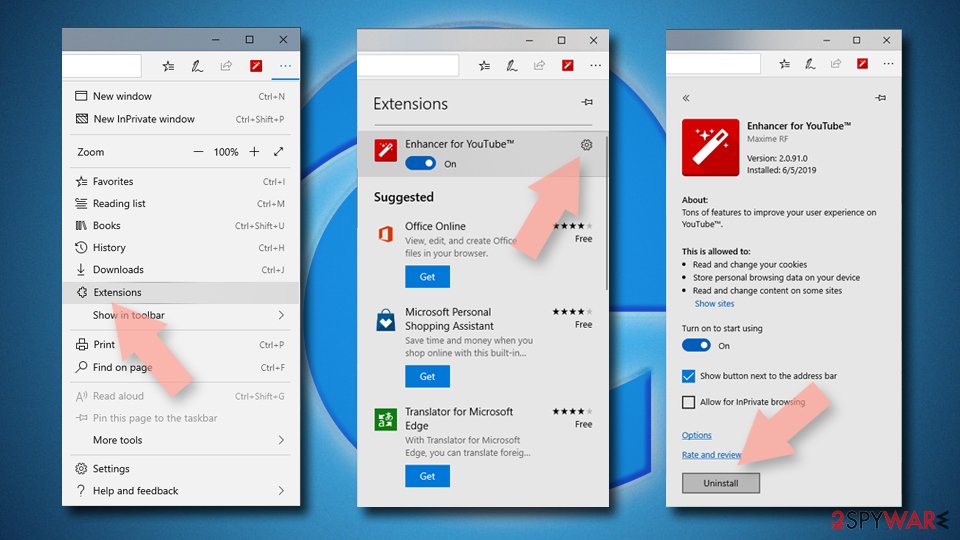
Delete unwanted extensions from MS Edge:
- Select Menu (three horizontal dots at the top-right of the browser window) and pick Extensions.
- From the list, pick the extension and click on the Gear icon.
- Click Remove.

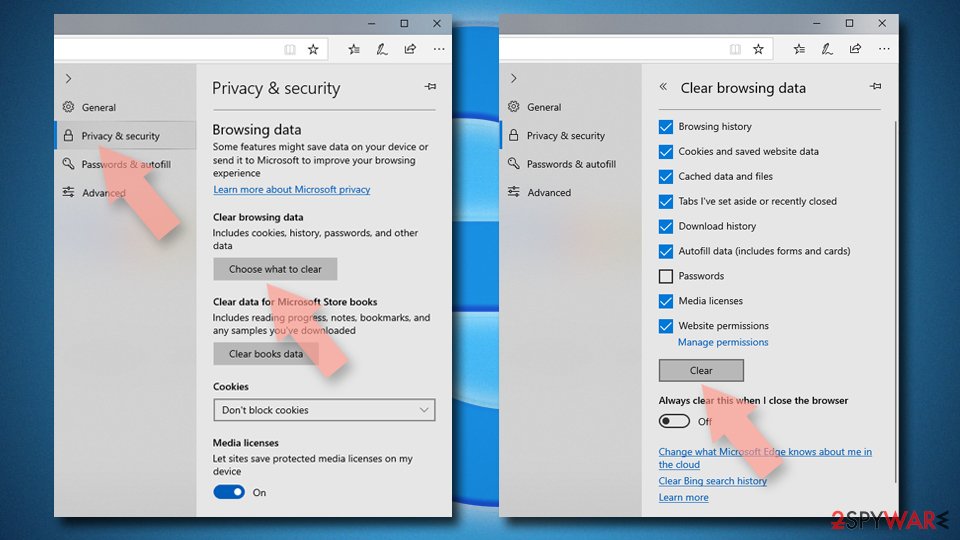
Clear cookies and other browser data:
- Click on the Menu (three horizontal dots at the top-right of the browser window) and select Settings > Privacy, search, and services..
- Under Clear browsing data, pick Choose what to clear.
- Select Cookies and other site data and Cached images and files. (apart from passwords, although you might want to include Media licenses as well, if applicable) and click on Clear.

Restore new tab and homepage settings:
- Click the menu icon and choose Settings.
- Then find On startup section.
- Click Remove next to any suspicious startup page.
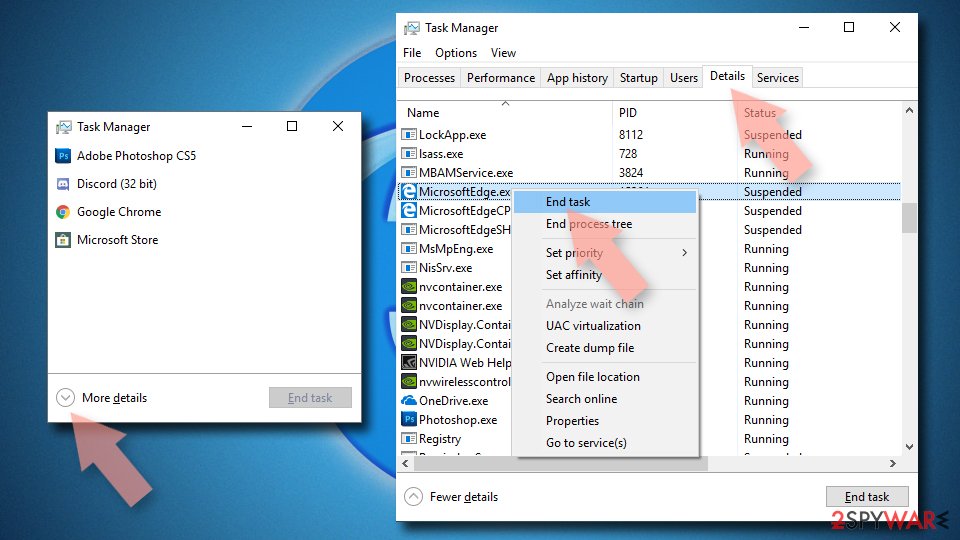
Reset MS Edge if the above steps did not work:
- Press on Ctrl + Shift + Esc to open Task Manager.
- Click on More details arrow at the bottom of the window.
- Select Details tab.
- Now scroll down and locate every entry with Microsoft Edge name in it. Right-click on each of them and select End Task to stop MS Edge from running.

Instructions for Chromium-based Edge
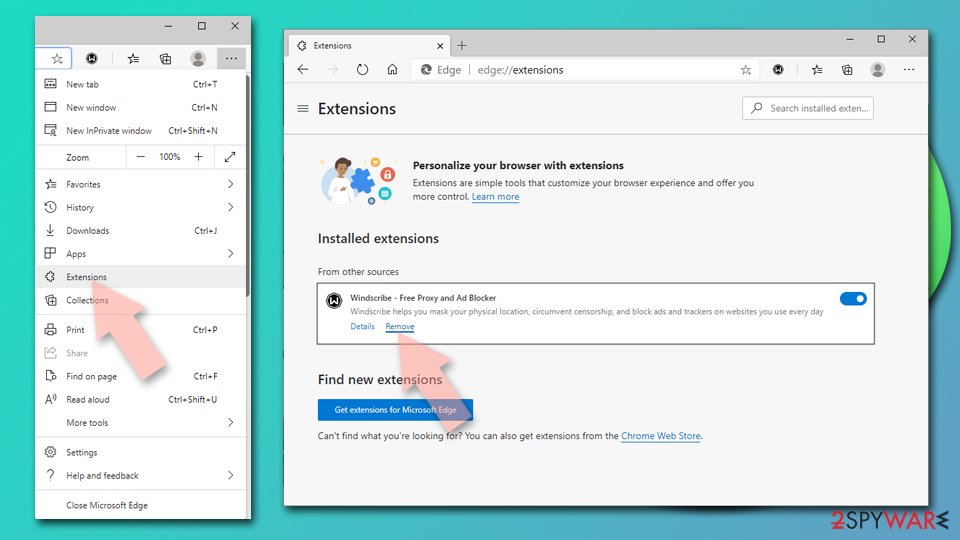
Delete extensions from MS Edge (Chromium):
- Open Edge and click select Settings > Extensions.
- Delete unwanted extensions by clicking Remove.

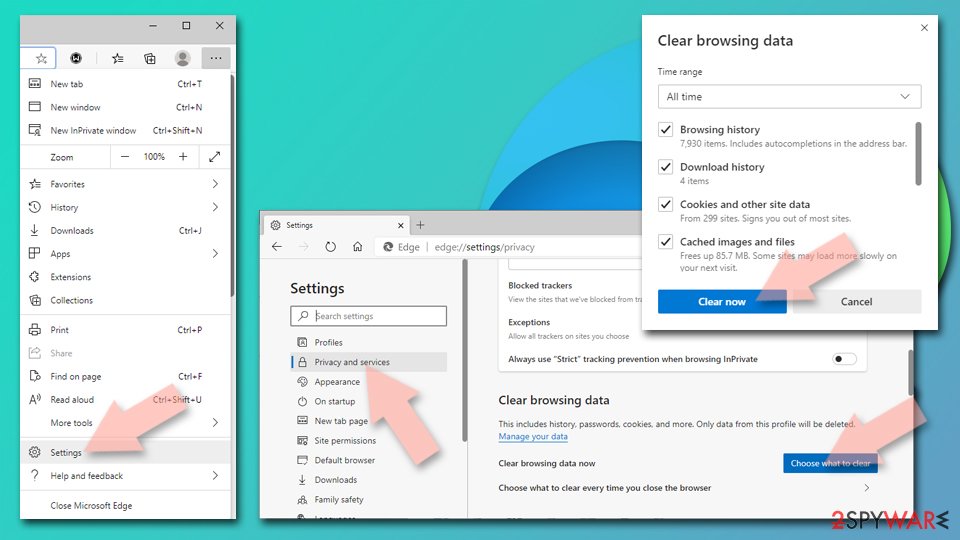
Clear cache and site data:
- Click on Menu and go to Settings.
- Select Privacy, search and services.
- Under Clear browsing data, pick Choose what to clear.
- Under Time range, pick All time.
- Select Clear now.

Reset Chromium-based MS Edge:
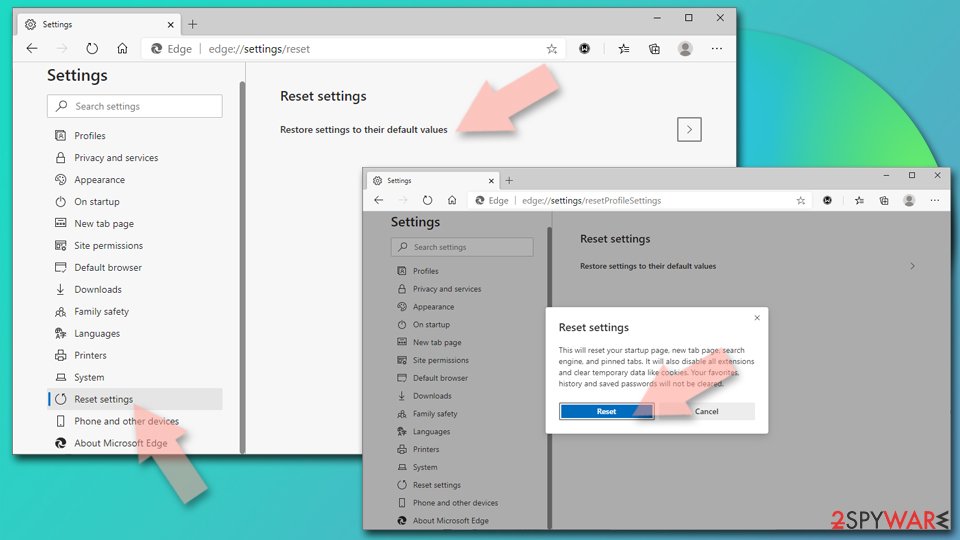
- Click on Menu and select Settings.
- On the left side, pick Reset settings.
- Select Restore settings to their default values.
- Confirm with Reset.
- This will disable extensions and reset startup pages but will not delete bookmarks, saved passwords, or browsing history.

Remove from Mozilla Firefox (FF)
Remove dangerous extensions:
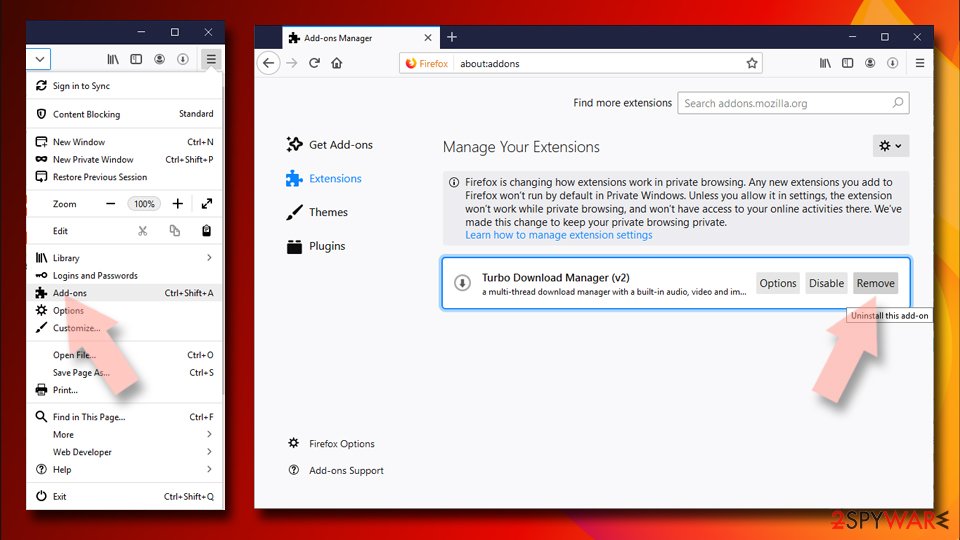
- Open Mozilla Firefox browser and click on the Menu (three horizontal lines at the top-right of the window).
- Select Add-ons.
- In here, select the unwanted extension and click Remove.

Reset the homepage:
- Click three horizontal lines at the top right corner to open the menu.
- Choose Settings.
- Under Home, set your preferred homepage and new tab settings.
Clear cookies and site data:
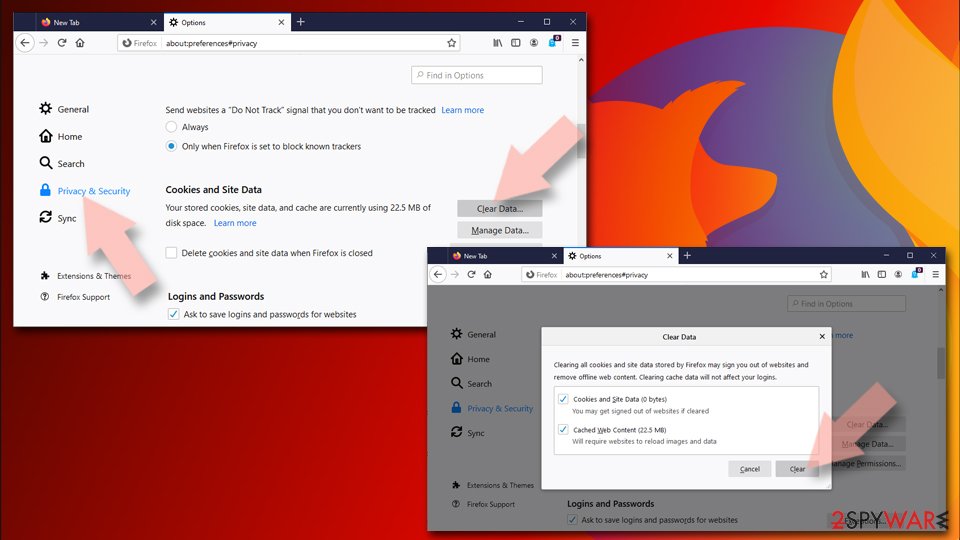
- Click Menu and pick Settings.
- Go to Privacy & Security section.
- Scroll down to locate Cookies and Site Data.
- Click on Clear Data…
- Select Cookies and Site Data and Temporary cached files and pages, then click Clear.

Reset Mozilla Firefox
If clearing the browser as explained above did not help, reset Mozilla Firefox:
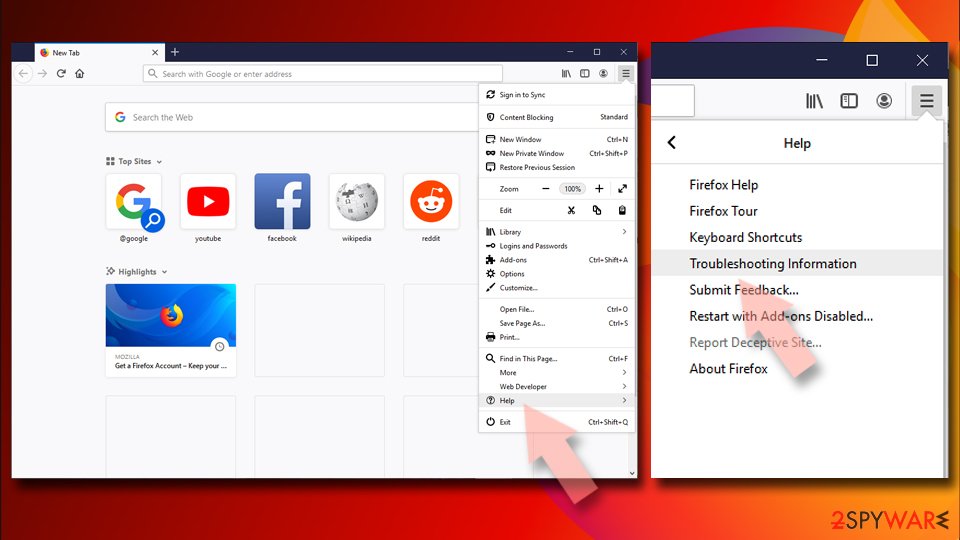
- Open Mozilla Firefox browser and click the Menu.
- Go to Help and then choose Troubleshooting Information.
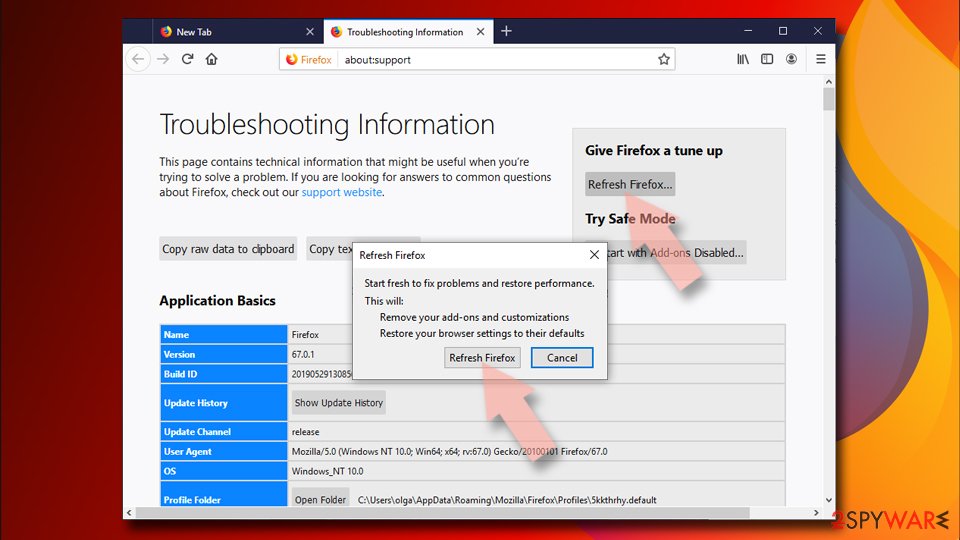
- Under Give Firefox a tune up section, click on Refresh Firefox…
- Once the pop-up shows up, confirm the action by pressing on Refresh Firefox.


Remove from Google Chrome
Delete malicious extensions from Google Chrome:
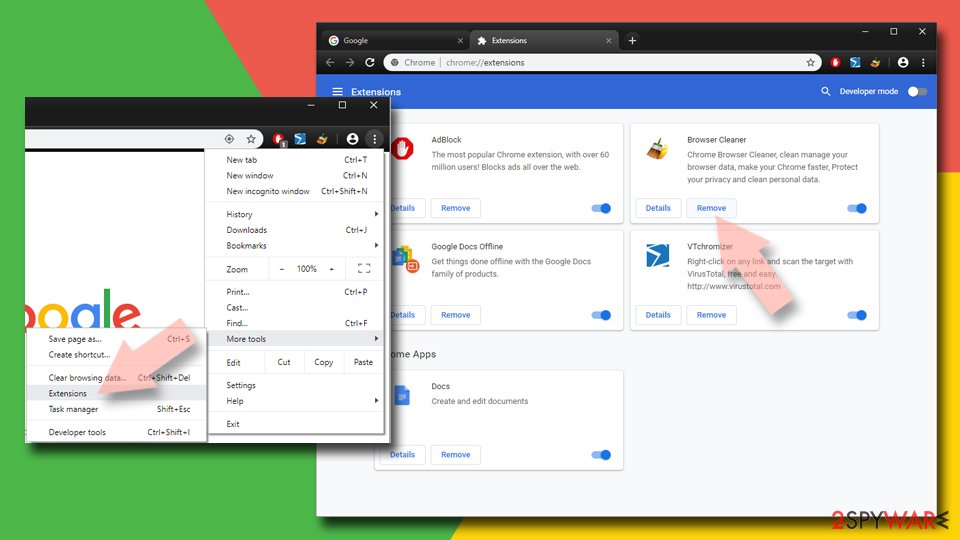
- Open Google Chrome, click on the Menu (three vertical dots at the top-right corner) and select More tools > Extensions.
- In the newly opened window, you will see all the installed extensions. Uninstall all suspicious extensions related to the unwanted program by clicking Remove.

Clear cache and web data from Chrome:
- Click on Menu and pick Settings.
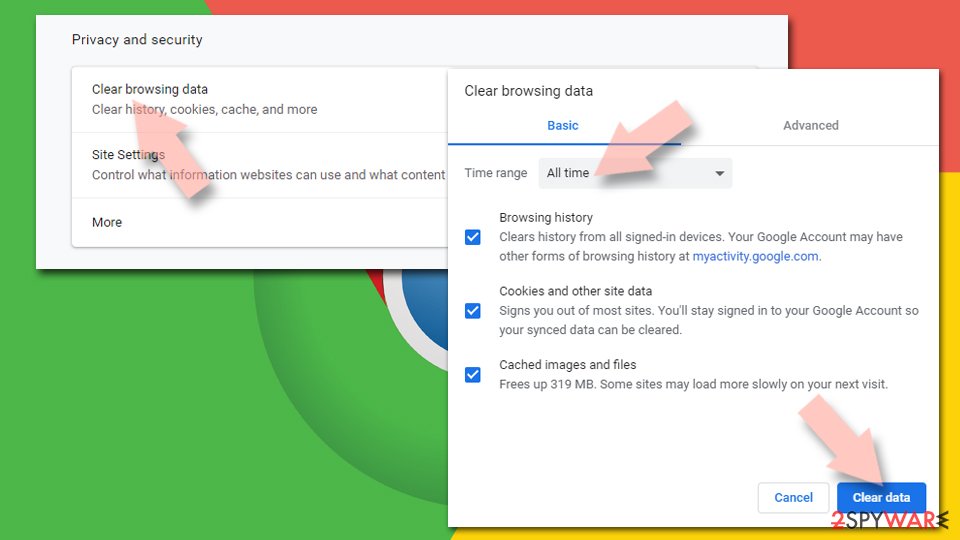
- Under Privacy and security, select Clear browsing data.
- Select Browsing history, Cookies and other site data, as well as Cached images and files.
- Click Clear data.

Change your homepage:
- Click menu and choose Settings.
- Look for a suspicious site in the On startup section.
- Click on Open a specific or set of pages and click on three dots to find the Remove option.
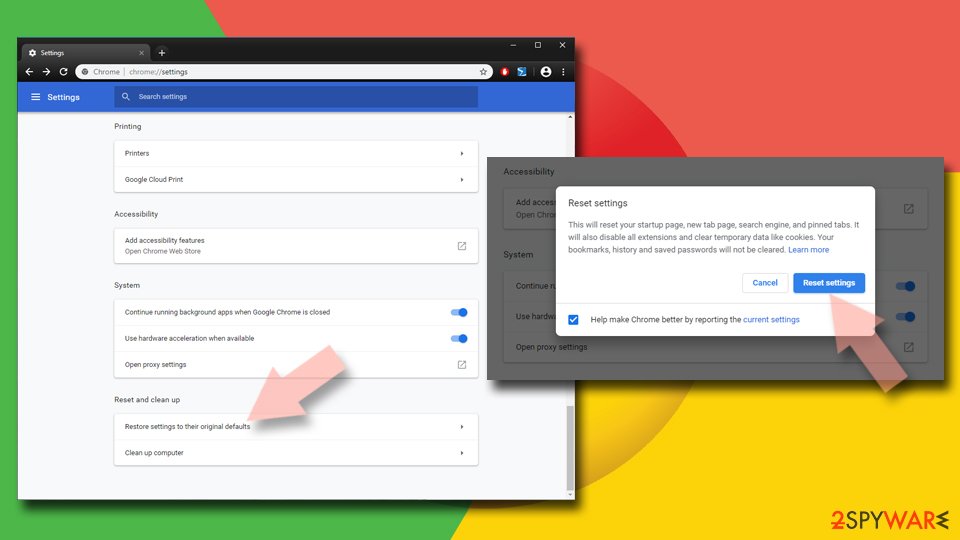
Reset Google Chrome:
If the previous methods did not help you, reset Google Chrome to eliminate all the unwanted components:
- Click on Menu and select Settings.
- In the Settings, scroll down and click Advanced.
- Scroll down and locate Reset and clean up section.
- Now click Restore settings to their original defaults.
- Confirm with Reset settings.

Delete from Safari
-
Remove dangerous extensions
Open Safari web browser and click on Safari in menu at the top left of the screen. Once you do this, select Preferences.
-
Here, select Extensions and look for Cyber Security or other suspicious entries. Click on the Uninstall button to get rid each of them.

-
Reset Safari
Open Safari browser and click on Safari in menu section at the top left of the screen. Here, select Reset Safari....
-
Now you will see a detailed dialog window filled with reset options. All of those options are usually checked, but you can specify which of them you want to reset. Click the Reset button to complete Cyber Security removal process.


After uninstalling this potentially unwanted program (PUP) and fixing each of your web browsers, we recommend you to scan your PC system with a reputable anti-spyware. This will help you to get rid of Cyber Security registry traces and will also identify related parasites or possible malware infections on your computer. For that you can use our top-rated malware remover: FortectIntego, SpyHunter 5Combo Cleaner or Malwarebytes.
How to prevent from getting rogue antispyware
Do not let government spy on you
The government has many issues in regards to tracking users' data and spying on citizens, so you should take this into consideration and learn more about shady information gathering practices. Avoid any unwanted government tracking or spying by going totally anonymous on the internet.
You can choose a different location when you go online and access any material you want without particular content restrictions. You can easily enjoy internet connection without any risks of being hacked by using Private Internet Access VPN.
Control the information that can be accessed by government any other unwanted party and surf online without being spied on. Even if you are not involved in illegal activities or trust your selection of services, platforms, be suspicious for your own security and take precautionary measures by using the VPN service.
Backup files for the later use, in case of the malware attack
Computer users can suffer from data losses due to cyber infections or their own faulty doings. Ransomware can encrypt and hold files hostage, while unforeseen power cuts might cause a loss of important documents. If you have proper up-to-date backups, you can easily recover after such an incident and get back to work. It is also equally important to update backups on a regular basis so that the newest information remains intact – you can set this process to be performed automatically.
When you have the previous version of every important document or project you can avoid frustration and breakdowns. It comes in handy when malware strikes out of nowhere. Use Data Recovery Pro for the data restoration process.

If this free guide helped you and you are satisfied with our service, please consider making a donation to keep this service alive. Even a smallest amount will be appreciated.