
Remote Password Stealer: what it is and how to remove it
Remote Password Stealer is a password managing program that can be used as a tool to recover lost or forgotten passwords. Unfortunately, hackers can also abuse this app for illegal activities, such as unauthorized access to victims' sensitive data - social media and email login information or even bank account data.
Facts checked October 6, 2026. Removal steps tested on Windows 11 (26H2) and checked against Microsoft's and the browser makers' current documentation. Sections marked as our earlier report are the original text: they describe the threat as it was then and have not been reviewed since. The 2026 status, the removal steps and the questions are current.
Automatic
Get a free scan and check if your PC is infected.
Fortect finds malware, unwanted programs and the Windows damage they leave behind, and repairs it in one pass.
Unsure whether lpr123.exe is safe? A free scan checks the file and what starts it.
Do it yourself · free Remove Remote Password Stealer yourself 3 steps, about 9 minutes, no software needed.
Start the steps
Remote Password Stealer: summary
| Detection names | No Microsoft detection name is known |
|---|---|
| Distribution | Not recorded in the old report |
| Damage | Not recorded in the old report |
| Name | Remote Password Stealer |
| Type | Information stealer |
| Symptoms | An unknown process in Task Manager |
| Removal | Scan the PC with security software to find and remove the malware and anything installed with it. Fortect scans Windows for malware and repairs the system files and settings it damaged. Remove it nowTo use the full-featured product, you have to purchase a license for Fortect. The scan is free. |
Show 4 more facts
| Evidence | 4 write-ups by security sites; details still limited |
|---|---|
| File name | lpr123.exe |
| First seen | 4 July 2018 |
| Facts checked | 6 October 2026 |
What Remote Password Stealer does
From our report of Jul 2018 · not reviewed since
The way malicious programs enter users' machines
Users are typically extremely careless when it comes to online safety and virtual security.
They visit questionable websites, click on suspicious ads, and open spam emails carelessly. However, these people put themselves in danger without realizing it.
The most prominent malware distribution method is via spam emails. Hackers employ bots to send out thousands of emails to various email addresses. Therefore, even if you do not visit file-sharing or other suspicious sites, you might still receive a phishing email. Some of the messages can be recognized as a scam pretty easily, while others can use legitimate logos, write believable texts, and use genuine-looking "From" address.
Therefore, do not let your guard down when using the internet. Do not open questionable emails and install reputable security software which could stop malware from infiltrating your computer.
From our report of Jul 2018 · not reviewed since
More from our earlier report on Remote Password Stealer
- Malicious websites, spam emails, unprotected RDP, etc.
- Rarely any symptoms; users can sometimes experience slowdown of the system, increased amount of error messages, etc.
What Remote Password Stealer collects and where it sends it
From our report of Jul 2018 · not reviewed since
Remote Password Stealer is a password managing program that can be used as a tool to recover lost or forgotten passwords.
Unfortunately, hackers can also abuse this app for illegal activities, such as unauthorized access to victims' sensitive data - social media and email login information or even bank account data. Cybercriminals typically employ trojan horses to distribute malware and, after gaining access to users' PC, spy on all their actions.
Let's start with the name itself. An application that is called "Remote Password Stealer" cannot be created for the legal purposes. And in most cases, it is not.
The malicious program typically infiltrates machines unnoticed, via contaminated spam email attachments, fake updates, or is accidentally downloaded from the malicious site. Nevertheless, the most important thing is to remove Remote Password Stealer from your machine ASAP.
Remote Password Stealer virus is capable of stealing passwords from Firefox, Internet Explorer, Google Chrome, Skype, Viber, FTP clients, Messaging programs, etc. Bad actors can use the stolen information to access victims' bank accounts or other personal data which can be used for identity theft.
The Remote Password Stealer can run the following processes, although they can also be run by other malware applications, such as Rempsteal password stealer:
Although these processes may be running in your Task Manager, it is not always the case. Additionally, trojan horses rarely display any symptoms. Nevertheless, if you experience any of the following signs, make sure you scan your machine with or :
What is more, Remote Password Stealer trojan can enable other malware to enter the targeted machine, since it modifies Windows registry and gains administrative rights. Additionally, hackers can remotely take screenshots, install additional programs, use a camera, etc.
Therefore, we advise you not to delay Remote Password Stealer removal. Do not try to eliminate the malicious program yourself, as its code is complicated and embedded in the system.
- lpr123.exe
- spdhook.dll
- spd123.ini
- Software crashing or becoming non-responsive;
- Numerous BSoDs;
- Error messages popping out of nowhere;
- Increased CPU usage;
- Computer fan constantly running unnaturally fast;
- Overall slowdown of the system.


How to check the PC for Remote Password Stealer
- File:
lpr123.exe
How to remove Remote Password Stealer
How to remove Remote Password Stealer and secure your accounts
A stealer usually takes what it wants within minutes and may already be gone.
The scan comes first, then the accounts.
Step 1: Scan the PC, then run the offline scan
A scan finds the parts of Remote Password Stealer that the manual steps cannot see. In Windows Security > Virus & threat protection > Scan options, start a Full scan and quarantine what it reports.
Follow it with Microsoft Defender Antivirus (offline scan) > Scan now, which restarts the PC and checks the disk while Windows and the malware are not running.
It takes about 15 minutes and works the same in Windows 11 and Windows 10. If either scan finds something, run the full scan again after removal until it comes back clean.

Windows 11: Windows Security > Virus & threat protection > Scan options. Full procedure with screenshots: Run a Microsoft Defender Offline scan
Step 2: Change passwords from another device and sign out other sessions
Remote Password Stealer can copy saved passwords, cookies and session tokens and send them out in seconds, so cleaning the PC does not undo the theft.
Change your passwords on a device that was never infected, starting with the e-mail account, since every other reset goes through it. On each account, end all other sessions and check the recovery e-mail, phone number and forwarding rules.
Then turn on two-step verification. Sign in on the Windows 11 or Windows 10 PC again only after the offline scan is clean.
Full procedure with screenshots: Turn on two-step verification / secure a hacked account
Step 3: Delete the folders left behind
Uninstalling often leaves the program's folders, and some threats reinstall themselves from them.
Press Windows + R, type
%LocalAppData%and press Enter, then do the same for%AppData%and %ProgramData%, and look for folders named after Remote Password Stealer, its publisher or created on the day the problem started.Delete those folders, and check
C:\Program FilesandC:\Program Files (x86)too.If Windows says a file is in use, end it in Task Manager or delete the folder after a restart in Safe Mode. The folders are the same in Windows 11 and Windows 10.
Full procedure with screenshots: Remove what malware leaves behind in Windows
Instructions for each browser and system
The detailed steps for every browser and system this guide covers. Open the one you use.
Manual removal using Safe Mode
Important! →
Manual removal guide might be too complicated for regular computer users. It requires advanced IT knowledge to be performed correctly (if vital system files are removed or damaged, it might result in full Windows compromise), and it also might take hours to complete. Therefore, we highly advise using the automatic method provided above instead.
Step 1. Access Safe Mode with Networking
Manual malware removal should be best performed in the Safe Mode environment.
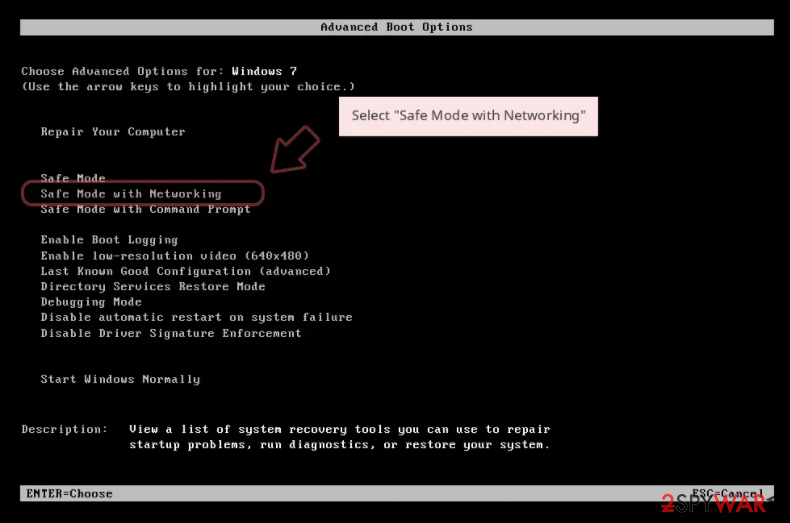
Windows 7 / Vista / XP
- Click Start > Shutdown > Restart > OK.
- When your computer becomes active, start pressing F8 button (if that does not work, try F2, F12, Del, etc. - it all depends on your motherboard model) multiple times until you see the Advanced Boot Options window.
- Select Safe Mode with Networking from the list.
Windows 10 / Windows 8
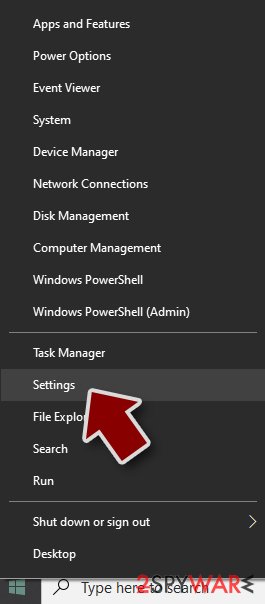
- Right-click on Start button and select Settings.
- Scroll down to pick Update & Security.
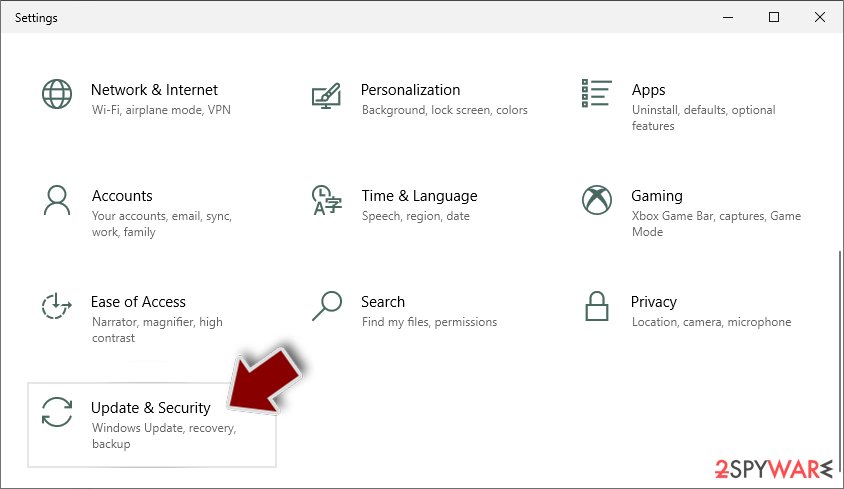
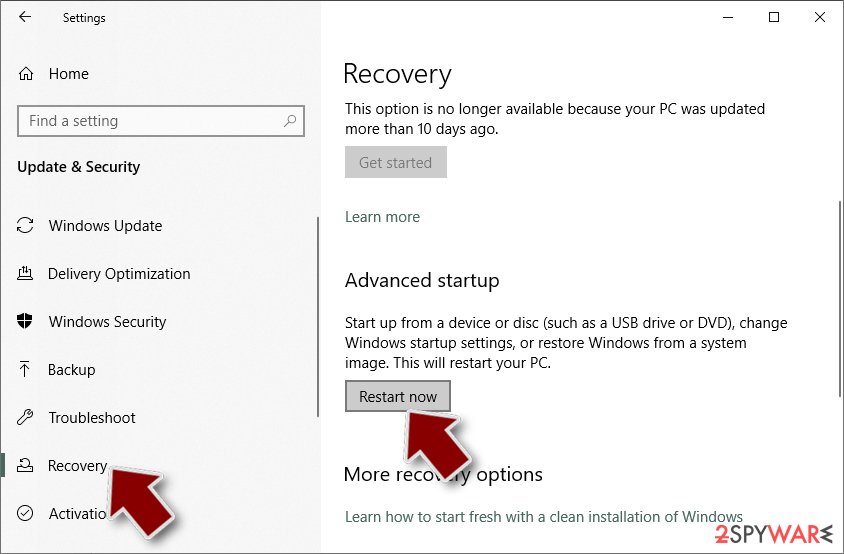
- On the left side of the window, pick Recovery.
- Now scroll down to find Advanced Startup section.
- Click Restart now.
- Select Troubleshoot.
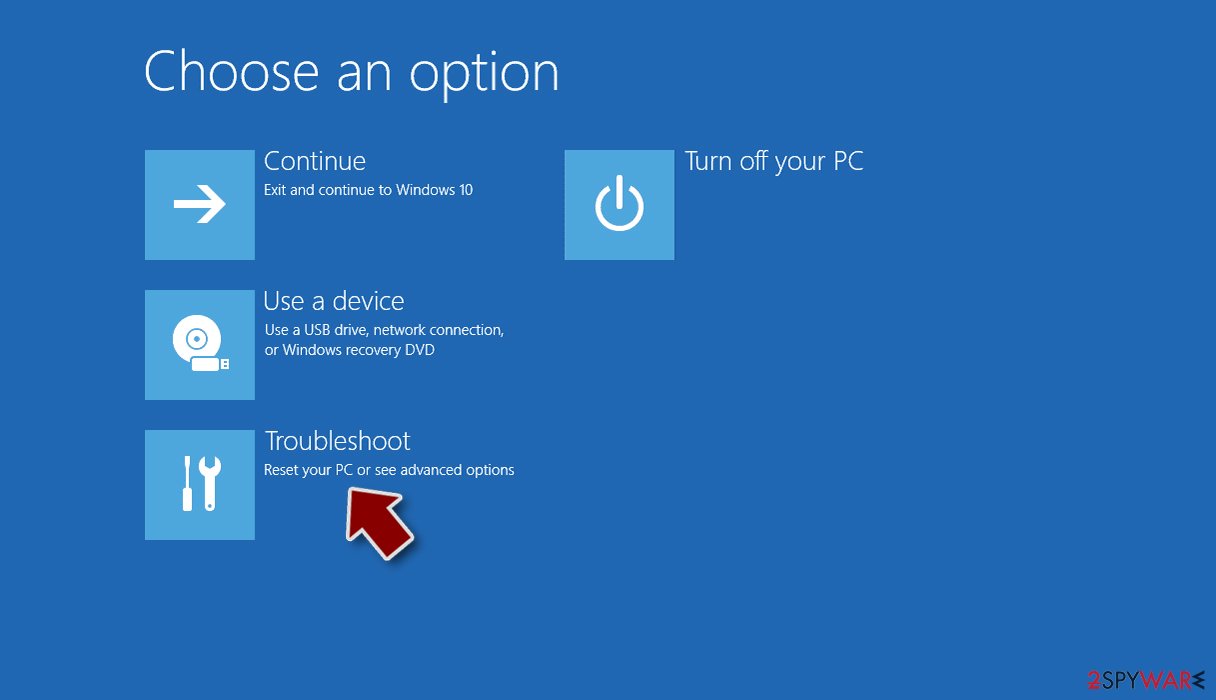
- Go to Advanced options.
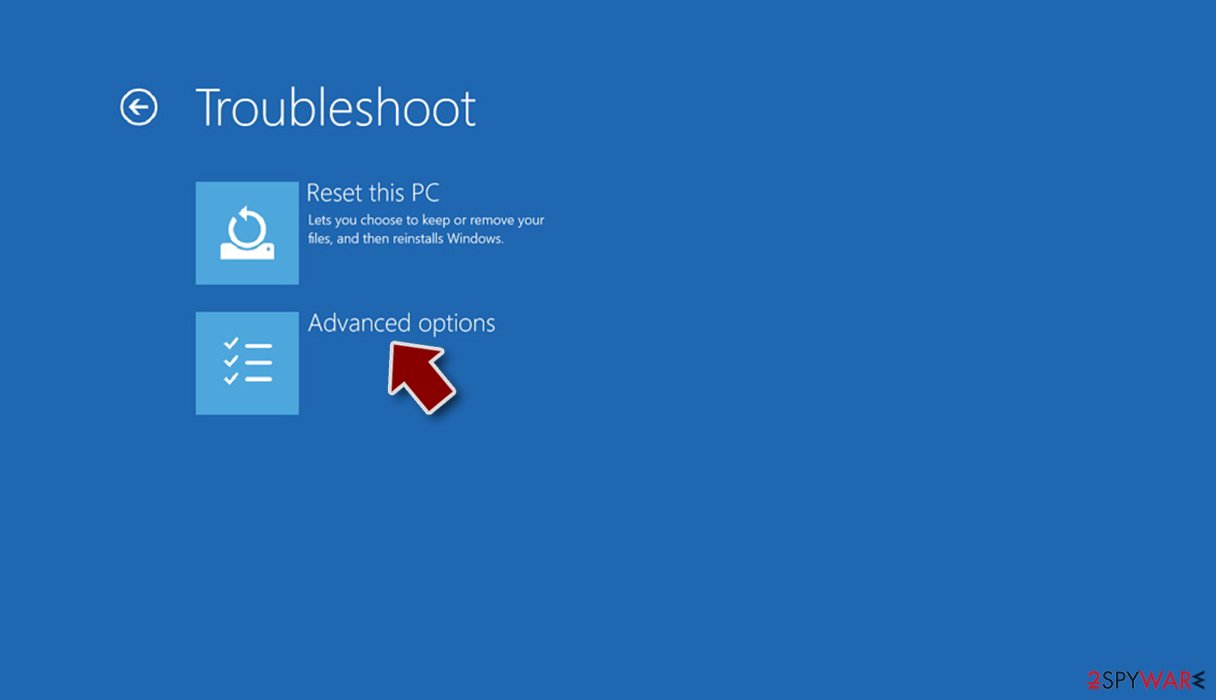
- Select Startup Settings.
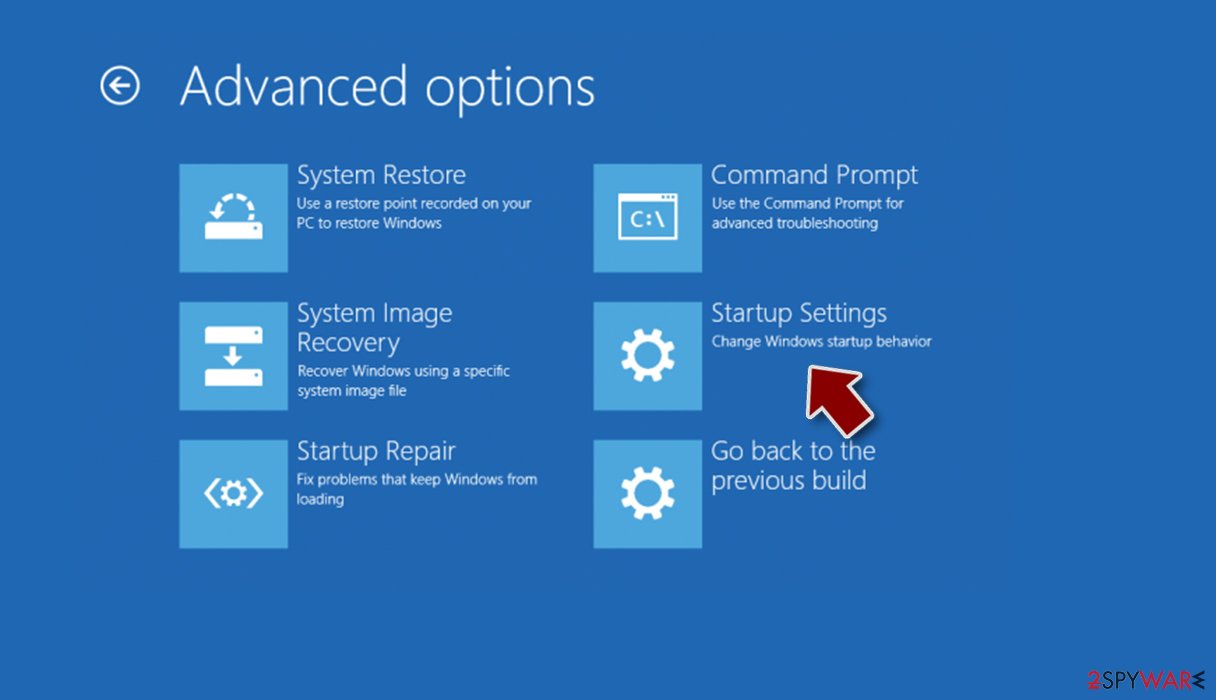
- Press Restart.
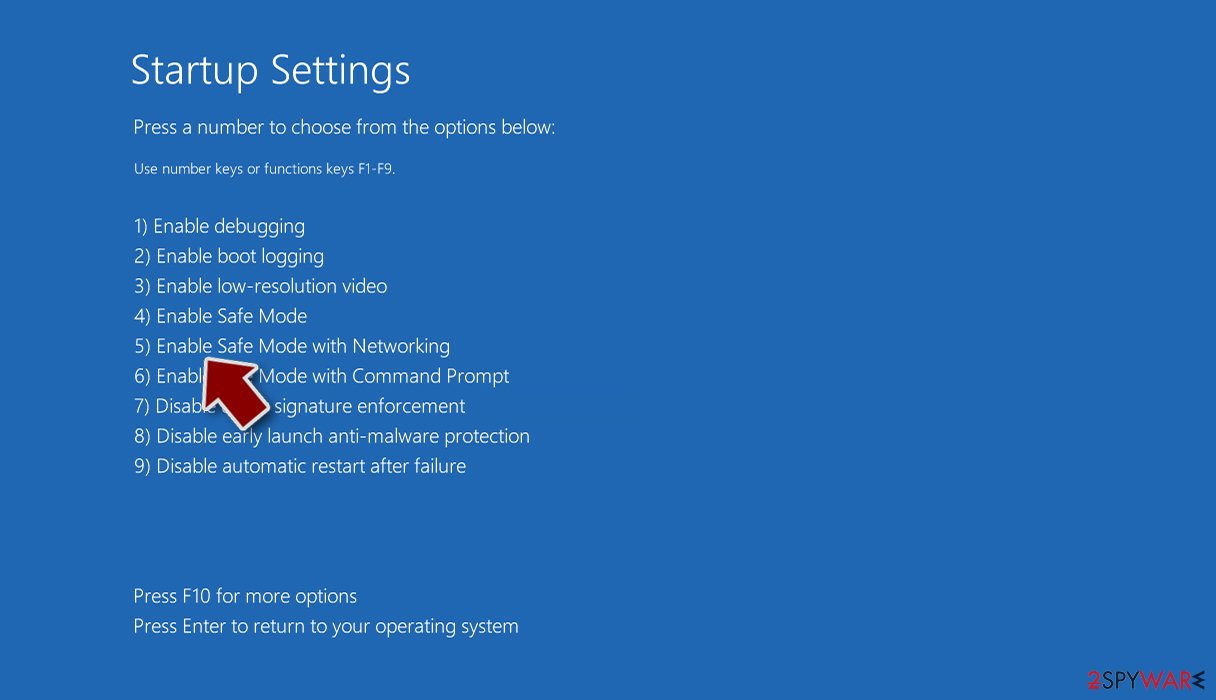
- Now press 5 or click 5) Enable Safe Mode with Networking.
Step 2. Shut down suspicious processes
Windows Task Manager is a useful tool that shows all the processes running in the background. If malware is running a process, you need to shut it down:
- Press Ctrl + Shift + Esc on your keyboard to open Windows Task Manager.
- Click on More details.
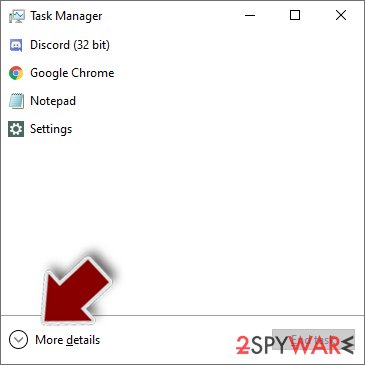
- Scroll down to Background processes section, and look for anything suspicious.
- Right-click and select Open file location.
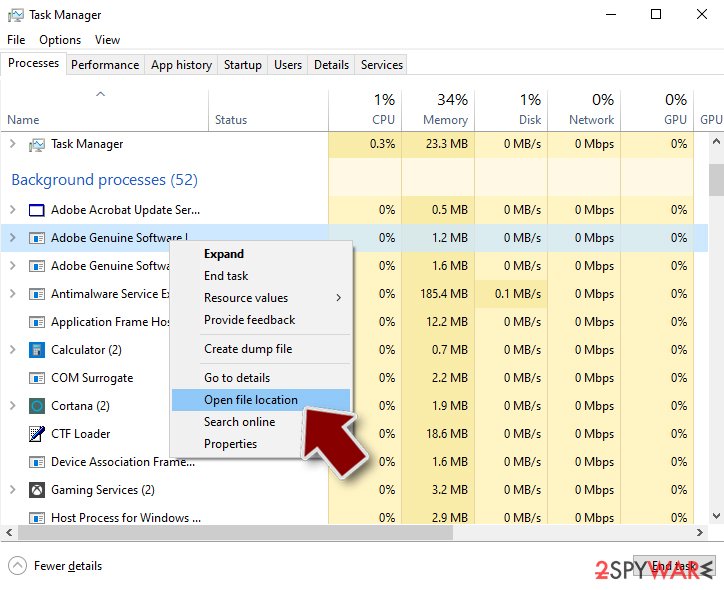
- Go back to the process, right-click and pick End Task.
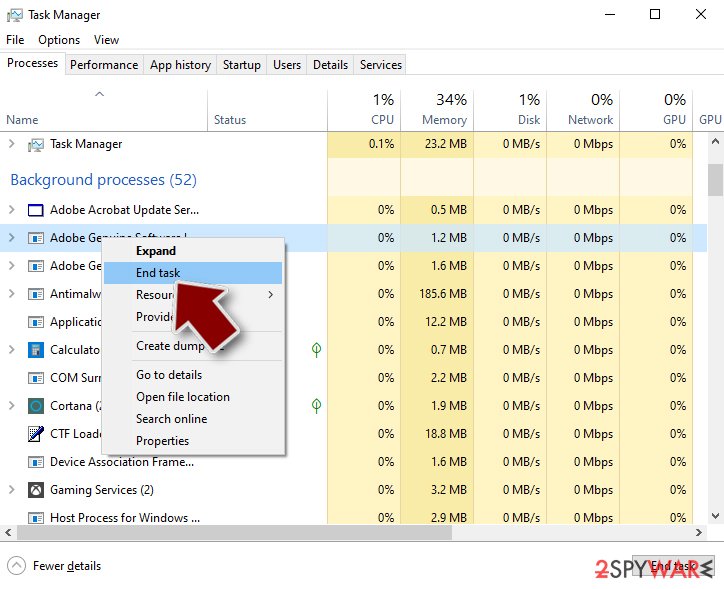
- Delete the contents of the malicious folder.
Step 3. Check program Startup
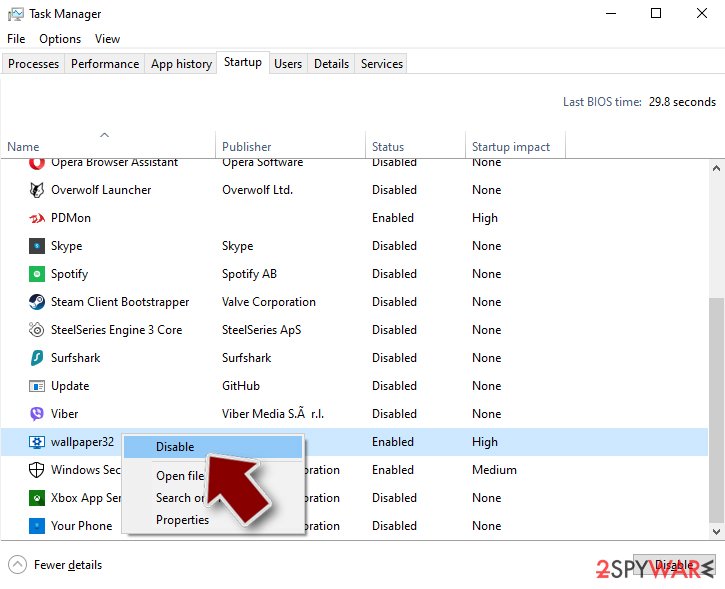
- Press Ctrl + Shift + Esc on your keyboard to open Windows Task Manager.
- Go to Startup tab.
- Right-click on the suspicious program and pick Disable.
Step 4. Delete virus files
Malware-related files can be found in various places within your computer. Here are instructions that could help you find them:
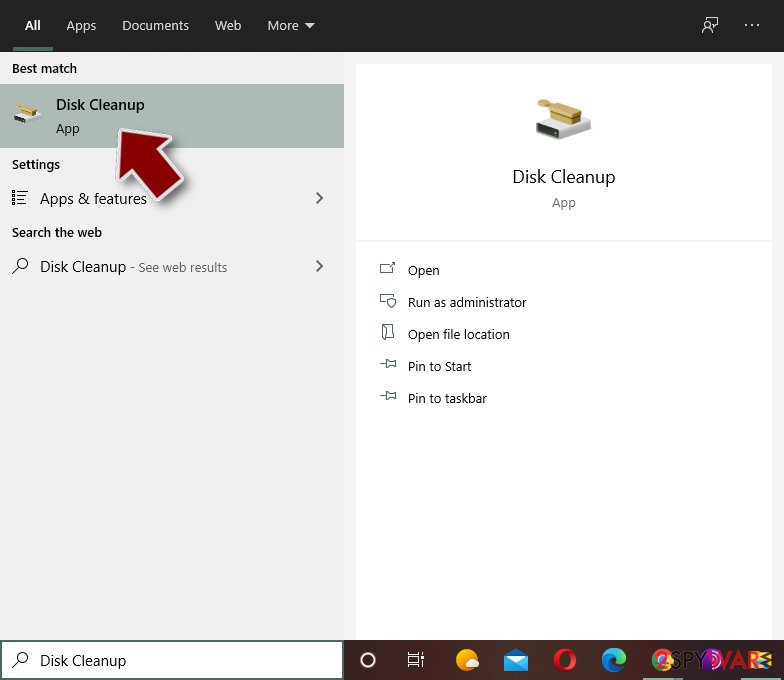
- Type in Disk Cleanup in Windows search and press Enter.
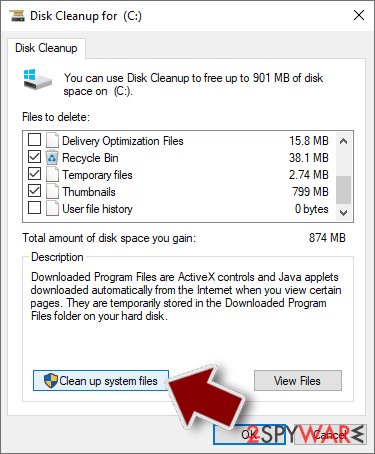
- Select the drive you want to clean (C: is your main drive by default and is likely to be the one that has malicious files in).
- Scroll through the Files to delete list and select the following:
Temporary Internet Files
Downloads
Recycle Bin
Temporary files - Pick Clean up system files.
- You can also look for other malicious files hidden in the following folders (type these entries in Windows Search and press Enter):
%AppData%
%LocalAppData%
%ProgramData%
%WinDir%
After you are finished, reboot the PC in normal mode.
Stream videos without limitations, no matter where you are
There are multiple parties that could find out almost anything about you by checking your online activity.
While this is highly unlikely, advertisers and tech companies are constantly tracking you online. The first step to privacy should be a secure browser that focuses on tracker reduction to a minimum.
Even if you employ a secure browser, you will not be able to access websites that are restricted due to local government laws or other reasons. In other words, you may not be able to stream Disney+ or US-based Netflix in some countries. To bypass these restrictions, you can employ a powerful VPN, which provides dedicated servers for torrenting and streaming, not slowing you down in the process.
Data backups are important - recover your lost files
Ransomware is one of the biggest threats to personal data.
Once it is executed on a machine, it launches a sophisticated encryption algorithm that locks all your files, although it does not destroy them. The most common misconception is that anti-malware software can return files to their previous states. This is not true, however, and data remains locked after the malicious payload is deleted.
While regular data backups are the only secure method to recover your files after a ransomware attack, tools such as can also be effective and restore at least some of your lost data.
From our report of Jul 2018 · not reviewed since
Delete Remote Password Stealer - it will protect your personal data
Remote Password Stealer removal should not be executed manually, as the malicious code is complicated and various strings are embedded deep within the system.
Instead, we suggest users use reputable anti-malware software that can detect malware without much effort and eliminate it in just a few minutes.
If security software cannot be started in a normal mode, security researchers suggest to reboot your computer and enter Safe Mode with Networking, as explained below. This will help you to remove Remote Password Stealer virus and protect your machine from further damage.
[GI=method-1]If Remote Password Stealer virus prevents security software from starting properly, enter Safe Mode with Networking the following way:
[GI=method-2]Eliminate malware using System Restore:
Questions about Remote Password Stealer
Is lpr123.exe safe?
It depends on where the file is and who signed it, not on the name. Open Task Manager, go to the Details tab, right-click lpr123.exe and choose Open file location. A file inside Program Files or System32 with a valid digital signature from a known company is usually part of a legitimate program.
A file in AppData, Temp or ProgramData with no signature, especially one that restarts itself after you end it, is suspicious. If you cannot tie the process to anything you installed, uninstall recent unfamiliar programs and run a Microsoft Defender Offline scan.
lpr123.exe keeps coming back. What should I do?
A process that returns after you end it has a restart mechanism, and that is a reason to treat lpr123.exe as unwanted. Check Settings > Apps > Startup, Task Scheduler and the Services list for entries pointing to its folder, and disable them.
Look in Installed apps for anything added the same day and uninstall it. Then delete the folder and run a Microsoft Defender Offline scan, which works before Windows starts and can remove files that are locked or hidden while the system is running.
I deleted lpr123.exe. Am I safe now?
Your PC may be, but your accounts are not yet. Deleting lpr123.exe stops Remote Password Stealer from running again, if nothing else on the PC restarts it, yet it does nothing about data that was already collected and sent.
Run the offline scan to make sure no other component or second payload remains. Then change passwords from a clean device, sign out of all sessions, move crypto and turn on two-step verification. Those steps, not the deletion, are what protect you from the stolen data.
Can I change my passwords on the infected PC?
Not while the spyware may still be running. A keylogger or stealer would capture the new passwords too. Use a phone or another computer that was never infected, or wait until the Microsoft Defender offline scan on this PC comes back clean.
Start with your main e-mail account, because it can reset every other password, then banking and payment accounts. When you return to this PC, sign in to the browser again only after the scans are clean and you have ended old sessions.
Who should I tell about Remote Password Stealer?
Start with the companies that can act quickly:
- your bank
- card issuer and payment services if money is involved
- crypto exchanges if coins were moved
- the providers of any account that was taken over
Each has a fraud or account-recovery process. Then file a police or national cybercrime report if you lost money or your identity was misused. If the PC is used for work, tell your employer's IT team, because work accounts and data may be affected as well.
Do I need to reinstall Windows to get rid of Remote Password Stealer?
Usually not. A thorough clean-up is enough when the offline scan finds nothing afterwards and you do not see an unfamiliar process called lpr123.exe in Task Manager again. A reset is the safer choice if an attacker had remote control, if security tools were switched off, or if detections come back after every clean-up.
Windows 11 can reset itself without a USB stick under Settings > System > Recovery > Reset this PC. Copy documents and photos out first and scan the copies. A reset does not change passwords or undo stolen data, so the account steps still apply.
Nothing has happened yet. Do I still need to change passwords?
Yes. Stolen logs are often sorted and sold before anyone uses them, so the quiet period can last weeks.
The criminals look for the most valuable accounts first, usually crypto, banking and e-mail, and may only reach yours later. Changing passwords and ending sessions now makes the copy worthless whenever it is used.
It takes an evening. Start with e-mail, then money, then everything else saved in the browser, and turn on two-step verification as you go. Watch for login alerts over the following months.
Can I get back what Remote Password Stealer took?
Accounts, usually yes; money, sometimes. Most services restore an account through their recovery process if you act quickly and still control the e-mail address. Card payments can often be disputed with the bank.
Crypto sent after an unfamiliar process called lpr123.exe in Task Manager is much harder, because transactions cannot be reversed; report it to the exchange the funds went to and to the police, with the wallet addresses and times.
Do not answer offers from "recovery services" that contact you; they are a common second scam aimed at people who just lost funds.
Why is there no analysis of Remote Password Stealer?
Because nobody has shared a sample yet. Reports start with what victims see, here an unfamiliar process called lpr123.exe in Task Manager; analysis follows only when the file that caused it reaches researchers.
Many stealers also delete themselves after sending the data, which leaves little to analyse on the PC. This guide therefore sticks to what is safe for every case:
- secure the accounts
- clean the PC
- remove the likely source
If you find the file you ran before this started, do not open it again; keep it for a scan.
Will Fortect remove Remote Password Stealer?
Fortect scans Windows for malware and unwanted programs and repairs the system files and settings they change, and its free scan shows what it finds on your PC before you decide anything.
For Remote Password Stealer, follow the plan above as well: the browser steps take back permissions and settings that no scanner treats as a threat, and uninstalling the program that brought it removes the source.
Run Microsoft Defender's full scan and, if anything was found, its offline scan as a second opinion. If the symptoms are gone after the plan and both scans are clean, there is nothing more to do.
Sources
- SearchSecurity: Trojan horse (computing) (read October 6, 2026)
- Wikipedia: Blue Screen of Death (read October 6, 2026)
- LesVirus: LesVirus (read October 6, 2026)
- FTC: How to recognize, remove and avoid malware (read October 6, 2026)
- Microsoft Learn: Microsoft Defender Offline (read October 6, 2026)