
Qone8.com: what it is and how to remove it
Qone8.com is a useless and very questionable product that gets distributed by another PUP marked as Omiga. Afterward, the browser hijacker inserts its files into your hard disk one of which can be named omigaplus_IE.exe.
Facts checked October 6, 2026. Removal steps tested on Windows 11 (26H2) and checked against Microsoft's and the browser makers' current documentation. Sections marked as our earlier report are the original text: they describe the threat as it was then and have not been reviewed since. The 2026 status, the removal steps and the questions are current.
Automatic
Get a free scan and check if your PC is infected.
Fortect finds malware, unwanted programs and the Windows damage they leave behind, and repairs it in one pass.
A quick scan confirms nothing else was installed alongside the qone8.com search hijacker.
Do it yourself · free Remove Qone8.com yourself 5 steps, about 15 minutes, no software needed.
Start the steps
Qone8.com: summary
| Name | Qone8.com |
|---|---|
| Type | Browser hijacker/potentially unwanted program |
| Developer | This suspicious product has been developed by Taiwan Shui Mu Chih Ching Technology Limited |
| Distributed by | The browser hijacker can get distributed through a deceptive technique known as "software bundling" but it also is known to be brought to the computer by Omiga |
| Related file | When the potentially unwanted program infiltrates the machine, it places the omigaplus_IE.exe file in your hard drive |
| Similar to | This browser hijacker shares many similarities with others of its kind that are named Qou6.com, Portaldosites.com, etc. |
| Removal | Scan the PC with security software to find and remove the malware and anything installed with it. Fortect scans Windows for malware and repairs the system files and settings it damaged. Remove it nowTo use the full-featured product, you have to purchase a license for Fortect. The scan is free. |
Show 11 more facts
| Search engine | Once the app reaches the web browser, it modifies the default search engine that can be set to search.qone8.com or start.qone8.com |
|---|---|
| Termination | You can terminate the potentially unwanted program and all the additional products that it has brought to the computer by employing automatical software. Also, you can use the manual guiding steps that have been appended to the end of this article |
| Detection names | No Microsoft detection name is known |
| Distribution | Not recorded in the old report |
| Damage | Not recorded in the old report |
| Symptoms | A changed search engine |
| Evidence | 5 write-ups by security sites; details still limited |
| Search page | qone8.com |
| Browsers | Chrome, Edge and Firefox |
| First seen | 27 January 2020 |
| Facts checked | 6 October 2026 |
Is Qone8.com dangerous? What it collects
From our report of Jan 2020 · not reviewed since
Qone8.com - a browser hijacker that can drop odd shortcuts on your Windows menu and desktop
Qone8.com is a useless and very questionable product that gets distributed by another PUP marked as Omiga.
Afterward, the browser hijacker inserts its files into your hard disk one of which can be named omigaplus_IE.exe. A user has reported dealing with this unwanted app on his Google Chrome web browser but the app can also appear on other browsers such as Mozilla Firefox, Internet Explorer, etc. Qone8.com, developed by Taiwan Shui Mu Chih Ching Technology Limited, is similar to Portaldosites.com, Qou6.com, and many other search sites.
The main goal of this browser hijacker is to interfere with major browser settings and deliver intrusive notifications which, according to another user's complaint, make an annoying sound while appearing on the computer screen. Also, you might find that the suspicious app has included questionable shortcuts into your Windows menu bar and on your PC's desktop.
After entering the targeted web browser, Qone8 virus performs unexpected changes on the browser's default search provider, homepage, and new tab URL. It sets these sections as search.qone8.com or start.qone8.com. Afterward, users are forced to use the new search engine that still takes users straight to Google and gathers results from there.
As you should have already noticed, there is no purpose to use Qone8.com when you can just use the original Google search engine instead. Besides, if you change your search engine to a different one, you might be loaded with unwanted notifications that will likely start interrupting you during browsing activities.
Qone8 malware removal is a common topic searched by Internet users as a lot of people have been struggling with the unexpected changes that come provided by this browser hijacker and its intrusive ads. As we have already mentioned, the PUP even drops advertisements that pop out by causing interruptive sounds.
Qone8.com might push all types of offers to you such as coupons for various products, "free" prizes, requests to update your software, urges to download a rogue system optimization tool, and so on. This way you can get easily tricked into a scam and spend your money on a useless product or service.
Nevertheless, you might be manipulated by Qone8.com to provide personal information while entering some type of survey or fake prize claim. Beware not to put any private data on the Internet as it can easily get exposed. The same goes for credentials that can be used for subscribing you to a completely useless and expensive service.
PUP.Optional.Qone8 might seem a useful program from the first view as it can aim to provide fast access to popular social platforms such as Facebook, Twitter, Instagram and well-known e-shopping stores such as Amazon, eBay, and AliExpress. However, these features are not worth the other intrusive activity that is brought by the browser hijacker.
Continuously, Qone8.com can start recording information that is related to your browsing sessions. These types of details usually refer to most frequently visited websites, hyperlinks and adverts accessed, bookmarks saved, your IP, etc. Afterward, the data is mostly used in targeted advertising campaigns or for sharing it with other parties.
Another unexpected feature of Qone8.com is the possibility to redirect users to affiliate sources. While using the PUP's services, you might be easily taken to a website that is filled with suspicious offers. Nevertheless, this way you might get forcibly landed on a location that holds dangerous malware infections, e.g. trojans.
Qone8.com removal is the best way to avoid all the potential dangers that can be brought while keeping the potentially unwanted program on your system. This app can get easily terminated with a reliable antimalware product. According to VirusTotal information, the domain has been detected as malicious by Fortinet and Forcepoint ThreatSeeker AV tools.
You can also remove Qone8.com with the help of the manual instructions that have been added to the end of this article. It is important not only to check your operating system but also clean all the infected web browser applications as the browser hijacker might have included suspicious extensions and other components there.


Check your browser and PC
- Address:
qone8.com
How to remove Qone8.com
How to remove Qone8.com and get your search engine back
Remove the extension first.
The search settings only stay fixed once nothing on the PC can change them again.
Step 1: Remove extensions you did not add
In Chrome open
chrome://extensions, in Edgeedge://extensions, and in Firefox the menu > Extensions and themes.Remove every extension you do not remember adding, especially search, new tab, coupon, PDF, weather or video downloader add-ons. Check every browser and every profile, because each keeps its own list.
If an extension has no Remove button or comes back, a browser policy holds it (see "Managed by your organization" in the procedure below). The pages are the same on Windows 11 and Windows 10.
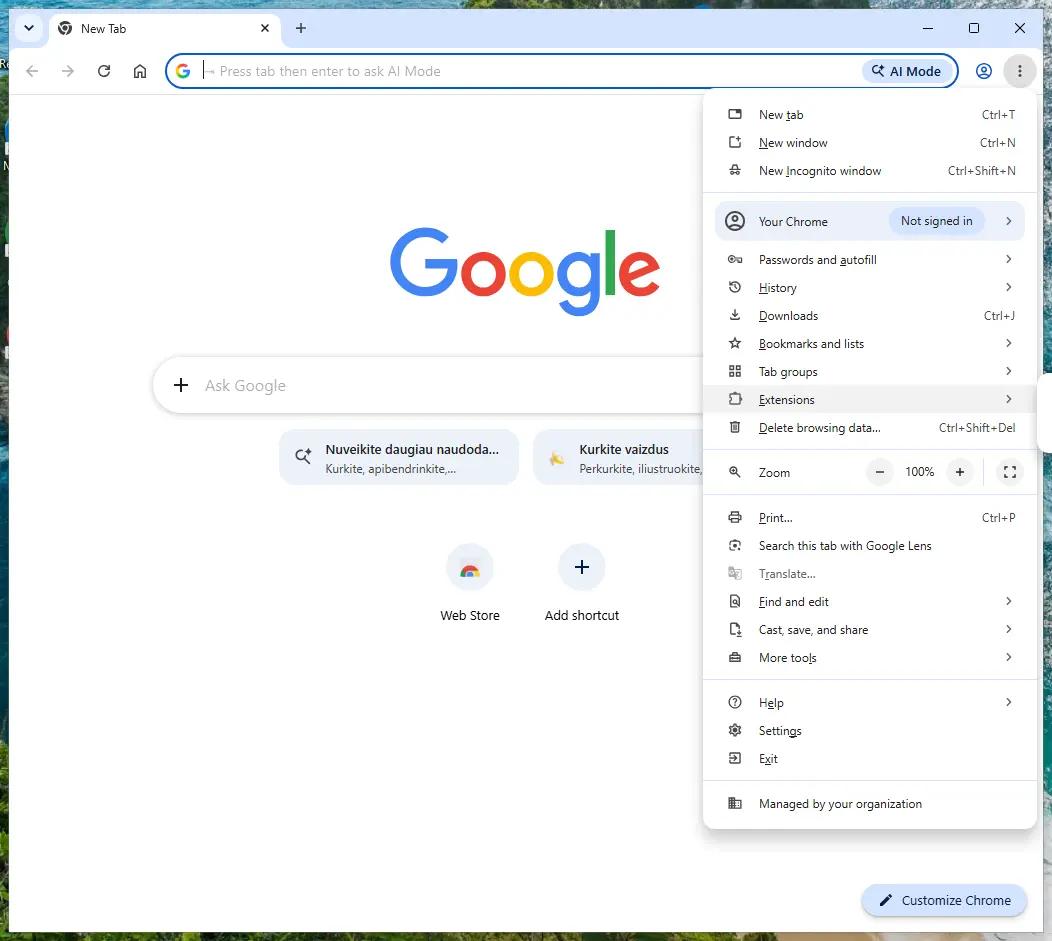
Chrome on Windows 11: More > Extensions > Manage extensions. Full procedure with screenshots: Remove a browser extension
Step 2: Put the search engine back and delete qone8.com
In Chrome open Settings > Search engine > Manage search engines and site search, make an engine you trust the default, and delete
qone8.comfrom the list.In Edge type
search engineinto the search box at the top of Settings and open Manage search engines; in Firefox use Settings > Search. Then check the homepage and the new tab page in the same settings, because hijackers change all three.If qone8.com is back after a restart, an extension, a program or a policy still sets it, so finish the other steps and check again. The settings are the same on Windows 11 and Windows 10.
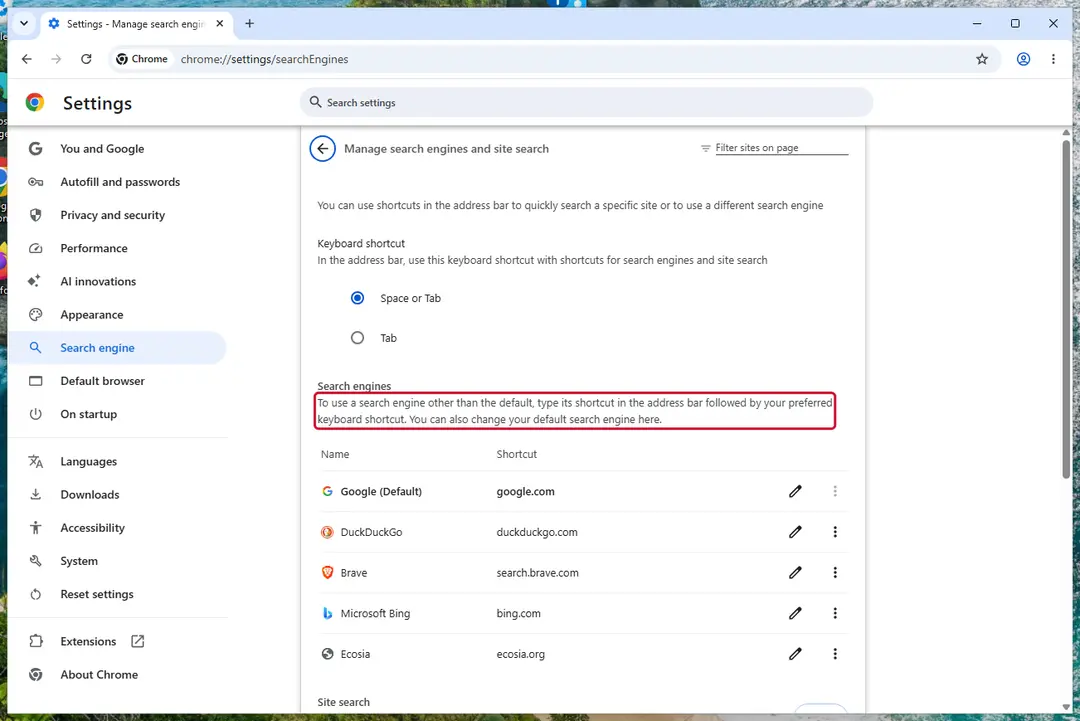
Chrome on Windows 11: check Search engine and On startup. Full procedure with screenshots: Reset a browser and fix a hijacked search engine
Step 3: Uninstall programs you did not mean to install
Qone8.com rarely comes alone: it is usually installed by, or together with, a free program. In Windows 11 open Settings > Apps > Installed apps, in Windows 10 Settings > Apps > Apps & features, and sort by install date.
Uninstall every entry from the day the trouble began that you did not install on purpose, for example a download manager, a converter or a browser you never chose.
Keep drivers and entries from Microsoft, Intel, AMD, NVIDIA or your PC's maker unless you are sure.
Full procedure with screenshots: Uninstall a program or app in Windows On uGetFix
Step 4: Reset the browser
A reset removes what the steps above could miss:
- changed start pages
- site permissions
- hidden settings
In Chrome open Settings > Reset settings > Restore settings to their original defaults; in Edge Settings > Reset settings; in Firefox Help > More troubleshooting information > Refresh Firefox.
Tip: Bookmarks and saved passwords stay, while extensions are turned off and the search engine and start page return to the defaults.
Reset every browser on the PC, including Edge, which Windows 11 and Windows 10 always have.
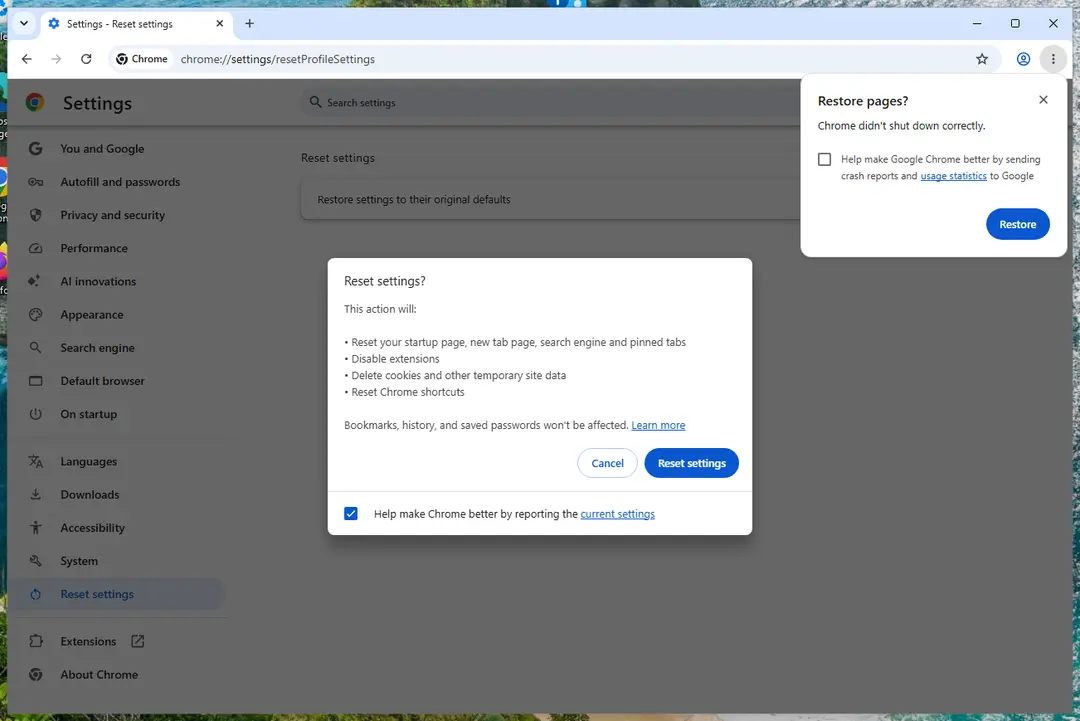
Chrome on Windows 11: Settings > Reset settings. Full procedure with screenshots: Reset a browser and fix a hijacked search engine
Step 5: Scan the PC, then run the offline scan
A scan finds the parts of Qone8.com that the manual steps cannot see. In Windows Security > Virus & threat protection > Scan options, start a Full scan and quarantine what it reports.
Follow it with Microsoft Defender Antivirus (offline scan) > Scan now, which restarts the PC and checks the disk while Windows and the malware are not running.
It takes about 15 minutes and works the same in Windows 11 and Windows 10. If either scan finds something, run the full scan again after removal until it comes back clean.

Windows 11: Windows Security > Virus & threat protection > Scan options. Full procedure with screenshots: Run a Microsoft Defender Offline scan
Instructions for each browser and system
The detailed steps for every browser and system this guide covers. Open the one you use.
Uninstall from Windows
To eliminate the browser hijacker from your Windows computer system, employ the following guiding steps.
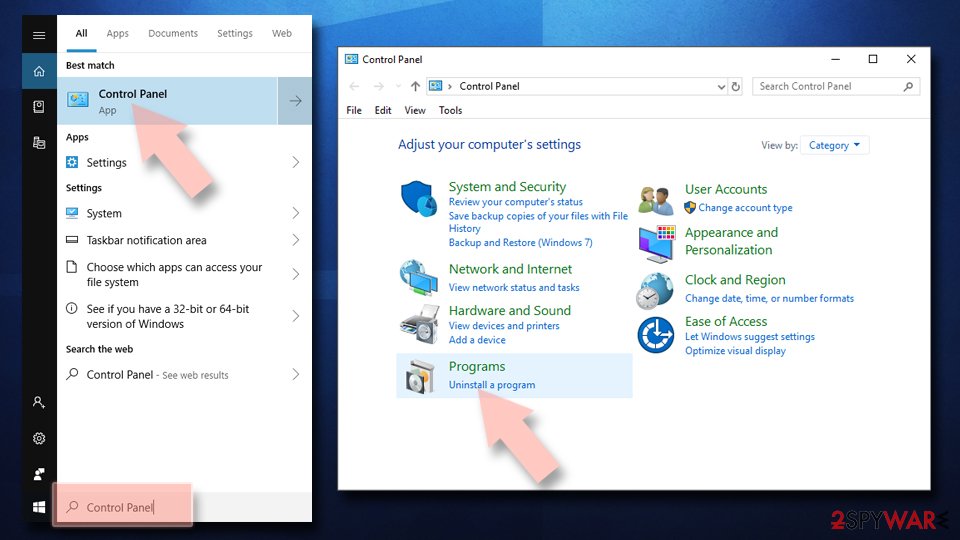
Uninstall from Windows 10/8:
- Type Control Panel into the Windows search box and open the result.
- Under Programs, select Uninstall a program.
Uninstall from Windows 7/XP:
- Click on Windows Start > Control Panel (Windows XP users should click on Add/Remove Programs).
- In Control Panel, select Programs > Uninstall a program.
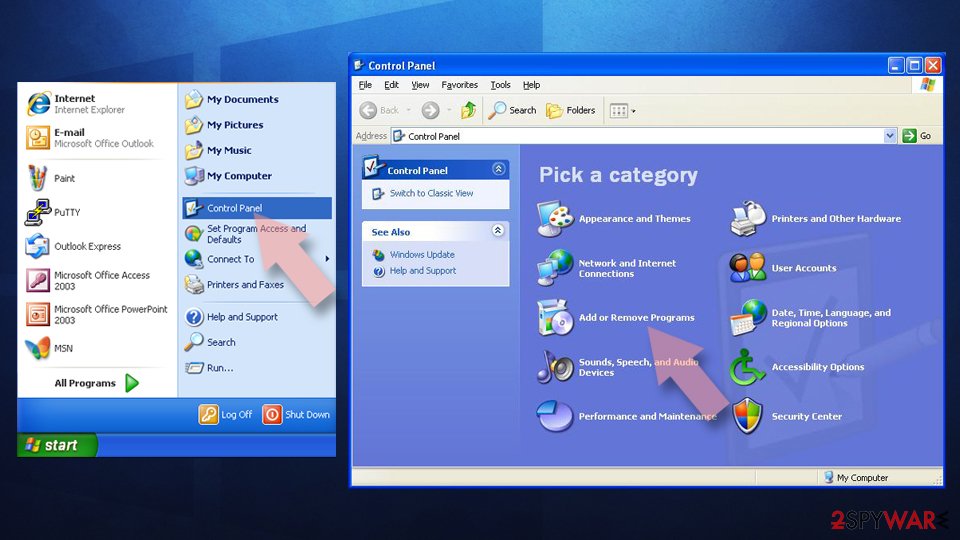
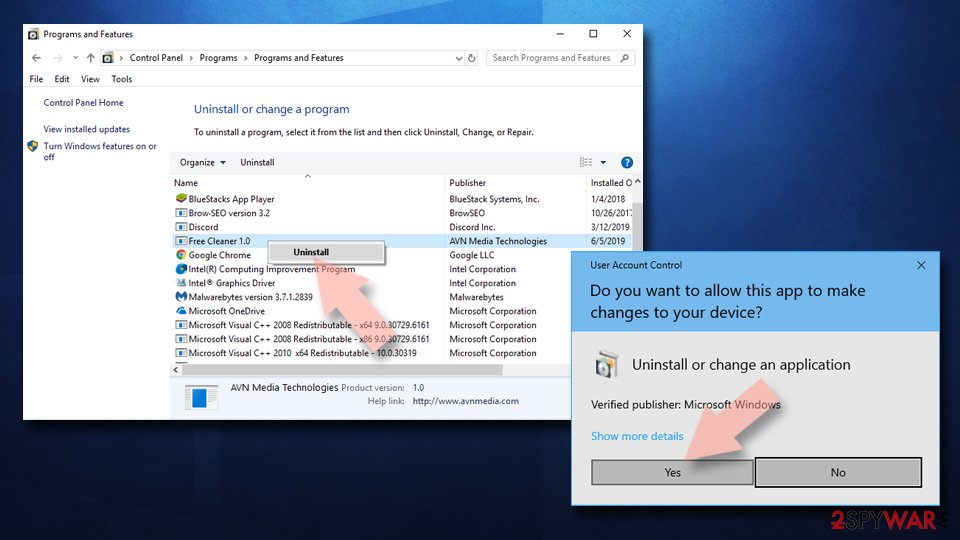
Remove the unwanted program:
- In the Programs and Features window, look for any recently installed suspicious entries, select them, and click Uninstall.
- If User Account Control appears, click Yes to confirm, then complete the removal.
Remove from Google Chrome
To get rid of suspicious extensions from your Google Chrome web browser and bring its settings back to the primary state, apply the following guidelines.
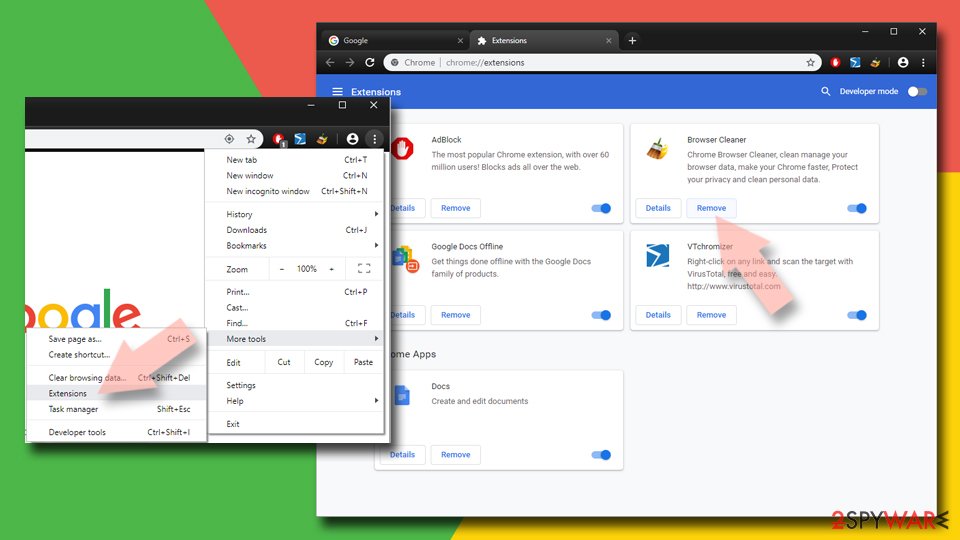
Delete malicious extensions from Google Chrome:
- Open Google Chrome, click on the Menu (three vertical dots at the top-right corner) and select More tools > Extensions.
- In the newly opened window, you will see all the installed extensions. Uninstall all suspicious extensions related to the unwanted program by clicking Remove.
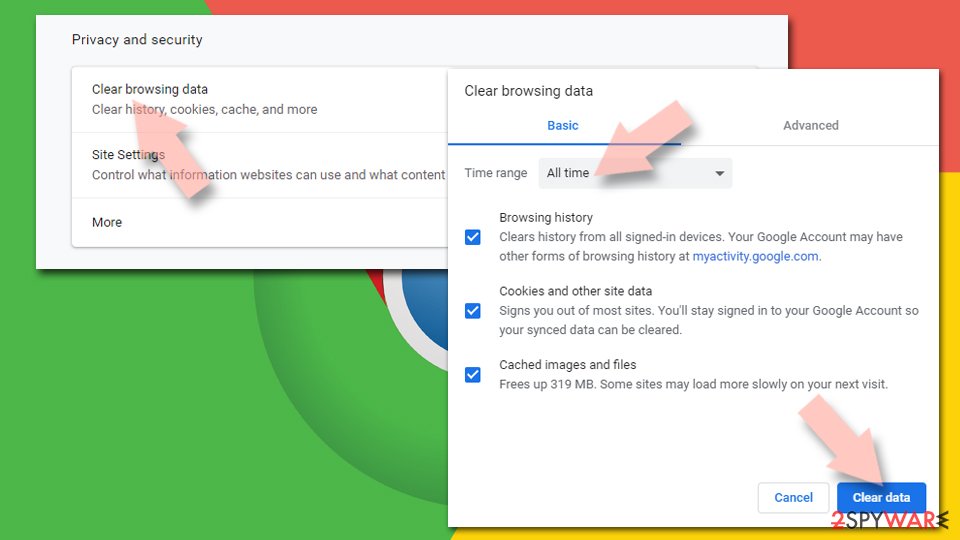
Clear cache and web data from Chrome:
- Click on Menu and pick Settings.
- Under Privacy and security, select Clear browsing data.
- Select Browsing history, Cookies and other site data, as well as Cached images and files.
- Click Clear data.
Change your homepage:
- Click menu and choose Settings.
- Look for a suspicious site in the On startup section.
- Click on Open a specific or set of pages and click on three dots to find the Remove option.
Reset Google Chrome:
If the previous methods did not help you, reset Google Chrome to eliminate all the unwanted components:
- Click on Menu and select Settings.
- In the Settings, scroll down and click Advanced.
- Scroll down and locate Reset and clean up section.
- Now click Restore settings to their original defaults.
- Confirm with Reset settings.
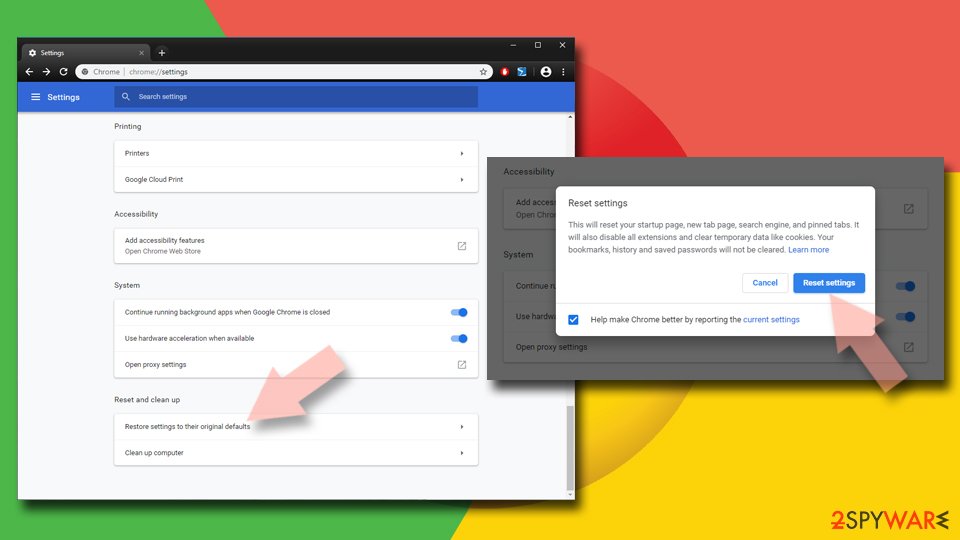
Remove from Microsoft Edge
To clean your Microsoft Edge web browser from suspicious products and changes, use the below-provided instructions.
Delete unwanted extensions from MS Edge:
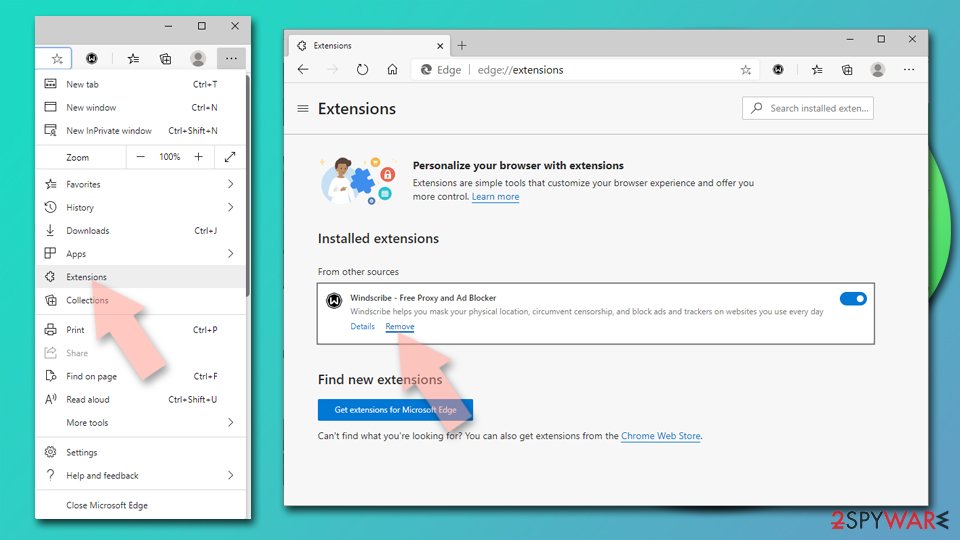
- Select Menu (three horizontal dots at the top-right of the browser window) and pick Extensions.
- From the list, pick the extension and click on the Gear icon.
- Click Remove.
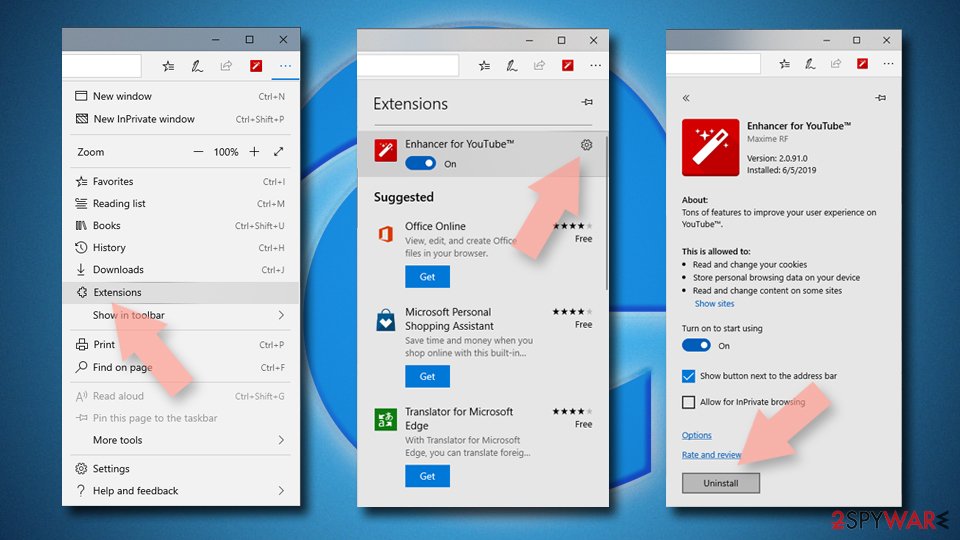
Clear cookies and other browser data:
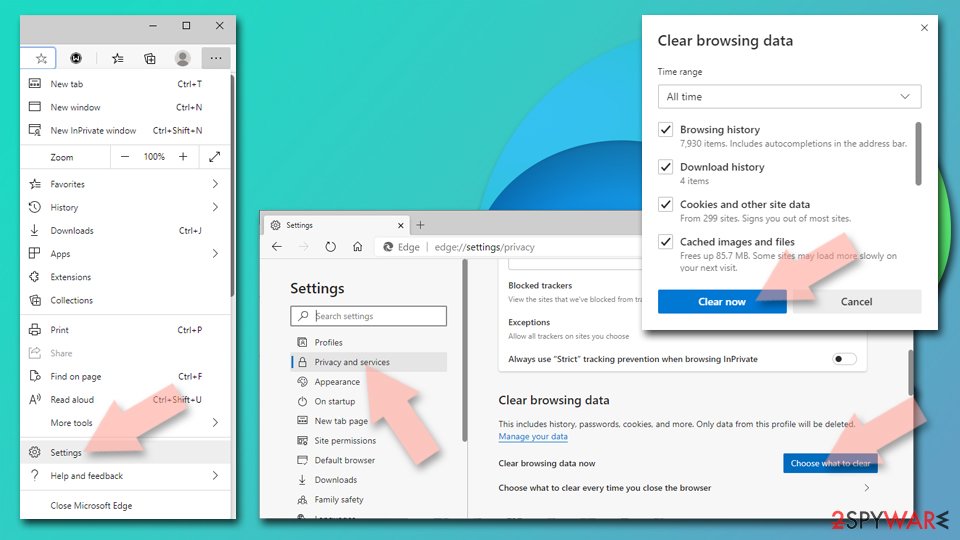
- Click on the Menu (three horizontal dots at the top-right of the browser window) and select Settings > Privacy, search, and services..
- Under Clear browsing data, pick Choose what to clear.
- Select Cookies and other site data and Cached images and files. (apart from passwords, although you might want to include Media licenses as well, if applicable) and click on Clear.
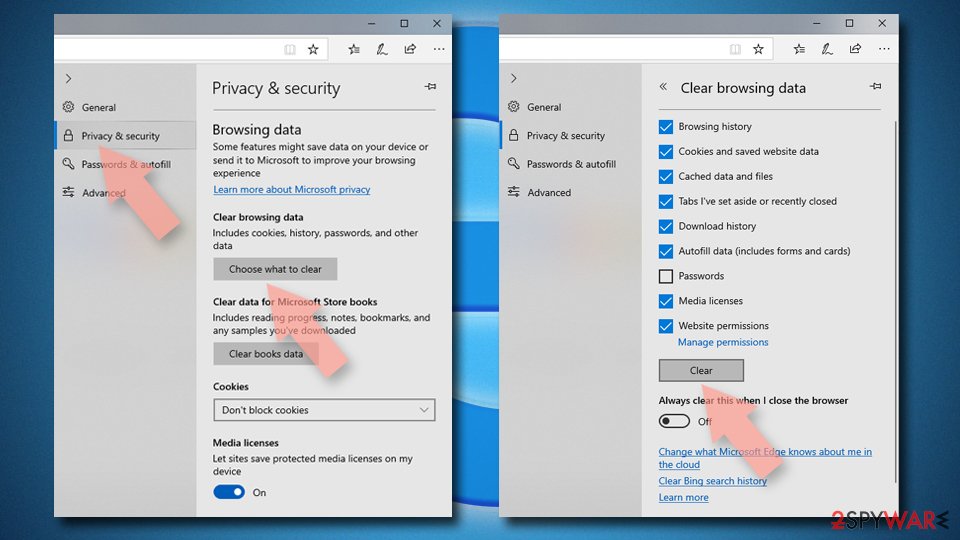
Restore new tab and homepage settings:
- Click the menu icon and choose Settings.
- Then find On startup section.
- Click Remove next to any suspicious startup page.
Reset MS Edge if the above steps did not work:
- Press on Ctrl + Shift + Esc to open Task Manager.
- Click on More details arrow at the bottom of the window.
- Select Details tab.
- Now scroll down and locate every entry with Microsoft Edge name in it. Right-click on each of them and select End Task to stop MS Edge from running.
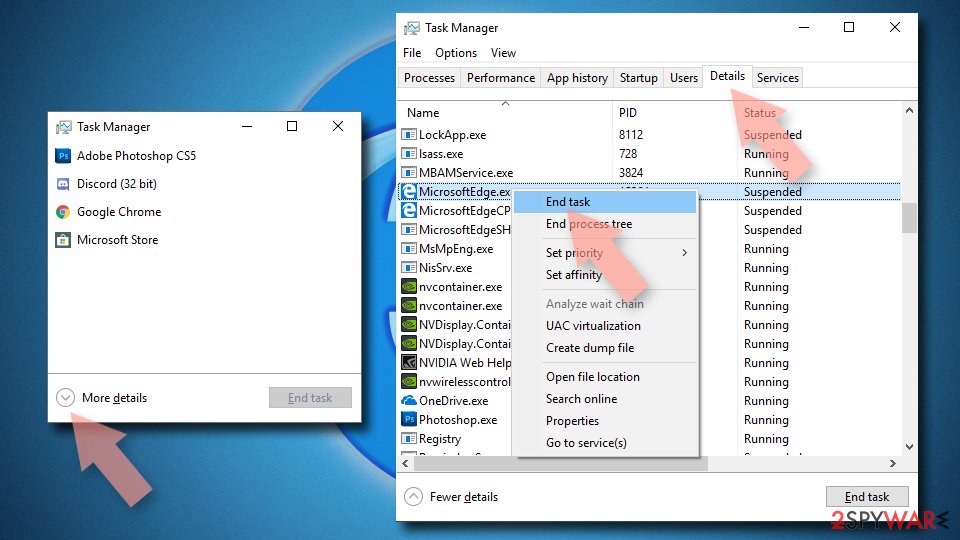
Delete extensions from MS Edge (Chromium):
- Open Edge and click select Settings > Extensions.
- Delete unwanted extensions by clicking Remove.
Clear cache and site data:
- Click on Menu and go to Settings.
- Select Privacy, search and services.
- Under Clear browsing data, pick Choose what to clear.
- Under Time range, pick All time.
- Select Clear now.
Reset Chromium-based MS Edge:
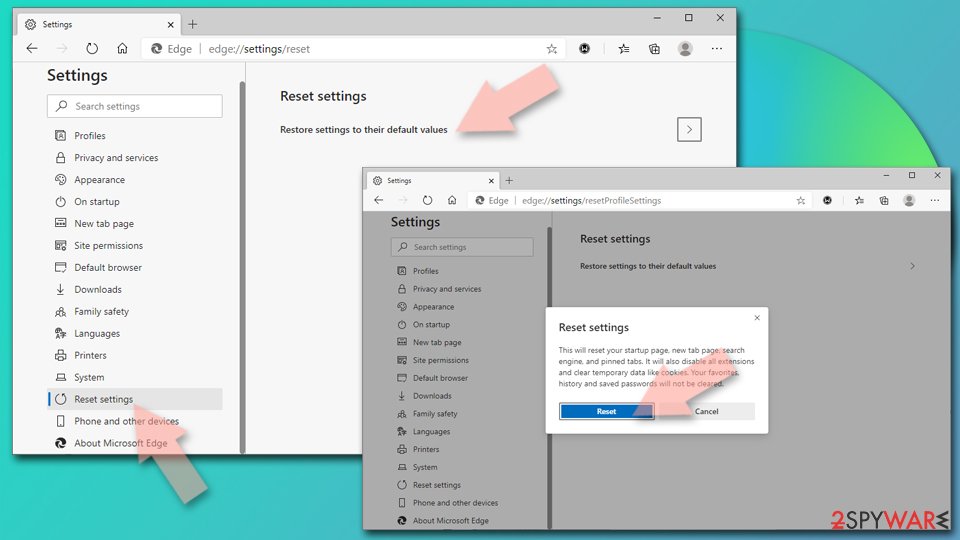
- Click on Menu and select Settings.
- On the left side, pick Reset settings.
- Select Restore settings to their default values.
- Confirm with Reset.
- This will disable extensions and reset startup pages but will not delete bookmarks, saved passwords, or browsing history.
Remove from Mozilla Firefox (FF)
Remove dangerous extensions:
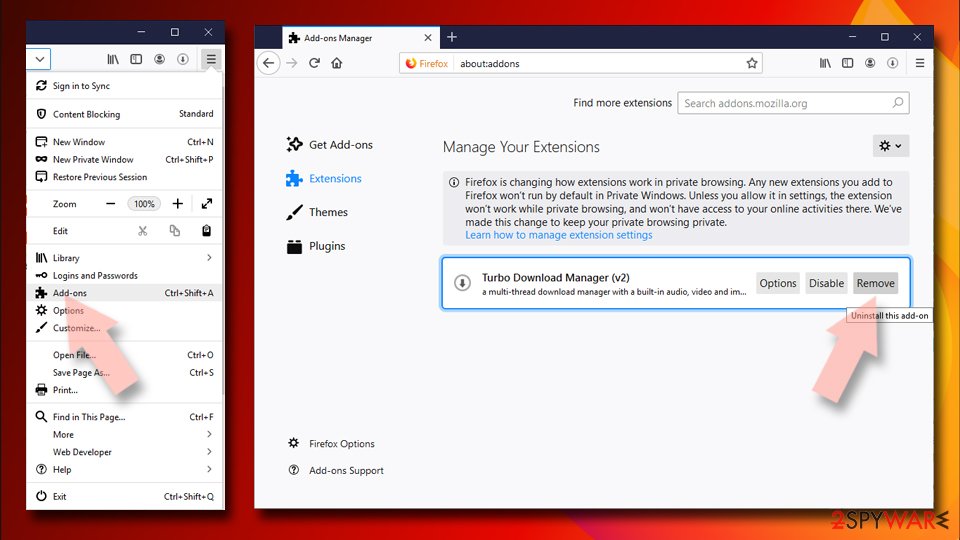
- Open Mozilla Firefox browser and click on the Menu (three horizontal lines at the top-right of the window).
- Select Add-ons.
- In here, select the unwanted extension and click Remove.
Reset the homepage:
- Click three horizontal lines at the top right corner to open the menu.
- Choose Settings.
- Under Home, set your preferred homepage and new tab settings.
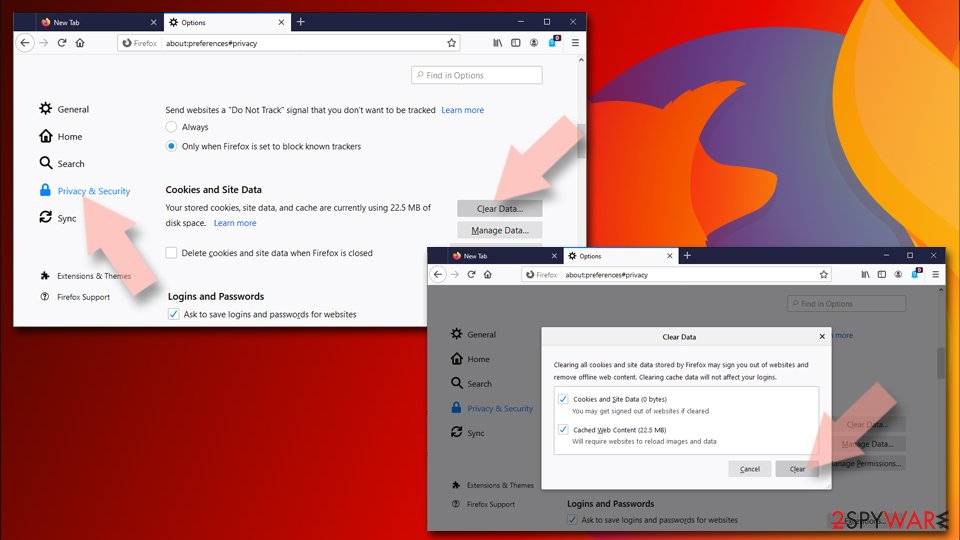
Clear cookies and site data:
- Click Menu and pick Settings.
- Go to Privacy & Security section.
- Scroll down to locate Cookies and Site Data.
- Click on Clear Data...
- Select Cookies and Site Data and Temporary cached files and pages, then click Clear.
Reset Mozilla Firefox
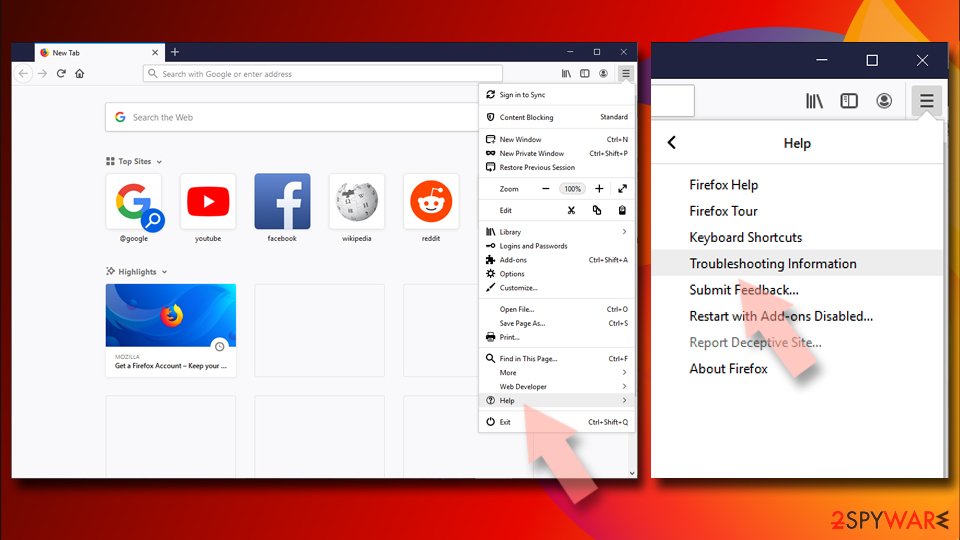
If clearing the browser as explained above did not help, reset Mozilla Firefox:
- Open Mozilla Firefox browser and click the Menu.
- Go to Help and then choose Troubleshooting Information.
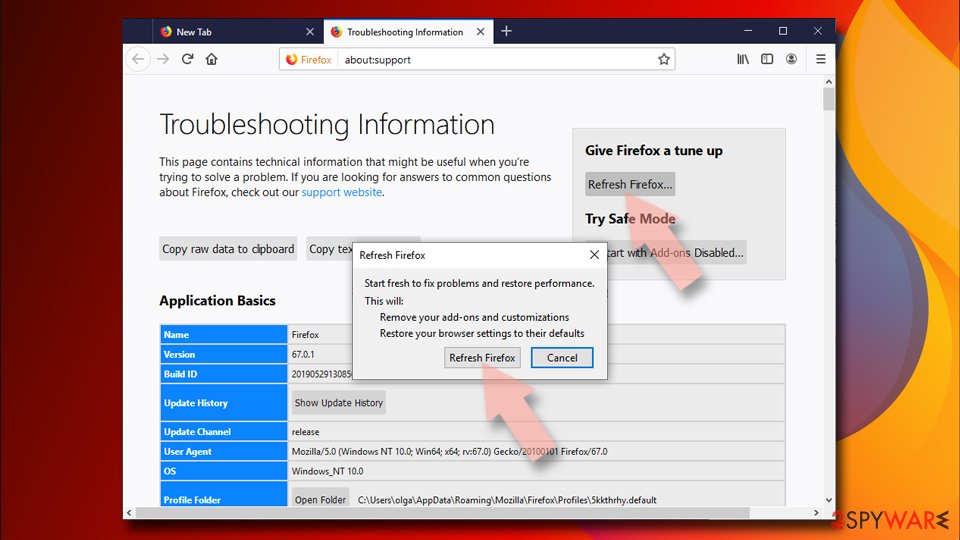
- Under Give Firefox a tune up section, click on Refresh Firefox...
- Once the pop-up shows up, confirm the action by pressing on Refresh Firefox.
Delete from Safari
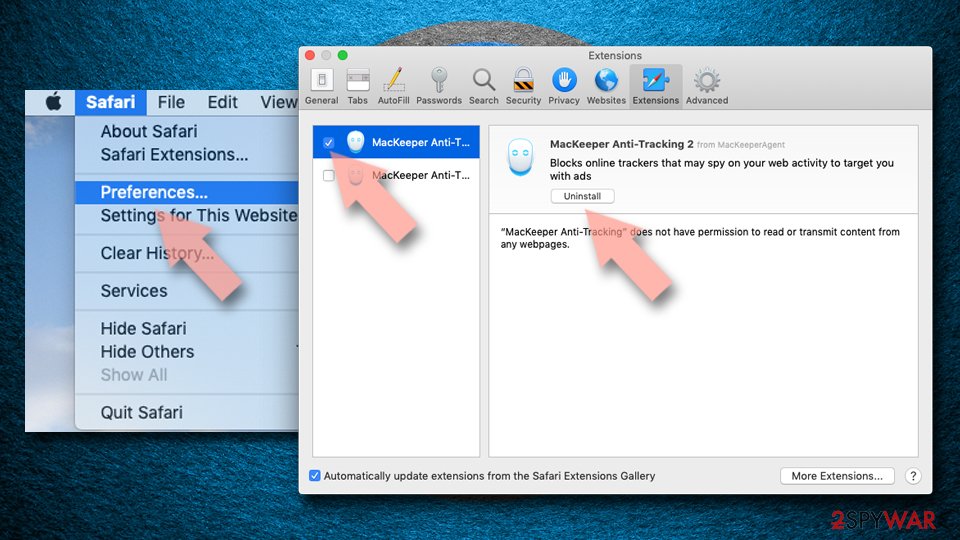
Remove dangerous extensions:
- Open Safari, click Safari in the menu at the top-left of the screen, and select Preferences.
- Go to the Extensions tab, look for any suspicious entries, and click Uninstall to remove them.
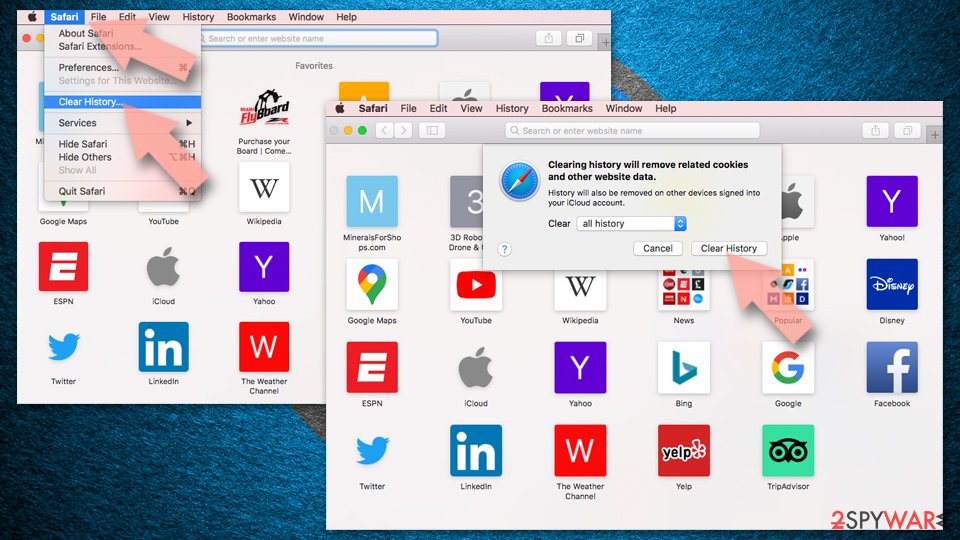
Clear history and website data:
- Click Safari in the menu and pick Clear History.
- Set Clear to all history and confirm with Clear History.
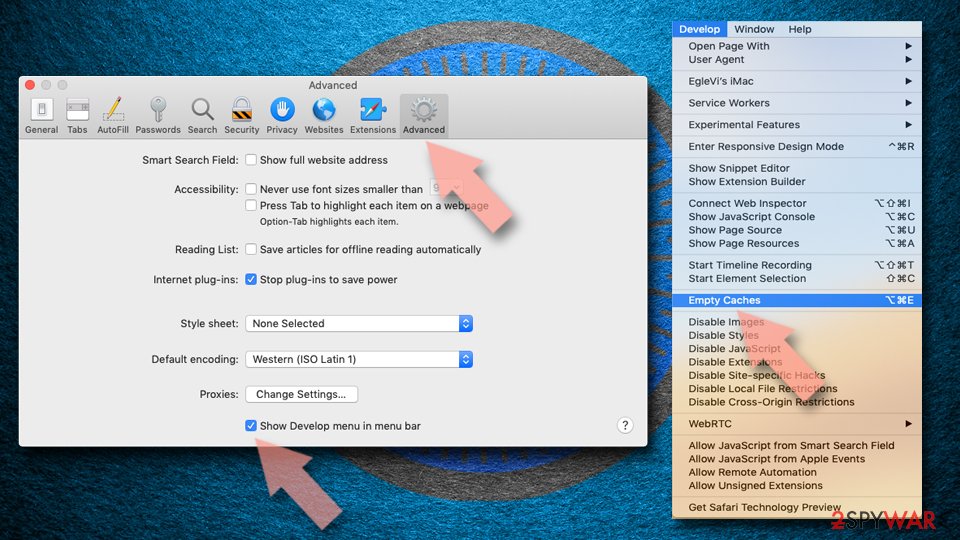
Reset Safari:
- Click Safari in the menu and select Preferences > Advanced.
- Enable Show Develop menu in menu bar.
- From the menu bar, click Develop and select Empty Caches.
Delete from macOS
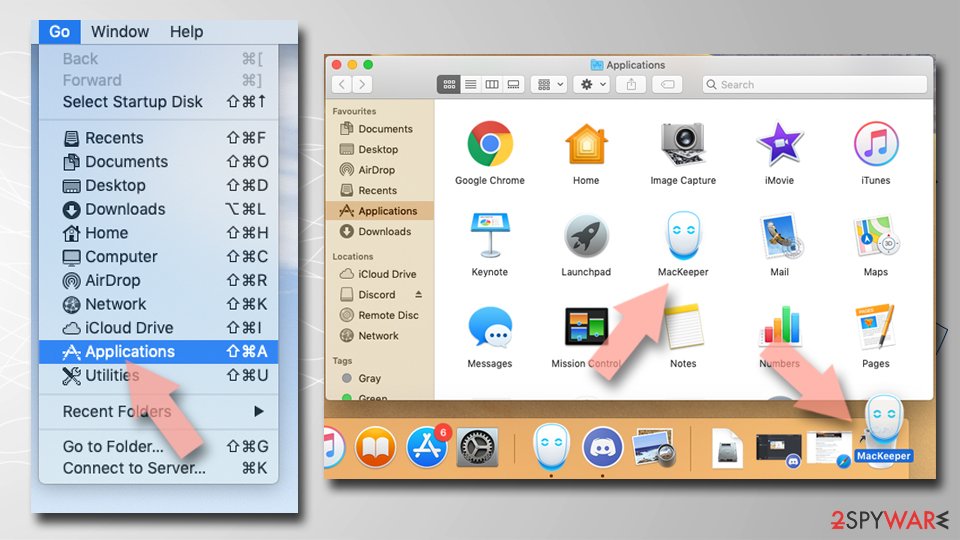
Remove the unwanted application:
- From the menu bar, select Go > Applications.
- In the Applications folder, look for any suspicious entries, then drag them to Trash (or right-click and pick Move to Trash).
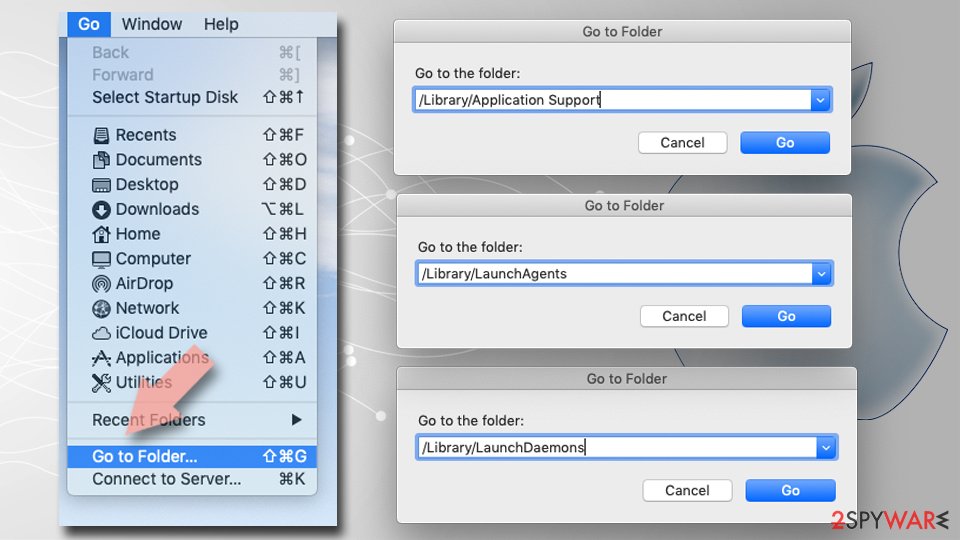
Delete leftover files and folders:
- Select Go > Go to Folder.
- Enter /Library/Application Support and remove any suspicious folders related to the unwanted program.
- Repeat the same check in the /Library/LaunchAgents and /Library/LaunchDaemons folders, deleting any suspicious entries.
- Finally, empty the Trash to permanently remove the leftovers.
Reset Internet Explorer
Remove dangerous add-ons:
- Open Internet Explorer, click on the Gear icon (IE menu) on the top-right corner of the browser
- Pick Manage Add-ons.
- You will see a Manage Add-ons window. Here, look for suspicious plugins. Click on these entries and select Disable.
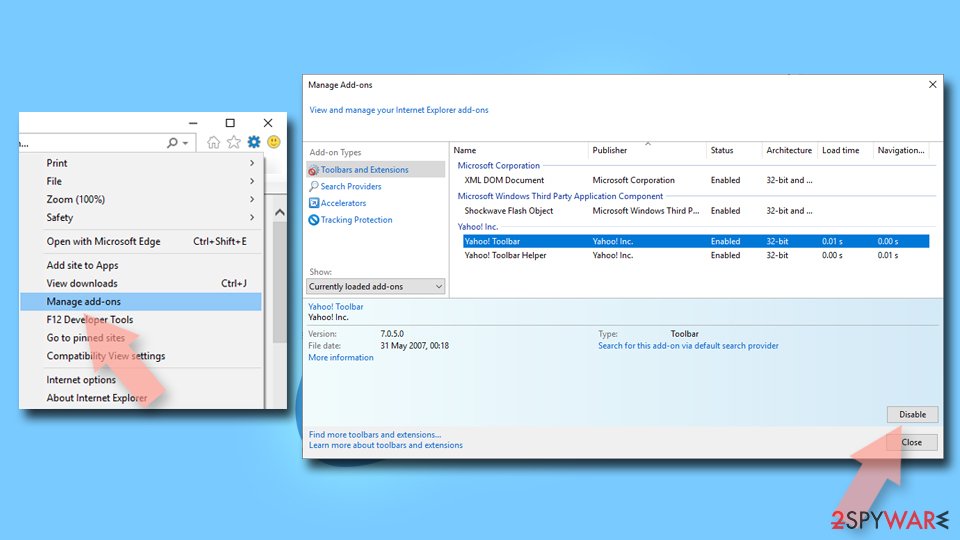
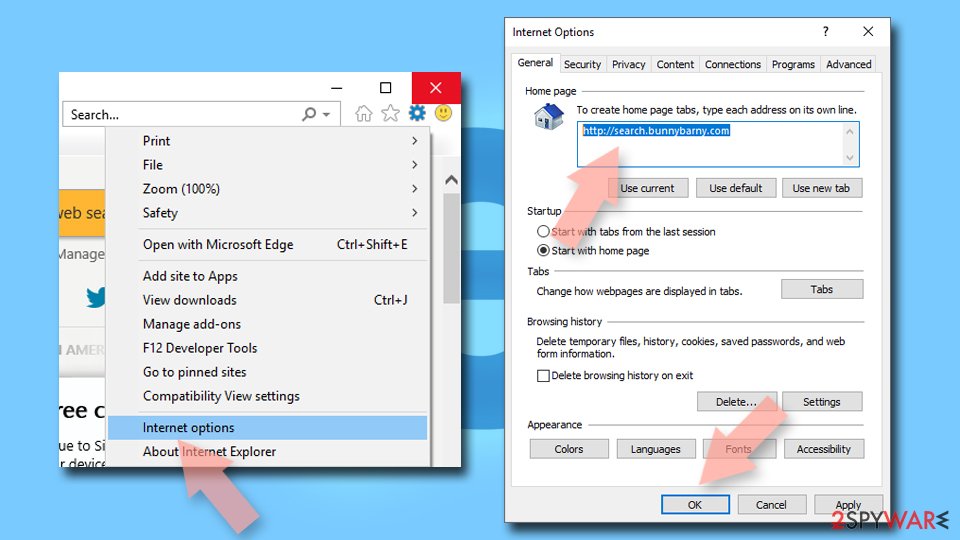
Change your homepage if it was altered:
- Open IE and click on the Gear icon.
- Select Internet Options.
- In the General tab, delete the Home page address and replace it by your preferred one (for example, Google.com).
- Click Apply and then select OK.
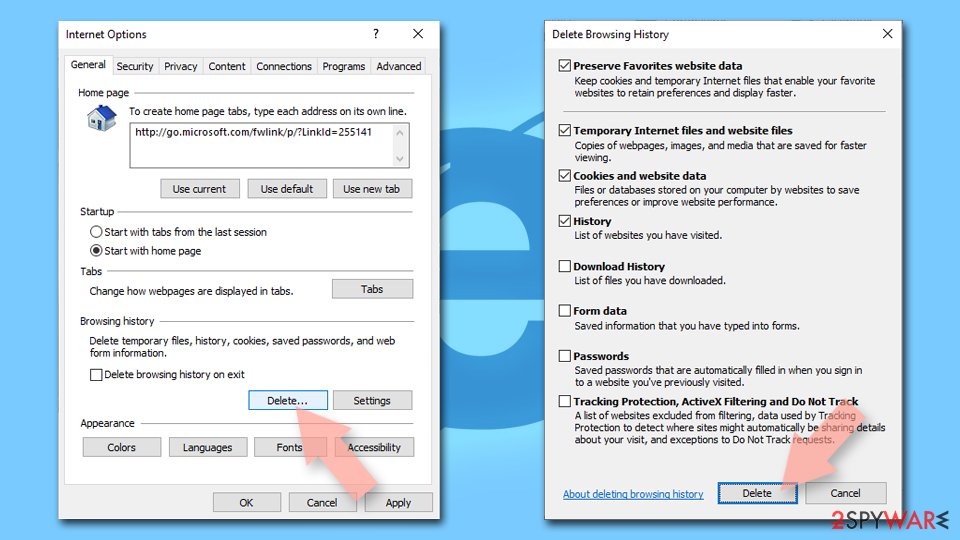
Delete temporary files:
- Press on the Gear icon and select Internet Options.
- Under Browsing history, click Delete...
- Select relevant fields and press Delete.
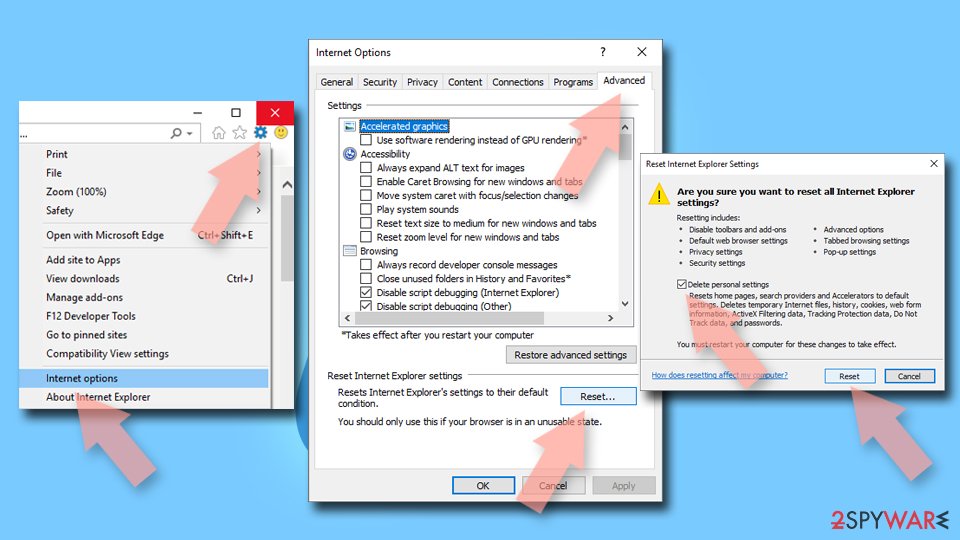
Reset Internet Explorer:
- Click on Gear icon > Internet options and select Advanced tab.
- Select Reset.
- In the new window, check Delete personal settings and select Reset.
Protect your privacy - employ a VPN
There are several ways how to make your online time more private - you can access an incognito tab.
However, there is no secret that even in this mode, you are tracked for advertising purposes. There is a way to add an extra layer of protection and create a completely anonymous web browsing practice with the help of VPN. This software reroutes traffic through different servers, thus leaving your IP address and geolocation in disguise.
Besides, it is based on a strict no-log policy, meaning that no data will be recorded, leaked, and available for both first and third parties. The combination of a secure web browser and VPN will let you browse the Internet without a feeling of being spied or targeted by criminals.
No backups? No problem. Use a data recovery tool
If you wonder how data loss can occur, you should not look any further for answers - human errors, malware attacks, hardware failures, power cuts, natural disasters, or even simple negligence.
In some cases, lost files are extremely important, and many straight out panic when such an unfortunate course of events happen. Due to this, you should always ensure that you prepare proper data backups on a regular basis.
If you were caught by surprise and did not have any backups to restore your files from, not everything is lost. is one of the leading file recovery solutions you can find on the market - it is likely to restore even lost emails or data located on an external device.
From our report of Jan 2020 · not reviewed since
Browser hijackers appear on systems after skipping crucial installing steps
According to cybersecurity experts from LosVirus.es, browser hijackers may appear on your machine without your awareness.
However, this mostly happens due to a part of the victim's fault while rushing to complete installing processes and skipping crucial. Our point is that you should take care of all downloading tasks properly, otherwise, you might easily end up with a potentially unwanted program on your computer and browsers.
Also, when installing freeware on PC, you should select the Custom or Advanced installation option and then carefully follow its every installation step. You should deselect the checkmark that claims that you want to alter your start page, default search engine, and new tab page. By doing that, you will prevent browser hijacker infiltration. Of course, you should also opt-out of all suspicious browser plugins, toolbars, and extensions.
If you want to protect yourself from questionable search engines properly, another thing that you should do is to install anti-virus and anti-spyware programs that include the secure browsing feature and will ensure that your computer is always protected from potential threats. Also, to ensure the tool's proper operation, you should update the antivirus program every time you are required to.
From our report of Jan 2020 · not reviewed since
Qone8.com removal instructions
Qone8.com is a browser hijacker that should be eliminated from the system without wasting time, otherwise, you will be left struggling with unwanted browser changes for a while.
However, if you already have reliable antimalware software, you can definitely use your own liked program for completing the process.
Also, Qone8.com removal can be carried out with the help of manual step-by-step guidelines that have been presented to you at the end of this article. There you will find steps on how to clean your Windows/macOS computer and also refresh web browser applications such as Google Chrome, Mozilla Firefox, Internet Explorer, Microsoft Edge, and Safari that were also touched by the browser-hijacking infection.
Questions about Qone8.com
Is it safe to keep qone8.com as my search engine?
It is not recommended. Searches through qone8.com usually still return results, but the operator sees every query, often stores it with an identifier for your browser and shows extra ads or paid links. Some hijacked results lead to fake downloads or scam pages.
You also did not choose it, which means something changed your settings without asking and may still be installed. Set your own search engine back, remove the extension or program that set qone8.com, and check the browser's other settings, such as the start page and notification permissions, for further changes made at the same time.
Can qone8.com see my searches?
Yes. Every search typed into the address bar goes to qone8.com first, which is how it earns money. It can log the query, the time and an identifier for your browser, and some hijackers also collect the pages you visit through their extension.
The privacy policy of such sites usually allows sharing that data with partners. Once the hijacker is removed and your own search engine is set again, new searches no longer reach it. Searches already sent cannot be taken back, so avoid entering sensitive information until the clean-up is finished, and clear cookies afterwards.
What is qone8.com?
It is the search page used by the browser hijacker Qone8.com. It has no search index of its own: it forwards your queries to another search engine and adds ads and tracking along the way.
People rarely choose it on purpose; it becomes the default search engine, home page or new tab after an extension, program or policy changes the browser settings. The page itself is not malware, but it should not be in your browser if you did not set it. The steps above remove the source and restore your settings.
Is qone8.com dangerous?
It is not designed to infect the PC, but it is not neutral either. It logs searches, adds sponsored results that are hard to tell apart from real ones, and its ad partners are not checked as strictly as those of major search engines.
Some hijacker pages have shown ads for fake updates, tech support scams and unwanted software. The main harm is to privacy. Remove Qone8.com, and if you entered personal data on sites reached through its results, check those sites carefully.
Do I have to fix every browser?
Yes, every one where the search engine or start page changed. In the cases we checked, Qone8.com affected Chrome, Edge and Firefox.
Each browser stores its own search settings and extensions, so fixing one does not fix the others, and Windows-level changes such as shortcuts can affect each browser differently. Work through them one at a time:
- remove the extension
- check the policies
- restore the search engine
- start page
If you sync a browser, stay signed in so the fix spreads to your other computers.
Did qone8.com record my searches?
Almost certainly. Logging is the point of a hijacker search page: each query, with your IP address, browser details and the result you clicked, is valuable to advertisers.
The operators of qone8.com can store and share that data under their own privacy policy, which you never agreed to knowingly. There is no way to delete it from their side. What you can do is stop the flow:
- remove Qone8.com
- clear cookies and site data for qone8.com
- treat sensitive searches made in the meantime as known to a third party
Can I just block qone8.com?
You can, but it treats the symptom. Blocking the domain in a firewall or the hosts file makes searches fail instead of redirecting, while the extension or program that set it keeps running and collecting data.
Hijacker operators also switch to new domains in updates, so a block may stop working within weeks. Remove the source instead, then set your own search engine. If you want extra protection afterwards, turn on Potentially unwanted app blocking in Windows Security, which stops many hijacker installers before they run.
Is only one browser affected?
Often not. Programs that install hijackers tend to change every browser they find, and sync can carry the extension to other computers signed in to the same browser account. Check Chrome, Edge and Firefox, even the ones you rarely use, and look at the shortcut targets on the desktop and taskbar for each.
If you use sync, remove the extension while signed in so the removal syncs too. Also check the On startup setting and the new tab page, because hijackers change those as well as the search engine.
Why does my search page look slightly different?
Because it is not your search engine's own page. Qone8.com sends searches to qone8.com, which may copy the colours and layout of a known search engine while adding its own ads and tracking. Small differences give it away:
- an unfamiliar address
- more ads than usual
- a different logo
- a search box with a brand name you do not recognise
Remove the hijacker and set your search engine again from the browser's settings to get the real page back. Then delete the hijacker's entry from the saved search engines list.
Will Fortect remove Qone8.com?
Fortect scans Windows for malware and unwanted programs and repairs the system files and settings they change, and its free scan shows what it finds on your PC before you decide anything.
For Qone8.com, follow the plan above as well: the browser steps take back permissions and settings that no scanner treats as a threat, and uninstalling the program that brought it removes the source.
Run Microsoft Defender's full scan and, if anything was found, its offline scan as a second opinion. If the symptoms are gone after the plan and both scans are clean, there is nothing more to do.
Sources
- Google Chrome Forums: when I open a new chrome window I get "start.qone8.com" how to I remove this (no longer online) (read October 6, 2026)
- Microsoft Answers: Start.qone8.com (read October 6, 2026)
- VirusTotal: 2 engines detected this URL (read October 6, 2026)
- LosVirus: LosVirus.es (read October 6, 2026)
- FTC: How to recognize, remove and avoid malware (read October 6, 2026)