
WinFix Pro: what it is and how to remove it
WinFix Pro is the tool developed by Informer Technologies Inc. The tool is also can be named as WinFix Pro 2006 virus, WinFix 2005 Pro, WinFix.exe is a PC optimization tool.
Facts checked October 7, 2026. Removal steps tested on Windows 11 (26H2) and checked against Microsoft's and the browser makers' current documentation. Sections marked as our earlier report are the original text: they describe the threat as it was then and have not been reviewed since. The 2026 status, the removal steps and the questions are current.
Automatic
Get a free scan and check if your PC is infected.
Fortect finds malware, unwanted programs and the Windows damage they leave behind, and repairs it in one pass.
An automatic scan can look at WinFix.exe and the other programs installed around the same time.
Do it yourself · free Remove WinFix Pro yourself 4 steps, about 12 minutes, no software needed.
Start the steps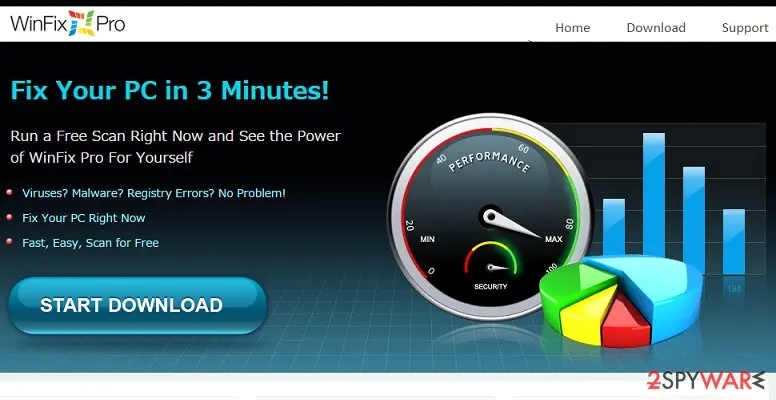
WinFix Pro: summary
| Detection names | No Microsoft detection name is known |
|---|---|
| Distribution | Not recorded in the old report |
| Damage | Not recorded in the old report |
| Name | WinFix Pro |
| Type | System optimizer |
| Symptoms | An unknown process in Task Manager |
| Removal | Scan the PC with security software to find and remove the malware and anything installed with it. Fortect scans Windows for malware and repairs the system files and settings it damaged. Remove it nowTo use the full-featured product, you have to purchase a license for Fortect. The scan is free. |
Show 4 more facts
| Files and processes | WinFix.exe |
|---|---|
| Evidence | One write-up by a security site; details still limited |
| First seen | 8 January 2021 |
| Facts checked | 7 October 2026 |
Is WinFix Pro safe? Why it is flagged
From our report of Jan 2021 · not reviewed since
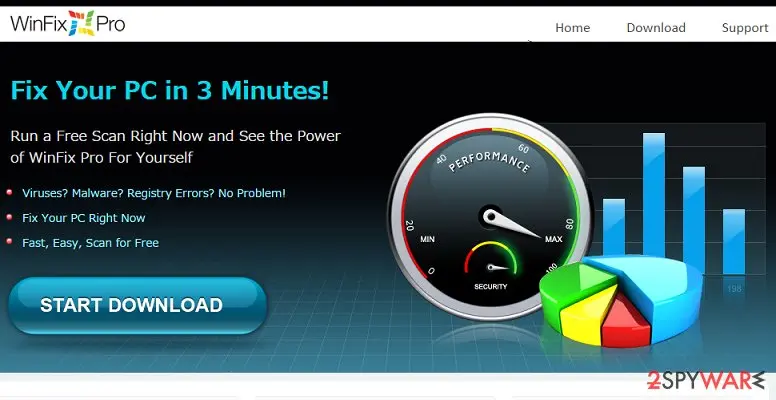
WinFix Pro is the Windows OS optimization tool that is not that useful as it claims
WinFix Pro is the tool developed by Informer Technologies Inc.
The tool is also can be named as WinFix Pro 2006 virus, WinFix 2005 Pro, WinFix.exe is a PC optimization tool. As the publisher of this app claims, WinFix Pro can be used for repairing and replacing corrupted files, removing damage caused by viruses or malware, remove junk files, improve privacy settings, and so on.
Unfortunately, they haven't mentioned that it may infiltrate your computer unnoticed, that it may try to convince you that your computer is filled with junk, viruses, corrupted files, etc. and that it may continuously ask you to buy the WinFix Pro license to fix aforementioned issues.
Of course, it can be downloaded manually from various download websites (cnet.com, download.com, softonic.com. Soft32.com, and so on). Nevertheless, it tends to enter systems via other freeware as an 'additional tool'. Once installed, it may ask for your permission to initiate a system scan and if you give it, you may start seeing how WinFix Pro virus loads its scanners.
Once a supposed scan is finished, you may receive a long list of supposed issues that need to be fixed. Most probably, if you click 'Fix now', 'Clean', 'Remove' and similar buttons, you may be redirected to the official website of this app and offered to buy the license.
The rogue program is not useful, even though those promotional ads claim otherwise. There are many issues with WinFix Pro removal too:
We say so because it is not very likely that WinFix Pro will improve your PC's performance. Bear in mind that for fixing your machine, you may need to get rid of thousands of registries, junk, and similar issues, whereas this dubious optimization tool claims that there are several hundreds of files that are awaiting removal.
Even more, you may disclose credit card details to online scammers, which may lead to serious privacy issues. If the WinFix Pro virus got onto your machine without asking for your permission directly, you should better remove it from your computer ASAP.
The most reliable way to get rid of it is to run a full system scan with an anti-malware tool that is capable of removing such intruders like WinFix Pro PUP. Also, you can rely on tools like that should help with system corruption issues.
From our report of Jan 2021 · not reviewed since
Take care of the security of your PC by paying attention to important details
WinFix Pro redirects to a purchase website right after you install a free program, which has been bundled with additional components.
That might be a download manager, PDF creator, media player, gaming platform, or any other free software; therefore, if you are not willing to end up with a list of potentially unwanted programs, you should start checking free programs before installing them.
In order to see whether the program contains additional tools, you should select the Advanced or Custom installation option and look for suspicious checkboxes claiming that you agree to install WinFix Pro PC's optimization tool, BlockNSurf add-on, Start.qone8.com search, and so on.
From our report of Jan 2021 · not reviewed since
More from our earlier report on WinFix Pro
- I checked programs and features and it is not listed there.
- I ran security essential and it did not correct the problem.
- It has messed up both IE and google chrome so I can't get online.
Check your PC and browser
- File:
WinFix.exe
How to uninstall WinFix Pro
How to remove WinFix Pro
Uninstall it, then remove what keeps it starting with Windows.
Nothing it flagged needs fixing.
Step 1: Uninstall programs you did not mean to install
WinFix Pro rarely comes alone: it is usually installed by, or together with, a free program. In Windows 11 open Settings > Apps > Installed apps, in Windows 10 Settings > Apps > Apps & features, and sort by install date.
Uninstall every entry from the day the trouble began that you did not install on purpose, for example a download manager, a converter or a browser you never chose.
Keep drivers and entries from Microsoft, Intel, AMD, NVIDIA or your PC's maker unless you are sure.
Full procedure with screenshots: Uninstall a program or app in Windows On uGetFix
Step 2: Remove it from startup
Press Ctrl + Shift + Esc to open Task Manager and select Startup apps (Windows 11) or the Startup tab (Windows 10). Disable entries you do not recognise, especially ones with no publisher or with a name that copies a Windows component.
Right-click an entry and choose Open file location to see where it runs from: programs in
%AppData%or%Temp%deserve a closer look. Some entries are not listed there but in the registry Run keys, which the procedure below shows how to check.Full procedure with screenshots: Stop apps from opening at startup On uGetFix
Step 3: Delete the folders left behind
Uninstalling often leaves the program's folders, and some threats reinstall themselves from them.
Press Windows + R, type
%LocalAppData%and press Enter, then do the same for%AppData%and %ProgramData%, and look for folders named after WinFix Pro, its publisher or created on the day the problem started.Delete those folders, and check
C:\Program FilesandC:\Program Files (x86)too.If Windows says a file is in use, end it in Task Manager or delete the folder after a restart in Safe Mode. The folders are the same in Windows 11 and Windows 10.
Full procedure with screenshots: Remove what malware leaves behind in Windows
Step 4: Scan the PC, then run the offline scan
A scan finds the parts of WinFix Pro that the manual steps cannot see. In Windows Security > Virus & threat protection > Scan options, start a Full scan and quarantine what it reports.
Follow it with Microsoft Defender Antivirus (offline scan) > Scan now, which restarts the PC and checks the disk while Windows and the malware are not running.
It takes about 15 minutes and works the same in Windows 11 and Windows 10. If either scan finds something, run the full scan again after removal until it comes back clean.

Windows 11: Windows Security > Virus & threat protection > Scan options. Full procedure with screenshots: Run a Microsoft Defender Offline scan
Instructions for each browser and system
The detailed steps for every browser and system this guide covers. Open the one you use.
Uninstall from Windows
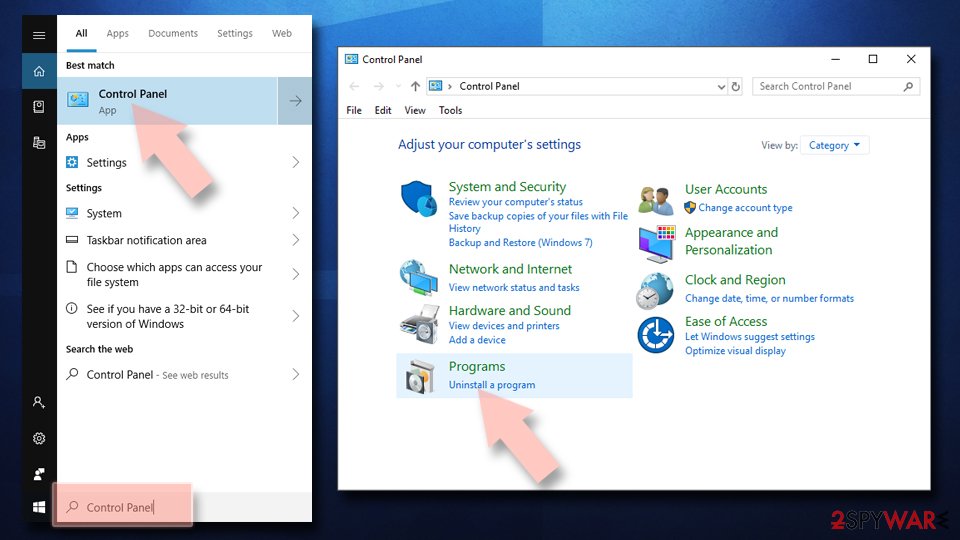
Uninstall from Windows 10/8:
- Type Control Panel into the Windows search box and open the result.
- Under Programs, select Uninstall a program.
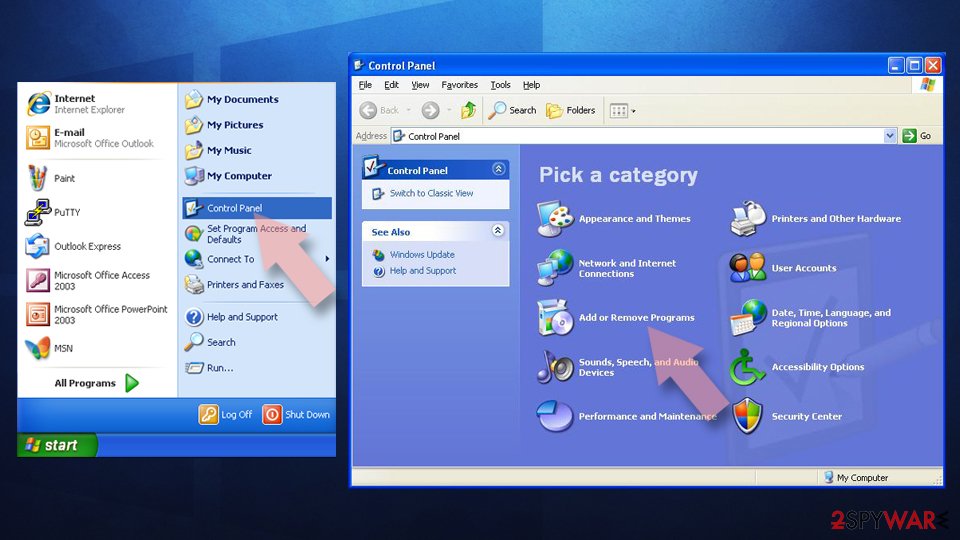
Uninstall from Windows 7/XP:
- Click on Windows Start > Control Panel (Windows XP users should click on Add/Remove Programs).
- In Control Panel, select Programs > Uninstall a program.
Remove the unwanted program:
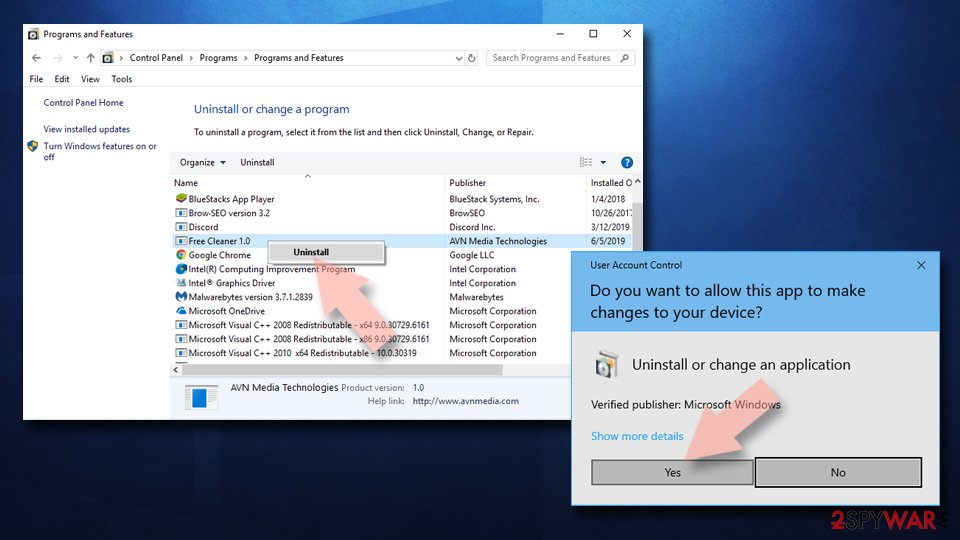
- In the Programs and Features window, look for any recently installed suspicious entries, select them, and click Uninstall.
- If User Account Control appears, click Yes to confirm, then complete the removal.
Stream videos without limitations, no matter where you are
There are multiple parties that could find out almost anything about you by checking your online activity.
While this is highly unlikely, advertisers and tech companies are constantly tracking you online. The first step to privacy should be a secure browser that focuses on tracker reduction to a minimum.
Even if you employ a secure browser, you will not be able to access websites that are restricted due to local government laws or other reasons. In other words, you may not be able to stream Disney+ or US-based Netflix in some countries. To bypass these restrictions, you can employ a powerful VPN, which provides dedicated servers for torrenting and streaming, not slowing you down in the process.
Data backups are important - recover your lost files
Ransomware is one of the biggest threats to personal data.
Once it is executed on a machine, it launches a sophisticated encryption algorithm that locks all your files, although it does not destroy them. The most common misconception is that anti-malware software can return files to their previous states. This is not true, however, and data remains locked after the malicious payload is deleted.
While regular data backups are the only secure method to recover your files after a ransomware attack, tools such as can also be effective and restore at least some of your lost data.
From our report of Jan 2021 · not reviewed since
Rely on professional anti-malware to help you remove WinFix Pro virus
WinFix Pro should NOT even be compared to a virus.
It cannot affect your PC's operating system; however, it may swindle your money for a useless license. It is deceptive and the program relies on creating misleading messages and alerts that should encourage people into purchasing the version of the program.
Fortunately, WinFix Pro can be removed manually with the help of the steps below. It is not the easiest action because PUPs like this can install other apps, inject various files on the machine, and keep the process running. You need help from AV tools and system optimization software, so follow our suggestions.
Questions about WinFix Pro
Is WinFix.exe a virus?
The name WinFix.exe is not enough to say. Malware often uses technical-sounding names, and harmless updaters often use odd ones. Check three things:
- the folder the file runs from
- the Digital Signatures tab in its properties
- the program that starts it (Startup apps, Task Scheduler or services)
A signed file from a company whose product you use is almost certainly fine. An unsigned file in a user folder that no installed program explains should be removed, and the PC scanned with Microsoft Defender in offline mode.
Can I delete the WinFix.exe file?
Only after you know what it belongs to. If WinFix.exe is part of a program, uninstall that program through Settings instead, so its services and tasks go too. If it belongs to nothing and is unsigned, end the process, disable whatever starts it and then delete its folder.
Do not delete files from the Windows folder or files signed by Microsoft: those are part of the system, and removing them can stop Windows from starting. When in doubt, run a Microsoft Defender scan first and let it decide.
How do I remove WinFix Pro completely?
Work in three steps. First uninstall it from Settings > Apps > Installed apps, together with anything installed on the same day. Second, remove what restarts it: unknown entries under Settings > Apps > Startup and tasks in Task Scheduler with matching names.
Third, clean the browsers: extensions you did not add and changed search settings. Restart and watch for an unfamiliar process called WinFix.exe in Task Manager; if it does not come back within a day, the removal is complete.
If it does, run a Microsoft Defender offline scan, which works before Windows starts and finds helpers that hide while the PC runs.
Can Windows Security remove WinFix Pro?
Often yes, if Potentially unwanted app blocking is on. Microsoft Defender detects many bundled and unwanted programs as PUA, but by default it only blocks them during download in some cases. For a program already installed, uninstall it yourself from Installed apps first, then run a full scan in Windows Security to catch leftovers.
If an unfamiliar process called WinFix.exe in Task Manager returns after that, run the Microsoft Defender offline scan, which works before Windows starts. Switching on the PUA setting afterwards helps keep similar programs out.
Does WinFix Pro collect my data?
Nobody has analysed WinFix Pro yet, so there is no confirmed answer. Programs in this category often collect usage data, browsing history or device details and share them with advertisers, and their privacy policies usually allow it.
The sign reported, an unfamiliar process called WinFix.exe in Task Manager, does not by itself show data theft, and nothing points to passwords or files being taken.
If you want to be careful, clear the browser's cookies after removal and review which apps may run in the background. Change passwords only if you also see signs of something more serious, such as unknown sign-ins or messages sent from your accounts.
Should I call WinFix Pro malware?
Most security vendors would call it a potentially unwanted program rather than malware. The difference is intent and consent:
- malware hides and harms
- while unwanted programs are installed with a click someone barely noticed
- then do more than expected
The sign reported here, an unfamiliar process called WinFix.exe in Task Manager, is typical of the second group. In practice the label matters less than the result.
Whatever it is called, a program you did not choose should go, and the place it came from should be checked for other programs. Microsoft Defender can block this class of software if you switch on Potentially unwanted app blocking in Windows Security.
Does WinFix Pro use a lot of resources?
It depends on the program, and no measurements have been published for WinFix Pro. The sign reported is an unfamiliar process called WinFix.exe in Task Manager. Check for yourself: open Task Manager, find its process and watch the CPU, memory and network columns for a minute while the PC is otherwise idle.
Steady use with nothing open is a strong reason to remove it. Even if it seems light, it may run more processes under other names, so sort Installed apps by date and remove anything else from the same day. Then restart and compare.
How do I stop programs like WinFix Pro from installing?
Turn on Potentially unwanted app blocking in Windows Security > App & browser control > Reputation-based protection settings, with both Block apps and Block downloads checked. Download programs from the developer's own site or the Microsoft Store, choose Custom in installers and untick extra offers, and treat large download buttons on file sites as ads.
Apps from the Microsoft Store are checked by Microsoft and uninstall cleanly. Keep real-time protection on, so that bundled offers flagged as unwanted are stopped before they install.
How do I know if I need WinFix Pro?
Ask three questions. Did you install it on purpose? Have you ever opened it?
Does anything you use depend on it? If the answers are no, you do not need it. The sign that brought you here, an unfamiliar process called WinFix.exe in Task Manager, suggests it arrived without a clear choice.
Programs bundled with free software rarely do anything their host program needs. Uninstall it, restart, and see whether anything you rely on stops working. If nothing does, which is the usual outcome, you can forget about it.
Will Fortect remove WinFix Pro?
Fortect scans Windows for malware and unwanted programs and repairs the system files and settings they change, and its free scan shows what it finds on your PC before you decide anything.
For WinFix Pro, follow the plan above as well: the browser steps take back permissions and settings that no scanner treats as a threat, and uninstalling the program that brought it removes the source.
Run Microsoft Defender's full scan and, if anything was found, its offline scan as a second opinion. If the symptoms are gone after the plan and both scans are clean, there is nothing more to do.
Sources
- FTC: How to recognize, remove and avoid malware (read October 7, 2026)
- Microsoft Learn: Microsoft Defender Offline (read October 7, 2026)
- Microsoft Learn: How Microsoft names malware (read October 7, 2026)