

Search.searchwti.com is the program targeting web browsers directly
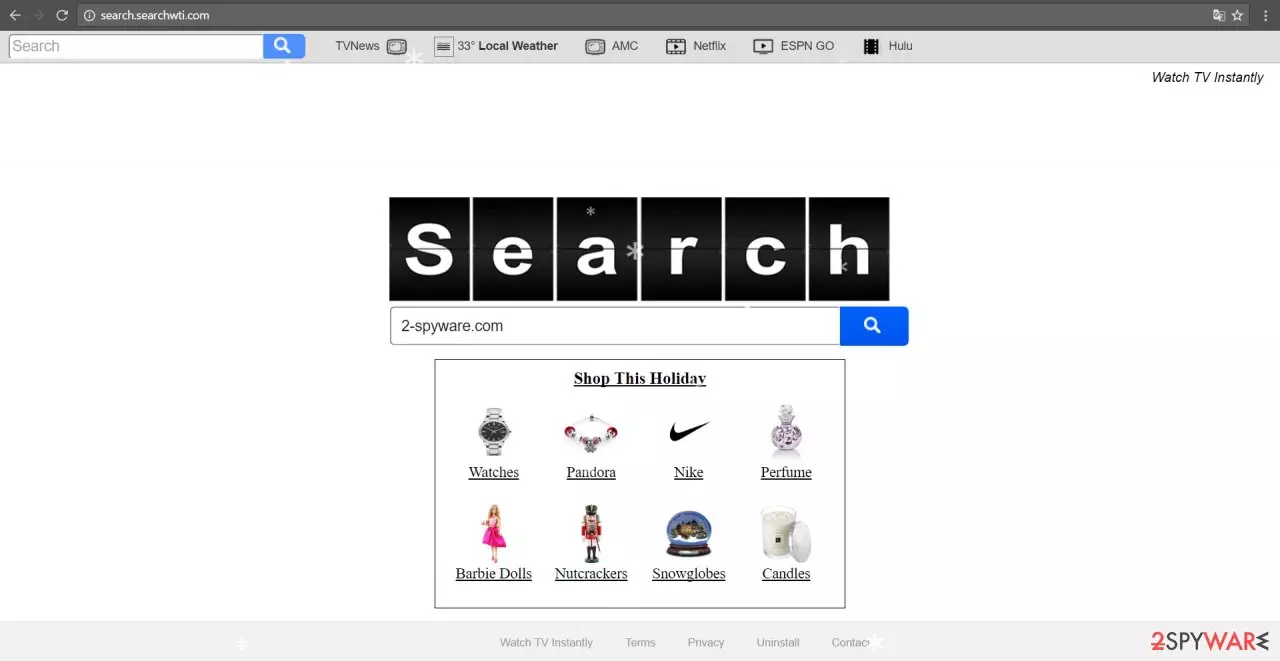
Search.searchwti.com virus is the program that may catch your attention when promotional ads appear on the screen. It is not a sophisticated virus nor malicious tool. Nonetheless, we recommend initiating the proper virus removal right away. If you delay it, you might get annoyed by the number of advertisements cramming your computer screen. What is more, you might get carried away to the domain harboring corrupted links or even malware.
You should be especially vigilant during this holiday season as virus researchers report the boost in phishing scams and malware [1]. Though this search engine is simply a browser hijacker, you should not ignore its presence and remove search.searchwti.com right away.
| Name | Search.searchwti.com |
|---|---|
| Type | Browser hijacker |
| Developer | Polarity Technologies |
| Targets | Google Chrome browser mainly, but can appear on different browsers too |
| Distribution | Freeware installations |
| Elimination | Rely on the guide below or anti-malware tools |
| Repair | PUPs affect the system, so file damage should be taken care of like FortectIntego |
Initially, this browsing tool might look quite practical. It contains quick-access links to weather forecasts, Netflix, the TVNews website, and similar domains. What is more, the front page is decorated with the ad window suggesting you fetch last-minute presents to your beloved ones. Such advertising has its distinctive drawbacks.
Though all these characteristics might look practical, they and additional extensions overload your browsing processing capabilities [2]. Once search.searchwti.com redirect occurs, you might get misguided to an alternative shopping domain that hardly cares about its protection from virtual threats. What is more, even if you are redirected to such well-known websites as Alibaba, you may also get exposed to malware [3].
Furthermore, Searchwti has a striking resemblance to the notorious Safer Browser hijacker. The design is identical, though the tool belongs to Polarity Technologies Ltd located in Cyprus. The idea of quick money has remained viable as various users across the globe launch their websites and hope to earn money from high traffic. Developers of such tools often enter into an agreement with third parties.
They use their support in order to attract a high number of visitors. On the other hand, you, Internet users, might be bombarded with questionable ads leading to shady domains. What is more, this browser hijacker collects your search queries, spies on browser habits, and locates the geographical coordinates. Later on, the compiled information can be shared with third parties. Such data traffic only increases the risk of privacy infringement. Looking back at the 2016 data breaches, privacy online should not be ignored.[4]
The PUP occupies the computer silently
Have you heard of the “bundling” technique? This method facilitates various browser hijackers and awareness of sneaking into users' devices, especially when few of them pay attention to the downloaded “bonus” content [5]. Though usually, you invite PUPs into your computers in such a way, other more destructive virtual threats might take a liking to this method.
Most likely, you might have accidentally accelerated the hijack this way as well. In order to detect potentially insecure apps before they settle on the computer, choose “Advanced” mode. Consequently, you will be able to cease the infiltration.
Getting rid of Search.searchwti.com includes resetting your browsers
If you are in a rush, you can remove search.searchwti.com virus with the assistance of an anti-spyware application. It will completely eradicate the hijacker and related components, particularly scripts and “helper elements.” If you worry that the hijack might happen again, take a look at these manual virus removal guidelines shown below the article.
Keep in mind that some of them might require more time and attentiveness. Finally, you may find other users' comments and reviews on certain apps practical as useful. In this way, you get a general knowledge of which apps are vulnerable to malware attacks.
Uninstall from Windows
Uninstall from Windows 10/8:
- Type Control Panel into the Windows search box and open the result.
- Under Programs, select Uninstall a program.


Uninstall from Windows 7/XP:
- Click on Windows Start > Control Panel (Windows XP users should click on Add/Remove Programs).
- In Control Panel, select Programs > Uninstall a program.


Remove the unwanted program:
- In the Programs and Features window, look for any recently installed suspicious entries, select them, and click Uninstall.
- If User Account Control appears, click Yes to confirm, then complete the removal.


Delete from macOS
Remove the unwanted application:
- From the menu bar, select Go > Applications.
- In the Applications folder, look for any suspicious entries, then drag them to Trash (or right-click and pick Move to Trash).


Delete leftover files and folders:
- Select Go > Go to Folder.
- Enter /Library/Application Support and remove any suspicious folders related to the unwanted program.
- Repeat the same check in the /Library/LaunchAgents and /Library/LaunchDaemons folders, deleting any suspicious entries.

- Finally, empty the Trash to permanently remove the leftovers.

Remove from Microsoft Edge
Delete unwanted extensions from MS Edge:
- Select Menu (three horizontal dots at the top-right of the browser window) and pick Extensions.
- From the list, pick the extension and click on the Gear icon.
- Click Remove.


Clear cookies and other browser data:
- Click on the Menu (three horizontal dots at the top-right of the browser window) and select Settings > Privacy, search, and services..
- Under Clear browsing data, pick Choose what to clear.
- Select Cookies and other site data and Cached images and files. (apart from passwords, although you might want to include Media licenses as well, if applicable) and click on Clear.


Restore new tab and homepage settings:
- Click the menu icon and choose Settings.
- Then find On startup section.
- Click Remove next to any suspicious startup page.
Reset MS Edge if the above steps did not work:
- Press on Ctrl + Shift + Esc to open Task Manager.
- Click on More details arrow at the bottom of the window.
- Select Details tab.
- Now scroll down and locate every entry with Microsoft Edge name in it. Right-click on each of them and select End Task to stop MS Edge from running.


Instructions for Chromium-based Edge
Delete extensions from MS Edge (Chromium):
- Open Edge and click select Settings > Extensions.
- Delete unwanted extensions by clicking Remove.


Clear cache and site data:
- Click on Menu and go to Settings.
- Select Privacy, search and services.
- Under Clear browsing data, pick Choose what to clear.
- Under Time range, pick All time.
- Select Clear now.


Reset Chromium-based MS Edge:
- Click on Menu and select Settings.
- On the left side, pick Reset settings.
- Select Restore settings to their default values.
- Confirm with Reset.
- This will disable extensions and reset startup pages but will not delete bookmarks, saved passwords, or browsing history.


Remove from Mozilla Firefox (FF)
Remove dangerous extensions:
- Open Mozilla Firefox browser and click on the Menu (three horizontal lines at the top-right of the window).
- Select Add-ons.
- In here, select the unwanted extension and click Remove.


Reset the homepage:
- Click three horizontal lines at the top right corner to open the menu.
- Choose Settings.
- Under Home, set your preferred homepage and new tab settings.
Clear cookies and site data:
- Click Menu and pick Settings.
- Go to Privacy & Security section.
- Scroll down to locate Cookies and Site Data.
- Click on Clear Data...
- Select Cookies and Site Data and Temporary cached files and pages, then click Clear.


Reset Mozilla Firefox
If clearing the browser as explained above did not help, reset Mozilla Firefox:
- Open Mozilla Firefox browser and click the Menu.
- Go to Help and then choose Troubleshooting Information.

- Under Give Firefox a tune up section, click on Refresh Firefox...
- Once the pop-up shows up, confirm the action by pressing on Refresh Firefox.



Remove from Google Chrome
Delete malicious extensions from Google Chrome:
- Open Google Chrome, click on the Menu (three vertical dots at the top-right corner) and select More tools > Extensions.
- In the newly opened window, you will see all the installed extensions. Uninstall all suspicious extensions related to the unwanted program by clicking Remove.


Clear cache and web data from Chrome:
- Click on Menu and pick Settings.
- Under Privacy and security, select Clear browsing data.
- Select Browsing history, Cookies and other site data, as well as Cached images and files.
- Click Clear data.


Change your homepage:
- Click menu and choose Settings.
- Look for a suspicious site in the On startup section.
- Click on Open a specific or set of pages and click on three dots to find the Remove option.
Reset Google Chrome:
If the previous methods did not help you, reset Google Chrome to eliminate all the unwanted components:
- Click on Menu and select Settings.
- In the Settings, scroll down and click Advanced.
- Scroll down and locate Reset and clean up section.
- Now click Restore settings to their original defaults.
- Confirm with Reset settings.


Delete from Safari
Remove dangerous extensions:
- Open Safari, click Safari in the menu at the top-left of the screen, and select Preferences.
- Go to the Extensions tab, look for any suspicious entries, and click Uninstall to remove them.


Clear history and website data:
- Click Safari in the menu and pick Clear History.
- Set Clear to all history and confirm with Clear History.


Reset Safari:
- Click Safari in the menu and select Preferences > Advanced.
- Enable Show Develop menu in menu bar.
- From the menu bar, click Develop and select Empty Caches.


Was this guide helpful?
2 comments