

BrightNight ransomware infection can result in permanent data loss if users do not have backups

BrightNight ransomware is a piece of malicious software that encrypts[1] personal files such as photos, videos, and documents, rendering them inaccessible. It is a type of malware that encrypts victims' files and demands payment in exchange for the decryption key in order to extort money from them.
Once the BrightNight ransomware infects a system, it appends the encrypted files with the .BrightNight extension, the attackers' email, and a unique ID assigned to the victim. The attackers then demand a ransom payment in exchange for the decryption key, which is the only way to regain access to the encrypted files.
The consequences of a BrightNight ransomware attack can be disastrous for users. It can be a traumatic experience to lose access to personal files, including cherished memories such as family photos and videos.
| NAME | BrightNight |
| TYPE | Ransomware, cryptovirus, data-locking malware |
| DISTRIBUTION | Email attachments, peer-to-peer file-sharing platforms, malicious ads |
| FILE EXTENSION | .BrightNight |
| RANSOM NOTE | README.txt |
| FILE RECOVERY | If no backups are available, recovering data is almost impossible. We list alternative methods that could help you in some cases below |
| MALWARE REMOVAL | Scan your machine with anti-malware software to eliminate the malicious files |
| SYSTEM FIX | Malware can seriously tamper with Windows systems, causing errors, crashes, lag, and other stability issues. To remediate the OS and avoid its reinstallation, we recommend scanning it with the FortectIntego repair tool |
The ransom note
BrightNight ransomware drops a ransom note README.txt on the affected machine:
!!!All of your files are encrypted!!!
To decrypt them send e-mail to this address: Tpyrcne@onionmail.org
In case of no answer in 24h, send e-mail to this address: Tpyrcne@cyberfear.com
Your System Key –
Attackers frequently demand payment in cryptocurrencies such as Bitcoin because it allows them to remain anonymous. However, for some victims, obtaining these cryptocurrencies can be a significant challenge. Paying the ransom does not guarantee that the attackers will provide the decryption key required to restore the encrypted files. Unfortunately, many victims paid the ransom but were unable to recover their data, leaving them with no choice but to accept permanent data loss.
Paying the ransom has a broader impact because it encourages cybercriminals to continue their illegal activities. It encourages them to create and distribute more malware, putting other people and businesses at risk of becoming victims of similar attacks. To help individuals and organizations protect themselves from such threats, it is critical to avoid paying the ransom and instead focus on preventative measures such as backup solutions, robust cybersecurity practices, and education.

Distribution methods
Other methods are used by cybercriminals to spread ransomware and infect systems. Social engineering is a common technique that involves tricking users into performing actions that allow malware to infiltrate their systems. Clicking on malicious links, downloading infected attachments, or providing sensitive information such as login credentials are all examples of this.
Drive-by downloading[2] is another method used by threat actors, which involves infecting a legitimate website with malicious code that downloads and executes ransomware on the user's system when they visit the site. This can happen if users click on a pop-up or banner ad on the site, which redirects them to another page containing malware.
Furthermore, attackers can distribute ransomware via infected USB drives or other external storage devices. They can install malware on a USB drive and leave it in a public place for an unsuspecting user to pick up and insert into their system, infecting their device unknowingly with ransomware.
Finally, cybercriminals can distribute ransomware via social media platforms. They can create bogus profiles or use compromised accounts to share links to malicious websites or malware-infected attachments. Users who click on these links or download these files may end up with ransomware on their systems.
Start the removal process
It is critical to disconnect the affected machine from the local network in order to effectively address the situation. This can be accomplished at home by unplugging the ethernet cable. However, disconnecting from the network at work may be more difficult. Instructions for corporate environments are available at the bottom of this post.
Attempting to recover data before removing the malicious files may result in permanent data loss or encryption of the files. It is critical to first remove the malware and then attempt data recovery. Ransomware removal is a difficult process that should not be attempted by inexperienced individuals. Manual removal necessitates advanced IT skills and should only be attempted by professionals.
Use anti-malware tools like SpyHunterCombo Cleaner or MalwarebytesMalwarebytes to scan your system. This security software should find all the related files and entries and remove them automatically for you. In some cases, malware does not let you use antivirus in normal mode, so you need to access Safe Mode and perform a full system scan from there:
Windows 7 / Vista / XP
- Click Start > Shutdown > Restart > OK.
- When your computer becomes active, start pressing F8 button (if that does not work, try F2, F12, Del, etc. – it all depends on your motherboard model) multiple times until you see the Advanced Boot Options window.
- Select Safe Mode with Networking from the list.


Windows 10 / Windows 8
- Right-click on Start button and select Settings.
- Scroll down to pick Update & Security.
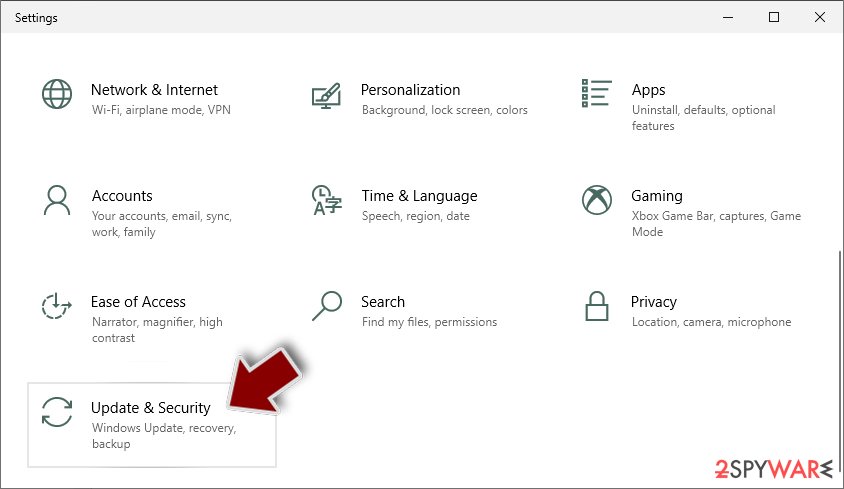
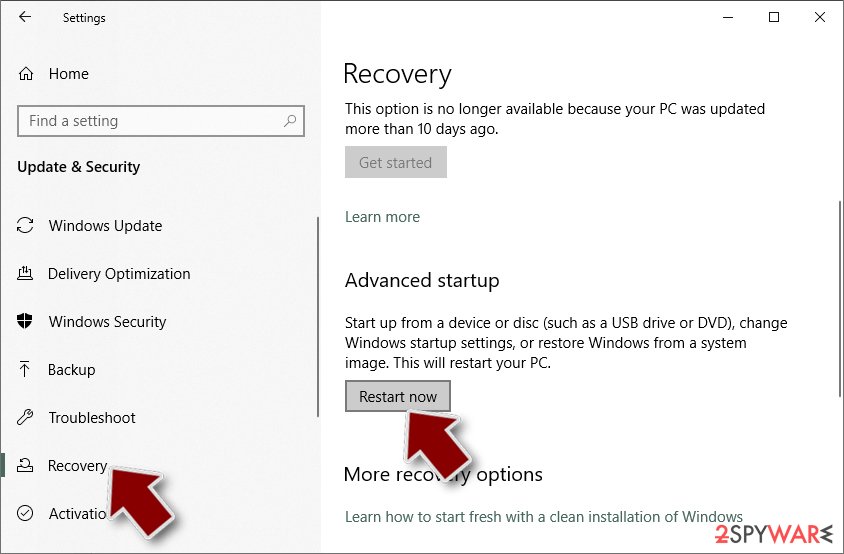
- On the left side of the window, pick Recovery.
- Now scroll down to find Advanced Startup section.
- Click Restart now.
- Select Troubleshoot.
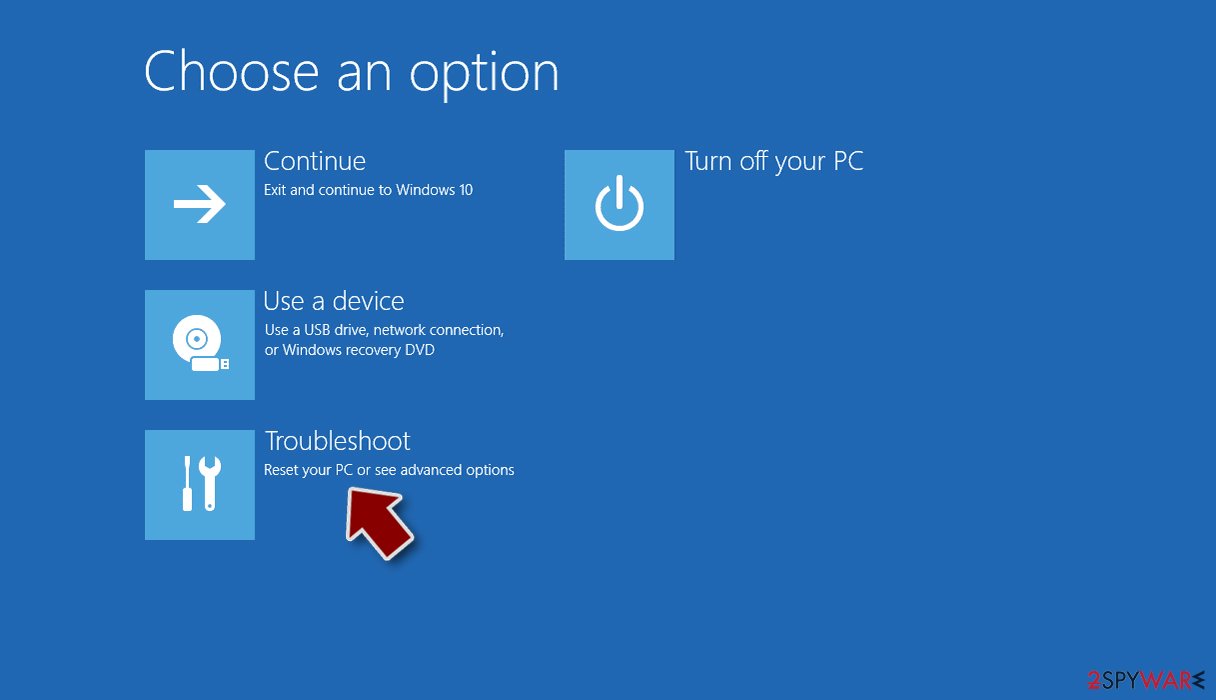
- Go to Advanced options.
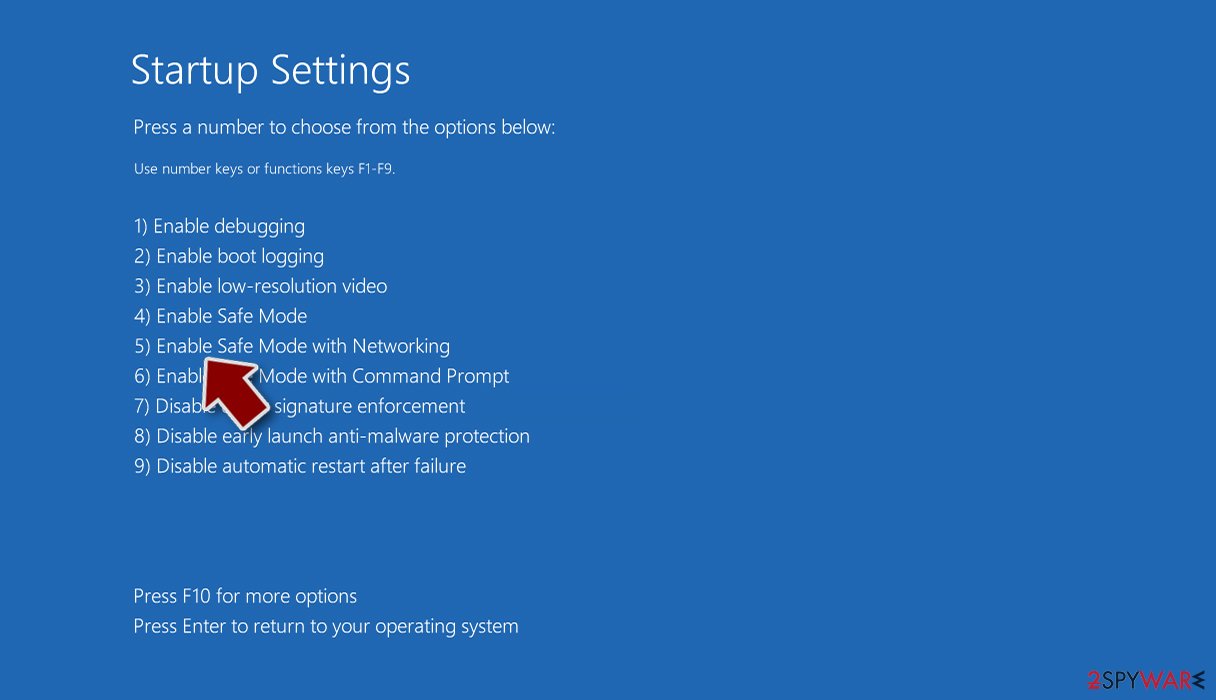
- Select Startup Settings.
- Click Restart.
- Press 5 or click 5) Enable Safe Mode with Networking.


Repair corrupted system files
It is not uncommon to experience performance, stability, and usability issues following a malware infection, which may necessitate a full Windows reinstallation. Malicious viruses can corrupt or delete DLL files, modify critical sections of the Windows registry, and more. Antivirus software is incapable of repairing malware-damaged system files.
Manually repairing such damage can be difficult and time-consuming. That is why FortectIntego was created. This maintenance tool is intended to repair many of the problems caused by malware infections, such as Blue Screen errors,[3] freezes, registry errors, and damaged DLLs. Your computer may become completely unusable if you do not have such a tool. By using this maintenance tool, you may be able to avoid the need for a full Windows reinstallation.
Try recovering data with third-party software
If you haven't backed up your files prior to the attack, chances are that only the hackers possess the decryption key that can unlock them. Data recovery software may be worth a try, but it is important to note that third-party programs may not always be successful in decrypting the files.
Regardless of the situation, attempting data recovery is recommended. Before proceeding, it is essential to copy the corrupted files and store them in an external storage device such as a USB flash drive. However, it is crucial to ensure that the BrightNight ransomware has been removed before attempting data recovery.
Before you begin, several pointers are important while dealing with this situation:
- Since the encrypted data on your computer might permanently be damaged by security or data recovery software, you should first make backups of it – use a USB flash drive or another storage.
- Only attempt to recover your files using this method after you perform a scan with anti-malware software.
Install data recovery software
- Download Data Recovery Pro.
- Double-click the installer to launch it.
- Follow on-screen instructions to install the software.
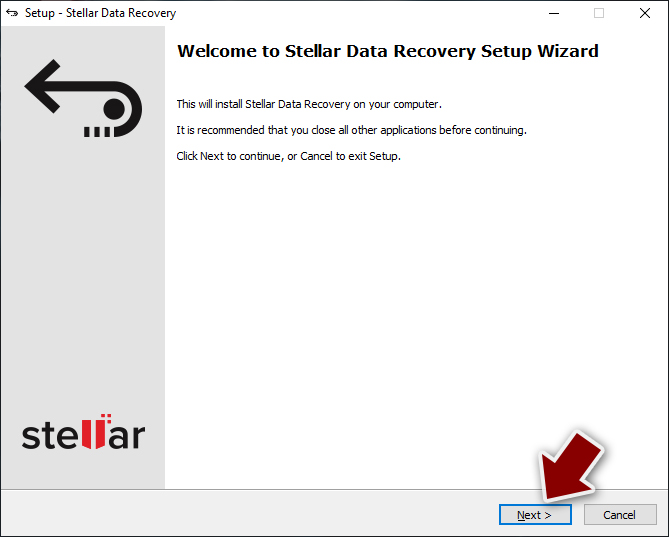
- As soon as you press Finish, you can use the app.
- Select Everything or pick individual folders where you want the files to be recovered from.
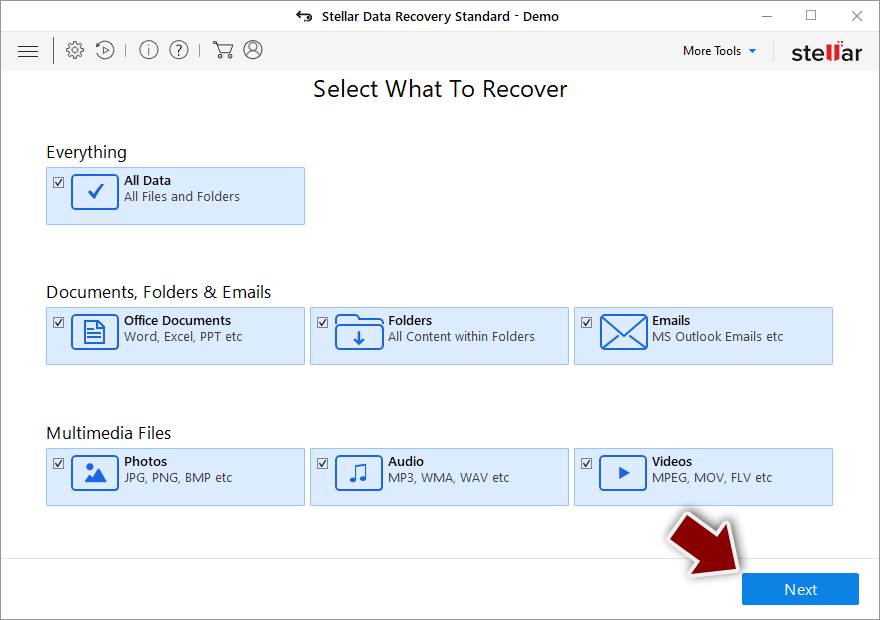
- Press Next.
- At the bottom, enable Deep scan and pick which Disks you want to be scanned.

- Press Scan and wait till it is complete.
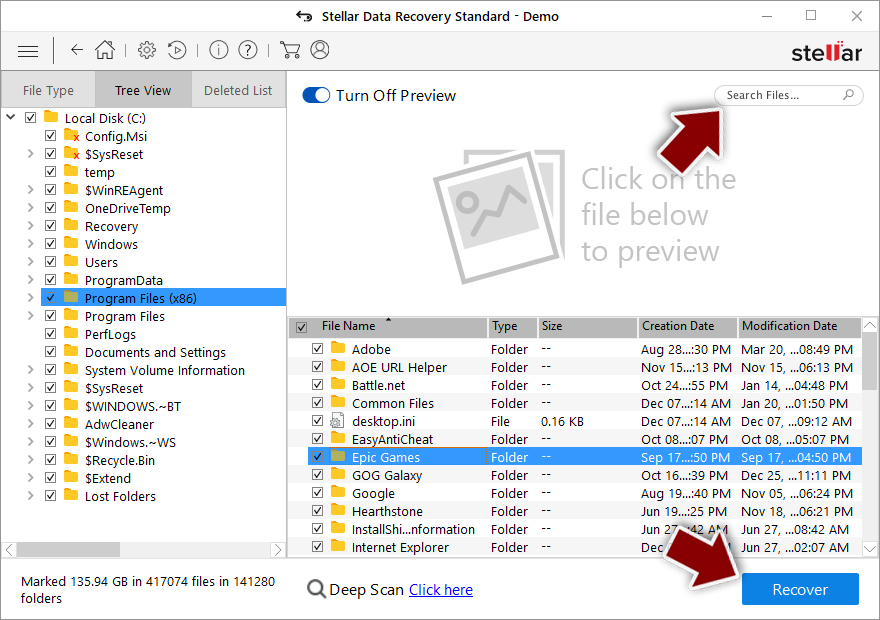
- You can now pick which folders/files to recover – don't forget you also have the option to search by the file name!
- Press Recover to retrieve your files.


Did this guide help?
Be the first to comment