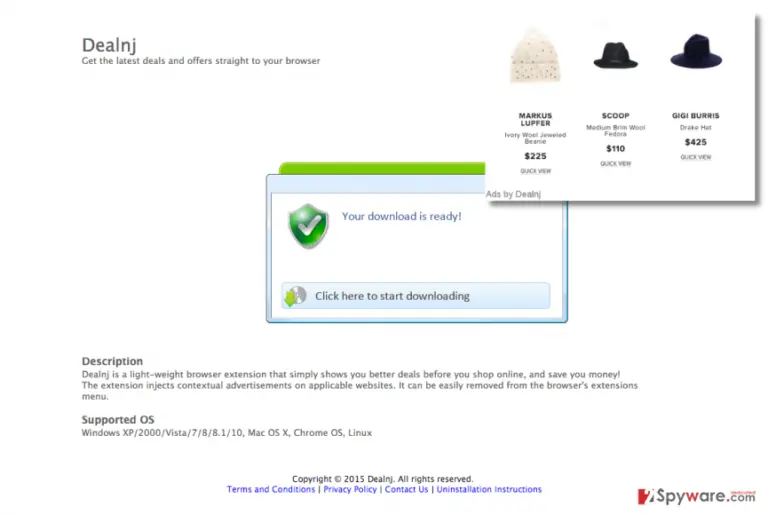
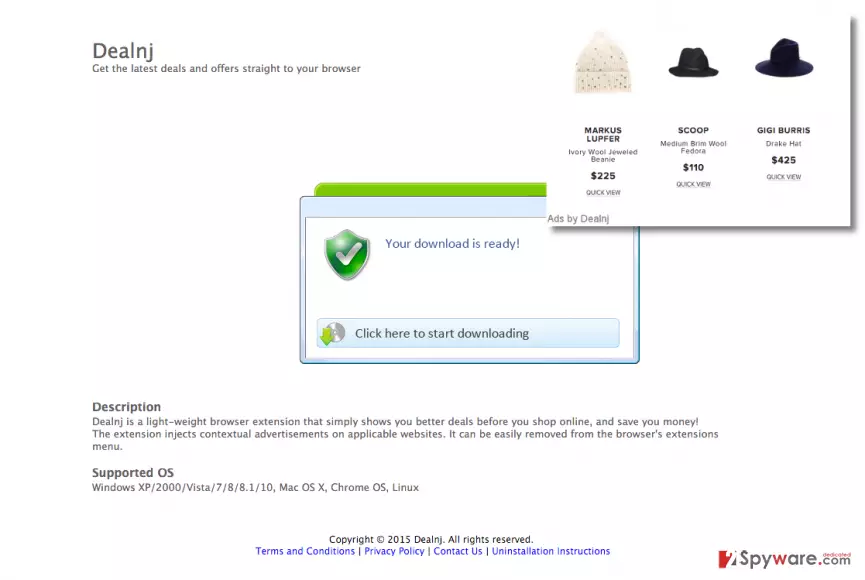
Dealnj is an adware program that appears on the computer as a browser extension and a .exe file as well. This questionable software claims to be an excellent online shopping assistant that can help to deliver latest great e-shopping deals and other shopping related offers to you. Do not get tricked by such wonderful description – although it seems that Dealnj seeks to enhance your e-shopping experience and maybe save some money, in reality it hardly fulfills these proposals. Let us explain what Dealnj is and how it works.
Dealnj adware is a potentially unwanted program (PUP). Our research team has been working on spyware research for many years, and we can say that NJ ads had just recently appeared on the market, and it is a newbie to the spyware category. Nonetheless, Dealnj ads are as untrustworthy as any other adware’s ads are. Supported on Windows XP, 2000, Vista, 7, 8, 8.1, 10, Mac OS X, Chrome OS, and Linux, Dealnj virus can spread its ads widely.
Now, why do you have to avoid clicking on ads by Dealnj even though they seem so useful?
Exactly – these ads just SEEM to be helpful. If you click on them, you would be thrown on random and suspicious third-party websites. Dealnj is a free application, so it does not ask money from its users. However, this program actually uses users to GAIN money from its affiliates. It is done through pay-per-click advertising system. Basically, Dealnj attaches its extensions to the victim’s Internet browser and tracks his browsing habits. Therefore, it obtains information about user’s interests. Then it picks particular advertisements from its servers and sends them to the user. These ads by Dealnj look attractive and catchy, so some computer users fail to recognize their falseness and click on them. As a result, they may get redirected to suspicious or even dangerous web domains that are completely not associated with the ad content. You should know that Dealnj gets revenue for each of such redirect. Unfortunately, not all Dealnj redirects can lead users to reliable pages. Some of the pages you might get redirected to can carry infectious contents and ask you to download suspicious apps, so refuse to install any suspicious material. If you have noticed “ads by Dealnj,” “Dealnj ads,” “Powered by Dealnj” and similarly named ads, we suggest scanning your computer with FortectIntego anti-spyware program and remove dubious computer parasites like Dealnj.
Wondering how did Dealnj hijack your computer?
If you have no idea when and how did Dealnj software hijacked your system, we can help you to sort this out. Try to remember if you have installed any freeware or shareware lately. Did you install any PDF converters, media players or similar free apps? You see, freeware tends to carry additional applications attached to them seamlessly. Such software packages are built via the bundling method and can these attachments can be installed without your direct permission. Moreover, most likely no one is going to notify you about these attachments at all! The only way to get to know whether your desired program holds hidden software attachments is to choose Advanced/Custom installation mode and deselect any suspicious suggestions to get free bonus apps. In case it is a little too late, and you have already spotted Dealnj virus existence signs on your platform, proceed to the next page to find out how you can remove this hideous program from your system.
Instructions how to remove adware
Unlike dangerous viruses, adware belongs to the category of spyware and it is quite easy to uninstall even if you are an inexperienced computer user. Just look for manual removal instructions below this article, if you are willing to remove Dealnj manually. You can also delete this PC intruder automatically – we have already mentioned the recommended program on the previous page, but you can also find its download link below. We want to wish you good luck removing Dealnj! If you have any questions, do not hesitate and ask us using the “Ask us” section.
Uninstall from Windows
Uninstall from Windows 10/8:
Type Control Panel into the Windows search box and open the result.
Under Programs, select Uninstall a program.
Uninstall from Windows 7/XP:
Click on Windows Start > Control Panel (Windows XP users should click on Add/Remove Programs).
In Control Panel, select Programs > Uninstall a program.
Remove the unwanted program:
In the Programs and Features window, look for any recently installed suspicious entries, select them, and click Uninstall.
If User Account Control appears, click Yes to confirm, then complete the removal.
Delete from macOS
Remove the unwanted application:
From the menu bar, select Go > Applications.
In the Applications folder, look for any suspicious entries, then drag them to Trash (or right-click and pick Move to Trash).
Delete leftover files and folders:
Select Go > Go to Folder.
Enter /Library/Application Support and remove any suspicious folders related to the unwanted program.
Repeat the same check in the /Library/LaunchAgents and /Library/LaunchDaemons folders, deleting any suspicious entries.
Finally, empty the Trash to permanently remove the leftovers.
Remove from Microsoft Edge
Delete unwanted extensions from MS Edge:
Select Menu (three horizontal dots at the top-right of the browser window) and pick Extensions.
From the list, pick the extension and click on the Gear icon.
Click Remove.
Clear cookies and other browser data:
Click on the Menu (three horizontal dots at the top-right of the browser window) and select Settings > Privacy, search, and services..
Under Clear browsing data, pick Choose what to clear.
Select Cookies and other site data and Cached images and files. (apart from passwords, although you might want to include Media licenses as well, if applicable) and click on Clear.
Restore new tab and homepage settings:
Click the menu icon and choose Settings.
Then find On startup section.
Click Remove next to any suspicious startup page.
Reset MS Edge if the above steps did not work:
Press on Ctrl + Shift + Esc to open Task Manager.
Click on More details arrow at the bottom of the window.
Select Details tab.
Now scroll down and locate every entry with Microsoft Edge name in it. Right-click on each of them and select End Task to stop MS Edge from running.
Instructions for Chromium-based Edge
Delete extensions from MS Edge (Chromium):
Open Edge and click select Settings > Extensions.
Delete unwanted extensions by clicking Remove.
Clear cache and site data:
Click on Menu and go to Settings.
Select Privacy, search and services.
Under Clear browsing data, pick Choose what to clear.
Under Time range, pick All time.
Select Clear now.
Reset Chromium-based MS Edge:
Click on Menu and select Settings.
On the left side, pick Reset settings.
Select Restore settings to their default values.
Confirm with Reset.
This will disable extensions and reset startup pages but will not delete bookmarks, saved passwords, or browsing history.
Remove from Mozilla Firefox (FF)
Remove dangerous extensions:
Open Mozilla Firefox browser and click on the Menu (three horizontal lines at the top-right of the window).
Select Add-ons.
In here, select the unwanted extension and click Remove.
Reset the homepage:
Click three horizontal lines at the top right corner to open the menu.
Choose Settings.
Under Home, set your preferred homepage and new tab settings.
Clear cookies and site data:
Click Menu and pick Settings.
Go to Privacy & Security section.
Scroll down to locate Cookies and Site Data.
Click on Clear Data...
Select Cookies and Site Data and Temporary cached files and pages, then click Clear.
Reset Mozilla Firefox
If clearing the browser as explained above did not help, reset Mozilla Firefox:
Open Mozilla Firefox browser and click the Menu.
Go to Help and then choose Troubleshooting Information.
Under Give Firefox a tune up section, click on Refresh Firefox...
Once the pop-up shows up, confirm the action by pressing on Refresh Firefox.
Remove from Google Chrome
Delete malicious extensions from Google Chrome:
Open Google Chrome, click on the Menu (three vertical dots at the top-right corner) and select More tools > Extensions.
In the newly opened window, you will see all the installed extensions. Uninstall all suspicious extensions related to the unwanted program by clicking Remove.
Clear cache and web data from Chrome:
Click on Menu and pick Settings.
Under Privacy and security, select Clear browsing data.
Select Browsing history, Cookies and other site data, as well as Cached images and files.
Click Clear data.
Change your homepage:
Click menu and choose Settings.
Look for a suspicious site in the On startup section.
Click on Open a specific or set of pages and click on three dots to find the Remove option.
Reset Google Chrome:
If the previous methods did not help you, reset Google Chrome to eliminate all the unwanted components:
Click on Menu and select Settings.
In the Settings, scroll down and click Advanced.
Scroll down and locate Reset and clean up section.
Now click Restore settings to their original defaults.
Confirm with Reset settings.
Delete from Safari
Remove dangerous extensions:
Open Safari, click Safari in the menu at the top-left of the screen, and select Preferences.
Go to the Extensions tab, look for any suspicious entries, and click Uninstall to remove them.
Clear history and website data:
Click Safari in the menu and pick Clear History.
Set Clear to all history and confirm with Clear History.
Reset Safari:
Click Safari in the menu and select Preferences > Advanced.
Enable Show Develop menu in menu bar.
From the menu bar, click Develop and select Empty Caches.
Finally this computer threat is gone! I was so irritated all the time. I thought that it was some kind of a virus in my computer that was sending me all those ridiculous ads...
Sallah
nothing but stupid spyware. i have no idea how it got on my computer - the last program I have installed did not even have these advanced installation options.
animelover168
thanx for the removal guide, it worked! this adware has affected my chrome and mozilla web browsers. cleaned both of them from these ads!
starstruckk
these ads were covering my screen by randomly popping up, it really costs nerves, believe me. So hard to get rid of them! and closing them does not help, too. It took me a while to realise that I need to google up this problem. This article was really good - thanks for the help.
Editor's pick · tested 2026
FortectIntego
9.4 / 109.6 / 10Best overall pick
Real-time ransomware shield
Free 14-day trial, no card
Cleans the threats listed above
Ad — we may earn a commission if you buy via this link.












































4 comments
Kayla
Finally this computer threat is gone! I was so irritated all the time. I thought that it was some kind of a virus in my computer that was sending me all those ridiculous ads...
Sallah
nothing but stupid spyware. i have no idea how it got on my computer - the last program I have installed did not even have these advanced installation options.
animelover168
thanx for the removal guide, it worked! this adware has affected my chrome and mozilla web browsers. cleaned both of them from these ads!
starstruckk
these ads were covering my screen by randomly popping up, it really costs nerves, believe me. So hard to get rid of them! and closing them does not help, too. It took me a while to realise that I need to google up this problem. This article was really good - thanks for the help.