

Bad Rabbit ransomware hit more than 200 organizations all over the world

Bad Rabbit virus launched a massive worldwide attack on the 24th of October 2017. During a small amount of time, the file-encrypting virus managed to affect more than 200 organizations all over the world and took their files hostage. However, some of the encrypted files might be decrypted without paying the ransom to cybercriminals.
According to the latest data, ransomware mostly affected organizations in Russia and Ukraine. Other Eastern European countries, South Korea, Japan suffered from the ransomware as well. According to the latest research data, the malware hit some American users as well.
| Name | Bad Rabbit |
| Type | Ransomware |
| Distribution | Fake Adobe Flash Player updates |
| Encryption | AES + RSA; once applied to files, all of them receive the .encrypted extension |
| Malware removal | You need to perform a full system scan with anti-malware software such as SpyHunterCombo Cleaner |
| System fix | Once ransomware is deleted from the system, fix virus damage with FortectIntego repair software |
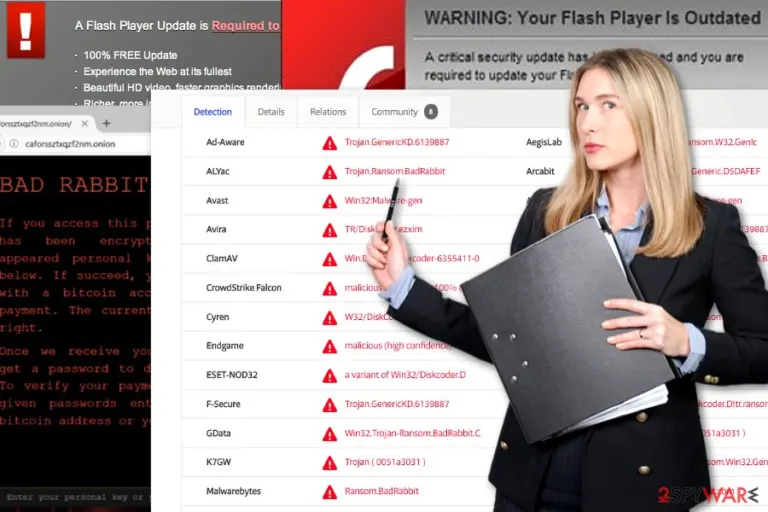
Criminals behind the malware compromised many legitimate websites to deliver fake Adobe Flash Player updates (install_flash_player.exe) that must be executed manually to activate the crypto-malware.
The virus uses AES-256-CBC and RSA-2048 ciphers to lock the files, adds a .encrypted extension to their original filenames, creates a Readme.txt file which it places on the Desktop. Finally, Bad Rabbit replaces Master Boot Record (MBR) and restarts the computer.
Consequently, the victim loses access to the computer as it fails to boot and displays a threatening message on a black screen. The ransomware says, “Oops! Your files have been encrypted!” and explains that the only possible data restoration method is paying a ransom to virus' authors.
The message provides a link to a .onion website (accessible via Tor browser only) and leaves the “personal installation key” on the screen. The payment website presented by the virus states that the victim has to pay 0.05 bitcoin for data recovery (approximately $280).
A recent analysis of the virus tells that paying the ransom is not the only way to restore files after the ransomware attack. The virus does not delete Shadow Volume Copies. Thus, third-party software might help to rescue at least some of the encrypted files. However, before trying alternative recovery methods, users are suggested to remove malware from the device using FortectIntego or another malware removal software.
UPDATE. Researchers have already discovered a vaccine from Bad Rabbit, which prevents the ransomware from corrupting files even if the victim manages to execute the malicious file. Further details on how to create your own “vaccine” are provided on Esolutions blog.
Free decryptor can help some victims to get back their files
Kaspersky Labs reported[1] that there might be a chance to restore files after a ransomware attack without paying the ransom. The researchers found two mistakes in the ransomware’s code. The most significant discovery is that malware does not delete Shadow Volume Copies after data encryption.
Therefore, victims of ransomware might use third-party software to restore encrypted files. Keep in mind that these tools might not be capable of decrypting all your files. However, some of them will be definitely rescued. Though, before trying various recovery programs, remove the virus from the device.
Researchers have also found another flaw in ransomware’s code that is related to the decryption passwords. It seems that malware does not delete the generated password from the memory until a victim reboots the computer. Researchers discovered that it might be possible to extract decryption passwords from the dispci.exe file if the system was not rebooted after a ransomware attack.
Scammers use the name of Bad Rabbit to scare internet users
In January 2018, malware researchers warned about a new technical support scam that uses the notoriety of malware. The scam follows the traditional scheme. Users are redirected to a compromised site that delivers a pop-up warning about ransomware attack and urges them to call a provided phone number:
Windows Has Detected a BAD RABBIT ATTACK !! On Your System
Do Not Shutdown or Restart Your Computer
Contact Windows Certified Technicians For Immediate Assistance
Authors of the scam claim that due to the attack, users’ Facebook logins, credit card information, email logins, and photos stored on the computer are in danger. However, it is not what ransomware is designed for. As you already know, it’s a file-encrypting virus.
If you receive such a pop-up, you should not call 1-844-539-5778 or other phone numbers. Instead of that, close the browser, and check the system for adware program with FortectIntego. Usually, such potentially unwanted program is responsible for displaying message by technical support scammers.
Relation to Petya/NotPetya malware
Bad Rabbit ransomware is believed to be a variant of NotPetya ransomware (also found as Petya/ExPetr/Petna) as it shares many technical similarities with the infamous crypto-virus. The ability to modify Master Boot Record, usage of AES and RSA encryption ciphers, and similar hashing algorithm used are just a few details that connect both ransomware variants. However, there are some differences between them.
Please study the provided fact sheet to learn more about this malware and how it differs from the NotPetya virus.
- Unlike NotPetya ransomware, it is not a wiper and functions as a well-configured and fully operational file-encoding virus.
- The virus does not exploit EternalBlue vulnerability (CVE-2017-0144[2]) to infect target systems. Previously mentioned ExPetr malware (as well as WannaCry) took advantage of the said security flaw in Windows servers.
- The ransomware employs the EternalRomance exploit kit.
- Bad Rabbit is still capable of proliferating via SMB. The malware scans for open shares and runs Mimikatz[3] software to collect Windows credentials. The virus then uses a list of hard-coded logins and passwords (all of them are quite basic) to infect other computers on the network via SMB.
- The virus does not delete Shadow Volume Copies; thus, data recovery might be possible after the attack.

Hundreds of organizations in Europe, Asia and America were hit by ransomware
Ransomware outbreak majorly affected Russia (as reported by Bedynet.ru[4]) and Ukraine, although many victims were spotted in Bulgaria, Japan, Turkey, Poland, and other countries worldwide. No wonder why – these countries were also the leading ones regarding the number of compromised websites that served the ransomware's executable (the fake Flash Player update).
At the moment, the number of victims is said to have exceeded 200. Just like during the outbreak of WannaCry or NotPetya, we already see a growing number of large companies and organizations among the victims. Odessa International Airport in Ukraine and several media corporations in Russia, including Interfax, Fontanka.ru et al., are one of the first ones that reported infiltration of the malware.[5] See a complete list of affected companies below.
UPDATE: Avast researchers reported[6] that the ransomware has been detected in the United States.[6] It is assumed that the attack may have been infected if they have partners in Europe or other targeted regions and share the same SMB access.
| The list of victimized organizations and companies | |
| Interfax news agency | Interfax reported an attack on its servers on October 24th. The ransomware took down at least three of major Russia's media agency's websites. |
|
Fontanka.ru, Argumenti.ru, |
Russian cybersecurity firm GROUP-IB reported that these three major Russian news sites were compromised and used to distribute the ransomware disguised as malicious Flash Player Update. |
| Kiev Metro | Kiev Metro became one of the first victims of the crypto-ransomware on October 24th. The virus managed to compromise the payment system and caused major delays during passenger registration. |
| Odessa Airport | Odessa Airport also fell victim to the ransomware attack on the same day as Kiev Metro systems did. |
| Ministry of Infrastructure of Ukraine | The ransomware continuously wreaks havoc in Ukraine, this time infecting Ministry of Infrastructure of Ukraine. |
If the described ransomware already compromised your computer, waste no time and remove the ransomware using anti-malware software like SpyHunterCombo Cleaner or MalwarebytesMalwarebytes. Do not forget to follow instructions provided below this report for a safe elimination of the file-coding virus.
Please keep in mind that you should use a professional malware removal tool to completely erase remains of this Trojan. Otherwise, you risk leaving some of its files on the system and leaving security vulnerabilities that could allow further malware infections. For a complete threat removal, use guidance written by IT experts (you will find them below the article).
Ransomware exploits system vulnerabilities to launch the attack
When first reports about ransomware distribution emerged, it was believed that it spreads via EternalBlue or EternalRomance exploit kits. It was discovered that malware uses another NSA exploit kit which as stolen by Shadow Brokers on April – EternalRomance.[7]
The exploit uses the CVE-2017-0145 vulnerability in Microsoft's Windows Server Message Block (SMB) which allows remote code execution. However, Microsoft released security bulletin MS17-010[8] to fix this issue. Unfortunately, not all companies and computer users patch their computers and install necessary updates. As a result, they might suffer from the a ransomware attack.
Fake Flash Player updates used for malware delivery
Adobe’s product Flash Player notorious success once again for the benefits of malware developers. The main malware dropper is disguised in fake Flash updates.[9] The malware is downloaded as the install_flash_player.exe file from corrupted sites. It might also disguise under alternative file names.

Interestingly, the malware has to be executed by the victim himself. It is likely to happen, since the malware pretends to be a file associated with a well-known Adobe Flash Player software.
After the invasion, it creates C:\Windows\infpub.dat file. Consequently, it generates the following files – C:\Windows\cscc.dat and C:\Windows\dispci.exe. They are responsible for modifying MBR settings. Interestingly, the malware suggests references to the characters of the Game of Thrones series. BadRabbit malware creates three tasks named after three dragons in the series:
- C:\Windows\system32\rundll32.exe C:\Windows\infpub.dat,#1 15
- cmd.exe /c schtasks /Delete /F /TN rhaegal
- cmd.exe /c schtasks /Create /RU SYSTEM /SC ONSTART /TN rhaegal /TR
- cmd.exe /c schtasks /Create /SC once /TN drogon /RU SYSTEM /TR:00
- C:\Windows\AF93.tmp”
It also makes use of the open-source encryption service called DiskCryptor[10]. Later on, it uses aforementioned AES and RSA-2048 encryption methods. It targets a variety of file formats.[11]
After rebooting the system, the virus displays the same ransom note as NotPetya. Just like any traditional ransomware, it points to a payment site where victims can get more details about available data recovery solutions.
It's possible to avoid ransomware attack
- Regarding the fact that the crypto-malware disguises under Flash Player and breaks into servers, the key prevention measure would be to avoid installing suspicious software updates from any other sites than the official Adobe web page.
- Some victims report that their computers were compromised after opening malicious email attachments, which is also one of the most efficient malware distribution tricks. Therefore, you should stay away from questionable files attached to digital messages from strangers or companies you have no business with.
- Make sure your security tools are updated as well. It would be better to download a couple of different types of security apps.
- Patch your computer by installing all necessary security upgrades from Microsoft.
- Keep all your programs up to date.
- Consider creating your own “vaccine” for BadRabbit. You can find more details about it above.
Delete Bad Rabbit ransomware and recover encrypted files
Users infected with the described malware should remove this virus as soon as possible. It is advisable to rely on an up-to-date anti-malware tool, such as FortectIntego or MalwarebytesMalwarebytes, to successfully eliminate the malware. Due to its peculiar operation methods, it is not surprising why the malware is called the next Petya.
Speaking of the virus's technical details, it is highly recommended not to remove it manually if you are not an experienced computer technician. If you have encountered this cyber misfortune, follow the instructions below. Since the ransomware changes MBR settings, you will not be able to boot the computer in Safe Mode at first. Implement the MBR reset instructions.
After that, restart the computer into Safe Mode, re-activate your security applications and remove the virus. After the scanning, launch the computer in normal mode and repeat the procedure. It will confirm that Bad Rabbit removal is complete. Note that malware elimination does not recover encoded files. Try to recover them from backups. You will find some suggestions below.
On Windows 7:
- Insert the Windows 7 DVD.
- Launch DVD.
- Choose language and keyboard layout preferences. Opt for Next.
- Choose your operating system, mark the Use recovery tools and click Next.
- Wait for the System Recovery Options screen to appear and choose Command Prompt.
- Type in the following commands and press Enter after each one: bootrec /rebuildbcd, bootrec /fixmbr, andbootrec /fixboot.
- Eject the installation DVD and reboot the PC.
On Windows 8/10 systems:
- Insert the installation DVD or recovery USB.
- Select Repair your computer option.
- Pick Troubleshoot and select Command Prompt.
- Type the listed commands one by one and press Enter after each: bootrec /FixMbr, bootrec /FixBoot, bootrec /ScanOs, and bootrec /RebuildBcd.
- Eject the DVD or recovery USB.
- Type exit and hit Enter.
- Reboot the PC.
Did this guide help?
Be the first to comment