

Pushtoday.icu is a potentially dangerous advertising service, which is closely related to adware programs
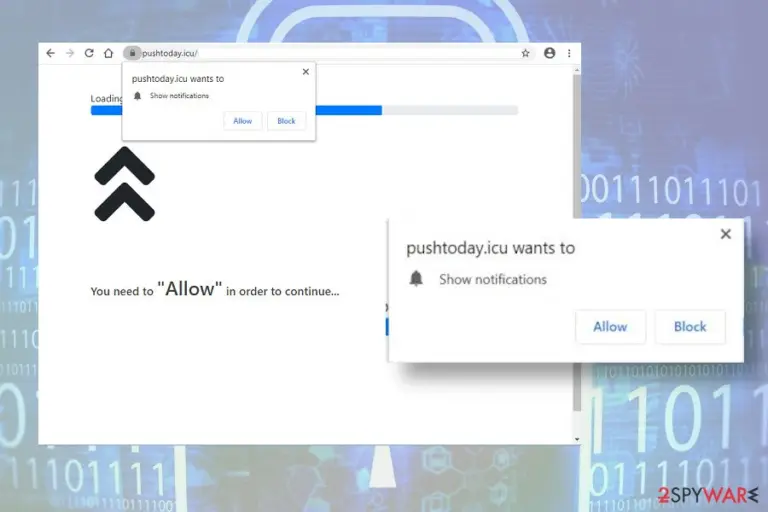
Pushtoday.icu is a rogue website that tricks users into subscribing push notifications[1] service. Typically, people start receiving notifications saying that this domain wants to show notifications when the system is infected by an adware-type program. Nevertheless, there is a risk of landing on this website by clicking on some ads or hyperlinks positioned on poorly protected websites.
It is not recommended to click the Allow button on pop-ups saying “Pushtoday.icu wants to show notifications.” If permission is granted, this dubious website automatically enables a Chrome extension and schedules multiple tasks to display ads directly on the PC's screen. Due to the aggressive advertising strategies, this rogue website is dubbed as a virus by many cybersecurity vendors.
| Name | Pushtoday.icu |
| Classification | Adware / rogue website |
| Symptoms | The initial symptom of this adware is a pop-up saying “Pushtoday.icu wants to show notifications.” It emerges on random websites. In addition, multiple suspicious-looking ads emerge on the desktop. Web browser redirects to unknown domains with potentially dangerous content |
| Distribution | The adware is typically distributed via software bundling. Nevertheless, it may be downloaded via pirated software, rogue websites, and ads |
| Danger | This ad-supported website is more intrusive than dangerous. It enables various on-screen and browser-based pop-ups and banners that cover the website's content. However, it poses a risk of redirects to potentially dangerous domains or phishing websites |
| Compatibility | It can settle down on Windows and Mac OS. Google Chrome, Mozilla Firefox, Internet Explorer, Safari, Microsoft Edge, and other web browsers can be affected by this adware |
| Removal options | The extension that triggers Pushtoday.icu ads can be disabled manually via web browser's settings. However, it is advisable to use a reputable AV engine to clean the system from adware or other related potentially unwanted programs (PUPs) |
| PUP damage | PUPs are capable of modifying some of the system's files that are not restored by AV tools. Thus, upon adware removal, it's advisable to scan PC with FortectIntego or similar utility |
In comparison to trojan or spyware, this rogue website can hardly be called a Pushtoday.icu virus. Its purpose is to generate revenue from the pop-ups and redirects to the websites of its sponsors. Thus, it's activity is not very likely to cause problems like identity theft or data loss.
Nevertheless, Pushtoday.icu malware capabilities should not be underestimated. As soon as the related adware is installed on the system, web browsers, be it Chrome or Safari, start initiating continuous redirects to the Push Today domain, which asks to Allow notifications in order to view a video or see the content of the loaded website. If the visitor grants permission to display notifications, an extension is immediately installed within settings and an attack of ads, banners, pop-ups, and other intrusive content begins.
In most of the cases, Pushtoday.icu ads are prepared in a catchy way. They may contain coupons, offers to download supposedly useful applications, or purchase popular products. However, these pop-ups may contain pornographic content, promote gambling, or actively spread other malware.
It's important to keep in mind that Pushtoday.icu ads and redirects have no real value to the user. This ad-supported website has been developed with the sole purpose – to generate pay-per-click[2] revenue, increase the traffic of affiliate websites, or promote PUPs.
In addition to misleading advertising, Pushtoday.icu virus is capable of spying on its users and harvesting browsing-related information. Although the data it collects is not personally identifiable, most of the users disapprove off giving away browsing history to unreliable third parties. If you see the related extension enabled within the web browser, it means that the following information is recorded and transmitted to the advertisers:
- IP address;
- Geolocation;
- Search queries;
- Websites visited;
- Advertising content viewed on visited sites;
- E-mail address;
- Specificities of browser settings, etc.

If you do not remove Pushtoday.icu virus, it may engage the information about your web browsing activities for the development of more catchy ads. Besides, intrusive redirects to potentially dangerous websites can become more and more frequent. As a result, you may get tricked into download more malware to the system.
In general, PUP on the system increases its vulnerability, cases slowdowns, and minimizes user's control over the web browsers. The most effective way to remove Pushtoday.icu along with relevant programs and files is a thorough system's scan with a professional antivirus program. For that, we recommend using SpyHunterCombo Cleaner or MalwarebytesMalwarebytes tools for help.
User's cautiousness is the main precautionary measure against the installation of PUPs
PUPs or Potentially Unwanted Applications (PUA) arise many discussions among cybersecurity experts. Although there's a unified agreement that such programs are not dangerous, there are many factors why they must be included in the database of AV engines.
The reason why PUPs, such as adware or browser hijackers, are listed as unwanted is mainly related to their installation process. Reliable programs must ask for the user's permission to get installed straightforwardly[3]. Unfortunately, in practice, there are thousands of applications that deliver poor installation experience to the users because unwanted software gets installed bundled with freeware and shareware without revoking the user's authorization.
According to cybersecurity experts from NoVirus.uk[4], poor installation experience can be avoided in several ways. First of all, people should be more careful with free applications promoted on third-party download sources like Download, Cnet, Softonic, and others. Second of all, selecting Advanced or Custom installation of apps is key to safety. Such installation technique discloses if the freeware carries pre-selected additional components and allow users to deselect unwanted items. Thir of all, the user must be attentive during freeware installation and read all the terms and conditions. Do not rush to click the Next button before unchecking checkmarks saying that you agree to install add-on or toolbar.

Last but not least, you should not doubt about purchasing a full package of a reliable anti-virus program. Real-time protection, PUP block, ads block, and similar functions can prevent you from the unpleasant browsing experience. There are many professional AV engines on the market, so make a small research on it before paying the money.
Remove Pushtoday.icu pop-up virus from Chrome and other web browsers
Intrusive ads and redirects to third-party websites are intrusive. However, such adware behavior often becomes more than intrusive and may end up with malware infiltration and browsing-related data harvesting. Having this in mind, Pushtoday.icu removal is the first thing that you should do.
It is possible to remove Pushtoday.icu extension from the system manually. For this purpose, you should perform the following steps:
- Open Settings on your web browser.
- Navigate to the Extensions section and disable all unknown extensions or add-ons.
- After that, open the Privacy and Security section on the Settings window.
- Select Content settings and open Notifications.
- Click on the three horizontal dots next to the Pushtoday.icu entry and select Block or Remove option.
Nevertheless, displaying a potentially unwanted extension does not mean a complete Pushtoday.icu removal. Redirects to this potentially malicious website are usually triggered by a potentially unwanted program. Therefore, you should also check the system for unwanted apps. You can do that manually or use a professional AV engine that will detect and decontaminate the malware. For this purpose, we recommend using SpyHunterCombo Cleaner or MalwarebytesMalwarebytes programs.
Uninstall from Windows
Uninstall from Windows 10/8:
- Type Control Panel into the Windows search box and open the result.
- Under Programs, select Uninstall a program.


Uninstall from Windows 7/XP:
- Click on Windows Start > Control Panel (Windows XP users should click on Add/Remove Programs).
- In Control Panel, select Programs > Uninstall a program.


Remove the unwanted program:
- In the Programs and Features window, look for any recently installed suspicious entries, select them, and click Uninstall.
- If User Account Control appears, click Yes to confirm, then complete the removal.


Delete from macOS
Remove the unwanted application:
- From the menu bar, select Go > Applications.
- In the Applications folder, look for any suspicious entries, then drag them to Trash (or right-click and pick Move to Trash).


Delete leftover files and folders:
- Select Go > Go to Folder.
- Enter /Library/Application Support and remove any suspicious folders related to the unwanted program.
- Repeat the same check in the /Library/LaunchAgents and /Library/LaunchDaemons folders, deleting any suspicious entries.

- Finally, empty the Trash to permanently remove the leftovers.

Remove from Microsoft Edge
Delete unwanted extensions from MS Edge:
- Select Menu (three horizontal dots at the top-right of the browser window) and pick Extensions.
- From the list, pick the extension and click on the Gear icon.
- Click Remove.


Clear cookies and other browser data:
- Click on the Menu (three horizontal dots at the top-right of the browser window) and select Settings > Privacy, search, and services..
- Under Clear browsing data, pick Choose what to clear.
- Select Cookies and other site data and Cached images and files. (apart from passwords, although you might want to include Media licenses as well, if applicable) and click on Clear.


Restore new tab and homepage settings:
- Click the menu icon and choose Settings.
- Then find On startup section.
- Click Remove next to any suspicious startup page.
Reset MS Edge if the above steps did not work:
- Press on Ctrl + Shift + Esc to open Task Manager.
- Click on More details arrow at the bottom of the window.
- Select Details tab.
- Now scroll down and locate every entry with Microsoft Edge name in it. Right-click on each of them and select End Task to stop MS Edge from running.


Instructions for Chromium-based Edge
Delete extensions from MS Edge (Chromium):
- Open Edge and click select Settings > Extensions.
- Delete unwanted extensions by clicking Remove.


Clear cache and site data:
- Click on Menu and go to Settings.
- Select Privacy, search and services.
- Under Clear browsing data, pick Choose what to clear.
- Under Time range, pick All time.
- Select Clear now.


Reset Chromium-based MS Edge:
- Click on Menu and select Settings.
- On the left side, pick Reset settings.
- Select Restore settings to their default values.
- Confirm with Reset.
- This will disable extensions and reset startup pages but will not delete bookmarks, saved passwords, or browsing history.


Remove from Mozilla Firefox (FF)
Remove dangerous extensions:
- Open Mozilla Firefox browser and click on the Menu (three horizontal lines at the top-right of the window).
- Select Add-ons.
- In here, select the unwanted extension and click Remove.


Reset the homepage:
- Click three horizontal lines at the top right corner to open the menu.
- Choose Settings.
- Under Home, set your preferred homepage and new tab settings.
Clear cookies and site data:
- Click Menu and pick Settings.
- Go to Privacy & Security section.
- Scroll down to locate Cookies and Site Data.
- Click on Clear Data...
- Select Cookies and Site Data and Temporary cached files and pages, then click Clear.


Reset Mozilla Firefox
If clearing the browser as explained above did not help, reset Mozilla Firefox:
- Open Mozilla Firefox browser and click the Menu.
- Go to Help and then choose Troubleshooting Information.

- Under Give Firefox a tune up section, click on Refresh Firefox...
- Once the pop-up shows up, confirm the action by pressing on Refresh Firefox.



Remove from Google Chrome
Delete malicious extensions from Google Chrome:
- Open Google Chrome, click on the Menu (three vertical dots at the top-right corner) and select More tools > Extensions.
- In the newly opened window, you will see all the installed extensions. Uninstall all suspicious extensions related to the unwanted program by clicking Remove.


Clear cache and web data from Chrome:
- Click on Menu and pick Settings.
- Under Privacy and security, select Clear browsing data.
- Select Browsing history, Cookies and other site data, as well as Cached images and files.
- Click Clear data.


Change your homepage:
- Click menu and choose Settings.
- Look for a suspicious site in the On startup section.
- Click on Open a specific or set of pages and click on three dots to find the Remove option.
Reset Google Chrome:
If the previous methods did not help you, reset Google Chrome to eliminate all the unwanted components:
- Click on Menu and select Settings.
- In the Settings, scroll down and click Advanced.
- Scroll down and locate Reset and clean up section.
- Now click Restore settings to their original defaults.
- Confirm with Reset settings.


Delete from Safari
Remove dangerous extensions:
- Open Safari, click Safari in the menu at the top-left of the screen, and select Preferences.
- Go to the Extensions tab, look for any suspicious entries, and click Uninstall to remove them.


Clear history and website data:
- Click Safari in the menu and pick Clear History.
- Set Clear to all history and confirm with Clear History.


Reset Safari:
- Click Safari in the menu and select Preferences > Advanced.
- Enable Show Develop menu in menu bar.
- From the menu bar, click Develop and select Empty Caches.


Did this guide help?
Be the first to comment