

Click-this-special.video website shows fake messages

Fake errors, warnings, and other messages are widely used by online fraudsters to get what they want. Click-this-special.video, in particular, does exactly what its domain states. It displays a picture of a loading screen and tells users that in order to see the “special” video, they have to click the “Allow” button.
Of course, people do not receive anything and instead start getting spammed with annoying pop-ups. You see, clicking the button turned on website permissions on your browser to send you push notifications, and it is all it wanted from you. Now you are just a part of a money-making machine for its creators because they get paid for every ad you click.
Pay-per-click[1] advertising is not harmful in nature. It is an amazing opportunity for small business owners and large companies to promote their products and services online. They only have to pay when a person clicks on the ad, so it is an effective way to advertise.
Of course, this new opportunity was not overlooked by people who want to cash in. Creators of rogue websites like this act as middlemen between users and advertisers. The problem is, they do this in an illegitimate way by not being honest about it. Probably because no one would agree willingly to be spammed with ads while minding their business. And what is worse, they do not care about your safety, so they do not check what promoters go through them. Among real ads, you might get fake ones that lead to other dangerous websites.
| NAME | Click-this-special.video |
| TYPE | Push notification spam in the form of pop-ups, banners |
| DISTRIBUTION | Redirects from other shady websites |
| SYMPTOMS | Intrusive commercial content is displayed even when the browser is closed |
| DANGERS | Clicking on links that are inserted in pop-up windows can lead to downloading harmful files |
| ELIMINATION | You can stop invasive notifications by going to your web browser settings. If you think you have adware, it is best to use security software to delete it effectively |
| FURTHER STEPS | After removal, cleaning web browsers is your best next move. You can do this by following the instructions below or use FortectIntego as an automatic fix |
Dangers of pop-up advertising
Not all pop-ups are used for advertising purposes. Some of them are planted with malicious intent. They can be used to distribute adware, spyware, and more destructive types of malware. Clicking on one of these windows could lead to a shady site that prompts you to download a harmful program by using social engineering tactics[2] or a page designed to lure out your personal information, which can later be used for identity theft or sold off in underground forums.[3]
Social engineering techniques have become a primary choice for fraudsters to fool people online. It is easy to pray on human vulnerabilities and use them to get a person to act before thinking. Scare tactics are very effective in the effort to manipulate someone.
For example, you can end up on a website which states that you are in danger and your personal information is exposed. To make it more believable, it can show publicly available information like your IP address, location, etc. Not so technologically savvy people might not know that this information is seen by every web page they visit. The next thing fraudsters need to do is suggest some “useful” software that will protect them, like a VPN,[4] which actually might put them at risk.
Fun announcements that say, “You are the lucky winner!” I am afraid, are also fake. Giant tech companies like Google or Microsoft do not pick random visitors and shower them with gifts. This type of scam could be used to lure out your private information like name, address, phone number, email, and worse. The aftermath might look like this – you start receiving phone calls from unknown callers from different countries, spam emails because the information you gave probably got sold to a leaked data site.

If you are lucky, you were redirected to this site and allowed notifications yourself. Because this way, the removal process will be the easiest. You can remove Click-this-special.video website permissions manually by going to your browser settings. After you successfully complete this, we recommend using FortectIntego, which will provide you with automatic remediation options. More detailed steps for the most popular search engines are below:
Google Chrome (desktop):
- Open Google Chrome browser and go to Menu > Settings.
- Scroll down and click on Advanced.
- Locate the Privacy and security section and pick Site Settings > Notifications.

- Look at the Allow section and look for a suspicious URL.
- Click the three vertical dots next to it and pick Block. This should remove unwanted notifications from Google Chrome.



Google Chrome (Android):
- Open Google Chrome and tap on Settings (three vertical dots).
- Select Notifications.
- Scroll down to Sites section.
- Locate the unwanted URL and toggle the button to the left (Off setting).


Mozilla Firefox:
- Open Mozilla Firefox and go to Menu > Options.
- Click on Privacy & Security section.
- Under Permissions, you should be able to see Notifications. Click Settings button next to it.

- In the Settings – Notification Permissions window, click on the drop-down menu by the URL in question.
- Select Block and then click on Save Changes. This should remove unwanted notifications from Mozilla Firefox.



Safari:
- Click on Safari > Preferences…
- Go to Websites tab and, under General, select Notifications.
- Select the web address in question, click the drop-down menu and select Deny.


MS Edge:
- Open Microsoft Edge, and click the Settings and more button (three horizontal dots) at the top-right of the window.
- Select Settings and then go to Advanced.
- Under Website permissions, pick Manage permissions and select the URL in question.
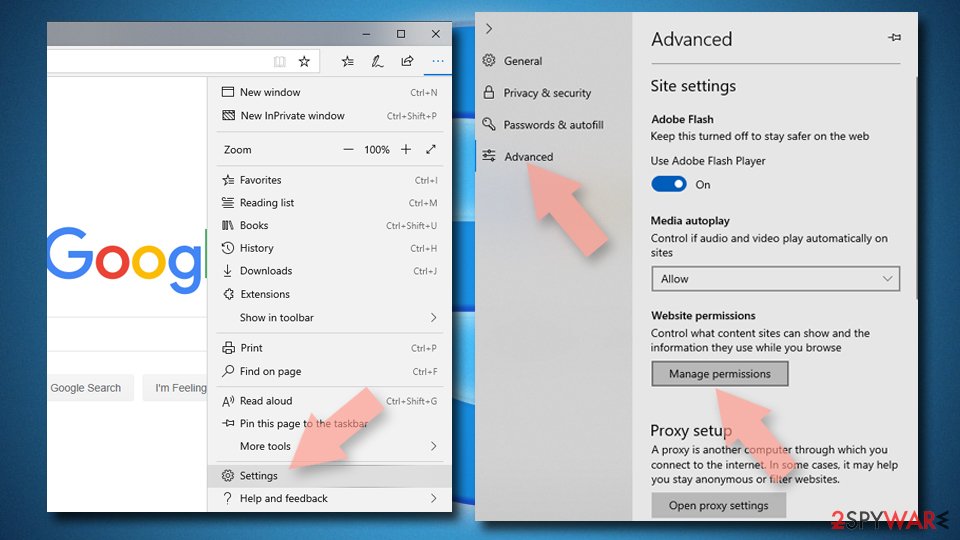
- Toggle the switch to the left to turn notifications off on Microsoft Edge.



MS Edge (Chromium):
- Open Microsoft Edge, and go to Settings.
- Select Site permissions.
- Go to Notifications on the right.
- Under Allow, you will find the unwanted entry.
- Click on More actions and select Block.


Internet Explorer:
- Open Internet Explorer, and click on the Gear icon at the top-right on the window.
- Select Internet options and go to Privacy tab.
- In the Pop-up Blocker section, click on Settings.
- Locate web address in question under Allowed sites and pick Remove.


Adware is not something you should rely on
If going to your browser settings and removing the intruder yourself did not eliminate the problem, it could be hiding deeper. The most probable reason is, you have adware installed in your system. This could have happened if you were installing freeware from unofficial sources and it came attached as a package. Software bundling is a common way to spread potentially unwanted programs.
For this reason, you should never rush through the installation process and pay close attention. Always choose “Advanced” or “Custom” methods. If you see any files that seem unrelated to the one you are downloading, make sure to untick the boxes next to them.
To remove adware manually, you can follow the step-by-step instructions below for Windows and macOS operating systems. If you do not know which program could be responsible for such behavior, use SpyHunterCombo Cleaner, MalwarebytesMalwarebytes, or any other trusted professional security tools which can detect these applications and eliminate them automatically.
Uninstall from Windows
Uninstall from Windows 10/8:
- Type Control Panel into the Windows search box and open the result.
- Under Programs, select Uninstall a program.


Uninstall from Windows 7/XP:
- Click on Windows Start > Control Panel (Windows XP users should click on Add/Remove Programs).
- In Control Panel, select Programs > Uninstall a program.


Remove the unwanted program:
- In the Programs and Features window, look for any recently installed suspicious entries, select them, and click Uninstall.
- If User Account Control appears, click Yes to confirm, then complete the removal.


Delete from macOS
Remove the unwanted application:
- From the menu bar, select Go > Applications.
- In the Applications folder, look for any suspicious entries, then drag them to Trash (or right-click and pick Move to Trash).


Delete leftover files and folders:
- Select Go > Go to Folder.
- Enter /Library/Application Support and remove any suspicious folders related to the unwanted program.
- Repeat the same check in the /Library/LaunchAgents and /Library/LaunchDaemons folders, deleting any suspicious entries.

- Finally, empty the Trash to permanently remove the leftovers.

Did this guide help?
Be the first to comment