

Boooom ransomware asks for Bitcoins in exchange for a decryption key

Boooom belongs to a category of malware known as ransomware – one of the most dangerous computer threats around. Once installed on a Windows computer or on a network, it infects the related systems and then begins the encryption process of files using a strong encryption algorithm.
During this process, all pictures, documents, videos, and other files are appended with a .[monster666@tuta.io].boooom extension. Modifications can also be noticed by the fact that all personal files are stripped from their original icons, and blank ones are shown instead. Such data becomes no longer readable, which renders it useless for its owners.
In order to decode these files, users are asked to contact cybercriminals behind the attack via monster666@tuta.io email or Telegram (@Online7_365). Note that this contact email is also used within the extension of the locked files and might change in the later versions of the Boooom virus.
All the relevant information is compiled in a file titled decrypt_info.txt, which can be opened on a Notepad or other application. It serves as a note from hackers, who demand to pay Bitcoins in exchange for a decryption tool that allegedly is supposed to decrypt all the data.
However, since this strain is relatively new (it was first spotted in early September 2021) and it is not known who the developers are, there is no guarantee or examples where victims managed to retrieve the required decryption software from the attackers. Hence, we strongly recommend avoiding any contact with the criminals.
Instead, we will explore alternative methods that could hopefully help you restore at least some portion of your data. But before that, there are several important steps that need to be done – check them all below.
| Name | Boooom ransomware |
|---|---|
| Type | Ransomware, data locking malware |
| File extension | .boooom, along with user ID and the contact email |
| Ransom note | decrypt_info.txt |
| Contact | Email monster666@tuta.io or Telegram @Online7_365 |
| File Recovery | If no backups are available, recovering data is almost impossible. Nonetheless, we suggest you try the alternative methods that could help you in some cases – we list them below |
| Malware removal | Perform a full system scan with powerful security software, such as SpyHunterCombo Cleaner, MalwarebytesMalwarebytes |
| System fix | Malware can seriously tamper with Windows systems, causing errors, crashes, lag, and other stability issues after it is terminated. To remediate the OS and avoid its reinstallation, we recommend scanning it with the FortectIntego repair tool |
It is yet unknown which attack vectors cybercriminals use to spread the virus. According to security experts, there could be many different ways how victims get infected – here are a few examples:
- Spam email attachments of hyperlinks
- Malicious ads and fake updates
- Software cracks, torrents, repacked installers
- Software vulnerabilities, etc.
While you can no longer undo the infection of Boooom ransomware, you should take adequate measures to ensure that you don't get infected in the future. For that, be more careful when browsing the web (stop visiting high-risk websites and never download pirated programs), apply all the available software updates, and, most importantly, install a powerful anti-malware tool such as SpyHunterCombo Cleaner or MalwarebytesMalwarebytes.
Once the virus manages to get into a Windows machine, the changes happen instantaneously – it includes system and personal files. For example, malware affects the registry, drops many files, launches new processes while shutting down the others, etc.

These changes might sometimes damage the operating system, and security software would not be able to fix it, which might result in crashes, errors, and other issues. You can then either reinstall Windows or, alternatively, fix the damage done by ransomware with a PC repair tool FortectIntego.
After the infection is complete, users can spot it almost right away – they are not able to open their files anymore, and a ransom note shows up automatically, which reads:
All your files have been encrypted due to a security problem with your PC. If you want to restore them, write us to the e-mail monster666@tuta.io
or:
write to us in telegram
hxxps://t.me/Online7_365
or:
@Online7_365
Send us this file
decrypt_info
===========================
Free decryption as a guarantee
Before paying, you can send 1-2 files for free decryption. File format: txt doc pdf jpeg jpg gif png bmp Total file size should not exceed 2 MB (without archive)
===========================
You can buy Bitcoins here: hxxps://localbitcoins.com
Or use the search how to buy Bitcoins in your country
===========================
IMPORTANT!!!
Remember that your files are encrypted and only WE can recover them!
Do not try to recover yourself, as well as on third-party resources, you will lose your files and money forever!
We recommend you ignore everything that the attackers say and instead proceed with Boooom virus removal. Below you will find a correct course of actions – we will explain how to delete malware and then recover files securely.
Step 1. Disconnect your PC from the internet
Once ransomware finishes its job, it is likely to connect to a remote server for various reasons, e.g., the attackers might send additional modules or updates. This step is particularly important in the corporate environment, although it seems that this strain mainly targets home users.
The easiest way to disconnect from the internet is by switching it off via the taskbar or by pulling out the ethernet cable. If your computer is connected to a network, follow these steps:
- Type in Control Panel in Windows search and press Enter
- Go to Network and Internet
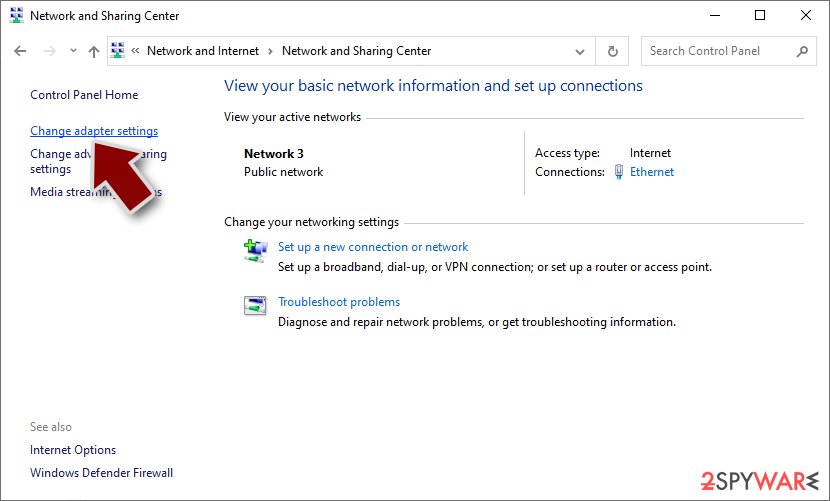
- Click Network and Sharing Center
- On the left, pick Change adapter settings
- Right-click on your connection (for example, Ethernet), and select Disable
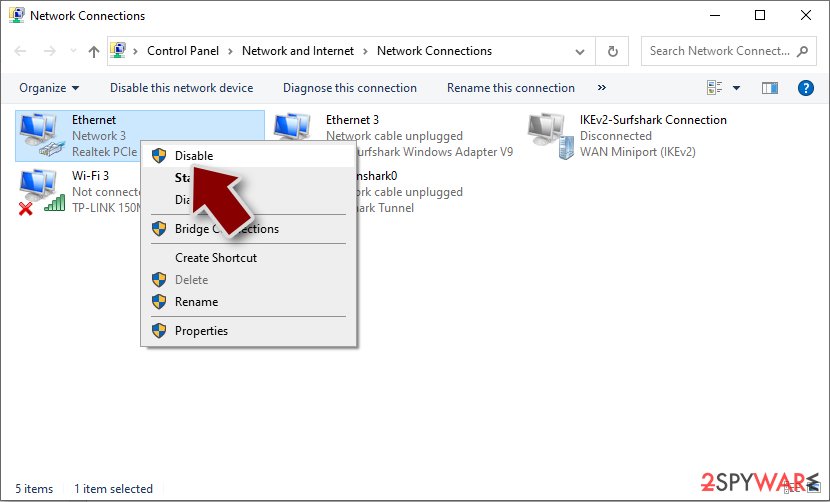
- Confirm with Yes.


Keep in mind that you should also disconnect from cloud storage services such as OneDrive, as well as external storage devices (USB sticks, external hard drives, etc.).
Step 2. Remove malware
If you are a victim of ransomware, it is important to employ anti-malware software for its removal. Even if the ransomware self-destructs after encrypting your files, malware might still be present and operating in conjunction with other malicious programs. This could lead to further damage and loss of personal information such as banking credentials and login details.
To avoid this scenario, we recommend employing an antivirus program that can remove all traces of malware from your computer system by scanning it thoroughly before any more damage is done. While most malware can be eradicated in a normal mode, some infections might be more stubborn.
If ransomware is impeding the security tool's function, you can access the Safe Mode environment and perform the scan from there.
Windows 7 / Vista / XP
- Click Start > Shutdown > Restart > OK.
- When your computer becomes active, start pressing the F8 button (if that does not work, try F2, F12, Del, etc. – it all depends on your motherboard model) multiple times until you see the Advanced Boot Options window.
- Select Safe Mode with Networking from the list.


Windows 10 / Windows 8
- Right-click on the Start button and select Settings.
- Scroll down to pick Update & Security.
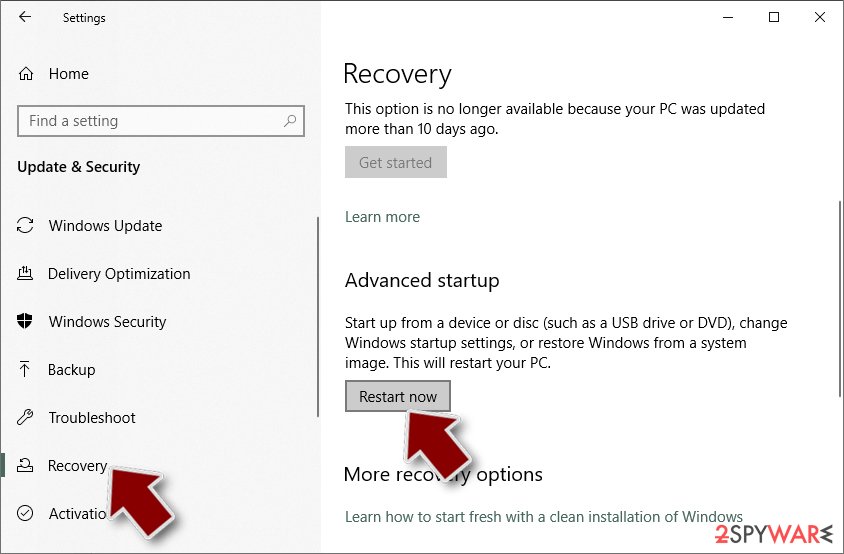
- On the left side of the window, pick Recovery.
- Now scroll down to find the Advanced Startup section.
- Click Restart now.
- Select Troubleshoot.
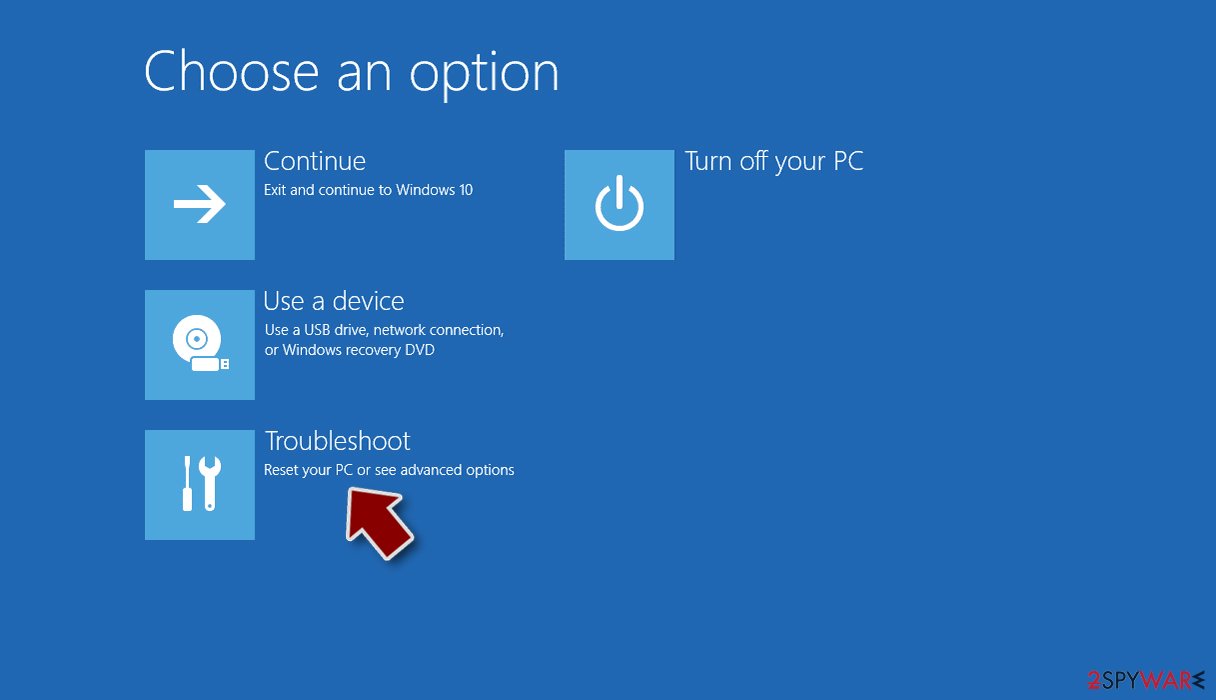
- Go to Advanced options.
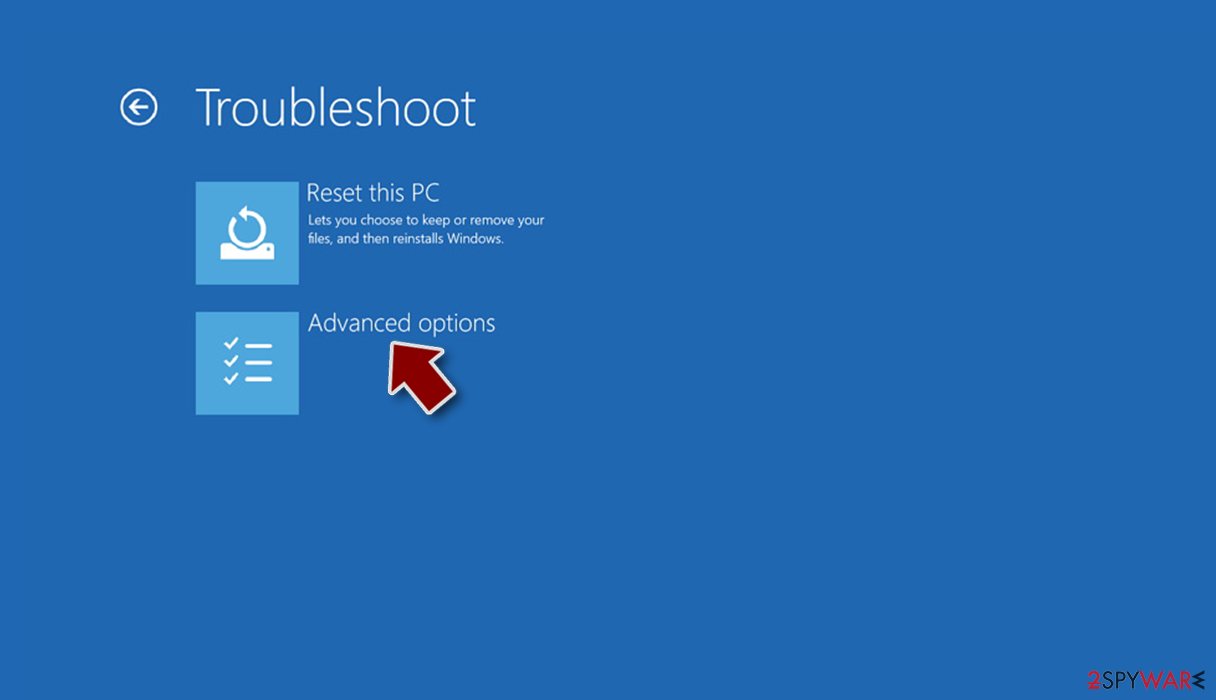
- Select Startup Settings.
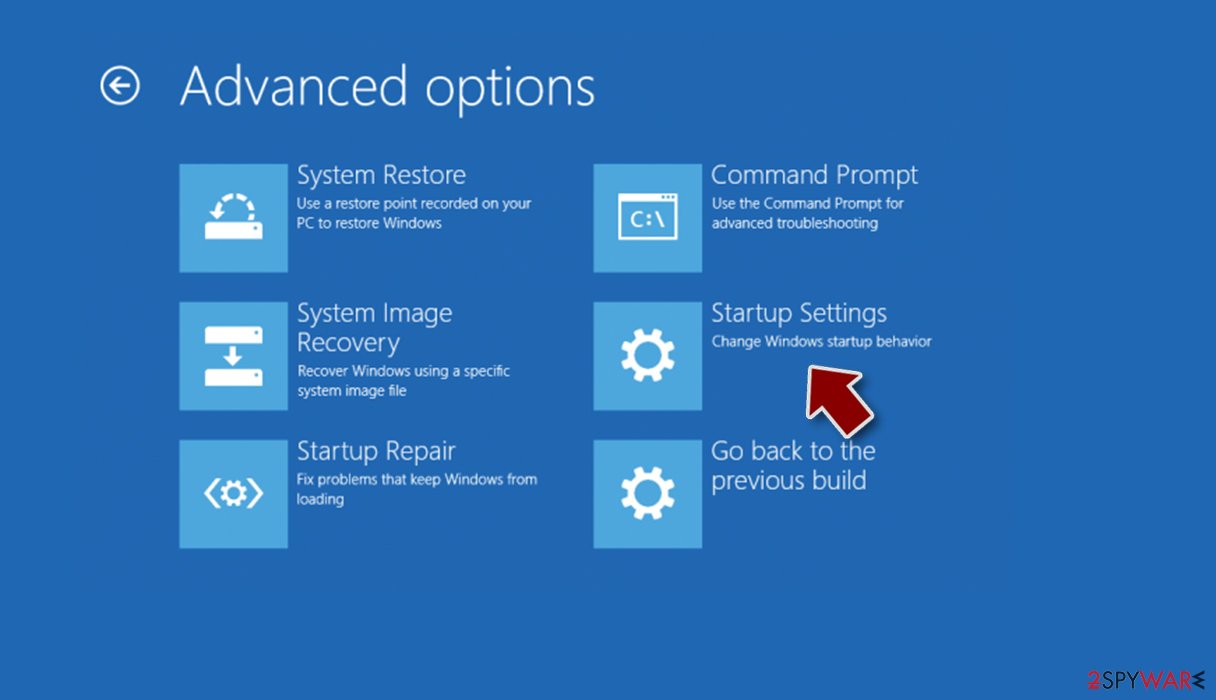
- Click Restart.
- Press 5 or click 5) Enable Safe Mode with Networking.
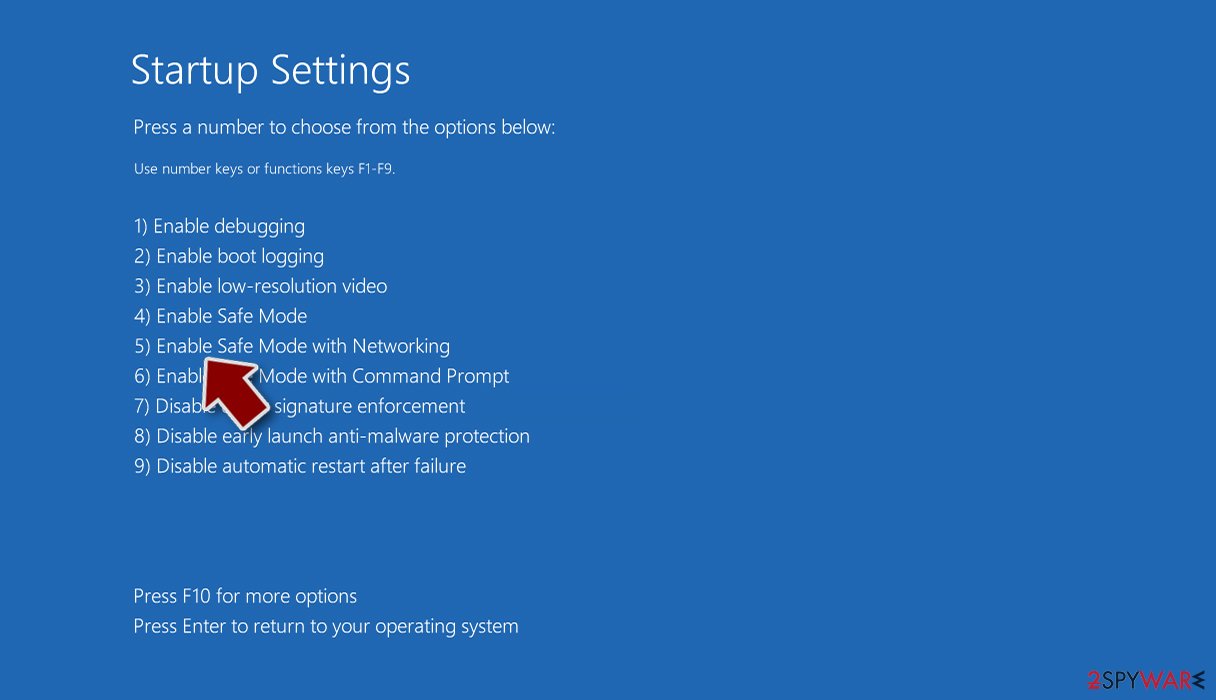


After reaching Safe Mode, launch SpyHunterCombo Cleaner, MalwarebytesMalwarebytes, or another antivirus, update it with the latest definitions and perform a full system scan to remove malware and all its components from the system.
Step 3. Backup encrypted files
It goes without saying that the easiest way to restore your files is by using backups. Unfortunately, most ransomware victims fail to use this precautionary measure, and once the infection has begun, it is too late to save one's files. if you need tips on how to backup your data in the most efficient way, we have some tips for you at the bottom of this post, so scroll down if required.
You can also use these steps to backup currently encrypted files. This is very important, as, if you proceed with data recovery immediately, you might corrupt it for good (note that ransomware does not corrupt your files but rather puts it behind a sophisticated key, only accessible to cybercriminals).
Security experts are known to work on decryption tools for major ransomware strains. In some cases, flaws within the encryption process can be found or criminals' servers seized by the lay authority agencies. In any case, you could look for decryptors on the following pages, although keep in mind it might take a while until there's a working one made.
- No More Ransom Project
- Free Ransomware Decryptors by Kaspersky
- Free Ransomware Decryption Tools from Emsisoft
- Avast decryptors
Step 4. Use data recovery software
Data recovery software could help you in some situations (it highly depends on the encryption algorithm used, whether ransomware managed to complete its tasks, etc.). Therefore, it is impossible to tell whether this method will work for you, although you should definitely try.
Install data recovery software
- Download Data Recovery Pro.
- Double-click the installer to launch it.

- Follow on-screen instructions to install the software.
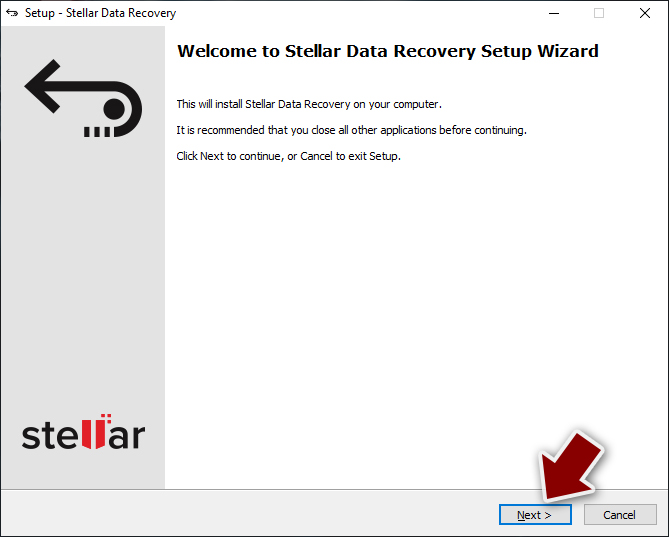
- As soon as you press Finish, you can use the app.
- Select Everything or pick individual folders where you want the files to be recovered from.
- Press Next.
- At the bottom, enable Deep scan and pick which Disks you want to be scanned.

- Press Scan and wait till it is complete.
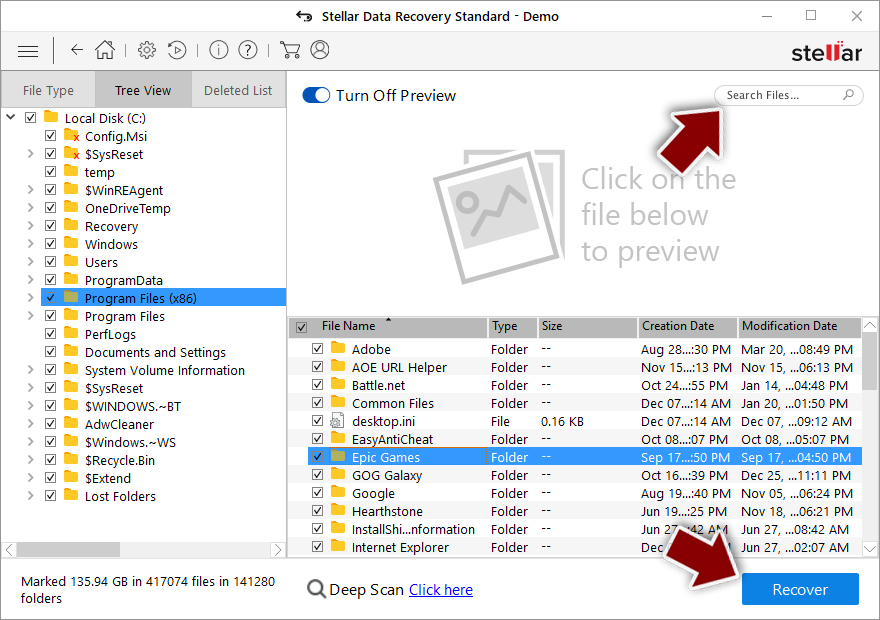
- You can now pick which folders/files to recover – don't forget you also have the option to search by the file name!
- Press Recover to retrieve your files.


Finally, you always have a choice to cooperate with the attackers. However, we strongly discourage you from doing so, as you might not only lose your files but also your money. Cybercriminals often ask for large sums for decryption, and even fail to provide the promised tool after the payment is made.
Did this guide help?
Be the first to comment