

ESCANOR ransomware is the virus that encrypts files and demands ransom paying

ESCANOR ransomware is the infection that criminals create with the purpose of encoding files and demanding payments for the alleged decryption tool. The promise that the tool for file recovery can appear comes via the ransom note once those documents, images, audio, or video files get locked and altered.
The infection can be executed and run the particular encryption[1] algorithm to change original file codes and interfere with the names of those files. ESCANOR ransomware virus is the threat that initially affects files and makes ransom demands keeping those files hostage.
However, there is no reason to contact criminals behind this virus or even consider payment as a good option. Contacting these scammers and cybercriminals can lead to more difficult issues and damage to the virus. These threats can cause additional damage to the computer besides those files that get directly encrypted and changed. ESCANOR ransomware removal is more recommended and can be more successful since the threat is not decryptable officially.
Details on ransomware
| Name | ESCANOR ransomware |
|---|---|
| Type | Cryptovirus, file-locker |
| File marker | .ESCANOR |
| Ransom note | HELP_DECRYPT_YOUR_FILES.txt |
| Ransom amount | $980 |
| Distribution | Files with malicious code get spread via spam email attachments and other pages with pirating software packages |
| Removal | Threats can be removed with anti-malware tools |
| Repair | The infection can leave additional leftovers, so you need to run FortectIntego and fix those issues |
ESCANOR file virus is placing the ransom-demanding message on desktop and in various folders to scare people with the HELP_DECRYPT_YOUR_FILES.txt and the claims listed on the text file. The message informs people about the encryption and offers people to pay the price of the alleged decryption tool.
ESCANOR ransomware is a virus that tries to convince people that recovering the locked data is possible by purchasing the decryption key from attackers. Before paying, victims are promised that the single file can be decrypted as the test decryption to convince people that this is possible for them.
However, an infection like this is developed by criminals that are only motivated by money. Experts[2] are recommending people to ignore any of the messages received from ESCANOR ransomware creators. These infections can trigger other damage to the machine, and meeting these ransom demands cannot help to fully recover.
Eliminate the infection
ESCANOR ransomware should be removed, and that can be done with particular tools like SpyHunterCombo Cleaner or MalwarebytesMalwarebytes can be used here. The proper system scan with a tool that is based on AV detection[3] can indicate all the infections on the machine so the user can clear all the threats off of the system.

ESCANOR ransomware virus can be removed, and it should be deleted from the system as soon as possible because the operating system can be damaged significantly, and those processes that the malware can trigger can disable applications and features to help with the removal of the virus.
You can also rely on the system functions and things provided by the operating system on Windows machines. These threats, like ESCANOR ransomware, can be very persistent, so complete active virus removal is important because you need to terminate the virus to be able to use the machine ever again.
Step 1. Access Safe Mode with Networking
Manual malware removal should be best performed in the Safe Mode environment.
Windows 7 / Vista / XP
- Click Start > Shutdown > Restart > OK.
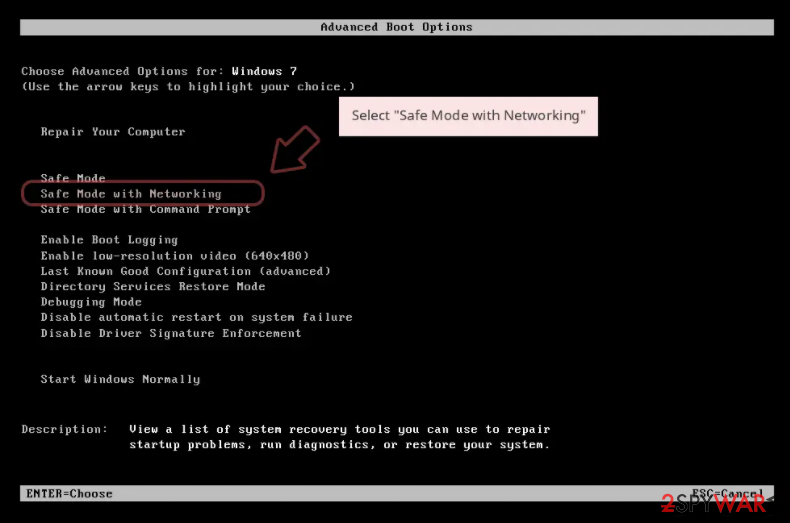
- When your computer becomes active, start pressing F8 button (if that does not work, try F2, F12, Del, etc. – it all depends on your motherboard model) multiple times until you see the Advanced Boot Options window.
- Select Safe Mode with Networking from the list.

Windows 10 / Windows 8
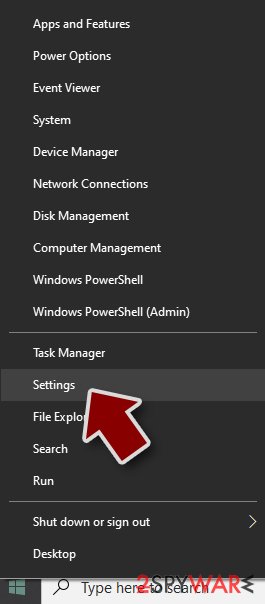
- Right-click on Start button and select Settings.
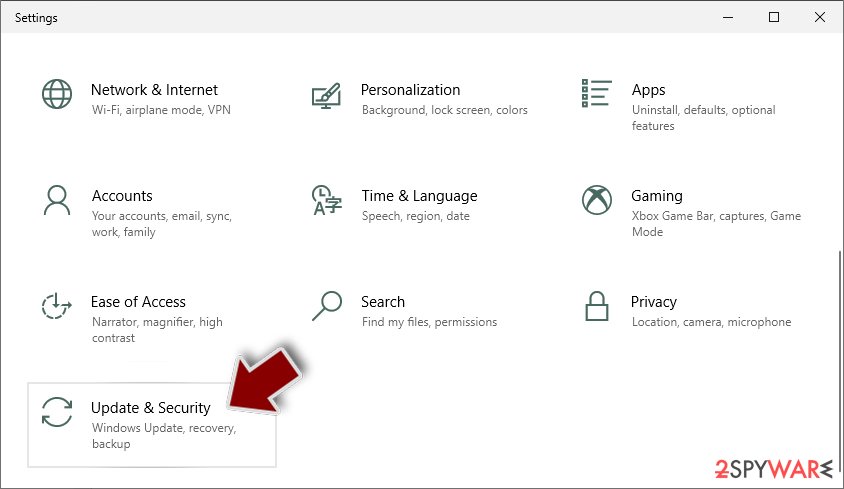
- Scroll down to pick Update & Security.
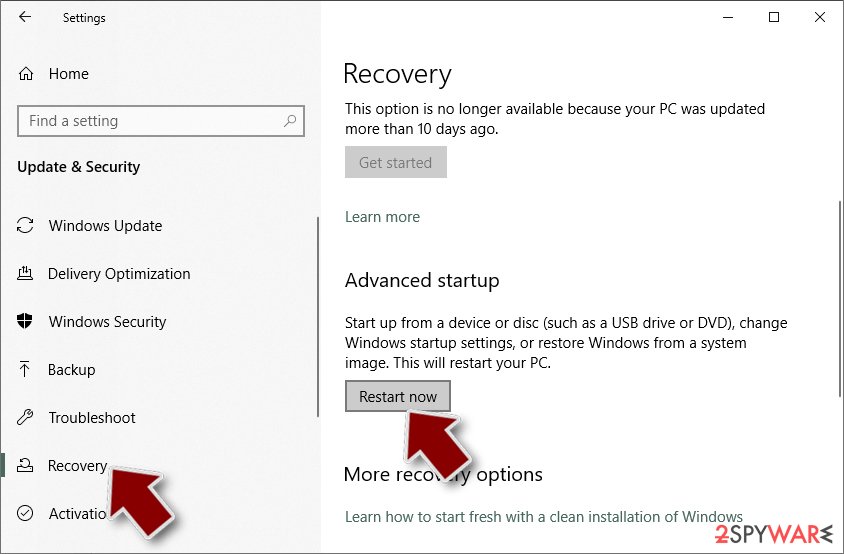
- On the left side of the window, pick Recovery.
- Now scroll down to find Advanced Startup section.
- Click Restart now.
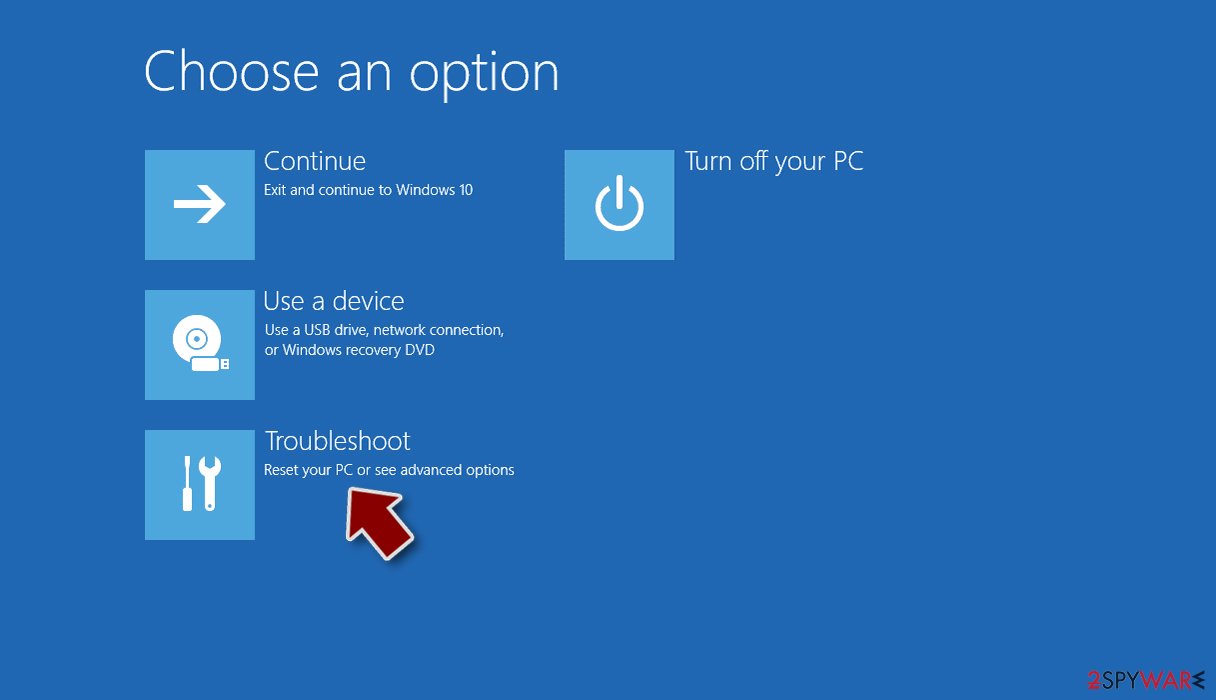
- Select Troubleshoot.
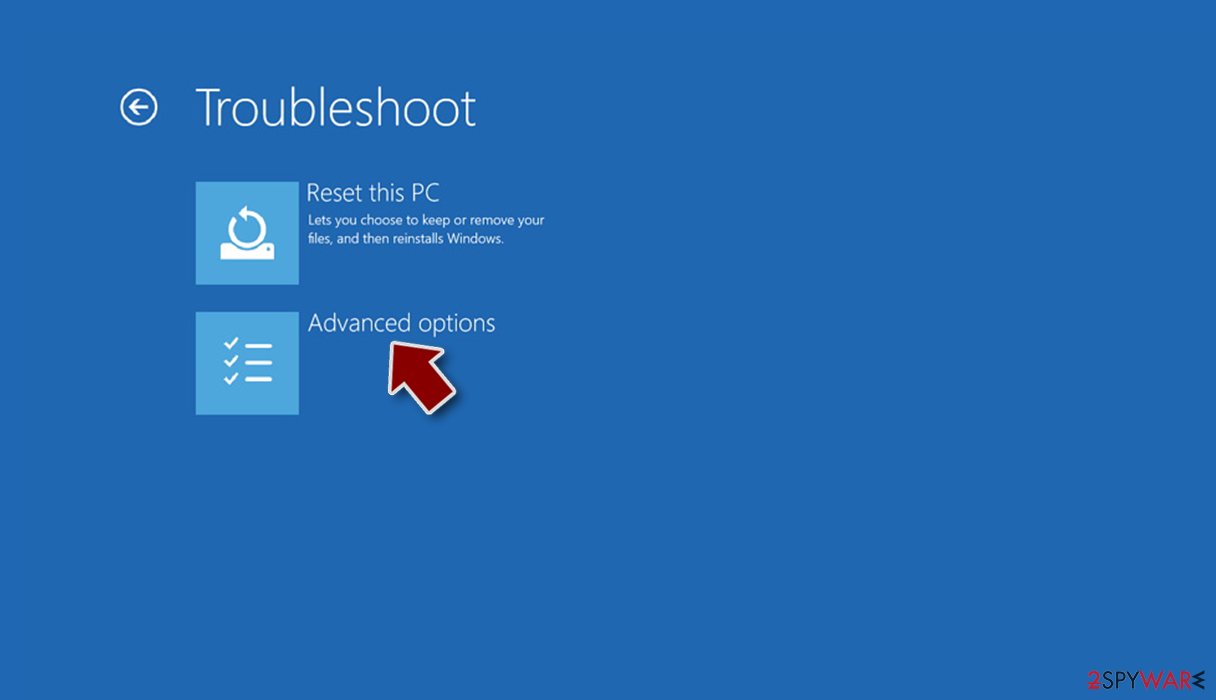
- Go to Advanced options.
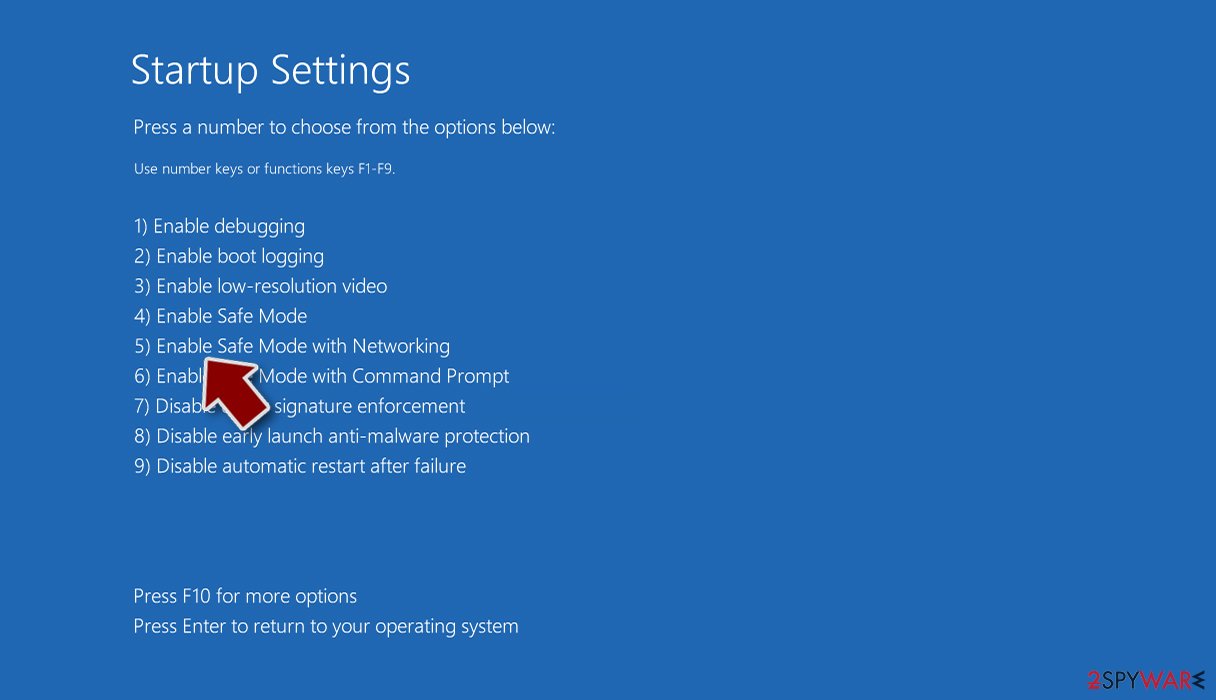
- Select Startup Settings.
- Press Restart.
- Now press 5 or click 5) Enable Safe Mode with Networking.


Step 2. Shut down suspicious processes
Windows Task Manager is a useful tool that shows all the processes running in the background. If malware is running a process, you need to shut it down:
- Press Ctrl + Shift + Esc on your keyboard to open Windows Task Manager.
- Click on More details.
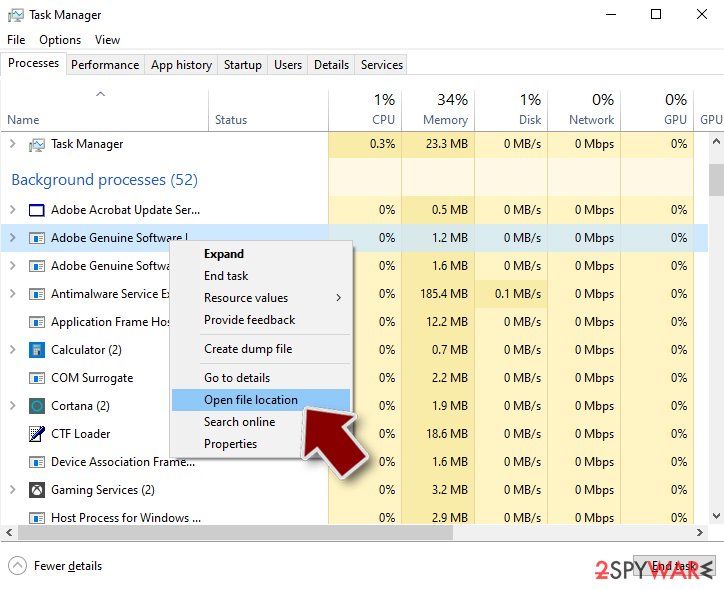
- Scroll down to Background processes section, and look for anything suspicious.
- Right-click and select Open file location.
- Go back to the process, right-click and pick End Task.
- Delete the contents of the malicious folder.

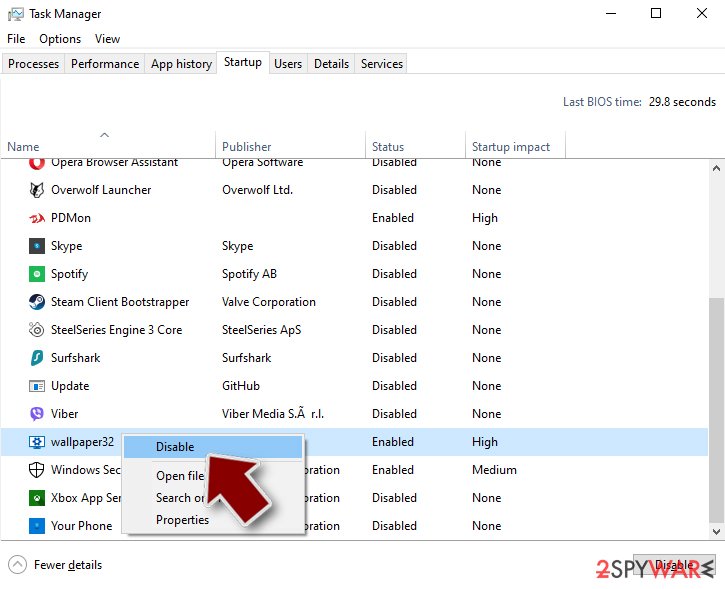
Step 3. Check program Startup
- Press Ctrl + Shift + Esc on your keyboard to open Windows Task Manager.
- Go to Startup tab.
- Right-click on the suspicious program and pick Disable.

Step 4. Delete virus files
Malware-related files can be found in various places within your computer. Here are instructions that could help you find them:
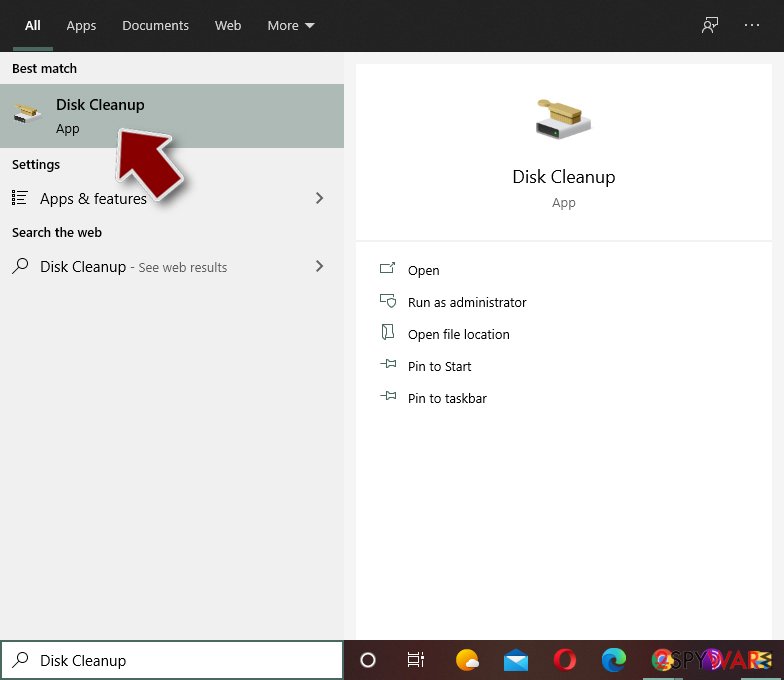
- Type in Disk Cleanup in Windows search and press Enter.
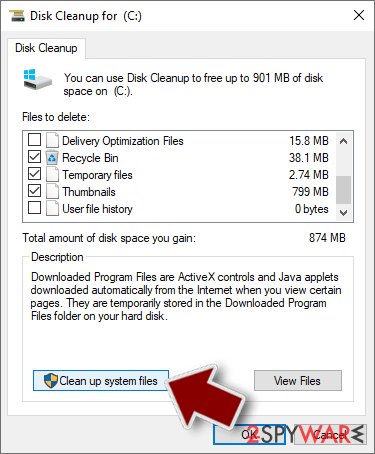
- Select the drive you want to clean (C: is your main drive by default and is likely to be the one that has malicious files in).
- Scroll through the Files to delete list and select the following:
Temporary Internet Files
Downloads
Recycle Bin
Temporary files - Pick Clean up system files.
- You can also look for other malicious files hidden in the following folders (type these entries in Windows Search and press Enter):
%AppData%
%LocalAppData%
%ProgramData%
%WinDir%


After you are finished, reboot the PC in normal mode.
Issues leading to ransomware infections
ESCANOR ransomware virus is an infection that uses the ransom note to inform people that the only solution is tp pay up. That means contacting people behind this infection and recovering data by purchasing the decryption key from attackers. The threat should be removed and those false claims ignored.
Your device can be infected way before those files get locked, so people should react to these money-demanding messages as soon as the appendix appears at the end of all the files. Your device can be cleared after the infection, but there is a lot of damage that can be left behind after the process of ESCANOR ransomware elimination.
The threat distribution involves various portals and sources that distribute malicious pirating software packages and malware-laced files that can trigger the launch of the cryptovirus. Torrents, deceptive pages, and free download sites can all deliver malicious pieces like trojans and worms, and malware.
ESCANOR ransomware can be a secondary payload dropped on the machine by the trojan or a different intruder. This is why the infection can happen silently, and users are only aware of the ransomware when encryption has already happened. Do not trust criminals, and try to avoid anything that raises suspicion.
The distribution can happen when spam emails have file attachments with a malicious payload of the infection. That can be triggered when the user is opening the file or clicking on a link, and the drop loads on the computer without additional permission needed. This is why ESCANOR ransomware can be considered one of the most dangerous threats.
Repair the system after the infection
Once a computer is infected with malware, its system is changed to operate differently. For example, an infection can alter the Windows registry database, damage vital bootup, and other sections, delete or corrupt DLL files, etc. Once a system file is damaged by malware, antivirus software is not capable of doing anything about it, leaving it just the way it is. Consequently, users might experience performance, stability, and usability issues, to the point where a full Windows reinstall is required.
Therefore, we highly recommend using a one-of-a-kind, patented technology of FortectIntego repair. Not only can it fix virus damage after the infection, but it is also capable of removing malware that has already broken into the system thanks to several engines used by the program. Besides, the application is also capable of fixing various Windows-related issues that are not caused by malware infections, for example, Blue Screen errors, freezes, registry errors, damaged DLLs, etc.
- Download the application by clicking on the link above
- Click on the ReimageRepair.exe

- If User Account Control (UAC) shows up, select Yes
- Press Install and wait till the program finishes the installation process
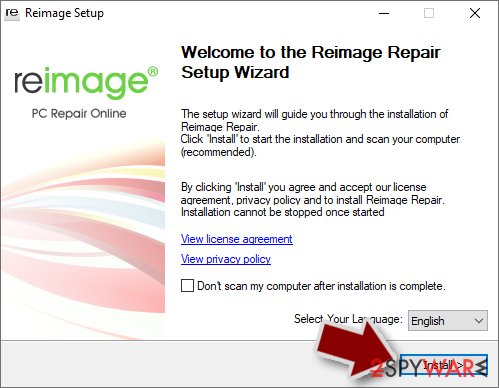
- The analysis of your machine will begin immediately
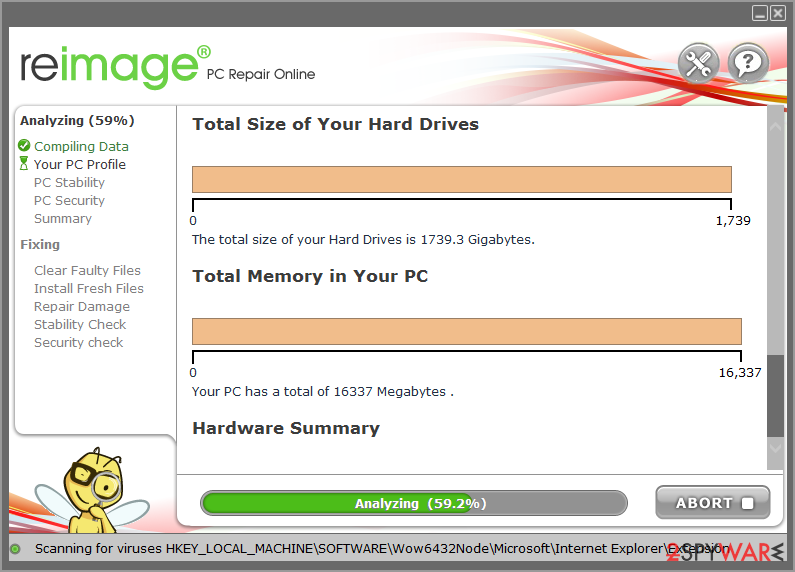
- Once complete, check the results – they will be listed in the Summary
- You can now click on each of the issues and fix them manually
- If you see many problems that you find difficult to fix, we recommend you purchase the license and fix them automatically.



Did this guide help?
Be the first to comment