

Coupon Drop Down is a deceptive adware that spams your browser with ads
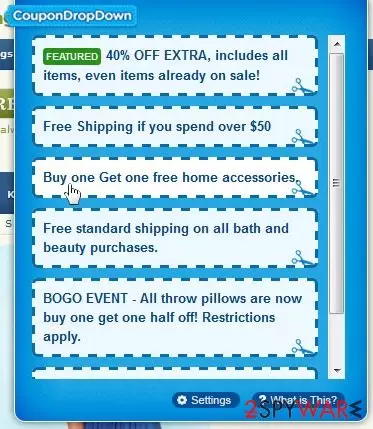
Coupon Drop Down (can also be found as CouponDropDown) is a totally annoying adware-type program, which is one of the main reasons why users begin seeing intrusive ads. These ads appear on your PC's desktop only when using such websites as:
- eBay
- Amazon
- Google, and similar sites.
However, there are hundreds of PC users who claim that Coupon Drop Down ads appear randomly and come in the form of banners, popups, deals, offers, coupons, in-text links, etc.
Please be careful with them because most of them are displayed on your computer because of trying to redirect people to predetermined websites seeking to increase their page rank or sales. So, after clicking on any of these ads, you may be redirected to websites that may be filled with suspicious content.
Besides, you should also keep in mind another thing related to this program, and that thing is Coupon Drop Down's ability to track PC users and collect non-personally identifiable information about them.
Security researchers who analyzed the PUP claimed the following:
Beware that this program may collect your search terms, mostly visited websites, data that you enter when visiting them, your PC's IP address, location, etc. After doing so, it may share it with unknown parties.
That's why we think that you remove Coupon Drop Down from your computer. If this program has already become a really annoying application that causes only unwanted interruptions during each of your browsing sessions, you should check your machine with updated anti-spyware and see what it finds.
We recommend running a full system scan with SpyHunterCombo Cleaner or similar security programs. Also, FortectIntego can take care of the system's health post PUP elimination. To clean your web browsers and prevent further tracking, you should follow the instructions we provide below.
Users do not install adware intentionally in most cases
Coupon Drop Down is distributed via several methods. You can download it voluntarily from its official website, but it can also be downloaded in one pack with freeware and shareware. Some of the apps that are known to promote this hijacker:
- 1ClickDownload
- Yontoo
- FBPhotoZoom.
You should know that this unfair method of distribution can be easily stopped by unclicking this app and other optional installs during the installation process of a program. However, if it gets inside, this adware modifies the system and starts showing its commercial ads that are filled with various coupons, offers, promotions, and deals.
If you are one of these people who can't stand this program or you haven't installed it by yourself, you should remove Coupon Drop Down from the system without any delay.
Uninstall Coupon Drop Down to return your browser back to normal
In order to remove Coupon Drop Down virus, you should first uninstall it from your computer manually. If you have never had to deal with the application uninstallation process, we provide detailed instructions below. Besides, you should also look for these programs and, if detected, uninstall them from your computer:
Online HD TV Toolbar: Online HD TV, PutLockerDownload, TornTV, Yontoo, 1ClickDown, 1ClickDownloader, FB Photo Zoom, GoPhoto.it, HDvid Codec, IB Updater, Incredibar Toolbar, OneClickDownload, OneClickDownloader.
If you don't want to deal with manual Coupon Drop Down removal steps are simply too inexperienced within this field, you can instead employ reputable anti-malware software and perform a full system scan. Security applications are designed to find all the malicious components on the system and delete them at once.
Uninstall from Windows
Uninstall from Windows 10/8:
- Type Control Panel into the Windows search box and open the result.
- Under Programs, select Uninstall a program.


Uninstall from Windows 7/XP:
- Click on Windows Start > Control Panel (Windows XP users should click on Add/Remove Programs).
- In Control Panel, select Programs > Uninstall a program.


Remove the unwanted program:
- In the Programs and Features window, look for any recently installed suspicious entries, select them, and click Uninstall.
- If User Account Control appears, click Yes to confirm, then complete the removal.


Delete from macOS
Remove the unwanted application:
- From the menu bar, select Go > Applications.
- In the Applications folder, look for any suspicious entries, then drag them to Trash (or right-click and pick Move to Trash).


Delete leftover files and folders:
- Select Go > Go to Folder.
- Enter /Library/Application Support and remove any suspicious folders related to the unwanted program.
- Repeat the same check in the /Library/LaunchAgents and /Library/LaunchDaemons folders, deleting any suspicious entries.

- Finally, empty the Trash to permanently remove the leftovers.

Reset Internet Explorer
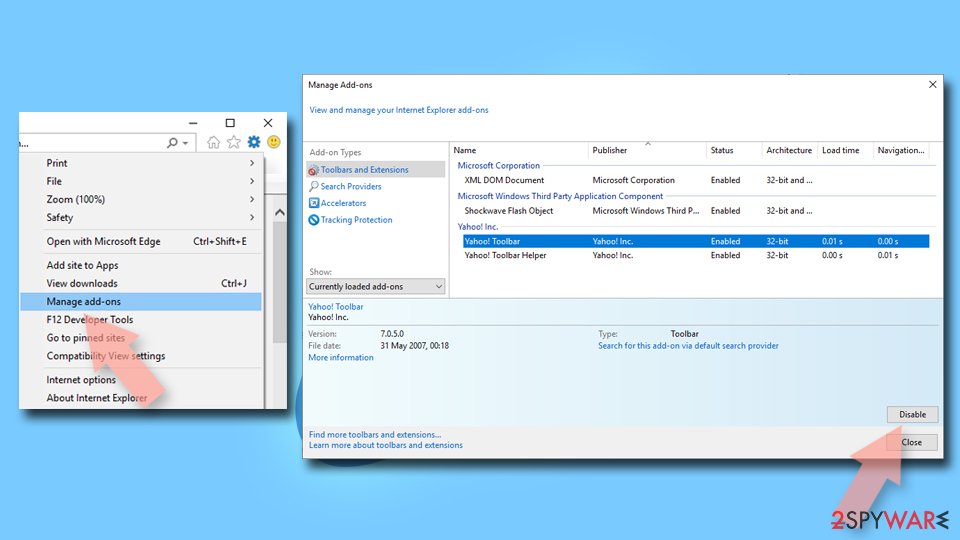
Remove dangerous add-ons:
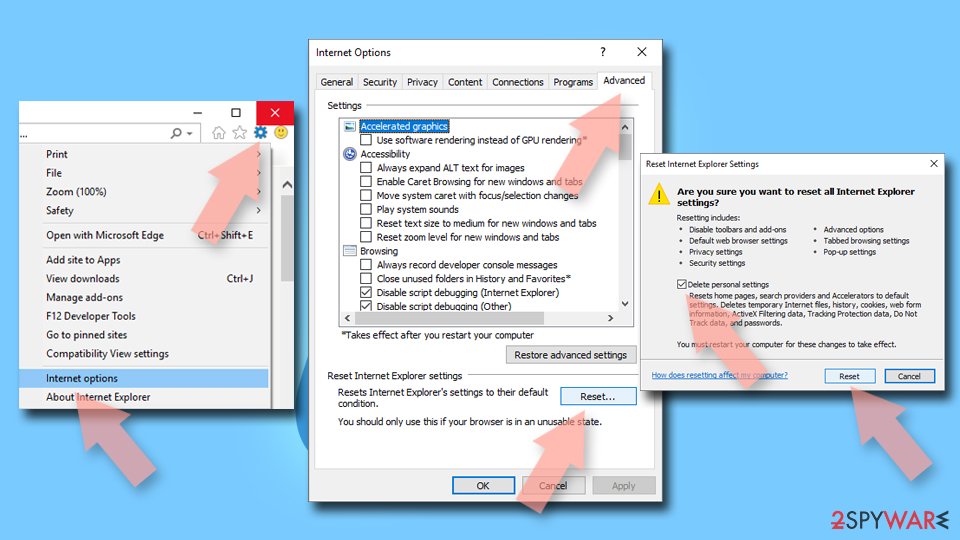
- Open Internet Explorer, click on the Gear icon (IE menu) on the top-right corner of the browser
- Pick Manage Add-ons.
- You will see a Manage Add-ons window. Here, look for suspicious plugins. Click on these entries and select Disable.

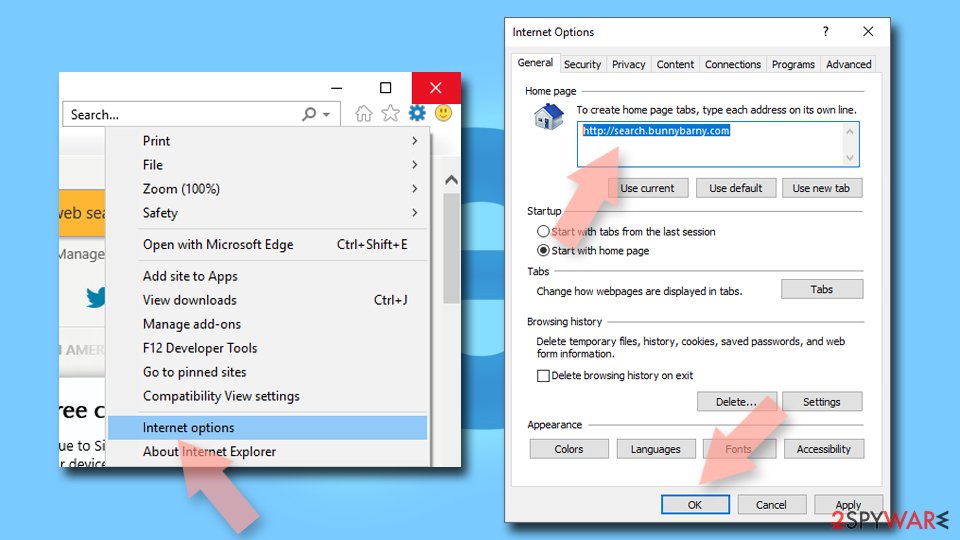
Change your homepage if it was altered:
- Open IE and click on the Gear icon.
- Select Internet Options.
- In the General tab, delete the Home page address and replace it by your preferred one (for example, Google.com).
- Click Apply and then select OK.

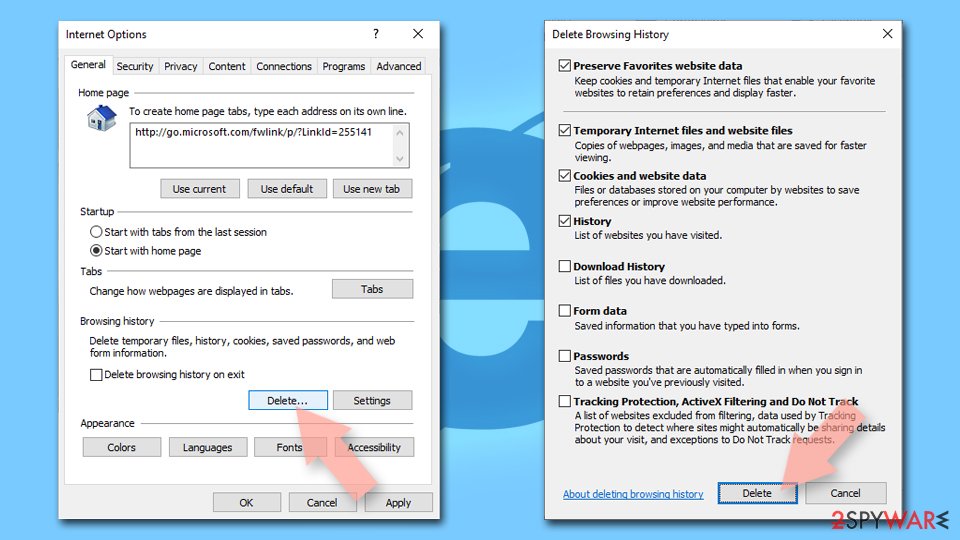
Delete temporary files:
- Press on the Gear icon and select Internet Options.
- Under Browsing history, click Delete...
- Select relevant fields and press Delete.

Reset Internet Explorer:
- Click on Gear icon > Internet options and select Advanced tab.
- Select Reset.
- In the new window, check Delete personal settings and select Reset.

Remove from Microsoft Edge
Delete unwanted extensions from MS Edge:
- Select Menu (three horizontal dots at the top-right of the browser window) and pick Extensions.
- From the list, pick the extension and click on the Gear icon.
- Click Remove.


Clear cookies and other browser data:
- Click on the Menu (three horizontal dots at the top-right of the browser window) and select Settings > Privacy, search, and services..
- Under Clear browsing data, pick Choose what to clear.
- Select Cookies and other site data and Cached images and files. (apart from passwords, although you might want to include Media licenses as well, if applicable) and click on Clear.


Restore new tab and homepage settings:
- Click the menu icon and choose Settings.
- Then find On startup section.
- Click Remove next to any suspicious startup page.
Reset MS Edge if the above steps did not work:
- Press on Ctrl + Shift + Esc to open Task Manager.
- Click on More details arrow at the bottom of the window.
- Select Details tab.
- Now scroll down and locate every entry with Microsoft Edge name in it. Right-click on each of them and select End Task to stop MS Edge from running.


Instructions for Chromium-based Edge
Delete extensions from MS Edge (Chromium):
- Open Edge and click select Settings > Extensions.
- Delete unwanted extensions by clicking Remove.


Clear cache and site data:
- Click on Menu and go to Settings.
- Select Privacy, search and services.
- Under Clear browsing data, pick Choose what to clear.
- Under Time range, pick All time.
- Select Clear now.


Reset Chromium-based MS Edge:
- Click on Menu and select Settings.
- On the left side, pick Reset settings.
- Select Restore settings to their default values.
- Confirm with Reset.
- This will disable extensions and reset startup pages but will not delete bookmarks, saved passwords, or browsing history.


Remove from Mozilla Firefox (FF)
Remove dangerous extensions:
- Open Mozilla Firefox browser and click on the Menu (three horizontal lines at the top-right of the window).
- Select Add-ons.
- In here, select the unwanted extension and click Remove.


Reset the homepage:
- Click three horizontal lines at the top right corner to open the menu.
- Choose Settings.
- Under Home, set your preferred homepage and new tab settings.
Clear cookies and site data:
- Click Menu and pick Settings.
- Go to Privacy & Security section.
- Scroll down to locate Cookies and Site Data.
- Click on Clear Data...
- Select Cookies and Site Data and Temporary cached files and pages, then click Clear.


Reset Mozilla Firefox
If clearing the browser as explained above did not help, reset Mozilla Firefox:
- Open Mozilla Firefox browser and click the Menu.
- Go to Help and then choose Troubleshooting Information.

- Under Give Firefox a tune up section, click on Refresh Firefox...
- Once the pop-up shows up, confirm the action by pressing on Refresh Firefox.



Remove from Google Chrome
Delete malicious extensions from Google Chrome:
- Open Google Chrome, click on the Menu (three vertical dots at the top-right corner) and select More tools > Extensions.
- In the newly opened window, you will see all the installed extensions. Uninstall all suspicious extensions related to the unwanted program by clicking Remove.


Clear cache and web data from Chrome:
- Click on Menu and pick Settings.
- Under Privacy and security, select Clear browsing data.
- Select Browsing history, Cookies and other site data, as well as Cached images and files.
- Click Clear data.


Change your homepage:
- Click menu and choose Settings.
- Look for a suspicious site in the On startup section.
- Click on Open a specific or set of pages and click on three dots to find the Remove option.
Reset Google Chrome:
If the previous methods did not help you, reset Google Chrome to eliminate all the unwanted components:
- Click on Menu and select Settings.
- In the Settings, scroll down and click Advanced.
- Scroll down and locate Reset and clean up section.
- Now click Restore settings to their original defaults.
- Confirm with Reset settings.


Delete from Safari
Remove dangerous extensions:
- Open Safari, click Safari in the menu at the top-left of the screen, and select Preferences.
- Go to the Extensions tab, look for any suspicious entries, and click Uninstall to remove them.


Clear history and website data:
- Click Safari in the menu and pick Clear History.
- Set Clear to all history and confirm with Clear History.


Reset Safari:
- Click Safari in the menu and select Preferences > Advanced.
- Enable Show Develop menu in menu bar.
- From the menu bar, click Develop and select Empty Caches.


Did this guide help?
11 comments
Davidc
I have attempted everything I know how in order to remove CouponDropDown. It does not show up in IE. However, Firefox is infected. I have been through the Add/Remove Programs and cannot locate it. Apparently, it is hidden. Have the authors become smarter? I have even done a Restore and have even uninstalled and reinstalled Firefox. Nothing helps!
I need new ideas.
Dane Rogers danerogers@comcast.net
Sorry but Ive got the same situation - a stealthy installation of CouponDropDown that screws up Firefox. I tried a full scan of SpyHunter which claimed to be able to remove CouponDropDown, but it didnt even find it. I would really appreciate a real solution.
Josiah B.
Same with me, this is BS!
Sam
I cant get rid of it either! Have Kaspersky installed and that hasnt stopped it.
Jacquie
I was just about to buy Kaspersky so thanks for the heads up on that. Has anyone any idea on this?
Dave D
its the same with Norton, I bought Norton cos I was so brassed off with this thing, and its still there ;-)
Diana
The removal instructions were worthless since I never installed CouponDropDown. Norton did NOT stop it from happening. So I went to my trusty Spybot (free program) and it removed it. YIPPEE! Always wonder what kind of success these programmers could do if they worked for reputable companies ... what a waste of everyones time and effort and money to just tick people off!
Nite Crawler
Thank you for your help trying to remove this nasty hidden virus that runs in the background of your browser. In my case it was running on IE8 and placing hyperlink ads in my narratives on my eBay items I was selling and it was showing ads while I visited other webpage’s. It would not show on the program list for add and remove programs on startmenu>Control panel>add and remove programs. Nor would it show up on manage add on list for IE8. It was not picked up by my MalwareBytes or Spybot programs either.
First I tried to uninstall and then re-install IE8 but after doing that it was still there. Then I tried to reset settings on IE8 using tools>internet options>advanced tab>reset. I kept getting an error message saying I had to close open tabs still running to perform reset. There were no other tabs open that I could see so I know this tricky little bastard was still running in the background preventing a reset of IE8.
I went to Microsoft download site and found this program called Mr. Fixit that will perform the reset and override the coupon drop down virus running in the background. Here is the link to download the Mr. Fixit program.
http://support.microsoft.com/kb/923737 (copy and paste into your browser)
I did not check the box for resetting my personal settings and just let it reset IE8 back to default settings. After completing the Mr. Fixit reset the coupon drop down virus was gone. Yes!
After getting rid of this coupon drop down virus I downloaded and installed a great program that restores all the windows programs and corrects all the errors that were caused by this piece of crap. You can download it here...(copy and paste link)
http://www.tweaking.com/content/page/windows_repair_all_in_one.html
After running the tweaking repair program my Windows IE8 is golden. Both Mr Fixit and the tweak windows repair are free programs. Hope this helps.
KushC
I finally got rid of this. Thank you so much.
Paula
Im frustrated with this as well... Ive also tried scanning... I am a professional attempting to conduct business at home and this keeps showing up. They take up my entire screen and not knowing I clicked to tell it to go away and it opened up more. Thanks for the insights I am going to give this a try after lunch. Ive got a meeting to prepare for!
Mary
I do not know a lot about computer stuff. I need easy to follow directions on how to remove coupon drop down from m computer.
Please explain it as you would to a 5th grader. I am adult, but I need super easy steps to remove this horrible, aggravating problem.
Help!!