

Microcosmtab.com search results should not be trusted
Microcosmtab.com virus is an untrustworthy third-party program that adjusts browser’s settings to force the user to use a strange search engine[1]. Once installed, it adds an extension called Microcosm New Tab, and it’s icon (an upwards-pointing arrow) will appear in your browser’s menu. Clicking it launches a new tab and loads chrome-extension: //nagnmfhgkjkplbhplkbicmpkfopmnefp/newtab.html URL. Near the address line, you will see the name of the extension (developed by Microcosmtab LTD). When analyzing it, we discovered that it has quite a lot of permissions – alongside traditional “read and change all data on sites you visit[2],” it also encroaches on the rights to read and change user’s bookmarks and know one’s email address. You should remember that email address is considered to be sensitive information because scammers can easily add it to their list of contacts that will receive huge amounts of spam[3]. There are various dangers regarding spam emails, and one of them is ransomware – you should be aware of it. We do not say that the developer of this browser hijacker is involved in illegal activities, but keeping sensitive information to yourself is always a good idea. If you feel that this application shouldn’t stay on your computer, you might start thinking about Microcosmtab.com removal. More information about it is provided below.
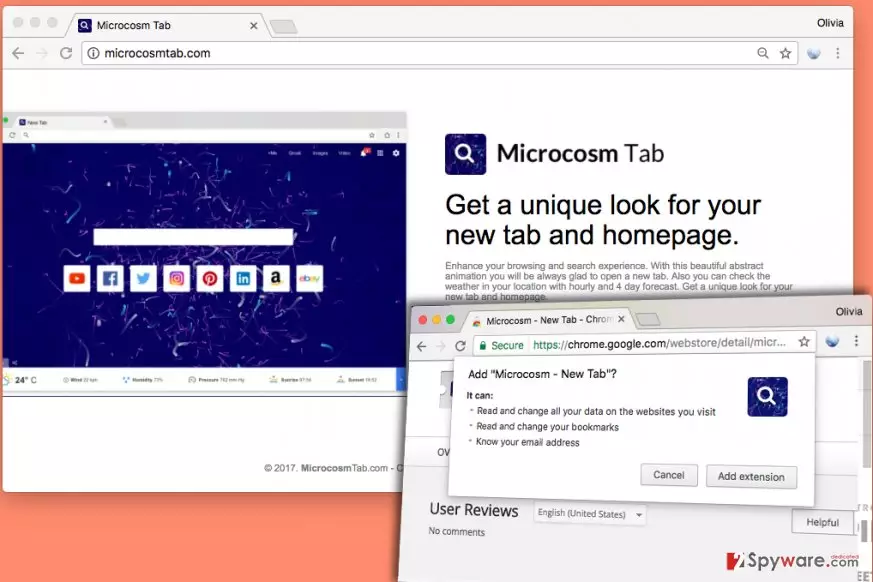
The new home page address we described earlier provides a search engine with an animated background and also some information about weather in the area that user lives in. The overall look of this search engine looks okay, and it even reminds us of Google’s default homepage (because there’s Gmail, Images, Video buttons and even alert and gear icons that look exactly like the ones on default Chrome’s home page). Our biggest concern is the search engine itself – it seems that it serves a lot of sponsored advertisements to users, which means that it seeks to cause redirects to them and generate pay-per-click revenue[4]. Unfortunately, external websites advertised by potentially unwanted and untrustworthy programs can be dangerous. Be careful when visiting them, and make sure you do not inattentively agree to install some shady programs or provide personal information somewhere. If you want to use a more trustworthy search engine, better remove Microcosmtab.com using anti-malware programs like FortectIntego and change homepage settings as explained in the tutorial provided below the article. The tutorial also explains how to uninstall the described hijacker manually.
Distribution of browser hijackers and tricks used to implement it
There are several ways to distribute Microcosmtab.com redirect virus. First of all, you can download it from its official website. However, users rarely come across it by their own wish, so we assume that some adware programs might be causing redirects to it and suggesting users to try the extension provided by that page. Alternatively, this browser hijacker might get into computer system alongside freeware such games, download managers, and other programs that people sometimes download from the Internet. It is vital to know that freeware usually contains a few “surprises,” also known as bundled software[5]. These bonus programs usually present themselves as “recommended third-party programs,” however, statistics show that they typically are useless ad-supported programs. You should choose Custom or Advanced settings and deselect provided suggestions to install extra programs.
The fastest way to remove Microcosmtab.com hijacker
Users can remove Microcosmtab.com virus without using anti-spyware programs, although automatic removal technique is a faster and more effective one. Using automatic malware and spyware removal programs, it is easy to find and eliminate multiple dangerous programs at once. However, if you are sure that there are no more shady programs on the system, you might want to try these Microcosmtab.com removal instructions and eliminate the cause of the problem by yourself.
Uninstall from Windows
Uninstall from Windows 10/8:
- Type Control Panel into the Windows search box and open the result.
- Under Programs, select Uninstall a program.


Uninstall from Windows 7/XP:
- Click on Windows Start > Control Panel (Windows XP users should click on Add/Remove Programs).
- In Control Panel, select Programs > Uninstall a program.


Remove the unwanted program:
- In the Programs and Features window, look for any recently installed suspicious entries, select them, and click Uninstall.
- If User Account Control appears, click Yes to confirm, then complete the removal.


Delete from macOS
Remove the unwanted application:
- From the menu bar, select Go > Applications.
- In the Applications folder, look for any suspicious entries, then drag them to Trash (or right-click and pick Move to Trash).


Delete leftover files and folders:
- Select Go > Go to Folder.
- Enter /Library/Application Support and remove any suspicious folders related to the unwanted program.
- Repeat the same check in the /Library/LaunchAgents and /Library/LaunchDaemons folders, deleting any suspicious entries.

- Finally, empty the Trash to permanently remove the leftovers.

Reset Internet Explorer
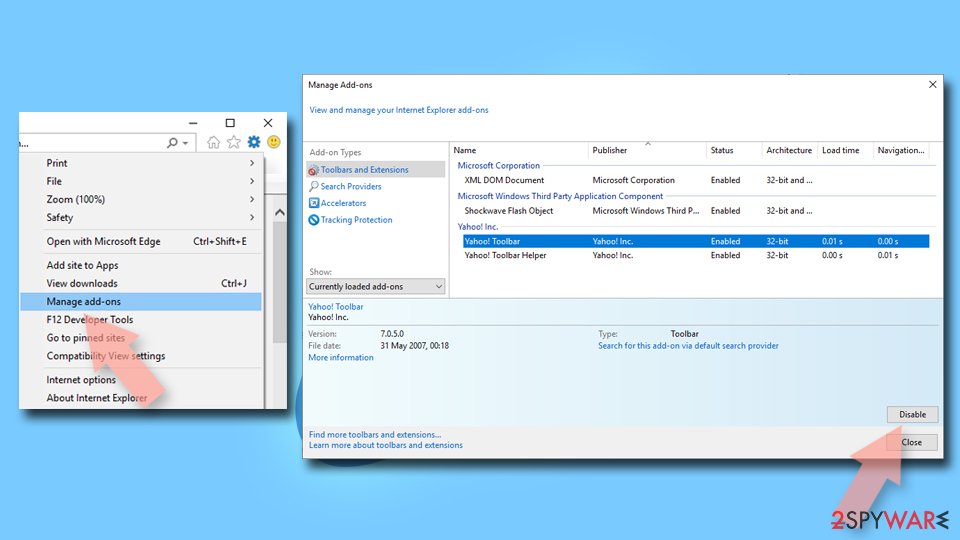
Remove dangerous add-ons:
- Open Internet Explorer, click on the Gear icon (IE menu) on the top-right corner of the browser
- Pick Manage Add-ons.
- You will see a Manage Add-ons window. Here, look for suspicious plugins. Click on these entries and select Disable.

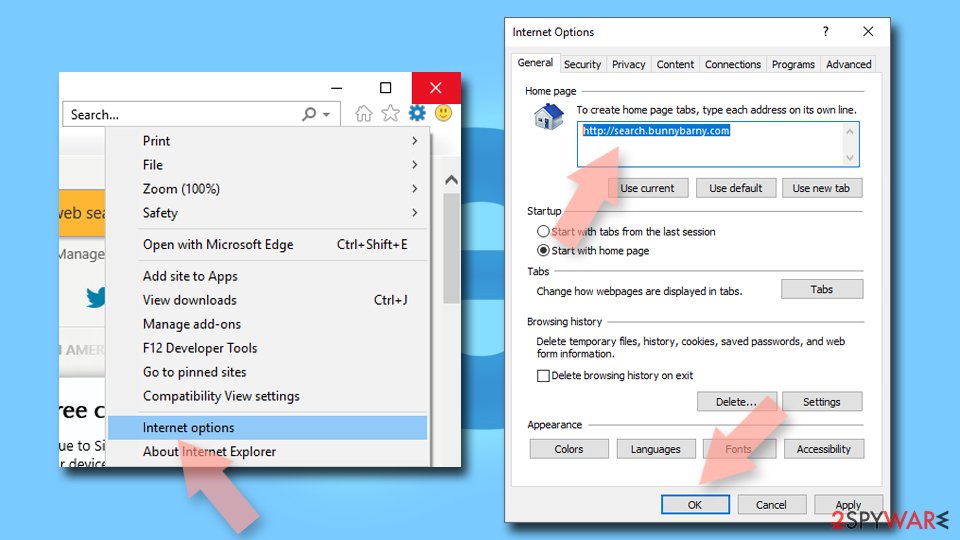
Change your homepage if it was altered:
- Open IE and click on the Gear icon.
- Select Internet Options.
- In the General tab, delete the Home page address and replace it by your preferred one (for example, Google.com).
- Click Apply and then select OK.

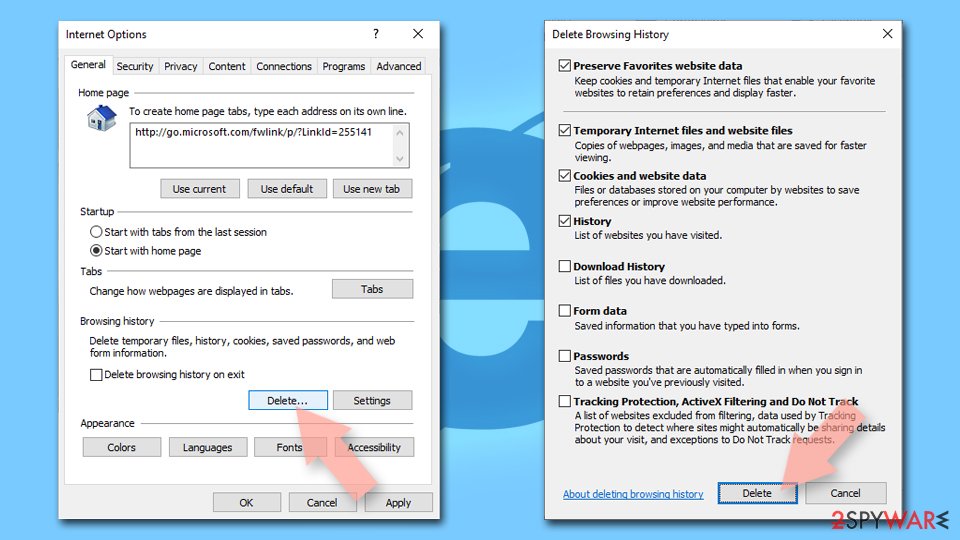
Delete temporary files:
- Press on the Gear icon and select Internet Options.
- Under Browsing history, click Delete...
- Select relevant fields and press Delete.

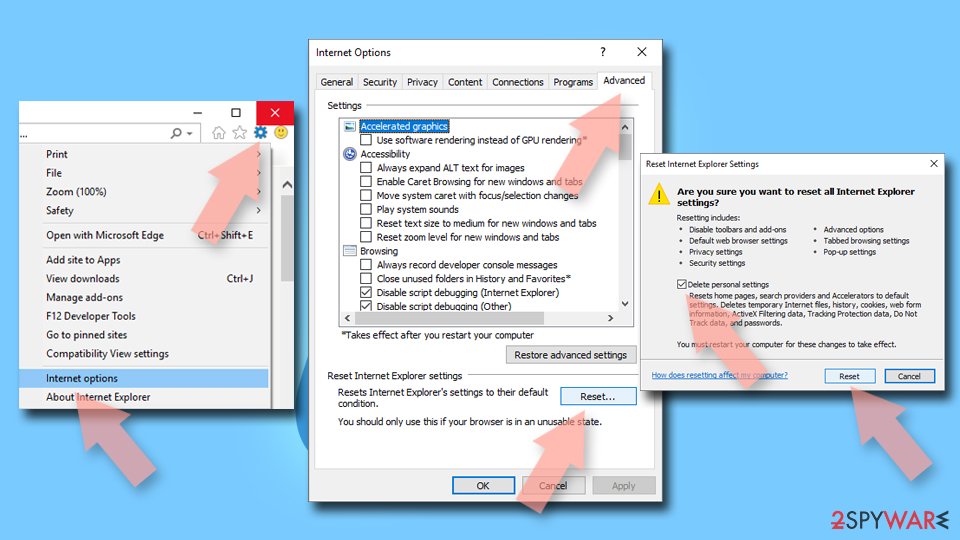
Reset Internet Explorer:
- Click on Gear icon > Internet options and select Advanced tab.
- Select Reset.
- In the new window, check Delete personal settings and select Reset.

Remove from Microsoft Edge
Delete unwanted extensions from MS Edge:
- Select Menu (three horizontal dots at the top-right of the browser window) and pick Extensions.
- From the list, pick the extension and click on the Gear icon.
- Click Remove.


Clear cookies and other browser data:
- Click on the Menu (three horizontal dots at the top-right of the browser window) and select Settings > Privacy, search, and services..
- Under Clear browsing data, pick Choose what to clear.
- Select Cookies and other site data and Cached images and files. (apart from passwords, although you might want to include Media licenses as well, if applicable) and click on Clear.


Restore new tab and homepage settings:
- Click the menu icon and choose Settings.
- Then find On startup section.
- Click Remove next to any suspicious startup page.
Reset MS Edge if the above steps did not work:
- Press on Ctrl + Shift + Esc to open Task Manager.
- Click on More details arrow at the bottom of the window.
- Select Details tab.
- Now scroll down and locate every entry with Microsoft Edge name in it. Right-click on each of them and select End Task to stop MS Edge from running.


Instructions for Chromium-based Edge
Delete extensions from MS Edge (Chromium):
- Open Edge and click select Settings > Extensions.
- Delete unwanted extensions by clicking Remove.


Clear cache and site data:
- Click on Menu and go to Settings.
- Select Privacy, search and services.
- Under Clear browsing data, pick Choose what to clear.
- Under Time range, pick All time.
- Select Clear now.


Reset Chromium-based MS Edge:
- Click on Menu and select Settings.
- On the left side, pick Reset settings.
- Select Restore settings to their default values.
- Confirm with Reset.
- This will disable extensions and reset startup pages but will not delete bookmarks, saved passwords, or browsing history.


Remove from Mozilla Firefox (FF)
Remove dangerous extensions:
- Open Mozilla Firefox browser and click on the Menu (three horizontal lines at the top-right of the window).
- Select Add-ons.
- In here, select the unwanted extension and click Remove.


Reset the homepage:
- Click three horizontal lines at the top right corner to open the menu.
- Choose Settings.
- Under Home, set your preferred homepage and new tab settings.
Clear cookies and site data:
- Click Menu and pick Settings.
- Go to Privacy & Security section.
- Scroll down to locate Cookies and Site Data.
- Click on Clear Data...
- Select Cookies and Site Data and Temporary cached files and pages, then click Clear.


Reset Mozilla Firefox
If clearing the browser as explained above did not help, reset Mozilla Firefox:
- Open Mozilla Firefox browser and click the Menu.
- Go to Help and then choose Troubleshooting Information.

- Under Give Firefox a tune up section, click on Refresh Firefox...
- Once the pop-up shows up, confirm the action by pressing on Refresh Firefox.



Remove from Google Chrome
Delete malicious extensions from Google Chrome:
- Open Google Chrome, click on the Menu (three vertical dots at the top-right corner) and select More tools > Extensions.
- In the newly opened window, you will see all the installed extensions. Uninstall all suspicious extensions related to the unwanted program by clicking Remove.


Clear cache and web data from Chrome:
- Click on Menu and pick Settings.
- Under Privacy and security, select Clear browsing data.
- Select Browsing history, Cookies and other site data, as well as Cached images and files.
- Click Clear data.


Change your homepage:
- Click menu and choose Settings.
- Look for a suspicious site in the On startup section.
- Click on Open a specific or set of pages and click on three dots to find the Remove option.
Reset Google Chrome:
If the previous methods did not help you, reset Google Chrome to eliminate all the unwanted components:
- Click on Menu and select Settings.
- In the Settings, scroll down and click Advanced.
- Scroll down and locate Reset and clean up section.
- Now click Restore settings to their original defaults.
- Confirm with Reset settings.


Delete from Safari
Remove dangerous extensions:
- Open Safari, click Safari in the menu at the top-left of the screen, and select Preferences.
- Go to the Extensions tab, look for any suspicious entries, and click Uninstall to remove them.


Clear history and website data:
- Click Safari in the menu and pick Clear History.
- Set Clear to all history and confirm with Clear History.


Reset Safari:
- Click Safari in the menu and select Preferences > Advanced.
- Enable Show Develop menu in menu bar.
- From the menu bar, click Develop and select Empty Caches.


Did this guide help?
4 comments
Kanye
I found the extension and removed it. What a relief! thank you, guys.
rocknroll
Thanks, I couldnt figure out where the extension hides. Now i found it, and deleted it. It was an extremely simple thing to do.
andrya
My kids installed this yesterday. Pages like this one are extremely useful! I learned a lot about computer viruses :)
Baern
this browser virus made my computer extremely slow!