
Nextstephire.net ads: what it is and how to remove it
Nextstephire.net is a site crafted by deceptive parties to gain revenue through potentially harmful advertisements. These ads can appear directly on users' desktops, regardless of the site being visited or even when a browser is inactive.
Facts checked October 7, 2026. Removal steps tested on Windows 11 (26H2) and checked against Microsoft's and the browser makers' current documentation. Sections marked as our earlier report are the original text: they describe the threat as it was then and have not been reviewed since. The 2026 status, the removal steps and the questions are current.
Automatic
Get a free scan and check if your PC is infected.
Fortect finds malware, unwanted programs and the Windows damage they leave behind, and repairs it in one pass.
Clicked a notification from nextstephire.net and installed something? A free scan checks programs and browsers in one pass.
Do it yourself · free Remove Nextstephire.net ads yourself 2 steps, about 6 minutes, no software needed.
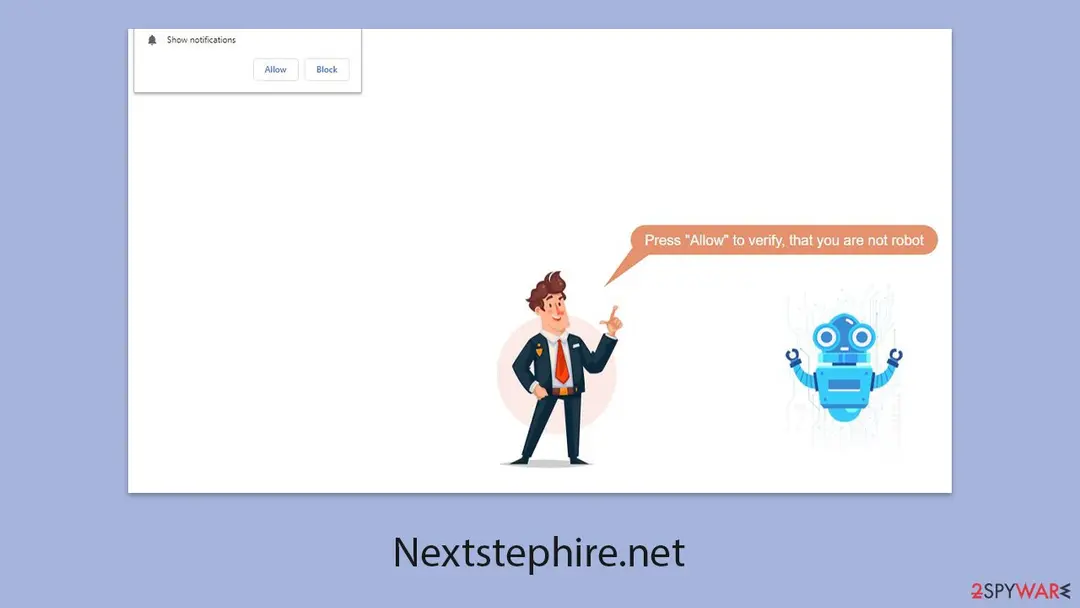
Nextstephire.net ads: summary
| Distribution | The website gains access to deliver information as soon as the "Allow" button is pressed within the push notification prompt |
|---|---|
| Damage | Links from the site might cause you to go to harmful websites, which may result in malware infections, financial losses, or personal data exposure |
| Name | Nextstephire.net |
| Type | Push notifications, ads, scam, pop-ups |
| Symptoms | Notifications show up at the bottom-right corner of the screen – these include fraudulent content and links to potentially dangerous websites |
| Detection names | No Microsoft detection name is known |
| Removal | Scan the PC with security software to find and remove the malware and anything installed with it. Fortect scans Windows for malware and repairs the system files and settings it damaged. Remove it nowTo use the full-featured product, you have to purchase a license for Fortect. The scan is free. |
Show 7 more facts
| Evidence | One write-up by a security site; details still limited |
|---|---|
| Domains | nextstephire.net |
| Ads shown as | Desktop notifications |
| Browsers | Chrome, Edge and Firefox |
| Installed on the PC | Nothing; a browser notification permission only |
| First seen | 8 November 2024 |
| Facts checked | 7 October 2026 |
Is Nextstephire.net ads dangerous?
From our report of Nov 2024 · not reviewed since
Nextstephire.net - a push notification scam website that can't be trusted
Nextstephire.net is a site crafted by deceptive parties to gain revenue through potentially harmful advertisements.
These ads can appear directly on users' desktops, regardless of the site being visited or even when a browser is inactive. The method behind this involves push notifications, a valid browser feature (API) that is frequently exploited by cybercriminals.
Visitors to Nextstephire.net may encounter misleading prompts urging them to subscribe. By clicking the "Allow" button, users grant the site permission to push notifications that can include phishing messages and harmful links directly to their screens.
Fortunately, it is possible to block unwanted Nextstephire.net ads through browser settings, although further inspections are advisable. If you have noticed an increase in advertisements on websites, random redirects, or a surge in phishing content, checking your device for signs of adware is recommended.
From our report of Nov 2024 · not reviewed since
How to recognize a push notification scam site?
Notification scams, like the scheme implemented by Nextstephire.net, often catch users off-guard by presenting requests that seem normal and harmless.
Many people unknowingly fall into these traps, only realizing the deceit once the damage has already been done.
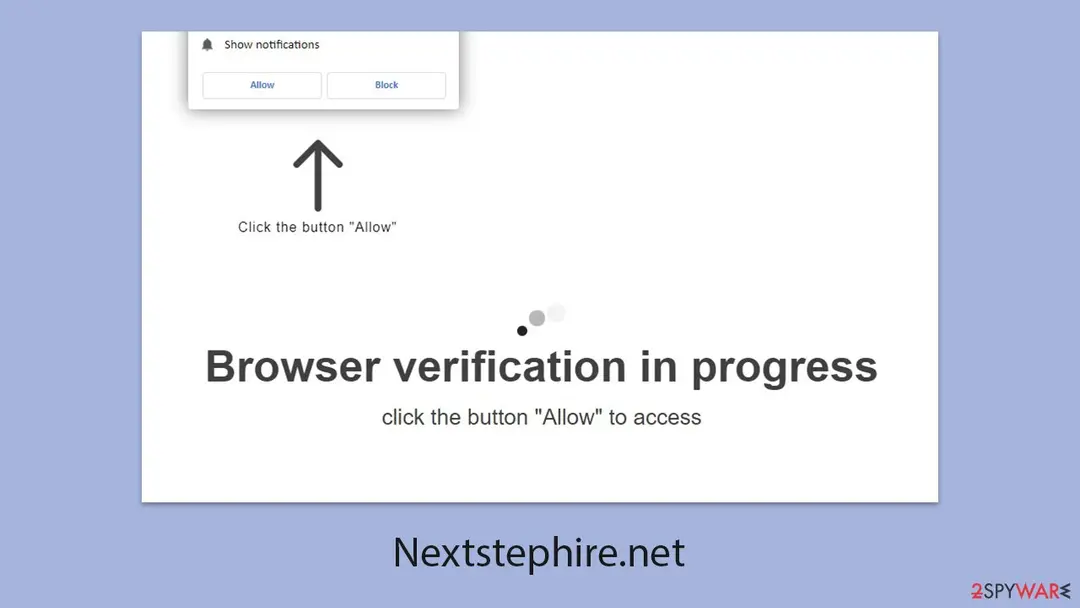
When visiting Nextstephire.net or other sites with similar tactics, users are met with prompts that appear legitimate. Examples of these misleading notifications include:
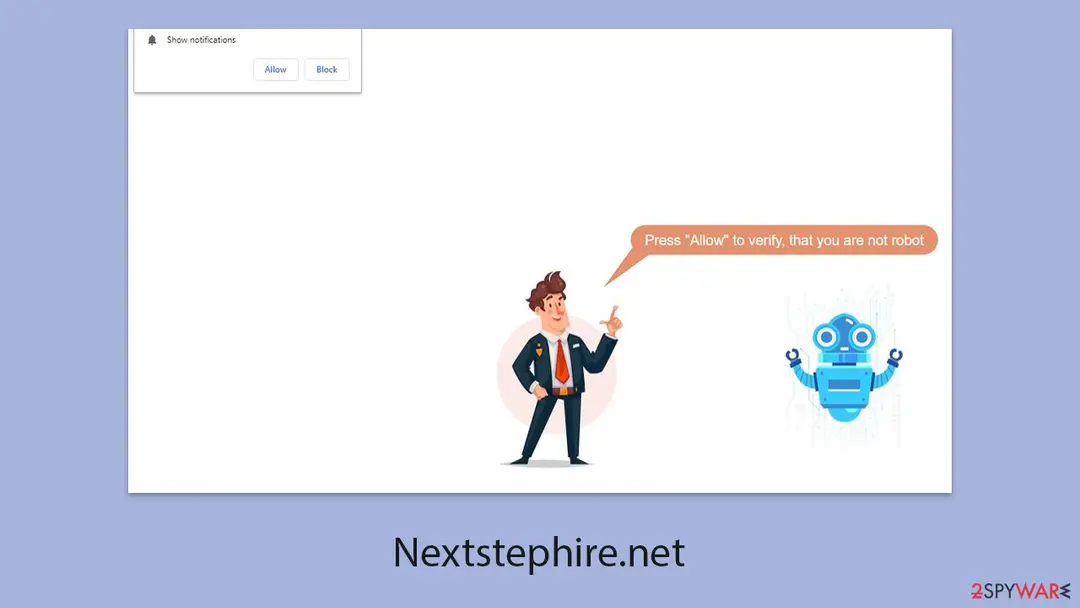
Verification prompts, like those used for proving one isn't a robot, are common online, making users more likely to trust and comply without much thought. On sites like Nextstephire.net, however, these prompts are fraudulent.
Clicking "Allow" grants permission for the site to send push notifications. It's important to note that these scam sites offer no genuine content or features; their primary aim is to gain subscribers for push notifications and then redirect them to potentially dangerous sites.
After subscribing, users might notice a flood of disruptive pop-up notifications on their desktops, no matter what activity they are engaged in. These pop-ups often include misleading links and messages, such as fake security warnings or deceptive offers promising "free" software.
- Press "Allow" to watch the video
- Click Allow to start downloading
- If you are 18+, click Allow
- Can't play this video! Browser may block video autoplay. Click "Allow" to play the video.
- Click "Allow" to win a prize and get it in our shop!
From our report of Nov 2024 · not reviewed since
More from our earlier report on Nextstephire.net
- Third parties can use cookies to continue tracking your online activities, so you should browser caches and other leftover files with to secure your privacy
Check your browser and PC
- Address:
nextstephire.net
How to remove Nextstephire.net ads
How to stop Nextstephire.net notifications
Do this in every browser you use, and in every profile inside it: each keeps its own list of sites allowed to send notifications.
Nothing has to be uninstalled for the notifications themselves.
Which browser shows the ads?
Step 1: Remove nextstephire.net from Chrome's notification list
Open More (the three dots) > Settings > Privacy and security > Site settings > Notifications, or paste
chrome://settings/content/notificationsinto the address bar.Under Allowed to send notifications, open the menu next to
nextstephire.netand choose Remove or Block, and do the same for any other address you do not recognise.Next to Not allowed to send notifications, click Add and enter nextstephire.net, so the site cannot ask again. The menus are the same in Chrome on Windows 11 and Windows 10, and each Chrome profile keeps its own list.
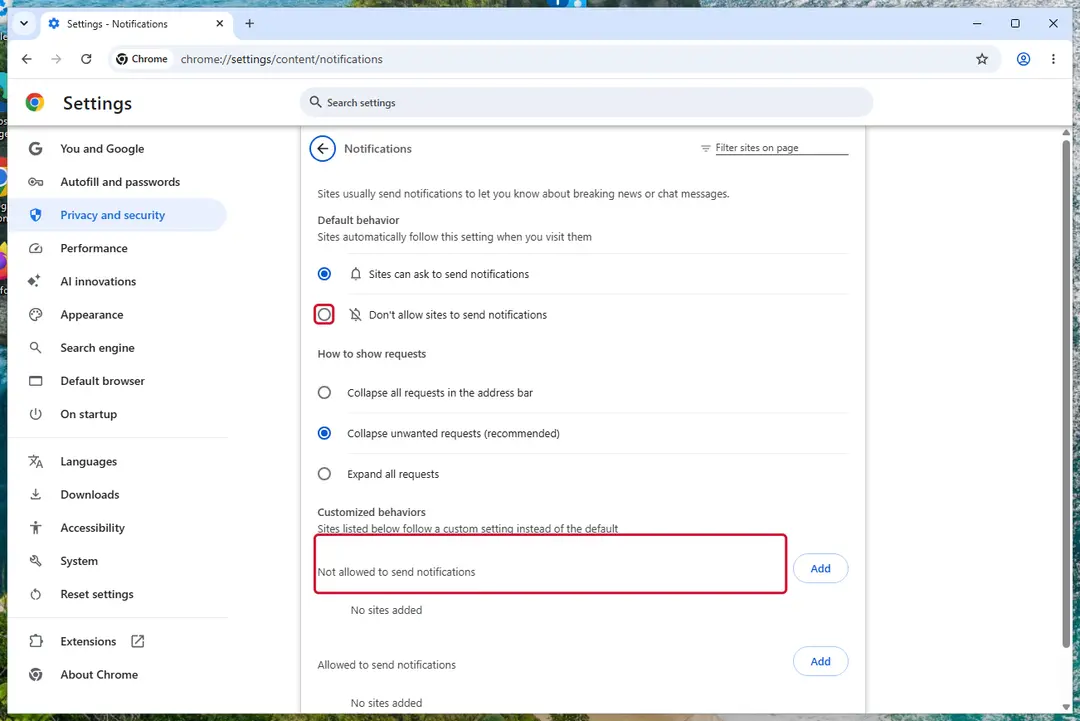
Chrome on Windows 11: Settings > Privacy and security > Site settings > Notifications. Full procedure with screenshots: Stop website notifications and pop-ups
Step 1: Remove nextstephire.net from Edge's notification list
Edge stores its own permission list, separate from Chrome's, and it is often the browser behind these pop-ups on Windows 11 and Windows 10.
Go to Settings > Privacy, search, and services > Site permissions > All permissions > Notifications, or paste
edge://settings/content/notifications. Removenextstephire.netfrom Allowed, then add it under Not allowed to send notifications. Notifications that show the Edge logo come from this list.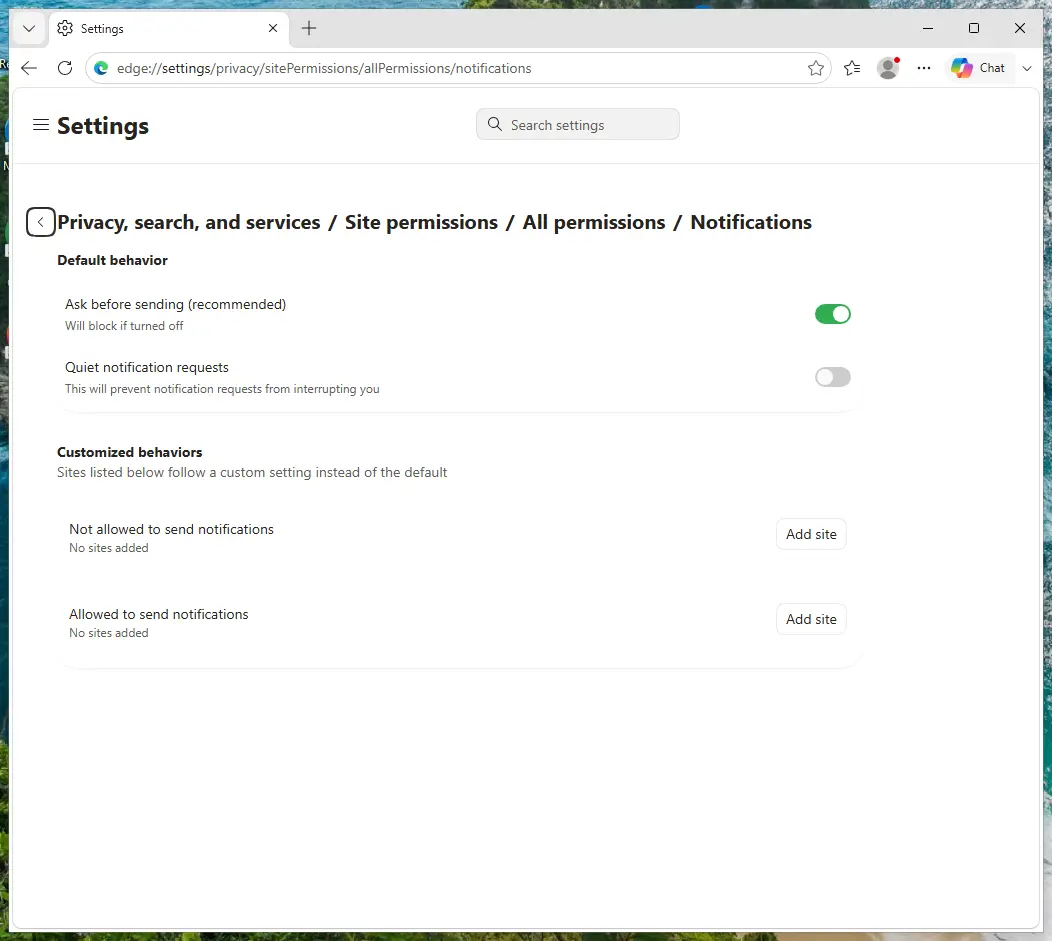
Edge on Windows 11: Site permissions > All permissions > Notifications. Full procedure with screenshots: Stop website notifications and pop-ups
Step 1: Remove nextstephire.net from Firefox's notification permissions
In Firefox the permission sits in Settings > Permissions and data > Notifications (in older versions Privacy & Security > Notifications > Settings). Select
nextstephire.netin the list, click Remove Website, and confirm with Save Changes.Firefox only shows these notifications while it is open, so if they stopped after closing Firefox, this is the browser to clean. The steps are the same on Windows 11 and Windows 10.
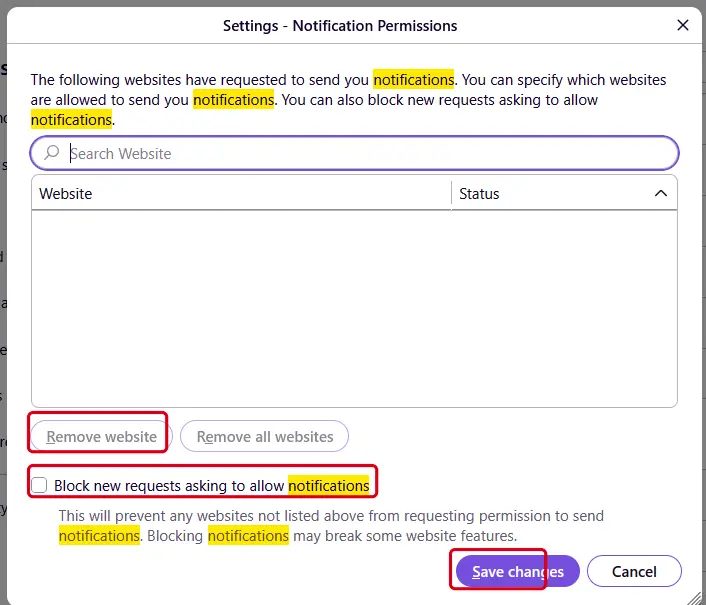
Firefox on Windows 11: the Notification Permissions window. Full procedure with screenshots: Stop website notifications and pop-ups
Then, whichever browser you use
Step 2: Scan the PC if you downloaded anything from the ads
Most people who only saw the notifications can skip this step. If a notification or the page it opened made you download or run a file, delete the file and run a full scan, then a Microsoft Defender Offline scan.
In Windows 11 and Windows 10 open Windows Security > Virus & threat protection > Scan options, select Microsoft Defender Antivirus (offline scan) and click Scan now. The PC restarts and the scan takes about 15 minutes, so save your work first.

Windows 11: Windows Security > Virus & threat protection > Scan options. Full procedure with screenshots: Run a Microsoft Defender Offline scan
More removal instructions
For programs installed on the PC and older browsers. Open the one you need.
Removing Nextstephire.net ads
It is important to know that push notifications cannot be eliminated using security programs or automated tools; they must be managed manually.
Many users, having been tricked into subscribing to push notifications from scam sites, often do not realize what is happening or how to resolve it. The positive side is that the solution is straightforward: blocking the website's URL through the browser's site settings will stop these notifications. Here's how you can do that:
Google Chrome (desktop)
Google Chrome (Android)
MS Edge (Chromium)
- Open the Google Chrome browser and go to Menu > Settings.
- Locate the Privacy and security section and pick Site Settings > Notifications.
- Look at the Allow section and look for a suspicious URL.
- Click the three vertical dots next to it and pick Block. This should remove unwanted notifications from Google Chrome.
- Open Google Chrome and tap on Settings (three vertical dots).
- Select Notifications.
- Locate the unwanted URL and toggle the button to the left (Off setting).
- Open Mozilla Firefox and go to Menu > Options.
- Click on Privacy & Security section.
- Under Permissions, you should be able to see Notifications. Click the Settings button next to it.
- In the Settings – Notification Permissions window, click on the drop-down menu by the URL in question.
- Select Block and then click on Save Changes. This should remove unwanted notifications from Mozilla Firefox.
- Open Microsoft Edge, and go to Settings.
- Select Site permissions.
- Go to Notifications on the right.
- Under Allow, you will find the unwanted entry.
- Click on More actions and select Block.
- Click on Safari > Preferences...
- Go to the Websites tab and, under General, select Notifications.
- Select the web address in question, click the drop-down menu and select Deny.
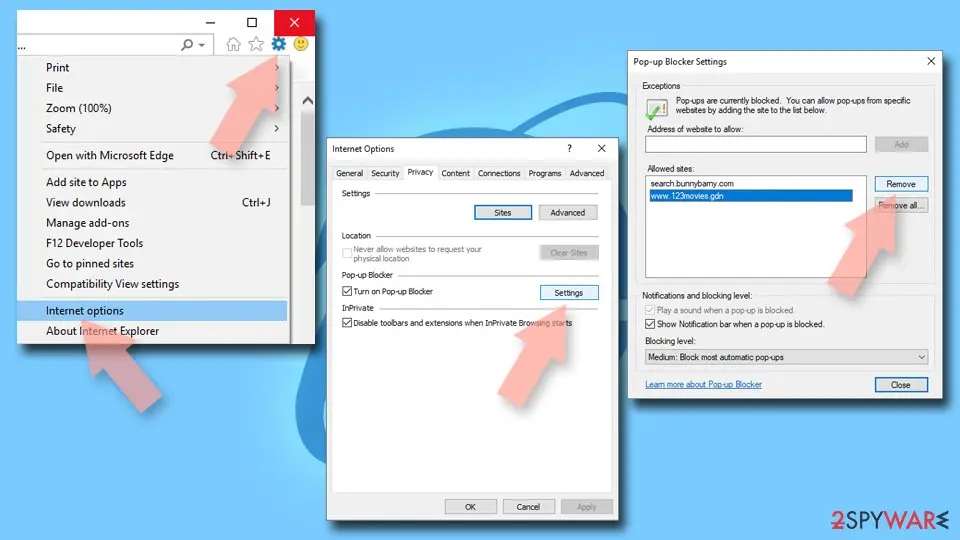
- Open Internet Explorer, and click on the Gear icon at the top-right of the window.
- Select Internet options and go to the Privacy tab.
- In the Pop-up Blocker section, click on Settings.
- Locate the web address in question under Allowed sites and pick Remove.
Checking your system for infections
Before attempting to remove Nextstephire.net ads, it is crucial to verify that your system is free from any malware causing these pop-ups.
Adware and similar malicious software are often distributed through fake updates, software bundles, and other deceptive methods, which can lead to unintentional installation. This means users might not realize they have adware or malware running, especially when designed to operate stealthily.
Adware typically appears as a browser extension, so checking there first is advisable. Simply click the "Extensions" button next to your browser's settings menu and uninstall any unwanted components.
Some adware programs may be installed at the system level, resulting in wider operational impacts. To fully address this, running a complete system scan with , , or another robust anti-malware tool is recommended. Once you confirm that all malicious software has been removed, using can be beneficial to clean browser caches, such as cookies, and repair any damage caused by the malware.
Stream videos without limitations, no matter where you are
There are multiple parties that could find out almost anything about you by checking your online activity.
While this is highly unlikely, advertisers and tech companies are constantly tracking you online. The first step to privacy should be a secure browser that focuses on tracker reduction to a minimum.
Even if you employ a secure browser, you will not be able to access websites that are restricted due to local government laws or other reasons. In other words, you may not be able to stream Disney+ or US-based Netflix in some countries. To bypass these restrictions, you can employ a powerful VPN, which provides dedicated servers for torrenting and streaming, not slowing you down in the process.
Data backups are important - recover your lost files
Ransomware is one of the biggest threats to personal data.
Once it is executed on a machine, it launches a sophisticated encryption algorithm that locks all your files, although it does not destroy them. The most common misconception is that anti-malware software can return files to their previous states. This is not true, however, and data remains locked after the malicious payload is deleted.
While regular data backups are the only secure method to recover your files after a ransomware attack, tools such as can also be effective and restore at least some of your lost data.
Questions about Nextstephire.net ads
Why do I get notifications from nextstephire.net when the browser is closed?
Chrome and Edge can keep a small part running in the background so that sites can deliver notifications, and Windows shows them in its notification area. That is why messages from nextstephire.net keep arriving with no browser window open.
The permission to send them was granted when someone clicked Allow on a prompt from that site, often disguised as a robot check or a video player. Closing the browser does not remove it; only the notification settings do.
Remove nextstephire.net from the allowed sites and the background messages stop. You can also stop the browser from running in the background in its system settings, but the permission is the real fix.
The nextstephire.net notification said my PC is infected. Is it true?
No. Notifications from nextstephire.net are adverts written to look like system messages. A website cannot scan your files, so it has no way to know whether your PC is infected; it shows the same warning to everyone who allowed its notifications. Real Windows Security messages name Windows Security in the bottom line, not a browser and a website.
If you want to be sure, open Windows Security from the Start menu and run a quick scan there. Then remove nextstephire.net from the browser's notification settings so the fake warnings stop arriving. Do not call any number or buy anything the notification or its page suggests.
What is Nextstephire.net?
Nextstephire.net is a push-notification spam site, a kind of adware. It earns money by showing desktop notifications, and each view, click or redirect pays whoever runs it. It is not something people usually choose; it arrives through a free download, a fake button or a misleading prompt.
Nextstephire.net does not encrypt files or take control of Windows, but its ads are sold to anyone, including scam operators, so they can lead to fake virus warnings and unwanted downloads. The steps in this guide remove it from Windows and from each browser.
Why does nextstephire.net keep showing up?
There are two possible reasons. If it appears as desktop notifications, a browser on this PC was given permission to receive them from nextstephire.net, usually through a misleading prompt. That permission stays until you remove it in the browser's site settings.
If it appears as tabs or redirects, an ad on a site you visit is opening it, or an extension or program on the PC is. Test a private window: if nextstephire.net never appears there, an extension is the likely cause. The plan above covers each case.
Do I have to change settings in every browser?
Only in the browsers that allowed nextstephire.net, but checking all of them takes a minute and is worth it. We saw the notifications in Chrome, Edge and Firefox. Chrome and Edge keep their notification lists under site settings, and Firefox under Privacy & Security > Permissions.
Remove nextstephire.net and any other unfamiliar site from each list, then turn off new notification requests if you do not need them. Remember that every browser profile has its own list, so a second profile can keep the messages coming after you clean the first.
Are the pop-ups I see really from Nextstephire.net?
Compare them with the details in the table above. Nextstephire.net produces desktop notifications, and the clearest sign of it is notifications from nextstephire.net. Other adware looks similar, so check the name of the sending site at the bottom of a notification, the address in the tab that opened, or the newest entries on the extensions page.
If those match, this guide fits. If you see a different name, the same kind of steps apply, but remove the item you actually find rather than guessing.
Can an adware pop-up infect my PC just by appearing?
No. A pop-up, a notification or a new tab is only a web page or a message. It cannot run programs on Windows by itself, provided the browser and Windows are up to date. Infection needs a step from you:
- running a downloaded file
- installing an extension
- giving a stranger remote access
That is why scam pages work so hard to make you click. Close such pages with the tab's X or by closing the browser, not with buttons inside the page, which may start a download.
Is it safe to click Block or Allow on a notification prompt?
Clicking Block is safe; it only tells the browser not to show notifications from that site. Clicking Allow is not dangerous to your files either, but it gives the site a channel to your desktop that spam sites abuse at once.
The prompt itself is part of the browser, so you can trust its buttons. What you cannot trust is the text on the page around it. If a page explains why you must click Allow, choose Block or close the tab.
I let a "support technician" from an ad connect to my PC. What should I do?
Act quickly but calmly. Disconnect the PC from the internet first, so the connection ends. Uninstall the remote access tool they asked you to install and check Installed apps for anything else added during the call.
Run a Microsoft Defender full scan and offline scan. From another device, change your e-mail and banking passwords and sign out of all sessions.
If you paid by card, bank transfer or gift card, contact your bank or the card issuer immediately, and report the scam to the police. Do not answer if they call back.
Will Fortect remove Nextstephire.net?
No program removes Nextstephire.net itself, because there is nothing on the PC to remove: the notifications come through a permission saved in the browser, and only the browser's settings take it away, as the steps above show.
What Fortect can do is check the rest of Windows. Its free scan looks for malware, unwanted programs and damaged system files, which is useful if you clicked the ads, downloaded something from the pages they opened, or are not sure what else changed on the PC.
If the scan finds nothing and the notifications stopped after you removed the permission, this problem is solved. Use Microsoft Defender as a second opinion whenever you have downloaded files from pages like these.
Sources
- Google Chrome Help: Use notifications to get alerts (no longer online) (read October 7, 2026)
- FTC: How to recognize, remove and avoid malware (read October 7, 2026)
- Microsoft Learn: Microsoft Defender Offline (read October 7, 2026)
- Microsoft Learn: How Microsoft names malware (read October 7, 2026)