
One Updater ads: what it is and how to remove it
One Updater is adware bundled with freeware claiming to update software but actually installing unwanted programs. It displays aggressive advertising, hijacks browser settings, and collects browsing data.
Facts checked October 6, 2026. Removal steps tested on Windows 11 (26H2) and checked against Microsoft's and the browser makers' current documentation. Sections marked as our earlier report are the original text: they describe the threat as it was then and have not been reviewed since. The 2026 status, the removal steps and the questions are current.
Automatic
Get a free scan and check if your PC is infected.
Fortect finds malware, unwanted programs and the Windows damage they leave behind, and repairs it in one pass.
A scan of the PC is a quick way to confirm that nothing installed is behind the download.com redirects.
Do it yourself · free Remove One Updater ads yourself 4 steps, about 12 minutes, no software needed.
Start the steps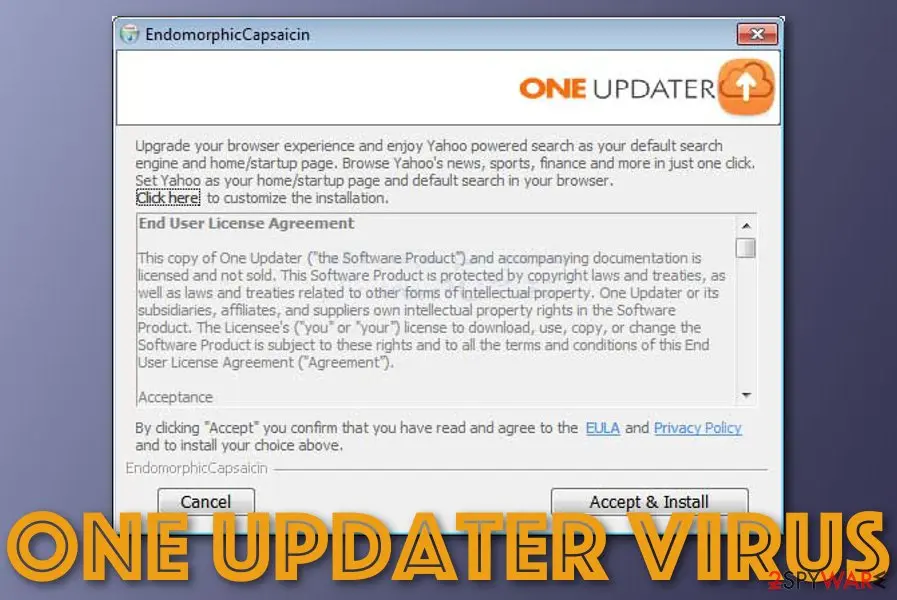
One Updater ads: summary
| Distribution | The potentially unwanted program can be spread through bundled software that comes from various third-party websites. Also, the suspicious app can be delivered through fake Flash Player updates, rogue adverts, and hyperlinks |
|---|---|
| Name | One Updater |
| Type | PUP/adware |
| Executable | One Updater.exe |
| Developer | XLS CONSULTING LIMITED |
| Goal | The software claims to provide program updates but truly can bring other potentially unwanted programs such as adware to the computer system |
| Removal | Scan the PC with security software to find and remove the malware and anything installed with it. Fortect scans Windows for malware and repairs the system files and settings it damaged. Remove it nowTo use the full-featured product, you have to purchase a license for Fortect. The scan is free. |
Show 11 more facts
| Activities | If adware was installed on your machine, you might experience intrusive advertising and redirecting, get your non-personal browsing data recorded, and spot changes in your web browser's homepage and new tab URL sections (unknown browser extensions might also be installed without permission) |
|---|---|
| Often bundles with | Other potentially unwanted programs such as PC Accelerate Pro |
| Detection names | No Microsoft detection name is known |
| Damage | Not recorded in the old report |
| Symptoms | Redirects to an unknown domain |
| Evidence | 5 write-ups by security sites; details still limited |
| Domains | download.com |
| Ads shown as | Redirects through ad pages |
| Browsers | Chrome, Edge and Firefox |
| First seen | 2 January 2021 |
| Facts checked | 5 October 2026 |
Is One Updater ads dangerous?
What readers reported about One Updater
interested in Driver Updater Plus. Good day, This application does not look suspicious at all. However, I found quite contradictory opinions about it. What would be your verdict? Is it okay to use it?
Help me to kill Theupdatercheck.net virus!!!!. This is just exasperating! I see ads from Theupdatercheck.net every day. I mean, these ads pop up on my screen whenever I open Google Chrome! I believe that my computer is infected with some ad-supported parasite! Can you help me to remove it?! Please!
Problems with Smart Driver Updater. Somehow I can't find this program on the list of system apps. The notifications stating about outdated drivers still keep popping up. Can you help me remove this application?
Chrome flooded by Web Updater ads. What to do?. Hi. I use Chrome, but these days it's not possible to surf normally because it shows lots of ads by Web Updater. What should I do to make my browser work as it earlier did?
From the comments under our earlier guide; names and contact details removed.
From our report of Jan 2021 · outdated details corrected in October 2026
One Updater - a potentially unwanted application that should not be trusted for your program updating process
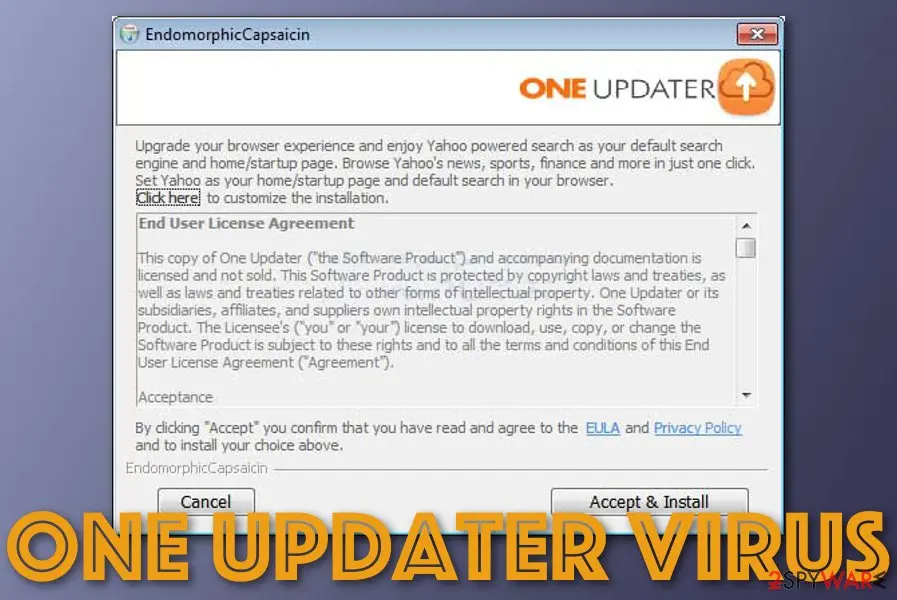
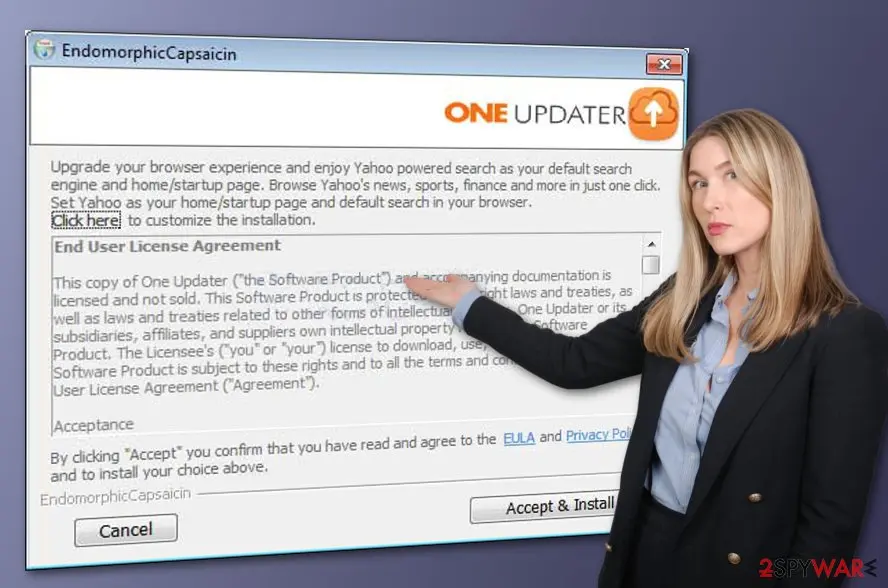
One Updater is an application presented as a utility capable of keeping all the installed software up-to-date.
While it may seem useful, it is considered a potentially unwanted application that is usually installed with freeware downloaded from third-party websites. Possibly the most disturbing trait is that it can install useless programs on the system without permission.
In most cases, the downloaded components are adware, browser hijackers, or other PUPs that are used by unknown parties to display intrusive pop-ups, deals, coupons, banners, offers, in-text links, and other ads on the infected users' web browsers, regardless if it is Google Chrome, Mozilla Firefox, Safari, or MS Edge.
Keep in mind that potentially unwanted programs might collect various information about your web browsing habits or even harvest your personal data in the background. As a result, your safety might be compromised, and you can also suffer from financial losses after being convinced to buy a full version of some useless application.
One Updater malware is a term used to describe the potentially unwanted program as it can get the user involved in unwanted activities very easily. If you are browsing the Internet and you are suddenly provided with a pop-up notification marked by this name, note that you might be infected with an adware application.
Rogue advertisements might push various bogus offers of rogue security software and try to convince you to download and install the suspicious product for a particular sum of money. Also, the adverts might bring you various questionable surveys, questionnaires, fake prize claims, and tech support scams.
You should not click anywhere except the "close" button on the ads, as you might also get redirected to an affiliate domain that is loaded with additional offers and deals. However, the worst fact is that you can also end up in a potentially malicious location and get your machine infected with malware.
However, this is not all that adware might do. After the installation of One Updater, you might find your web browsers infected too. These apps can be filled with unwanted components such as various extensions and add-ons. Also, you might spot modifications in sections such as the web browser's homepage and the new tab URL bar.
Nevertheless, adware can record your browsing activity and history by planting tracking objects such as cookies, beacons, and pixels into your web browser apps. This way the developers can spy on the offers that are most relevant to you and get you easily involved in targeted advertising campaigns.
If you want to prevent all of these activities from occurring on your machine and web browsers, you should remove the PUP and all the potentially unwanted products that it has added to the system. For the process, you can use a reliable antimalware product or continue with the step-by-step guide that is provided at the end of this article.
If you opt for manual One Updater removal, keep in mind that you will be required to give away some of your time until you discover all suspicious products on your computer. Also, do not forget to clean and refresh web browsers such as Google Chrome, Mozilla Firefox, Microsoft Edge, and Safari as adware-related objects might also be hidden there.
From our report of Jan 2021 · not reviewed since
More from our earlier report on One Updater
- If you have discovered any system compromise on your machine, try fixing the changes with the help of software such as
How One Updater ads got into your browser
From our report of Jan 2021 · outdated details corrected in October 2026
Potentially unwanted programs such as adware are often spread in software bundles of free and shared programs that are found on secondary downloading sources such as download.com, cnet.com, and softonic.com.
Also, third-party applications can enter systems that have the "Recommended" downloading mode set easier than those who have the "Custom" option. These settings allow the user to track all incoming downloads and uncheck the unwanted ones.
Continuously, PUAs are also delivered as fake software updates. If you have been browsing the Internet and encountered some types of update offers, such as fake browser or codec updates, you should not rush to accept them.
First of all, go to the software's or the developer's official website and check for newly released updates. If you find not matching ones, you have to decline the offer to upgrade the software as it is likely trying to trick you into downloading something rogue.
Furthermore, potentially unwanted programs can come in forms of advertisements and hyperlinks that you meet on the Internet sphere while browsing for some offers on third-party websites, and so on.
If you ever enter a web page that is marked as unsafe to proceed with, you should close the site immediately. Also, always pay attention to the alerts that are dropped by your antivirus software as it also will inform you when something suspicious crosses your way.
Check your browser and PC
- Address:
download.com
How to remove One Updater ads
How to remove the One Updater extension
Do the browser steps in every browser and profile on the PC, then check Windows for the program that installed the extension.
Step 1: Remove extensions you did not add
One Updater often works through an extension, so go through the extension list of each browser:
chrome://extensionsedge://extensions- Extensions and themes in Firefox
Switch suspicious extensions off one at a time and reload the page where the problem shows, then remove the one that stops it, and any other you did not add.
Remember the other browsers and profiles on the PC. If Remove is missing or greyed out, a policy forces the extension, which the policy step deals with. Windows 11 and Windows 10 show the same pages.
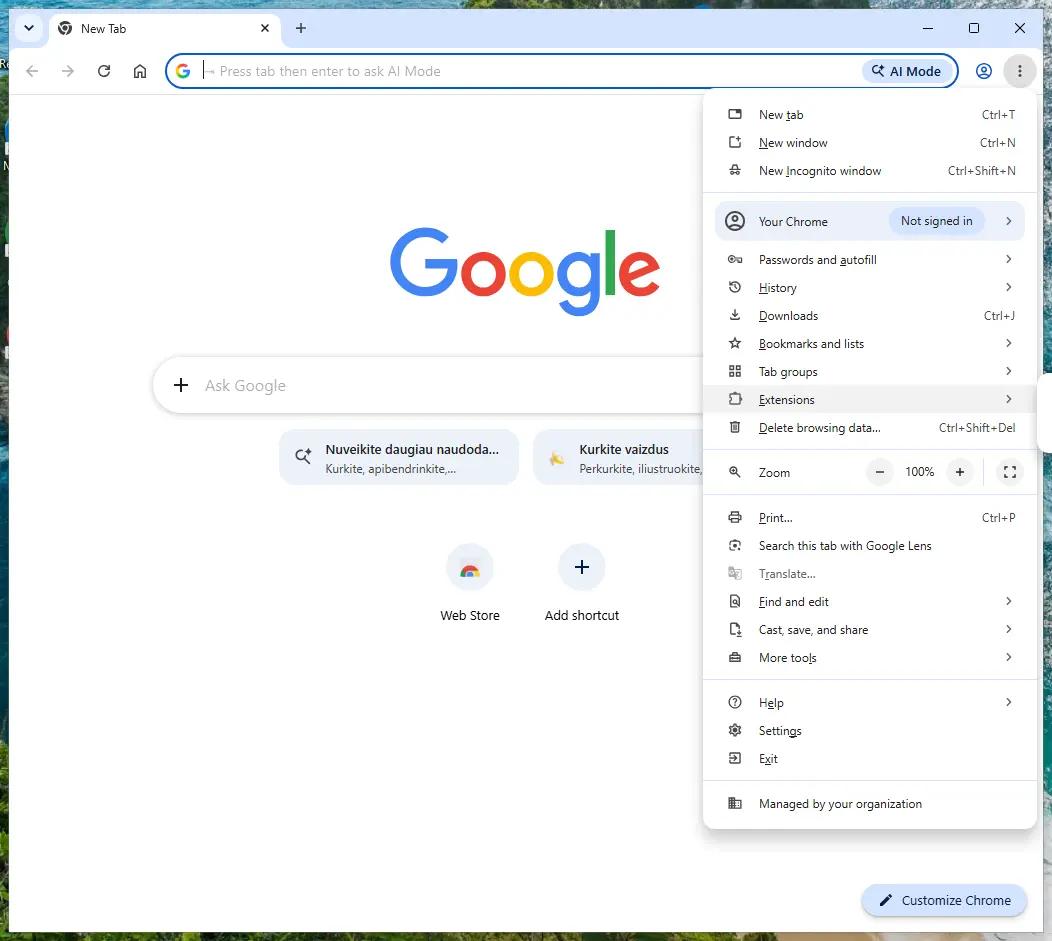
Chrome on Windows 11: More > Extensions > Manage extensions. Full procedure with screenshots: Remove a browser extension
Step 2: Uninstall programs you did not mean to install
Open Settings > Apps > Installed apps in Windows 11, or Settings > Apps > Apps & features in Windows 10, and sort the list by install date. Look at what appeared around the day the problem started and uninstall every program you do not recognise or did not choose.
Free converters, PDF and video tools, "system optimizers" and unknown browsers are the usual carriers of One Updater. If a name is unclear, search for it before you remove it, so you do not uninstall a driver or a Windows component.
Full procedure with screenshots: Uninstall a program or app in Windows On uGetFix
Step 3: Reset the browser
Finish the browser part with a reset, which puts the search engine, start page, new tab page and site permissions back to their defaults and switches extensions off. Chrome: Settings > Reset settings > Restore settings to their original defaults.
Edge: Settings > Reset settings. Firefox: Help > More troubleshooting information > Refresh Firefox, which also removes its extensions. Your bookmarks and saved passwords are kept, and the menus are the same on Windows 11 and Windows 10.
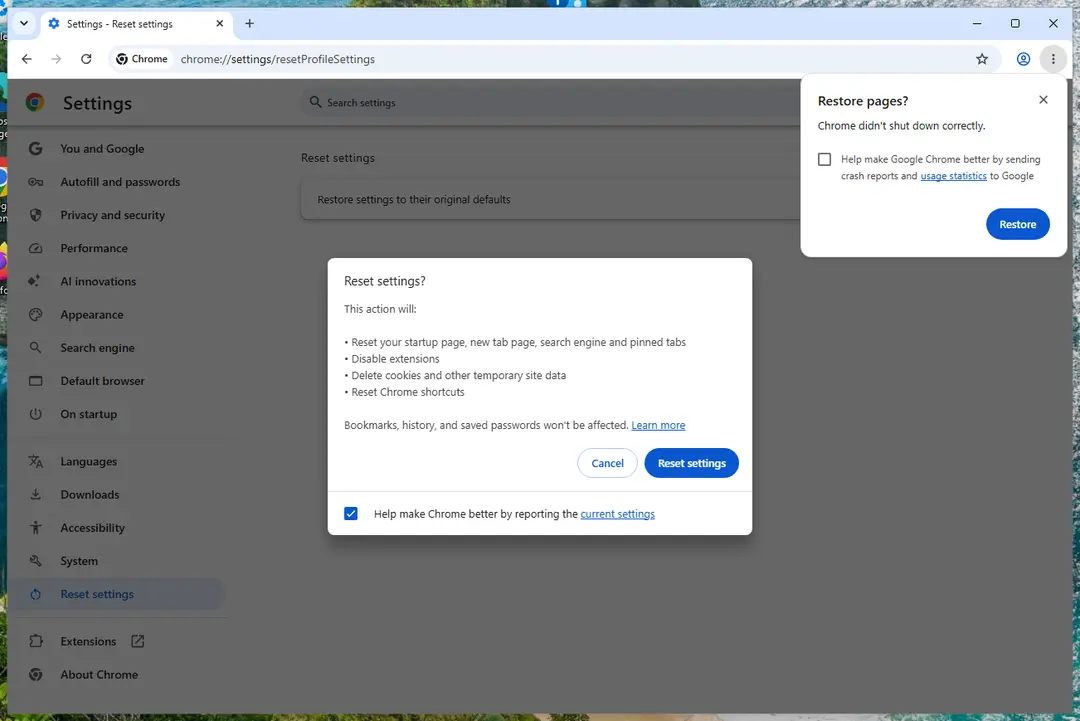
Chrome on Windows 11: Settings > Reset settings. Full procedure with screenshots: Reset a browser and fix a hijacked search engine
Step 4: Scan the PC, then run the offline scan
Open Windows Security > Virus & threat protection > Scan options, run a Full scan and remove everything it finds. Then select Microsoft Defender Antivirus (offline scan) and click Scan now: the PC restarts and scans before Windows loads, which finds files that hide while Windows runs.
Save your work first, because the offline scan takes about 15 minutes. Both scans are built into Windows 11 and Windows 10, and a second scanner from another vendor is a useful extra opinion.

Windows 11: Windows Security > Virus & threat protection > Scan options. Full procedure with screenshots: Run a Microsoft Defender Offline scan
Instructions for each browser and system
The detailed steps for every browser and system this guide covers. Open the one you use.
Uninstall from Windows
To remove questionable-looking applications from your Windows operating system and disable random processes, you should perform the below-provided step-by-step guide.
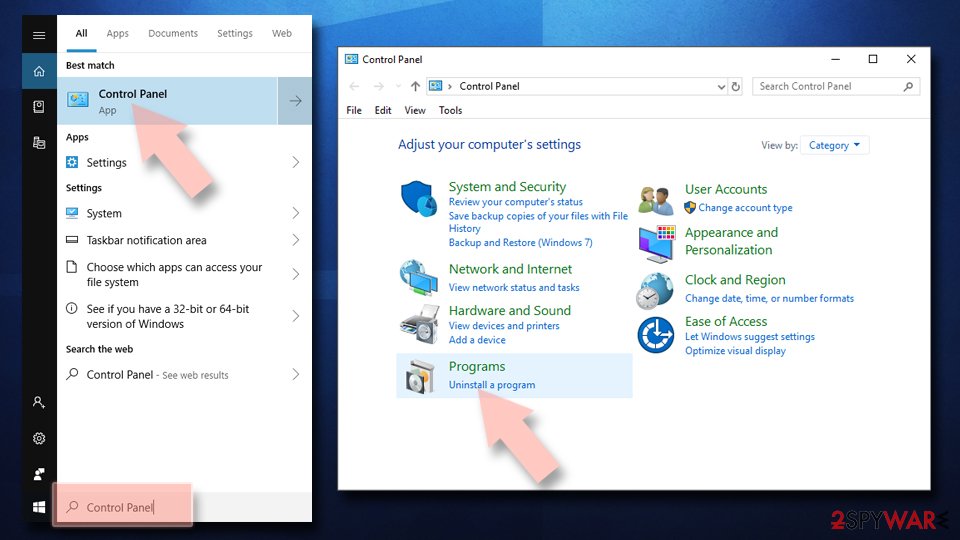
Uninstall from Windows 10/8:
- Type Control Panel into the Windows search box and open the result.
- Under Programs, select Uninstall a program.
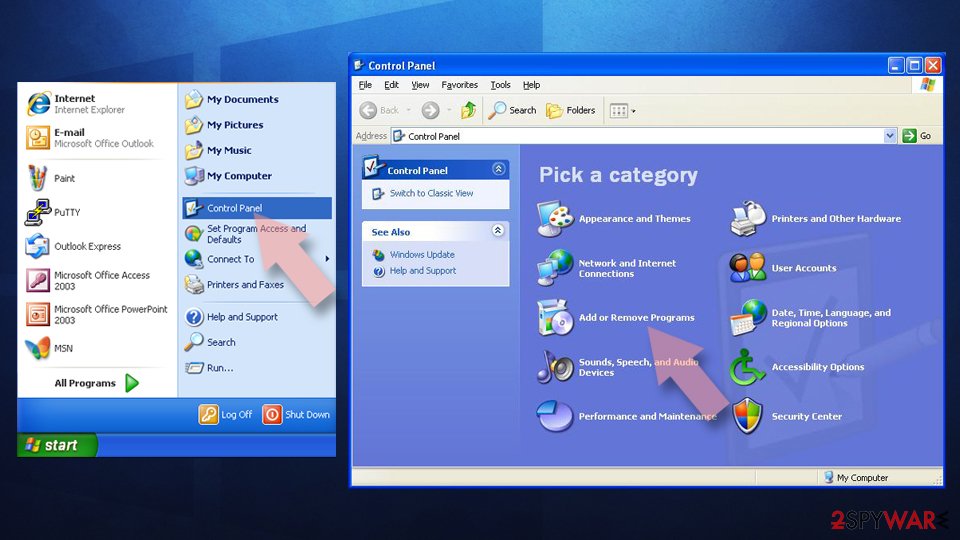
Uninstall from Windows 7/XP:
- Click on Windows Start > Control Panel (Windows XP users should click on Add/Remove Programs).
- In Control Panel, select Programs > Uninstall a program.
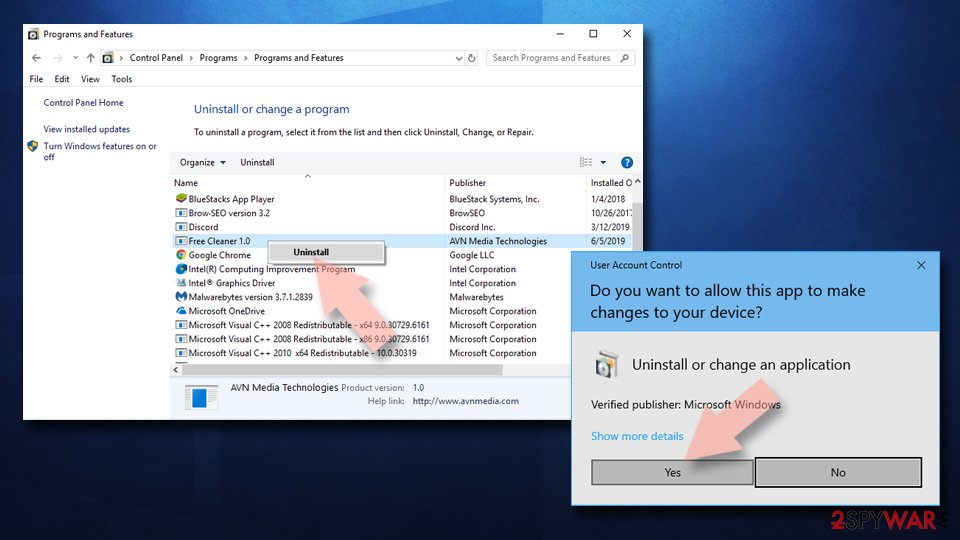
Remove the unwanted program:
- In the Programs and Features window, look for any recently installed suspicious entries, select them, and click Uninstall.
- If User Account Control appears, click Yes to confirm, then complete the removal.
Remove from Google Chrome
To get rid of rogue changes on your Google Chrome web browser and delete all the components that the adware has added, perform the guide displayed below.
Delete malicious extensions from Google Chrome:
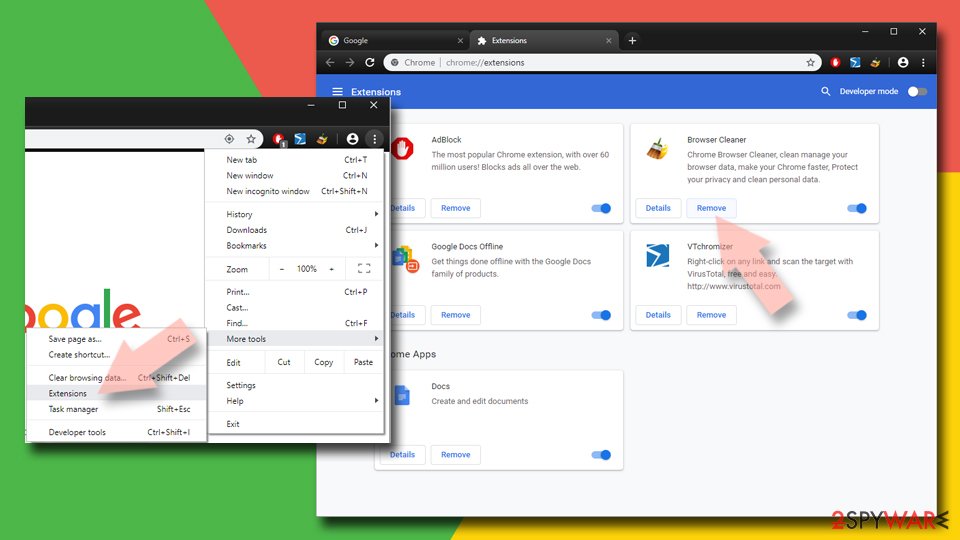
- Open Google Chrome, click on the Menu (three vertical dots at the top-right corner) and select More tools > Extensions.
- In the newly opened window, you will see all the installed extensions. Uninstall all suspicious extensions related to the unwanted program by clicking Remove.
Clear cache and web data from Chrome:
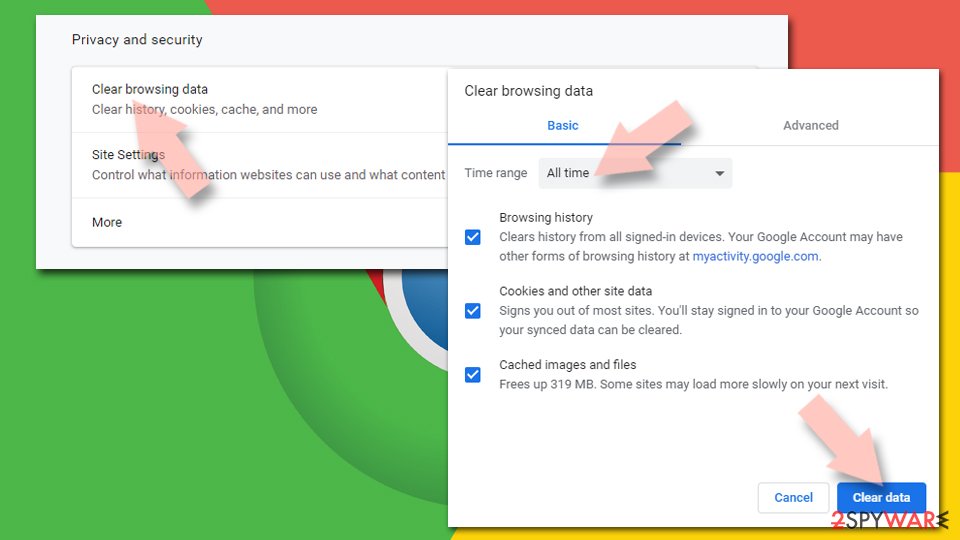
- Click on Menu and pick Settings.
- Under Privacy and security, select Clear browsing data.
- Select Browsing history, Cookies and other site data, as well as Cached images and files.
- Click Clear data.
Change your homepage:
- Click menu and choose Settings.
- Look for a suspicious site in the On startup section.
- Click on Open a specific or set of pages and click on three dots to find the Remove option.
Reset Google Chrome:
If the previous methods did not help you, reset Google Chrome to eliminate all the unwanted components:
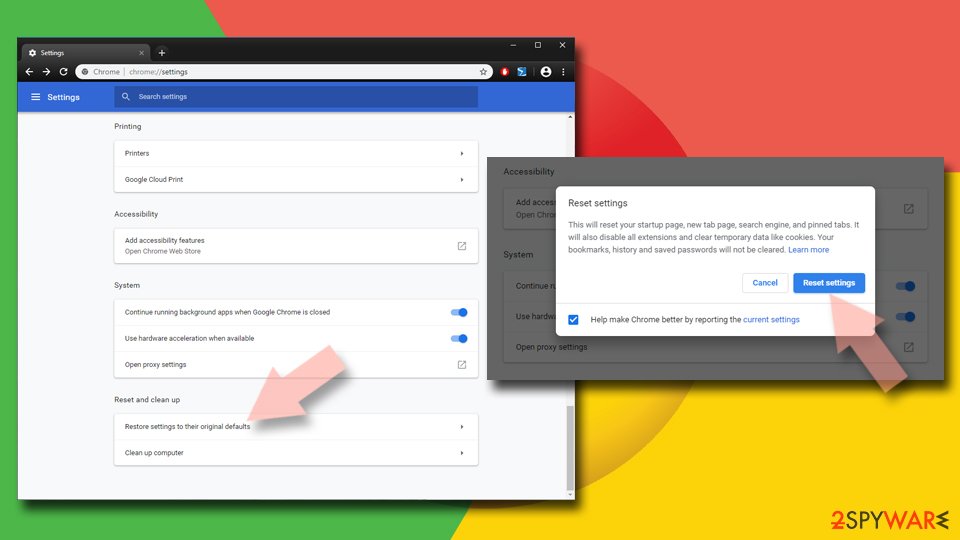
- Click on Menu and select Settings.
- In the Settings, scroll down and click Advanced.
- Scroll down and locate Reset and clean up section.
- Now click Restore settings to their original defaults.
- Confirm with Reset settings.
Remove from Microsoft Edge
Delete unwanted extensions from MS Edge:
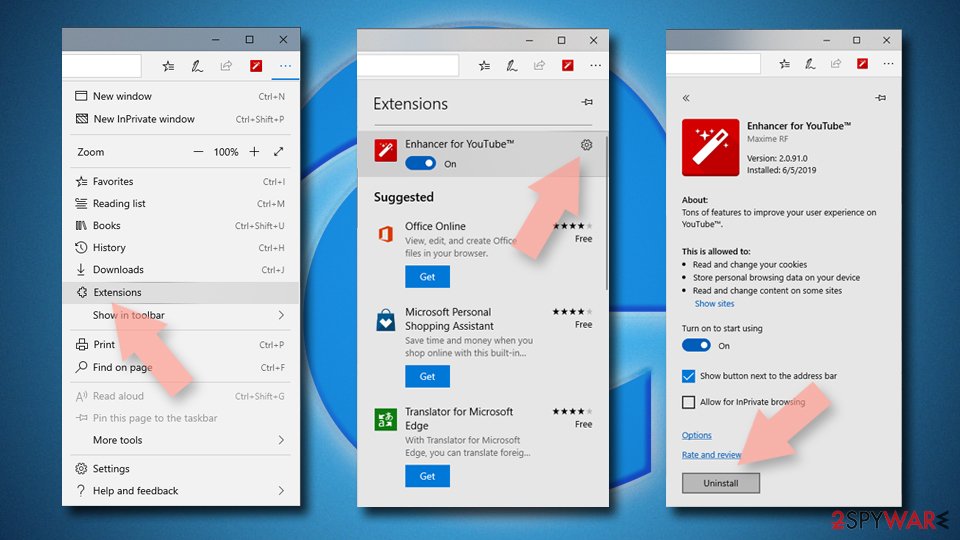
- Select Menu (three horizontal dots at the top-right of the browser window) and pick Extensions.
- From the list, pick the extension and click on the Gear icon.
- Click Remove.
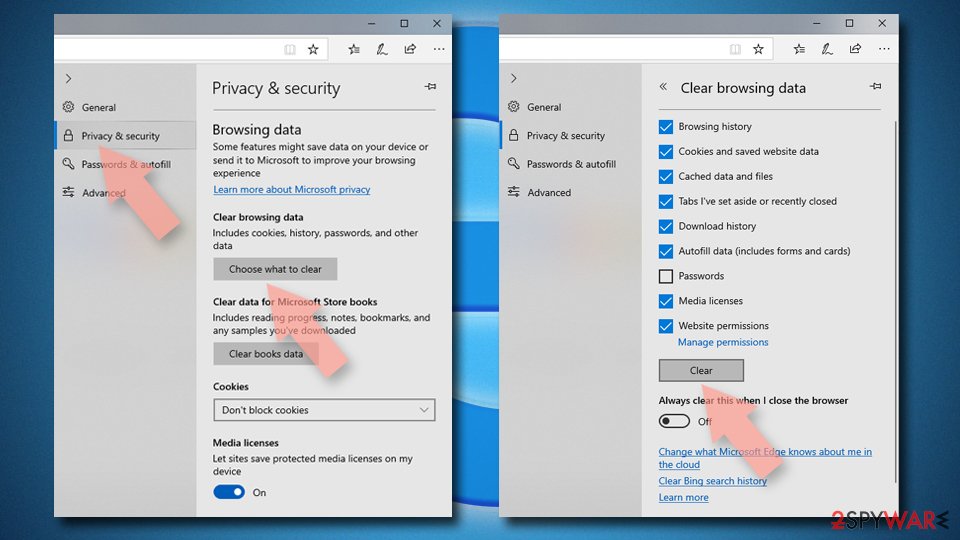
Clear cookies and other browser data:
- Click on the Menu (three horizontal dots at the top-right of the browser window) and select Settings > Privacy, search, and services..
- Under Clear browsing data, pick Choose what to clear.
- Select Cookies and other site data and Cached images and files. (apart from passwords, although you might want to include Media licenses as well, if applicable) and click on Clear.
Restore new tab and homepage settings:
- Click the menu icon and choose Settings.
- Then find On startup section.
- Click Remove next to any suspicious startup page.
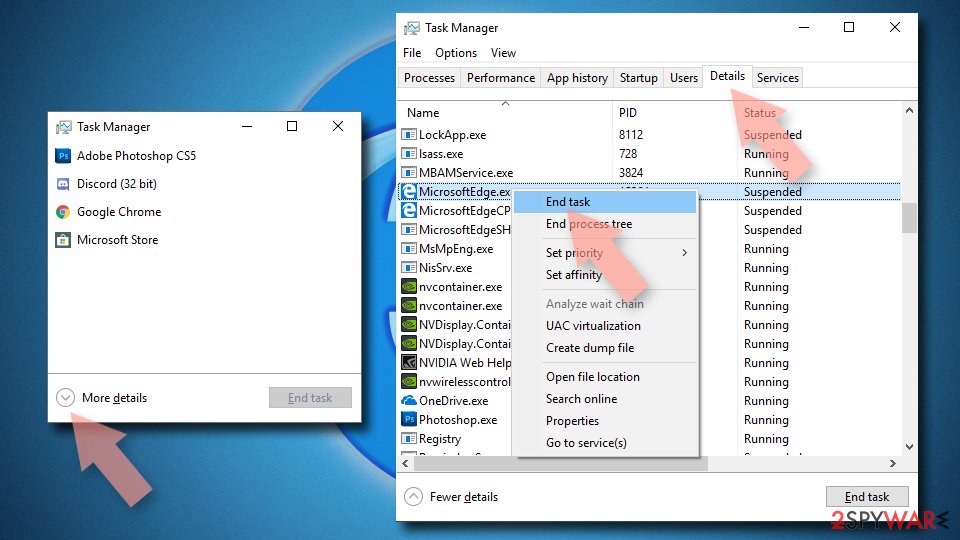
Reset MS Edge if the above steps did not work:
- Press on Ctrl + Shift + Esc to open Task Manager.
- Click on More details arrow at the bottom of the window.
- Select Details tab.
- Now scroll down and locate every entry with Microsoft Edge name in it. Right-click on each of them and select End Task to stop MS Edge from running.
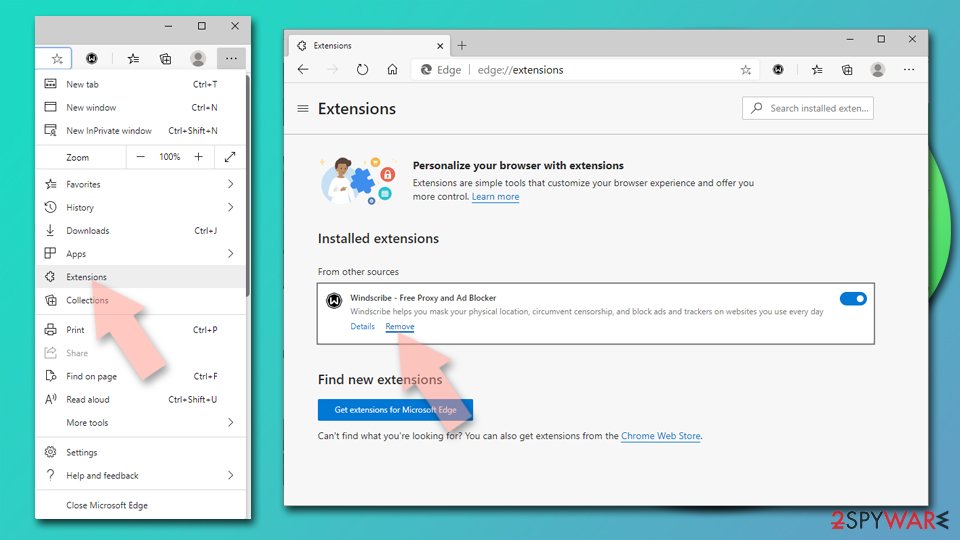
Delete extensions from MS Edge (Chromium):
- Open Edge and click select Settings > Extensions.
- Delete unwanted extensions by clicking Remove.
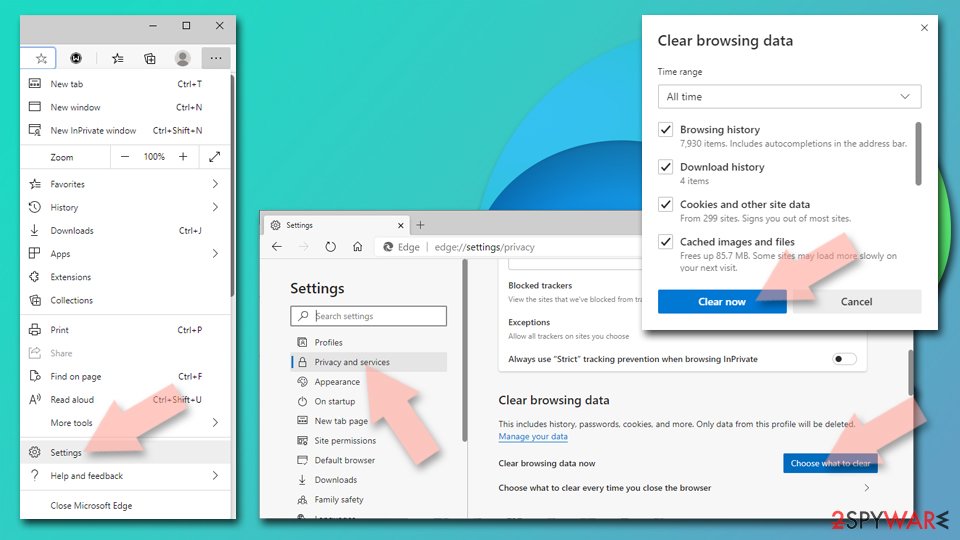
Clear cache and site data:
- Click on Menu and go to Settings.
- Select Privacy, search and services.
- Under Clear browsing data, pick Choose what to clear.
- Under Time range, pick All time.
- Select Clear now.
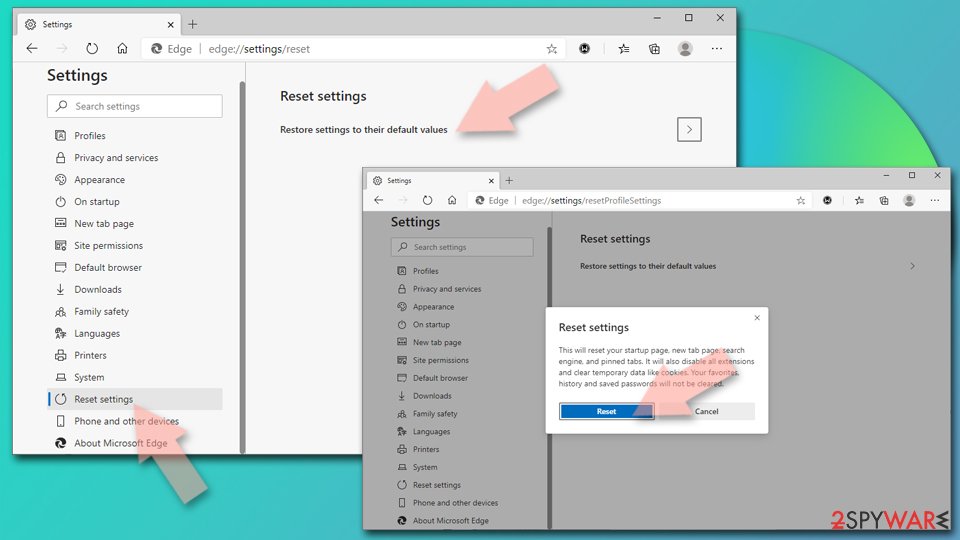
Reset Chromium-based MS Edge:
- Click on Menu and select Settings.
- On the left side, pick Reset settings.
- Select Restore settings to their default values.
- Confirm with Reset.
- This will disable extensions and reset startup pages but will not delete bookmarks, saved passwords, or browsing history.
Remove from Mozilla Firefox (FF)
To eliminate all suspicious extensions and reverse all bogus changes in Mozilla Firefox, employ the following instructing steps.
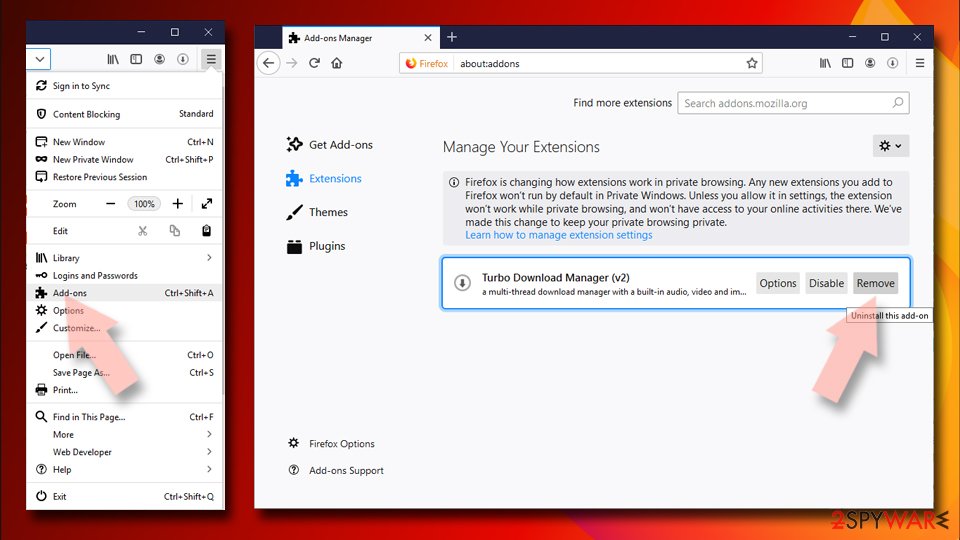
Remove dangerous extensions:
- Open Mozilla Firefox browser and click on the Menu (three horizontal lines at the top-right of the window).
- Select Add-ons.
- In here, select the unwanted extension and click Remove.
Reset the homepage:
- Click three horizontal lines at the top right corner to open the menu.
- Choose Settings.
- Under Home, set your preferred homepage and new tab settings.
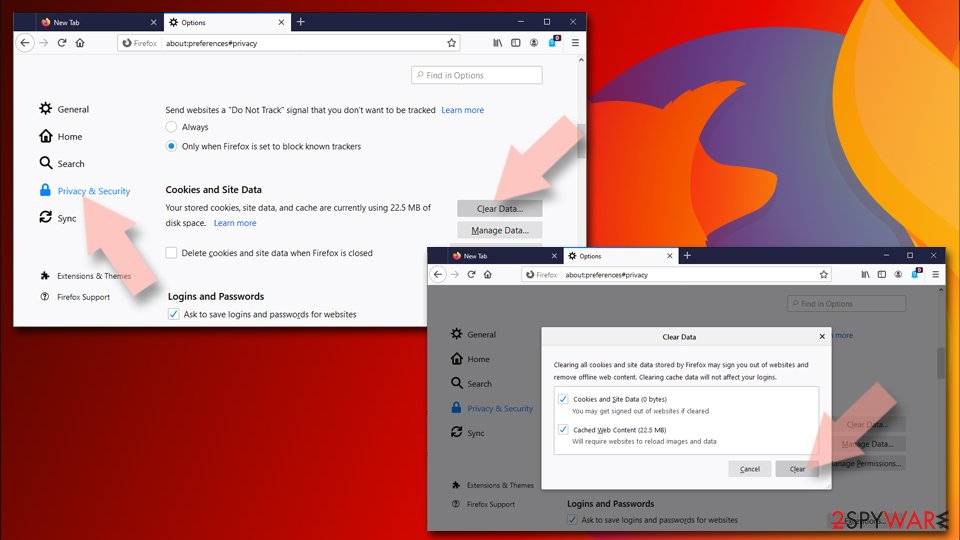
Clear cookies and site data:
- Click Menu and pick Settings.
- Go to Privacy & Security section.
- Scroll down to locate Cookies and Site Data.
- Click on Clear Data...
- Select Cookies and Site Data and Temporary cached files and pages, then click Clear.
Reset Mozilla Firefox
If clearing the browser as explained above did not help, reset Mozilla Firefox:
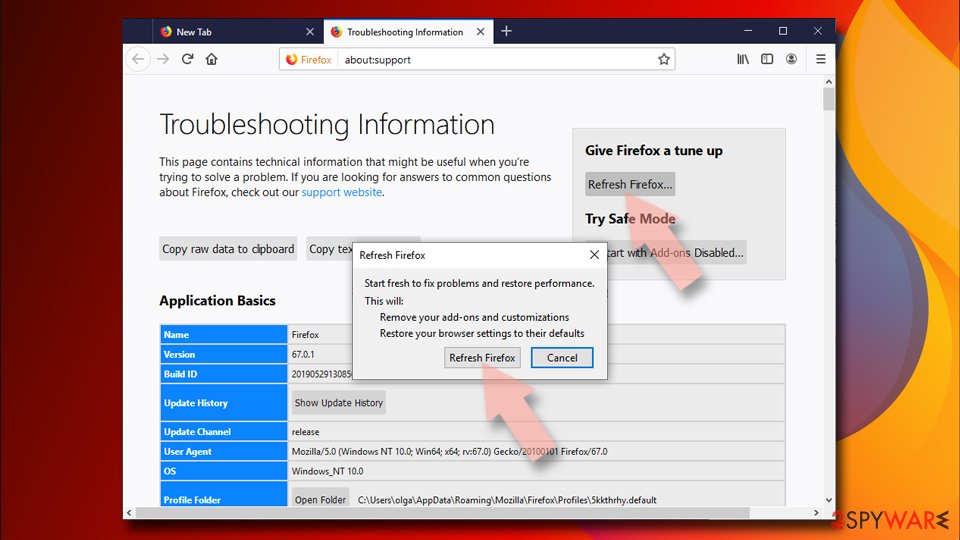
- Open Mozilla Firefox browser and click the Menu.
- Go to Help and then choose Troubleshooting Information.
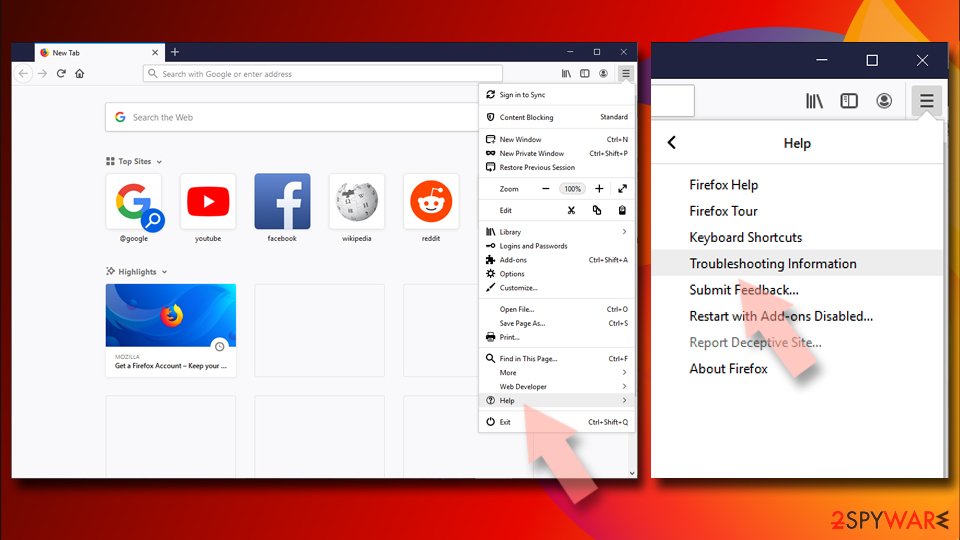
- Under Give Firefox a tune up section, click on Refresh Firefox...
- Once the pop-up shows up, confirm the action by pressing on Refresh Firefox.
Delete from Safari
Remove dangerous extensions:
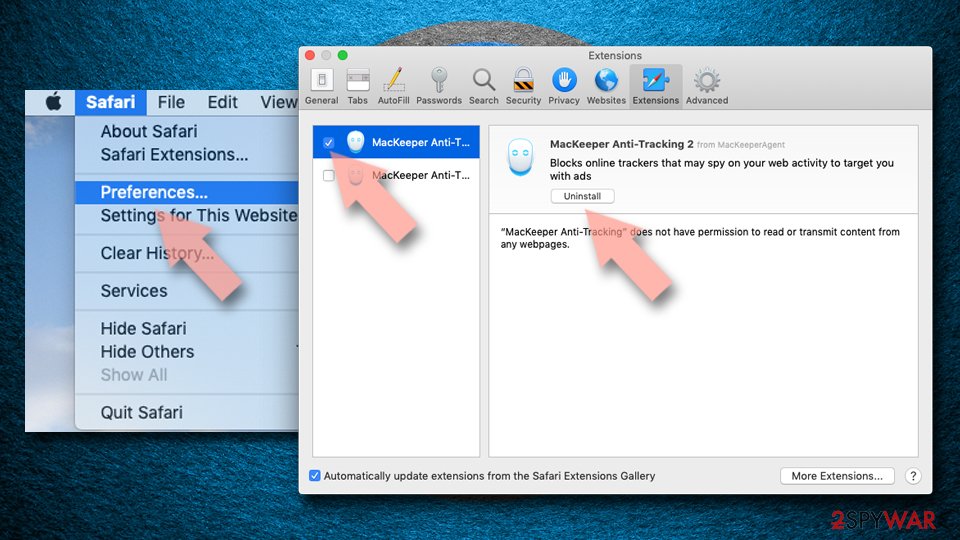
- Open Safari, click Safari in the menu at the top-left of the screen, and select Preferences.
- Go to the Extensions tab, look for any suspicious entries, and click Uninstall to remove them.
Clear history and website data:
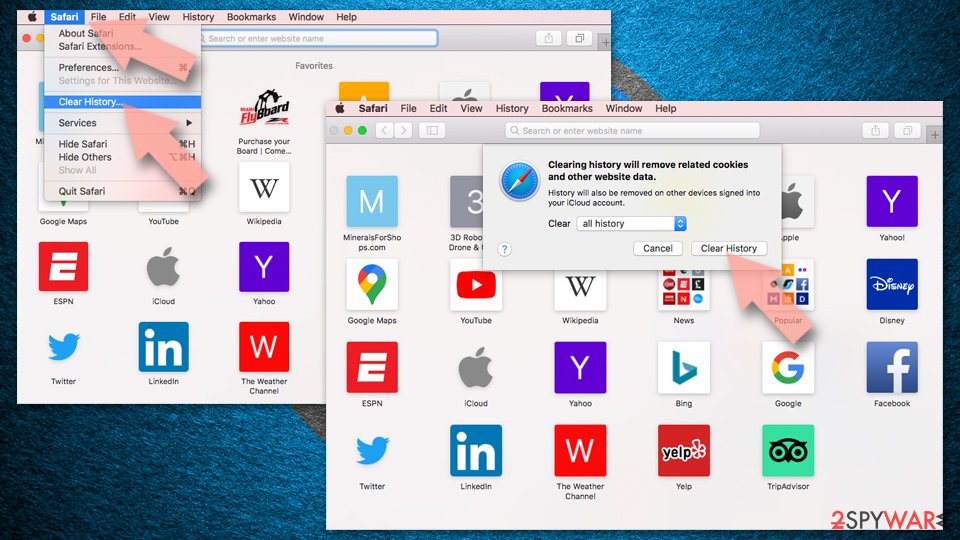
- Click Safari in the menu and pick Clear History.
- Set Clear to all history and confirm with Clear History.
Reset Safari:
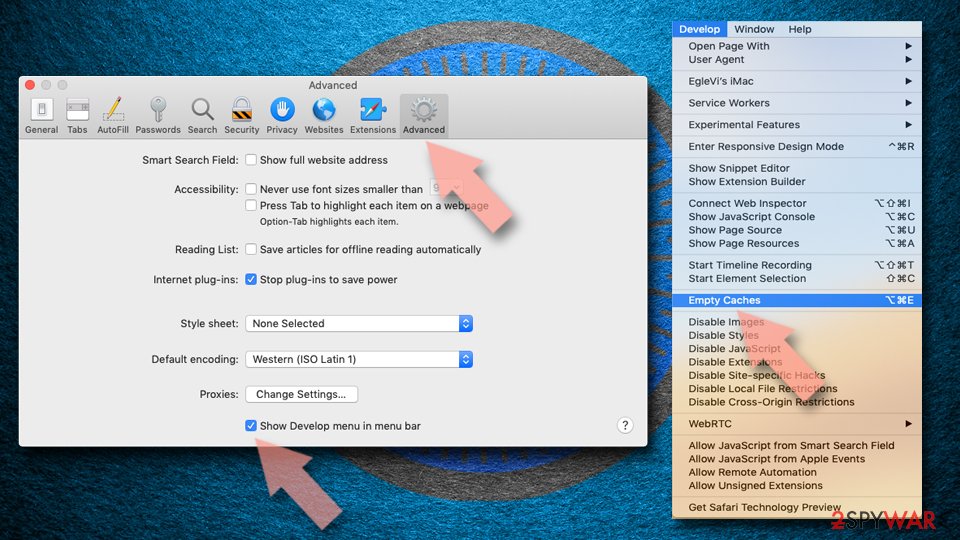
- Click Safari in the menu and select Preferences > Advanced.
- Enable Show Develop menu in menu bar.
- From the menu bar, click Develop and select Empty Caches.
Delete from macOS
To clean your macOS computer system from bogus products and get rid of potentially unwanted programs, you should go through the following guidelines.
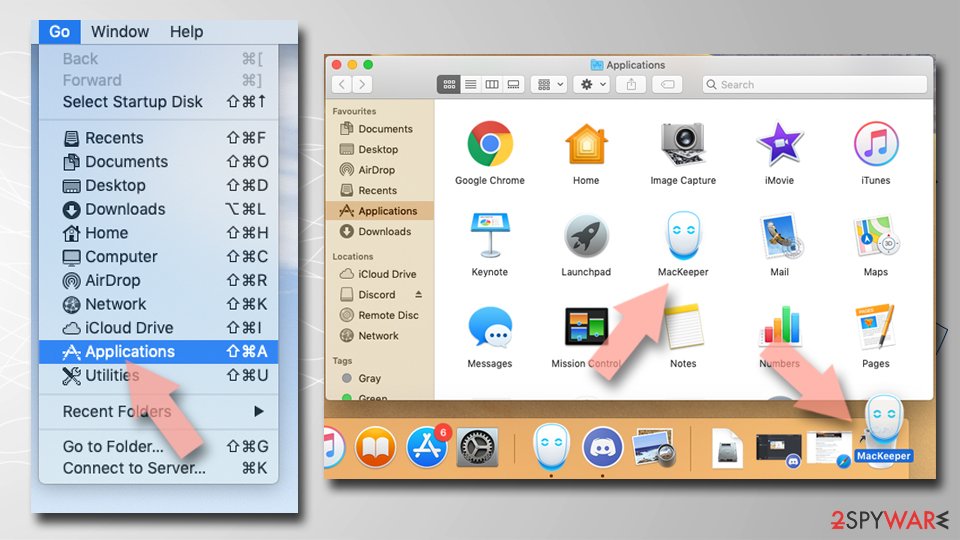
Remove the unwanted application:
- From the menu bar, select Go > Applications.
- In the Applications folder, look for any suspicious entries, then drag them to Trash (or right-click and pick Move to Trash).
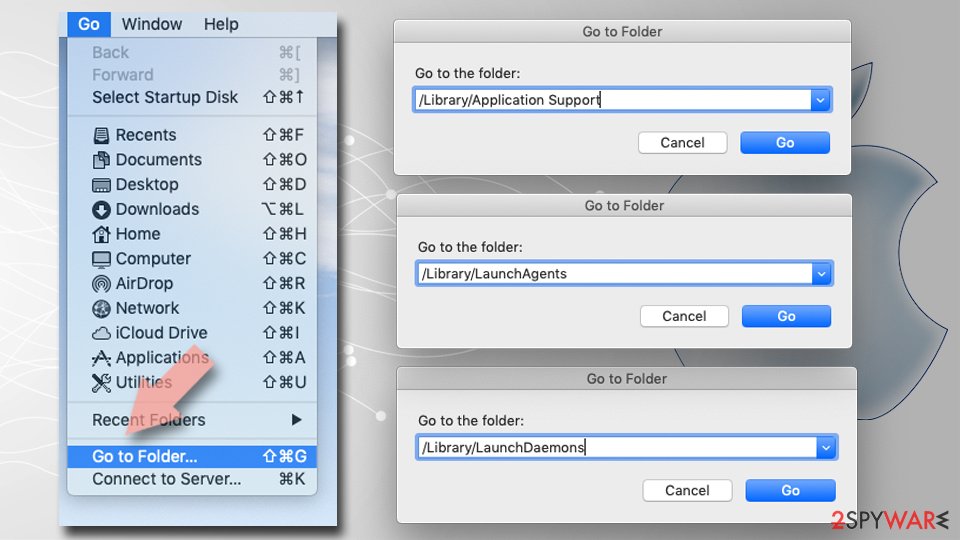
Delete leftover files and folders:
- Select Go > Go to Folder.
- Enter /Library/Application Support and remove any suspicious folders related to the unwanted program.
- Repeat the same check in the /Library/LaunchAgents and /Library/LaunchDaemons folders, deleting any suspicious entries.
- Finally, empty the Trash to permanently remove the leftovers.
Do not let government spy on you
The government has many issues in regards to tracking users' data and spying on citizens, so you should take this into consideration and learn more about shady information gathering practices.
Avoid any unwanted government tracking or spying by going totally anonymous on the internet.
You can choose a different location when you go online and access any material you want without particular content restrictions. You can easily enjoy internet connection without any risks of being hacked by using VPN.
Control the information that can be accessed by government any other unwanted party and surf online without being spied on. Even if you are not involved in illegal activities or trust your selection of services, platforms, be suspicious for your own security and take precautionary measures by using the VPN service.
Backup files for the later use, in case of the malware attack
Computer users can suffer from data losses due to cyber infections or their own faulty doings.
Ransomware can encrypt and hold files hostage, while unforeseen power cuts might cause a loss of important documents. If you have proper up-to-date backups, you can easily recover after such an incident and get back to work. It is also equally important to update backups on a regular basis so that the newest information remains intact - you can set this process to be performed automatically.
When you have the previous version of every important document or project you can avoid frustration and breakdowns. It comes in handy when malware strikes out of nowhere. Use for the data restoration process.
From our report of Jan 2021 · outdated details corrected in October 2026
The removal process of One Updater
In fact, elimination by using reliable software is a more-guaranteed process and allows users to save some time.
However, if you think that you have enough skills and time for the deletion process of this potentially unwanted program, you can try the manual step-by-step guidelines that are provided below.
Manual elimination requires cleaning both your operating system and web browsers. You will find instructing steps on how to clean your Windows and macOS computer.
Also, you will be taught how to eliminate suspicious-looking components and reverse unexpected changes on web browser applications such as Google Chrome, Mozilla Firefox, Microsoft Edge, and Safari. According to LosVirus.es experts, if you do not get rid of the PUP properly, it might easily return within the next computer boot-up process.
Questions about One Updater ads
What is One Updater?
One Updater is a potentially unwanted application presenting itself as a software update utility keeping installed programs current. While appearing useful, it's classified as a PUA and typically installs through freeware downloads from third-party websites without explicit user consent.
The application can install additional unwanted programs including adware, browser hijackers, and other PUPs on your system. One Updater claim is updating software, but its actual function is distributing affiliate programs generating revenue for developers.
Installation usually occurs during freeware setup when users select Recommended or Quick options rather than Custom installation. The PUA displays intrusive pop-ups, deals, coupons, banners, and targeted advertisements. Some One Updater variants function as programs called SecurityPatchUpdater or Web Updater, though functionality remains similar—aggressive advertising and PUP installation.
What does One Updater do on my computer?
One Updater installs unknown adware and browser hijacking programs on your system without explicit permission. Once installed, it displays intrusive pop-up notifications, banners, coupons, offers, and deals throughout your browsing experience. The PUA modifies browser settings including homepage, new tab URL, and search engine, redirecting searches through affiliate websites.
Unknown browser extensions and add-ons are installed, further compromising browsing security and performance. One Updater collects extensive information about your browsing habits including search queries, visited websites, clicked links, and location data. This tracking uses cookies, beacons, and pixels embedded in web pages.
Collected data is used for targeted advertising campaigns and may be sold to third parties. System performance degrades due to background processes consuming resources. Some One Updater variants download additional PUPs during operation, compounding the infection.
How does One Updater get installed?
One Updater spreads primarily through bundled software from third-party download sites like download.com, cnet.com, and softonic.com where PUP distribution is common. Users who select Quick or Recommended installation options during setup automatically install One Updater along with the main software.
Fake software update prompts claiming to offer Flash Player, Chrome, or Firefox updates often deliver One Updater instead. Deceptive pop-up advertisements on websites promote One Updater installation with misleading claims about system optimization or security benefits. Malicious email attachments or links may download One Updater payloads.
Clicking suspicious website links directs users to pages promoting PUP installation. Compromised websites may use drive-by download techniques executing One Updater without user interaction. The PUA author's distribution model relies on users not carefully reviewing installation steps and blindly accepting bundled programs.
Is One Updater malware?
One Updater is classified as adware and a Potentially Unwanted Application (PUA) rather than traditional malware like viruses or trojans. However, the practical impact on system security and user experience is similar to malware.
The PUA violates user privacy through extensive data collection, compromises browsing experience through intrusive advertising and hijacking, and installs additional unwanted software. Antivirus engines detect One Updater based on its harmful behavior and PUP distribution capabilities. The distinction between malware and adware/PUA is technical; both compromise security and require removal.
From a user perspective, whether One Updater is technically classified as malware is irrelevant—it must be removed to restore system security and privacy. The outcome—degraded privacy, compromised security, and aggressive advertising—matches harmful malware impacts.
How do I remove One Updater?
Download and run reputable anti-malware software to scan your system and automatically detect and remove One Updater and associated PUPs. Professional anti-malware tools are far more effective than manual removal for complex adware infections. After automatic removal, manually check your installed programs in Control Panel and uninstall any suspicious or unfamiliar applications you don't remember downloading.
Click each suspicious program, select Uninstall, confirm removal, and restart when prompted. Reset your browser settings individually for each browser you use, including homepage, new tab URL, and search engine. Remove all unfamiliar browser extensions, add-ons, toolbars, and plug-ins that One Updater may have installed.
Clear browsing history, cookies, and temporary files completely. Check browser notification permissions and remove any suspicious websites from allowed notifications. Run additional scans to confirm complete removal.
Should I attempt manual removal?
Manual removal is possible but extremely time-consuming and error-prone, especially for users without technical expertise. You must identify all related programs, extensions, and system changes One Updater made—a difficult task even for experienced users.
Incomplete manual removal allows One Updater to reinstall itself and continue causing problems. Incorrectly deleting legitimate programs or system files can seriously damage your operating system. Professional anti-malware software automatically handles all detection and removal tasks safely, ensuring complete elimination.
Automated tools scan faster, more thoroughly, and with fewer risks than manual methods. For your safety and convenience, using professional security software is strongly recommended over attempting manual removal.
Can One Updater steal my passwords?
One Updater itself doesn't directly steal passwords like advanced malware, though the PUA tracks your online activity extensively including sites you visit and information you enter. The real password theft risk comes from redirects to malicious websites and phishing pages.
Some PUP variants bundled with One Updater may attempt to harvest passwords or send tracking data to remote servers. The extensive data collection includes browsing patterns that reveal passwords indirectly—attackers learn which banking or email sites you frequent, then target those services.
If you visit sensitive websites after being redirected through one of One Updater's affiliate links, information you enter may be captured on fake versions of the site. Change passwords on important accounts from a clean device if One Updater was installed on a device where you accessed sensitive accounts.
What happens after I remove One Updater?
After removal, manually verify that your browser settings match your preferences—check homepage, new tab page, and search engine settings. Clear all browsing data including history, cookies, and cached files completely. Verify that One Updater doesn't reappear in your installed programs list over the following days.
Check browser extensions periodically to ensure no new suspicious add-ons appear. Run anti-malware scans weekly for at least one month to catch any reinstallation attempts or residual files. Monitor system performance and note whether speed improvements occur after removal; this confirms whether One Updater was consuming significant resources.
Be cautious about which websites you visit and software you download to prevent re-infection. Consider using ad-blocking browser extensions to reduce exposure to deceptive advertisements promoting additional PUPs. Practice careful installation habits by choosing Custom options and unchecking bundled programs to avoid future PUA infections.
How can I prevent One Updater and similar PUAs?
Always download software exclusively from official developer websites and trusted distributors, never from random third-party sites. During software installation, select Custom or Advanced options to review all included programs and uncheck anything you don't want.
Never click 'Recommended' or 'Quick' installation options that automatically install bundled programs. Be skeptical of pop-up update offers; instead, visit official software websites directly to check for updates. Keep your operating system and legitimate software fully patched and updated.
Use reputable anti-malware software with real-time protection to detect and block unwanted installations. Employ browser extensions that block ads and warn about malicious websites. Educate yourself about common bundling tactics and PUP distribution methods.
Be suspicious of website offers for 'free' optimization tools or special software bundles, as these frequently contain PUAs. Avoid visiting untrusted websites and clicking suspicious links from emails or social media.
Will Fortect remove One Updater?
Fortect scans Windows for malware and unwanted programs and repairs the system files and settings they change, and its free scan shows what it finds on your PC before you decide anything.
For One Updater, follow the plan above as well: the browser steps take back permissions and settings that no scanner treats as a threat, and uninstalling the program that brought it removes the source.
Run Microsoft Defender's full scan and, if anything was found, its offline scan as a second opinion. If the symptoms are gone after the plan and both scans are clean, there is nothing more to do.
Sources
- Wikipedia: Potentially unwanted program (read October 5, 2026)
- LosVirus: LosVirus.es (read October 5, 2026)
- Google Chrome Help: Use notifications to get alerts (no longer online) (read October 5, 2026)
- FTC: How to recognize, remove and avoid malware (read October 5, 2026)
- Microsoft Learn: Microsoft Defender Offline (read October 5, 2026)
- File.net: OneDC_Updater.exe Windows process (read October 6, 2026)