

Parthonylogles.com presents misleading requests as legitimate, only to flood users' screens with unwanted ads
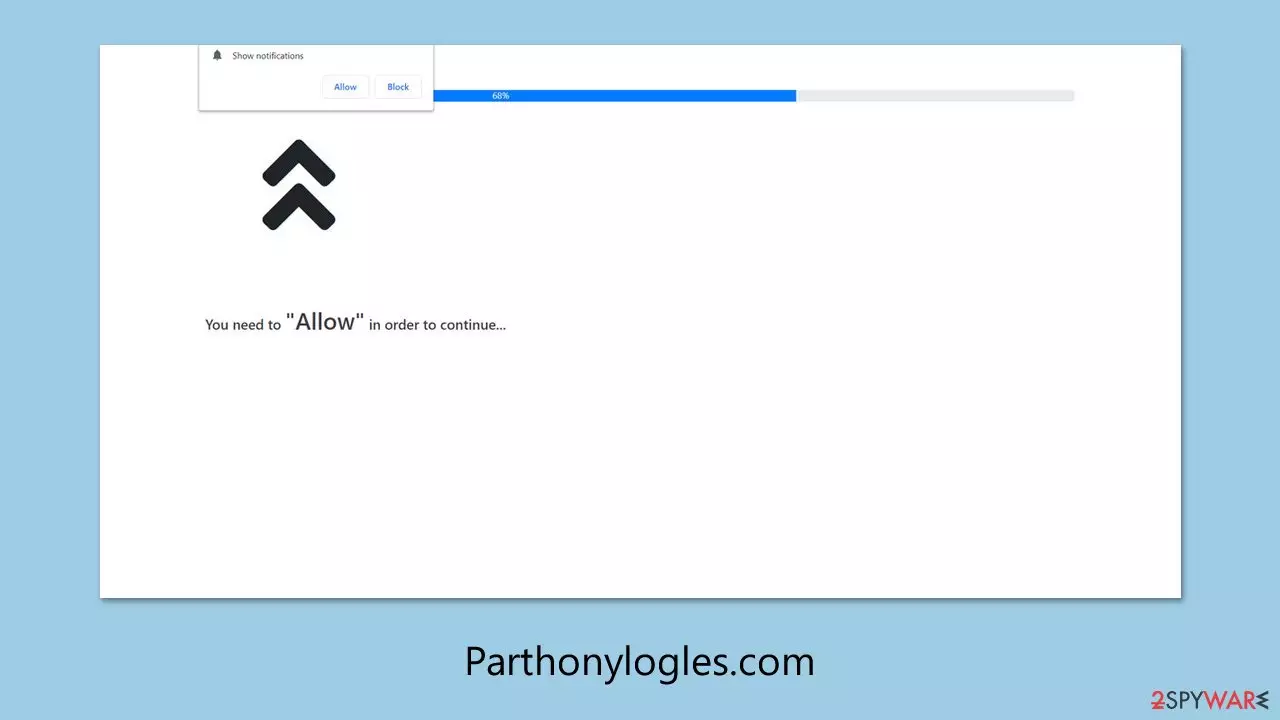
Parthonylogles.com is a shady website operated by scammers with a single goal in mind: tricking users into enabling push notifications so they can bombard desktops with intrusive pop-ups. These notifications often deliver misleading advertisements – like fake virus warnings, sham prize offers, or too-good-to-be-true money-making schemes – designed to deceive unsuspecting visitors into taking risky actions.
Interacting with these Parthonylogles.com pop-ups is a bad idea. Clicking on them could lead to financial losses or even sneak malicious software onto your device without you realizing it. To help you stay safe and tackle this annoyance, we’ve outlined simple steps below to protect your system and check for any hidden threats.
| Name | Parthonylogles.com |
| Type | Push notifications, ads, pop-ups, scam |
| Distribution | Desktop notifications start showing up at random times after clicking on the “Allow” button upon the site entry |
| Symptoms | You may start seeing intrusive pop-ups on your desktop – clicking these may lead to insecure or even malicious websites |
| Risks | Push notifications sent by the site might result in you visiting dangerous websites; consequently, you might suffer from malware infections, financial losses, or personal data disclosure to malicious parties |
| Removal | You can turn off notifications in your browser settings. If you notice more ads and redirects to suspicious sites, run SpyHunterCombo Cleaner anti-malware on your computer to check for adware infection |
| Other tips | Use FortectIntego to remove data trackers from your system and repair any damage caused by adware or other unwanted software. |
What are Parthonylogles.com pop-ups, exactly?
Pop-up ads are a common online marketing tactic – small windows that appear on websites to grab attention and encourage actions like purchases or sign-ups. When used legitimately, they can be effective, though often irritating to users. But the pop-ups from Parthonylogles.com aren’t your typical ads, even if they might look similar at first glance.
The key difference lies in how they work. Unlike standard pop-ups tied to specific websites or triggered by unwanted programs, Parthonylogles.com exploits your browser’s push notification system. This allows the site to send alerts directly to your desktop, whether you’re browsing or not, as long as the browser has permission to display them. That’s why these pesky notifications can pop up out of nowhere, even when you’re not on their site.
Closing your browser might stop them temporarily, but they’ll return as soon as you reopen it – not exactly a practical fix. Worse, these notifications often link to dangerous sites, so it’s best to avoid clicking them altogether. Stick around for our guidance on wiping them out for good.
How users get fooled into this mess
Online scams come in all shapes and sizes, some more destructive than others. While fake websites mimicking banks or services can steal sensitive info outright, push notification scams like Parthonylogles.com might seem less threatening – but they’re still a serious annoyance with hidden risks. These scams often stem from sketchy ad networks, opening the door to further phishing attempts if you’re not careful.
The scammers’ game plan? Profit from every ad view and click. For users unfamiliar with push notifications or unsure how to stop them, the temptation to interact can be strong—and lucrative for the crooks behind it. To reel people in, they use clever bait, such as:
- If you are 18+, click Allow
- Press “Allow” to confirm you are not a robot
- Press “Allow” to claim your prize
- Click Allow to watch the video
- Your file is ready to download – press Allow to continue.

It’s no surprise some fall for these tricks, especially when the prompts mimic legitimate requests. The good news? Even if you’ve accidentally greenlit notifications from Parthonylogles.com, there’s no need to panic—provided you don’t engage with the ads. They’re easy enough to remove with the right steps.
Get rid of the notifications and scan for trouble
Before tackling those irritating alerts, take a moment to check your system. The notifications themselves won’t harm you unless you click them, but if adware or worse has already slipped in, you could be facing data theft, monetary damage, or identity risks. Better safe than sorry – run a quick security sweep first.
For the best defense, perform a thorough scan with trusted anti-malware tools like SpyHunterCombo Cleaner or MalwarebytesMalwarebytes. These programs excel at rooting out and eliminating any nasty software lurking on your device. Pair that with a cleanup tool like FortectIntego, which optimizes your Windows system and clears out adware-related junk that might fuel these scams.
To banish Parthonylogles.com notifications for good, head to your browser settings and block the site’s URL. Pick your browser of choice and follow these steps to get started:
Google Chrome
- Open the Google Chrome browser and go to Menu > Settings.
- Scroll down and click on Advanced.
- Locate the Privacy and security section and pick Site Settings > Notifications.
- Look at the Allow section and look for a suspicious URL.
- Click the three vertical dots next to it and pick Block. This should remove unwanted notifications from Google Chrome.


Google Chrome (Android)
- Open Google Chrome and tap on Settings (three vertical dots).
- Select Notifications.
- Scroll down to the Sites section.
- Locate the unwanted URL and toggle the button to the left (Off position).


Mozilla Firefox
- Open Mozilla Firefox and go to Menu > Options.
- Click on Privacy & Security section.
- Under Permissions, you should be able to see Notifications. Click the Settings button next to it.
- In the Settings – Notification Permissions window, click on the drop-down menu by the URL in question.
- Select Block and then click on Save Changes. This should remove unwanted notifications from Mozilla Firefox.


Safari
- Click on Safari > Preferences…
- Go to the Websites tab and, under General, select Notifications.
- Select the web address in question, click the drop-down menu and select Deny.


MS Edge
- Open Microsoft Edge, and go to Settings.
- Select Site permissions.
- Go to Notifications on the right.
- Under Allow, you will find the unwanted entry.
- Click on More actions and select Block.


Internet Explorer
- Open Internet Explorer, and click on the Gear icon at the top-right of the window.
- Select Internet options and go to the Privacy tab.
- In the Pop-up Blocker section, click on Settings.

- Locate the web address in question under Allowed sites and pick Remove.

Did this guide help?
Be the first to comment