

EasyDocMerge Toolbar – a questionable extension that offers to merge documents and convert files
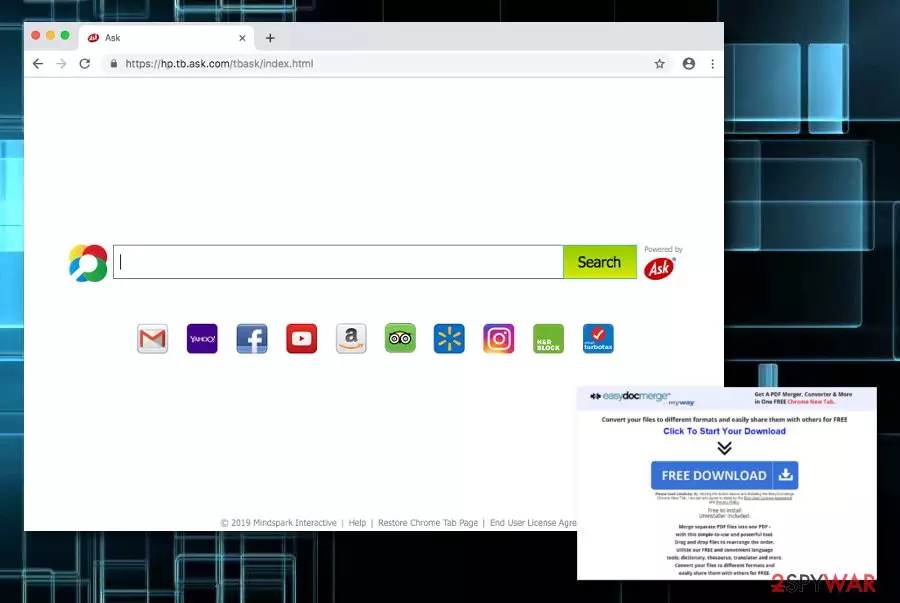
EasyDocMerge Toolbar, created by Mindspark Interactive,[1] is one of those toolbars that has been produced to popularize Ask search and make people visit affiliate websites. That's, of course, is initiated for one very simple reason – to generate advertising revenue. Therefore, you should think twice if you really need EasyDocMerge Toolbar. Even though it promises to “Merge separate PDF files into one PDF with this simple-to-use and powerful tool. Drag and drop files to rearrange the order” and provide other handy services, it may also perform additional tasks behind your back. Once installed on the targeted web browser such as Google Chrome, Mozilla Firefox, Internet Explorer, Microsoft Edge, or Safari, the suspicious object might alter settings and change the infected browser's homepage, new tab URL, and search engine directories to home.tb.ask.com.
Although EasyDocMerge Toolbar virus has its official promotion website, a widely known marketing technique (namely “bundling”[2]) is used for spreading it around the Internet. In fact, this rogue file converting extension has been categorized as a potentially unwanted program (PUP) because it tends to spread as an attachment of other freeware, which is why it commonly appears on computers without being noticed.
| Name | EasyDocMerge Toolbar |
|---|---|
| Program type | System tool |
| Search engine | home.tb.ask.com |
| “Useful features” | File converting, document merging, fast access to popular websites |
| Changes | Suspicious changes are spotted in the homepage, search engine, and new tab URL of the web browsers |
| Appearance | Questionable content is often brought together with other programs |
| Prevention | Use Custom/Advanced configuration for controlling your downloads |
| Removal tips | FortectIntego can help you to perform the removal of this tool quickly |
Besides, once installed it rushes to set Ask as a default start page, search provider, and a new tab window. Although it is a legitimate search provider, corruption of the web browser's settings behind the user's back is not fair. Also, the new search engine with EasyDoxMerge Toolbar alongside can display sponsored content during your browsing.
In other words, you may start receiving sponsored links within search results and sponsored ads on each page you visit. That's because Ask is very likely to be affected by third parties that may try to popularize unpopular web pages. Thus, in order to prevent exposing your computer to various unfamiliar web pages, use neither the EasyDocMerge Toolbar, nor the search engine.
Not to mention, EasyDocMerge Toolbar is also blamed for recording users' search terms, websites accessed, clicks, and similar information. However, our security experts have noticed that it may also gather IP address, PC's location, email address, and similar information that you may not be willing to share. Thus, weigh all pluses and minuses of this toolbar and decide whether it's worth using it or not.

In case you have already decided to remove EasyDocMerge Toolbar from Chrome and other web browsers, you can find the manual guide at the end of the article. For easier and more effective elimination, chose to run a computer program such as FortectIntego or SpyHunterCombo Cleaner. However, feel free to pick any other reliable software if you are likely to.
You need to know that EasyDocMerge Toolbar removal is a necessary process if you want to reverse all changes that were made to your web browsers. Also, by removing the suspicious component you will avoid questionable and even potentially dangerous redirecting activities through which you can be taken to infectious web pages.

Distribution techniques of EasyDocMerge Toolbar
The developer of this toolbar keeps developing thematic toolbars and spreading them using various techniques. Each of them offers different services. However, they share one common task – to promote Ask search. Even more, most of them tend to spread bundled with other freeware.
Consequently, if you tend to install free software without paying much attention to its installation process, you may not only end up with an unwanted toolbar, for instance, EasyDocMerge Toolbar, BigGameCountdown Toolbar, MyWebFace toolbar, etc. or another unwanted application.
To prevent this from happening, you should carefully monitor the entire freeware's installation process and uncheck ticks saying that you agree to install EasyDocMerge Toolbar or any of its clones. Besides, do not agree with the modification of DNS settings of your browser. Finally, in order to see 'optional downloads', don't forget to select Advanced/Custom installation mode.
Recently, the developer of this program contacted us asking us to remove this post from 2-spyware.com website. We believe that we shouldn't do that as long as programs that we offer for the removal of EasyDocMerge Toolbar can detect it and help users to remove it from the system. As it is mentioned under each of download buttons, we ARE affiliated with these anti-malware programs, and while some of them are free, others can remove a virus only after purchasing them. These mentions fully fulfill each of the requirements of FTC.
Nevertheless, we have recently decided to make a revision of this and other posts that are related to this developer. We claim that all of them are described properly.
Other spreading techniques of potentially unwanted programs
According to cybersecurity experts from Virusai.lt,[3] potentially unwanted content often is delivered throughout bundled freeware or shareware, however, this is not the only distribution method. Suspicious components can enter the computer system and various devices throughout suspicious networks and websites also.
Preventing stealth installation of rogue programs and their “helper objects” is possible. It all depends on the user's will to take precautionary measures such as keeping a distance from peer-to-peer networks,[4] avoiding to click on questionable-looking content, for example, advertising posts, secondary downloading links, and other types of hyperlinks.
For additional protection, an anti-malware or antivirus tool will do the job. This type of software is capable of scanning the entire computer system and searching for suspicious content in various locations of the machine. Not only that these programs offer system scans but they also include threat protection, bombard alerts when entering potentially dangerous pages, and many other beneficial features.
Remove EasyDocMerge Toolbar from your operating system and browsers
If you spot suspicious content on your Windows or Mac machine, you need to get rid of it to ensure the highest level of computer optimization possible. For EasyDocMerge Toolbar removal, you should clean not only your Windows or Mac operating systems but also your web browser applications such as Google Chrome, Mozilla Firefox, Microsoft Edge, Internet Explorer, and Safari.
You can remove EasyDocMerge Toolbar virus by using your own effort and skills or you can get a reliable anti-malware tool[5] that will complete the entire job for you. For the first elimination method, you can scroll down and you will find some instructing steps that will allow cleaning your entire computer. Talking about automatical removal, you can install our suggested tools or find another one which will suit your needs.
Uninstall from Windows
Uninstall from Windows 10/8:
- Type Control Panel into the Windows search box and open the result.
- Under Programs, select Uninstall a program.


Uninstall from Windows 7/XP:
- Click on Windows Start > Control Panel (Windows XP users should click on Add/Remove Programs).
- In Control Panel, select Programs > Uninstall a program.


Remove the unwanted program:
- In the Programs and Features window, look for any recently installed suspicious entries, select them, and click Uninstall.
- If User Account Control appears, click Yes to confirm, then complete the removal.


Delete from macOS
Remove the unwanted application:
- From the menu bar, select Go > Applications.
- In the Applications folder, look for any suspicious entries, then drag them to Trash (or right-click and pick Move to Trash).


Delete leftover files and folders:
- Select Go > Go to Folder.
- Enter /Library/Application Support and remove any suspicious folders related to the unwanted program.
- Repeat the same check in the /Library/LaunchAgents and /Library/LaunchDaemons folders, deleting any suspicious entries.

- Finally, empty the Trash to permanently remove the leftovers.

Reset Internet Explorer
Remove dangerous add-ons:
- Open Internet Explorer, click on the Gear icon (IE menu) on the top-right corner of the browser
- Pick Manage Add-ons.
- You will see a Manage Add-ons window. Here, look for suspicious plugins. Click on these entries and select Disable.


Change your homepage if it was altered:
- Open IE and click on the Gear icon.
- Select Internet Options.
- In the General tab, delete the Home page address and replace it by your preferred one (for example, Google.com).
- Click Apply and then select OK.


Delete temporary files:
- Press on the Gear icon and select Internet Options.
- Under Browsing history, click Delete...
- Select relevant fields and press Delete.


Reset Internet Explorer:
- Click on Gear icon > Internet options and select Advanced tab.
- Select Reset.
- In the new window, check Delete personal settings and select Reset.


Remove from Microsoft Edge
Delete unwanted extensions from MS Edge:
- Select Menu (three horizontal dots at the top-right of the browser window) and pick Extensions.
- From the list, pick the extension and click on the Gear icon.
- Click Remove.


Clear cookies and other browser data:
- Click on the Menu (three horizontal dots at the top-right of the browser window) and select Settings > Privacy, search, and services..
- Under Clear browsing data, pick Choose what to clear.
- Select Cookies and other site data and Cached images and files. (apart from passwords, although you might want to include Media licenses as well, if applicable) and click on Clear.


Restore new tab and homepage settings:
- Click the menu icon and choose Settings.
- Then find On startup section.
- Click Remove next to any suspicious startup page.
Reset MS Edge if the above steps did not work:
- Press on Ctrl + Shift + Esc to open Task Manager.
- Click on More details arrow at the bottom of the window.
- Select Details tab.
- Now scroll down and locate every entry with Microsoft Edge name in it. Right-click on each of them and select End Task to stop MS Edge from running.


Instructions for Chromium-based Edge
Delete extensions from MS Edge (Chromium):
- Open Edge and click select Settings > Extensions.
- Delete unwanted extensions by clicking Remove.


Clear cache and site data:
- Click on Menu and go to Settings.
- Select Privacy, search and services.
- Under Clear browsing data, pick Choose what to clear.
- Under Time range, pick All time.
- Select Clear now.


Reset Chromium-based MS Edge:
- Click on Menu and select Settings.
- On the left side, pick Reset settings.
- Select Restore settings to their default values.
- Confirm with Reset.
- This will disable extensions and reset startup pages but will not delete bookmarks, saved passwords, or browsing history.


Remove from Mozilla Firefox (FF)
Remove dangerous extensions:
- Open Mozilla Firefox browser and click on the Menu (three horizontal lines at the top-right of the window).
- Select Add-ons.
- In here, select the unwanted extension and click Remove.


Reset the homepage:
- Click three horizontal lines at the top right corner to open the menu.
- Choose Settings.
- Under Home, set your preferred homepage and new tab settings.
Clear cookies and site data:
- Click Menu and pick Settings.
- Go to Privacy & Security section.
- Scroll down to locate Cookies and Site Data.
- Click on Clear Data...
- Select Cookies and Site Data and Temporary cached files and pages, then click Clear.


Reset Mozilla Firefox
If clearing the browser as explained above did not help, reset Mozilla Firefox:
- Open Mozilla Firefox browser and click the Menu.
- Go to Help and then choose Troubleshooting Information.

- Under Give Firefox a tune up section, click on Refresh Firefox...
- Once the pop-up shows up, confirm the action by pressing on Refresh Firefox.



Remove from Google Chrome
Delete malicious extensions from Google Chrome:
- Open Google Chrome, click on the Menu (three vertical dots at the top-right corner) and select More tools > Extensions.
- In the newly opened window, you will see all the installed extensions. Uninstall all suspicious extensions related to the unwanted program by clicking Remove.


Clear cache and web data from Chrome:
- Click on Menu and pick Settings.
- Under Privacy and security, select Clear browsing data.
- Select Browsing history, Cookies and other site data, as well as Cached images and files.
- Click Clear data.


Change your homepage:
- Click menu and choose Settings.
- Look for a suspicious site in the On startup section.
- Click on Open a specific or set of pages and click on three dots to find the Remove option.
Reset Google Chrome:
If the previous methods did not help you, reset Google Chrome to eliminate all the unwanted components:
- Click on Menu and select Settings.
- In the Settings, scroll down and click Advanced.
- Scroll down and locate Reset and clean up section.
- Now click Restore settings to their original defaults.
- Confirm with Reset settings.


Delete from Safari
Remove dangerous extensions:
- Open Safari, click Safari in the menu at the top-left of the screen, and select Preferences.
- Go to the Extensions tab, look for any suspicious entries, and click Uninstall to remove them.


Clear history and website data:
- Click Safari in the menu and pick Clear History.
- Set Clear to all history and confirm with Clear History.


Reset Safari:
- Click Safari in the menu and select Preferences > Advanced.
- Enable Show Develop menu in menu bar.
- From the menu bar, click Develop and select Empty Caches.


Was this guide helpful?
Be the first to comment