
MyWebFace toolbar: what it is and how to remove it
MyWebFace toolbar is a type of program that can easily come inside the system in a bundle with some other software. While it hasn't been found that this program is related to malware, trojans or other viruses, sometimes it may initiate unwanted activities on your computer.
Facts checked October 7, 2026. Removal steps tested on Windows 11 (26H2) and checked against Microsoft's and the browser makers' current documentation. Sections marked as our earlier report are the original text: they describe the threat as it was then and have not been reviewed since. The 2026 status, the removal steps and the questions are current.
Automatic
Get a free scan and check if your PC is infected.
Fortect finds malware, unwanted programs and the Windows damage they leave behind, and repairs it in one pass.
If MyWebFace toolbar keeps coming back after uninstalling, a scan can find what reinstalls it.
Do it yourself · free Remove MyWebFace toolbar yourself 4 steps, about 12 minutes, no software needed.
Start the steps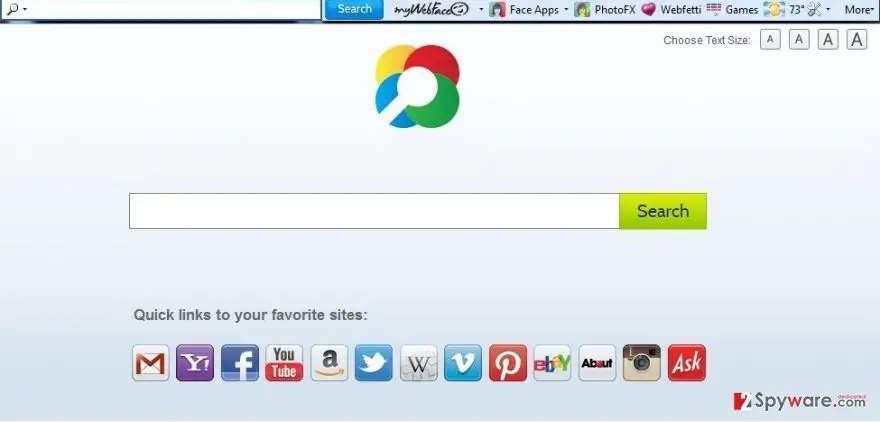
MyWebFace toolbar: summary
| Detection names | No Microsoft detection name is known |
|---|---|
| Distribution | Not recorded in the old report |
| Damage | Not recorded in the old report |
| Name | MyWebFace toolbar |
| Type | System optimizer |
| Symptoms | An unknown program in Installed apps |
| Removal | Scan the PC with security software to find and remove the malware and anything installed with it. Fortect scans Windows for malware and repairs the system files and settings it damaged. Remove it nowTo use the full-featured product, you have to purchase a license for Fortect. The scan is free. |
Show 4 more facts
| Evidence | One write-up by a security site; details still limited |
|---|---|
| Program | MyWebFace toolbar |
| First seen | 8 June 2015 |
| Facts checked | 7 October 2026 |
Is MyWebFace toolbar safe? Why it is flagged
From our report of Jun 2015 · not reviewed since
What is MyWebFace toolbar?
MyWebFace toolbar is a type of program that can easily come inside the system in a bundle with some other software.
While it hasn't been found that this program is related to malware, trojans or other viruses, sometimes it may initiate unwanted activities on your computer. Beware that it may act as a potentially unwanted program and modify your web browser's (Internet Explorer, Google Chrome, Mozilla Firefox) parameters without asking for a permission properly.
As a result, you may find out that you can't browse normally because each of your search sessions ends on unknown websites. As stated in the EULA of this tool:
Therefore, to display sponsored search results to the users, MyWebFace toolbar may alter your default start page and search engine. According to people who have already been affected by it, it promotes such search sites as mywebsearch.com, mystartsearch.com, and similar.
No matter how trustworthy these websites look, beware that they may show you altered search results and may also interrupt you with various pop-up ads. Finally, you may not even know that My Web Face application may start tracking you on the Internet and may collect non-personal information.
Typically, it is interested in search terms, mostly visited websites, data entered when visiting them, etc. After collecting needed amount of data, this toolbar may show you altered search results and tricky alters that may trick you into clicking them and then may make you visit suspicious websites that have nothing in common with your search query.
To sum up, MyWebFace Toolbar is one of those programs that may show up on your PC system out of nowhere because they are actively spread with the help of bundling. For that you can use the guide that is given at the end of this post.

From our report of Jun 2015 · not reviewed since
How CAN MyWebFace Toolbar settle down on my web browser?
As we have already said, MyWebFace extension can be downloaded manually or it can be installed in a bundle with freeware and shareware.
So, beware that it can also come inside your PC's system in one pack with other programs. Mostly, these programs are free applications that can be checked for optional components only if you select Custom or Advanced installation of the freeware. If this program enters the system, it can easily alter it and then may take control over all of your web browsers.
Additionally, this program may start interrupting each of your search sessions and may try to redirect you to unknown websites that belong to affiliate parties. Be aware that MyWebFace Toolbar may be used for doubtful activities, like data collection, display of commercial advertisements, and so on.
These mentions fully fulfill each of the requirements of FTC.
From our report of Jun 2015 · not reviewed since
More from our earlier report on MyWebFace toolbar
- The MS Products may integrate, be integrated into, bundled, or be provided in connection with third-party services, feeds, and/or content.
- [...] MS Products may provide access to search results or other links to Third Party Partner websites or resources.
- MS has no control over such sites and resources, in which you acknowledge and agree that MS is not responsible for the availability of such external sites or resources, and does not endorse nor responsible or liable for any content, advertising, products, or other materials on or available from such sites or resources.
How to uninstall MyWebFace toolbar
How to remove MyWebFace toolbar
Uninstall it, then remove what keeps it starting with Windows.
Nothing it flagged needs fixing.
Step 1: Uninstall MyWebFace toolbar
MyWebFace toolbar is removed like any other program, from the list of installed apps. In Windows 11 that is Settings > Apps > Installed apps, in Windows 10 Settings > Apps > Apps & features, and in both you can also use Control Panel > Programs and Features.
Select MyWebFace toolbar, click Uninstall and follow the uninstaller to the end. Then look at the entries just above and below it when the list is sorted by date: bundled programs install at the same minute.
Full procedure with screenshots: Uninstall a program or app in Windows On uGetFix
Step 2: Remove it from startup
Press Ctrl + Shift + Esc to open Task Manager and select Startup apps (Windows 11) or the Startup tab (Windows 10). Disable entries you do not recognise, especially ones with no publisher or with a name that copies a Windows component.
Right-click an entry and choose Open file location to see where it runs from: programs in
%AppData%or%Temp%deserve a closer look. Some entries are not listed there but in the registry Run keys, which the procedure below shows how to check.Full procedure with screenshots: Stop apps from opening at startup On uGetFix
Step 3: Delete the folders left behind
Uninstalling often leaves the program's folders, and some threats reinstall themselves from them.
Press Windows + R, type
%LocalAppData%and press Enter, then do the same for%AppData%and %ProgramData%, and look for folders named after MyWebFace toolbar, its publisher or created on the day the problem started.Delete those folders, and check
C:\Program FilesandC:\Program Files (x86)too.If Windows says a file is in use, end it in Task Manager or delete the folder after a restart in Safe Mode. The folders are the same in Windows 11 and Windows 10.
Full procedure with screenshots: Remove what malware leaves behind in Windows
Step 4: Scan the PC, then run the offline scan
A scan finds the parts of MyWebFace toolbar that the manual steps cannot see. In Windows Security > Virus & threat protection > Scan options, start a Full scan and quarantine what it reports.
Follow it with Microsoft Defender Antivirus (offline scan) > Scan now, which restarts the PC and checks the disk while Windows and the malware are not running.
It takes about 15 minutes and works the same in Windows 11 and Windows 10. If either scan finds something, run the full scan again after removal until it comes back clean.

Windows 11: Windows Security > Virus & threat protection > Scan options. Full procedure with screenshots: Run a Microsoft Defender Offline scan
Stream videos without limitations, no matter where you are
There are multiple parties that could find out almost anything about you by checking your online activity.
While this is highly unlikely, advertisers and tech companies are constantly tracking you online. The first step to privacy should be a secure browser that focuses on tracker reduction to a minimum.
Even if you employ a secure browser, you will not be able to access websites that are restricted due to local government laws or other reasons. In other words, you may not be able to stream Disney+ or US-based Netflix in some countries. To bypass these restrictions, you can employ a powerful VPN, which provides dedicated servers for torrenting and streaming, not slowing you down in the process.
Data backups are important - recover your lost files
Ransomware is one of the biggest threats to personal data.
Once it is executed on a machine, it launches a sophisticated encryption algorithm that locks all your files, although it does not destroy them. The most common misconception is that anti-malware software can return files to their previous states. This is not true, however, and data remains locked after the malicious payload is deleted.
While regular data backups are the only secure method to recover your files after a ransomware attack, tools such as can also be effective and restore at least some of your lost data.
From our report of Jun 2015 · not reviewed since
HOW CAN I REMOVE My Web Face Toolbar?
If you seek to restore web browser's parameters, you should remove MyWebFace Toolbar from your computer first.
If you don't know how to fix your machine, the guide provided below should help you:
1. Click Start → Control Panel → Uninstall a Program. 2. When in the Add/Remove Programs/Uninstall a Program, look for MyWebFace Toolbar and other programs that are unknown to you.
3. Click 'Uninstall' and then OK to save the changes.
Google Chrome: 1. Open Google Chrome, click on the menu icon (top right corner) and select 'Tools' -> 'Extensions'. 2. Here, select unfamiliar plugins (MyWebFace Toolbar, MyWay, MyWebSearch, etc.) and select trash icon to delete these entries.
3. In order to change your homepage, click on menu icon, choose 'Settings' -> 'On startup' section -> 'set pages'. 4. Here, eliminate myway.com by clicking on the "X" and enter your preferred website.
5. In order to change your default search engine, click on the menu icon -> 'Settings' -> 'Search' section. 6. Here, click 'Manage Search Engines...' and add your preferred domain name.
- Uninstall programs that are related to MyWebFace Toolbar from your computer:
- Reset your web browser:
Questions about MyWebFace toolbar
Is MyWebFace toolbar a virus?
Most programs that appear the way MyWebFace toolbar did are not viruses in the strict sense. They are potentially unwanted programs:
- real software that arrives bundled with other downloads and then shows offers
- changes browser settings
- starts with Windows
Some are harmless, some are annoying and a few carry adware. What makes it worth removing is that you did not choose it.
Uninstall it from Installed apps and check the startup list and the browsers for anything added the same day. If it refuses to uninstall or returns after a restart, treat it as more serious and run a Microsoft Defender offline scan.
MyWebFace toolbar will not uninstall. What can I do?
First restart the PC and try again, because the program may have been running and locked its own files. If the uninstaller is missing or fails, start Windows in Safe Mode, where most third-party programs do not start, and remove MyWebFace toolbar from Installed apps there.
If it still refuses, delete its startup entry and its scheduled task, restart, and try once more. A program that actively prevents removal is behaving like malware, so finish with a Microsoft Defender offline scan. Avoid third-party uninstallers offered on search ads; several of them are unwanted programs themselves.
Does MyWebFace toolbar use a lot of resources?
It depends on the program, and no measurements have been published for MyWebFace toolbar. The sign reported is myWebFace toolbar in the list of installed apps. Check for yourself: open Task Manager, find its process and watch the CPU, memory and network columns for a minute while the PC is otherwise idle.
Steady use with nothing open is a strong reason to remove it. Even if it seems light, it may run more processes under other names, so sort Installed apps by date and remove anything else from the same day. Then restart and compare.
MyWebFace toolbar will not uninstall. What can I do?
Close it first: in Task Manager, select every process with its name and click End task, and exit its tray icon. Then uninstall it from Settings > Apps > Installed apps. If the uninstaller fails, shows an error or just reopens offers, restart Windows in Safe Mode, where third-party programs do not start, and uninstall from there.
Afterwards, delete its folders in C:\Program Files and %AppData%, remove its scheduled tasks and run a full scan in Windows Security. As a last step, System Restore to a date before the install can help.
Do I need special software to remove MyWebFace toolbar?
No. Windows has everything needed:
- Installed apps for the uninstall
- the Startup list and Task Scheduler for what restarts it
- Windows Security for a scan afterwards
The steps in this guide take about fifteen minutes. A dedicated tool is a convenience when you would rather not check each place yourself or when the program keeps coming back.
Whatever you use, finish by confirming that myWebFace toolbar in the list of installed apps is gone after a restart, and avoid downloading removal tools from pages that promote them through scary warnings.
Is my privacy at risk because of MyWebFace toolbar?
A little, not dramatically. Unwanted programs tend to report what you install, which sites you visit or how you use the program back to their publisher. That data is sold or used for ads.
The sign people noticed, myWebFace toolbar in the list of installed apps, is consistent with such a program, and nothing reported suggests access to your files, camera or passwords.
Remove it, delete its leftovers and clear the browser data if it touched the browser. From then on, keep Potentially unwanted app blocking switched on in Windows Security, which stops many of these programs before they install.
Is MyWebFace toolbar harmful?
It is unwelcome rather than destructive, based on what has been reported: myWebFace toolbar in the list of installed apps. Unwanted programs like this slow Windows down, use your connection, show offers or change settings, and they make money for their publisher at your expense. The bigger concern is what arrived with them.
Bundled installers often add two or three programs at once, and some of those change the browser or install updaters that fetch more software later. Remove MyWebFace toolbar, then sort Installed apps by date and remove anything else from the same day. A full scan in Windows Security afterwards confirms that nothing more serious came along.
Why does MyWebFace toolbar reinstall itself?
Programs like MyWebFace toolbar are often installed with an updater or a companion app whose job is to keep them present. When you uninstall the main program, the helper downloads it again at the next scheduled run or restart.
Find the helper by sorting Installed apps by date and by checking Task Scheduler and Services for entries with the same name or publisher. Remove them all, then delete leftover folders. Turning on Potentially unwanted app blocking in Windows Security also stops many reinstall attempts.
How do I stop programs like MyWebFace toolbar from installing?
Turn on Potentially unwanted app blocking in Windows Security > App & browser control > Reputation-based protection settings, with both Block apps and Block downloads checked. Download programs from the developer's own site or the Microsoft Store, choose Custom in installers and untick extra offers, and treat large download buttons on file sites as ads.
Apps from the Microsoft Store are checked by Microsoft and uninstall cleanly. Keep real-time protection on, so that bundled offers flagged as unwanted are stopped before they install.
Will Fortect remove MyWebFace toolbar?
Fortect scans Windows for malware and unwanted programs and repairs the system files and settings they change, and its free scan shows what it finds on your PC before you decide anything.
For MyWebFace toolbar, follow the plan above as well: the browser steps take back permissions and settings that no scanner treats as a threat, and uninstalling the program that brought it removes the source.
Run Microsoft Defender's full scan and, if anything was found, its offline scan as a second opinion. If the symptoms are gone after the plan and both scans are clean, there is nothing more to do.
Sources
- FTC: How to recognize, remove and avoid malware (read October 7, 2026)
- Microsoft Learn: Microsoft Defender Offline (read October 7, 2026)
- Microsoft Learn: How Microsoft names malware (read October 7, 2026)