

Ib.adnxs.com is the site that shows various false claims to make sure that users visit other sponsored sites continuously
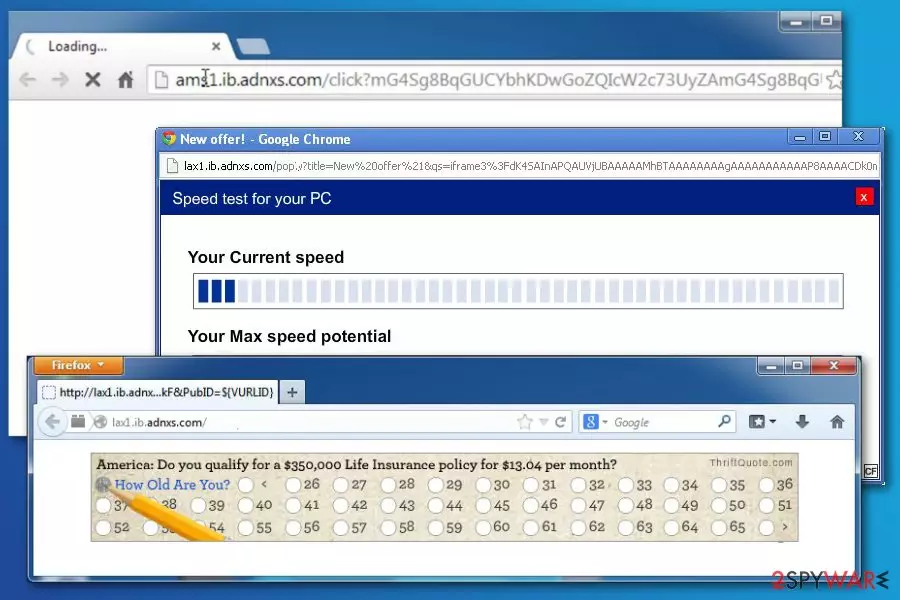
Ib.adnxs.com is a suspicious domain used for browser redirects to various websites. These sudden redirects are triggered by adware[1] which can sneak into the computer in a software bundle. After the hijack, it immediately alters the browser’s settings and Windows registry to cause browsing-related problems to the users.
Nevertheless, some suspicious processes related to adnxs can be found in the Task Manager section. However, Windows users are not the only ones that have been suffering from these ads. There have been reports from people who also experience intrusive advertising activities from this potentially unwanted program on their browsers while using Mac machines.[2]
| Name | Ib.adnxs.com |
|---|---|
| Program type | Adware |
| Category | Potentially unwanted program |
| Location | Registry, Task Manager, browser settings |
| Main activities | Creating a big flow of advertisements, redirecting to affiliate pages, tracking browsing data |
| OS and browsers affected | Windows/Mac. Chrome, Firefox, Safari, etc. |
| Hiding place | Bundles of free software |
| Elimination techniques | For automatic removal, use anti-malware tools. For manual elimination, look at the end of this page |
| repair | You might need to recover some parts of the machine that get affected by the threat., The best way to do so is by running FortectIntego |
The simple explanation of what is adnxs – it’s a potentially unwanted program (PUP)[3] that is used for shady advertising. On the affected machine, adware might display misleading pop-ups, banners, ads, in-text ads, and similar commercial content which diminishes the browsing experience.
Ib.adnxs.com virus is associated with a couple of domains that display ads or trigger redirects to third-party websites:
- nym1.ib.adnxs.com;
- lax1.ib.adnxs.com;
- m.adnxs.com;
- adnxs.com.
The main purpose of the malware is to drive traffic to specific websites. Website owners might want to increase their sales, promote products or services, or install malware or spyware on your computer. Nevertheless, developers of this potentially unwanted program can place tracking objects into infected machines in order to stalk user browsing activity. Such a component refers to the cookie.
As you can see, Ib.adnxs.com popup removal is needed not only to avoid annoying activities when browsing the web but for protecting your computer and privacy. Information that is collected by this adware will supposedly relate to your browsing history and habits. However, in some cases, adware developers might spy on your email address and the types of accounts you log into daily.

PUPs are often exploited by crooks and cybercriminals. Hence, adnxs might not be an exception. Adware might promote bogus browser extension, optimization, or security tools or urge to install available software updates. Besides all these activities, the ad-supported application might also force you to visit high-risk websites or display malicious ads.[4] You might be forced to install malware unknowingly through these types of sources.
Therefore, you should stay away from Ib.adnxs ads or pop-ups. However, avoiding them might not be that simple. Adware is capable of collecting non-personally identifiable and browsing-related information which is used for displaying targeted ads. If you have been experiencing notifications from this adware only occasionally, installing AdBlock might be enough to stop them from repeated appearance.
However, if the ad flow does not stop or even increases, you should start considering the malware removal Mac or Windows as a priority. What makes adware-based ads look attractive to users is that these types of notifications are usually generated to be based on your own interests and expectations. For this reason, you might be willing to click ads and let developers generate pay-per-click revenue.
Now when you know what is adnxs.com and why it interferes with your browsing sessions, you should know that adware’s activities should not be tolerated. Therefore, you should obtain a reputable anti-malware (e.g. MalwarebytesMalwarebytes, SpyHunterCombo Cleaner) and scan the system with an updated tool. Once the software detects the source of infection and all possibly damaged locations, the cleaning process will begin.

Note that even if the intruder is not a sophisticated form of malware such as ransomware or a Trojan horse, it still can bring some harm indirectly. Removing this PUP equals avoiding possible damaging consequences. Nevertheless, if there is not adware in your computer, your browsers should be able to operate at a much faster speed than they did when there was a PUP lurking inside and overusing power.
However, if you do not want to use additional software to remove ib.adnxs.com, you can check our prepared manual removal guidelines at the end of the article. Besides, you can try to stop the not-ending notification flow from this website by cleaning your browser applications. This can be done by completing a few steps:
- Open the infected web browser app and locate the three dots in the upper right corner.
- Opt for Settings.
- After that, locate and hit the Advanced section.
- Under Privacy & Security, you will find Site settings.
- Select Notifications and block ib.adnxs.com.
The ad-supported application spreads in software bundles
Usually, programs that display unwanted ads and cause redirects to developer-sponsored networks, travel bundled with various freeware or shareware. Users, who do not pay attention to the installation procedure, often install PUPs without realizing it.[5] To avoid accidental installation of unwanted apps, you should start paying more attention to programs' descriptions.
Also, make sure you select Custom or Advanced installation of the freeware to get an ability to opt out of suspicious additions. Here you will be capable of tracking all of your downloads and installations. If any suspicious object occurs, you will be able to eliminate it from the download list. However, do not choose any Recommended modes as here you will not have the control feature of incoming programs.
Security specialists from viruset.no[6] also remind that using reliable download sources, reading EULA and Privacy Policy are also needed precautions to avoid installation of unwanted apps or even malware. Besides, reputable anti-malware protection will always be a great help, especially for those people who are often in a hurry and might miss some important things while performing computing tasks.
Delete the virus from the computer to stop unwanted redirects and ads
To remove ib.adnxs.com and its ads, you should scan your PC with updated anti-spyware and remove malicious entries from the system. Of course, you can also select manual removal of this PUP, but in this case, you will need to find all related programs, browser extensions, and files yourself. Otherwise, this program may reappear on your computer.
If you are willing to opt for automatic virus removal, you should follow our prepared guide at the end of the article. Please, be very careful and attentive to avoid the elimination of important applications. Additionally, make sure that you eliminate suspicious objects not only from your OS but also web browser apps.
Full adnxs virus removal is necessary from browsers such as Google Chrome, Mozilla Firefox, Internet Explorer, Microsoft Edge, and Safari. If you think that you might fail in this process or just do not want to waste your time, our suggestion would be to install reputable repair software and leave the elimination task for this program.
Uninstall from Windows
Uninstall from Windows 10/8:
- Type Control Panel into the Windows search box and open the result.
- Under Programs, select Uninstall a program.


Uninstall from Windows 7/XP:
- Click on Windows Start > Control Panel (Windows XP users should click on Add/Remove Programs).
- In Control Panel, select Programs > Uninstall a program.


Remove the unwanted program:
- In the Programs and Features window, look for any recently installed suspicious entries, select them, and click Uninstall.
- If User Account Control appears, click Yes to confirm, then complete the removal.


Delete from macOS
Remove the unwanted application:
- From the menu bar, select Go > Applications.
- In the Applications folder, look for any suspicious entries, then drag them to Trash (or right-click and pick Move to Trash).


Delete leftover files and folders:
- Select Go > Go to Folder.
- Enter /Library/Application Support and remove any suspicious folders related to the unwanted program.
- Repeat the same check in the /Library/LaunchAgents and /Library/LaunchDaemons folders, deleting any suspicious entries.

- Finally, empty the Trash to permanently remove the leftovers.

Remove from Microsoft Edge
Delete unwanted extensions from MS Edge:
- Select Menu (three horizontal dots at the top-right of the browser window) and pick Extensions.
- From the list, pick the extension and click on the Gear icon.
- Click Remove.


Clear cookies and other browser data:
- Click on the Menu (three horizontal dots at the top-right of the browser window) and select Settings > Privacy, search, and services..
- Under Clear browsing data, pick Choose what to clear.
- Select Cookies and other site data and Cached images and files. (apart from passwords, although you might want to include Media licenses as well, if applicable) and click on Clear.


Restore new tab and homepage settings:
- Click the menu icon and choose Settings.
- Then find On startup section.
- Click Remove next to any suspicious startup page.
Reset MS Edge if the above steps did not work:
- Press on Ctrl + Shift + Esc to open Task Manager.
- Click on More details arrow at the bottom of the window.
- Select Details tab.
- Now scroll down and locate every entry with Microsoft Edge name in it. Right-click on each of them and select End Task to stop MS Edge from running.


Instructions for Chromium-based Edge
Delete extensions from MS Edge (Chromium):
- Open Edge and click select Settings > Extensions.
- Delete unwanted extensions by clicking Remove.


Clear cache and site data:
- Click on Menu and go to Settings.
- Select Privacy, search and services.
- Under Clear browsing data, pick Choose what to clear.
- Under Time range, pick All time.
- Select Clear now.


Reset Chromium-based MS Edge:
- Click on Menu and select Settings.
- On the left side, pick Reset settings.
- Select Restore settings to their default values.
- Confirm with Reset.
- This will disable extensions and reset startup pages but will not delete bookmarks, saved passwords, or browsing history.


Remove from Mozilla Firefox (FF)
Remove dangerous extensions:
- Open Mozilla Firefox browser and click on the Menu (three horizontal lines at the top-right of the window).
- Select Add-ons.
- In here, select the unwanted extension and click Remove.


Reset the homepage:
- Click three horizontal lines at the top right corner to open the menu.
- Choose Settings.
- Under Home, set your preferred homepage and new tab settings.
Clear cookies and site data:
- Click Menu and pick Settings.
- Go to Privacy & Security section.
- Scroll down to locate Cookies and Site Data.
- Click on Clear Data...
- Select Cookies and Site Data and Temporary cached files and pages, then click Clear.


Reset Mozilla Firefox
If clearing the browser as explained above did not help, reset Mozilla Firefox:
- Open Mozilla Firefox browser and click the Menu.
- Go to Help and then choose Troubleshooting Information.

- Under Give Firefox a tune up section, click on Refresh Firefox...
- Once the pop-up shows up, confirm the action by pressing on Refresh Firefox.



Remove from Google Chrome
Delete malicious extensions from Google Chrome:
- Open Google Chrome, click on the Menu (three vertical dots at the top-right corner) and select More tools > Extensions.
- In the newly opened window, you will see all the installed extensions. Uninstall all suspicious extensions related to the unwanted program by clicking Remove.


Clear cache and web data from Chrome:
- Click on Menu and pick Settings.
- Under Privacy and security, select Clear browsing data.
- Select Browsing history, Cookies and other site data, as well as Cached images and files.
- Click Clear data.


Change your homepage:
- Click menu and choose Settings.
- Look for a suspicious site in the On startup section.
- Click on Open a specific or set of pages and click on three dots to find the Remove option.
Reset Google Chrome:
If the previous methods did not help you, reset Google Chrome to eliminate all the unwanted components:
- Click on Menu and select Settings.
- In the Settings, scroll down and click Advanced.
- Scroll down and locate Reset and clean up section.
- Now click Restore settings to their original defaults.
- Confirm with Reset settings.


Delete from Safari
Remove dangerous extensions:
- Open Safari, click Safari in the menu at the top-left of the screen, and select Preferences.
- Go to the Extensions tab, look for any suspicious entries, and click Uninstall to remove them.


Clear history and website data:
- Click Safari in the menu and pick Clear History.
- Set Clear to all history and confirm with Clear History.


Reset Safari:
- Click Safari in the menu and select Preferences > Advanced.
- Enable Show Develop menu in menu bar.
- From the menu bar, click Develop and select Empty Caches.


Did this guide help?
1 comment
MWolfe
This problem is only with the aol browser on this Win7 machine. The only New software install was today (?coincidence?) Upon finally allowing Skype to update. I suspect it was a fake request. That was the only recent change.
Still working on it.