

Mouse Hunt – an adware application that will not leave your browser without your interference
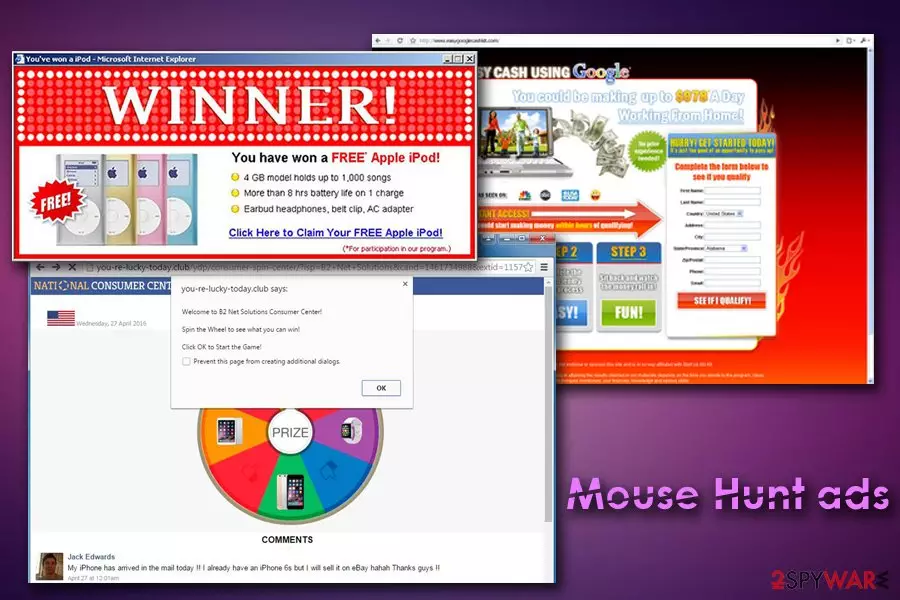
Mouse Hunt is a potentially unwanted program[1] that usually infiltrates users' computers via software bundling and injects Google Chrome, Internet Explorer, Mozilla Firefox or another browser with the intrusive advertisement. As it is common with PUPs, the developer of such software is unknown, although the goal of a rogue application is the revenue which can be generated through affiliate programs. Sadly, sponsors are not always reliable, as the content displayed to users may be offensive or even dangerous to the personal safety and computer security. Thus, users have to face miserable browser sessions while developers of adware make piles of cash off of it.
| Summary | |
| Name | Mouse Hunt |
| Type | Adware |
| Symptoms | Intrusive advertisements, frequent redirects, fake search results, etc. |
| Main dangers | Malware infection, sensitive data exposure to third-parties |
| Distribution | Software bundling, malicious websites, ads |
| Elimination | Download and install FortectIntego; otherwise check our manual removal guide below |
Mouse.Hunt affects Windows operating systems only, but that does not mean that Mac OS X version will not be developed in the future. Users who are affected by this unwanted program will see a process running in the Task Manager. The first advice would be to terminate it and then proceed with Mouse Hunt removal by either using FortectIntego or other security software, or by finding all the suspicious components manually.
Potentially unwanted applications are often very sneaky, and users might not always notice their presence after infiltration. Although officially, it cannot be called malware, adware can lead to its infection quite quickly, especially if an infected user is carelessly clicking on sponsored content.
These actions can lead to online scam websites,[2] bogus software installation or even personal (financial) data theft. Therefore, we recommend not to engage with any content that is presented by Mouse Hunt virus and close down the browser immediately (note: make sure that the recently opened tabs would not launch with the next browser startup).
What is more, Mouse Hunt may track non-personal information for marketing purposes. The data may include, but is not limited to:
- IP address
- Geo-location
- Search queries
- Sites visited
- Links clicked
- Technical information
- Software information, etc.
If you want to keep this material private, we suggest you remove Mouse Hunt adware immediately. Otherwise, the collected information may be sold to third-parties or even cybercriminals. Instead, choose trusted retailers to purchase software and products and ignore any dubious offers, deals and discount coupons.

Potentially unwanted programs may be installed together with free software
The answer to the question “how did this pest get into my computer?” is very simple: it most likely got installed with freeware or shareware that you recently installed on your device. In case your computer is already injected with multiple PUPs (and you might not even know about it), they could have initiated the installation of additional programs without your consent. Additionally, you could have unintentionally installed the unwanted program while visiting questionable websites or clicked on malicious ads.
Nevertheless, the most prevalent adware distribution method is software bundling, simply because it is very effective. Therefore, make sure you don't get tricked by this deceptive marketing technique – pick Advanced or Custom instead of Recommended settings while installing the free software you obtained from the internet and de-select all tick marks next to optional installs.
Uninstall Mouse Hunt either manually or automatically
Mouse.Hunt removal may be very simple, or very complicated, depending on the state of your system. In case it was already infiltrated with many other PUPs – its elimination may be quite tricky. In this case, we recommend scanning your system with reliable anti-virus software, as this method will allow you to detect all the suspicious applications and get rid of them in just a few clicks.
If you are sure that there are no other infections present on your machine, you can also remove Mouse.Hunt by following our manual instructions below. Security researchers from virusler.info.tr[3] do not recommend this method if you are not that experienced with computers and its functions, as it can lead to failure of Mouse Hunt virus elimination, and, in worst case scenario, can lead to system file damage.
Uninstall from Windows
Uninstall from Windows 10/8:
- Type Control Panel into the Windows search box and open the result.
- Under Programs, select Uninstall a program.


Uninstall from Windows 7/XP:
- Click on Windows Start > Control Panel (Windows XP users should click on Add/Remove Programs).
- In Control Panel, select Programs > Uninstall a program.


Remove the unwanted program:
- In the Programs and Features window, look for any recently installed suspicious entries, select them, and click Uninstall.
- If User Account Control appears, click Yes to confirm, then complete the removal.


Delete from macOS
Remove the unwanted application:
- From the menu bar, select Go > Applications.
- In the Applications folder, look for any suspicious entries, then drag them to Trash (or right-click and pick Move to Trash).


Delete leftover files and folders:
- Select Go > Go to Folder.
- Enter /Library/Application Support and remove any suspicious folders related to the unwanted program.
- Repeat the same check in the /Library/LaunchAgents and /Library/LaunchDaemons folders, deleting any suspicious entries.

- Finally, empty the Trash to permanently remove the leftovers.

Reset Internet Explorer
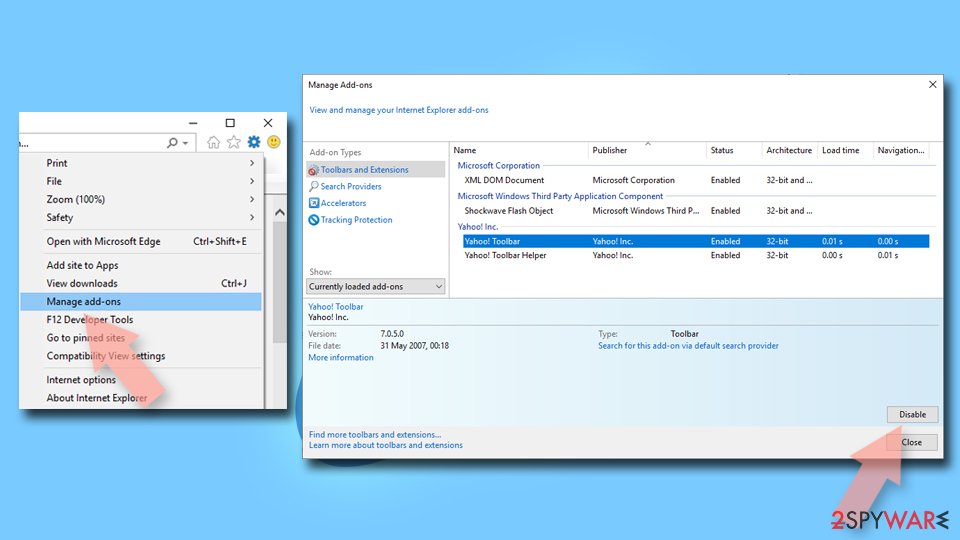
Remove dangerous add-ons:
- Open Internet Explorer, click on the Gear icon (IE menu) on the top-right corner of the browser
- Pick Manage Add-ons.
- You will see a Manage Add-ons window. Here, look for suspicious plugins. Click on these entries and select Disable.

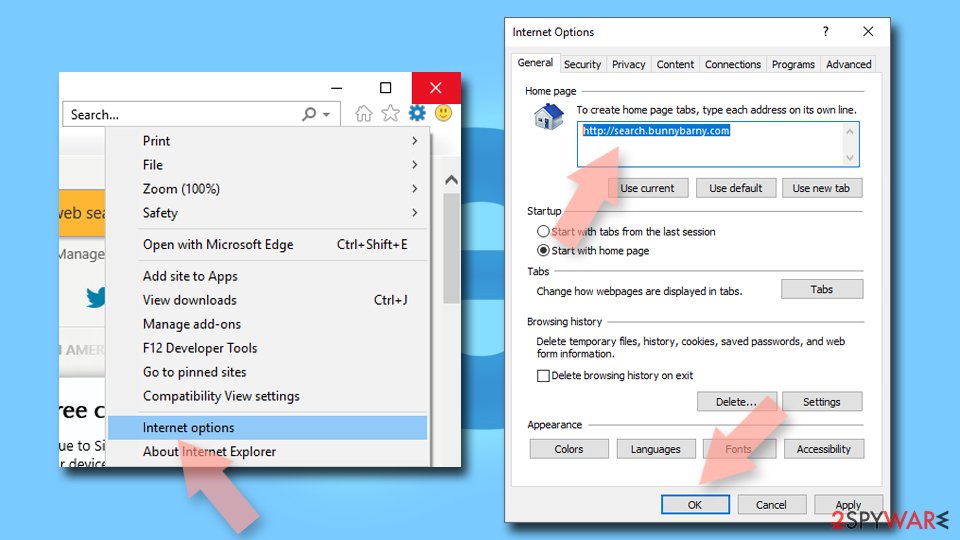
Change your homepage if it was altered:
- Open IE and click on the Gear icon.
- Select Internet Options.
- In the General tab, delete the Home page address and replace it by your preferred one (for example, Google.com).
- Click Apply and then select OK.

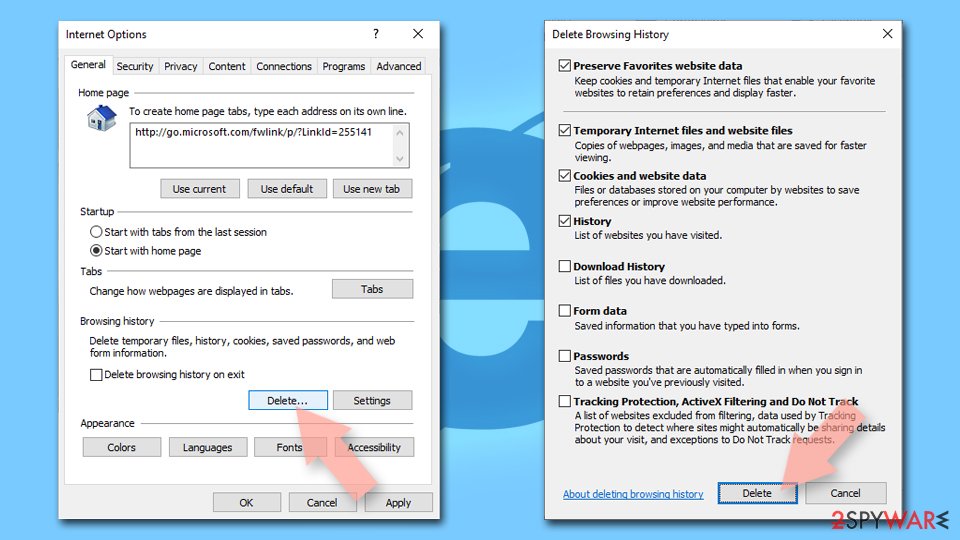
Delete temporary files:
- Press on the Gear icon and select Internet Options.
- Under Browsing history, click Delete...
- Select relevant fields and press Delete.

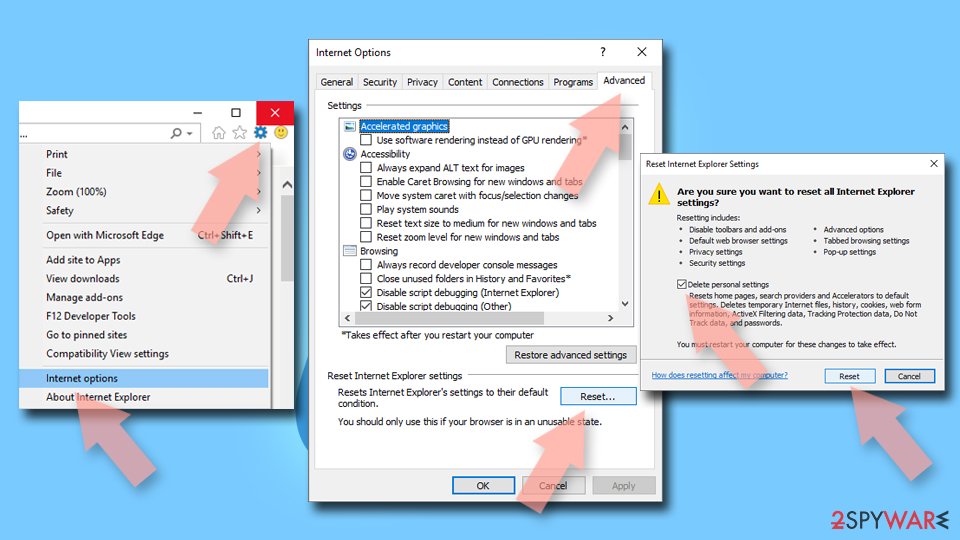
Reset Internet Explorer:
- Click on Gear icon > Internet options and select Advanced tab.
- Select Reset.
- In the new window, check Delete personal settings and select Reset.

Remove from Microsoft Edge
Delete unwanted extensions from MS Edge:
- Select Menu (three horizontal dots at the top-right of the browser window) and pick Extensions.
- From the list, pick the extension and click on the Gear icon.
- Click Remove.


Clear cookies and other browser data:
- Click on the Menu (three horizontal dots at the top-right of the browser window) and select Settings > Privacy, search, and services..
- Under Clear browsing data, pick Choose what to clear.
- Select Cookies and other site data and Cached images and files. (apart from passwords, although you might want to include Media licenses as well, if applicable) and click on Clear.


Restore new tab and homepage settings:
- Click the menu icon and choose Settings.
- Then find On startup section.
- Click Remove next to any suspicious startup page.
Reset MS Edge if the above steps did not work:
- Press on Ctrl + Shift + Esc to open Task Manager.
- Click on More details arrow at the bottom of the window.
- Select Details tab.
- Now scroll down and locate every entry with Microsoft Edge name in it. Right-click on each of them and select End Task to stop MS Edge from running.


Instructions for Chromium-based Edge
Delete extensions from MS Edge (Chromium):
- Open Edge and click select Settings > Extensions.
- Delete unwanted extensions by clicking Remove.


Clear cache and site data:
- Click on Menu and go to Settings.
- Select Privacy, search and services.
- Under Clear browsing data, pick Choose what to clear.
- Under Time range, pick All time.
- Select Clear now.


Reset Chromium-based MS Edge:
- Click on Menu and select Settings.
- On the left side, pick Reset settings.
- Select Restore settings to their default values.
- Confirm with Reset.
- This will disable extensions and reset startup pages but will not delete bookmarks, saved passwords, or browsing history.


Remove from Mozilla Firefox (FF)
Remove dangerous extensions:
- Open Mozilla Firefox browser and click on the Menu (three horizontal lines at the top-right of the window).
- Select Add-ons.
- In here, select the unwanted extension and click Remove.


Reset the homepage:
- Click three horizontal lines at the top right corner to open the menu.
- Choose Settings.
- Under Home, set your preferred homepage and new tab settings.
Clear cookies and site data:
- Click Menu and pick Settings.
- Go to Privacy & Security section.
- Scroll down to locate Cookies and Site Data.
- Click on Clear Data...
- Select Cookies and Site Data and Temporary cached files and pages, then click Clear.


Reset Mozilla Firefox
If clearing the browser as explained above did not help, reset Mozilla Firefox:
- Open Mozilla Firefox browser and click the Menu.
- Go to Help and then choose Troubleshooting Information.

- Under Give Firefox a tune up section, click on Refresh Firefox...
- Once the pop-up shows up, confirm the action by pressing on Refresh Firefox.



Remove from Google Chrome
Delete malicious extensions from Google Chrome:
- Open Google Chrome, click on the Menu (three vertical dots at the top-right corner) and select More tools > Extensions.
- In the newly opened window, you will see all the installed extensions. Uninstall all suspicious extensions related to the unwanted program by clicking Remove.


Clear cache and web data from Chrome:
- Click on Menu and pick Settings.
- Under Privacy and security, select Clear browsing data.
- Select Browsing history, Cookies and other site data, as well as Cached images and files.
- Click Clear data.


Change your homepage:
- Click menu and choose Settings.
- Look for a suspicious site in the On startup section.
- Click on Open a specific or set of pages and click on three dots to find the Remove option.
Reset Google Chrome:
If the previous methods did not help you, reset Google Chrome to eliminate all the unwanted components:
- Click on Menu and select Settings.
- In the Settings, scroll down and click Advanced.
- Scroll down and locate Reset and clean up section.
- Now click Restore settings to their original defaults.
- Confirm with Reset settings.


Delete from Safari
Remove dangerous extensions:
- Open Safari, click Safari in the menu at the top-left of the screen, and select Preferences.
- Go to the Extensions tab, look for any suspicious entries, and click Uninstall to remove them.


Clear history and website data:
- Click Safari in the menu and pick Clear History.
- Set Clear to all history and confirm with Clear History.


Reset Safari:
- Click Safari in the menu and select Preferences > Advanced.
- Enable Show Develop menu in menu bar.
- From the menu bar, click Develop and select Empty Caches.


Did this guide help?
Be the first to comment