

Search.newtab-mediasearch.com is the browser hijacker that gets called a virus due to shady redirects
Search.newtab-mediasearch.com is a PUP that users complain about because it triggers online traffic reroutes to suspicious advertising pages. In case you are now considering installing a new search engine and accidentally ran into search.newtab-mediasearch.com virus, drop the idea of installing it.
This questionable search engine falls into the category of browser hijackers. If you do not know what or how damaging this potentially unwanted application might be, then we will explain more about it. Firstly, a search.newtab-mediasearch.com hijacker is bothersome due to its redirect tendency.
While using this search engine, you might not reach your destination from the first try but after canceling several redirects. Secondly, reverting to previous browsing tools might also become a challenge due to “helper elements” employed by this malware.
Keep reading if you want to know more about this application and search.newtab-mediasearch.com removal options. Just for the sake of saving time, you might already consider installing an anti-spyware program, for example, SpyHunterCombo Cleaner, MalwarebytesMalwarebytes to exterminate the hijacker.
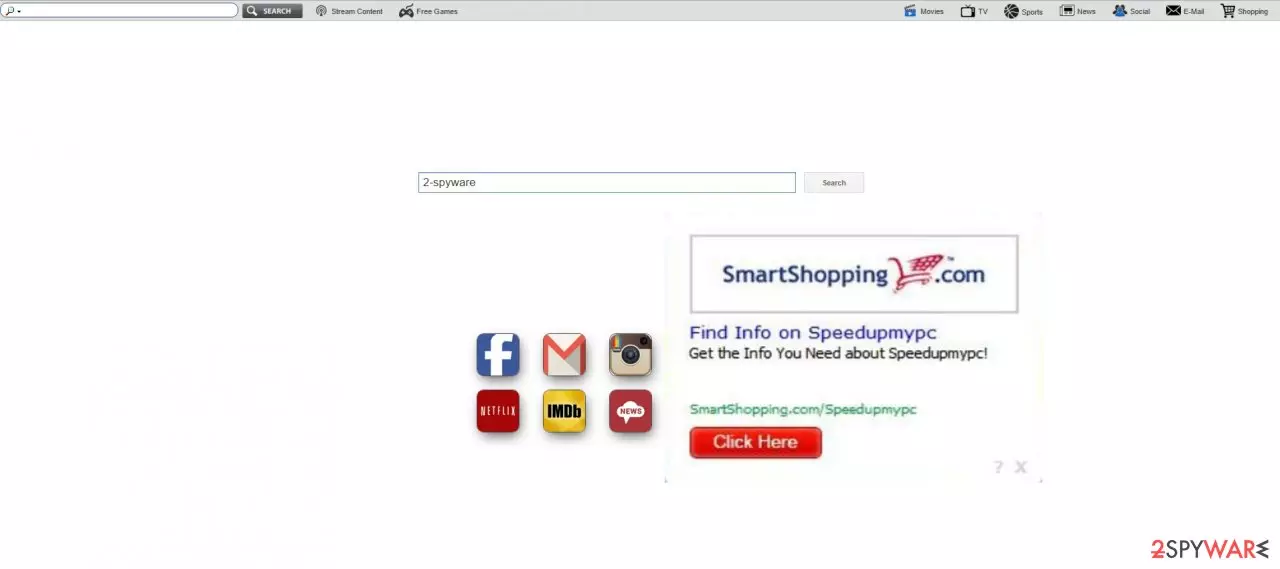
Let us start with the most obvious troublesome peculiarity of the PUP – search.newtab-mediasearch.com redirect. You may have noticed that the hijacker provides easy access to popular movie streaming, shopping, informational, gaming, and sports web pages.
Such peculiarity might look like a convenient feature. However, it eases the access for advertising companies to cram your browser with a vivid stream of advertisements. Using this hijacker for a while, you might also frequently get mislead to third-party web pages.
Some of them might force to lose your temper as you struggle to exit them. You should also beware not to lurk in the redirect websites too long before high-scale viruses, for example, ransomware, decides to infect your computer. Afterward, the consequences might be highly severe. Make sure to clear virus damage with tools like FortectIntego.
Moreover, the developers of this website turn out to be MALI – N.I. MEDIA LTD, which is known for “manufacturing” countless other suspicious search engines. the Privacy policy of this unwanted application states that search.newtab-mediasearch.com collects anonymous information each time you use it.
Furthermore, it is not necessary to sign up so that it could spy on your browsing activity. This provision might look necessary to ensure their services. Nonetheless, they compile the data about visited websites and browsing frequency to comprehend your demands and needs and then provide appealing advertisements or redirects to possibly relevant websites.
Though such activity raises their profit, you might get infected with viruses instead. As a result, make haste to remove search.newtab-mediasearch.com. Lastly, you should know that the hijacker installs additional files. Due to them, reverting to the previous search engine might not be a simple task.
Silent hijacker spreading ways
In the beginning, you might have found this search engine highly beneficial. Thus, it didn’t take too long for you to install it. If you didn’t intend to change your previous Google browsing tool, then search.newtab-mediasearch.com browser hijacker might have infiltrated your PC via another free program you recently downloaded.
Due to the common vice to skip the installation instructions, you also recklessly hit the “Install” button. As a result, you struggled to realize how or when the hijacker got into your system. That is why we suggest another sequence of actions.
Before you finish the installation process, select “Advanced” settings. In most cases a browser hijacker is hidden under “Recommended” settings, however, review all modes. If you locate any pre-ticked irrelevant applications, unmark them one by one.
You can quickly remove search.newtab-mediasearch.com virus with AV tools
This time a minor PUP has infiltrated your computer, thus, its removal should not create any inconveniences. Firstly, run a system scan to delete search.newtab-mediasearch.com virus. After the software successfully eliminates the PUP, restart your computer.
After that, you will be able to return to the previous search engine. You may be interested in manual search.newtab-mediasearch.com removal option as well. Our specialists have provided the guide below, so feel free to use it. Finishing on a positive note, remember to remain vigilant while browsing the Web and carefully install new software.
Uninstall from Windows
Uninstall from Windows 10/8:
- Type Control Panel into the Windows search box and open the result.
- Under Programs, select Uninstall a program.


Uninstall from Windows 7/XP:
- Click on Windows Start > Control Panel (Windows XP users should click on Add/Remove Programs).
- In Control Panel, select Programs > Uninstall a program.


Remove the unwanted program:
- In the Programs and Features window, look for any recently installed suspicious entries, select them, and click Uninstall.
- If User Account Control appears, click Yes to confirm, then complete the removal.


Delete from macOS
Remove the unwanted application:
- From the menu bar, select Go > Applications.
- In the Applications folder, look for any suspicious entries, then drag them to Trash (or right-click and pick Move to Trash).


Delete leftover files and folders:
- Select Go > Go to Folder.
- Enter /Library/Application Support and remove any suspicious folders related to the unwanted program.
- Repeat the same check in the /Library/LaunchAgents and /Library/LaunchDaemons folders, deleting any suspicious entries.

- Finally, empty the Trash to permanently remove the leftovers.

Remove from Microsoft Edge
Delete unwanted extensions from MS Edge:
- Select Menu (three horizontal dots at the top-right of the browser window) and pick Extensions.
- From the list, pick the extension and click on the Gear icon.
- Click Remove.


Clear cookies and other browser data:
- Click on the Menu (three horizontal dots at the top-right of the browser window) and select Settings > Privacy, search, and services..
- Under Clear browsing data, pick Choose what to clear.
- Select Cookies and other site data and Cached images and files. (apart from passwords, although you might want to include Media licenses as well, if applicable) and click on Clear.


Restore new tab and homepage settings:
- Click the menu icon and choose Settings.
- Then find On startup section.
- Click Remove next to any suspicious startup page.
Reset MS Edge if the above steps did not work:
- Press on Ctrl + Shift + Esc to open Task Manager.
- Click on More details arrow at the bottom of the window.
- Select Details tab.
- Now scroll down and locate every entry with Microsoft Edge name in it. Right-click on each of them and select End Task to stop MS Edge from running.


Instructions for Chromium-based Edge
Delete extensions from MS Edge (Chromium):
- Open Edge and click select Settings > Extensions.
- Delete unwanted extensions by clicking Remove.


Clear cache and site data:
- Click on Menu and go to Settings.
- Select Privacy, search and services.
- Under Clear browsing data, pick Choose what to clear.
- Under Time range, pick All time.
- Select Clear now.


Reset Chromium-based MS Edge:
- Click on Menu and select Settings.
- On the left side, pick Reset settings.
- Select Restore settings to their default values.
- Confirm with Reset.
- This will disable extensions and reset startup pages but will not delete bookmarks, saved passwords, or browsing history.


Remove from Mozilla Firefox (FF)
Remove dangerous extensions:
- Open Mozilla Firefox browser and click on the Menu (three horizontal lines at the top-right of the window).
- Select Add-ons.
- In here, select the unwanted extension and click Remove.


Reset the homepage:
- Click three horizontal lines at the top right corner to open the menu.
- Choose Settings.
- Under Home, set your preferred homepage and new tab settings.
Clear cookies and site data:
- Click Menu and pick Settings.
- Go to Privacy & Security section.
- Scroll down to locate Cookies and Site Data.
- Click on Clear Data...
- Select Cookies and Site Data and Temporary cached files and pages, then click Clear.


Reset Mozilla Firefox
If clearing the browser as explained above did not help, reset Mozilla Firefox:
- Open Mozilla Firefox browser and click the Menu.
- Go to Help and then choose Troubleshooting Information.

- Under Give Firefox a tune up section, click on Refresh Firefox...
- Once the pop-up shows up, confirm the action by pressing on Refresh Firefox.



Remove from Google Chrome
Delete malicious extensions from Google Chrome:
- Open Google Chrome, click on the Menu (three vertical dots at the top-right corner) and select More tools > Extensions.
- In the newly opened window, you will see all the installed extensions. Uninstall all suspicious extensions related to the unwanted program by clicking Remove.


Clear cache and web data from Chrome:
- Click on Menu and pick Settings.
- Under Privacy and security, select Clear browsing data.
- Select Browsing history, Cookies and other site data, as well as Cached images and files.
- Click Clear data.


Change your homepage:
- Click menu and choose Settings.
- Look for a suspicious site in the On startup section.
- Click on Open a specific or set of pages and click on three dots to find the Remove option.
Reset Google Chrome:
If the previous methods did not help you, reset Google Chrome to eliminate all the unwanted components:
- Click on Menu and select Settings.
- In the Settings, scroll down and click Advanced.
- Scroll down and locate Reset and clean up section.
- Now click Restore settings to their original defaults.
- Confirm with Reset settings.


Delete from Safari
Remove dangerous extensions:
- Open Safari, click Safari in the menu at the top-left of the screen, and select Preferences.
- Go to the Extensions tab, look for any suspicious entries, and click Uninstall to remove them.


Clear history and website data:
- Click Safari in the menu and pick Clear History.
- Set Clear to all history and confirm with Clear History.


Reset Safari:
- Click Safari in the menu and select Preferences > Advanced.
- Enable Show Develop menu in menu bar.
- From the menu bar, click Develop and select Empty Caches.


Did this guide help?
3 comments
Dereck
Seems like a legitimate search engine.
Sarah
No need for changing your search engine, just stay with Google and youll be fine.
Peter
Unfortunately, I downloaded this crapy browsing tool, now I need to install additional anti-malware program...