

StormWatch – a supposedly useful app for weather viewing that is categorized as adware
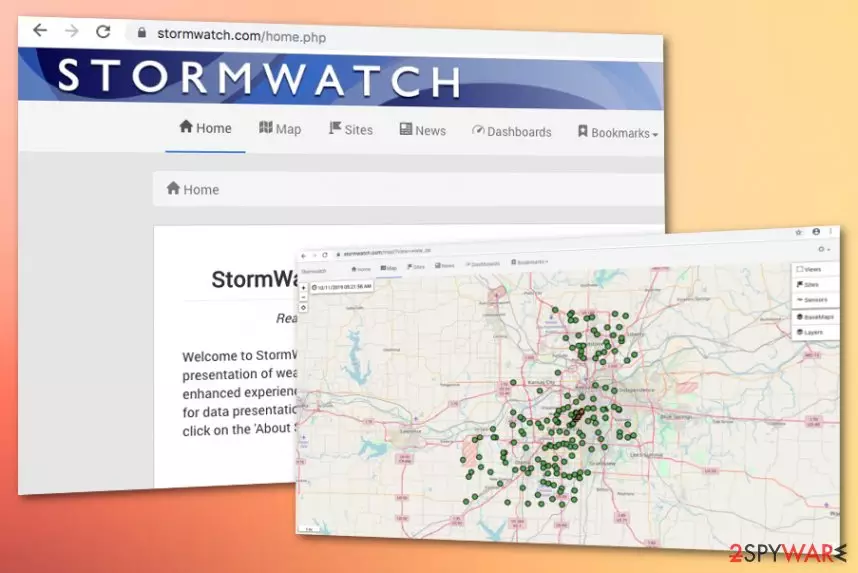
StormWatch is supposed to be a useful tool that shows people forecasts about the upcoming storms. Unfortunately, it is a questionable program that has already been categorized as adware[1] as it may push rogue advertisements on all web browsers, including Google Chrome, Mozilla Firefox, Internet Explorer, etc. It has been created by Weather Protector LLC, as well as WeatherBug, Weather Forecast, or Desktop Temperature Monitor. All these programs work in a similar manner – they display a widget on a desktop and show weather or storm forecasts. Lots of PC users have installed StormWatch for this function but it seems that this program is also capable of implementing various additional operations without the user's permission asked.
| Name | StormWatch |
|---|---|
| Type | Adware application/potentially unwanted program |
| Developer | This suspicious program has been created and developed by Weather Protector LLC |
| Aim | The main aim of this product is to provide users with weather-related information |
| Browsers affected | Google Chrome, Mozilla Firefox, Internet Explorer, Microsoft Edge, and Safari might get affected by the adware |
| Distributed | Such products are often bundled with freeware through third-party sources such as Softonic or can be downloaded from their official websites |
| Remove it | Scan the entire system with FortectIntego. Continuously, proceed with the manual/automatical elimination technique. View guidelines at the end of this page |
Once you enter the official website of StormWatch, the application developers will meet you with a nice presentation of the program and an attractive greeting that aims to express the importance of quality-full user experience:
Welcome to StormWatch website. We hope the user will find the upgraded presentation of weather data in the Kansas City metro region to be a significantly enhanced experience. The new site is now mobile-friendly, and the graphing engine for data presentation is improved.
The main issue that may annoy you to death is the constant flood of StormWatch ads on each of your web browsers. Usually, they appear massively, so you can hardly ignore them. You should be very careful with such messages because they may redirect you to questionable websites and lead you to the installation of another potentially unwanted program.
Besides, StormWatch may even connect to the Internet without your permission and install other ad-supported extensions. As a consequence, the browser's performance may be heavily diminished and you may experience constant crashes. Not to mention, this program may start collecting your personally non-identifiable information for affiliate marketing.

It seems that StormWatch is able to monitor your browsing activities and collect data such as IP address, search queries, visited websites, geolocation, and so on. For enhancement of your browsing experience, the developers might inject HTTP cookies.[2] According to the developers, even though users are able to refuse the tracking components, this might affect the app's functionality:
Our Application uses “cookies” to enhance User experience. User's web browser places cookies on their hard drive for record-keeping purposes and sometimes to track information about them. User may choose to set their web browser to refuse cookies, or to alert you when cookies are being sent. If they do so, note that some parts of the Application may not function properly.
Even though StormWatch claims to use the collected information to improve its application and customers' services, third-parties mostly seek to bombard their users with targeted advertisements or sometimes even share the gathered details with other partners. The more the users click on the ads provided, the better the revenue is made.
StormWatch ads can easily bring pay-per-click income if found attractive to potential customers/clients. However, these ads might cause redirects to other promoted locations some of which might appear to be infected with dangerous malware. This is one of the ways how Trojan horses, ransomware viruses, worms, and other malicious programs reach the computer.
If the adware program lands on your computer system and tends to modify web browsers such as Google Chrome, Mozilla Firefox, Internet Explorer, Microsoft Edge, or Safari, you need to remove StormWatch from the machine and browser apps with the help of manual instructing lines that are placed at the end of this article.
However, first, we recommend scanning the entire machine with a program such as FortectIntego that will find all suspicious entries, keys, and files that have been placed on the machine by the adware application. If you are likely to, you can continue with the StormWatch removal process by employing automatical software.

Developers plant their created PUPs into freeware/shareware packages
It is very likely that you have downloaded some plug-ins voluntarily from their own official websites. However, there are many cases when deceptive programs appeared on the system after installing some free software. Mostly, users receive unpleasant content on their computer system after using third-party downloading services from Cnet or Softonic.
Fortunately, the infiltration of potentially unwanted programs can be avoided. It doesn't matter if you downloaded the application from its official website or it got inside in a bundle with freeware. If any adware or potentially unwanted program got installed on your PC without your permission, it means that you have installed the program in the wrong way.
Once you choose a program that you want, try to read its end-user license agreement and other possible information that is given. You can even try to look for reviews and comments of other users, thus it will help you to find more information about its positive and negative functions. In addition, avoid Quick/Basic/Recommended installation modes.
In fact, this way you will install your desired program quickly; however, additional programs will be installed alongside unnoticed. Therefore, choose Advanced or Custom installation and attentively follow every checkbox in order to opt-out of potentially unwanted programs and their additional products.
Remove StormWatch virus from the affected computer/browser
If this application bothers you with intrusive ads and redirects, you may choose between automatic and manual removal and fix your computer. When we recommend the StormWatch ads removal via automatical technique for all users, there still is a possibility to get rid of the cyber threat on your own.
However, we suggest evaluating your skills first and if you see that you lack experience, you should not remove StormWatch ads from your Windows/Mac computer system without any guidance of professional antivirus software. But if you do believe to be an advanced computer user, try out the following steps.
Experts from NoVirus.uk[3] want to point out the importance of complete adware removal. StormWatch might have planted bogus entries in your Task Manager that can provoke repeated adware appearance if not eliminated permanently.
Uninstall from Windows
Uninstall from Windows 10/8:
- Type Control Panel into the Windows search box and open the result.
- Under Programs, select Uninstall a program.


Uninstall from Windows 7/XP:
- Click on Windows Start > Control Panel (Windows XP users should click on Add/Remove Programs).
- In Control Panel, select Programs > Uninstall a program.


Remove the unwanted program:
- In the Programs and Features window, look for any recently installed suspicious entries, select them, and click Uninstall.
- If User Account Control appears, click Yes to confirm, then complete the removal.


Delete from macOS
Remove the unwanted application:
- From the menu bar, select Go > Applications.
- In the Applications folder, look for any suspicious entries, then drag them to Trash (or right-click and pick Move to Trash).


Delete leftover files and folders:
- Select Go > Go to Folder.
- Enter /Library/Application Support and remove any suspicious folders related to the unwanted program.
- Repeat the same check in the /Library/LaunchAgents and /Library/LaunchDaemons folders, deleting any suspicious entries.

- Finally, empty the Trash to permanently remove the leftovers.

Reset Internet Explorer
Remove dangerous add-ons:
- Open Internet Explorer, click on the Gear icon (IE menu) on the top-right corner of the browser
- Pick Manage Add-ons.
- You will see a Manage Add-ons window. Here, look for suspicious plugins. Click on these entries and select Disable.


Change your homepage if it was altered:
- Open IE and click on the Gear icon.
- Select Internet Options.
- In the General tab, delete the Home page address and replace it by your preferred one (for example, Google.com).
- Click Apply and then select OK.


Delete temporary files:
- Press on the Gear icon and select Internet Options.
- Under Browsing history, click Delete...
- Select relevant fields and press Delete.


Reset Internet Explorer:
- Click on Gear icon > Internet options and select Advanced tab.
- Select Reset.
- In the new window, check Delete personal settings and select Reset.


Remove from Microsoft Edge
Delete unwanted extensions from MS Edge:
- Select Menu (three horizontal dots at the top-right of the browser window) and pick Extensions.
- From the list, pick the extension and click on the Gear icon.
- Click Remove.


Clear cookies and other browser data:
- Click on the Menu (three horizontal dots at the top-right of the browser window) and select Settings > Privacy, search, and services..
- Under Clear browsing data, pick Choose what to clear.
- Select Cookies and other site data and Cached images and files. (apart from passwords, although you might want to include Media licenses as well, if applicable) and click on Clear.


Restore new tab and homepage settings:
- Click the menu icon and choose Settings.
- Then find On startup section.
- Click Remove next to any suspicious startup page.
Reset MS Edge if the above steps did not work:
- Press on Ctrl + Shift + Esc to open Task Manager.
- Click on More details arrow at the bottom of the window.
- Select Details tab.
- Now scroll down and locate every entry with Microsoft Edge name in it. Right-click on each of them and select End Task to stop MS Edge from running.


Instructions for Chromium-based Edge
Delete extensions from MS Edge (Chromium):
- Open Edge and click select Settings > Extensions.
- Delete unwanted extensions by clicking Remove.


Clear cache and site data:
- Click on Menu and go to Settings.
- Select Privacy, search and services.
- Under Clear browsing data, pick Choose what to clear.
- Under Time range, pick All time.
- Select Clear now.


Reset Chromium-based MS Edge:
- Click on Menu and select Settings.
- On the left side, pick Reset settings.
- Select Restore settings to their default values.
- Confirm with Reset.
- This will disable extensions and reset startup pages but will not delete bookmarks, saved passwords, or browsing history.


Remove from Mozilla Firefox (FF)
Remove dangerous extensions:
- Open Mozilla Firefox browser and click on the Menu (three horizontal lines at the top-right of the window).
- Select Add-ons.
- In here, select the unwanted extension and click Remove.


Reset the homepage:
- Click three horizontal lines at the top right corner to open the menu.
- Choose Settings.
- Under Home, set your preferred homepage and new tab settings.
Clear cookies and site data:
- Click Menu and pick Settings.
- Go to Privacy & Security section.
- Scroll down to locate Cookies and Site Data.
- Click on Clear Data...
- Select Cookies and Site Data and Temporary cached files and pages, then click Clear.


Reset Mozilla Firefox
If clearing the browser as explained above did not help, reset Mozilla Firefox:
- Open Mozilla Firefox browser and click the Menu.
- Go to Help and then choose Troubleshooting Information.

- Under Give Firefox a tune up section, click on Refresh Firefox...
- Once the pop-up shows up, confirm the action by pressing on Refresh Firefox.



Remove from Google Chrome
Delete malicious extensions from Google Chrome:
- Open Google Chrome, click on the Menu (three vertical dots at the top-right corner) and select More tools > Extensions.
- In the newly opened window, you will see all the installed extensions. Uninstall all suspicious extensions related to the unwanted program by clicking Remove.


Clear cache and web data from Chrome:
- Click on Menu and pick Settings.
- Under Privacy and security, select Clear browsing data.
- Select Browsing history, Cookies and other site data, as well as Cached images and files.
- Click Clear data.


Change your homepage:
- Click menu and choose Settings.
- Look for a suspicious site in the On startup section.
- Click on Open a specific or set of pages and click on three dots to find the Remove option.
Reset Google Chrome:
If the previous methods did not help you, reset Google Chrome to eliminate all the unwanted components:
- Click on Menu and select Settings.
- In the Settings, scroll down and click Advanced.
- Scroll down and locate Reset and clean up section.
- Now click Restore settings to their original defaults.
- Confirm with Reset settings.


Delete from Safari
Remove dangerous extensions:
- Open Safari, click Safari in the menu at the top-left of the screen, and select Preferences.
- Go to the Extensions tab, look for any suspicious entries, and click Uninstall to remove them.


Clear history and website data:
- Click Safari in the menu and pick Clear History.
- Set Clear to all history and confirm with Clear History.


Reset Safari:
- Click Safari in the menu and select Preferences > Advanced.
- Enable Show Develop menu in menu bar.
- From the menu bar, click Develop and select Empty Caches.


Did this guide help?
Be the first to comment