

Puabundler:win32/msetup is a potentially unwanted program that can cause harm to your system

Puabundler:win32/msetup is a typical detection name for an unwanted program in Windows. This is a potentially malicious virus that may cause a range of problems. Such viruses are often downloaded from software or media piracy websites[1] and may be bundled with other software,[2] which means they could be installed on your computer without your knowledge or consent. If you want to know more about this threat and learn how to remove it, please continue reading this article.
| NAME | Puabundler:win32/msetup |
| TYPE | Potentially unwanted program |
| SYMPTOMS | This infection may be able to install other threats, cause pop-up spam, browser setting changes, or performance issues |
| DISTRIBUTION | Torrent websites, bundled software |
| DANGERS | Other malware and PUP installations, system damage |
| ELIMINATION | Use trusted anti-malware tools to eliminate viruses |
| FURTHER STEPS | To fix any system damage, it is best to use an automatic tool, like FortectIntego |
Distribution methods
Puabundler:win32/msetup is most likely distributed through software or media piracy websites, where users may download illegal copies of software or media. It may also be bundled with legitimate software and could be installed along with it. This means that you could accidentally download and install the virus while trying to download something else.
To stay safe online and avoid accidentally downloading Puabundler:win32/msetup or other types of malware, there are a few steps you can take:
- Only download software from reputable websites. Avoid downloading software from unfamiliar or untrustworthy websites, as this is a common way that malware is distributed.
- Be cautious when installing software. Always pay attention to the installation process and watch for any additional offers or prompts to install other software. If you are not sure whether a program is safe to install, you can do some research online or ask a trusted source for advice.
- Keep your computer and software up to date. Make sure you have the latest updates and patches for your operating system and any installed programs. This can help to protect your computer from vulnerabilities that could be exploited by malware.
- Use antivirus software. Antivirus software can help to protect your computer from malware and other threats. Make sure you have a reputable antivirus program installed and keep it up to date.

Potential threats
One of the main potential threats of Puabundler:win32/msetup is that it may be able to install other types of malware on your computer. Malware is a general term for any software that is designed to perform malicious actions on your computer, such as stealing sensitive information or damaging your system.
Puabundler:win32/msetup may also act as a potentially unwanted program (PUP)[3] on your computer. PUPs are programs that are not necessarily malicious but may perform unwanted or unnecessary actions, such as displaying advertisements or altering your browser settings. PUPs may also be difficult to remove and can cause a range of symptoms, including:
- Constant pop-ups and redirects
- Changes to your browser settings or homepage
- Unwanted toolbars or extensions added to your browser
- Slow performance or system crashes
- Difficulty accessing certain websites
While the exact capabilities of Puabundler:win32/msetup are unknown, it is possible that this virus may be able to cause these and other problems on your computer. If you think your computer may be infected with Puabundler:win32/msetup, it is important to take steps to remove it as soon as possible. This will help to prevent any potential damage to your system and ensure that your computer is secure.
Get rid of security threats with anti-malware tools
Once malware or PUPs enter the system, there is no better way to remove it than good quality, automized professional security tools. However, the malicious program may block such tools, so you need to perform additional steps. It becomes difficult to remove serious threats like this over time as their damage increases. We recommend getting a trustworthy tool and running it regularly to avoid these issues.
You need to enter Safe Mode with Networking if malware is blocking it. From there, you will be able to perform a scan with anti-malware tools with no problems. If you are not sure how to do that, follow the guide below:
Windows 7 / Vista / XP
- Click Start > Shutdown > Restart > OK.
- When your computer becomes active, start pressing F8 button (if that does not work, try F2, F12, Del, etc. – it all depends on your motherboard model) multiple times until you see the Advanced Boot Options window.
- Select Safe Mode with Networking from the list.


Windows 10 / Windows 8
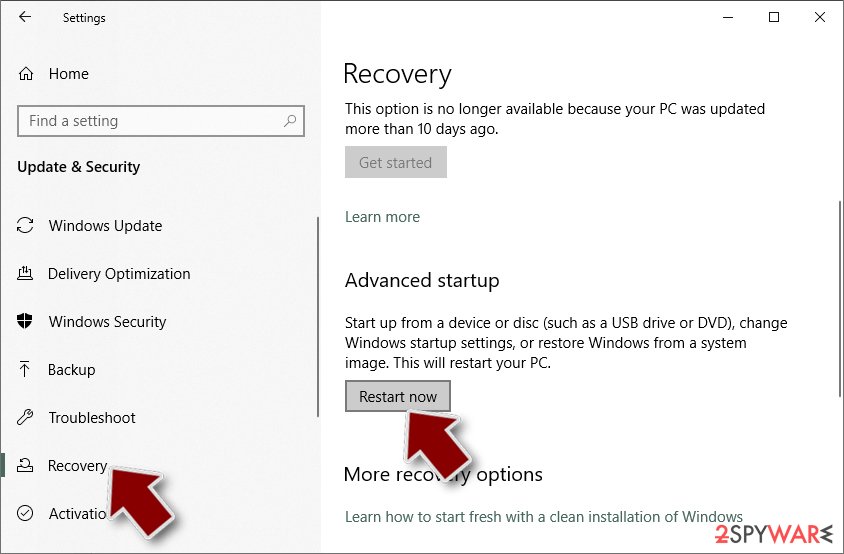
- Right-click on Start button and select Settings.
- Scroll down to pick Update & Security.
- On the left side of the window, pick Recovery.
- Now scroll down to find Advanced Startup section.
- Click Restart now.
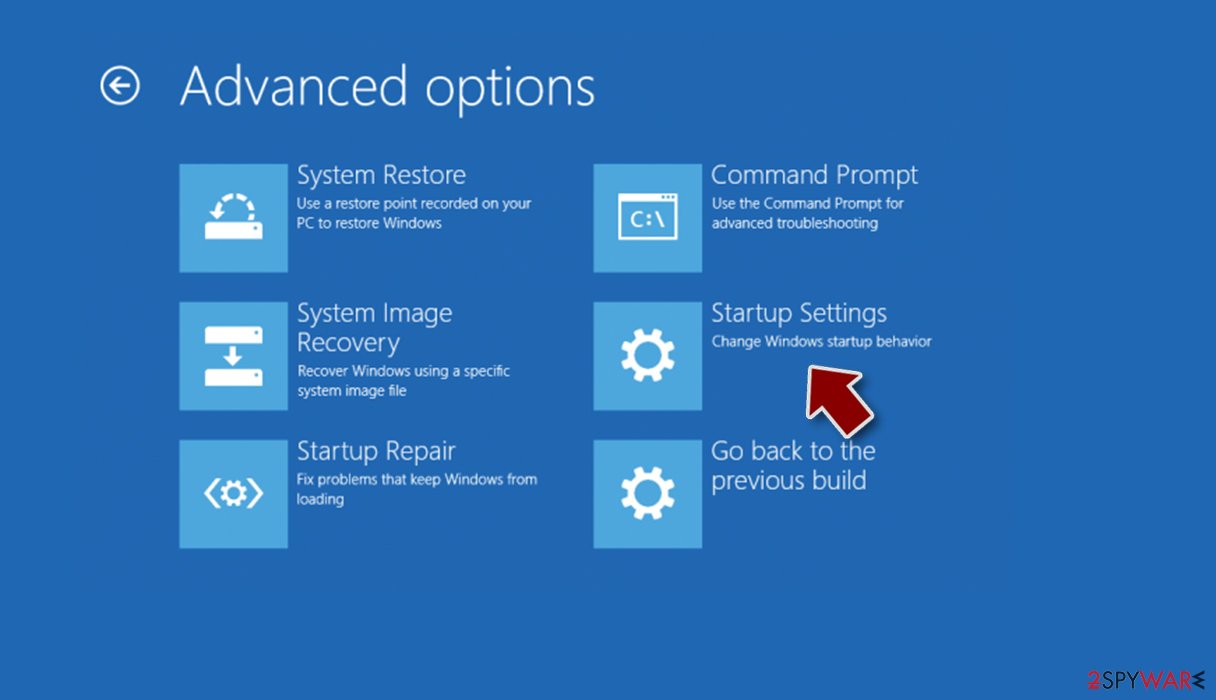
- Select Troubleshoot.
- Go to Advanced options.
- Select Startup Settings.
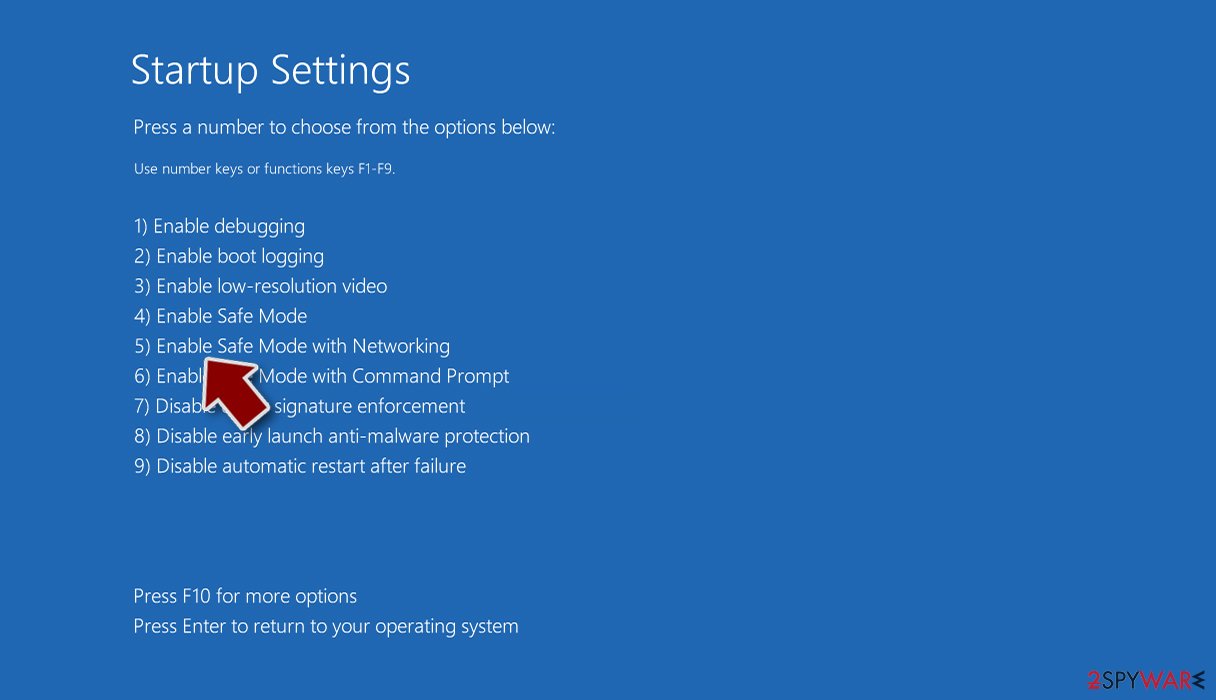
- Click Restart.
- Press 5 or click 5) Enable Safe Mode with Networking.


Once you reach Safe Mode, launch SpyHunterCombo Cleaner or MalwarebytesMalwarebytes, and perform a full system scan to eradicate malware and all its malicious components. Puabundler:win32/msetup may cause serious damage if you leave it on the system. This is why we do not suggest you try to remove the threat manually, as the process is very complicated and not suitable for people with minimal IT skills.
Fix system damage
We highly recommend using a one-of-a-kind, patented technology of FortectIntego repair. Not only can it fix virus damage after the infection, but it is also capable of removing malware that has already broken into the system thanks to several engines used by the program. Besides, the application is also capable of fixing various Windows-related issues that are not caused by malware infections, for example, Blue Screen errors, freezes, registry errors, damaged DLLs, etc.
- Download the application by clicking on the link above.
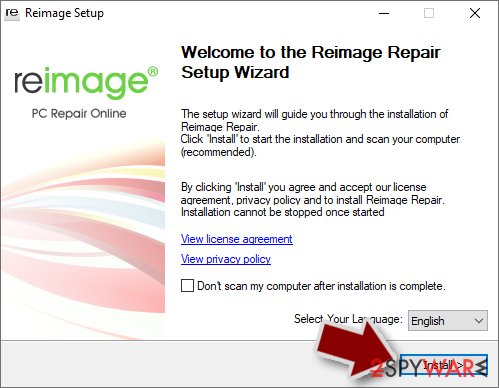
- Click on the ReimageRepair.exe.
- If User Account Control (UAC) shows up, select Yes.
- Press Install and wait till the program finishes the installation process.
- The analysis of your machine will begin immediately.
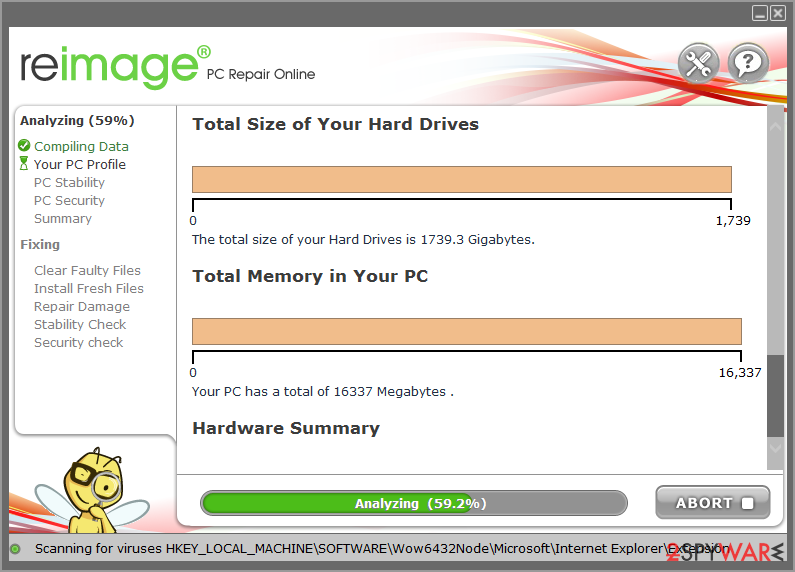
- Once complete, check the results – they will be listed in the Summary.
- You can now click on each of the issues and fix them manually.
- If you see many problems that you find difficult to fix, we recommend you purchase the license and fix them automatically.



By employing FortectIntego, you would not have to worry about future computer issues, as most of them could be fixed quickly by performing a full system scan at any time. Most importantly, you could avoid the tedious process of Windows reinstallation in case things go very wrong due to one reason or another.
Unwanted browser behavior, ads, and pop-ups
If you experience unwanted browser behavior, such as constant pop-ups and redirects, changes to your browser settings or homepage, or unwanted toolbars or extensions, it is possible that Puabundler:win32/msetup is at fault. To address these issues, there are a few steps you can take:
- Remove unwanted programs and extensions. Check your list of installed programs and extensions and uninstall anything that you do not recognize or that you no longer want.
- Reset your browser settings. If your browser settings have been changed without your consent, you can try resetting them to their default settings. This may help to remove unwanted toolbars and extensions and restore your previous settings.
- Block pop-ups in your browser. Most modern browsers have a built-in option to block pop-ups. You can enable this feature to help prevent unwanted pop-ups and redirects.
By taking these steps, you may be able to address unwanted browser behavior and remove any malware that may be causing the issue. It is also a good idea to practice safe browsing habits and avoid downloading software or media from piracy websites, as this is a common way that malware is distributed. By following these precautions, you can help to protect your computer from malware and other threats.
You can also find instructions on how to fix these various issues below this article.
Uninstall from Windows
Uninstall from Windows 10/8:
- Type Control Panel into the Windows search box and open the result.
- Under Programs, select Uninstall a program.


Uninstall from Windows 7/XP:
- Click on Windows Start > Control Panel (Windows XP users should click on Add/Remove Programs).
- In Control Panel, select Programs > Uninstall a program.


Remove the unwanted program:
- In the Programs and Features window, look for any recently installed suspicious entries, select them, and click Uninstall.
- If User Account Control appears, click Yes to confirm, then complete the removal.


Remove from Microsoft Edge
Delete unwanted extensions from MS Edge:
- Select Menu (three horizontal dots at the top-right of the browser window) and pick Extensions.
- From the list, pick the extension and click on the Gear icon.
- Click Remove.


Clear cookies and other browser data:
- Click on the Menu (three horizontal dots at the top-right of the browser window) and select Settings > Privacy, search, and services..
- Under Clear browsing data, pick Choose what to clear.
- Select Cookies and other site data and Cached images and files. (apart from passwords, although you might want to include Media licenses as well, if applicable) and click on Clear.


Restore new tab and homepage settings:
- Click the menu icon and choose Settings.
- Then find On startup section.
- Click Remove next to any suspicious startup page.
Reset MS Edge if the above steps did not work:
- Press on Ctrl + Shift + Esc to open Task Manager.
- Click on More details arrow at the bottom of the window.
- Select Details tab.
- Now scroll down and locate every entry with Microsoft Edge name in it. Right-click on each of them and select End Task to stop MS Edge from running.


Instructions for Chromium-based Edge
Delete extensions from MS Edge (Chromium):
- Open Edge and click select Settings > Extensions.
- Delete unwanted extensions by clicking Remove.


Clear cache and site data:
- Click on Menu and go to Settings.
- Select Privacy, search and services.
- Under Clear browsing data, pick Choose what to clear.
- Under Time range, pick All time.
- Select Clear now.


Reset Chromium-based MS Edge:
- Click on Menu and select Settings.
- On the left side, pick Reset settings.
- Select Restore settings to their default values.
- Confirm with Reset.
- This will disable extensions and reset startup pages but will not delete bookmarks, saved passwords, or browsing history.


Remove from Mozilla Firefox (FF)
Remove dangerous extensions:
- Open Mozilla Firefox browser and click on the Menu (three horizontal lines at the top-right of the window).
- Select Add-ons.
- In here, select the unwanted extension and click Remove.


Reset the homepage:
- Click three horizontal lines at the top right corner to open the menu.
- Choose Settings.
- Under Home, set your preferred homepage and new tab settings.
Clear cookies and site data:
- Click Menu and pick Settings.
- Go to Privacy & Security section.
- Scroll down to locate Cookies and Site Data.
- Click on Clear Data...
- Select Cookies and Site Data and Temporary cached files and pages, then click Clear.


Reset Mozilla Firefox
If clearing the browser as explained above did not help, reset Mozilla Firefox:
- Open Mozilla Firefox browser and click the Menu.
- Go to Help and then choose Troubleshooting Information.

- Under Give Firefox a tune up section, click on Refresh Firefox...
- Once the pop-up shows up, confirm the action by pressing on Refresh Firefox.



Remove from Google Chrome
Delete malicious extensions from Google Chrome:
- Open Google Chrome, click on the Menu (three vertical dots at the top-right corner) and select More tools > Extensions.
- In the newly opened window, you will see all the installed extensions. Uninstall all suspicious extensions related to the unwanted program by clicking Remove.


Clear cache and web data from Chrome:
- Click on Menu and pick Settings.
- Under Privacy and security, select Clear browsing data.
- Select Browsing history, Cookies and other site data, as well as Cached images and files.
- Click Clear data.


Change your homepage:
- Click menu and choose Settings.
- Look for a suspicious site in the On startup section.
- Click on Open a specific or set of pages and click on three dots to find the Remove option.
Reset Google Chrome:
If the previous methods did not help you, reset Google Chrome to eliminate all the unwanted components:
- Click on Menu and select Settings.
- In the Settings, scroll down and click Advanced.
- Scroll down and locate Reset and clean up section.
- Now click Restore settings to their original defaults.
- Confirm with Reset settings.


Delete from Safari
Remove dangerous extensions:
- Open Safari, click Safari in the menu at the top-left of the screen, and select Preferences.
- Go to the Extensions tab, look for any suspicious entries, and click Uninstall to remove them.


Clear history and website data:
- Click Safari in the menu and pick Clear History.
- Set Clear to all history and confirm with Clear History.


Reset Safari:
- Click Safari in the menu and select Preferences > Advanced.
- Enable Show Develop menu in menu bar.
- From the menu bar, click Develop and select Empty Caches.


Did this guide help?
Be the first to comment