

ExilenceTG ransomware is a dangerous virus that locks users' personal files

ExilenceTG ransomware is a file-locking virus that infiltrates the system and encrypts users' personal files. It is a variant of Key Group ransomware and uses complicated encryption[1] algorithms to lock photos, videos, documents, and other personal data. When the process is finished, victims cannot open or use their data.
It also appends the .exilenceTG extension to the affected files. The icons become white pages, obscuring the thumbnails. Threat actors then create a ransom note called cyber.txt, in which they inform victims about what has happened to their files and change the wallpaper image.
| NAME | ExilenceTG |
| TYPE | Ransomware, cryptovirus, data-locking malware |
| DISTRIBUTION | Email attachments, peer-to-peer file-sharing platforms, malicious ads |
| FILE EXTENSION | .exilenceTG |
| RANSOM NOTE | cyber.txt |
| FILE RECOVERY | If no backups are available, recovering data is almost impossible. We list alternative methods that could help you in some cases below |
| MALWARE REMOVAL | Scan your machine with anti-malware software to eliminate the malicious files (this will not recover your data) |
| SYSTEM FIX | Malware can seriously tamper with Windows systems, causing errors, crashes, lag, and other stability issues. To remediate the OS and avoid its reinstallation, we recommend scanning it with the FortectIntego repair tool |
The ransom note
ExilenceTG ransomware drops a ransom note named cyber.txt:
YOUR SYSTEM IS LOCKED AND ALL YOUR IMPORTANT DATA HAS BEEN ENCRYPTED.
DON'T WORRY YOUR FILES ARE SAFE.
To return them, write to telegram: @exilenceTG Email/ 534411644559@ngs.ru
greetings from keygroup777
your files were encrypted with military algorithms:)
our allies and friends:
employees of our program/company:
abuse@telegram.org
dmca@telegram.org
recover@telegram.org
security@telegram.org
sms@telegram.org
sticker@telegram.org
stopCA@telegram.org
support@telegram.org
This ransom note informs the victim that their system has been locked and all sensitive data has been encrypted using military algorithms. However, the note assures the victim that their files are safe, and the victim is instructed to contact the sender via Telegram or email if they want them returned. The note concludes with “greetings from keygroup777” and includes a list of email addresses for various Telegram departments.
Victims should not pay the ransom demanded in this note because there is no guarantee that even after payment, the attacker will provide the decryption key or return the victim's files. Furthermore, paying the ransom encourages the attacker to carry on with their criminal activities, putting other potential victims in danger.
It is advised that victims seek the assistance of cybersecurity professionals in order to recover their files and restore the security of their systems. Victims should also notify law enforcement in order to help prevent future attacks.

Distribution methods
Although it is unknown how ExilenceTG ransomware is distributed on the Internet, threat actors use some general tactics to distribute malicious programs. During “cracked” software[2] installations, malicious files can infiltrate the system. Avoid using torrent websites[3] and peer-to-peer file-sharing platforms because they are ideal breeding grounds for malware.
Email can also be used by cybercriminals to deliver ransomware into your system. This is accomplished by including malicious links or attachments in the email. It is not recommended to open emails from unknown senders. Even if you received an attachment from a friend, it is best to double-check with them via another platform.
Hackers may also use OS or software vulnerabilities as a distribution channel. That is why it is critical to keep everything current. Software developers release security patches for newly discovered vulnerabilities on a regular basis, so you should install them as soon as they are available.
Start the removal process
The critical step is to disconnect the affected machine from the local network. Disconnecting the ethernet cable should suffice for home users. If this occurred at your workplace, doing so may be difficult; therefore, we have instructions for corporate environments at the bottom of this post.
Attempting to recover your data first may result in permanent loss. It also has the ability to encrypt your files a second time. It will not stop until you remove the malicious files that are causing it. Unless you have prior experience, you should not attempt to remove the malicious program yourself. Manual removal of ransomware is extremely difficult and should only be attempted by people with advanced IT skills.
Use anti-malware tools like SpyHunterCombo Cleaner or MalwarebytesMalwarebytes to scan your system. This security software should find all the related files and entries and remove them automatically for you. In some cases, malware does not let you use antivirus in normal mode, so you need to access Safe Mode and perform a full system scan from there:
Windows 7 / Vista / XP
- Click Start > Shutdown > Restart > OK.
- When your computer becomes active, start pressing F8 button (if that does not work, try F2, F12, Del, etc. – it all depends on your motherboard model) multiple times until you see the Advanced Boot Options window.
- Select Safe Mode with Networking from the list.


Windows 10 / Windows 8
- Right-click on Start button and select Settings.
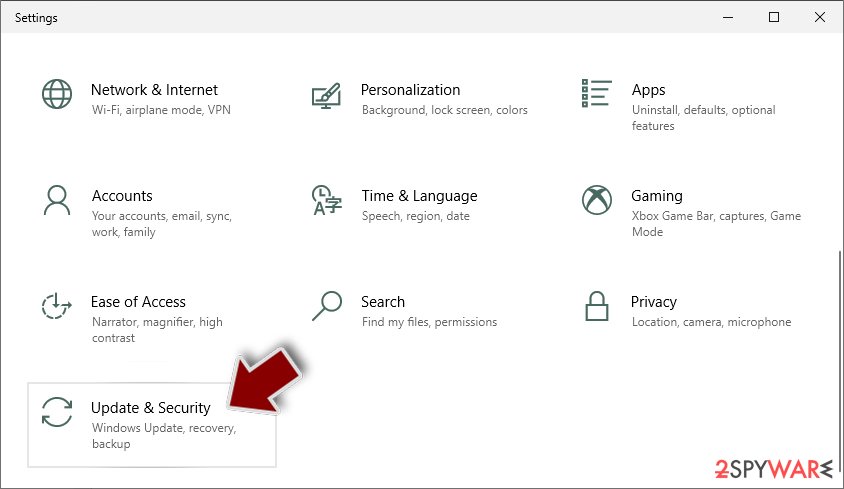
- Scroll down to pick Update & Security.
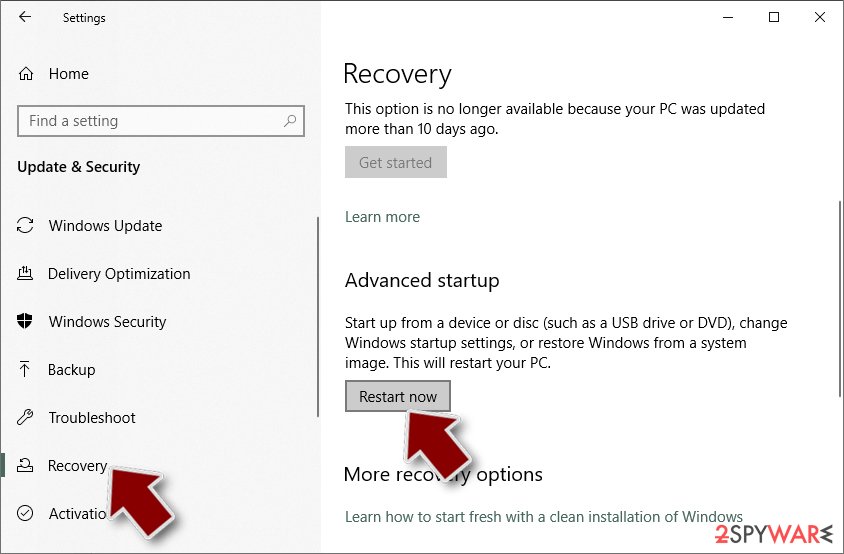
- On the left side of the window, pick Recovery.
- Now scroll down to find Advanced Startup section.
- Click Restart now.
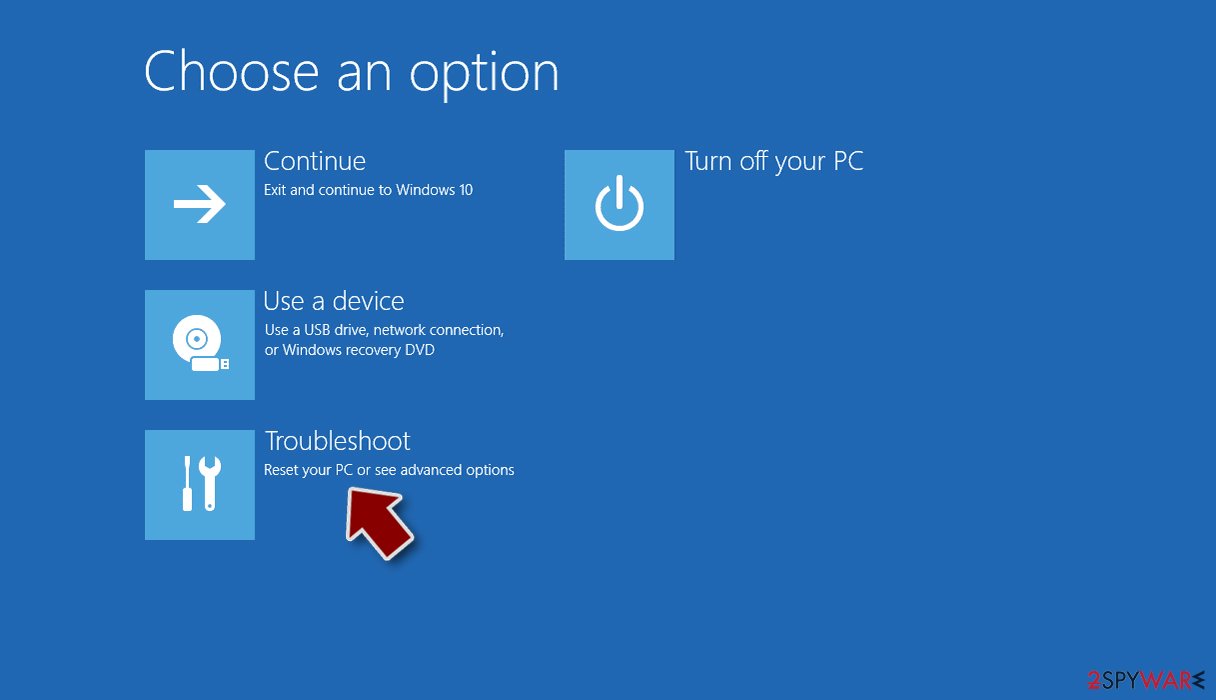
- Select Troubleshoot.
- Go to Advanced options.
- Select Startup Settings.
- Click Restart.
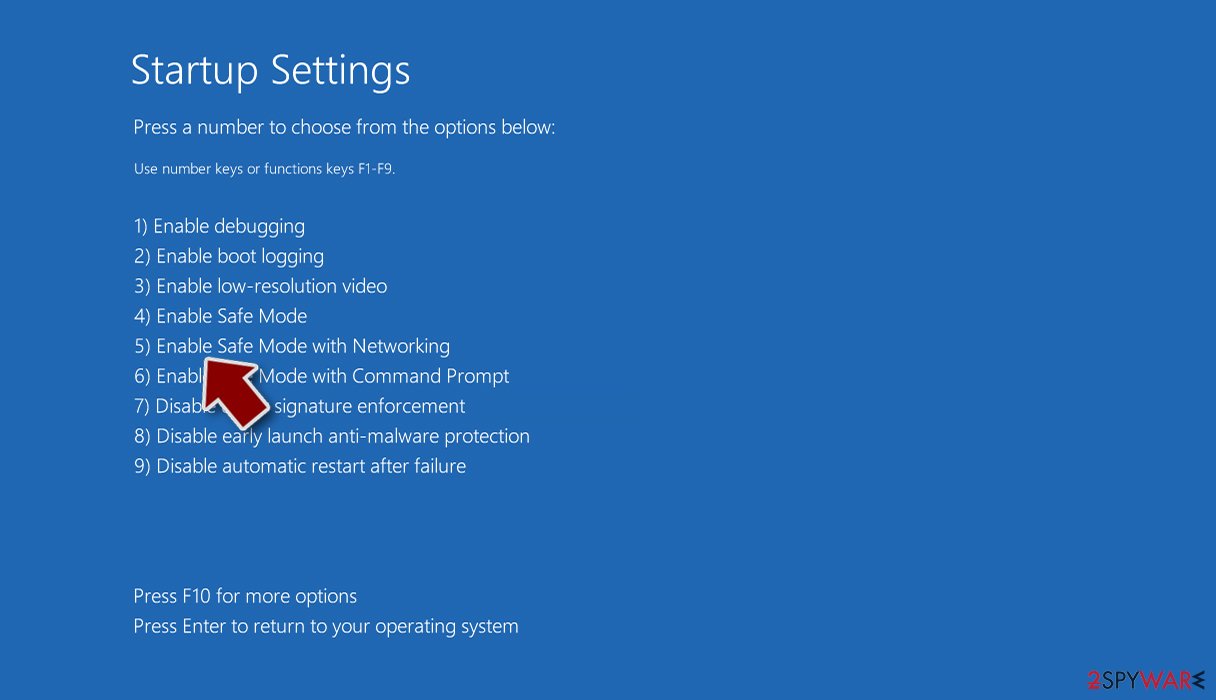
- Press 5 or click 5) Enable Safe Mode with Networking.


Repair corrupted system files
Performance, stability, and usability issues that necessitate a full Windows reinstall are not uncommon after malware infection. These viruses can change the Windows registry database, harm vital bootup and other sections, delete or corrupt DLL files, and so on. When malware corrupts a system file, antivirus software cannot repair it.
Manual troubleshooting of such damage is also very complicated and can take a long time. This is why FortectIntego was developed. It can fix a lot of the damage caused by an infection like this. Blue Screen errors, freezes, registry errors, damaged DLLs, etc., can make your computer completely unusable. By using this maintenance tool, you could prevent yourself from having to reinstall Windows completely.
- Download the application by clicking on the link above
- Click on the ReimageRepair.exe
- If User Account Control (UAC) shows up, select Yes
- Press Install and wait till the program finishes the installation process
- The analysis of your machine will begin immediately
- Once complete, check the results – they will be listed in the Summary
- You can now click on each of the issues and fix them manually
- If you see many problems that you find difficult to fix, we recommend you purchase the license and fix them automatically.


Try recovering data with third-party software
Only hackers have the decryption key that can unlock your files, so if you did not back them up previously, you may never get them back. You can try data recovery software, but keep in mind that third-party programs are not always capable of decrypting files. Whatever the case may be, we recommend at least trying this method. Before you continue, copy the corrupted files to a USB flash drive or another external storage device. Remember, only do this if the ExilenceTG ransomware has already been removed.
Before you begin, several pointers are important while dealing with this situation:
- Since the encrypted data on your computer might permanently be damaged by security or data recovery software, you should first make backups of it – use a USB flash drive or another storage.
- Only attempt to recover your files using this method after you perform a scan with anti-malware software.
Install data recovery software
- Download Data Recovery Pro.
- Double-click the installer to launch it.
- Follow on-screen instructions to install the software.
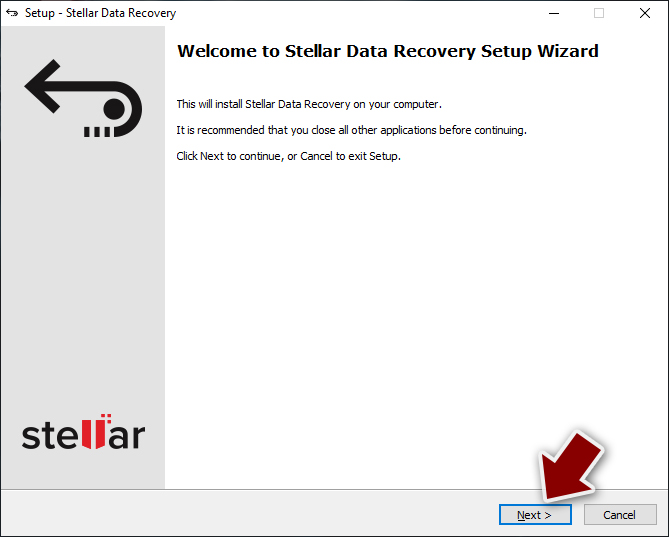
- As soon as you press Finish, you can use the app.
- Select Everything or pick individual folders where you want the files to be recovered from.
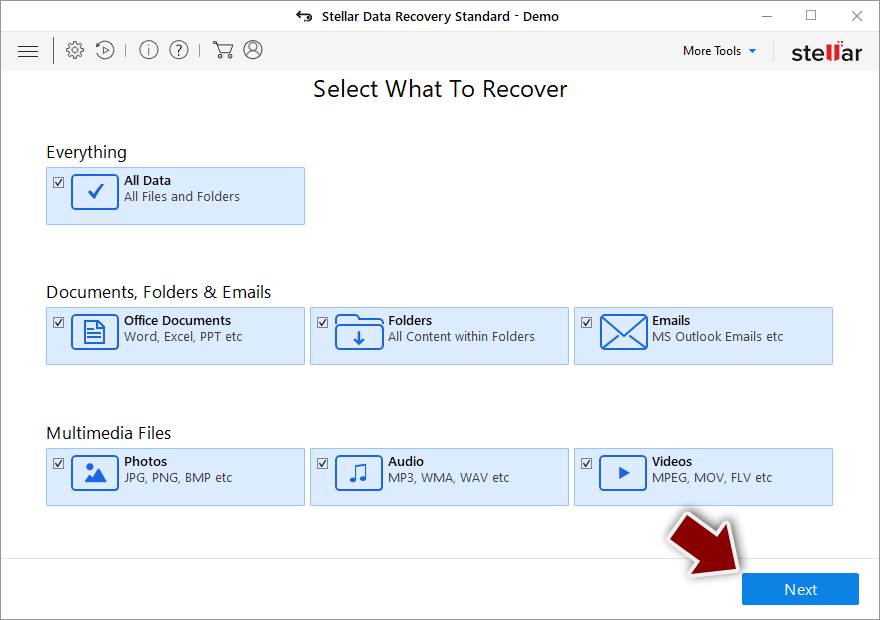
- Press Next.
- At the bottom, enable Deep scan and pick which Disks you want to be scanned.

- Press Scan and wait till it is complete.
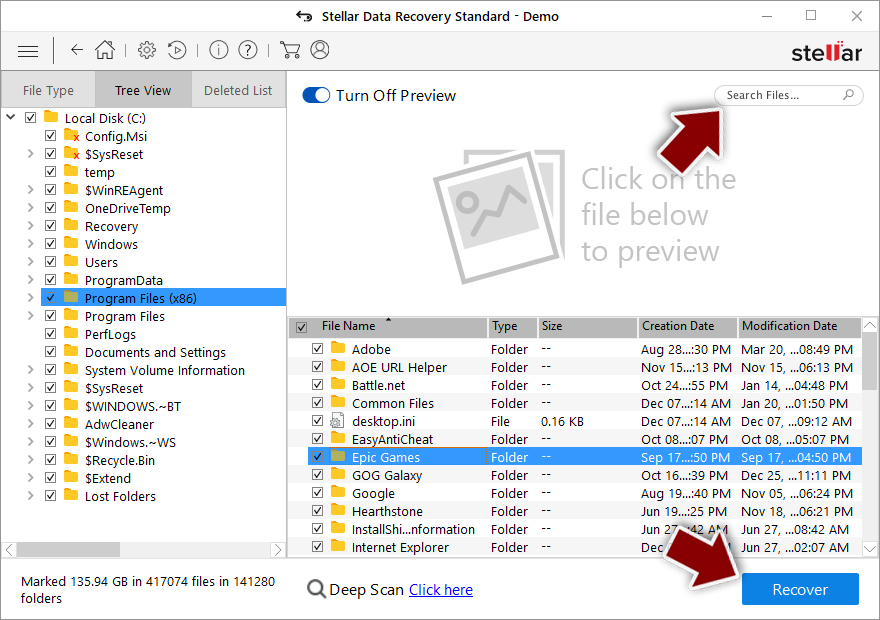
- You can now pick which folders/files to recover – don't forget you also have the option to search by the file name!
- Press Recover to retrieve your files.


Did this guide help?
Be the first to comment