

“HR added you to the Working Group” is a fake email that attempts to lure out personal information
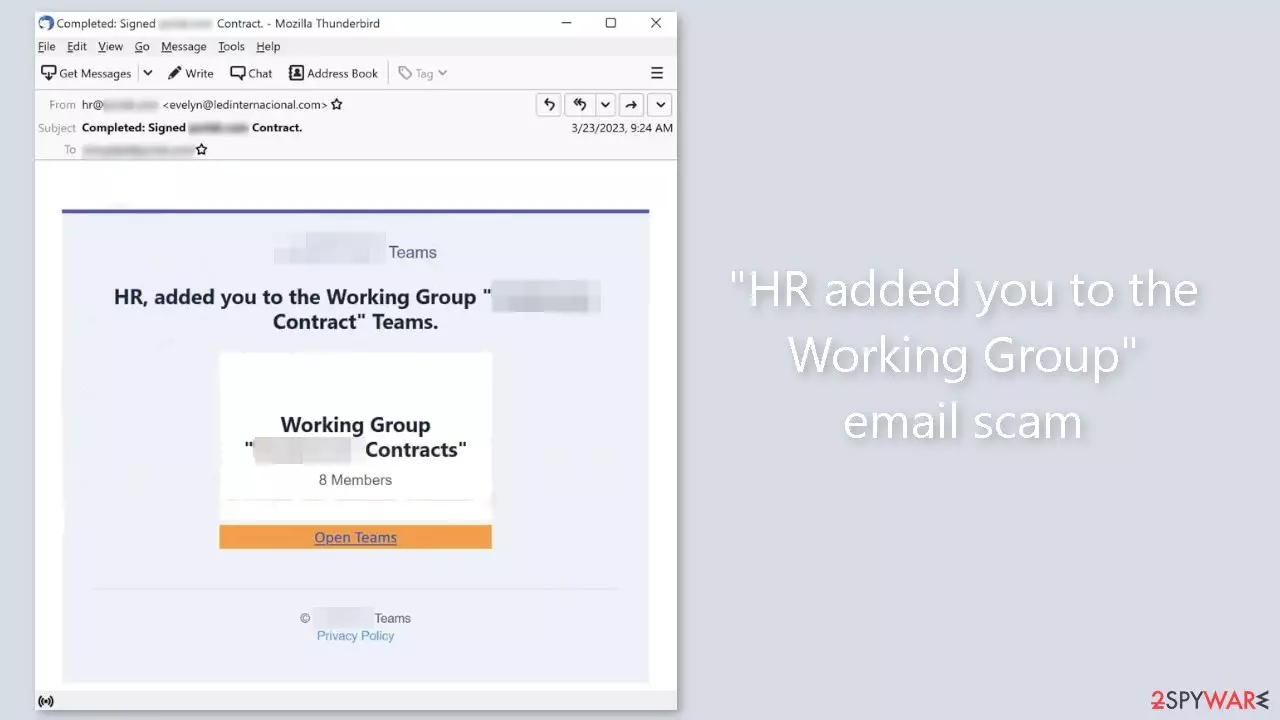
“HR added you to the Working Group” is a type of phishing[1] email that is intended to steal login credentials from unsuspecting victims. The email appears to be from an HR department and includes a link to a phishing website. According to the email, the recipient has been added to a working group on Teams and a signed contract has been completed.
This, however, is merely a ploy to entice the recipient to click on the link provided in the email. Although the website linked in the email was unavailable during the investigation, it is highly likely that the scammers behind it are attempting to dupe recipients into disclosing their login credentials.
Cybercriminals frequently use phishing scams to gain access to sensitive information such as login credentials, financial information, and personal data. Emails, social media messages, and phone calls are all examples of scams. The email scam appears to be from a legitimate source, such as an HR department, making it more convincing and easier for scammers to trick the recipient into clicking on the link.
| NAME | HR added you to the Working Group |
| TYPE | Phishing attempt |
| SYMPTOMS | Users receive an email disguised as a message from an HR department |
| DANGERS | Passwords and login details may be stolen; users may suffer from financial losses and even identity theft |
| ELIMINATION | If you opened an email with a malicious attachment scan your computer with anti-malware tools |
| FURTHER STEPS | Use FortectIntego to clear your browsers and get rid of any remaining damage |
Social engineering techniques
The art of manipulating people into disclosing sensitive information or performing actions that could be harmful to themselves or their organization is known as social engineering. Social engineering techniques are frequently used by cybercriminals to trick recipients into clicking on a malicious link or downloading a dangerous attachment. The “HR added you to the Working Group” email scam employs a variety of social engineering techniques to entice the recipient to click on the provided link.
Urgency is one of the primary social engineering techniques used in this email scam. By informing the recipient that they have been added to a working group and that a signed contract has been completed, the email creates a sense of urgency. Scammers use intensity to put pressure on the recipient to respond quickly, which may lead them to click on the link without thinking.
The email also gives the impression of legitimacy by claiming to be from the HR department. This increases the likelihood that the recipient will take the desired action by making the email appear more credible and convincing. The email also includes a generic copyright notice and privacy policy at the bottom, which adds to the appearance of authenticity.

Risk of malware infection
Email scams, such as the “HR added you to the Working Group” scam, may contain malware.[2] It is software that is designed to harm or disable computers or computer systems. Malware can be spread via malicious links or attachments, and users frequently download and install it on their own.
The link provided in the fake email may lead to a phishing website that infects the victim's computer with malware. Once on the victim's computer, it can be used to steal personal or financial information or to launch additional phishing attacks.
It is critical to only download software and files from official sources to avoid malware infections. Ads on untrustworthy websites should be avoided, and emails, particularly those from unknown senders or that are irrelevant to the recipient, should be carefully examined.
It is also recommended to update the operating system and installed software on a regular basis, as well as run virus scans with a reputable antivirus program. These safeguards can help keep users safe from malware infections, which can cause significant damage to their personal information, finances, and devices.
Check your system for malware infections
If you suspect that you have opened an email with an infected attachment, or malicious link, you should take care of the threat. We recommend using SpyHunterCombo Cleaner or MalwarebytesMalwarebytes security tools that will scan your machine, eliminate it, and prevent such infections in the future by giving you a warning before a malicious program can make any changes.
Crooks often disguise their malicious programs as “handy” tools so they would be more difficult to identify for the average user. People also often fail to eliminate all the related files and entries which could lead to the renewal of an infection. The program could have any name and icon, so this step is best performed by anti-malware tools.
However, if manual removal is what you prefer, we have instructions for Windows and Mac machines:
Windows 10/8:
- Enter Control Panel into Windows search box and hit Enter or click on the search result.
- Under Programs, select Uninstall a program.

- From the list, find the entry of the suspicious program.
- Right-click on the application and select Uninstall.
- If User Account Control shows up, click Yes.
- Wait till uninstallation process is complete and click OK.



Windows 7/XP:
- Click on Windows Start > Control Panel located on the right pane (if you are Windows XP user, click on Add/Remove Programs).
- In Control Panel, select Programs > Uninstall a program.

- Pick the unwanted application by clicking on it once.
- At the top, click Uninstall/Change.
- In the confirmation prompt, pick Yes.
- Click OK once the removal process is finished.

Mac:
- From the menu bar, select Go > Applications.
- In the Applications folder, look for all related entries.
- Click on the app and drag it to Trash (or right-click and pick Move to Trash)


To fully remove an unwanted app, you need to access Application Support, LaunchAgents, and LaunchDaemons folders and delete relevant files:
- Select Go > Go to Folder.
- Enter /Library/Application Support and click Go or press Enter.
- In the Application Support folder, look for any dubious entries and then delete them.
- Now enter /Library/LaunchAgents and /Library/LaunchDaemons folders the same way and terminate all the related .plist files.


Repair the damaged operating system
Email scams can have serious consequences for computer systems, including issues with performance, stability, and usability. Malware infections can cause significant damage to the Windows registry database, as well as critical bootup and other system sections, as well as corrupt or delete important DLL files. Traditional antivirus software may be unable to repair these system files once they have been damaged.
Fortunately, tools like FortectIntego can assist in repairing some of the damage caused by malware infections via email scams. These infections can result in Blue Screen errors,[3] freezes, registry errors, damaged DLLs, and other problems that render a computer unusable. Users who use this maintenance tool may be able to avoid having to perform a full Windows reinstallation, which can be a time-consuming and costly process.
Did this guide help?
Be the first to comment