

VapeV7 ransomware can encrypt all your personal files like photos, videos, and documents
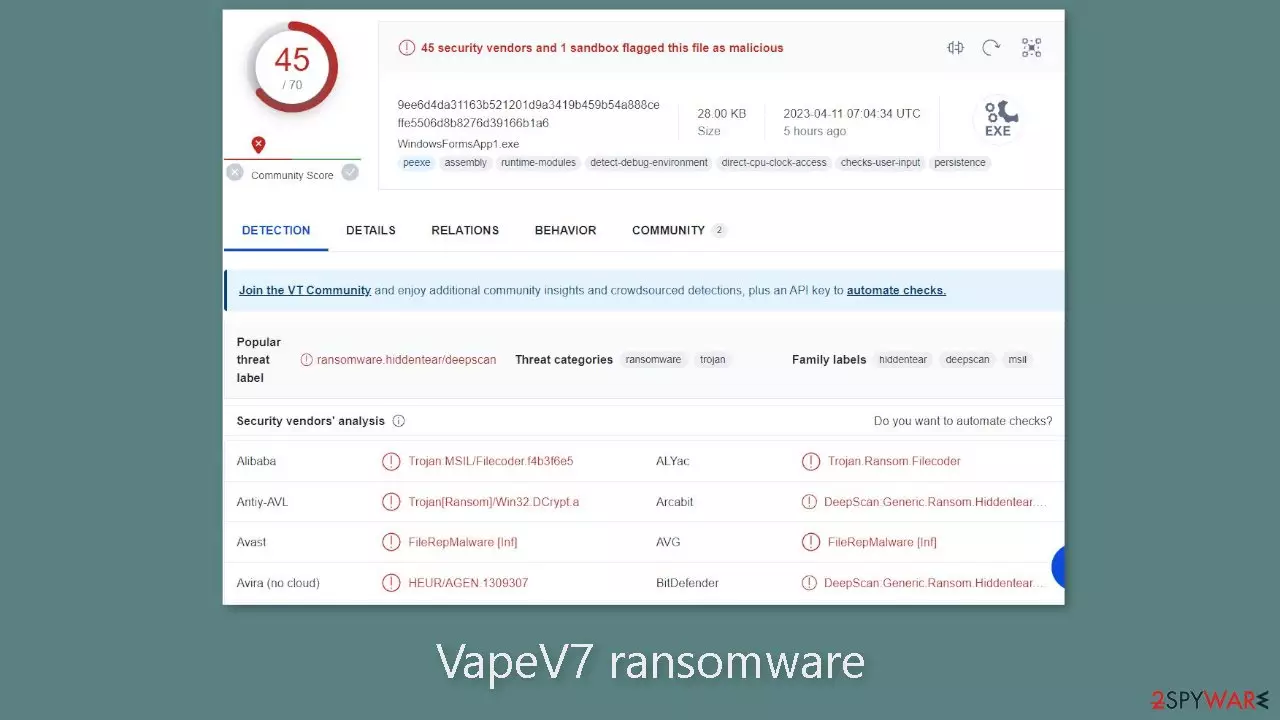
A new type of malicious software named VapeV7, identified by ransomware researchers, has been found to be a file-locking malware. Once VapeV7 infiltrates a system, it initiates the encryption process, which appends the .VapeV7 extension to files upon completion. For example, a file named picture.jpg would become picture.jpg.VapeV7.
As a result, these files are rendered inaccessible and appear as blank pages without icons. Ransomware typically targets personal files such as photos, videos, and documents for encryption. Following the encryption of the files, the attackers generate a ransom note via a pop-up window to inform the victim of the situation.
| NAME | VapeV7 |
| TYPE | Ransomware, cryptovirus, data locking malware |
| DISTRIBUTION | Infected email attachments, torrent sites, malicious ads, drive-by downloads |
| FILE EXTENSION | .VapeV7 |
| RANSOM NOTE | Pop-up window |
| RANSOM AMOUNT | $200 in Bitcoins |
| FILE RECOVERY | It is almost impossible to recover the files if you do not have backups; in this guide, you will find third-party options for file recovery |
| MALWARE REMOVAL | Scan your machine with anti-malware software to eliminate the malicious files |
| SYSTEM FIX | Windows reinstallation can be avoided with FortectIntego maintenance tool, which can fix damaged files |
The ransom note
The ransom note in the pop-up windows reads as follows:
All of your files have been encrypted!
In order to recover your data
Please send 200 USD in Bitcoins to the following BTC address:
–Next, Email your transaction ID to the following address
–
The ransom note instructs the victim to send $200 in Bitcoin to a specific BTC address and email the transaction ID to a different address. Because Bitcoin, a cryptocurrency,[1] is difficult to trace, it is an appealing option for ransomware payments.
However, it is important to note that paying the ransom does not guarantee that the victim will regain access to their files. In fact, it is strongly discouraged to pay the ransom as it encourages cybercriminals to continue their illegal activities. Additionally, there is no guarantee that the criminals will decrypt the victim's files even after the payment has been made.

Distribution methods
While the exact method by which VapeV7 ransomware spreads on the internet is unknown, there are some general tactics that attackers employ when distributing malicious programs. Malware is frequently delivered via executable files (.exe), which can be hidden within a zip folder, disguised as a Microsoft Office document macro, or attached to another file.
Malicious files can also enter a system via “cracked” software[2] installations, which are frequently found on unregulated platforms that serve as breeding grounds for various types of malware. Unfortunately, even legitimate downloads may contain malicious files that are difficult to detect by the average user.
Another tactic used by cybercriminals to deliver ransomware is through email, where they embed malicious links or attachments. It is important to exercise caution and not open emails from unknown senders, and even if the email is from someone on your friend list, it is better to verify the attachment's authenticity with them through another platform.
Hackers may also use vulnerabilities in the operating system or software as a common distribution channel. Because software developers frequently release security updates to address newly discovered vulnerabilities, it is critical to keep all software and operating systems up to date. Failure to do so may expose you to ransomware attacks.
Ransomware removal with anti-malware tools
Disconnecting the machine from the network by unplugging the Ethernet cable is sufficient to isolate it from the workplace network if the device is located at home. This step is crucial if other devices share the same network since they may also be infected. After disconnecting, it is necessary to remove the malicious files that are running in the background. Trying to recover data before removing the malware may result in permanent data loss.
If the cause of the malware is not eliminated, the files may keep getting encrypted repeatedly. It is recommended not to attempt removing the malware unless you possess IT knowledge. The best approach is to use anti-malware tools like SpyHunterCombo Cleaner or MalwarebytesMalwarebytes to scan the system thoroughly, ensuring the complete removal of all associated files and entries.
If you encounter difficulty opening the security software, the malware may be preventing it from functioning correctly. In such cases, accessing Safe Mode is advisable, where you can deploy the antivirus tool safely.
Windows 7 / Vista / XP
- Click Start > Shutdown > Restart > OK.
- When your computer becomes active, start pressing F8 button (if that does not work, try F2, F12, Del, etc. – it all depends on your motherboard model) multiple times until you see the Advanced Boot Options window.
- Select Safe Mode with Networking from the list.


Windows 10 / Windows 8
- Right-click on Start button and select Settings.
- Scroll down to pick Update & Security.
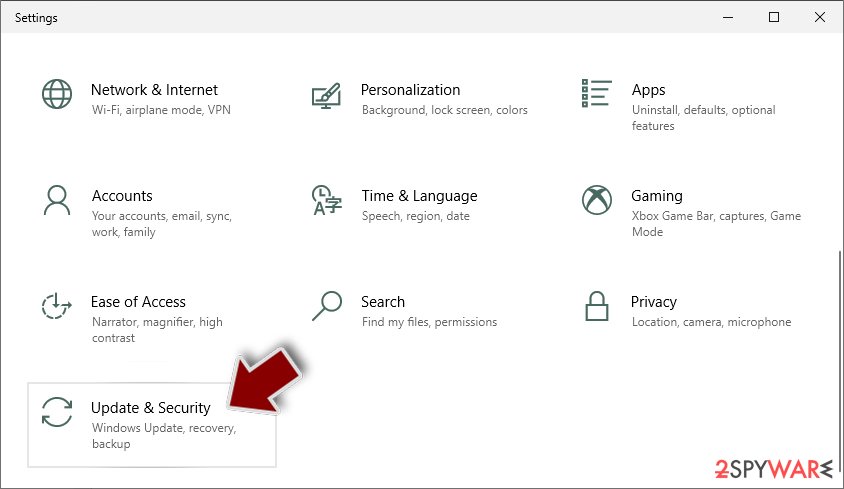
- On the left side of the window, pick Recovery.
- Now scroll down to find Advanced Startup section.
- Click Restart now.
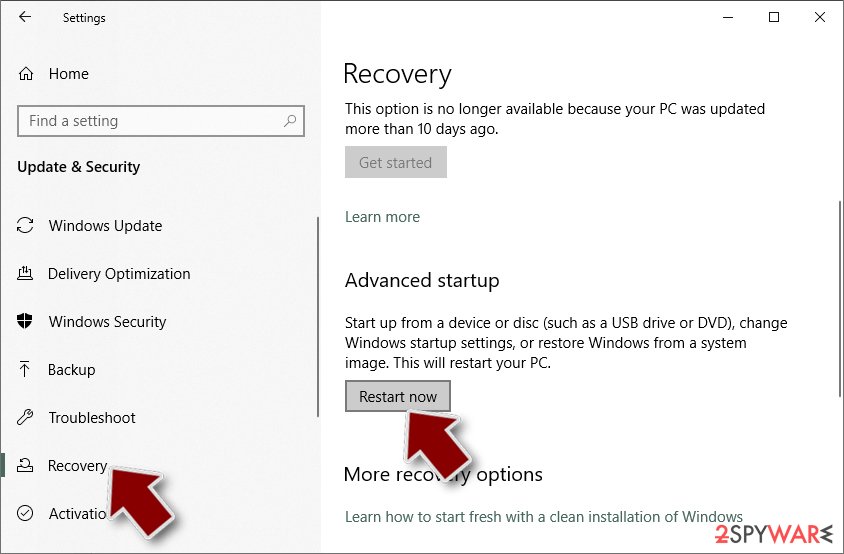
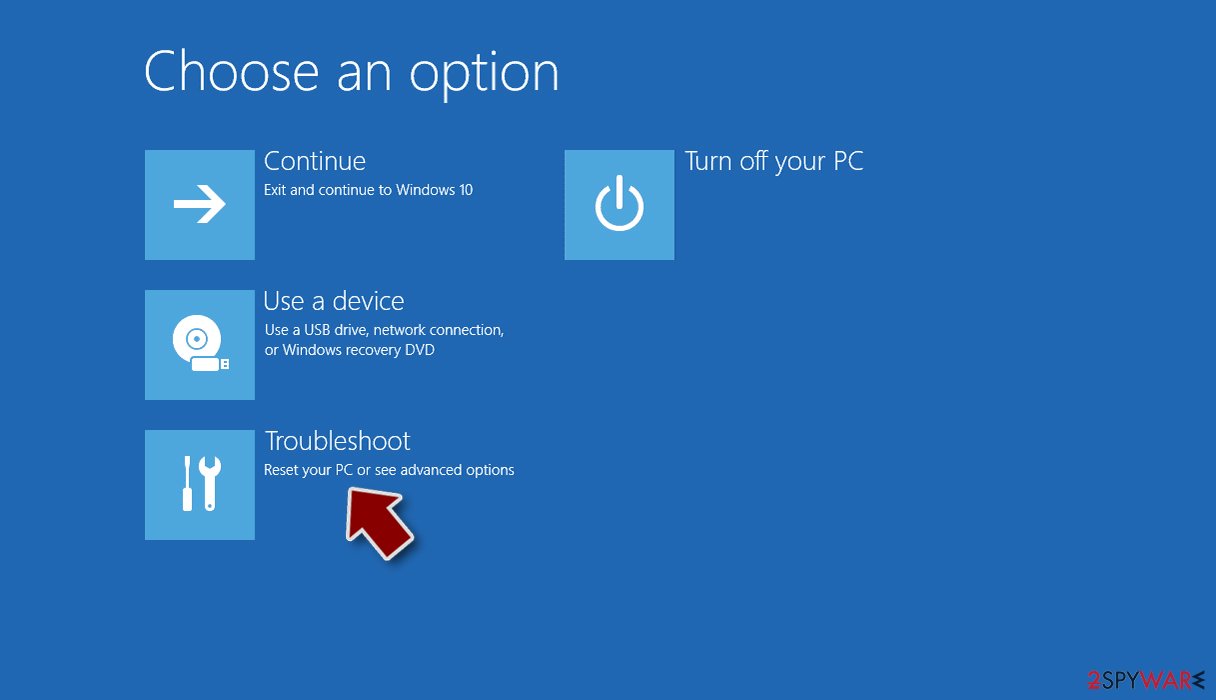
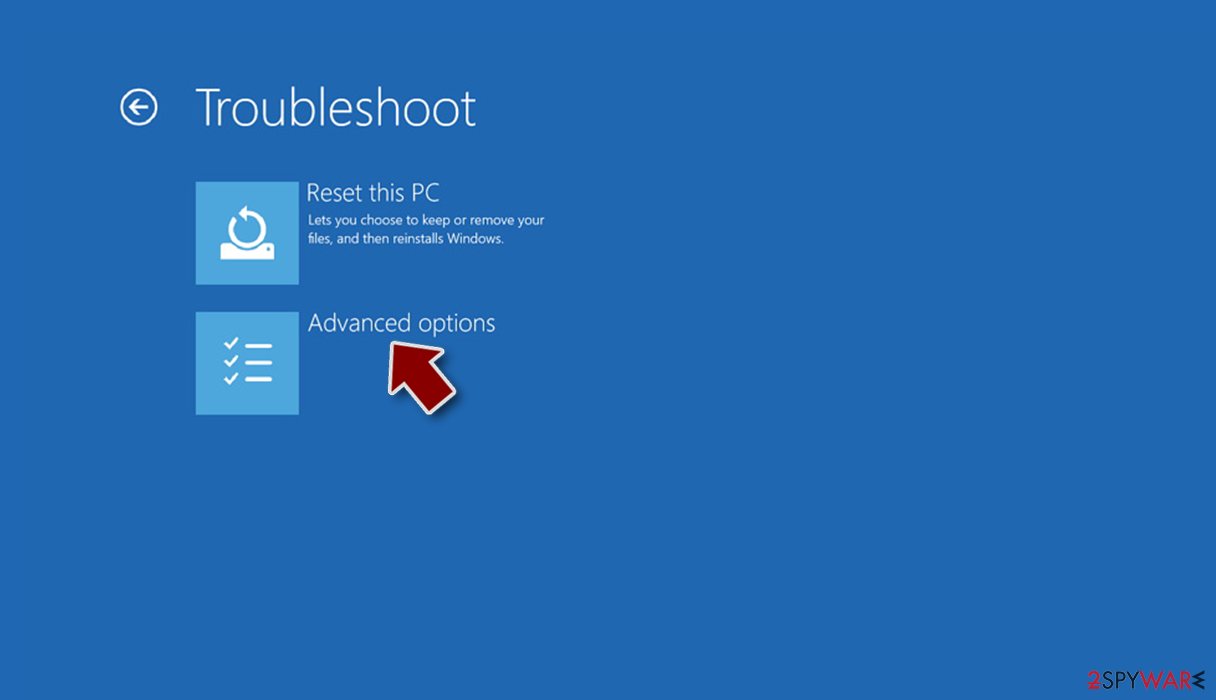
- Select Troubleshoot.
- Go to Advanced options.
- Select Startup Settings.
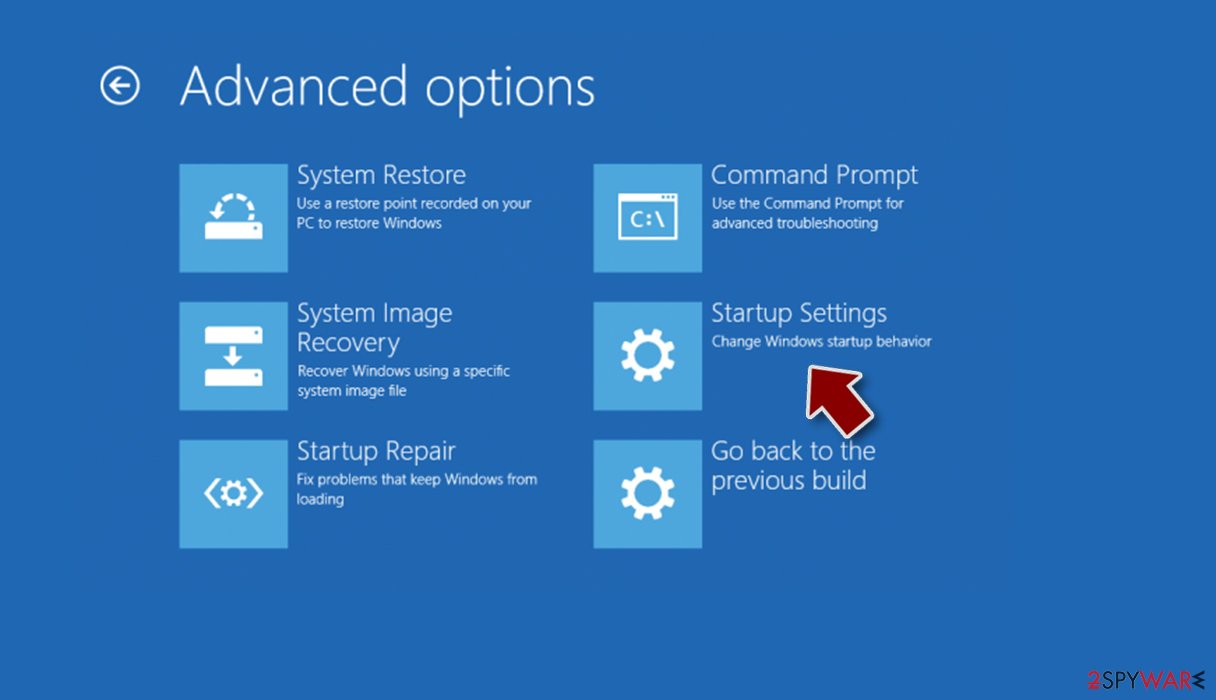
- Click Restart.
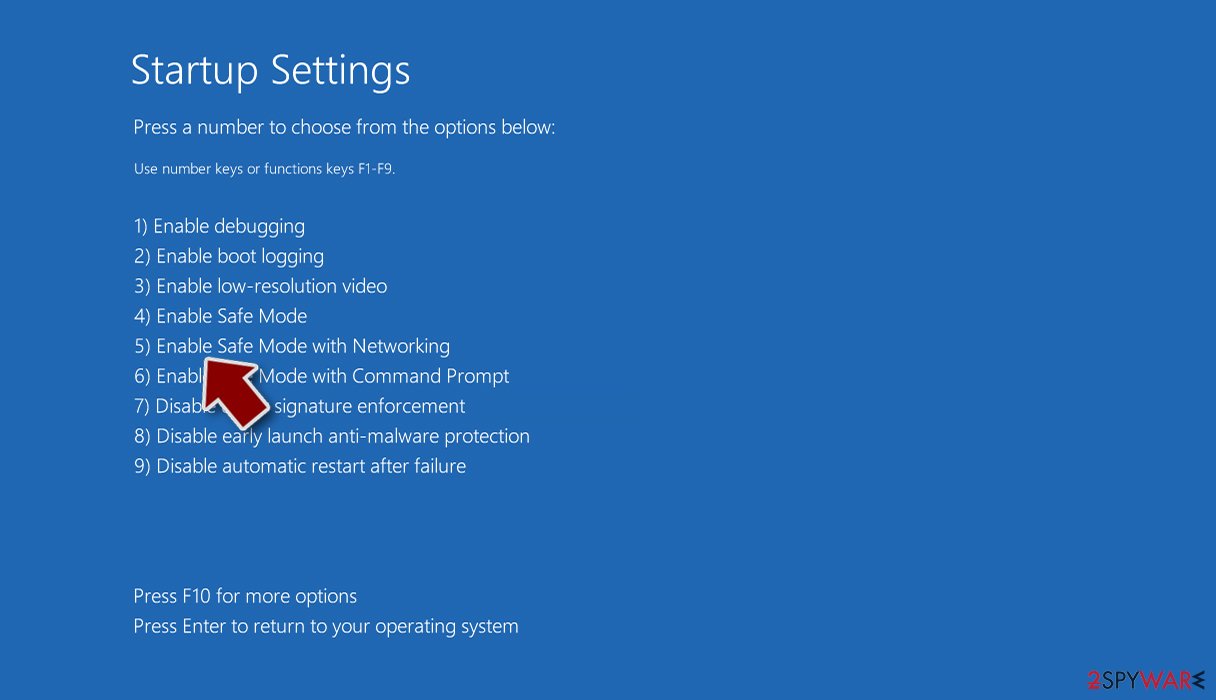
- Press 5 or click 5) Enable Safe Mode with Networking.


File recovery using third-party software
Third-party programs cannot always decrypt the files, but you should at least try it. Before proceeding, you have to copy the corrupted files and place them in a USB flash drive or another storage. And remember – only do this if you have already removed VapeV7 ransomware.
It is devastating to know, but if you do not have backups, this might be your only chance at recovery because only hackers hold the decryption key, which can unlock your files.
- Download Data Recovery Pro.
- Double-click the installer to launch it.

- Follow on-screen instructions to install the software.
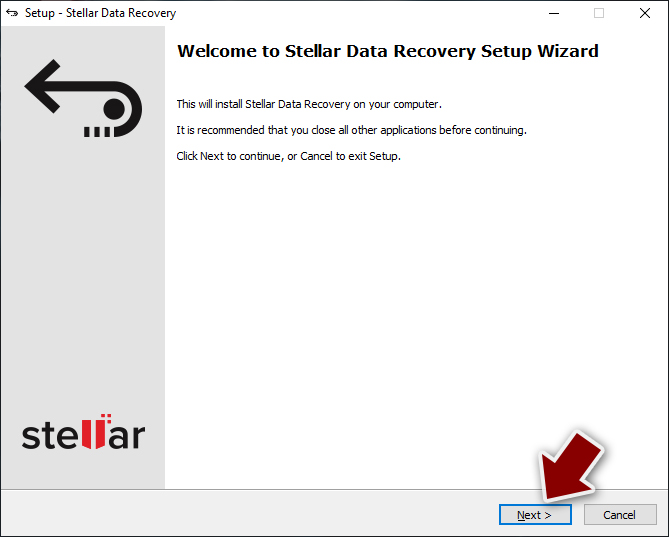
- As soon as you press Finish, you can use the app.
- Select Everything or pick individual folders where you want the files to be recovered from.
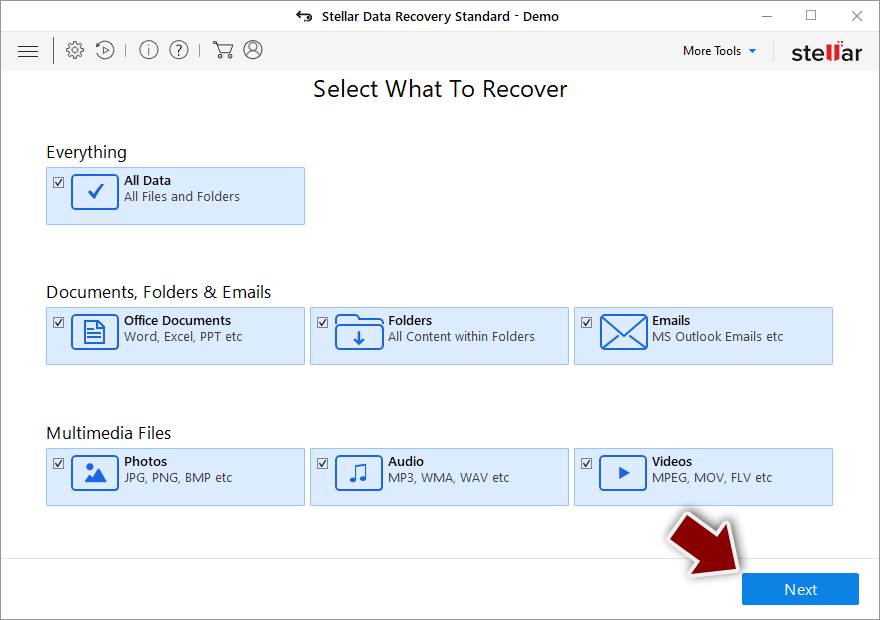
- Press Next.
- At the bottom, enable Deep scan and pick which Disks you want to be scanned.

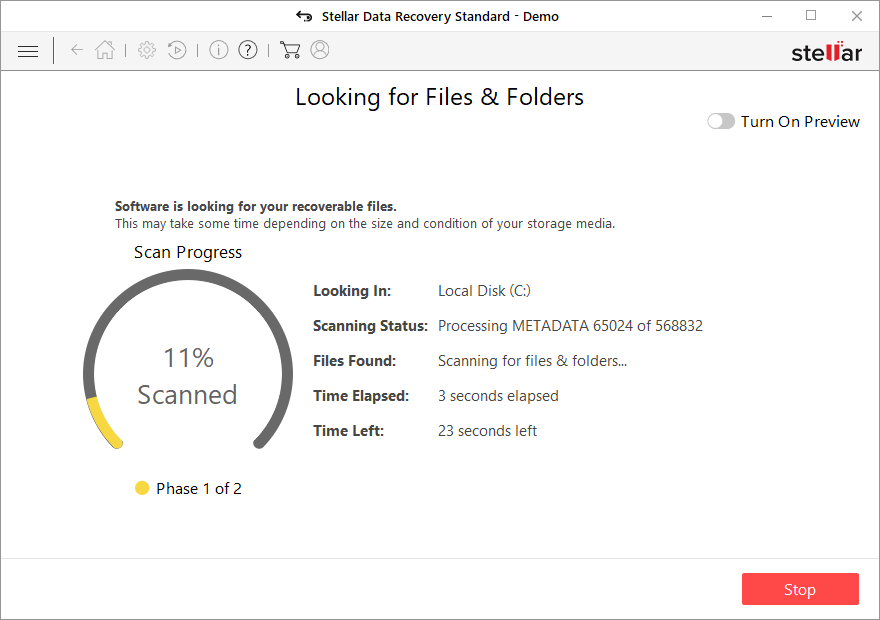
- Press Scan and wait till it is complete.
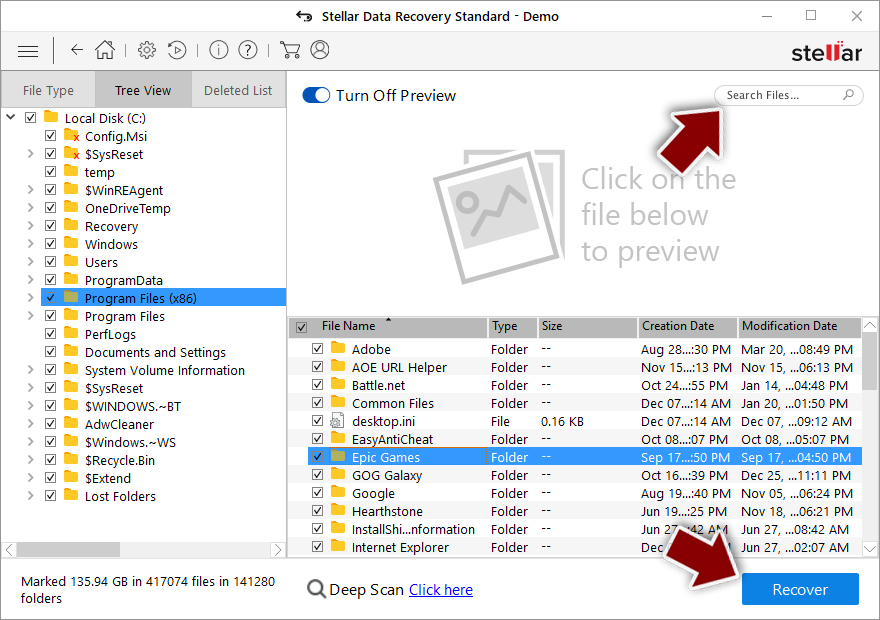
- You can now pick which folders/files to recover – don't forget you also have the option to search by the file name!
- Press Recover to retrieve your files.


The operating system can be damaged after an attack
Malware infections can cause a variety of issues that affect the performance, stability, and usability of a computer. These problems can progress to the point where a full Windows reinstall is the only option. Malware can alter the Windows registry database, corrupt or delete important DLL files, and do a variety of other things. Unfortunately, antivirus software cannot repair corrupted system files.
FortectIntego was created as a comprehensive maintenance tool to address these issues. It can repair a wide range of malware-related issues, including Blue Screen errors,[3] freezes, registry errors, and damaged DLLs. These problems can render a computer unusable, but Restoro can save you the trouble of reinstalling Windows.
It can identify and repair problems caused by malware infections by running a system scan. It can also improve system performance and stability. In many cases, it can restore a computer to its previous state, saving you the time and frustration of a full system reinstall. Restoro allows you to quickly and easily get your computer back up and running.
Additional resources
Additional instructions for corporate environments are provided at the bottom of this post, detailing how to isolate an infected machine and prevent the malicious program from spreading throughout the network. There is also information on where to report your attack. Reporting the attack increases the chances of apprehending those responsible.
Did this guide help?
Be the first to comment