

Karimg.xyz is a fake website made by scammers who use social engineering techniques
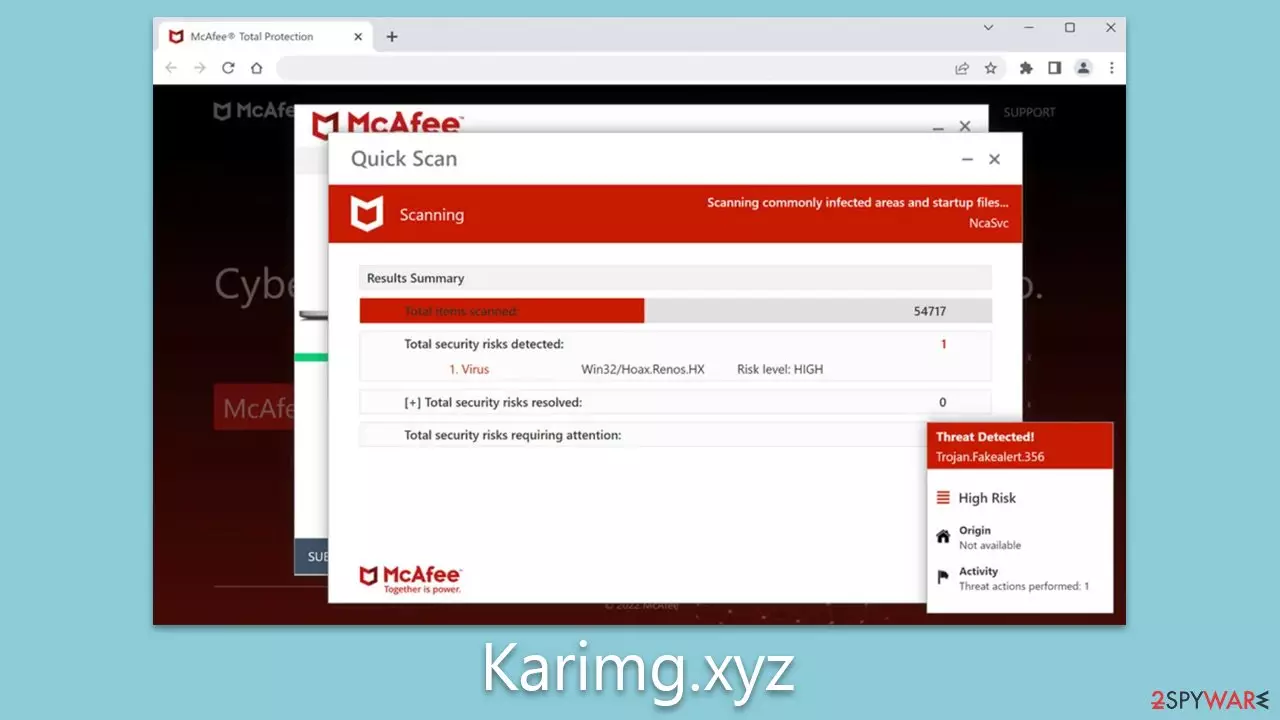
Karimg.xyz dupes users through fraudulent messages designed to instill fear. Some individuals may land on this website due to adware infections, but in most cases, malicious links or automated redirect scripts on other websites are the likely culprits. Unsuspecting users who find themselves on the site are caught off guard by an unanticipated system scan, making the scheme effective for its orchestrators.
The scam involves displaying alleged results from a fictitious virus scan. These results purport that multiple infections have been detected and that the user's security software subscription has expired. Upon seeing these counterfeit results, users are lured into clicking a link where they can purchase a full license.
The scam website Karimg.xyz has no legitimate affiliation with any security vendor it may reference; its sole objective is to generate revenue through clicks on affiliate links. Furthermore, since it is challenging to ascertain the legitimacy of a redirected security software download site, users may inadvertently install malware on their systems instead of an authentic program.
We recommend avoiding any prompts to download software and suggest following our comprehensive guide. If you suspect your computer might be compromised or if you have inadvertently installed something, review the information provided below to learn about the necessary steps to ensure your personal safety and computer security.
| Name | Karimg.xyz |
| Type | Scam, phishing, redirect, adware |
| Operation | The fake message claims that the system has been infected with malware, which needs to be removed with the promoted software |
| Distribution | Compromised websites, pop-up ads, potentially unwanted applications |
| Risks | Interacting with the scam content is dangerous, as scammers may promote fake versions of antivirus software. Instead, use reputable tools for your system safety |
| Removal | Make sure you scan your system with SpyHunterCombo Cleaner – especially if you downloaded and installed software from a scam site |
| Other tips | You should remove caches and other web data after eliminating adware to prevent data tracking with the FortectIntego repair and maintenance tool. You can also repair damaged system components with it |
How users end up on malicious websites
A primary avenue through which individuals encounter phishing and other harmful online content is by visiting torrent sites, adult-themed YouTube video converters, unauthorized video streaming platforms, and similar websites. These sites often deal with questionable or even illicit content, resulting in lax oversight.
Such an environment is conducive for cybercriminals to distribute malicious files that may silently install ransomware or other dangerous infections on users' devices without raising suspicion until it is too late. Moreover, visitors may come across harmful advertising and counterfeit buttons directing them to fraudulent sites like Karimg.xyz.
In some instances, encountering scams may be the result of potentially unwanted or malicious software on a user's device. This is particularly likely if ads appear on the majority of websites where they shouldn't be. Since adware and malware are often disseminated through deceptive techniques like bundling, users may be unaware of their presence on their devices. As a result, it is essential to inspect and verify the safety of one's device.
Scam methods
Upon visiting the deceitful Karimg.xyz website, users are startled to witness an immediate McAfee scan taking place. Shortly after, they are presented with scan results that invariably report multiple virus infections. Users can expect to encounter the following message:
Your PC is infected with 5 viruses!
ACTION REQUIRED
Your McAfee Subscription Has Expired! Renew now to keep your PC protected. If your PC is unprotected, it is at risk for viruses and other malware.
Scammers frequently target individuals with limited knowledge of internet scams, as they are more susceptible to such deception. These individuals may see a message from an ostensibly “trustworthy” security vendor and assume their system is genuinely infected, necessitating immediate action. At this point, they are informed that their subscription has expired and must be renewed.

As previously mentioned, no legitimate security providers would resort to fearmongering to sell their software. It is crucial to recognize that the entire scan process displayed on Karimg.xyz is fabricated – all logos and names are used deceptively to intimidate visitors. Reliable anti-malware software installed on the system is the only reliable means of determining if the device is infected unless a backdoor has already been installed on the device.
Check for infections
Undoubtedly, all the scan results displayed by the fraudulent website are fictitious. However, it is important not to dismiss the possibility of an actual infection. Adware is a type of malicious software that infiltrates your system and browser, inundating it with advertisements. If you frequently encounter websites like Karimg.xyz and your browser is plagued by persistent ads, you may have adware installed.
Before proceeding with the steps outlined below, we recommend using SpyHunterCombo Cleaner or MalwarebytesMalwarebytes antivirus software to scan your system for adware and malware. Nevertheless, manual steps can be effective in addressing potentially unwanted programs. Keep in mind that malicious software may employ obfuscation techniques to make removal challenging.
To begin, remove any browser extensions that appear suspicious:
Google Chrome
- Open Google Chrome, click on the Menu (three vertical dots at the top-right corner) and select More tools > Extensions.
- In the newly opened window, you will see all the installed extensions. Uninstall all the suspicious plugins that might be related to the unwanted program by clicking Remove.


Mozilla Firefox
- Open Mozilla Firefox browser and click on the Menu (three horizontal lines at the window's top-right).
- Select Add-ons.
- In here, select the unwanted plugin and click Remove.


MS Edge (Chromium)
- Open Edge and click select Settings > Extensions.
- Delete unwanted extensions by clicking Remove.


Safari
- Click Safari > Preferences…
- In the new window, pick Extensions.
- Select the unwanted extension and select Uninstall.


Internet Explorer
- Open Internet Explorer, click on the Gear icon (IE menu) on the top-right corner of the browser
- Pick Manage Add-ons.
- You will see a Manage Add-ons window. Here, look for suspicious plugins. Click on these entries and select Disable.


Unwanted programs can do more harm than browser extensions, so it is crucial to get rid of them. If you aren't sure which apps to keep and which to delete, we suggest leaving the process to security software.
Windows
- Enter Control Panel into the Windows search box and hit Enter or click on the search result.
- Under Programs, select Uninstall a program.

- From the list, find the entry of the suspicious program.
- Right-click on the application and select Uninstall.
- If User Account Control shows up, click Yes.
- Wait till the uninstallation process is complete and click OK.



Mac
While moving apps into Trash is how you delete most normal applications, adware tends to create additional files for persistence. Thus, you should look for .plist and other files that could be related to the virus. If you are not sure, skip this step entirely.
- From the menu bar, select Go > Applications.
- In the Applications folder, look for all related entries.
- Click on the app and drag it to Trash (or right-click and pick Move to Trash)


To fully remove an unwanted app, you need to access Application Support, LaunchAgents, and LaunchDaemons folders and delete relevant files:
- Select Go > Go to Folder.
- Enter /Library/Application Support and click Go or press Enter.
- In the Application Support folder, look for any dubious entries and then delete them.
- Now enter /Library/LaunchAgents and /Library/LaunchDaemons folders the same way and terminate all the related .plist files.
Besides showcasing a counterfeit virus infection alert, the website also presents users with the choice to activate push notifications upon arrival. Accidentally clicking the “Allow” button in the notification box will lead to unsolicited push notifications being sent at irregular intervals, delivering unwanted and potentially harmful links.
Although anti-malware scans can efficiently address viruses and FortectIntego can guarantee the removal of any residual components from the device, halting push notifications can only be achieved by accessing the browser settings.
Did this guide help?
Be the first to comment