

Akira ransomware is dangerous file-locking malware that can damage files permanently
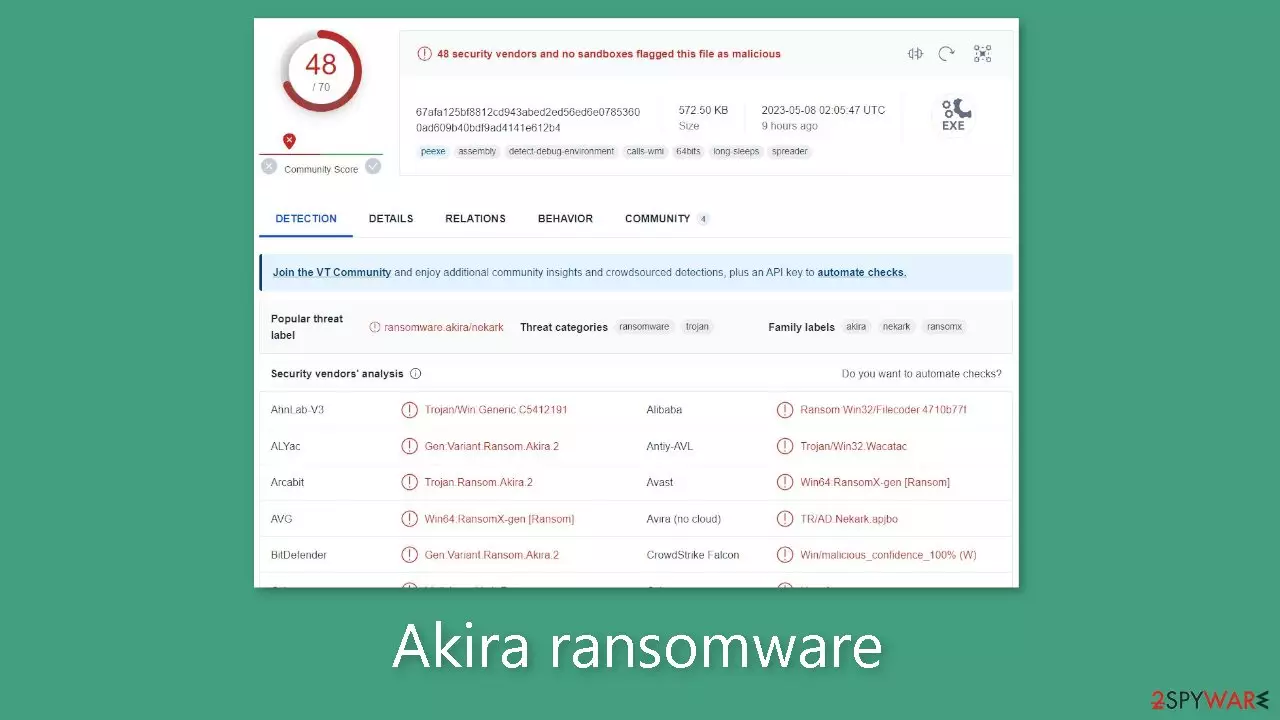
Akira ransomware is malicious software that gains unauthorized access to a computer system and uses sophisticated encryption[1] algorithms to encrypt the user's personal files, such as photos, videos, and documents. When the encryption process is finished, the victims will be unable to access or use their data.
The affected files have the “.akira” extension, and the file icons have been changed to blank white pages, making it difficult for the user to identify their files. Furthermore, the attackers typically leave a ransom note called “akira_readme.txt” that informs the victim of what has happened to their files.
| NAME | Akira |
| TYPE | Ransomware, cryptovirus, data-locking malware |
| DISTRIBUTION | Email attachments, peer-to-peer file-sharing platforms, malicious ads |
| FILE EXTENSION | .akira |
| RANSOM NOTE | akira_readme.txt |
| FILE RECOVERY | If no backups are available, recovering data is almost impossible. We list alternative methods that could help you in some cases below |
| MALWARE REMOVAL | Scan your machine with anti-malware software to eliminate the malicious files (this will not recover your data) |
| SYSTEM FIX | Malware can seriously tamper with Windows systems, causing errors, crashes, lag, and other stability issues. To remediate the OS and avoid its reinstallation, we recommend scanning it with the FortectIntego repair tool |
The ransom note
The full akira_readme.txt ransom note from Akira developers reads as follows:
Hi friends,
Whatever who you are and what your title is if you're reading this it means the internal infrastructure of your company is fully or partially dead, all your backups – virtual, physical – everything that we managed to reach – are completely removed. Moreover, we have taken a great amount of your corporate data prior to encryption.
Well, for now let's keep all the tears and resentment to ourselves and try to build a constructive dialogue. We're fully aware of what damage we caused by locking your internal sources. At the moment, you have to know:
1. Dealing with us you will save A LOT due to we are not interested in ruining your financially. We will study in depth your finance, bank & income statements, your savings, investments etc. and present our reasonable demand to you. If you have an active cyber insurance, let us know and we will guide you how to properly use it. Also, dragging out the negotiation process will lead to failing of a deal.
2. Paying us you save your TIME, MONEY, EFFORTS and be back on track within 24 hours approximately. Our decryptor works properly on any files or systems, so you will be able to check it by requesting a test decryption service from the beginning of our conversation. If you decide to recover on your own, keep in mind that you can permanently lose access to some files or accidently corrupt them – in this case we won't be able to help.
3. The security report or the exclusive first-hand information that you will receive upon reaching an agreement is of a great value, since NO full audit of your network will show you the vulnerabilities that we've managed to detect and used in order to get into, identify backup solutions and upload your data.
4. As for your data, if we fail to agree, we will try to sell personal information/trade secrets/databases/source codes – generally speaking, everything that has a value on the darkmarket – to multiple threat actors at ones. Then all of this will be published in our blog -.
5. We're more than negotiable and will definitely find the way to settle this quickly and reach an agreement which will satisfy both of us.If you're indeed interested in our assistance and the services we provide you can reach out to us following simple instructions:
1. Install TOR Browser to get access to our chat room – hxxps://www.torproject.org/download/.
2. Paste this link – -.
3. Use this code – – – to log into our chat.Keep in mind that the faster you will get in touch, the less damage we cause.
The ransom note begins with a greeting and acknowledges that the company's internal infrastructure is either completely or partially damaged and that all backups and data that they could access have been deleted. The attackers claim to have taken a large amount of corporate data and encrypted it.
The note then explains why the company should pay the ransom. The attackers claim that they are not interested in financially ruining the company and that they will study its financial statements before making a reasonable demand. They also claim that paying the ransom will save the company money, time, and effort and that their decryptor will work on any system.
The attackers emphasize the importance of the security report or exclusive information that the company will receive upon agreement. They also threaten to sell the company's data to multiple threat actors and publish it on their blog if no agreement is reached.
Paying the ransom does not guarantee that the attackers will provide a working decryption tool, and it may encourage them to target the company again or other companies. Furthermore, paying a ransom is illegal and could result in a fine for the company. Instead, the company should notify law enforcement and work on recovering their data through other means.

Distribution methods
Threat actors' methods for spreading Akira ransomware are unknown, but there are some common tactics they use to distribute malware. One method is to use “cracked” software[2] installations, which allow malicious files to enter the system. These installations are frequently discovered on unregulated platforms that serve as a breeding ground for malware.
Another method is via email, in which cybercriminals embed malicious links or attachments. When receiving emails from unknown senders, it is critical to exercise caution and even confirm with the sender via another platform if you receive an attachment from someone on your friend list.
Hackers may also use flaws in operating systems or software to spread ransomware. It is critical to keep all systems and software up to date in order to mitigate this risk. Security updates are frequently released by software developers to address newly discovered vulnerabilities, and failure to update can leave a system vulnerable to attacks.
Start the removal process
To begin with, it is crucial to disconnect the affected machine from the local network to prevent further damage. For home users, disconnecting the ethernet cable is an effective solution. However, in corporate environments, the process may be more complex, and instructions for disconnecting should be followed accordingly (as described below in this post).
Attempting to recover data before removing the malicious files may result in permanent data loss or the encryption of files again. Therefore, it is recommended that individuals refrain from removing the malicious program themselves unless they possess advanced IT skills. Manual removal of ransomware is complex and should only be attempted by those with relevant experience.
Use anti-malware tools like SpyHunterCombo Cleaner or MalwarebytesMalwarebytes to scan your system. This security software should find all the related files and entries and remove them automatically for you. In some cases, malware does not let you use antivirus in normal mode, so you need to access Safe Mode and perform a full system scan from there:
Windows 7 / Vista / XP
- Click Start > Shutdown > Restart > OK.
- When your computer becomes active, start pressing F8 button (if that does not work, try F2, F12, Del, etc. – it all depends on your motherboard model) multiple times until you see the Advanced Boot Options window.
- Select Safe Mode with Networking from the list.


Windows 10 / Windows 8
- Right-click on Start button and select Settings.
- Scroll down to pick Update & Security.
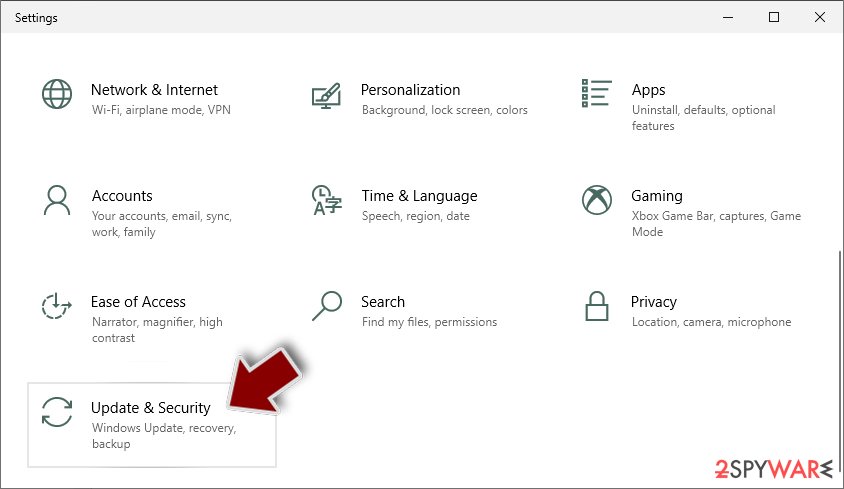
- On the left side of the window, pick Recovery.
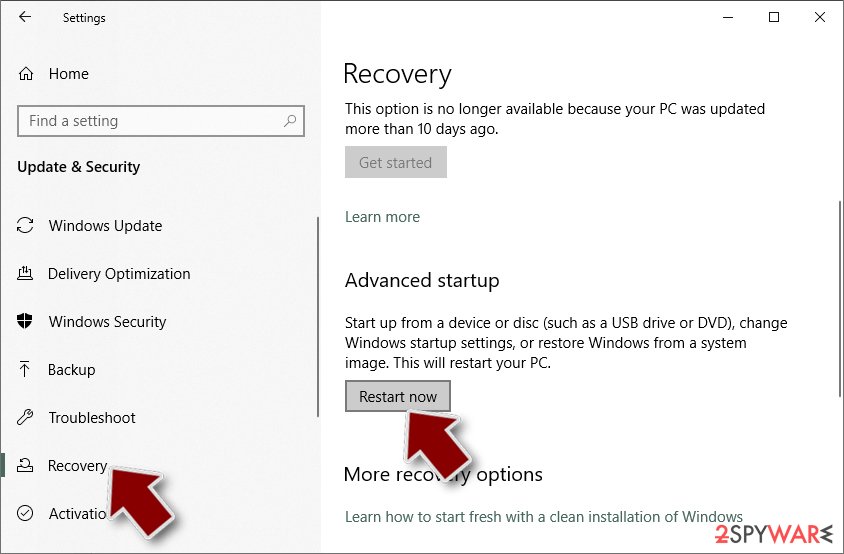
- Now scroll down to find Advanced Startup section.
- Click Restart now.
- Select Troubleshoot.
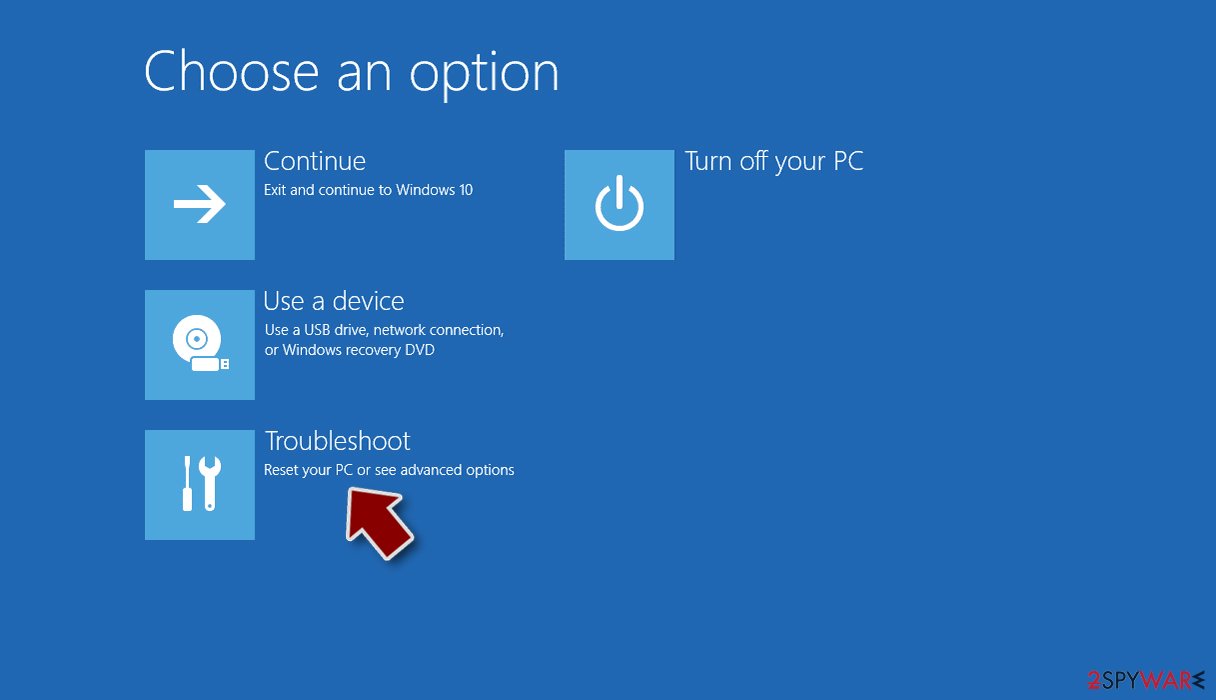
- Go to Advanced options.
- Select Startup Settings.
- Click Restart.
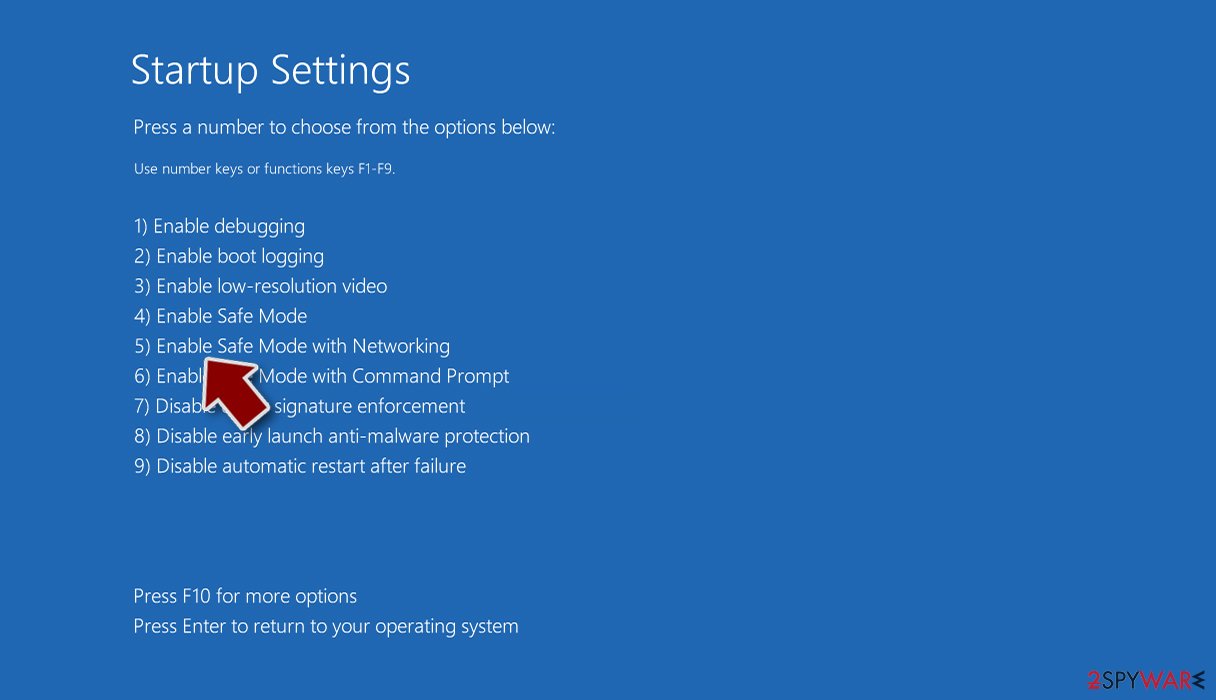
- Press 5 or click 5) Enable Safe Mode with Networking.


Repair corrupted system files
Malware infections can cause significant performance, stability, and usability issues to the extent that a complete reinstallation of Windows is often necessary. Malicious software can alter the Windows registry database, damage essential bootup sections, delete or corrupt DLL files, and more. When a system file is damaged by malware, it cannot be repaired by antivirus software alone.
Manual troubleshooting of this damage can be very complex and time-consuming. To address this issue, FortectIntego was created. This tool can repair much of the damage caused by such infections, including Blue Screen errors,[3] freezes, registry errors, damaged DLLs, and other problems that can render your computer unusable. Using this maintenance tool can help you avoid the need to perform a complete reinstallation of Windows.
Try recovering data with third-party software
If you did not back up your files prior to the attack, the decryption key required to unlock them is in the hands of the hackers. As a result, there is a high probability that you will not be able to retrieve them. While you can attempt to use data recovery software, keep in mind that these third-party tools may not be able to decrypt your files.
Nonetheless, we advise you to at least give this method a try. Prior to proceeding, make sure to copy the encrypted files and save them on an external storage device such as a USB flash drive. Also, bear in mind that you should only do this if you have already removed the Akira ransomware from your system.
Before you begin, several pointers are important while dealing with this situation:
- Since the encrypted data on your computer might permanently be damaged by security or data recovery software, you should first make backups of it – use a USB flash drive or another storage.
- Only attempt to recover your files using this method after you perform a scan with anti-malware software.
Install data recovery software
- Download Data Recovery Pro.
- Double-click the installer to launch it.
- Follow on-screen instructions to install the software.
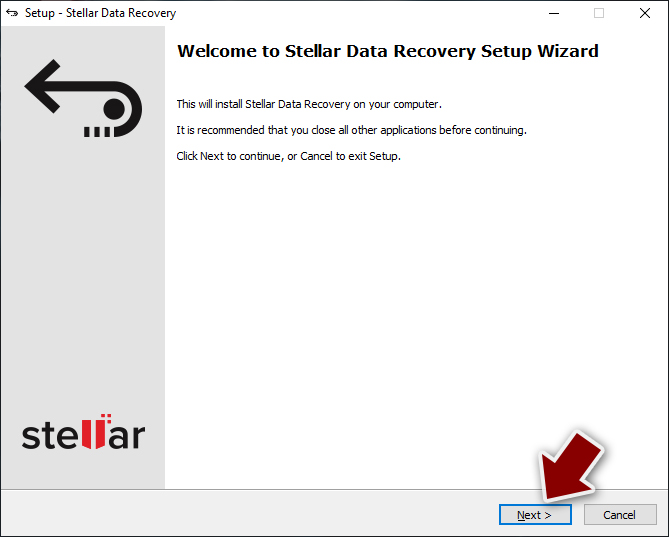
- As soon as you press Finish, you can use the app.
- Select Everything or pick individual folders where you want the files to be recovered from.
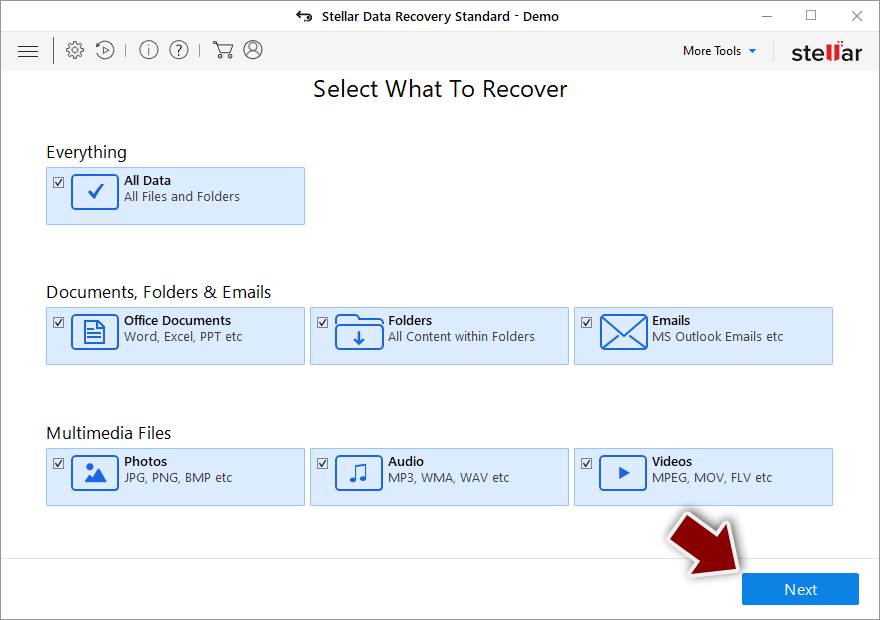
- Press Next.
- At the bottom, enable Deep scan and pick which Disks you want to be scanned.

- Press Scan and wait till it is complete.
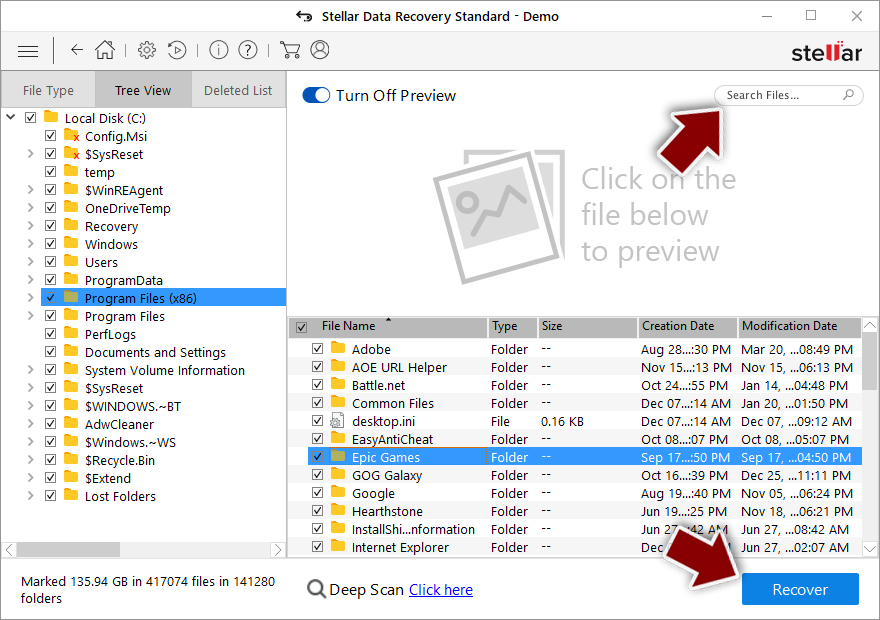
- You can now pick which folders/files to recover – don't forget you also have the option to search by the file name!
- Press Recover to retrieve your files.


Did this guide help?
Be the first to comment