

Vpjdwv.com is a bogus site that was created to generate revenue from pop-ups

Vpjdwv.com is a fraudulent website designed to generate profits through pay-per-click advertising. It uses deceptive tactics to trick people into subscribing to push notifications. As a result, users are bombarded with intrusive pop-up advertisements that may persist even after closing the web browser.
The perpetrators of this scheme are unconcerned about user privacy or security and may use illegal advertising networks to promote dangerous websites. As a result, unsuspecting individuals may be directed to fraudulent sites in an attempt to trick them into disclosing personal information, downloading potentially unwanted programs (PUPs),[1] or even downloading malware.
The website pretends to be a CAPTCHA verification step, prompting users to click the “Allow” button to confirm that they are not automated robots. However, users are unaware that clicking “Allow” gives the site permission to display push notifications. Based on the fraudsters' configuration settings, these notifications may appear sporadically and at varying intervals.
| NAME | Vpjdwv.com |
| TYPE | Push notification spam; adware |
| SYMPTOMS | Pop-up ads show up on the desktop at random intervals |
| DISTRIBUTION | Shady websites, deceptive ads, sneaky redirects, freeware installations |
| DANGERS | Ads and links to sites displayed by the website might be dangerous. Users might suffer from financial losses, disclose their sensitive information to unknown parties or install malware/PUPs on their systems |
| ELIMINATION | Notifications can be disabled via the browser settings; in case you experience more ads and redirects to suspicious sites, you should also get rid of adware by using anti-malware tools |
| FURTHER STEPS | FortectIntego is a maintenance tool that should be used after the removal is complete to get rid of any remaining damage and optimize the system |
Distribution methods
Push notification spam websites, such as Vpjdwv.com, are rarely found in search results. They typically reside on unregulated, dubious web pages. Illegal streaming platforms, for example, are often riddled with deceptive advertisements and clever redirects. It is best to avoid prominent “Download” and “Play” buttons, as they are frequently fake.
Even if you inadvertently click on one and a new tab opens, displaying a suspicious site that requests access unblocking, avoid engaging with it and close it as soon as possible. It is important to note, however, that pop-up spam can appear even when there is no user interaction. This can happen if your system contains potentially unwanted applications (PUAs).
These PUAs can take the form of browser extensions or adware,[2] both of which can cause an influx of commercial content like pop-ups, banners, and redirects. If you've recently installed new extensions, it's a good idea to uninstall them and see if it helps.

Stop the intrusive pop-ups
Please refer to the following manual guide to properly manage your browser settings and disable push notifications, as they require manual intervention for unsubscribing:
Google Chrome (desktop):
- Open Google Chrome browser and go to Menu > Settings.
- Scroll down and click on Advanced.
- Locate the Privacy and security section and pick Site Settings > Notifications.

- Look at the Allow section and look for a suspicious URL.
- Click the three vertical dots next to it and pick Block. This should remove unwanted notifications from Google Chrome.



Google Chrome (Android):
- Open Google Chrome and tap on Settings (three vertical dots).
- Select Notifications.
- Scroll down to Sites section.
- Locate the unwanted URL and toggle the button to the left (Off setting).


Mozilla Firefox:
- Open Mozilla Firefox and go to Menu > Options.
- Click on Privacy & Security section.
- Under Permissions, you should be able to see Notifications. Click Settings button next to it.

- In the Settings – Notification Permissions window, click on the drop-down menu by the URL in question.
- Select Block and then click on Save Changes. This should remove unwanted notifications from Mozilla Firefox.



Safari:
- Click on Safari > Preferences…
- Go to Websites tab and, under General, select Notifications.
- Select the web address in question, click the drop-down menu and select Deny.


MS Edge:
- Open Microsoft Edge, and click the Settings and more button (three horizontal dots) at the top-right of the window.
- Select Settings and then go to Advanced.
- Under Website permissions, pick Manage permissions and select the URL in question.
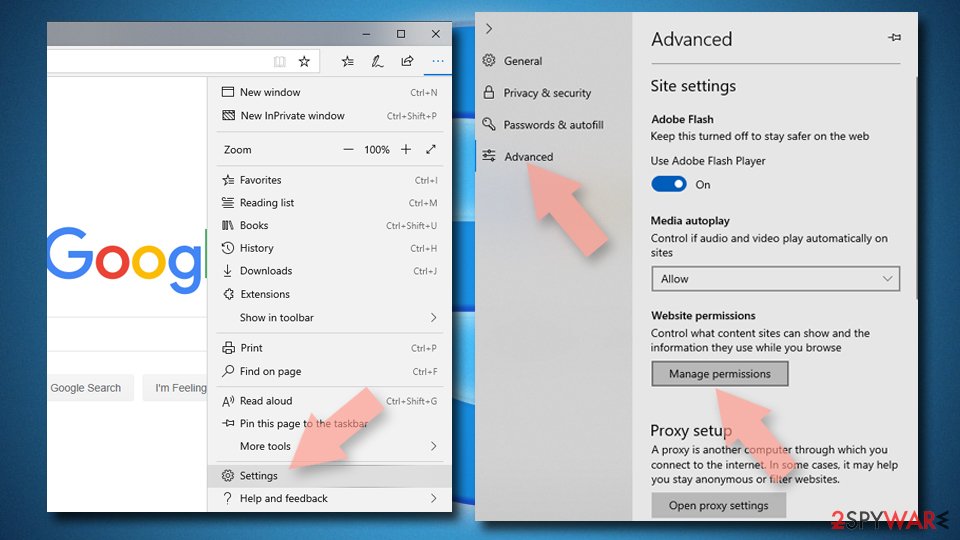
- Toggle the switch to the left to turn notifications off on Microsoft Edge.

MS Edge (Chromium):
- Open Microsoft Edge, and go to Settings.
- Select Site permissions.
- Go to Notifications on the right.
- Under Allow, you will find the unwanted entry.
- Click on More actions and select Block.


Cookies and cache
If you've had success blocking ads through your browser settings, it's time to pay attention to your browser's health by clearing cookies[3] and cache. Almost every website uses these elements to track your online activities, potentially storing information such as your IP address, geolocation, visited websites, and online purchases.
Given the possibility that you have visited questionable websites, this step is critical. We also provide an automated solution – FortectIntego for those who would rather avoid a time-consuming manual process.
Clear cache and web data from Chrome:
- Click on Menu and pick Settings.
- Under Privacy and security, select Clear browsing data.
- Select Browsing history, Cookies, and other site data, as well as Cached images and files.
- Click Clear data.


Remove adware from your system
If you notice an increase in commercial content such as pop-ups, banners, surveys, or frequent redirects to unfamiliar websites, your system may be infected with adware. PUPs (potentially unwanted programs) are frequently distributed through platforms that provide free software.
Because these website owners provide free programs, they seek alternative revenue streams by including additional programs in their installers that monetize user activities. People frequently overlook the installation of these extra files as they rush through the process.
It is critical to be vigilant in order to avoid potentially unwanted applications (PUAs). Always use the “Custom” or “Advanced” installation methods and go through each step carefully. Examine the file list carefully and remove any unnecessary items. If you find any, simply uncheck the boxes next to their names.
Given the uncertainty about which app is causing the problems, we recommend using SpyHunterCombo Cleaner or MalwarebytesMalwarebytes anti-malware tools. These programs can automatically scan your computer and remove any infections. If you prefer to handle the process yourself and have a good understanding of it, the instructions for Windows and macOS are as follows:
Windows 10/8:
- Enter Control Panel into Windows search box and hit Enter or click on the search result.
- Under Programs, select Uninstall a program.

- From the list, find the entry of the suspicious program.
- Right-click on the application and select Uninstall.
- If User Account Control shows up, click Yes.
- Wait till uninstallation process is complete and click OK.



Windows 7/XP:
- Click on Windows Start > Control Panel located on the right pane (if you are Windows XP user, click on Add/Remove Programs).
- In Control Panel, select Programs > Uninstall a program.

- Pick the unwanted application by clicking on it once.
- At the top, click Uninstall/Change.
- In the confirmation prompt, pick Yes.
- Click OK once the removal process is finished.

Mac:
- From the menu bar, select Go > Applications.
- In the Applications folder, look for all related entries.
- Click on the app and drag it to Trash (or right-click and pick Move to Trash)


To entirely remove an unwanted app, you need to access Application Support, LaunchAgents, and LaunchDaemons folders and delete relevant files:
- Select Go > Go to Folder.
- Enter /Library/Application Support and click Go or press Enter.
- In the Application Support folder, look for any suspicious entries and then delete them.
- Now enter /Library/LaunchAgents and /Library/LaunchDaemons folders the same way and terminate all the related .plist files.


Did this guide help?
Be the first to comment