Zodiac Search is a bogus browser extension created by crooks to generate revenue
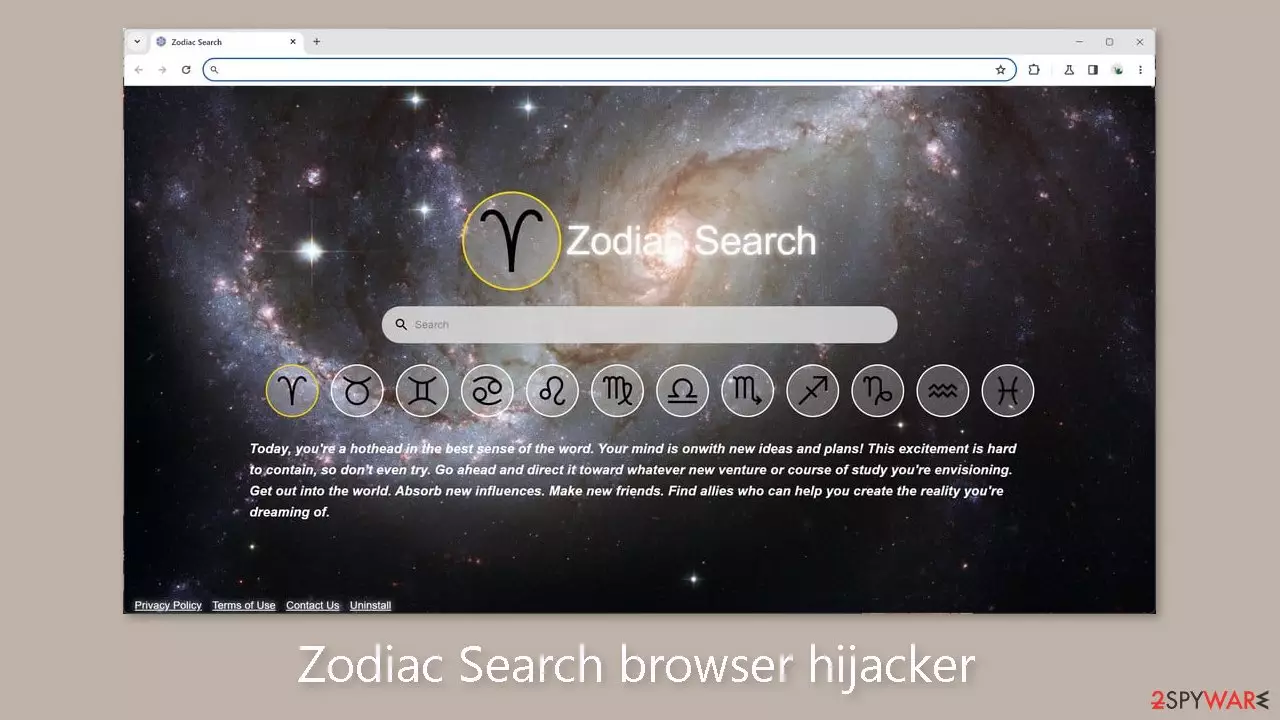
A browser extension called Zodiac Search can change your browser's settings and appearance. Because there are so many plugins accessible, users might not always do their due diligence before installing. Many people mistakenly believe they have a virus infection since the extension can unexpectedly change the homepage and new tab address.
While this add-on claims to be useful to astrology enthusiasts, its actual functionality is limited to providing a zodiac sign-themed background wallpaper. Additionally, it requires the use of particular surfing channels, raising serious issues with user security and privacy. By altering browser settings, browser extensions might be dangerous.
It's crucial to keep in mind that anyone can make an application like this, which could lead to a number of problems. By using social engineering techniques, users may be lured to dangerous websites where they may download malware or potentially unwanted programs (PUPs).[1]
NAME
Zodiac Search
TYPE
Browser hijacker; potentially unwanted program
SYMPTOMS
The main settings of the browser get changed, like the homepage, new tab address, and search engine
DISTRIBUTION
Shady websites, deceptive ads, software bundling, web stores
DANGERS
The extension may lead to dangerous websites; display misinformation and inaccurate search results; track browsing activities and collect data
ELIMINATION
Remove the extension by going to your browser settings
FURTHER STEPS
Use FortectIntego to fix any remaining damage and optimize the machine
Potentially unwanted programs
Despite the fact that we constantly advise our users to only download programs from official sources, they are nevertheless susceptible to potentially unwanted applications (PUAs). The problem arises from the difficulty web stores have categorizing these apps because what one user may find useful, another user may find invasive.
Applications like browser hijackers are primarily made for pay-per-click marketing. Developers can add advertisements and affiliate links to search results, earning money for each click from users. The worrying part is that because add-on makers frequently disregard user privacy and security, these advertisements might come from both trustworthy and dishonest sources.
You face the danger of being redirected to phishing websites that advertise malware, scareware, fake freebies, or tech support scams while third-party software is loaded into your browser. Changes to settings, however, are not the only thing to be concerned about.
The program may also use cookies[2] to collect various information about your browsing habits. Following the collection of this data, it may be sold to third parties, like advertising networks, who will use it to target you with ever more precise advertisements. Use a maintenance tool like FortectIntego to optimize performance by automatically clearing cookies and cache.
Remove the unwanted extension
You can remove browser add-ons by going to your settings. Find the list of extensions installed in your browser and remove the Zodiac Search. We show how to do that in the guide below:
Google Chrome
Open Google Chrome, click on the Menu (three vertical dots at the top-right corner) and select More tools > Extensions.
In the newly opened window, you will see all the installed extensions. Uninstall all the suspicious plugins that might be related to the unwanted program by clicking Remove.
MS Edge:
Select Menu (three horizontal dots at the top-right of the browser window) and pick Extensions.
From the list, pick the extension and click on the Gear icon.
Click on Uninstall at the bottom.
MS Edge (Chromium)
Open Edge and click select Settings > Extensions.
Delete unwanted extensions by clicking Remove.
Mozilla Firefox
Open Mozilla Firefox browser and click on the Menu (three horizontal lines at the top-right of the window).
Select Add-ons.
In here, select unwanted plugin and click Remove.
Safari
Click Safari > Preferences…
In the new window, pick Extensions.
Select the unwanted extension and select Uninstall.
PUP elimination process
Occasionally, merely removing the browser extension proves ineffective, and users continue to encounter unwanted symptoms. In such instances, it may be necessary to conduct a comprehensive scan of your computer to identify adware, a covert program operating in the background, generating commercial content. If adware is present, merely uninstalling the add-on will not suffice, as the settings will persistently fluctuate until you completely eradicate it from your system.
One of the most prevalent methods for the dissemination of such potentially unwanted applications (PUAs) is through freeware installation platforms. The developers of these platforms have recognized that they can incorporate supplementary programs within their installers to generate revenue. This technique, known as software bundling,[3] is highly effective, as most users rush through the installation process, neglecting crucial steps.
To preempt such issues in the future, always opt for “Custom” or “Advanced” installation methods. Take the time to read the privacy policy and terms of use to ascertain what information will be gathered and what permissions the application will be granted within your system. The pivotal step involves inspecting the file list and deselecting any items that raise suspicion or appear unrelated.
The program responsible for altering your settings may assume various names or icons. If you are uncertain about the appropriate course of action and wish to avoid accidental deletion of vital files, we recommend utilizing anti-malware tools like SpyHunterCombo Cleaner or MalwarebytesMalwarebytes. These tools will conduct a thorough scan of your computer, eliminate the threat, and safeguard against future infections by issuing warnings before a potentially unwanted program (PUP) can enact any changes. For those who prefer manual removal, we have provided instructions for both Windows and Mac systems below:
Windows 10/8:
Enter Control Panel into Windows search box and hit Enter or click on the search result.
Under Programs, select Uninstall a program.
From the list, find the entry of the suspicious program.
Right-click on the application and select Uninstall.
If User Account Control shows up, click Yes.
Wait till uninstallation process is complete and click OK.
Windows 7/XP:
Click on Windows Start >Control Panel located on the right pane (if you are Windows XP user, click on Add/Remove Programs).
In Control Panel, select Programs > Uninstall a program.
Pick the unwanted application by clicking on it once.
At the top, click Uninstall/Change.
In the confirmation prompt, pick Yes.
Click OK once the removal process is finished.
Mac:
From the menu bar, select Go > Applications.
In the Applications folder, look for all related entries.
Click on the app and drag it to Trash (or right-click and pick Move to Trash)
To fully remove an unwanted app, you need to access Application Support, LaunchAgents, and LaunchDaemons folders and delete relevant files:
Select Go > Go to Folder.
Enter /Library/Application Support and click Go or press Enter.
In the Application Support folder, look for any dubious entries and then delete them.
Now enter /Library/LaunchAgents and /Library/LaunchDaemons folders the same way and terminate all the related .plist files.






Be the first to comment