

Worlddailynewz.com is a fake site set up by crooks to generate income

Worlddailynewz.com is a phony website designed by fraudsters with the intention of tricking users into subscribing to push notifications. The website is deceptively made to appear to host a video, along with a convincing message pleading with users to click the “Allow” button to continue watching. Unfortunately, there is no video content on the website, and there is no other content.
Users are bombarded with obtrusive pop-up ads after clicking the “Allow” button; some of these ads continue to appear long after the browser has been closed. These crooks might also make use of rogue advertising networks that send users to risky websites, which could only serve to worsen the problem. As a result, unwary people could land on phishing websites that try to collect personal information from them or persuade them to download potentially unwanted programs (PUPs),[1] malware, or both.
| NAME | Worlddailynewz.com |
| TYPE | Push notification spam; adware |
| SYMPTOMS | Pop-up ads show up on the desktop at random intervals |
| DISTRIBUTION | Shady websites, deceptive ads, sneaky redirects, freeware installations |
| DANGERS | Ads and links to sites displayed by the website might be dangerous. Users might suffer from financial losses, disclose their sensitive information to unknown parties, or install malware/PUPs on their systems |
| ELIMINATION | Notifications can be disabled via the browser settings; in case you experience more ads and redirects to suspicious sites, you should also get rid of adware by using anti-malware tools |
| FURTHER STEPS | FortectIntego is a maintenance tool that should be used after the removal is complete to get rid of any remaining damage and optimize the system |
Distribution methods
Fake websites like Worlddailynewsz.com, which often lurk within unregulated domains that engage in illegal operations, hardly ever appear in search results. Unauthorized streaming platforms, which are filled with deceptive adverts and sneaky redirects, serve as a prime example. These platforms frequently have fake “Download” and “Play” buttons that cause new browser tabs to open.
Users who click the “Play” button on websites that offer free, illegal movie streaming may be taken to a page that looks like Worlddailynewsz.com. It's simple to see how someone can be duped into thinking they can watch the movie of their choice.
Choosing reputable streaming services like Netflix or Hulu, which charge a small monthly subscription cost but provide unrestricted access to a wide variety of content, is the better course of action. Additionally, use caution when clicking on unknown links and adverts, and only go to reputable websites.

What is adware?
Software that generates a higher volume of commercial content, such as pop-ups, ads, and redirects, is referred to as adware.[2] People frequently unintentionally download adware through freeware[3] distribution sites that include bundled apps in their installers in an effort to monetize user involvement.
It is advised to always download software from official online stores and developer websites to protect against adware. Choose the “Custom” or “Advanced” installation options when installing software, carefully read the Privacy Policy and Terms of Use agreements, and perform the essential step of evaluating the file list and unchecking any boxes next to unrelated apps to avoid their installation.
Stop the intrusive pop-ups
Below you will find a manual guide on how to take care of your browser. Because push notifications are subscription-based, you will have to disable them yourself:
Google Chrome (desktop):
- Open Google Chrome browser and go to Menu > Settings.
- Scroll down and click on Advanced.
- Locate the Privacy and security section and pick Site Settings > Notifications.

- Look at the Allow section and look for a suspicious URL.
- Click the three vertical dots next to it and pick Block. This should remove unwanted notifications from Google Chrome.



Google Chrome (Android):
- Open Google Chrome and tap on Settings (three vertical dots).
- Select Notifications.
- Scroll down to Sites section.
- Locate the unwanted URL and toggle the button to the left (Off setting).


Mozilla Firefox:
- Open Mozilla Firefox and go to Menu > Options.
- Click on Privacy & Security section.
- Under Permissions, you should be able to see Notifications. Click Settings button next to it.

- In the Settings – Notification Permissions window, click on the drop-down menu by the URL in question.
- Select Block and then click on Save Changes. This should remove unwanted notifications from Mozilla Firefox.



Safari:
- Click on Safari > Preferences…
- Go to Websites tab and, under General, select Notifications.
- Select the web address in question, click the drop-down menu and select Deny.


MS Edge:
- Open Microsoft Edge, and click the Settings and more button (three horizontal dots) at the top-right of the window.
- Select Settings and then go to Advanced.
- Under Website permissions, pick Manage permissions and select the URL in question.
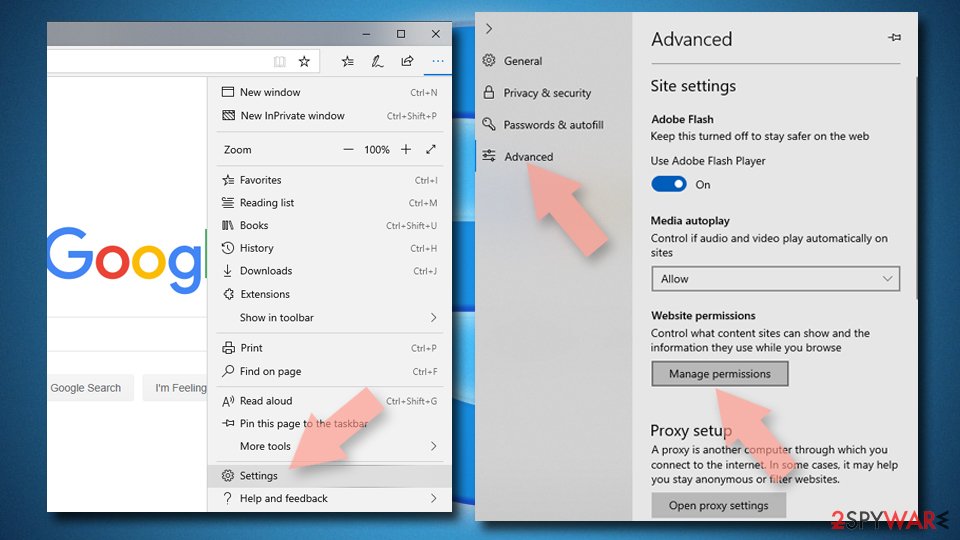
- Toggle the switch to the left to turn notifications off on Microsoft Edge.

MS Edge (Chromium):
- Open Microsoft Edge, and go to Settings.
- Select Site permissions.
- Go to Notifications on the right.
- Under Allow, you will find the unwanted entry.
- Click on More actions and select Block.


Get rid of cookies and cache
It's crucial to pay attention to your browser's maintenance, which includes routinely deleting the cache and cookies. Nearly all websites use cookies to track your online behavior and may store information such your IP address, geolocation, visited websites, and online purchases. This information may then be provided to third parties or advertising networks for a variety of uses.
We advise using a maintenance tool like FortectIntego to address this issue. This software has the capability to automatically erase cookies and cache, improving the efficiency of your browser. Additionally, it has the capacity to fix a variety of system faults, restore corrupted files, and fix registry problems, making it especially useful after a virus infection.
Scan your system to detect adware
If you observe a surge in commercial content, such as pop-ups, banners, surveys, and frequent redirects to unfamiliar websites, even after following previous steps, it's possible that your computer is infected with adware.
Identifying the specific application responsible for these issues can be challenging, as potentially unwanted programs (PUPs) often masquerade as seemingly useful tools. In such cases, we recommend the use of anti-malware tools like SpyHunterCombo Cleaner or MalwarebytesMalwarebytes, which are capable of automatically scanning your system and completely eradicating any adware infections. However, if you possess the necessary expertise and prefer a hands-on approach, below are instructions for both Windows and macOS:
Windows 10/8:
- Enter Control Panel into Windows search box and hit Enter or click on the search result.
- Under Programs, select Uninstall a program.

- From the list, find the entry of the suspicious program.
- Right-click on the application and select Uninstall.
- If User Account Control shows up, click Yes.
- Wait till uninstallation process is complete and click OK.



Windows 7/XP:
- Click on Windows Start > Control Panel located on the right pane (if you are Windows XP user, click on Add/Remove Programs).
- In Control Panel, select Programs > Uninstall a program.

- Pick the unwanted application by clicking on it once.
- At the top, click Uninstall/Change.
- In the confirmation prompt, pick Yes.
- Click OK once the removal process is finished.

Mac:
- From the menu bar, select Go > Applications.
- In the Applications folder, look for all related entries.
- Click on the app and drag it to Trash (or right-click and pick Move to Trash)


To entirely remove an unwanted app, you need to access Application Support, LaunchAgents, and LaunchDaemons folders and delete relevant files:
- Select Go > Go to Folder.
- Enter /Library/Application Support and click Go or press Enter.
- In the Application Support folder, look for any suspicious entries and then delete them.
- Now enter /Library/LaunchAgents and /Library/LaunchDaemons folders the same way and terminate all the related .plist files.


v
Did this guide help?
Be the first to comment