

ElementAnalyzer is a malicious Mac application that could jeopardize your security
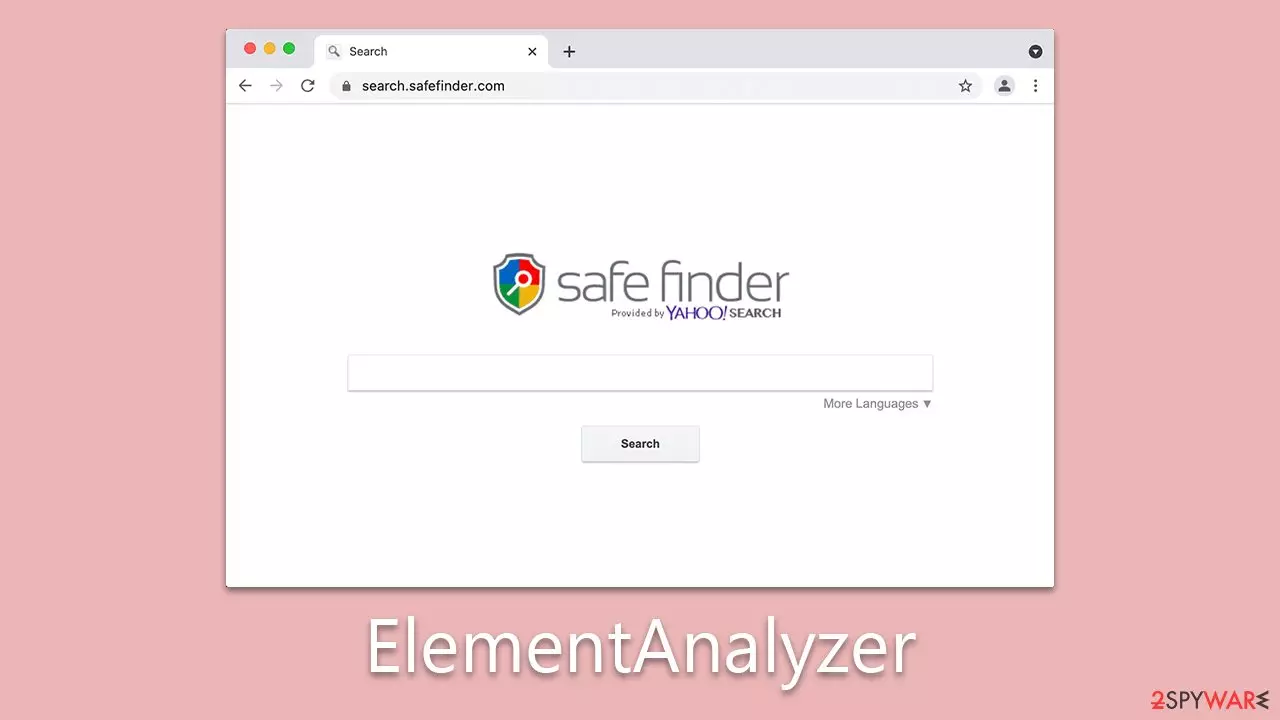
ElementAnalyzer is a notorious malware belonging to the Adload adware family, primarily targeting Mac computers. This malicious software infiltrates systems through various means, such as fake Flash Player updates and unauthorized software installations.
Once embedded, ElementAnalyzer performs several unwarranted actions. It not only displays intrusive advertisements but also modifies browser settings, including changing the homepage and redirecting users to undesired websites. The malware adversely affects the system’s performance and illicitly harvests sensitive user data, including login details, financial data, and browsing history.
Its design enables it to replicate and install additional copies of itself, complicating the removal process. Moreover, ElementAnalyzer installs unique system profiles and other components that further hinder its removal from the infected device.
The subsequent sections of this article will provide a detailed analysis of the virus, offering insights into its operations, prevention strategies, and removal procedures to safeguard Mac users from the severe implications associated with malware infections.
| Name | ElementAnalyzer |
| Type | Mac virus, adware, browser hijacker |
| Malware family | Adload |
| Distribution | Fake Flash Player installers or pirated software from high-risk sources |
| Symptoms | A new extension is installed on the browser, along with an application of the same name; search and browsing settings altered to an alternative search provider; new profiles and login items set up on the account; intrusive ads and redirects |
| Risks | Personal data disclosure to cybercriminals, system compromise, installation of other malware, financial losses |
| Removal | The most straightforward way to get rid of Mac malware is by doing a full system scan with SpyHunterCombo Cleaner security software. If you'd rather remove it manually, see the guide below |
| System optimization | After you terminate the infection with all its associated components, we recommend you also scan your machine with FortectIntego for the best results |
The spreading mechanisms
ElementAnalyzer predominantly spreads via deceptive Flash Player updates. In this tactic, users are misled into inadvertently downloading the malware, which is camouflaged as a genuine update for Adobe Flash Player. When users navigate to a website, they might encounter pop-up messages warning that their Flash Player is obsolete.
These alerts are typically framed as urgent notifications, instilling immediate concern and prompting users to act swiftly to protect their computers. Consequently, users might unknowingly initiate the download of malware when they respond to these pop-ups.
Additionally, ElementAnalyzer is often disseminated through software installers procured from non-official sources. The malware is sneakily incorporated as an additional application within these installers, and it is automatically deployed when users install the primary software. Unofficial software download platforms and torrent sites, which are notorious for offering free or illicit copies of the software, are common vectors for distributing installers laden with ElementAnalyzer.
To shield themselves from this pernicious malware, users should practice caution and adopt protective measures, outlined as follows:
- Beware of false Flash Player updates, especially those presented as urgent website alerts.
- Acknowledge that modern browsers no longer necessitate Flash, which has also been discontinued and is unsupported.
- Avoid downloading software from unofficial or unverified sources since they often distribute malware-laced installers.
- Understand that offers of free or pirated software frequently come with the hidden cost of bundled malicious applications.
- Regularly update your operating system and all software with the latest security enhancements and patches to fortify your defense against malware threats.
By staying informed about these common distribution techniques and implementing preventative actions, users can substantially reduce their susceptibility to malware like ElementAnalyzer.

Dangers of Adload variants
ElementAnalyzer, albeit relatively rudimentary, boasts a robust set of capabilities making it a potent piece of malware. While primarily classified as adware for its intrusive advertisement displays in browsers and other mediums, its functionality extends well beyond typical adware boundaries.
A considerable concern stemming from ElementAnalyzer is its capacity to clandestinely install additional applications without obtaining user consent. This stealthy installation process can introduce other harmful malware to the system, exacerbating the security compromise already in effect. The malware is also equipped to illicitly acquire sensitive user data, encompassing account credentials and credit card information. Such illicitly obtained information can be subsequently exploited for identity theft and various other malevolent endeavors.
Furthermore, ElementAnalyzer possesses heightened system permissions, complicating its total removal from infected systems. It deposits multiple malicious files into the system, establishes new profiles and login items, and leverages AppleScript to circumvent detection mechanisms instituted by XProtect and Gatekeeper. The malware retains its operational capacity even after the primary application or extension is eliminated, with the potential for malicious files and login items to resurface persistently.
Given its sophisticated and wide-ranging impact, ElementAnalyzer constitutes a significant menace to both computer security and user privacy. It is imperative to initiate immediate measures to expunge the malware from compromised systems and to enact preventative strategies to thwart future infiltrations. Such preventative measures encompass refraining from downloading software from unofficial repositories and diligently updating all software to incorporate the latest security patches and fixes.
A quick removal guide
Despite ElementAnalyzer’s relative simplicity, its persistence mechanisms have effectively evaded Apple's XProtect, allowing multiple versions to circumvent the Mac’s intrinsic security defenses. Without deploying alternative removal strategies, there is a risk of the malware persistently running in the system background.
Engaging third-party security utilities like SpyHunterCombo Cleaner or MalwarebytesMalwarebytes can streamline the malware removal process. However, considering the multitude of objects generated by ElementAnalyzer post-infection, manual removal may demand a level of expertise in computing. Overlooking even a single infectious object during manual removal could pave the way for the malware's resurgence.
For those opting for manual removal, it’s crucial to cleanse Safari or any other browsers of any remaining malicious files. Eliminating cookies and other residual data from browser caches is also recommended to bolster privacy. For users seeking automated removal solutions, FortectIntego serves as a viable option.
Manual removal explained
Manual removal of ElementAnalyzer is indeed a possibility; however, it demands a careful and thorough elimination of each component associated with the malware. Undertaking this task manually can be a less effective endeavor because identifying and locating every file and element that the malware has implanted within the system can be a complicated and daunting task. The intricacy of this process makes it easy to overlook certain components, potentially leading to incomplete removal and allowing the malware to persist or return later.
Because of the challenges and risks associated with manual removal, utilizing automatic removal instructions is often recommended as a safer and more reliable alternative. Automatic removal tools are designed to identify and eradicate all components of the malware without the risk of human error, making them a preferred choice for users who are not tech-savvy or familiar with the intricacies of malware removal.
However, if for any reason you opt to proceed with manual removal instead of an automatic approach, it's absolutely essential to follow the provided manual instructions with great precision. Every step should be executed carefully to ensure that no remnants of the malware linger within the system, as even a minor oversight could allow ElementAnalyzer to re-establish itself and continue its malicious activities. Consistent vigilance and adherence to the instructions are non-negotiable to mitigate the risk of the malware making a resurgence.
The first step is to open up your Activity Monitor to shut down any malware-related processes. From there, you can easily terminate them as outlined below:
- Open Applications folder
- Select Utilities
- Double-click Activity Monitor
- Here, look for suspicious processes related to adware and use the Force Quit command to shut them down
- Go back to the Applications folder
- Find the malicious app in the list and move it to Trash.


Upon infiltrating your system, the virus may set up new User profiles and Login items to remain persistent. This could be why you can't seem to rid yourself of the app or extension despite attempts.
- Go to Preferences and select Accounts
- Click Login items and delete everything suspicious
- Next, pick System Preferences > Users & Groups
- Find Profiles and remove unwanted profiles from the list.
Finally, it is crucial to eliminate any remaining files from the malware. PLIST files, or “property list” files, are small configuration files containing user settings and information about specific applications. To fully remove the virus, locating the associated PLIST files and deleting them is necessary.
- Select Go > Go to Folder.
- Enter /Library/Application Support and click Go or press Enter.
- In the Application Support folder, look for any dubious entries and then delete them.
- Now enter /Library/LaunchAgents and /Library/LaunchDaemons folders the same way and terminate all the related .plist files.


Remove from Mozilla Firefox (FF)
Remove dangerous extensions:
- Open Mozilla Firefox browser and click on the Menu (three horizontal lines at the top-right of the window).
- Select Add-ons.
- In here, select the unwanted extension and click Remove.


Reset the homepage:
- Click three horizontal lines at the top right corner to open the menu.
- Choose Settings.
- Under Home, set your preferred homepage and new tab settings.
Clear cookies and site data:
- Click Menu and pick Settings.
- Go to Privacy & Security section.
- Scroll down to locate Cookies and Site Data.
- Click on Clear Data...
- Select Cookies and Site Data and Temporary cached files and pages, then click Clear.


Reset Mozilla Firefox
If clearing the browser as explained above did not help, reset Mozilla Firefox:
- Open Mozilla Firefox browser and click the Menu.
- Go to Help and then choose Troubleshooting Information.

- Under Give Firefox a tune up section, click on Refresh Firefox...
- Once the pop-up shows up, confirm the action by pressing on Refresh Firefox.



Remove from Google Chrome
Delete malicious extensions from Google Chrome:
- Open Google Chrome, click on the Menu (three vertical dots at the top-right corner) and select More tools > Extensions.
- In the newly opened window, you will see all the installed extensions. Uninstall all suspicious extensions related to the unwanted program by clicking Remove.


Clear cache and web data from Chrome:
- Click on Menu and pick Settings.
- Under Privacy and security, select Clear browsing data.
- Select Browsing history, Cookies and other site data, as well as Cached images and files.
- Click Clear data.


Change your homepage:
- Click menu and choose Settings.
- Look for a suspicious site in the On startup section.
- Click on Open a specific or set of pages and click on three dots to find the Remove option.
Reset Google Chrome:
If the previous methods did not help you, reset Google Chrome to eliminate all the unwanted components:
- Click on Menu and select Settings.
- In the Settings, scroll down and click Advanced.
- Scroll down and locate Reset and clean up section.
- Now click Restore settings to their original defaults.
- Confirm with Reset settings.


Delete from Safari
Remove dangerous extensions:
- Open Safari, click Safari in the menu at the top-left of the screen, and select Preferences.
- Go to the Extensions tab, look for any suspicious entries, and click Uninstall to remove them.


Clear history and website data:
- Click Safari in the menu and pick Clear History.
- Set Clear to all history and confirm with Clear History.


Reset Safari:
- Click Safari in the menu and select Preferences > Advanced.
- Enable Show Develop menu in menu bar.
- From the menu bar, click Develop and select Empty Caches.


Did this guide help?
Be the first to comment