

Microsoft keeps flagging Trojan:HTML/Phish!pz as not removed: what is that and how to remove it

Trojan:HTML/Phish!pz is a malware type that specifically targets Windows operating systems and is well-known for its ability to conduct phishing attacks. In order to fool people into installing it, this Trojan poses as a trustworthy piece of software. Alternatively, it can also spread via infected documents attached to malicious emails. Once installed, it takes various actions based on the bad hacker's preference, with phishing being its primary goal.
Usually, malicious websites, hacked emails, or software bundles with authentic downloads are how Trojans enter computers. Its primary activity is the creation of fictitious websites or forms that mimic authentic ones. These fraudulent websites are made with the intention of gathering private data, including credit card numbers, usernames, and passwords. The data entered by gullible users is subsequently sent to the person who created or is in charge of the infection.
| Name | Trojan:HTML/Phish!pz |
| Type | Trojan |
| Infiltration | Can be distributed via software cracks and similar illegal software, infected email attachments |
| Symptoms | Usually not cause any symptoms, although you might notice and increased number of ads or unexpected redirects |
| Removal | To eliminate malware, download and install powerful security software SpyHunterCombo Cleaner and perform a full system scan |
| System fix | Malware might seriously damage some Windows system files, rendering the whole operating system defective. To remediate the system, scan the PC with FortectIntego or similar repair software |
Possible infection symptoms
A Trojan:HTML/Phish!pz infected machine may exhibit symptoms such as unexpected pop-up windows or browser redirects to phony websites. These websites frequently imitate authentic login pages.
Password changes, unauthorized access to accounts, and other questionable activity may also be seen by users. The Trojan's background tasks, which can involve stealing and sending sensitive data, might also have an impact on the system's overall speed.
Users should use strong antivirus software and maintain their operating systems up to date in order to defend against this Trojan. It's also important to exercise caution while downloading attachments from unidentified sources and opening emails.
How to remove Trojan:HTML/Phish!pz virus from your system
The issue with Trojan:HTML/Phish!pz is that many users reported Windows Defender flagging it approximately at the same time, which is not unusual by itself. Another problem is that the virus seemingly keeps returning and the pop-ups from Defender keep showing up again.
When Microsoft Defender detects an infection, it always attempts to remove it automatically. However, in this case, it seems like the pop-up keeps returning. The status of the threat is also reported as active or that it has only been partially removed, which is of course problematic – one should not have an active malware infection on the system.
Defender also points at the location of the detected files, which often are in Google Chrome or Mozilla Firefox cache folder. This points out that malicious files have been placed there by a virus or that Defender detects these files despite them being safe; in other words, they are a false positive.
In order to remove Trojan:HTML/Phish!pz Trojan from the system, you should check the steps below, as we provide a comprehensive solution. After performing these steps and not finding anything, you can then safely assume that it is a false positive, in which case you should update problematic software and Delete Defender's History.
1. Scan your system for malware
Since this could be a false positive, your first thing to do is scan the system with alternative security tools – we recommend using both SpyHunterCombo Cleaner and MalwarebytesMalwarebytes. If malware is a real threat, there is a very low chance that all three anti-virus apps (including Defender) would flag it as a false positive. Once removed with a third-party anti-malware, Trojan:HTML/Phish!pz virus notifications should stop.
If you can't perform a malware scan in normal mode, please access Safe Mode and have an anti-malware installer on a USB stick or another portable device.
2. Access Safe Mode
Safe Mode allows Windows to start in a safe environment, where, if present, malicious components shouldn't be active. This is the best environment to remove malware from.
Windows 7 / Vista / XP
- Click Start > Shutdown > Restart > OK.
- When your computer becomes active, start pressing F8 button (if that does not work, try F2, F12, Del, etc. – it all depends on your motherboard model) multiple times until you see the Advanced Boot Options window.
- Select Safe Mode with Networking from the list.


Windows 10 / Windows 8
- Right-click on Start button and select Settings.
- Scroll down to pick Update & Security.
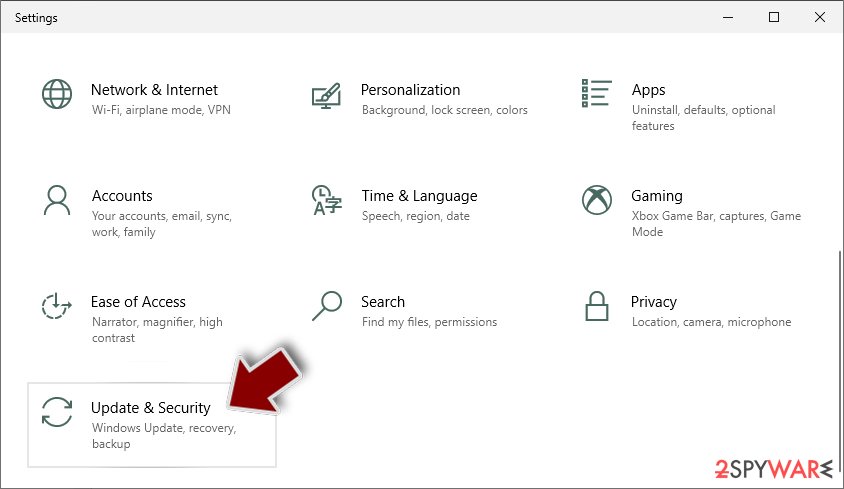
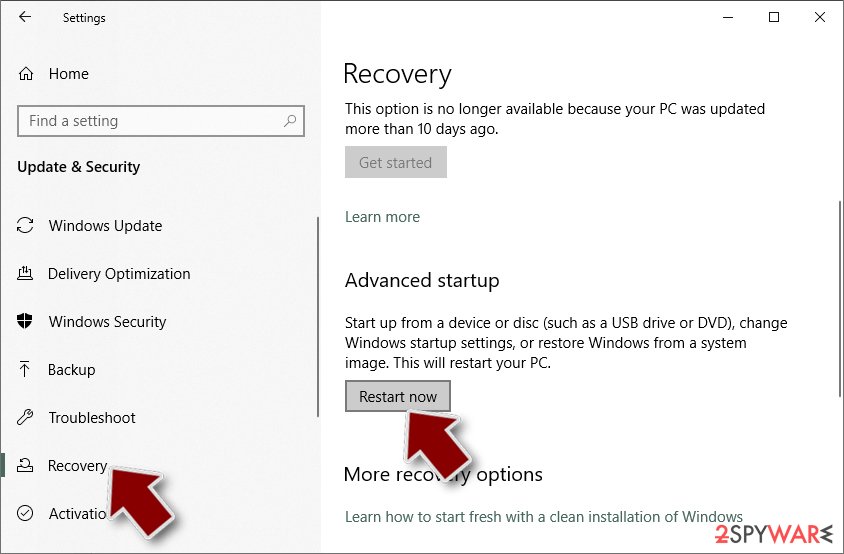
- On the left side of the window, pick Recovery.
- Now scroll down to find Advanced Startup section.
- Click Restart now.
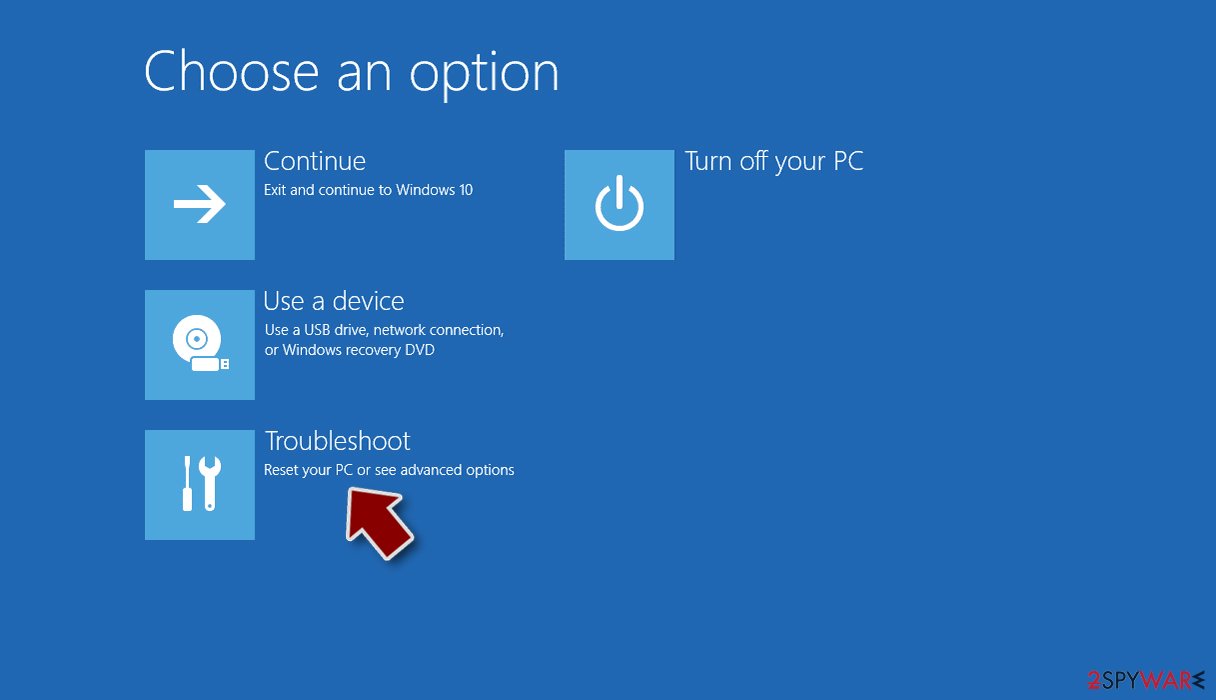
- Select Troubleshoot.
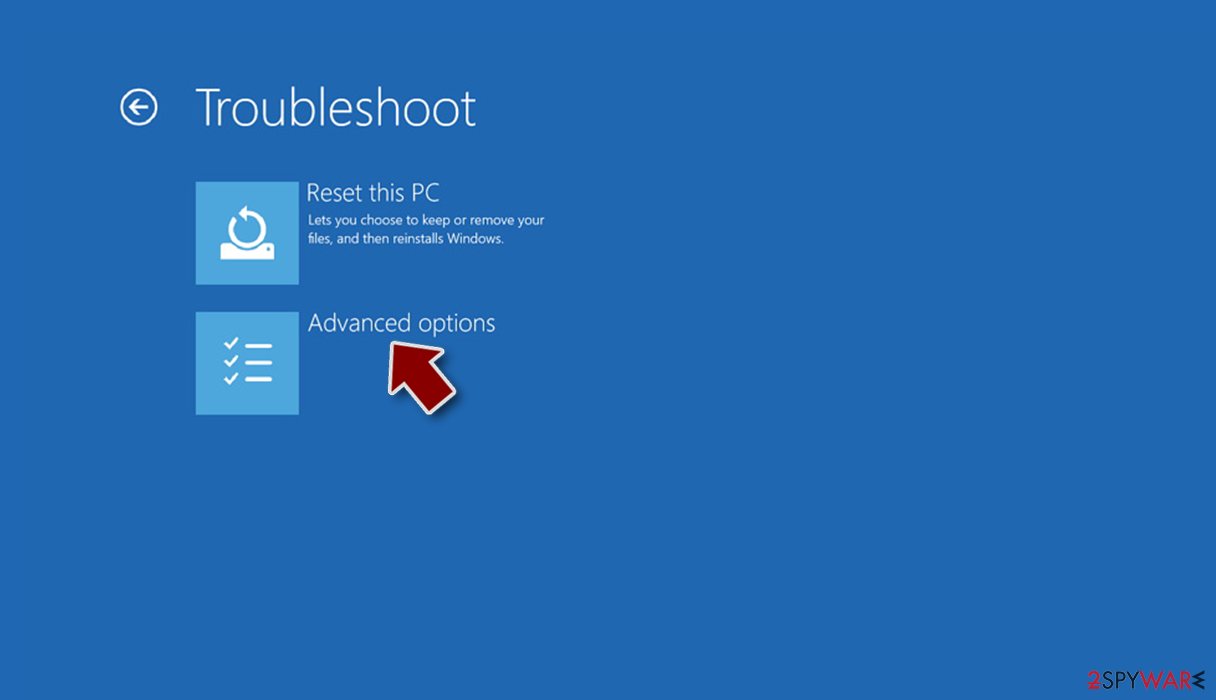
- Go to Advanced options.
- Select Startup Settings.
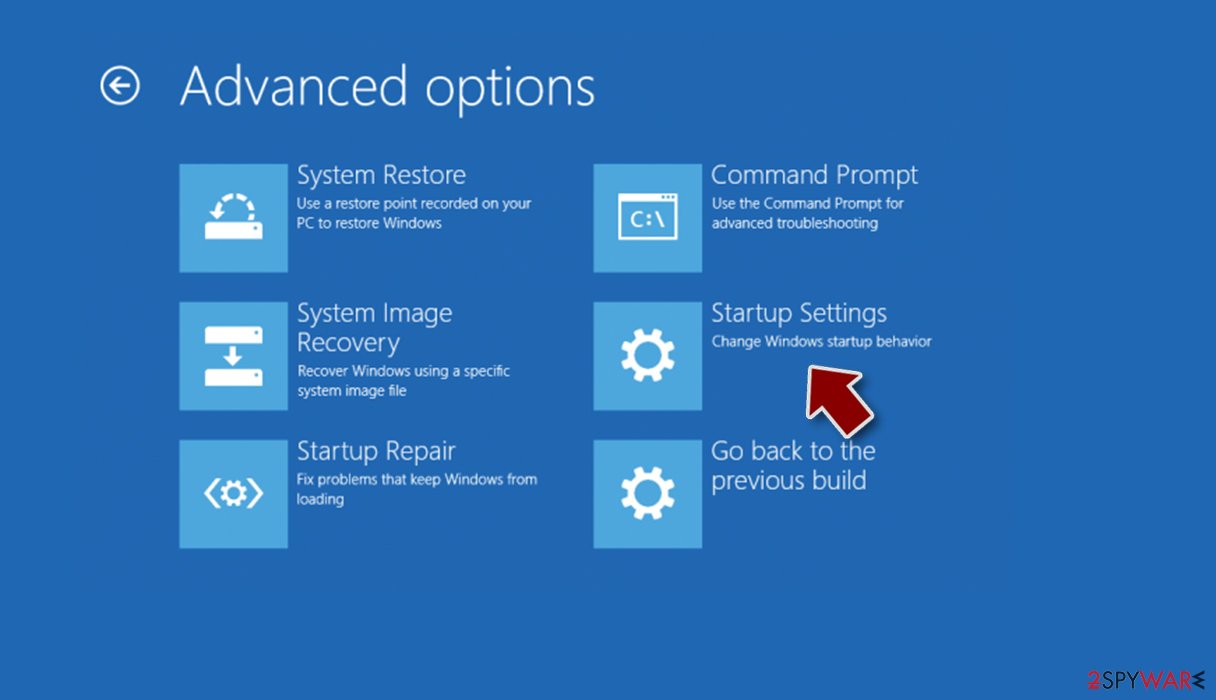
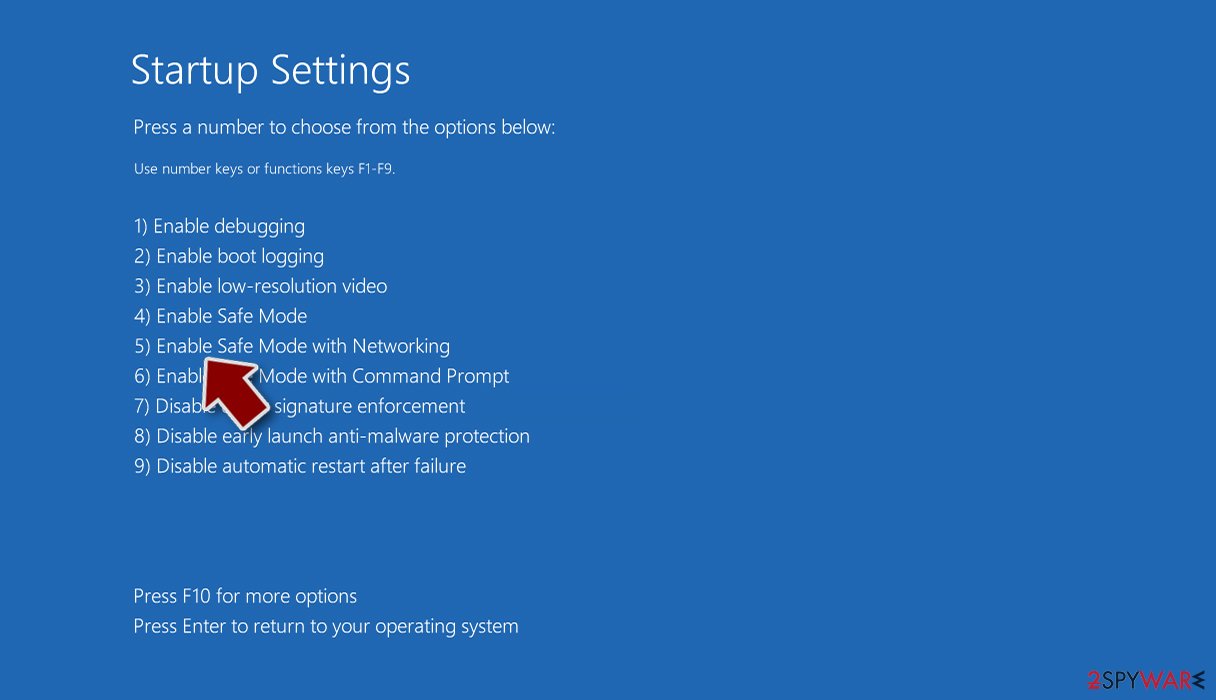
- Click Restart.
- Press 5 or click 5) Enable Safe Mode with Networking.


3. Clear browser caches
Since most Trojan:HTML/Phish!pz detections are located in cache files, make sure you clear them. The easiest way to do this is by using a powerful PC repair tool FortectIntego, which is capable of cleaning numerous temp components from your system, including browser caches.
Google Chrome
- Click on Menu and pick Settings.
- Under Privacy and security, select Clear browsing data.
- Select Browsing history, Cookies and other site data, as well as Cached images and files.
- Click Clear data.


Mozilla Firefox
- Click Menu and pick Settings.
- Go to Privacy & Security section.
- Scroll down to locate Cookies and Site Data.
- Click on Clear Data…
- Select Cookies and Site Data, as well as Cached Web Content and press Clear.


Microsoft Edge
- Click on Menu and go to Settings.
- Select Privacy, search and services.
- Under Clear browsing data, pick Choose what to clear.
- Under Time range, pick All time.
- Select Clear now.


4. Remove temporary files in Windows
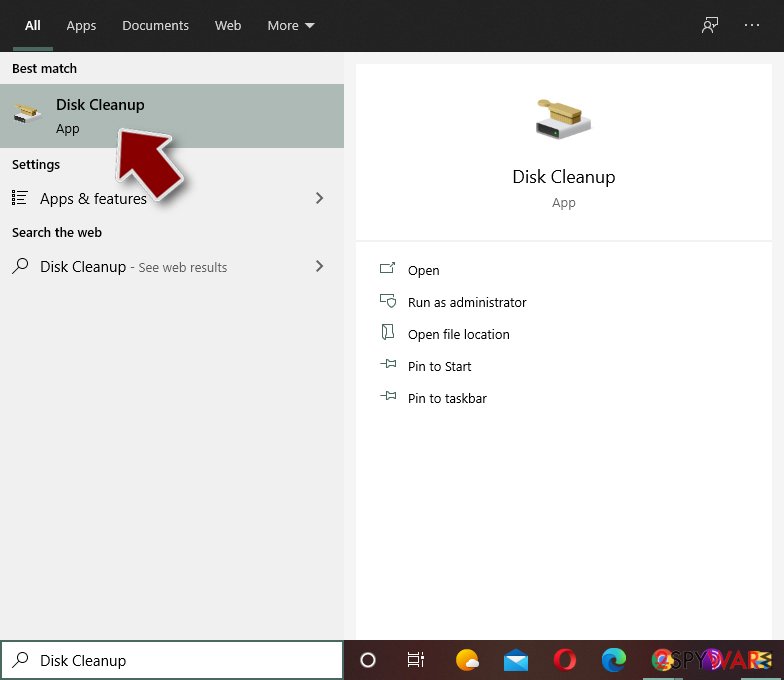
Malware-related files can be found in various places within your computer. Using Disk Cleanup can often remove them from your system.
- Type in Disk Cleanup in Windows search and press Enter.
- Select the drive you want to clean (C: is your main drive by default and is likely to be the one that has malicious files in).
- Scroll through the Files to delete list and select the following:
Temporary Internet Files
Downloads
Recycle Bin
Temporary files - Pick Clean up system files.
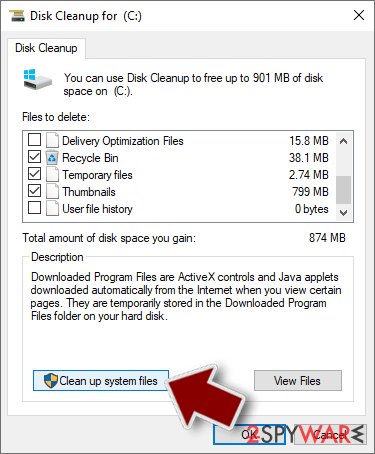
- You can also look for other malicious files hidden in the following folders (type these entries in Windows Search and press Enter):
%AppData%
%LocalAppData%
%ProgramData%
%WinDir%


After you are finished, reboot the PC in normal mode. Also, make sure you install all the latest Windows updates.
What if Trojan:HTML/Phish!pz is a false positive?
We recommend performing the steps below in the Safe Mode environment as well, although it will not always be necessary – you can first try this in normal Windows mode.
If you know which app is responsible for it (users mentioned software like Glary Utilities or iMazing, although any other software could be related to it), and you are running the latest version, you should uninstall the app as a temporary measure, as Microsoft or the app developers usually address false positives relatively quickly. To uninstall the app, follow these steps:
Instructions for Windows 10/8 machines:
- Enter Control Panel into Windows search box and hit Enter or click on the search result.
- Under Programs, select Uninstall a program.

- From the list, find the entry of the suspicious program.
- Right-click on the application and select Uninstall.
- If User Account Control shows up, click Yes.
- Wait till uninstallation process is complete and click OK.



Instructions for Windows 7/XP users
- Click on Windows Start > Control Panel located on the right pane (if you are a Windows XP user, click on Add/Remove Programs).
- In Control Panel, select Programs > Uninstall a program.

- Pick the unwanted application by clicking on it once.
- At the top, click Uninstall/Change.
- In the confirmation prompt, pick Yes.
- Click OK once the removal process is finished.

After removing the associated app, you should then remove the detection history in Windows Defender:
- Type cmd in Windows search.
- Right-click on Command Prompt and select Run as administrator.
- User Account Control will ask whether you want to allow changes – click Yes.
- In the new window, copy and paste the following command, pressing Enter after:
del “%ProgramData%\Microsoft\Windows Defender\Scans\History” /s /f /q - Close down Command Prompt and restart your PC.
Finally, you should add a VSS image to the exclusion list.
- Open Command Prompt as administrator again.
- Use the following command and press Enter:
PS C:\> Add-MpPreference -ExclusionPath “\Device\HarddiskVolumeShadowCopy*\” - Restart your system.
Did this guide help?
Be the first to comment