

PracticalUpdater is a dangerous Mac application that installs additional payloads and steals your personal data
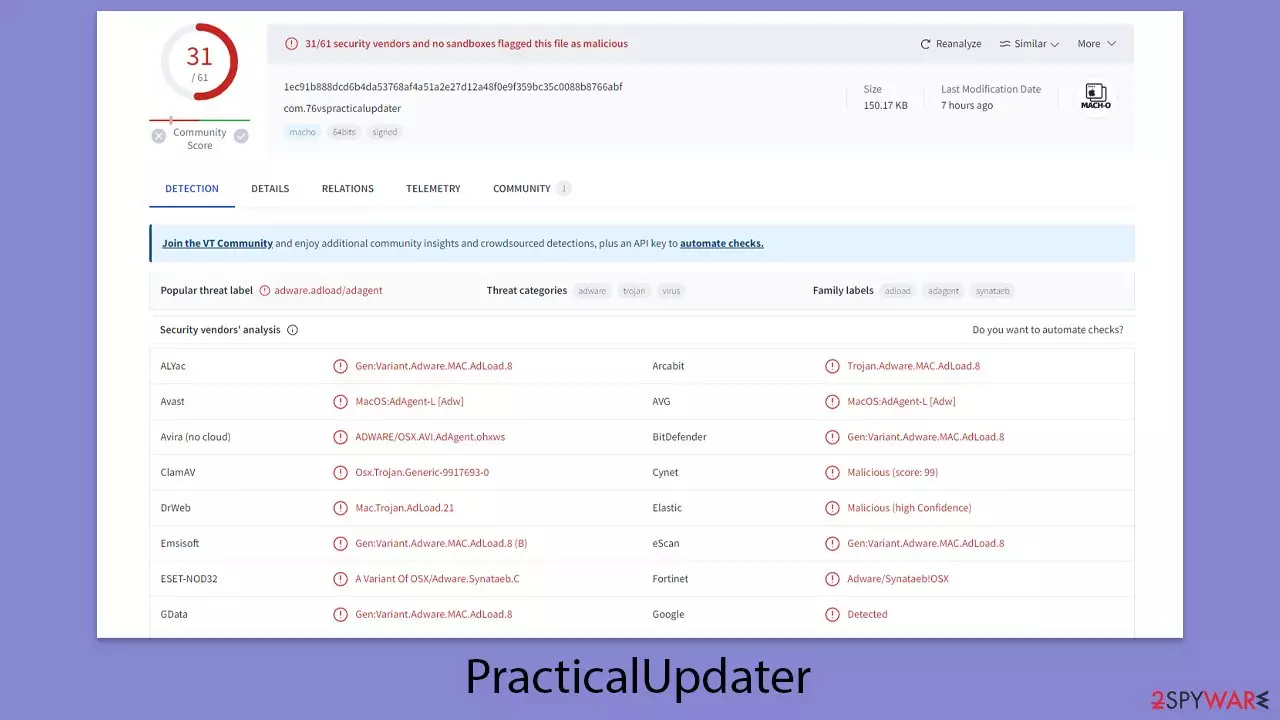
PracticalUpdater is a malicious piece of software that targets Mac computers, compromising their security. This malware belongs to the Adload family, notorious for its adware characteristics and aimed specifically at MacOS users. It employs deceptive methods to infiltrate systems, including masquerading as Flash Player updates or being bundled with unlawfully acquired software.
Once PracticalUpdater finds its way onto a Mac, it initiates a series of unwanted actions: it bombards the user with advertisements, alters browser settings such as the homepage, redirects to unrequested web pages, degrades system performance, and jeopardizes personal security by stealing sensitive information like login details, financial data, and browsing habits. The malware has the capability to replicate itself and install additional components, further entrenching its presence and complicating its removal. It even adds specific profiles and items to the system to resist deletion efforts.
This article is dedicated to shedding light on PracticalUpdater's operational mechanisms, offering guidance on preventing its intrusion, and detailing effective removal strategies to mitigate the risks posed by such malware infections on Mac devices.
| Name | PracticalUpdater |
| Type | Mac virus, adware, browser hijacker |
| Malware family | Adload |
| Distribution | Third-party websites distributing pirated software, software bundles, fake Flash Player updates |
| Symptoms | Installs a new extension and application on the system; changes homepage and new tab of the browser; inserts ads and malicious links; tracks sensitive user data via extension |
| Removal | The easiest way to remove Mac malware is to perform a full system scan with SpyHunterCombo Cleaner security software. We also provide a manual guide below |
| System optimization | Third parties can employ cookies to continue tracking your online activities, so we recommended clearing browser caches and other leftover files with FortectIntego |
Distribution tactics
The distribution of the PracticalUpdater Mac virus relies on cunning distribution mechanisms that exploit user trust and common digital habits. This malware is part of the Adload family, which is notorious for leveraging fake Flash Player updates as a primary vector for infection.
Despite Adobe discontinuing Flash Player due to its numerous security flaws, the legacy of Flash as a multimedia platform has left a lingering impression on many users, making them susceptible to such scams. Cybercriminals capitalize on this by hosting deceptive Flash update prompts on compromised or malicious websites, employing phishing techniques to convince users of the necessity of an update for proper site functionality.
Additionally, the virus often finds its way onto Mac systems through bundled software packages. These packages are frequently obtained from unauthorized or pirated software distribution sites, where malware masquerades as legitimate software, usually labeled misleadingly as “Installer.app”. This label is not unique to PracticalUpdater; it is a common guise used by various malware, including the well-known Shlayer Trojan, to infiltrate user systems.
The distribution strategy does not stop at direct deception. It also involves intricate layers of social engineering, where users are lured into downloading and executing the malware under the guise of necessary updates or exciting software offerings.

How it operates
PracticalUpdater operates through a meticulously designed process that disrupts and compromises Mac systems. As a member of the Adload malware family, it employs a deceptive installation method, followed by a series of actions that deeply affect user privacy and system integrity.
Upon infiltrating a Mac, PracticalUpdater introduces a browser extension that is central to its malicious activities. This extension facilitates significant changes to the browser's settings, including the homepage and search engine, and directs users to undesired websites. These adjustments serve not only to disrupt the user experience but also to steer users toward environments where attackers can more easily exploit them.
The naming strategy for Adload versions uses a mix of generic terms, making it blend with legitimate applications and evade detection. It is identified by a magnifying glass icon against colored backgrounds, designed to appear harmless and avoid arousing suspicion.
One of PracticalUpdater's more concerning features is its capability to redirect internet traffic through a proxy controlled by attackers. This allows them to engage in illicit profit-making from the user's online activities and potentially intercept and alter data, posing significant privacy risks.
Additionally, the malware's browser extension is engineered to collect sensitive data, such as credit card numbers and passwords. This not only threatens user privacy but also exposes them to financial fraud and identity theft. The extension operates covertly, aggregating user data without their knowledge or consent.
To ensure its persistence and evade Mac's native security mechanisms, the PracticalUpdater virus uses elevated permissions and AppleScript for sophisticated attacks. This deep system integration allows it to monitor user behavior and gather personal information continuously, making its removal challenging.
In essence, malware's operation is characterized by browser hijacking, traffic redirection, and data theft, underlined by a stealthy installation approach. It represents a significant threat to users' online safety and privacy, showcasing the complexity and danger of modern cyber threats on the MacOS platform.
Removing PracticalUpdater
Eliminating PracticalUpdater and its variants from a Mac is more challenging than uninstalling typical applications due to their sophisticated evasion techniques. They exploit AppleScript to circumvent Mac's Gatekeeper, allowing them to persist on the system even after attempts to remove them.
Users may attempt manual removal, but the persistence of this malware often leads to its reinstallation, making a thorough, security software-assisted cleanup with SpyHunterCombo Cleaner orMalwarebytesMalwarebytes or a detailed manual removal process essential. Regardless of the chosen method, it's imperative to cleanse the browser settings as part of the removal process to safeguard privacy.
Remove the app and its components from the system
To execute its harmful activities, Adload continuously operates background processes that start running as soon as the system boots up. To avoid complications during removal, it's crucial to identify and halt these processes:
- Open Applications folder
- Select Utilities
- Double-click Activity Monitor
- Here, look for suspicious processes and use the Force Quit command to shut them down
- Go back to the Applications folder
- Find the malicious entry and place it in Trash.


Login Items are configured to automatically launch the malicious application each time the Mac starts up – removing this entry is crucial. Additionally, any profiles associated with the virus should be eliminated.
- Go to Preferences and pick Accounts
- Click Login items and delete everything suspicious
- Next, pick System Preferences > Users & Groups
- Find Profiles and remove unwanted profiles from the list.
The PLIST files are small config files, also known as “Properly list.” They hold various user settings and hold information about certain applications. In order to remove the virus, you have to find the related PLIST files and remove them.
- Select Go > Go to Folder.
- Enter /Library/Application Support and click Go or press Enter.
- In the Application Support folder, look for any dubious entries and then delete them.
- Now enter /Library/LaunchAgents and /Library/LaunchDaemons folders the same way and terminate all the related .plist files.


Eliminating the extension and clearing browser caches
Once the virus has been installed, Safari or another common browser will have an extension added. This add-on would alter the homepage and introduce a new tab functionality, exposing visitors to sponsored links or advertisements. With the help of this malware component, various personal information can be gathered about users, which can put their security and privacy at risk.
To mitigate this, you should remove the browser extension and then clean your browsers from cookies and other trackers – you can always employ an automatic maintenance utility FortectIntego or follow the instructions below.
Remove from Microsoft Edge
Delete unwanted extensions from MS Edge:
- Select Menu (three horizontal dots at the top-right of the browser window) and pick Extensions.
- From the list, pick the extension and click on the Gear icon.
- Click Remove.


Clear cookies and other browser data:
- Click on the Menu (three horizontal dots at the top-right of the browser window) and select Settings > Privacy, search, and services..
- Under Clear browsing data, pick Choose what to clear.
- Select Cookies and other site data and Cached images and files. (apart from passwords, although you might want to include Media licenses as well, if applicable) and click on Clear.


Restore new tab and homepage settings:
- Click the menu icon and choose Settings.
- Then find On startup section.
- Click Remove next to any suspicious startup page.
Reset MS Edge if the above steps did not work:
- Press on Ctrl + Shift + Esc to open Task Manager.
- Click on More details arrow at the bottom of the window.
- Select Details tab.
- Now scroll down and locate every entry with Microsoft Edge name in it. Right-click on each of them and select End Task to stop MS Edge from running.


Instructions for Chromium-based Edge
Delete extensions from MS Edge (Chromium):
- Open Edge and click select Settings > Extensions.
- Delete unwanted extensions by clicking Remove.


Clear cache and site data:
- Click on Menu and go to Settings.
- Select Privacy, search and services.
- Under Clear browsing data, pick Choose what to clear.
- Under Time range, pick All time.
- Select Clear now.


Reset Chromium-based MS Edge:
- Click on Menu and select Settings.
- On the left side, pick Reset settings.
- Select Restore settings to their default values.
- Confirm with Reset.
- This will disable extensions and reset startup pages but will not delete bookmarks, saved passwords, or browsing history.


Remove from Google Chrome
Delete malicious extensions from Google Chrome:
- Open Google Chrome, click on the Menu (three vertical dots at the top-right corner) and select More tools > Extensions.
- In the newly opened window, you will see all the installed extensions. Uninstall all suspicious extensions related to the unwanted program by clicking Remove.


Clear cache and web data from Chrome:
- Click on Menu and pick Settings.
- Under Privacy and security, select Clear browsing data.
- Select Browsing history, Cookies and other site data, as well as Cached images and files.
- Click Clear data.


Change your homepage:
- Click menu and choose Settings.
- Look for a suspicious site in the On startup section.
- Click on Open a specific or set of pages and click on three dots to find the Remove option.
Reset Google Chrome:
If the previous methods did not help you, reset Google Chrome to eliminate all the unwanted components:
- Click on Menu and select Settings.
- In the Settings, scroll down and click Advanced.
- Scroll down and locate Reset and clean up section.
- Now click Restore settings to their original defaults.
- Confirm with Reset settings.


Delete from Safari
Remove dangerous extensions:
- Open Safari, click Safari in the menu at the top-left of the screen, and select Preferences.
- Go to the Extensions tab, look for any suspicious entries, and click Uninstall to remove them.


Clear history and website data:
- Click Safari in the menu and pick Clear History.
- Set Clear to all history and confirm with Clear History.


Reset Safari:
- Click Safari in the menu and select Preferences > Advanced.
- Enable Show Develop menu in menu bar.
- From the menu bar, click Develop and select Empty Caches.


Did this guide help?
Be the first to comment