

ProSearch is a browser hijacker that changes your browser settings to serve you more ads
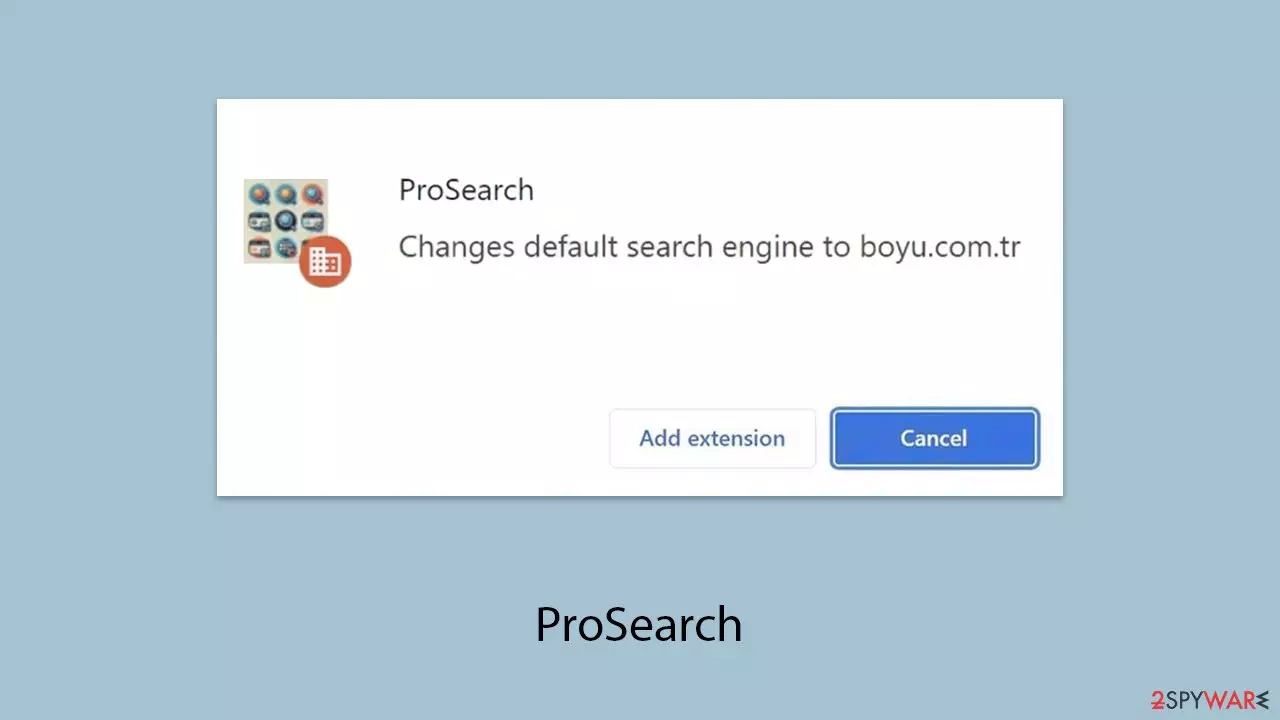
ProSearch is a browser hijacker that changes browser settings without users' permission and interferes with their normal browsing experience. This application changes default search engines, homepages, and new tab settings in browsers to its own domain, usually boyu.com.tr, though it may vary depending on the user's location. These may forward the user to some really unfamiliar websites and even bombard them with unwanted ads, which could turn out to be both annoying and destructive.
One of the strong points of ProSearch is its resiliency. It usually infects systems when bundles of software are installed or through misleading web ads. If installed, it might not be so easy to remove from a browser since its elements can be embedded deep inside a browser's configuration.
Third-party applications, such as ProSearch, can inject tracking modules in system web browsers to track the browsing behavior they are looking for and what websites they visit. That information again can be given out for targeted marketing or sold to third parties, due to which serious concerns regarding privacy arise.
| Name | ProSearch |
| Associated extension | Bookmark Plus New Tab |
| Type | Browser hijacker, potentially unwanted application |
| Distribution | Software bundling, third-party websites, ads |
| Symptoms | The extension takes over your homepage and new tab address setting it to boyu.com.tr, placing promotional links as the top search results |
| Risks | Installation of other potentially unwanted programs/malware, personal data disclosure to unknown parties, monetary losses |
| Removal | You can eliminate the browser extension by accessing your browser's settings. A scan with powerful security software SpyHunterCombo Cleaner is also recommended |
| Other tips | Cleaning web browsers is one of the secondary things you should do after PUP/malware removal to secure your privacy. You can use FortectIntego to do it quickly |
How users might end up with a hijacker on their systems
Users very often find browser hijackers like ProSearch operating on their systems without realizing when and how they got there. Other common reasons may be bundled installations of software. Sometimes, when you download free programs from the internet, other unwanted applications can be included in the setup package. Unbeknownst to users who don't read through installation steps and click whatever comes up quickly, they grant permission to install these unwanted extra applications.
Another way is through the use of phony web advertisements and pop-ups. These may look like valid system notifications, or attractive propositions, to which the user clicks. In this case, when clicked on, they may download and install malware, including browser hijackers, in an automated manner.
General ways through which users involuntarily install browser hijackers include:
- Software bundling: In installing free software or shareware that includes unwanted programs in their download packages.
- Fraudulent ads: malicious application downloads are automatically initiated once the user clicks on spurious alerts, pop-ups, or banners.
Additionally, infected websites may provide an opportunity for accidental infection. Some of these are designed to exploit browser vulnerabilities in such a way that hijackers are downloaded and installed automatically, without users' interference. The peer-to-peer file exchange networks become dangerous too because the downloaded files may contain hidden malware.
Paying more attention during any downloading of software or browsing of the web will help one stay clear from such infections. Reading through installation prompts and keeping away from suspicious links may remarkably reduce the risk of landing a browser hijacker.

“Managed by your organization” setting employed by the hijacker
ProSearch employs a deceptive technique that causes browsers to display the message “Managed by your organization.” This message is typically seen in corporate environments where system administrators enforce specific browser policies across all company devices. When this appears on personal computers, it indicates that an external program has altered the browser's settings without the user's consent.
By triggering the “Managed by your organization” status, ProSearch gains administrative control over the browser. It modifies group policies or registry settings to lock certain configurations, making it challenging for users to change default search engines, homepages, or remove unwanted extensions. This tactic not only helps the hijacker maintain persistence on the system but also prevents users from easily reverting the browser to its original state.
Removal of the browser hijacker
Applications like browser hijackers never offer any real value and tend to cause more harm than good; thus, it is highly recommended that you remove such applications from your system. You would generally consider yourself very lucky by removing the possibly unwanted applications.
ProSearch usually comes as a browser plugin. You need to look for it and uninstall the plug-in. Then you can proceed with a full system scan using SpyHunterCombo Cleaner or MalwarebytesMalwarebytes, or any other anti-malware tool. You can also do this by using any of the popular antivirus programs, which will guarantee the safety of your system. After cleaning the threats, you should be safe to remove the ProSearch plugin and reset your browser to default.
Google Chrome
- Open Google Chrome, click on the Menu (three vertical dots at the top-right corner) and select More tools > Extensions.
- In the newly opened window, you will see all the installed extensions. Uninstall all the suspicious plugins that might be related to the unwanted program by clicking Remove.


Mozilla Firefox
- Open Mozilla Firefox browser and click on the Menu (three horizontal lines at the window's top-right).
- Select Add-ons.
- In here, select the unwanted plugin and click Remove.


MS Edge (Chromium)
- Open Edge and click select Settings > Extensions.
- Delete unwanted extensions by clicking Remove.


Safari
- Click Safari > Preferences…
- In the new window, pick Extensions.
- Select the unwanted extension and select Uninstall.


Internet Explorer
- Open Internet Explorer, click on the Gear icon (IE menu) on the top-right corner of the browser
- Pick Manage Add-ons.
- You will see a Manage Add-ons window. Here, look for suspicious plugins. Click on these entries and select Disable.


As mentioned earlier, browser hijackers like Qtr Search are well-known for collecting user data, which is often shared with third parties for profit. To achieve this, developers embed various tracking tools on users' devices. These trackers can persist even after the main hijacker extension has been uninstalled. Therefore, it's essential to fully clear cookies and other web data from your system. This can be done automatically using FortectIntego software, or manually by following the steps provided below:
Google Chrome
- Click on Menu and pick Settings.
- Under Privacy and security, select Clear browsing data.
- Select Browsing history, Cookies and other site data, as well as Cached images and files.
- Click Clear data.


Mozilla Firefox
- Click Menu and pick Options.
- Go to Privacy & Security section.
- Scroll down to locate Cookies and Site Data.
- Click on Clear Data…
- Select Cookies and Site Data, as well as Cached Web Content, and press Clear.


MS Edge (Chromium)
- Click on Menu and go to Settings.
- Select Privacy and services.
- Under Clear browsing data, pick Choose what to clear.
- Under Time range, pick All time.
- Select Clear now.


Safari
- Click Safari > Clear History…
- From the drop-down menu under Clear, pick all history.
- Confirm with Clear History.


Internet Explorer
- Click on the Gear icon > Internet options and select the Advanced tab.
- Select Reset.
- In the new window, check Delete personal settings and select Reset.


Did this guide help?
Be the first to comment