

MicroCoordinator is dangerous Mac malware that installs its other versions and tracks personal user data
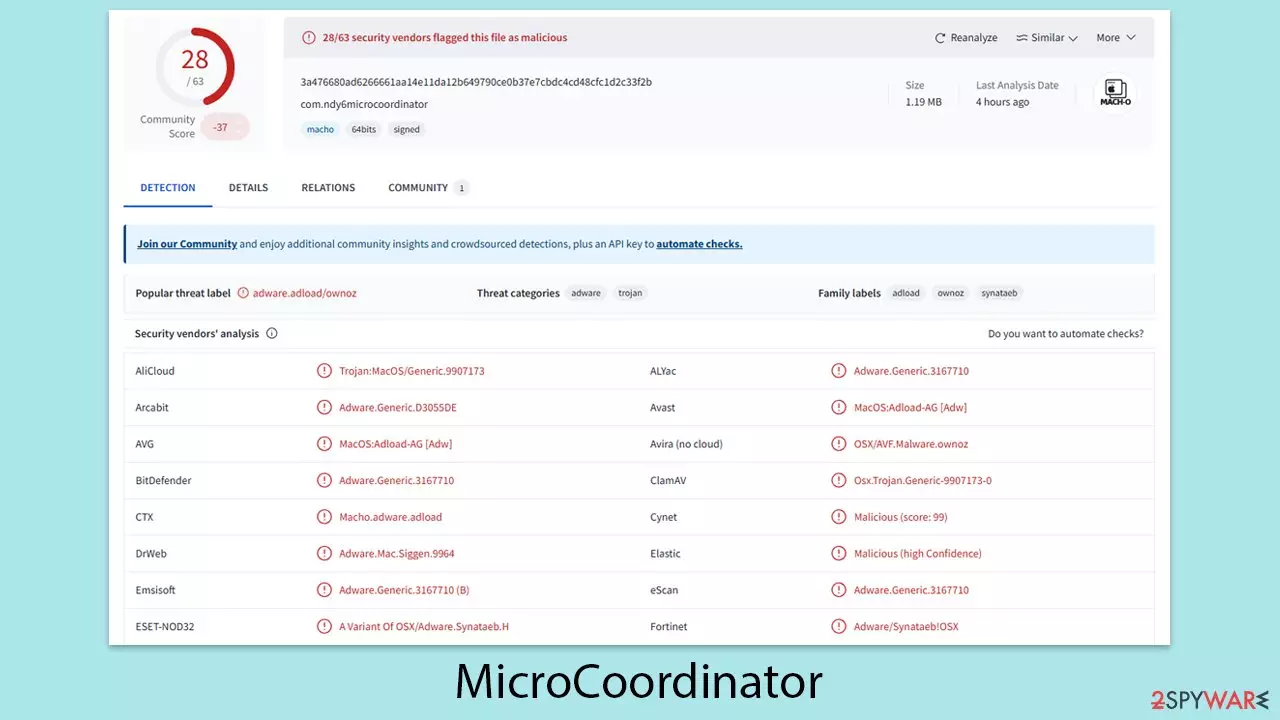
MicroCoordinator is a type of malware that specifically targets Mac systems. While some security tools do not classify it as malware, others identify it as a Trojan due to its intrusive and harmful nature. Despite appearing to be standard adware at first, it exhibits several malicious characteristics that go beyond delivering ads.
This malware typically infiltrates devices through fake software installers obtained from unreliable sources, such as pirated software websites. In addition, deceptive pop-ups, like those promoting bogus updates, can also lead to infection. Once MicroCoordinator gains access, it installs itself with elevated permissions, enabling it to manipulate various system processes with a high level of control.
One of its primary impacts is on web browsers. Users may quickly notice an unfamiliar MicroCoordinator extension added to their browser, which alters key settings, such as the homepage and new tab page. This behavior ensures that users are repeatedly exposed to advertisements, benefiting the attackers financially through ad monetization.
Beyond the annoyance of ads, this malware poses significant risks to user privacy and security. It can collect personal data in the background, creating opportunities for misuse. Furthermore, its presence may be linked to the installation of additional malicious programs, amplifying the overall threat to Mac systems.
| Name | MicroCoordinator |
| Type | Mac virus, adware, browser hijacker |
| Malware family | Adload |
| Distribution | Users typically get infected after being tricked by a fake Flash Player update, although repacked installers from torrent sites can also be the cause of infection |
| Symptoms | A new extension and application are installed on the system; search and browser preferences are changed to use a different search engine; new user profiles and login items are created on the account; intrusive advertisements and redirects |
| Risks | Installation of other malware, personal data disclosure to cybercriminals, financial losses |
| Removal | The easiest way to eliminate unwarned and malicious software on Macs is by performing a full system scan with SpyHunterCombo Cleaner security software. Alternatively, you can attempt to terminate the infection manually |
| System optimization | Third parties can employ cookies to continue tracking your online activities, so we recommended clearing browser caches with FortectIntego |
Spreading techniques explained
MicroCoordinator employs a variety of deceptive strategies to infiltrate systems, primarily leveraging misleading prompts and unauthorized software downloads to distribute itself.
One of the most common tactics involves fake update notifications. Cybercriminals create fraudulent websites that closely mimic legitimate platforms, often posing as official sources for critical software updates. These sites are designed to look convincing, using authentic-looking logos and design elements.
They may display urgent warnings, such as claims about potential security vulnerabilities or limited content access, persuading users to download what appears to be an update. However, this seemingly harmless action results in the installation of MicroCoordinator instead.
Another widespread distribution method involves offering software downloads from unreliable, unauthorized sources. These downloads often include pirated versions of popular applications, such as productivity tools, VPN services, or even security software. Unbeknownst to users, these pirated files are commonly bundled with the virus, delivering the malware alongside the desired software.
Many individuals fall victim to these tactics due to the allure of free software or the desire to bypass the expense of legitimate purchases. Unfortunately, this practice not only exposes users to MicroCoordinator but also leaves them vulnerable to additional threats, such as spyware and trojans, putting their devices and data at significant risk.

How dangerous this virus actually is?
MicroCoordinator, though often labeled as adware for its intrusive advertising behavior, operates well beyond the typical boundaries of such programs. It demonstrates a range of malicious capabilities that pose significant risks to both system security and user privacy.
Malicious capabilities and impact
A primary concern with MicroCoordinator is its ability to install additional applications without user permission. This stealthy process can bring more harmful malware into the system, worsening the security compromise already in place. Furthermore, the malware collects sensitive information, such as account credentials and payment data, which can then be exploited for identity theft or other malicious purposes.
Malware’s persistence is another alarming trait. The malware often resurfaces even after removal attempts. By planting hidden files and creating unauthorized profiles or login items, it ensures its continued operation. This persistence complicates removal, leaving systems vulnerable to ongoing risks.
MicroCoordinator employs advanced techniques to evade macOS security measures, including:
- Creating multiple malicious files and storing them in concealed directories.
- Using AppleScript to bypass XProtect and Gatekeeper, macOS's built-in security tools.
- Establishing new login items to enable automatic reactivation after removal attempts.
These capabilities make detection and elimination particularly challenging, highlighting the malware’s sophisticated design.
Removal of the virus
MicroCoordinator, like many malware variants targeting Mac systems, is adept at bypassing built-in defenses, making removal a challenging task. To effectively eliminate this threat and protect your system, consider the following approaches.
Using trusted anti-malware tools such as SpyHunterCombo Cleaner or MalwarebytesMalwarebytes is highly recommended for removing malware. These solutions can quickly detect and delete all malicious components, preventing the malware from reappearing. Automatic removal is particularly effective for users unfamiliar with manual methods, reducing the risk of leaving remnants behind.
However, even after the malware is removed, your browser may still have lingering changes or settings caused by the infection. To ensure a complete cleanup, you can use FortectIntego to reset your browser or follow manual steps to restore default settings. This additional step is essential to safeguard your browsing experience.
For those thinking about manual removal of the malware, follow these steps:
- Open Applications folder
- Select Utilities
- Double-click Activity Monitor
- Here, look for suspicious processes related to adware and use the Force Quit command to shut them down
- Go back to the Applications folder
- Locate the malicious app and move it to Trash.


Upon infiltration, malware might establish new User profiles and Login items for persistence. This might be the reason why you can't get rid of the app or the extension.
- Go to Preferences and select Accounts
- Click Login items and delete everything suspicious
- Next, pick System Preferences > Users & Groups
- Find Profiles and remove unwanted profiles from the list.
Finally, you should look for leftovers – .plist files. These are configuration files that might enable adware to work more efficiently:
- Select Go > Go to Folder.
- Enter /Library/Application Support and click Go or press Enter.
- In the Application Support folder, look for any dubious entries and then delete them.
- Now enter /Library/LaunchAgents and /Library/LaunchDaemons folders the same way and delete all the related .plist files.


Web browsers play a crucial role in enabling adware to carry out its operations. By utilizing an extension, the adware can run promotional campaigns and generate financial gains through sponsored links and advertisements. The initial step in addressing this issue is to remove the harmful extension from the browser:
Safari
- Click Safari > Preferences…
- In the new window, pick Extensions.
- Select the unwanted extension and select Uninstall.


Google Chrome
- Open Google Chrome, click on the Menu (three vertical dots at the top-right corner) and select More tools > Extensions.
- In the newly opened window, you will see all the installed extensions. Uninstall all the suspicious plugins that might be related to the unwanted program by clicking Remove.


Once the extension is removed, ensure that all local file caches are cleared to prevent any ongoing surveillance activities.
Safari
- Click Safari > Clear History…
- From the drop-down menu under Clear, pick all history.
- Confirm with Clear History.


Occasionally, the harmful extension could appear grayed out, hindering standard removal. Under such circumstances, consider resetting your browser. This action will erase all your add-ons, but you can reinstall the trustworthy ones later.
Safari
- Click Safari > Preferences…
- Go to the Advanced tab.
- Tick the Show Develop menu in the menu bar.
- From the menu bar, click Develop, and then select Empty Caches.


Google Chrome
- Click on Menu and select Settings.
- In the Settings, scroll down and click Advanced.
- Scroll down and locate Reset and clean up section.
- Now click Restore settings to their original defaults.
- Confirm with Reset settings.


Remove from Microsoft Edge
Delete unwanted extensions from MS Edge:
- Select Menu (three horizontal dots at the top-right of the browser window) and pick Extensions.
- From the list, pick the extension and click on the Gear icon.
- Click Remove.


Clear cookies and other browser data:
- Click on the Menu (three horizontal dots at the top-right of the browser window) and select Settings > Privacy, search, and services..
- Under Clear browsing data, pick Choose what to clear.
- Select Cookies and other site data and Cached images and files. (apart from passwords, although you might want to include Media licenses as well, if applicable) and click on Clear.


Restore new tab and homepage settings:
- Click the menu icon and choose Settings.
- Then find On startup section.
- Click Remove next to any suspicious startup page.
Reset MS Edge if the above steps did not work:
- Press on Ctrl + Shift + Esc to open Task Manager.
- Click on More details arrow at the bottom of the window.
- Select Details tab.
- Now scroll down and locate every entry with Microsoft Edge name in it. Right-click on each of them and select End Task to stop MS Edge from running.


Instructions for Chromium-based Edge
Delete extensions from MS Edge (Chromium):
- Open Edge and click select Settings > Extensions.
- Delete unwanted extensions by clicking Remove.


Clear cache and site data:
- Click on Menu and go to Settings.
- Select Privacy, search and services.
- Under Clear browsing data, pick Choose what to clear.
- Under Time range, pick All time.
- Select Clear now.


Reset Chromium-based MS Edge:
- Click on Menu and select Settings.
- On the left side, pick Reset settings.
- Select Restore settings to their default values.
- Confirm with Reset.
- This will disable extensions and reset startup pages but will not delete bookmarks, saved passwords, or browsing history.


Remove from Mozilla Firefox (FF)
Remove dangerous extensions:
- Open Mozilla Firefox browser and click on the Menu (three horizontal lines at the top-right of the window).
- Select Add-ons.
- In here, select the unwanted extension and click Remove.


Reset the homepage:
- Click three horizontal lines at the top right corner to open the menu.
- Choose Settings.
- Under Home, set your preferred homepage and new tab settings.
Clear cookies and site data:
- Click Menu and pick Settings.
- Go to Privacy & Security section.
- Scroll down to locate Cookies and Site Data.
- Click on Clear Data...
- Select Cookies and Site Data and Temporary cached files and pages, then click Clear.


Reset Mozilla Firefox
If clearing the browser as explained above did not help, reset Mozilla Firefox:
- Open Mozilla Firefox browser and click the Menu.
- Go to Help and then choose Troubleshooting Information.

- Under Give Firefox a tune up section, click on Refresh Firefox...
- Once the pop-up shows up, confirm the action by pressing on Refresh Firefox.



Did this guide help?
Be the first to comment