

News-xyixice.store is a misleading website created by cybercriminals aiming to make money from advertisements
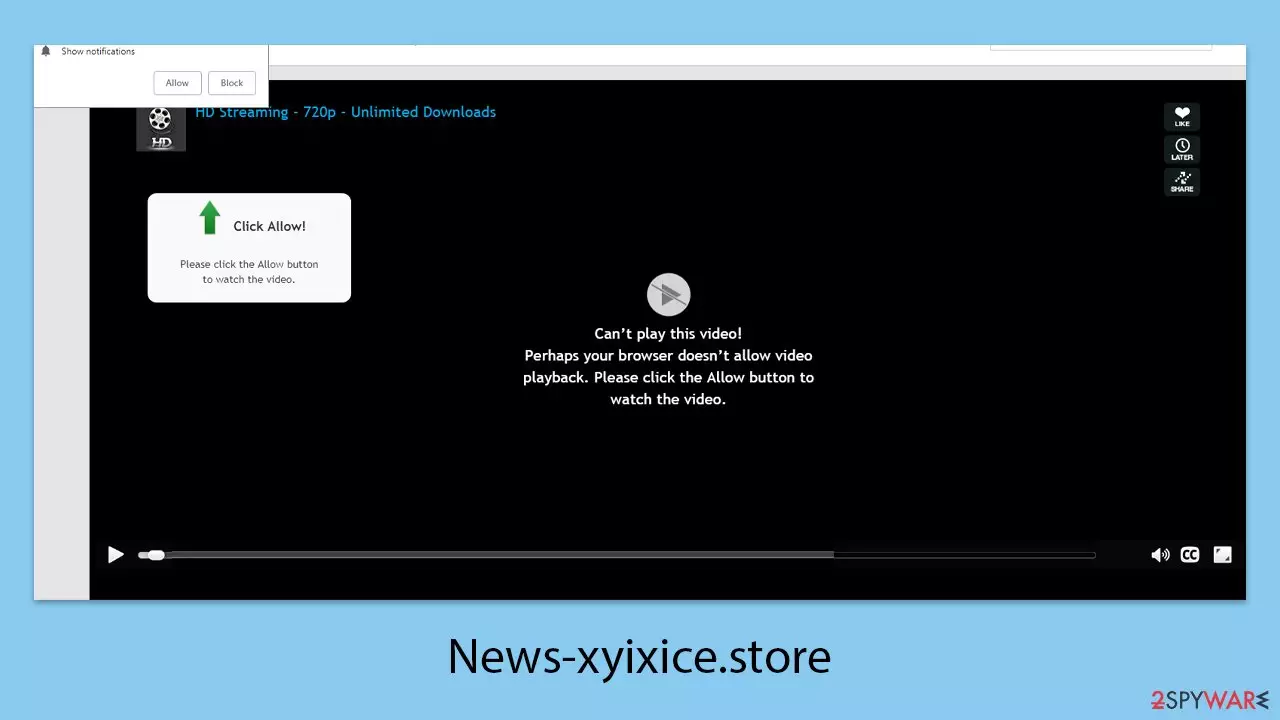
News-xyixice.store is a deceptive website designed to trick users into enabling push notifications, allowing scammers to flood their desktops with intrusive advertisements. Many people are unaware of visiting this site until they notice an endless stream of unwanted pop-ups disrupting their activities.
These ads can appear regardless of whether the browser is actively being used or simply running in the background. As long as the browser remains open, notifications can interrupt users during important tasks, such as watching videos or playing games, making them highly disruptive.
The ads from News-xyixice.store are not only annoying but also potentially harmful. They frequently display false alerts about system security, claiming that the user’s device is infected with viruses. In other cases, the site may promise quick financial gains, free expensive products, or exclusive rewards.
However, these claims are part of elaborate scams aimed at extracting sensitive personal information, spreading malware, or causing financial harm. It’s essential to ignore such notifications and avoid interacting with any content presented by this website.
| Name | News-xyixice.store |
| Type | Push notifications, ads, pop-ups, scam |
| Distribution | Intrusive pop-ups can start showing up at some point after the “Allow” button is pressed within the notification prompt |
| Symptoms | Notifications show up at the bottom-right corner of the screen – these include fraudulent content and links to potentially dangerous websites |
| Dangers | Push notification prompts might include links to malicious websites, resulting in financial losses, personal information disclosure, or malware infections |
| Removal | Access browser settings to stop intrusive push notifications. After that, make sure that your system is not infected with adware or malware – scan it with SpyHunterCombo Cleaner AV tool |
| Recovery | Remove caches and other web data after eliminating adware to prevent data tracking with the FortectIntego repair and maintenance utility. You can also repair damaged system components using it |
Scam techniques used
Cybercriminals use a variety of deceptive strategies to manipulate people into actions they wouldn’t normally take. While the specific objectives of these scams may differ, the core aim remains the same: to exploit users' trust, fear, or curiosity for malicious purposes.
Scammers frequently rely on emotional triggers like fear, excitement, or the user's inattention when dealing with questionable online messages. For instance, fake tech support scams often display alarming virus warnings to frighten users into taking immediate action. On the other hand, push notification scams are relatively simple but highly effective in delivering unwanted advertisements directly to users’ desktops without their clear consent.
The push notification feature was introduced for desktop browsers in 2015, and despite its long-standing presence, many users are still unfamiliar with how it works. Scammers exploit this lack of awareness by presenting misleading prompts designed to trick users into enabling notifications. One common example is:
Click Allow if you are not a robot.
This simple yet deceptive message creates a false sense of legitimacy, as real websites often use CAPTCHAs for verification against cyber threats like DDoS attacks. As a result, users may unknowingly grant notification permissions, believing it’s just another routine step.
Once the “Allow” button is clicked, the scam succeeds. The user’s desktop becomes a target for intrusive advertisements, which can appear anytime as long as the browser remains open. Fortunately, this situation can often be reversed if users avoid interacting with the ads and adjust their browser settings accordingly.

Remove the unwanted ads
If you’re experiencing unwanted push notifications after being misled by a malicious website like News-xyixice.store, it’s essential to remain calm. While these notifications are generally not a direct security threat, they can still expose you to risky content if interacted with. The safest approach is to avoid clicking on any ads or links embedded in these notifications, as doing so could increase the likelihood of encountering more serious security issues.
Thankfully, disabling these notifications is a straightforward process. Most modern web browsers offer specific settings for managing push notifications. By learning how to navigate these settings, you can quickly revoke permissions and stop intrusive alerts from appearing on your screen. Taking these steps will not only improve your browsing experience but also reduce the chances of encountering further scams or malicious content.
Google Chrome (desktop)
- Open the Google Chrome browser and go to Menu > Settings.
- Scroll down and click on Advanced.
- Locate the Privacy and security section and pick Site Settings > Notifications.
- Look at the Allow section and look for a suspicious URL.
- Click the three vertical dots next to it and pick Block. This should remove unwanted notifications from Google Chrome.


Google Chrome (Android)
- Open Google Chrome and tap on Settings (three vertical dots).
- Select Notifications.
- Scroll down to the Sites section.
- Locate the unwanted URL and toggle the button to the left (Off setting).


Mozilla Firefox
- Open Mozilla Firefox and go to Menu > Options.
- Click on Privacy & Security section.
- Under Permissions, you should be able to see Notifications. Click the Settings button next to it.
- In the Settings – Notification Permissions window, click on the drop-down menu by the URL in question.
- Select Block and then click on Save Changes. This should remove unwanted notifications from Mozilla Firefox.


MS Edge (Chromium)
- Open Microsoft Edge, and go to Settings.
- Select Site permissions.
- Go to Notifications on the right.
- Under Allow, you will find the unwanted entry.
- Click on More actions and select Block.


Safari
- Click on Safari > Preferences…
- Go to the Websites tab and, under General, select Notifications.
- Select the web address in question, click the drop-down menu and select Deny.


Internet Explorer
- Open Internet Explorer, and click on the Gear icon at the top-right of the window.
- Select Internet options and go to the Privacy tab.
- In the Pop-up Blocker section, click on Settings.

- Locate the web address in question under Allowed sites and pick Remove.

Don't forget to check your system for threats
While users often land on phishing websites like News-xyixice.store through redirects from other sources, this isn’t always the case. In many instances, adware – a type of potentially unwanted program (PUP) – is responsible for flooding users with intrusive ads and frequent redirects to suspicious sites. These unwanted programs often sneak onto systems through freeware bundles or other deceptive installation techniques, leaving users unaware that such software is even running on their devices.
To address this issue, it’s strongly recommended to perform a full system scan using reliable anti-malware tools, such as MalwarebytesMalwarebytes or SpyHunterCombo Cleaner. Ensure that the security software is up to date with the latest virus definitions before starting the scan to maximize detection accuracy.
Once all traces of adware and malware have been successfully removed, we advise using FortectIntego to clean your browsers. This includes clearing cookies, removing unwanted trackers, and fixing any damage caused by the infection. Following these steps will not only restore your system’s health but also minimize the risk of encountering similar threats in the future.
Did this guide help?
Be the first to comment