

Hawarbarin.co.in is a deceptive website that employs cunning tactics to make users accept push notifications
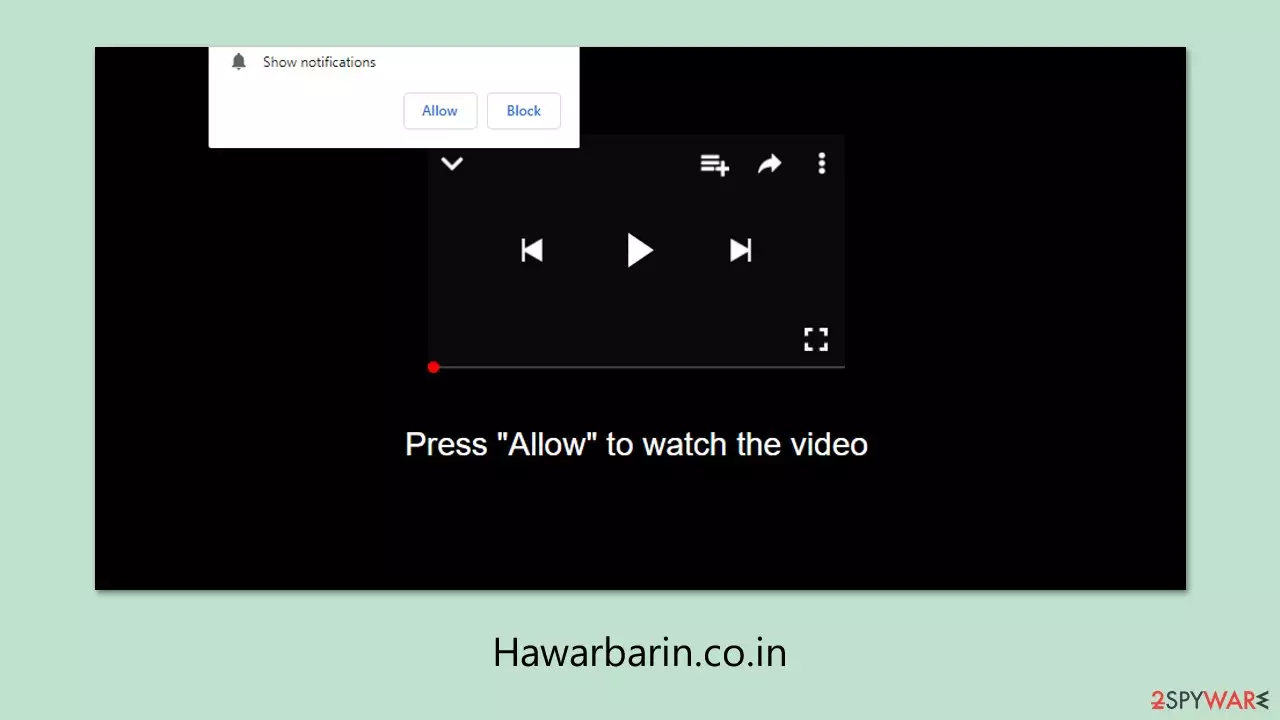
Hawarbarin.co.in pop-ups can occur unexpectedly on Windows computers, Macs, or smartphones, even when the users are not using the internet. The pop-ups usually disturb regular activities like surfing on social media, watching videos, or opening other applications. On computers, they usually show up as tiny windows on the sides of the screen, whereas on phones, they show up as regular app notifications.
The pop-up contents of Hawarbarin.co.in are always suspicious and will range from links to offensive content, deceptive propositions, or scam messages. A few are likely to lure customers with prize notify scams, quick money offers, or download invitations to other programs. The offers might prompt consumers to low-ranking websites that aim to trick people with replica services, provide dangerous downloads, or subscribe users to unwanted notification subscriptions.
While this activity will look like a virus infection, it has nothing to do with how new browsers like Chrome, Firefox, or Edge deal with push notifications. If users unknowingly enable Hawarbarin.co.in, then the site will show pop-up content on the screen itself. To prevent this activity, users will need to disable the site's notification access from their browser settings. Although this is not a virus, an adware system scan is still something that should be done in an effort to keep overall device security intact.
| Name | Hawarbarin.co.in |
| Type | Push notifications, pop-ups, ads, scam |
| Distribution | At times, intrusive pop-ups may begin to appear after the “Allow” button in the notification prompt is selected. |
| Symptoms | You may start seeing intrusive pop-ups on your desktop |
| Risks | Push notifications sent by the site may lead you to visit dangerous websites; as a result, you could experience malware infections, financial losses, or the disclosure of personal data to malicious parties. |
| Removal | You can disable the push notifications from any website via browser settings. Scanning the system with SpyHunterCombo Cleaner can also ensure that it's clean and secure |
| Other tips | Certain remnants of applications linger in browsers and may facilitate tracking. Remove these using FortectIntego, which can additionally repair any virus-related harm detected on the system. |
Scammers behind Hawarbarin.co.in use familiar but modified requests
Users often find themselves on websites like Hawarbarin.co.in without meaning to. This typically happens through accidental clicks on misleading advertisements, redirects from shady web pages, or sometimes even because of existing adware on the device. These visits are rarely intentional and usually occur without the user's full understanding of what they’re being exposed to.
Once a user lands on Hawarbarin.co.in, they’re quickly met with misleading prompts that aim to convince them to enable push notifications. These prompts can take many forms, such as:
- Click Allow if you are not a robot.
- Click Allow to continue.
- Click “Allow” to win a prize and get it in our shop!
- If you are 18+, click Allow.
- Your file is ready to download. Press Allow to continue.
These messages are designed to mimic typical internet tasks, such as age verification or CAPTCHA confirmation. Because these requests seem normal, users may comply without realizing that they’re actually granting the site permission to send push notifications, which often include disruptive and potentially harmful ads.
Such deceptive techniques are not only misleading but also contribute to a poor and possibly risky online experience. Recognizing the manipulation behind these prompts is essential for protecting your device and your personal data. The following sections will outline how to block these notifications and reduce exposure to similar scams.

Checking the system for potential infections
Prior to addressing the obtrusive Hawarbarin.co.in push notifications, you ought to scan your system for adware or malware. Though push notification advertisements themselves will not harm your device unless you click on them, the presence of malware on board can pose a far greater threat. That threat encompasses data tracking without permission, financial loss, and even stolen identities.
Adware and other associated malware can also expose your device to redirections and fake notifications. The malware, in most instances, runs quietly in the background, and it may be hard to identify without professional software. Your initial contact point, therefore, should be to scan for such infections on your system.
Performing a full scan using strong anti-malware software such as SpyHunterCombo Cleaner or MalwarebytesMalwarebytes will allow you to detect and eliminate concealed threats. These utilities are designed to detect malware files and quarantine them before they can do further harm. Once the system is purged, it's also advisable to reset and clean your browsers using FortectIntego, which can fix minor damage and eliminate tracking information that adware leaves behind.
Removing the unwanted push notifications
Push notifications are confusing to many people, particularly those who have not encountered them previously. If unwanted Hawarbarin.co.in ads suddenly begin showing up on the screen, it's natural that individuals will automatically suspect infection with a virus. It's understandable to respond in this way, considering the abrupt and invasive nature of such messages.
But it's reassuring to know that these notifications are not malware-induced in the majority of instances. Push notifications are part of normal modern web browsers, and they will only appear if the user has consented (usually unknowingly) to receive them from a particular site. For this reason, standard virus removal software will not delete the issue.
To prevent these notifications from Hawarbarin.co.in, users should open their browser settings and delete the site from the list of sites permitted to display push notifications. This measure prevents the dissemination of additional fake advertisements and unnecessary disruptions without necessitating any in-depth system cleaning.
Google Chrome
- Open the Google Chrome browser and go to Menu > Settings.
- Scroll down and click on Advanced.
- Locate the Privacy and security section and pick Site Settings > Notifications.
- Look at the Allow section and look for a suspicious URL.
- Click the three vertical dots next to it and pick Block. This should remove unwanted notifications from Google Chrome.


Google Chrome (Android)
- Open Google Chrome and tap on Settings (three vertical dots).
- Select Notifications.
- Scroll down to the Sites section.
- Locate the unwanted URL and toggle the button to the left (Off position).


Mozilla Firefox
- Open Mozilla Firefox and go to Menu > Options.
- Click on Privacy & Security section.
- Under Permissions, you should be able to see Notifications. Click the Settings button next to it.
- In the Settings – Notification Permissions window, click on the drop-down menu by the URL in question.
- Select Block and then click on Save Changes. This should remove unwanted notifications from Mozilla Firefox.


Safari
- Click on Safari > Preferences…
- Go to the Websites tab and, under General, select Notifications.
- Select the web address in question, click the drop-down menu and select Deny.


MS Edge (Chromium)
- Open Microsoft Edge, and go to Settings.
- Select Site permissions.
- Go to Notifications on the right.
- Under Allow, you will find the unwanted entry.
- Click on More actions and select Block.


Internet Explorer
- Open Internet Explorer, and click on the Gear icon at the top-right of the window.
- Select Internet options and go to the Privacy tab.
- In the Pop-up Blocker section, click on Settings.

- Locate the web address in question under Allowed sites and pick Remove.

Did this guide help?
Be the first to comment