

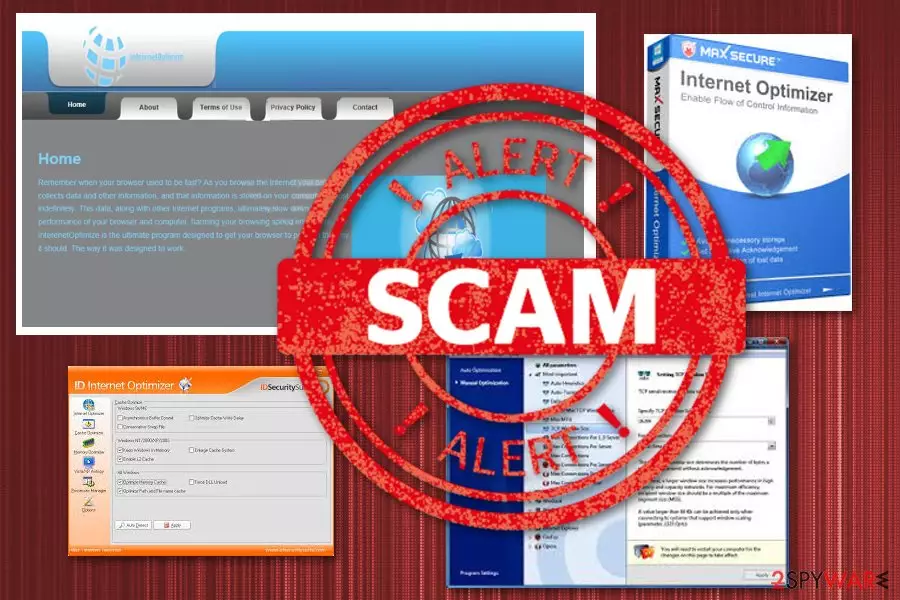
Internet Optimizer is an adware program that relies on internetoptimizer.exe to run in the system's background
| Name | Internet Optimizer |
|---|---|
| Type | Adware |
| Related to | DyFuCa |
| Symptoms |
|
| Affects | Every browser installed on Windows OS |
| Distribution | Malicious websites, software bundles, deceptive ads |
| Elimination | Use FortectIntego for general system cleaning |
The application has been promoted as a legitimate tool that is beneficial for computer's speed and well being. However, despite the attractive appearance and catchy offers, the PUP brings no positive features. These links it displays are shady and can reroute you to malicious websites offering you to install free updates or fake optimization tools.
Another harmful effects related to this adware is that it slows down your device because it uses numerous system's resources to generate pop-up ads. If you're interested in the computer's security experts opinion, it is strongly recommended to avoid clicking on these pop-up windows, banners and different commercial content because it can result in the installation of additional malware on your computer.
The main reason to avoid clicking on these advertisements is that it may result in the automatic execution of another virus. Unfortunately, Internet Optimizer virus has already been found to be related to a malicious DyFuCa virus categorized as spyware. The program is known for collecting users' information and then misusing it for developer's needs. Your email accounts or messaging applications can be accessed what can lead you to privacy issues.
DyFuCa's relation with Internet Optimizer makes this PUP even more dangerous. In addition to various changes in the system, the spyware drops certain files and becomes even more persistent:
- srvbwfwngw.exe;
- srveghcxhp.exe;
- offun.exe;
- tcb.pmw.
As you can see, Internet Optimizer virus is not a tool you want to keep on your computer. It has no pros and causes numerous problems by running its malicious process in the background and trying to gain profit[1] by displaying numerous ads.
You should remove Internet Optimizer because of the following reasons:[2]
- each click on the browser creates new tabs or windows with commercial sites;
- the virus injects commonly visited sites with banners and similar commercial content;
- it tracks users' searches and collects NPII.
Employ a trustworthy anti-malware for Internet Optimizer removal and clean the system to make sure that there are no compromised files left. Remember to fix issues with your browser by setting everything back to default. You can find a few program suggestions and tips for browser resetting down below.

Malware creators spread adware silently via deceptive ads and software bundles
Nowadays, the creators of unnecessary advertisement applications are very creative when it comes to spreading these programs seamlessly. They tend to use a popular and tricky freeware marketing method – bundling. It means that with some at first glance harmless program you will also receive additional applications, plug-ins, add-ons or browser extensions. You will probably won't even notice when did you decide to authorize the installation of this content – most likely you rushed and didn't choose the right installation settings.
The developers of freeware and shareware conceal additional applications under Standard or Default options. If you want to decline the installation of such additional content, you should always opt for Custom or Advanced mode. When the window expands, untick all boxes that suggest additional applications, plug-ins, browser extensions, as well as changes to your default web home page.
When it comes to more prominent and dangerous cyber threats which this PUP might be related to distribution ways are similar. However, dubious pages ask to enable processes or installations and agree to terms and conditions. You shouldn't agree to anything when browsing questionable sites. Keep anti-malware tools on the system so you can be indicated each time something possibly malicious happens.
Delete InternetOptimizer from the system and clean your browser
If you noticed the InternetOptimizer advertisements continuously showing up, you should waste no time and secure your computer. It is quite easy when you know how to do it. You can either download an anti-spyware and let it do its work, or you can try to uninstall the virus on your own.
Our professional team, based on researchers'[3] advice, has prepared precise step-by-step instructions. Follow these guidelines below the article, and you'll get rid of the irritative ads in no time. Remove Internet Optimizer from the computer and then change browser settings to default.
Perform Internet Optimizer removal with anti-malware tools and save your time. This way you can be sure that no adware remains in the system and you can use the computer as usual again.
Uninstall from Windows
Uninstall from Windows 10/8:
- Type Control Panel into the Windows search box and open the result.
- Under Programs, select Uninstall a program.


Uninstall from Windows 7/XP:
- Click on Windows Start > Control Panel (Windows XP users should click on Add/Remove Programs).
- In Control Panel, select Programs > Uninstall a program.


Remove the unwanted program:
- In the Programs and Features window, look for any recently installed suspicious entries, select them, and click Uninstall.
- If User Account Control appears, click Yes to confirm, then complete the removal.


Reset Internet Explorer
Remove dangerous add-ons:
- Open Internet Explorer, click on the Gear icon (IE menu) on the top-right corner of the browser
- Pick Manage Add-ons.
- You will see a Manage Add-ons window. Here, look for suspicious plugins. Click on these entries and select Disable.


Change your homepage if it was altered:
- Open IE and click on the Gear icon.
- Select Internet Options.
- In the General tab, delete the Home page address and replace it by your preferred one (for example, Google.com).
- Click Apply and then select OK.


Delete temporary files:
- Press on the Gear icon and select Internet Options.
- Under Browsing history, click Delete...
- Select relevant fields and press Delete.


Reset Internet Explorer:
- Click on Gear icon > Internet options and select Advanced tab.
- Select Reset.
- In the new window, check Delete personal settings and select Reset.


Remove from Microsoft Edge
Delete unwanted extensions from MS Edge:
- Select Menu (three horizontal dots at the top-right of the browser window) and pick Extensions.
- From the list, pick the extension and click on the Gear icon.
- Click Remove.


Clear cookies and other browser data:
- Click on the Menu (three horizontal dots at the top-right of the browser window) and select Settings > Privacy, search, and services..
- Under Clear browsing data, pick Choose what to clear.
- Select Cookies and other site data and Cached images and files. (apart from passwords, although you might want to include Media licenses as well, if applicable) and click on Clear.


Restore new tab and homepage settings:
- Click the menu icon and choose Settings.
- Then find On startup section.
- Click Remove next to any suspicious startup page.
Reset MS Edge if the above steps did not work:
- Press on Ctrl + Shift + Esc to open Task Manager.
- Click on More details arrow at the bottom of the window.
- Select Details tab.
- Now scroll down and locate every entry with Microsoft Edge name in it. Right-click on each of them and select End Task to stop MS Edge from running.


Instructions for Chromium-based Edge
Delete extensions from MS Edge (Chromium):
- Open Edge and click select Settings > Extensions.
- Delete unwanted extensions by clicking Remove.


Clear cache and site data:
- Click on Menu and go to Settings.
- Select Privacy, search and services.
- Under Clear browsing data, pick Choose what to clear.
- Under Time range, pick All time.
- Select Clear now.


Reset Chromium-based MS Edge:
- Click on Menu and select Settings.
- On the left side, pick Reset settings.
- Select Restore settings to their default values.
- Confirm with Reset.
- This will disable extensions and reset startup pages but will not delete bookmarks, saved passwords, or browsing history.


Remove from Mozilla Firefox (FF)
Remove dangerous extensions:
- Open Mozilla Firefox browser and click on the Menu (three horizontal lines at the top-right of the window).
- Select Add-ons.
- In here, select the unwanted extension and click Remove.


Reset the homepage:
- Click three horizontal lines at the top right corner to open the menu.
- Choose Settings.
- Under Home, set your preferred homepage and new tab settings.
Clear cookies and site data:
- Click Menu and pick Settings.
- Go to Privacy & Security section.
- Scroll down to locate Cookies and Site Data.
- Click on Clear Data...
- Select Cookies and Site Data and Temporary cached files and pages, then click Clear.


Reset Mozilla Firefox
If clearing the browser as explained above did not help, reset Mozilla Firefox:
- Open Mozilla Firefox browser and click the Menu.
- Go to Help and then choose Troubleshooting Information.

- Under Give Firefox a tune up section, click on Refresh Firefox...
- Once the pop-up shows up, confirm the action by pressing on Refresh Firefox.



Remove from Google Chrome
Delete malicious extensions from Google Chrome:
- Open Google Chrome, click on the Menu (three vertical dots at the top-right corner) and select More tools > Extensions.
- In the newly opened window, you will see all the installed extensions. Uninstall all suspicious extensions related to the unwanted program by clicking Remove.


Clear cache and web data from Chrome:
- Click on Menu and pick Settings.
- Under Privacy and security, select Clear browsing data.
- Select Browsing history, Cookies and other site data, as well as Cached images and files.
- Click Clear data.


Change your homepage:
- Click menu and choose Settings.
- Look for a suspicious site in the On startup section.
- Click on Open a specific or set of pages and click on three dots to find the Remove option.
Reset Google Chrome:
If the previous methods did not help you, reset Google Chrome to eliminate all the unwanted components:
- Click on Menu and select Settings.
- In the Settings, scroll down and click Advanced.
- Scroll down and locate Reset and clean up section.
- Now click Restore settings to their original defaults.
- Confirm with Reset settings.


Did this guide help?
39 comments
Advanced user
The EULA at Internet Optimizer's web site states the software may send all your browsing information back to its controllers. At the time of writing, however, this has not been seen to happen with the current version of the software.
Can download and execute arbitrary unsigned code from its controlling server, as an update feature.
Brad Swain
This software is nothing but SPAM. It provides NO useful function and redirects the screen away from the intended URL to a commercially oriented 'error' page when there is no actual error.
Harley Kelchner
All software of this nature should be viewed as a direct attack on all personal rights and the developing companys should be held HIGHLY responsible since this software does little other than create major system malfunctions.
The advertising industry should have THE largest class-action lawsuit brought against it for their blatant missuse of public interests.
Guest
Hi, i guess i was not the only victim of this Internet Optimizer rubish thing lol, i have no idea how it got to my computer but i guess its not me to blame sinse u all had the trouble, i hope ppl who monitor internet will sort this optimiser, i have e-mailed yogeeee company who is linked with the internet optimiser their e-mail is webmaster@avenuemedia.com you can e-mail to that person whoever and ask why it always comes up, i said to them to tell me how to get rid of this rubish, hopefully they have strength to reply well take care all.
Guest
I agree with the comment that the advertising industry and specifically the creators of the spyware should be held fully liable for the damage caused by their creations. They may have a right to pursue their trade and profession. They do not have a right, however, to trespass upon and, effectively convert, others' property, such as a computer or computer network. Thought for the day: I'll bet this could be seen as fraud, or violation of state or federal computer crimes statutes.
HadeS_73
If justice was for the people it would be hitting yogee instead of p2p , not only it install without my permission , but i can't uninstall it trough stander window uninstall . anybody got a real street addresse for those yogee ..? if you do e-mail me : hades_73@msn.com
Tony V
Like the stupid company really thinks they are going to get hits to their sites, as well as sell any products or services by hijacking your system... This is worse then monopolizing. This is an out right virus to your pc...... But there is nothing you can do about it because we all know where you got it. Probably included in that illegal download you did.
mik
above is a link to the removal of this god damn awful bloody program.
but when i click on it
guess what
it links me to INTERNET OPTIMIZER
ARRRRRRRRRRRRRRRRRR !!!!!
dricenticore
I can't get rid of it
No one can help, because ive tried every remover there is . dang.
Guest
I found that Ad-aware 6.0 was able to remove it. It deletes the file optimizer.exe at boot up.
Guest
This is who they are:
Registrant:
Avenue Media (hostmaster@amnv.net)
Avenue Media
New Haven Office Center Emancipatie Blvd 31, P.O. Box 6052
Curacao, 00000
AN
5999 734 1200
Domain Name: internet-optimizer.com
Administrative, Billing Contact:
Avenue Media (hostmaster@amnv.net)
Avenue Media
New Haven Office Center Emancipatie Blvd 31, P.O. Box 6052
Curacao, 00000
AN
5999 734 1200
Technical Contact:
Avenue Media (hostmaster@amnv.net)
Avenue Media
New Haven Office Center
Curacao, NONE 00000
AN
555.555.5555
Record created on Dec 19 2002.
Record expires on Dec 19 2005.
Domain servers:
ns1.amnv.net
ns2.amnv.net
The previous information has been obtained either directly from the registrant or a registrar of the domain name other than Network Solutions. Network Solutions, therefore, does not guarantee its accuracy or completeness.
Show underlying registry data for this record
Current Registrar: TLDS, LLC DBA SRSPLUS
IP Address: 65.39.191.5 (ARIN & RIPE IP search)
IP Location: US(UNITED STATES)-WASHINGTON-SEATTLE
Record Type: Domain Name
Server Type: Apache 1
Lock Status: REGISTRAR-LOCK
Web Site Status: Active
DMOZ no listings
Y! Directory: see listings
Secure: No
E-commerce: No
Traffic Ranking: 1
Data as of: 08-Jun-2004
lisa kincaid
internet optimizer has screwed my system! publicize that !
sohail
it is a good thing that some one like to remove these shit heads from pc
peter walsh
If anyone is having trouble deleting Internet optimizer the first thing to do is to stop the programme from running. In windows XP you can do the three fingered salute (Ctrl Alt Del) and go into task manager. In the application tab you can stop the application running. Then you will have to go to the Processes tab and you will see under the column "Image name" the file " optimizer.exe. Highlight the file and right click and select "end process". You should be able to then delete the folder "Internet Optimizer". Remember to empty the recycling bin.
If you dont have windows XP facilities I use a nice little programme named Taskinfo2000, which can be found at www.iarsn.com. You simply run the programme and Highlight the file optimizer.exe. and right click and select "end process". You should be able to then delete the folder "Internet Optimizer".
ST
Thanks for the tip pete..that optimizer site should be hacked and bought down from the net!
BassPlyr Randy
If all else fails, start your system in safe mode and then goto C:Program FilesInternet Optimizer and delete the dirty little SOB that way. Was the only way I could get rid of it
an anonymous user
i cant believe, with all my 100s of dollars of virus protection software i still managed to get it :(
oh well, considering all the dodgy sites i go onto...
Anton
It drove me mad but I finally got rid of it by downloading Ad Aware of the net. It is an excellent piece of software that finds all the spyware on your machine and then deletes it for you. The best bit is that the software is free.
the best kept one
My optimizer stayed on there for about a day, then a little alert box came up that said "this will remove internet explorer from your system. Are you sure you want to do that?" or somthing like that.
but after that i was able to remove it
but i found out that it was the yahoo pool cheat from hotcheats.net that my brother downlloaded. DONT GO THERE.
it also infected my compy with 5 other viruses (i manged to remove 4, including internet optimizer)
but theres still this annoying one called autoupdate that wont go away.
i hate it when people think its fun to ruin somone elses computer. thats pretty low class.
greg
this is so frustrating, my kids downloaded this crap, thanks i did the crtl alt del, got into process the optimiser.exe , ended this and found Internet optimiser in Programs file deleted this and its gone THANKYOU!
Guest
ctxpls.exe was also installed with it. And lots of adware.
Guest
I think we should start providing company and employee names and addresses and start a lynchin party...
I predict this will become the 21st century equivilant to "going Postal" of the 20th century.
Guest
I just got this spyware a few days ago and every removal suggestion on the internet doesnt help at all. I will be in your debt forever if you explain how to remove this latest version.
Guest
I cannot EVER get into one particular link with Yahoo Business Email to change an email forward setting. I ALWAYS get redirected to the internet optimizer site stating that "it" cannot find the link (URL). I have emailed Yahoo about this several times with NO response. I will download the software and see where that puts me.
dsteadman@abetterdayspa.com
Guest
Hey, the email address you have on this site goes to a porno search page--oh shame on you shame oh you--what a scam! You use a legitimate excuse to send innocent people to such a site. I am going on my email groups and tell everyone about you. Oh, by the way, my email groups have no less than a 1000 people on each on.
the web page you have people directed to is:
www.internetoptimizer.com
Guest
i have tried everything to get rid of internet optimizer but your instructions helped so much it is finally off of my computer. thank you.
Guest
Ok. im serching around on the net trying to find a way to deleat these viruses....
atleast once a day AVG7 (grisoft antivirus program), pops up and tells me it has found a virus in "C:/Temp/optomiser.exe" the virus name is "Trojan Horse Downloader.Difica.3.R"
And also "C:/Temp/NCasePackage.exe" supporting virus "Trojan Horse Dropper.Small.12.S"
and obviously when it askes me what i wish to do, i choose to annihilate the files......
But the point I am getting at, is that the file keeps coming back.
I deleat C:/temp...
there is no such thing as C:/program files/internet optimiser.
What the hell is going on.... YES i can DELEAT OPTIMSER.EXE... but what i want to know is HOW DO I STOP IT FROM COMING BACK...
because im guessing that for many people, this thing probably comes back, but they just dont know about it.
for the file to keep coming back, generally means that there is Something ELSE, on my system that is causing the problem......
GRRR i HATE VIRUS.... es...
Does anyone ACTUAlly know how to fix this properly...
PS...
My Machine Supports:
- Spybot - Search & Destroy
- AVGfree 7.(whatever the latest udate is)
- Ad-Aware SE Personal
- Registry First Aid
- PC-Cillin.... non of these have fixed my problem properly so far, so dont say that they will....
as of yet... AVG has been the best, because atleast it tells me when optimiser appears and trys to load, and i can get rid of it before it gets a chance.
And this is not particularly important (getting rid of it is). But does anyone know what these viruses are ment to achieve?
Guest
your advice was the best one i got and it was simple. thanks.
Guest
Try not to download extra stuff and do it the way peter suggested - simple and you dont have to worry about possibly downloading more bugs
Guest
Peter,
Thank you for the great advice on deleting this stupid freakin program. My virus software had it handled and caught it before it did any damage but it was annoying none the less. I appreciate the help.
Rob
Guest
THis is the most pathetic speed optimiser one should ever download . I have to get rid of tis thing right away
Guest
BUT I LIKE TO HAVE NEVER FOUND A WAY TO GET IT OFF HERE
Guest
its sucks it slows my computer down when i want it to be fast.
Guest
Why???????????????????????????????
I dont like this spyware.Its so STUPID to make such site!
Guest
where do I find his instructions on how to remove internet optimizer?
Guest
I have a cable connection and now this virus has slowed down my internet so much. Worse than dial up
Guest
i found that by revealing hidden files and deleting internet optimizer and all associated file i was able to kill this silly really badly made spyware trojan piece of crap and made sure it didnt come back. by the way be careful if u d/l download accelerator plus coz this lil app usually comes with it.
Guest
aarrrrrhhhhhhhh this stupid Internet Optimizer makes me panic.
can this spyware damage my file?
Guest
Please Try to ease down on this program because when i type in a site all i get is internet optimizer!!