

WebSearch – a browser hijacker that uses cookies for tracking users' online activities
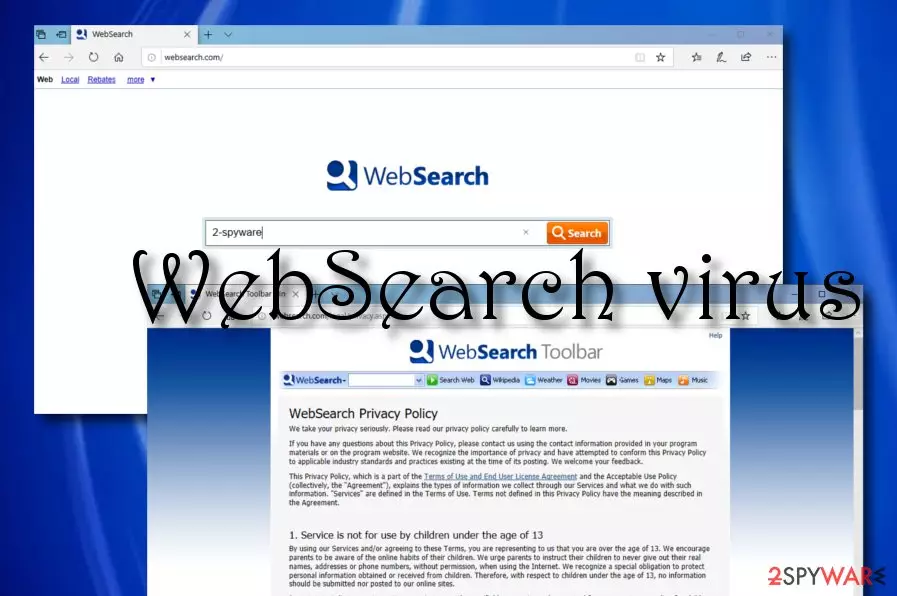
WebSearch Toolbar, released by Crawler Group, is a browser-hijacking app that interferes with browser settings such as the search engine, homepage, and new tab URL bar. The aim of this PUP is to set your search provider to its own and force you to perform search queries via the new engine. This way you might encounter misleading information while using the app's services. If you have WebSearch installed on your computer and web browser, many annoying activities are yet to come. Besides modifying your browser apps, the browser hijacker[1] can also get you involved in unwanted advertising activities, redirecting to affiliate sources, and collecting non-personal data that relates to your browsing sessions.
| Name | WebSearch |
|---|---|
| Type | Potentially unwanted program |
| Sub-type | Browser hijacker |
| Danger level | Low. This product does not belong to the malware category |
| Tasks | The browser hijacker can interact with major browser settings such as the homepage, search engine, and new tab URL. Also, the PUP can get the users involved in advertising campaigns, redirecting activities, collect information that is related to the users' browsing sessions and online experience |
| Spreading | Software bundling is the main technique used to distribute these potentially unwanted programs. Also, they can arrive through infectious hyperlinks and advertisements that you meet online |
| Removal | You can get rid of the PUP with the help of antimalware software or by using manual guidelines (look for the instructions at the end of this article) |
| Fix tip | If the PUP has brought some type of corruption to your device, you can try fixing the damage with FortectIntego |
WebSearch virus is a term used to describe this intrusive app as it has a tendency to appear without the user's consent. The browser hijacker targets web browsers such as Google Chrome, Mozilla Firefox, Internet Explorer, Microsoft Edge, Safari, and appends changes to their major settings, fills them with bogus extensions and other objects.
WebSearch.com has its own Privacy Policy and Terms of Use which you should read before deciding to use this program's services. The developers claim that they use tracking technologies such as cookies[2] for identifying some data:
“Cookies” are small files that collect information that we use to track trends and patterns of how people search. We may send one or more cookies to your computer that uniquely identifies your user account or computer.
However, this is not all that WebSearch can collect. The browser hijacker can start recording information that is related to your surfing activities, habits, and experience. The developers might seek to know what types of websites you have recently visited, what offers are relevant for you the most, hyperlinks clicked, saved bookmarks, your IP.
Later on, WebSearch might use the collected information for getting you involved in targeted advertising campaigns where you will be provided with attractive-looking offers that relate to your search queries. Do not accept any of these deals as you might be encouraged to purchase a completely useless product or service.

Continuously, the developers of WebSearch might seek to redirect you to unknown locations that are also filled with various deals and offers. However, there is one thing potentially dangerous about redirecting. As a result, you might once end up on a malware-laden website that is filled with malicious content and get your device infected.
You should remove WebSearch from your computer and web browser to avoid all the potential risks that it brings. Also, you might not be able to use your web browser properly anymore, so if you want to reverse their settings and gain back full browsing quality, you will definitely have to get rid of the potentially unwanted program completely.
You can complete the WebSearch removal with the help of an antimalware tool or by using manual step-by-step guidelines. We have added some manual instructions at the end of the article if you are likely to see them.
Also, we cannot ignore the fact that WebSearch Toolbar might not come alone. It can be used as a source to distribute some type of malware or it can bring additional PUPs such as adware[3] to your computer system. If your machine has experienced some type of damage, you can try fixing the corruption with the help of a tool such as FortectIntego

It is possible to avoid browser hijacking
If you want to avoid the unexpected appearance of browser hijackers on each of your web browsers (Internet Explorer, Google Chrome, Mozilla Firefox, etc.), you should be very careful when installing free programs on your computer because there are hundreds that hold PUPs inside their software packages. Such programs can easily come from third-party downloading sources such as cnet.com, download.com, softonic.com, and similar ones.
Fortunately, you can do something to avoid browser hijackers and similar questionable applications. First of all, do not be impatient and read the Privacy Policy, End User's license agreement, and similar information that is provided about the app which you are looking forward to downloading. If you see that everything looks fine, then you should select Custom or Advanced installation of the freeware and avoid modes that are marked as Quick or Recommended.
This will help you to see all the “optional” components that may be trying to infiltrate your computer. Of course, you should opt-out of them if you want to avoid the secret installation process or browser-hijacking apps. Continuously, these products can get distributed via other locations such as unsecured ads and hyperlinks. For this purpose, be careful while browsing the web, do not click on anything that looks suspicious, and always have antimalware operating on your computer system so that you will be informed in case something rogue is trying to sneak into your device.
Remove WebSearch virus from your device and browsers
You can use the manual guiding steps that are provided below for the WebSearch removal process or you can employ reliable antimalware software. If you have been running into a lack of time or do not believe to have enough skills in the virus removal field, you can also choose to perform the process automatically.
According to security experts from Virusai.lt,[4] eliminating browser hijackers such as WebSearch virus with antimalware software is a safer and more effective option. However, if you are likely to, you still can try to get rid of the potentially unwanted program by completing steps by yourself.
Note that you will have to remove WebSearch from all of your infected web browsers such as Google Chrome, Mozilla Firefox, Internet Explorer, Microsoft Edge, and Safari. These locations might be filled with unwanted extensions and other objects, changes that also need to be eliminated for proper removal.
Uninstall from Windows
Uninstall from Windows 10/8:
- Type Control Panel into the Windows search box and open the result.
- Under Programs, select Uninstall a program.


Uninstall from Windows 7/XP:
- Click on Windows Start > Control Panel (Windows XP users should click on Add/Remove Programs).
- In Control Panel, select Programs > Uninstall a program.


Remove the unwanted program:
- In the Programs and Features window, look for any recently installed suspicious entries, select them, and click Uninstall.
- If User Account Control appears, click Yes to confirm, then complete the removal.


Delete from macOS
Remove the unwanted application:
- From the menu bar, select Go > Applications.
- In the Applications folder, look for any suspicious entries, then drag them to Trash (or right-click and pick Move to Trash).


Delete leftover files and folders:
- Select Go > Go to Folder.
- Enter /Library/Application Support and remove any suspicious folders related to the unwanted program.
- Repeat the same check in the /Library/LaunchAgents and /Library/LaunchDaemons folders, deleting any suspicious entries.

- Finally, empty the Trash to permanently remove the leftovers.

Reset Internet Explorer
Remove dangerous add-ons:
- Open Internet Explorer, click on the Gear icon (IE menu) on the top-right corner of the browser
- Pick Manage Add-ons.
- You will see a Manage Add-ons window. Here, look for suspicious plugins. Click on these entries and select Disable.


Change your homepage if it was altered:
- Open IE and click on the Gear icon.
- Select Internet Options.
- In the General tab, delete the Home page address and replace it by your preferred one (for example, Google.com).
- Click Apply and then select OK.


Delete temporary files:
- Press on the Gear icon and select Internet Options.
- Under Browsing history, click Delete...
- Select relevant fields and press Delete.


Reset Internet Explorer:
- Click on Gear icon > Internet options and select Advanced tab.
- Select Reset.
- In the new window, check Delete personal settings and select Reset.


Remove from Microsoft Edge
Delete unwanted extensions from MS Edge:
- Select Menu (three horizontal dots at the top-right of the browser window) and pick Extensions.
- From the list, pick the extension and click on the Gear icon.
- Click Remove.


Clear cookies and other browser data:
- Click on the Menu (three horizontal dots at the top-right of the browser window) and select Settings > Privacy, search, and services..
- Under Clear browsing data, pick Choose what to clear.
- Select Cookies and other site data and Cached images and files. (apart from passwords, although you might want to include Media licenses as well, if applicable) and click on Clear.


Restore new tab and homepage settings:
- Click the menu icon and choose Settings.
- Then find On startup section.
- Click Remove next to any suspicious startup page.
Reset MS Edge if the above steps did not work:
- Press on Ctrl + Shift + Esc to open Task Manager.
- Click on More details arrow at the bottom of the window.
- Select Details tab.
- Now scroll down and locate every entry with Microsoft Edge name in it. Right-click on each of them and select End Task to stop MS Edge from running.


Instructions for Chromium-based Edge
Delete extensions from MS Edge (Chromium):
- Open Edge and click select Settings > Extensions.
- Delete unwanted extensions by clicking Remove.


Clear cache and site data:
- Click on Menu and go to Settings.
- Select Privacy, search and services.
- Under Clear browsing data, pick Choose what to clear.
- Under Time range, pick All time.
- Select Clear now.


Reset Chromium-based MS Edge:
- Click on Menu and select Settings.
- On the left side, pick Reset settings.
- Select Restore settings to their default values.
- Confirm with Reset.
- This will disable extensions and reset startup pages but will not delete bookmarks, saved passwords, or browsing history.


Remove from Mozilla Firefox (FF)
Remove dangerous extensions:
- Open Mozilla Firefox browser and click on the Menu (three horizontal lines at the top-right of the window).
- Select Add-ons.
- In here, select the unwanted extension and click Remove.


Reset the homepage:
- Click three horizontal lines at the top right corner to open the menu.
- Choose Settings.
- Under Home, set your preferred homepage and new tab settings.
Clear cookies and site data:
- Click Menu and pick Settings.
- Go to Privacy & Security section.
- Scroll down to locate Cookies and Site Data.
- Click on Clear Data...
- Select Cookies and Site Data and Temporary cached files and pages, then click Clear.


Reset Mozilla Firefox
If clearing the browser as explained above did not help, reset Mozilla Firefox:
- Open Mozilla Firefox browser and click the Menu.
- Go to Help and then choose Troubleshooting Information.

- Under Give Firefox a tune up section, click on Refresh Firefox...
- Once the pop-up shows up, confirm the action by pressing on Refresh Firefox.



Remove from Google Chrome
Delete malicious extensions from Google Chrome:
- Open Google Chrome, click on the Menu (three vertical dots at the top-right corner) and select More tools > Extensions.
- In the newly opened window, you will see all the installed extensions. Uninstall all suspicious extensions related to the unwanted program by clicking Remove.


Clear cache and web data from Chrome:
- Click on Menu and pick Settings.
- Under Privacy and security, select Clear browsing data.
- Select Browsing history, Cookies and other site data, as well as Cached images and files.
- Click Clear data.


Change your homepage:
- Click menu and choose Settings.
- Look for a suspicious site in the On startup section.
- Click on Open a specific or set of pages and click on three dots to find the Remove option.
Reset Google Chrome:
If the previous methods did not help you, reset Google Chrome to eliminate all the unwanted components:
- Click on Menu and select Settings.
- In the Settings, scroll down and click Advanced.
- Scroll down and locate Reset and clean up section.
- Now click Restore settings to their original defaults.
- Confirm with Reset settings.


Delete from Safari
Remove dangerous extensions:
- Open Safari, click Safari in the menu at the top-left of the screen, and select Preferences.
- Go to the Extensions tab, look for any suspicious entries, and click Uninstall to remove them.


Clear history and website data:
- Click Safari in the menu and pick Clear History.
- Set Clear to all history and confirm with Clear History.


Reset Safari:
- Click Safari in the menu and select Preferences > Advanced.
- Enable Show Develop menu in menu bar.
- From the menu bar, click Develop and select Empty Caches.


Did this guide help?
8 comments
user
it sucks. No uninstall comes with it.
syed
man, my little sister accidently pressed accept and now I cant get rid of it, thank God for this site :D
charlie
Glad you're here! This is what I have to do when I leave my computer on for my kids to play with. I guess we have to have a meeting.
Guest
No matter how often my Spysweeper software finds it, it come back immediately. Help!
Guest
I think I may have found a solution, just open up MS DOS Prompt and enter the following:-
del {6A85D97D-665D-4825-8341-9501AD9F56A3}.*
Click enter and there shouldnt be any error messages and Im pretty sure it goes away, I typed in del CWS_NS3.* in MS Dos Prompt and it never came up in Spy Sweeper again =D
Guest
Websearch is a real pain. I mean a real pain!!!!!! Can not get rid of it.
JB
Guest
What is Websearch Toolbar anyway. Will it screw up me going to any sites? So annoying all the spayware scans keep comeing up.
Ethics
Why isnt anybody upfront about their so called free or trial programs that wont fix the problem till you pay something? Im not complaining about paying for it but it would be nice to know that the trial version only detects and doesnt remove the problem before downloading and installing it. They wanted about $40 for me to register it so I uninstalled it and was sent to a web page where they offered it to me for $10. It saves not to jump at the 1st thing that comes along lol.