

Relevant Knowledge is a PUP that shows boxes with advertising material like coupons and sales, or customer surveys to trigger redirects
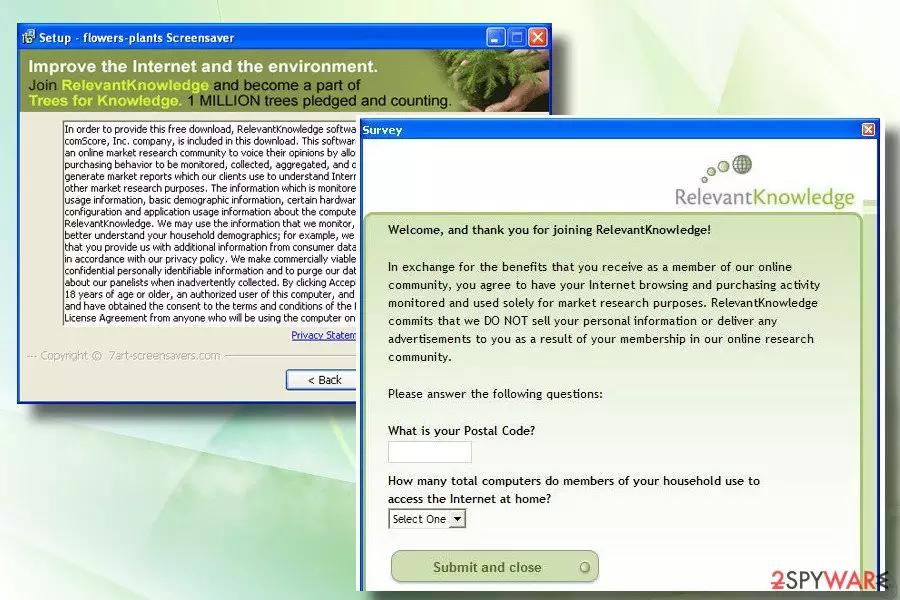
However, such Relevant Knowledge adware behavior means that your device is affected by the infection already. You need to remove the cyber threat as soon as you can, so further damage can be avoided, and features like data tracking and personalized advertising campaigns don't start yet. When advertisers begin to push content made more geared towards you, based on your online browsing preferences, your privacy is at risk, and identity theft may become a serious issue.
| Name | Relevant Knowledge |
|---|---|
| Type | Adware |
| Symptoms | The program is promoted online as a useful service offering improved market searches and insights into advertising. Pop-ups, boxes, banners, and other commercial material gets delivered to the screen and causes many redirects to other sites containing underlining codes |
| Distribution | The suspicious software is distributed with the help of the official site, other deceptive pages, and promotional advertisements. |
| Developers | Comscore, Inc |
| Danger | The service is related to third-party companies and exposes to suspicious content that can be malicious. The software can access and track users data regarding browsing habits and preferences, so such information also ends up shared with sponsors. The program also displays surveys where users' information is collected directly |
| Removal | You should remove Relevant Knowledge as soon as you can with anti-malware tools if the uninstallation is not helping. This way all associated programs get deleted too |
| Optimization | Third-party software can get installed without fully disclosing this fact, so you should get a PC repair tool like FortectIntego to check for additional traces of the PUP that you may not find that easily yourself |
Relevant Knowledge is a misleading software utility developed by Comscore, Inc previously known by TMRG and other names. The program is classified as “adware” and “potentially unwanted program” (PUP).[1] 16 AV engines out of 48 recognized it as malware and prohibited its installation into a target system. In most of the cases, it is detected as Skodna.Generic_r and UnclassifiedMalware.
Nevertheless, it's not malicious but merely annoying and intrusive, so people cannot be happy when they experience redirects. All it can do is to enter the system without asking for its user's permission and then initiate marketing-related activities within web browsers.
No matter that software developers claim that the tool can help you to improve browsing on the Internet, that a psychological strategy used to increase users' rate:
RelevantKnowledge is an online market research community consisting of over 2 million members worldwide, which provides insight into how its members interact with the Internet. In exchange for agreement to have their Internet behavior monitored, computer users who join RelevantKnowledge are offered various value propositions, including the ability to download screensavers or other software offerings, entry into sweepstakes, and a host of other benefits
NoVirus.uk[2] team claim that Relevant Knowledge has been developed for affiliate marketing. It means that it's task is to promote programs, services, websites, products, or whatnot that belong to affiliated partners. Therefore, regardless of the fact whether the PC's user installed it intentionally or got tricked into installing it via a freeware bundle, it will install the browser's add-ons, tracking cookies, and tracking pixels.
Initially, relevant knowledge virus can activate tracking cookies and pixels. These small spying tools allow third-parties to monitor people's web browsing activities and collect information, such as IP address, email address, approximate geographical location, user's name, and so on. Usually, Search Data is transferred to Google Analytics. However, it may also be sold on the black market and used for shady activities, such as malspam campaigns. 
this PUP to generate misleading pop-ups and other types of ads.
Some of them may belong to the same company, but the bulk is generated by affiliated third-parties whose intentions are not clear. By clicking on any of those ads, you may be redirected to suspicious and untrustworthy third-party websites.[3]
You can sometimes receive redirects and pop-ups with indications like these:
- “Powered by RelevantKnowledge“,
- “Brought to you by RelevantKnowledge “,
- “Ads by RelevantKnowledge”,
- “Ads powered by RelevantKnowledge“.
As you can see, there are many negative things that are related to this program. That's why we want to recommend you to avoid Relevant Knowledge adware by not installing free apps recklessly. If, however, it managed to trick you and hijacked your web browser, do not delay its removal.
The longer you keep it active, the bigger is the chance to land on a compromised website or click on an infected pop-up. Yes, you can remove Relevant Knowledge manually. The easy manual removal tutorial provided at the end of this article will help you to do so.
Nevertheless, we would recommend you to uninstall adware with the help of a reputable security tool. You are free to choose any other powerful and necessarily updated, anti-malware tool developed by the reputable vendor. We have a few recommendations for security and optimization tools like FortectIntego suitable for Relevant Knowledge virus damage termination below the article.
PUPs use a catch: hide under Quick and Basic installation methods
Although PUPs ask for user's permission to install on a target system, they do this indirectly. Installers of unwanted browser add-ons, plug-ins, toolbars or extensions are usually hidden under Quick or Basic installation methods. Therefore, if you don't want to become a victim, you should start monitoring the installation of the freeware.
Otherwise, you may become a potential victim of this adware and soon receive a message asking you to fill in some answers and so on. To prevent misleading ads and redirects that happen after clicking on them, you should start checking every freeware before its installation. Look at its Privacy Policy and End User's License Agreement and similar information.
In addition, make sure you select Custom or Advanced installation of the freeware and then carefully monitor every installation step. You should remove all checkmarks claiming that you agree with the installation of the questionable program. Otherwise, you may start suffering from pop-up ‘surveys’ and other pop-up ads that may try to redirect you to unknown websites.
Delete Relevant Knowledge virus and get rid of intrusive pop-up ads
Google Chrome, Mozilla Firefox, IE, Edge, Safari, or any other web browser will stop generating irritating ads only after a complete removal. This tool is ad-supported and programmed to initiate various marketing campaigns, including data collection, distribution of misleading online surveys, or traffic increment to shady online shops.
Anyway, it's no a tool that can be trusted, or that can bring any profit, so the sooner you remove adware, the lower the chances will be to infect the system with a malicious virus or lose pieces of personally identifiable information. You should react to any questionable symptoms immediately, so the system is cleaned from traces of the PUP, and there is not much virus damage caused in the meantime.
Uninstall from Windows
Uninstall from Windows 10/8:
- Type Control Panel into the Windows search box and open the result.
- Under Programs, select Uninstall a program.


Uninstall from Windows 7/XP:
- Click on Windows Start > Control Panel (Windows XP users should click on Add/Remove Programs).
- In Control Panel, select Programs > Uninstall a program.


Remove the unwanted program:
- In the Programs and Features window, look for any recently installed suspicious entries, select them, and click Uninstall.
- If User Account Control appears, click Yes to confirm, then complete the removal.


Delete from macOS
Remove the unwanted application:
- From the menu bar, select Go > Applications.
- In the Applications folder, look for any suspicious entries, then drag them to Trash (or right-click and pick Move to Trash).


Delete leftover files and folders:
- Select Go > Go to Folder.
- Enter /Library/Application Support and remove any suspicious folders related to the unwanted program.
- Repeat the same check in the /Library/LaunchAgents and /Library/LaunchDaemons folders, deleting any suspicious entries.

- Finally, empty the Trash to permanently remove the leftovers.

Remove from Microsoft Edge
Delete unwanted extensions from MS Edge:
- Select Menu (three horizontal dots at the top-right of the browser window) and pick Extensions.
- From the list, pick the extension and click on the Gear icon.
- Click Remove.


Clear cookies and other browser data:
- Click on the Menu (three horizontal dots at the top-right of the browser window) and select Settings > Privacy, search, and services..
- Under Clear browsing data, pick Choose what to clear.
- Select Cookies and other site data and Cached images and files. (apart from passwords, although you might want to include Media licenses as well, if applicable) and click on Clear.


Restore new tab and homepage settings:
- Click the menu icon and choose Settings.
- Then find On startup section.
- Click Remove next to any suspicious startup page.
Reset MS Edge if the above steps did not work:
- Press on Ctrl + Shift + Esc to open Task Manager.
- Click on More details arrow at the bottom of the window.
- Select Details tab.
- Now scroll down and locate every entry with Microsoft Edge name in it. Right-click on each of them and select End Task to stop MS Edge from running.


Instructions for Chromium-based Edge
Delete extensions from MS Edge (Chromium):
- Open Edge and click select Settings > Extensions.
- Delete unwanted extensions by clicking Remove.


Clear cache and site data:
- Click on Menu and go to Settings.
- Select Privacy, search and services.
- Under Clear browsing data, pick Choose what to clear.
- Under Time range, pick All time.
- Select Clear now.


Reset Chromium-based MS Edge:
- Click on Menu and select Settings.
- On the left side, pick Reset settings.
- Select Restore settings to their default values.
- Confirm with Reset.
- This will disable extensions and reset startup pages but will not delete bookmarks, saved passwords, or browsing history.


Remove from Mozilla Firefox (FF)
Remove dangerous extensions:
- Open Mozilla Firefox browser and click on the Menu (three horizontal lines at the top-right of the window).
- Select Add-ons.
- In here, select the unwanted extension and click Remove.


Reset the homepage:
- Click three horizontal lines at the top right corner to open the menu.
- Choose Settings.
- Under Home, set your preferred homepage and new tab settings.
Clear cookies and site data:
- Click Menu and pick Settings.
- Go to Privacy & Security section.
- Scroll down to locate Cookies and Site Data.
- Click on Clear Data...
- Select Cookies and Site Data and Temporary cached files and pages, then click Clear.


Reset Mozilla Firefox
If clearing the browser as explained above did not help, reset Mozilla Firefox:
- Open Mozilla Firefox browser and click the Menu.
- Go to Help and then choose Troubleshooting Information.

- Under Give Firefox a tune up section, click on Refresh Firefox...
- Once the pop-up shows up, confirm the action by pressing on Refresh Firefox.



Remove from Google Chrome
Delete malicious extensions from Google Chrome:
- Open Google Chrome, click on the Menu (three vertical dots at the top-right corner) and select More tools > Extensions.
- In the newly opened window, you will see all the installed extensions. Uninstall all suspicious extensions related to the unwanted program by clicking Remove.


Clear cache and web data from Chrome:
- Click on Menu and pick Settings.
- Under Privacy and security, select Clear browsing data.
- Select Browsing history, Cookies and other site data, as well as Cached images and files.
- Click Clear data.


Change your homepage:
- Click menu and choose Settings.
- Look for a suspicious site in the On startup section.
- Click on Open a specific or set of pages and click on three dots to find the Remove option.
Reset Google Chrome:
If the previous methods did not help you, reset Google Chrome to eliminate all the unwanted components:
- Click on Menu and select Settings.
- In the Settings, scroll down and click Advanced.
- Scroll down and locate Reset and clean up section.
- Now click Restore settings to their original defaults.
- Confirm with Reset settings.


Delete from Safari
Remove dangerous extensions:
- Open Safari, click Safari in the menu at the top-left of the screen, and select Preferences.
- Go to the Extensions tab, look for any suspicious entries, and click Uninstall to remove them.


Clear history and website data:
- Click Safari in the menu and pick Clear History.
- Set Clear to all history and confirm with Clear History.


Reset Safari:
- Click Safari in the menu and select Preferences > Advanced.
- Enable Show Develop menu in menu bar.
- From the menu bar, click Develop and select Empty Caches.


Did this guide help?
3 comments
Shahzad
RelevantKnowledge is a market research program. The software is installed with a users permission and can be uninstalled anytime via the control panel. You can read more about this software at our website http://www.relevantknowledge.com/faq.aspx. The program also offers user rewards for taking part in occasional surveys. In addition, RelevantKnowledge donates a tree for every users participation. This way the user helps out a good cause. If you have any questions, we encourage you to contact us at https://www.relevantknowledge.com/supportform.aspx
Thank you,
The Relevant Knowledge Support Team
Cant Remove
Ive tried to contact them via email and calling there listed phone numbers. No answer and no response. I did not authorize their install as far as I am aware. I would assume that it has piggy backed off of some other software system with sneaky small "Opt-Out" boxes. Bad business practice!
Bullshit
I have tried to remove this for a half hour and every time I click uninstall, it simply ignores my request.
This is nothing more than spy software and malware.