

Whitesmoke – a browser hijacker that shows plenty of ads
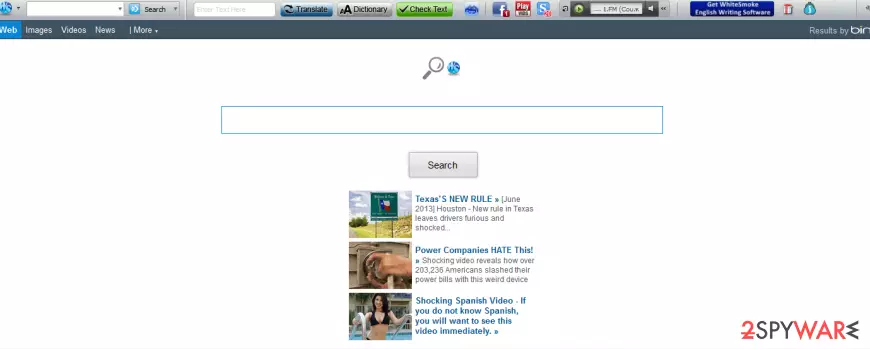
Whitesmoke is a legitimate application that specializes in helping users with language translation. However, many reports from users that the toolbar of the same name has accessed their machines seemingly out of nowhere. This is typical behavior of a potentially unwanted program. Software bundling is often used to distribute such apps without asking users for direct permission.
Once installed, the Whitesmoke toolbar completely alters the way web browsers such as Google Chrome or Mozilla Firefox function. For example, it changes the homepage and new tab address to search.conduit.com and injects ads into searches that users are forced to perform via an alternative search engine.
This potentially unwanted program, which has been annoying PC users all around the world. In reality, it is not a virus, but we still think that you should avoid it. No matter that this toolbar is closely related to Whitesmoke translator, which is presented as a translation software that:
Enables you to take any text from any text-based application, and automatically translate it into a destination language
Besides this functionality, it may also cause unwanted activities on your computer. When inside the system, the Whitesmoke virus may initiate system changes and hijack each of your web browsers.
After doing so, it may get the ability to block such search engines as Google, Yahoo, or Bing. When using this search engine for your search sessions, you may receive altered search results. That's why we don't recommend that. Also, you may be interrupted by
- annoying pop-up
- ads
- sponsored links
- banners
- redirects
- offers, etc.
To sum up, this program may help you not only with high-quality translations. It has also been reported for its annoying redirections to unwanted websites, tons of misleading pop-up ads, and slow downs that are usually initiated on each of web browsers.
That's why you should think about whether it's worth installing this translator or not. If you have already discovered this toolbar installed on your PC without any permission asked, you should remove Whitesmoke toolbar to return to your normal browsing sessions.
In case you want to eliminate the app fast, use security software, and then perform an additional scan with FortectIntego for best results. Alternatively, you can rely on the instructions for manual Whitesmoke removal we provide below.
Unwanted programs spread using deceptive methods
Many legitimate websites promote Whitesmoke translator. However, most of them don't realize that they promote the app together with this freeware that is capable of infiltrating computers in a bundle with this translator. Of course, it may also infiltrate your machine in a bundle with other freeware and shareware, so you should always monitor their installation process. How can you avoid this potentially unwanted program?
First of all, you should start monitoring the installation of freeware and shareware. You can do that by checking the following sections:
- Privacy Policy
- End User's License Agreement
- Installation instructions.
Also, make sure you select Custom or Advanced installation of the freeware and then uncheck all suspicious checkmarks. If these checkmarks say that you want to download Whitesmoke Toolbar to your computer, change your start page or default search engine, you should uncheck it.
Once this program becomes active, it starts showing various icons that are named “Improve Your PC” or similarly. After being clicked, they redirect users to dubious websites having been found to promote other unwanted applications.
Besides, the Whitesmoke virus replaces the user's default start page to whitesmokestart.com on the IE and start changing search results and causing various pop-up advertisements. That's why many security experts have started to list this software as 'Potentially Unwanted' one.
Whitesmoke elimination
In order to remove Whitesmoke toolbar, you can use the manual instructions we provide below. All you have to do is reach the list of the installed apps via Control Panel (Windows) or Applications folder (Mac) and eliminate everything unnecessary. Cleaning web browsers, such as removing cookies, web data, and suspicious extensions, is just as important, as hijackers often hide various components within browser settings.
Faster Whitesmoke removal can be achieved when using robust security software. It would be able to identify all the components belonging to the app quickly and eliminate them at once. Besides, a full system check would ensure that no malware is running in the background.
Uninstall from Windows
Uninstall from Windows 10/8:
- Type Control Panel into the Windows search box and open the result.
- Under Programs, select Uninstall a program.


Uninstall from Windows 7/XP:
- Click on Windows Start > Control Panel (Windows XP users should click on Add/Remove Programs).
- In Control Panel, select Programs > Uninstall a program.


Remove the unwanted program:
- In the Programs and Features window, look for any recently installed suspicious entries, select them, and click Uninstall.
- If User Account Control appears, click Yes to confirm, then complete the removal.


Delete from macOS
Remove the unwanted application:
- From the menu bar, select Go > Applications.
- In the Applications folder, look for any suspicious entries, then drag them to Trash (or right-click and pick Move to Trash).


Delete leftover files and folders:
- Select Go > Go to Folder.
- Enter /Library/Application Support and remove any suspicious folders related to the unwanted program.
- Repeat the same check in the /Library/LaunchAgents and /Library/LaunchDaemons folders, deleting any suspicious entries.

- Finally, empty the Trash to permanently remove the leftovers.

Reset Internet Explorer
Remove dangerous add-ons:
- Open Internet Explorer, click on the Gear icon (IE menu) on the top-right corner of the browser
- Pick Manage Add-ons.
- You will see a Manage Add-ons window. Here, look for suspicious plugins. Click on these entries and select Disable.


Change your homepage if it was altered:
- Open IE and click on the Gear icon.
- Select Internet Options.
- In the General tab, delete the Home page address and replace it by your preferred one (for example, Google.com).
- Click Apply and then select OK.


Delete temporary files:
- Press on the Gear icon and select Internet Options.
- Under Browsing history, click Delete...
- Select relevant fields and press Delete.


Reset Internet Explorer:
- Click on Gear icon > Internet options and select Advanced tab.
- Select Reset.
- In the new window, check Delete personal settings and select Reset.


Remove from Microsoft Edge
Delete unwanted extensions from MS Edge:
- Select Menu (three horizontal dots at the top-right of the browser window) and pick Extensions.
- From the list, pick the extension and click on the Gear icon.
- Click Remove.


Clear cookies and other browser data:
- Click on the Menu (three horizontal dots at the top-right of the browser window) and select Settings > Privacy, search, and services..
- Under Clear browsing data, pick Choose what to clear.
- Select Cookies and other site data and Cached images and files. (apart from passwords, although you might want to include Media licenses as well, if applicable) and click on Clear.


Restore new tab and homepage settings:
- Click the menu icon and choose Settings.
- Then find On startup section.
- Click Remove next to any suspicious startup page.
Reset MS Edge if the above steps did not work:
- Press on Ctrl + Shift + Esc to open Task Manager.
- Click on More details arrow at the bottom of the window.
- Select Details tab.
- Now scroll down and locate every entry with Microsoft Edge name in it. Right-click on each of them and select End Task to stop MS Edge from running.


Instructions for Chromium-based Edge
Delete extensions from MS Edge (Chromium):
- Open Edge and click select Settings > Extensions.
- Delete unwanted extensions by clicking Remove.


Clear cache and site data:
- Click on Menu and go to Settings.
- Select Privacy, search and services.
- Under Clear browsing data, pick Choose what to clear.
- Under Time range, pick All time.
- Select Clear now.


Reset Chromium-based MS Edge:
- Click on Menu and select Settings.
- On the left side, pick Reset settings.
- Select Restore settings to their default values.
- Confirm with Reset.
- This will disable extensions and reset startup pages but will not delete bookmarks, saved passwords, or browsing history.


Remove from Mozilla Firefox (FF)
Remove dangerous extensions:
- Open Mozilla Firefox browser and click on the Menu (three horizontal lines at the top-right of the window).
- Select Add-ons.
- In here, select the unwanted extension and click Remove.


Reset the homepage:
- Click three horizontal lines at the top right corner to open the menu.
- Choose Settings.
- Under Home, set your preferred homepage and new tab settings.
Clear cookies and site data:
- Click Menu and pick Settings.
- Go to Privacy & Security section.
- Scroll down to locate Cookies and Site Data.
- Click on Clear Data...
- Select Cookies and Site Data and Temporary cached files and pages, then click Clear.


Reset Mozilla Firefox
If clearing the browser as explained above did not help, reset Mozilla Firefox:
- Open Mozilla Firefox browser and click the Menu.
- Go to Help and then choose Troubleshooting Information.

- Under Give Firefox a tune up section, click on Refresh Firefox...
- Once the pop-up shows up, confirm the action by pressing on Refresh Firefox.



Remove from Google Chrome
Delete malicious extensions from Google Chrome:
- Open Google Chrome, click on the Menu (three vertical dots at the top-right corner) and select More tools > Extensions.
- In the newly opened window, you will see all the installed extensions. Uninstall all suspicious extensions related to the unwanted program by clicking Remove.


Clear cache and web data from Chrome:
- Click on Menu and pick Settings.
- Under Privacy and security, select Clear browsing data.
- Select Browsing history, Cookies and other site data, as well as Cached images and files.
- Click Clear data.


Change your homepage:
- Click menu and choose Settings.
- Look for a suspicious site in the On startup section.
- Click on Open a specific or set of pages and click on three dots to find the Remove option.
Reset Google Chrome:
If the previous methods did not help you, reset Google Chrome to eliminate all the unwanted components:
- Click on Menu and select Settings.
- In the Settings, scroll down and click Advanced.
- Scroll down and locate Reset and clean up section.
- Now click Restore settings to their original defaults.
- Confirm with Reset settings.


Delete from Safari
Remove dangerous extensions:
- Open Safari, click Safari in the menu at the top-left of the screen, and select Preferences.
- Go to the Extensions tab, look for any suspicious entries, and click Uninstall to remove them.


Clear history and website data:
- Click Safari in the menu and pick Clear History.
- Set Clear to all history and confirm with Clear History.


Reset Safari:
- Click Safari in the menu and select Preferences > Advanced.
- Enable Show Develop menu in menu bar.
- From the menu bar, click Develop and select Empty Caches.


Did this guide help?
8 comments
matt
appears the whitesmoke search engine virus is extreamly dangerous, i installed whitesmoke by accident on my computer, the toolbar and search website came up, now my laptop also has the whitesmoke search site as well. so affects browser settings.
Note: remove the program from your computer, and there may be several other programs too
To remove the whitesmoke from chrome:
- go to settings, extensions, disable whitesmoke, then remove
- then under settings, click on start up , open spacific pages click set pages, and remove whitesmoke search address,
- then under settings, click under search on the manage search engines, and remove the whitesmoke search address
AriaL81
Hi
I am using WhiteSmoke software for years, I have checked with their support departement and it appears that WhiteSmoke "toolbar" is not a Virus. Its a toolbar.
If you dont want the toolbar you dont need to do what suggested here, just go to toolbar.whitesmoke.com webpage, it has guide + picture that helps remove it with ease.
Please dont mislead people to think "WhiteSmoke" is a virus, as I said I am using it for years and enjoying it so far ;).
Jack
Im walking a friend through removing white smoke malware from her PC. Its causing ad pop-ups and slowing her PC. She has never intentionally installed any piece of legitimate WhiteSmoke software, translation or otherwise. Is the malware related to the company in any way? I dont know. But the programs share a name, and white smoke is most definitely a hard to eradicate virus.
Tom
The whitesmoke "legitimate software" may be a helpful tool to some but the virus that goes by the same name is horrible. It not only is causing redirects but is also blocking ability to remove other toolbars. This is very frustrating and I am having a tough time getting rid of it. This was not something I ever downloaded or agreed to and I am very astute when it comes to downloads.
John
I got it from tucows downloader. I am no longer using any of their services as they delivered this crap through their d/l manager.
Shame they became disreputable in my books
bruce
I got it from downloading adobe acrobat. I was trying to delete the "safesearch" toolbar that was forcibly installed with Acrobat when I found "software updater" and this whiteSmoke garbage also stuck to my computer and will not be removed.
Joe
5/18/14..My Webroot Secure Anywhere antivirus software just notified me that I had some malware on my machine - it was Whitesmoke.
Webroot removed 5 instances of it on my computer.
Alice
I got mine from (i dont have it anymore) but it lets you download files without of filling in the survey. It pops up on chrome, and even after i uninstall it it appears again. It also appears after i restart my computer or just turn it on. I also think it bothers the windows 8 version of Chrome to work properly. When i go to settings, they dont see whitesmoke, also the malware anti virus doesnt see any problems with my computer.