

Spigot – a toolbar that's been identified as a potentially unwanted program
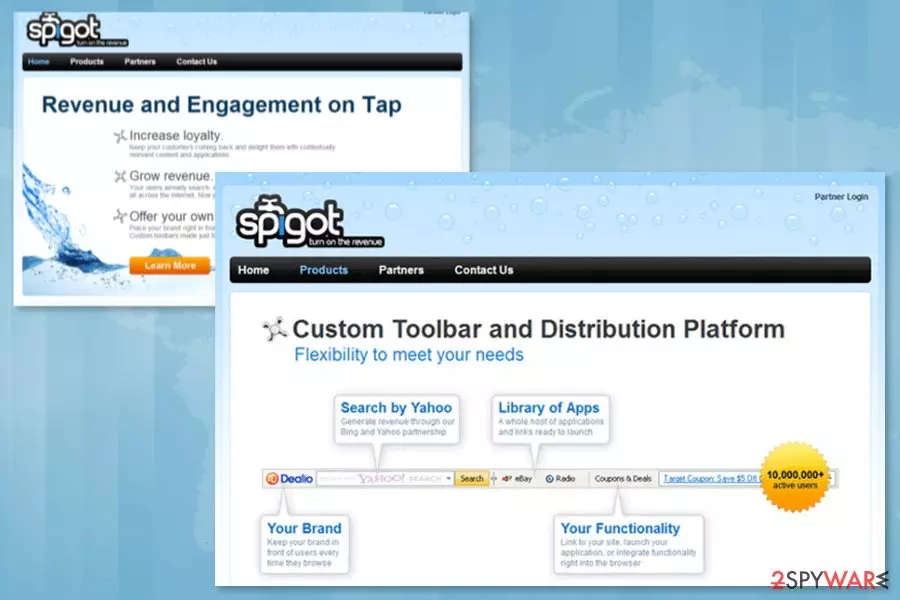
Spigot Toolbar is an application that offers advanced new tab functionality and allows growing revenue from advertising. However, this potentially unwanted program (PUP) has very shady features. It might affect all popular web browsers on both Windows and Mac OS X.[1] When it's installed, it might modify the browser’s settings and display numerous ads.
The company developing this questionable tool is a legitimate one that offers digital marketing solutions and designing personalized toolbars to increase customers’ loyalty. While these services might seem useful for business, computer users are bothered by the sudden appearance of the unwanted toolbar that causes browsing-related problems.
| Summary of the PUP | |
|---|---|
| Name | Spigot virus |
| Type | Adware, PUP |
| Danger level | Medium. Can get into the system unnoticed and display potentially dangerous ads |
| Distribution | Software bundling |
| Affected OS | Windows, Mac OS X |
| Targeted browsers | Google Chrome, Mozilla Firefox, Safari, Internet Explorer, etc. |
| Symptoms | An increased amount of pop-ups and ads, redirects to shady websites, crashing web browser |
| Elimination | Uninstall this program either manually or by using trustworthy anti-malware software |
The toolbar spreads in freeware and shareware packages, so it’s easy to install it without noticing. After the infiltration, the so-called Mac Os Spigot virus might cause these problems:
- hijacking web browsers, including Internet Explorer, Google Chrome, Mozilla Firefox, and other ones;
- replacing default homepage and search engine to Yahoo-based search tool;
- modifications of Windows registry;
- redirection to promotional or potentially dangerous websites;
- system slowdowns;
- delivery of pop-up ads.

One of the main features of the macos:spigot-ay [pup] is to display commercial content on the affected browsers. The application is designed to flood browsers with ads, pop-ups, banners, or in-text ads. This activity allows developers to generate pay-per-click revenue and help various business owners increase sales or traffic to their sites.
Due to the excessive amount of advertisements, your browser becomes sluggish and often crashes. However, it’s not the only problem. The biggest concerns are related to redirect problems. The PUP might redirect you to potentially dangerous online places once you click on a shopping offer or other ad.

PUPs are often exploited by cybercriminals who want to trick users into installing malicious software[2] or revealing sensitive information. Thus, it’s possible that Spigot is used by the same means too. You have to be careful with ads because it can be really hard to separate legitimate ads from fake ones.
Therefore, the appearance of the unwanted toolbar diminishes the browsing experience and might increase your chances to catch a serious cyber threat. Thus, if you found it installed on your browser, you should get rid of it immediately. SpyHunterCombo Cleaner, MalwarebytesMalwarebytes or another anti-malware helps eliminate any infections.
Spigot removal can be done manually too. However, it might not be easy to locate all adware-related components. If you insist on trying this method, please use a guide created by our specialists. You can find it at the end of the article. After the removal, we advise using the FortectIntego system diagnostics tool to ensure that your device runs smoothly.

The toolbar is able to collect various browsing data
Just like any other toolbar, this one may collect people's search terms, most visited websites, data that is entered when visiting them, etc. We do not recommend ignoring this because you can never know where this personally non-identifiable information can be used.
Usually, Spigot spyware[3] allows using collected data for targeted advertising campaigns. It means that the program might display ads based on your search terms or browsing history. According to various marketing research, users are more willing to click on personalized ads. Thus, the authors of the PUP can generate pay-per-click revenue.
However, PUPs might deliver infected ads.[4] Thus, if you do not want to end up on a scam website or unintentionally install malware, you should opt for a manual toolbar removal option. The guide presented at the end of the article will show you how to uninstall adware from the operating system and delete all hijacker-related entries from popular web browsers.
Software bundles are responsible for PUP distribution
Spigot toolbar is available on various file-sharing sites, such as CNET or Softonic. However, this potentially unwanted application is widely spread using a software bundling strategy. It allows adding PUP in the software package and spreading it with a primary program.

The program has been noticed spreading with Widgi Toolbar, Dealio, PDFCreator, and Koyote Soft. However, the list of freeware and shareware might be wider. Thus, users are advised to be careful during the installation process:
- Select Custom or Advanced installation settings;
- Read Terms of Use and Privacy Policy to avoid installation of pre-installed partner’s software;
- Uncheck all pre-selected checkmarks that allow installation of browser add-ons, plugins, toolbars, extensions, etc.
We want to point out that Quick or Standard settings do not allow monitoring and adjusting installation settings, but “optional downloads” are usually installed without the user’s knowledge and permission. Thus, you should avoid using this setup.
Comprehensive instructions to remove Mac Os Spigot virus
When trying to remove Spigot Toolbar manually, follow the guide given below. Please, be very careful if you want to use the manual removal method because you may delete important components of your PC system. The guide is available in Russian, German,[5] Finish, and other languages too. Thus, check our partners' sites to get instructions in your native language and get rid of the PUP.

However, if you are not a skilled computer user or encountered a cyber threat for the first time, you should opt for the automatic Spigot removal option. It requires scanning the system with anti-malware software and resetting affected web browsers. The guide on how to perform the latter step is given down below.
Uninstall from Windows
Uninstall from Windows 10/8:
- Type Control Panel into the Windows search box and open the result.
- Under Programs, select Uninstall a program.


Uninstall from Windows 7/XP:
- Click on Windows Start > Control Panel (Windows XP users should click on Add/Remove Programs).
- In Control Panel, select Programs > Uninstall a program.


Remove the unwanted program:
- In the Programs and Features window, look for any recently installed suspicious entries, select them, and click Uninstall.
- If User Account Control appears, click Yes to confirm, then complete the removal.


Delete from macOS
Remove the unwanted application:
- From the menu bar, select Go > Applications.
- In the Applications folder, look for any suspicious entries, then drag them to Trash (or right-click and pick Move to Trash).


Delete leftover files and folders:
- Select Go > Go to Folder.
- Enter /Library/Application Support and remove any suspicious folders related to the unwanted program.
- Repeat the same check in the /Library/LaunchAgents and /Library/LaunchDaemons folders, deleting any suspicious entries.

- Finally, empty the Trash to permanently remove the leftovers.

Remove from Microsoft Edge
Delete unwanted extensions from MS Edge:
- Select Menu (three horizontal dots at the top-right of the browser window) and pick Extensions.
- From the list, pick the extension and click on the Gear icon.
- Click Remove.


Clear cookies and other browser data:
- Click on the Menu (three horizontal dots at the top-right of the browser window) and select Settings > Privacy, search, and services..
- Under Clear browsing data, pick Choose what to clear.
- Select Cookies and other site data and Cached images and files. (apart from passwords, although you might want to include Media licenses as well, if applicable) and click on Clear.


Restore new tab and homepage settings:
- Click the menu icon and choose Settings.
- Then find On startup section.
- Click Remove next to any suspicious startup page.
Reset MS Edge if the above steps did not work:
- Press on Ctrl + Shift + Esc to open Task Manager.
- Click on More details arrow at the bottom of the window.
- Select Details tab.
- Now scroll down and locate every entry with Microsoft Edge name in it. Right-click on each of them and select End Task to stop MS Edge from running.


Instructions for Chromium-based Edge
Delete extensions from MS Edge (Chromium):
- Open Edge and click select Settings > Extensions.
- Delete unwanted extensions by clicking Remove.


Clear cache and site data:
- Click on Menu and go to Settings.
- Select Privacy, search and services.
- Under Clear browsing data, pick Choose what to clear.
- Under Time range, pick All time.
- Select Clear now.


Reset Chromium-based MS Edge:
- Click on Menu and select Settings.
- On the left side, pick Reset settings.
- Select Restore settings to their default values.
- Confirm with Reset.
- This will disable extensions and reset startup pages but will not delete bookmarks, saved passwords, or browsing history.


Remove from Mozilla Firefox (FF)
Remove dangerous extensions:
- Open Mozilla Firefox browser and click on the Menu (three horizontal lines at the top-right of the window).
- Select Add-ons.
- In here, select the unwanted extension and click Remove.


Reset the homepage:
- Click three horizontal lines at the top right corner to open the menu.
- Choose Settings.
- Under Home, set your preferred homepage and new tab settings.
Clear cookies and site data:
- Click Menu and pick Settings.
- Go to Privacy & Security section.
- Scroll down to locate Cookies and Site Data.
- Click on Clear Data...
- Select Cookies and Site Data and Temporary cached files and pages, then click Clear.


Reset Mozilla Firefox
If clearing the browser as explained above did not help, reset Mozilla Firefox:
- Open Mozilla Firefox browser and click the Menu.
- Go to Help and then choose Troubleshooting Information.

- Under Give Firefox a tune up section, click on Refresh Firefox...
- Once the pop-up shows up, confirm the action by pressing on Refresh Firefox.



Remove from Google Chrome
Delete malicious extensions from Google Chrome:
- Open Google Chrome, click on the Menu (three vertical dots at the top-right corner) and select More tools > Extensions.
- In the newly opened window, you will see all the installed extensions. Uninstall all suspicious extensions related to the unwanted program by clicking Remove.


Clear cache and web data from Chrome:
- Click on Menu and pick Settings.
- Under Privacy and security, select Clear browsing data.
- Select Browsing history, Cookies and other site data, as well as Cached images and files.
- Click Clear data.


Change your homepage:
- Click menu and choose Settings.
- Look for a suspicious site in the On startup section.
- Click on Open a specific or set of pages and click on three dots to find the Remove option.
Reset Google Chrome:
If the previous methods did not help you, reset Google Chrome to eliminate all the unwanted components:
- Click on Menu and select Settings.
- In the Settings, scroll down and click Advanced.
- Scroll down and locate Reset and clean up section.
- Now click Restore settings to their original defaults.
- Confirm with Reset settings.


Delete from Safari
Remove dangerous extensions:
- Open Safari, click Safari in the menu at the top-left of the screen, and select Preferences.
- Go to the Extensions tab, look for any suspicious entries, and click Uninstall to remove them.


Clear history and website data:
- Click Safari in the menu and pick Clear History.
- Set Clear to all history and confirm with Clear History.


Reset Safari:
- Click Safari in the menu and select Preferences > Advanced.
- Enable Show Develop menu in menu bar.
- From the menu bar, click Develop and select Empty Caches.


Did this guide help?
1 comment
tom
Could not find anything to remove, but still get hijacked by yahoo search when I type anything into a search within metacafe =( not doing it to youtube, I wonder where all ?
I remember O.K.-ing a spigot before I looked at it, did everything I could think of to remove including removing the think it came from, never O.K. that again, going to clone my bookmarks and delete ALL of firefox, reinstal and hope that helps =(
On a macbook air using firefox 35.0 and OS 10.9.5