

Can you trust ShopAtHome search engine?
ShopAtHome.com virus (also known as Rsearch.ShopAtHome.com or Search.ShopAtHome.com) functions as a browsing tool, which seemingly claims of delivering best browsing performance and relevant search results. This tool is more oriented at users who prefer shopping online. However, there is something you should know before setting this search engine as the primary browsing tool. Due to this tendency to direct you to affiliated domains and display more advertisements than usual, it falls into the category of browser hijacker. In relation to this, it would be better to remove ShopAtHome.com at once. Within a short while, you may get annoyed by tons of advertisements offering to obtain new products. Moreover, you should be very careful when using it because it may show you altered search results. In addition, this search engine tracks your browsing habits. Therefore, it would be better to concentrate on ShopAtHome.com removal.
The Internet has made online shopping much easier and more convenient. Thus, users, who prefer using this form of shopping, might be attracted by various digital assistants to update them with current discounts and hot deals. Likewise, Shop At Home hijackers offer such utility as well. Moreover, if you take a look at its privacy policy, you might find out that it has several affiliate products. For example, qa-shopathome.com, the adware related with this hijacker, appeals to users by offering coupons and daily deals. In order for it to function properly, it suggests installing its application.
However, if you take a deeper look at the provisions of its privacy policy, you see that it collects various information about you. Specifically, both, personal and non-personal, information falls into the hands of ShopAtHome.com developers. They might acquire additional details about your online activities from their affiliate third parties as well. The information you share in social networks does not slip through the eyes of the owners as well. After acquiring the data, the authors of this PUP retain the right to share the data with their partner companies. However, such exchange of information may have severe consequences and cause privacy infringment. As they openly transfer personal and non-personal data to any affiliate third-party, your Inbox might be crammed with personalized ads. Moreover, you might only guess whether the data will not be obtained by cyber criminals.
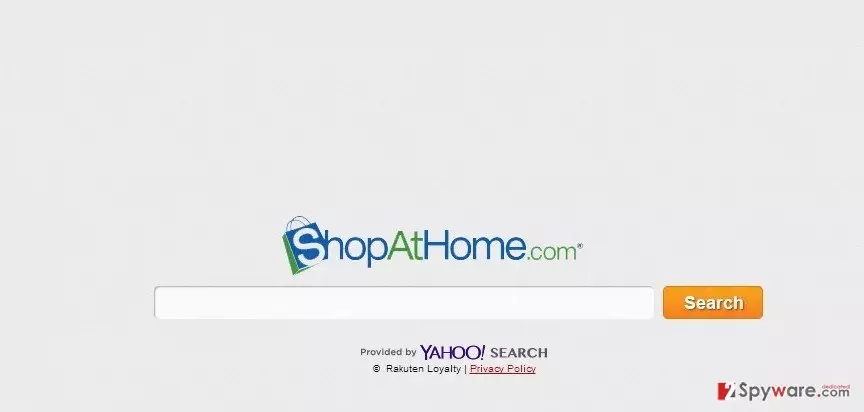
ShopAtHome.com redirect might cause trouble as well. Since the hijacker cooperates with several third-parties it is not surprising if you find yourself in one of their domains. Such scenario comes into effect when you click on the altered search results or while cancelling distracting advertisement. Moreover, you might get infuriated after getting redirected to some fishy website instead of desired destination. Verily, this behavior is highly unpleasant. However, there are more damaging aspects of such tendency. The redirect domains might shelter various viruses. Thus, if users pay a long visit there, their operating system might get threatened. If you want to avoid questionable search results, you shouldn’t hesitate and remove ShopAtHome.com from your computer. You can use FortectIntego for the elimination.
The infiiltration tendencies of the fijacker
Typically, ShopAtHome.com may show up on your device after the installation of a new program. ShopAtHome.com hijack takes place when you rush through the installation stages. As a result, you fail to notice the add-on disguisiing the hijacker. If you want to prevent infiltration of such unwanted program in the future, keep in mind our advice. Select “Custom” or “Advanced” mode. Likewise, you will spot optional applications. Once you see them, uncheck the add-ons. Be vigilant while you are downloading any new application. It would be better to check the publisher of the program you are interested in. In that case, the risk to download a fake version or potentially malignant one might decrease.
Getting rid of the PUP
It is not diffcult to remove ShopAtHome.com virus both manually and automatically. For the latter method, feel free to install an anti-spyware application. This utility quickens the process and ensures that no additional files are left. The software also functions as a reliable application guarding your system from more dangerous viruses. Alternatively, you might opt for manual ShopAtHome.com removal option. Find the guidelines attached below. Lastly, take a look at users reviews and check the ratings of the wanted program before installing it.
Uninstall from Windows
Uninstall from Windows 10/8:
- Type Control Panel into the Windows search box and open the result.
- Under Programs, select Uninstall a program.


Uninstall from Windows 7/XP:
- Click on Windows Start > Control Panel (Windows XP users should click on Add/Remove Programs).
- In Control Panel, select Programs > Uninstall a program.


Remove the unwanted program:
- In the Programs and Features window, look for any recently installed suspicious entries, select them, and click Uninstall.
- If User Account Control appears, click Yes to confirm, then complete the removal.


Delete from macOS
Remove the unwanted application:
- From the menu bar, select Go > Applications.
- In the Applications folder, look for any suspicious entries, then drag them to Trash (or right-click and pick Move to Trash).


Delete leftover files and folders:
- Select Go > Go to Folder.
- Enter /Library/Application Support and remove any suspicious folders related to the unwanted program.
- Repeat the same check in the /Library/LaunchAgents and /Library/LaunchDaemons folders, deleting any suspicious entries.

- Finally, empty the Trash to permanently remove the leftovers.

Reset Internet Explorer
Remove dangerous add-ons:
- Open Internet Explorer, click on the Gear icon (IE menu) on the top-right corner of the browser
- Pick Manage Add-ons.
- You will see a Manage Add-ons window. Here, look for suspicious plugins. Click on these entries and select Disable.


Change your homepage if it was altered:
- Open IE and click on the Gear icon.
- Select Internet Options.
- In the General tab, delete the Home page address and replace it by your preferred one (for example, Google.com).
- Click Apply and then select OK.


Delete temporary files:
- Press on the Gear icon and select Internet Options.
- Under Browsing history, click Delete...
- Select relevant fields and press Delete.


Reset Internet Explorer:
- Click on Gear icon > Internet options and select Advanced tab.
- Select Reset.
- In the new window, check Delete personal settings and select Reset.


Remove from Microsoft Edge
Delete unwanted extensions from MS Edge:
- Select Menu (three horizontal dots at the top-right of the browser window) and pick Extensions.
- From the list, pick the extension and click on the Gear icon.
- Click Remove.


Clear cookies and other browser data:
- Click on the Menu (three horizontal dots at the top-right of the browser window) and select Settings > Privacy, search, and services..
- Under Clear browsing data, pick Choose what to clear.
- Select Cookies and other site data and Cached images and files. (apart from passwords, although you might want to include Media licenses as well, if applicable) and click on Clear.


Restore new tab and homepage settings:
- Click the menu icon and choose Settings.
- Then find On startup section.
- Click Remove next to any suspicious startup page.
Reset MS Edge if the above steps did not work:
- Press on Ctrl + Shift + Esc to open Task Manager.
- Click on More details arrow at the bottom of the window.
- Select Details tab.
- Now scroll down and locate every entry with Microsoft Edge name in it. Right-click on each of them and select End Task to stop MS Edge from running.


Instructions for Chromium-based Edge
Delete extensions from MS Edge (Chromium):
- Open Edge and click select Settings > Extensions.
- Delete unwanted extensions by clicking Remove.


Clear cache and site data:
- Click on Menu and go to Settings.
- Select Privacy, search and services.
- Under Clear browsing data, pick Choose what to clear.
- Under Time range, pick All time.
- Select Clear now.


Reset Chromium-based MS Edge:
- Click on Menu and select Settings.
- On the left side, pick Reset settings.
- Select Restore settings to their default values.
- Confirm with Reset.
- This will disable extensions and reset startup pages but will not delete bookmarks, saved passwords, or browsing history.


Remove from Mozilla Firefox (FF)
Remove dangerous extensions:
- Open Mozilla Firefox browser and click on the Menu (three horizontal lines at the top-right of the window).
- Select Add-ons.
- In here, select the unwanted extension and click Remove.


Reset the homepage:
- Click three horizontal lines at the top right corner to open the menu.
- Choose Settings.
- Under Home, set your preferred homepage and new tab settings.
Clear cookies and site data:
- Click Menu and pick Settings.
- Go to Privacy & Security section.
- Scroll down to locate Cookies and Site Data.
- Click on Clear Data...
- Select Cookies and Site Data and Temporary cached files and pages, then click Clear.


Reset Mozilla Firefox
If clearing the browser as explained above did not help, reset Mozilla Firefox:
- Open Mozilla Firefox browser and click the Menu.
- Go to Help and then choose Troubleshooting Information.

- Under Give Firefox a tune up section, click on Refresh Firefox...
- Once the pop-up shows up, confirm the action by pressing on Refresh Firefox.



Remove from Google Chrome
Delete malicious extensions from Google Chrome:
- Open Google Chrome, click on the Menu (three vertical dots at the top-right corner) and select More tools > Extensions.
- In the newly opened window, you will see all the installed extensions. Uninstall all suspicious extensions related to the unwanted program by clicking Remove.


Clear cache and web data from Chrome:
- Click on Menu and pick Settings.
- Under Privacy and security, select Clear browsing data.
- Select Browsing history, Cookies and other site data, as well as Cached images and files.
- Click Clear data.


Change your homepage:
- Click menu and choose Settings.
- Look for a suspicious site in the On startup section.
- Click on Open a specific or set of pages and click on three dots to find the Remove option.
Reset Google Chrome:
If the previous methods did not help you, reset Google Chrome to eliminate all the unwanted components:
- Click on Menu and select Settings.
- In the Settings, scroll down and click Advanced.
- Scroll down and locate Reset and clean up section.
- Now click Restore settings to their original defaults.
- Confirm with Reset settings.


Delete from Safari
Remove dangerous extensions:
- Open Safari, click Safari in the menu at the top-left of the screen, and select Preferences.
- Go to the Extensions tab, look for any suspicious entries, and click Uninstall to remove them.


Clear history and website data:
- Click Safari in the menu and pick Clear History.
- Set Clear to all history and confirm with Clear History.


Reset Safari:
- Click Safari in the menu and select Preferences > Advanced.
- Enable Show Develop menu in menu bar.
- From the menu bar, click Develop and select Empty Caches.


Did this guide help?
Be the first to comment