

Dosearches.com – a search engine you should avoid using
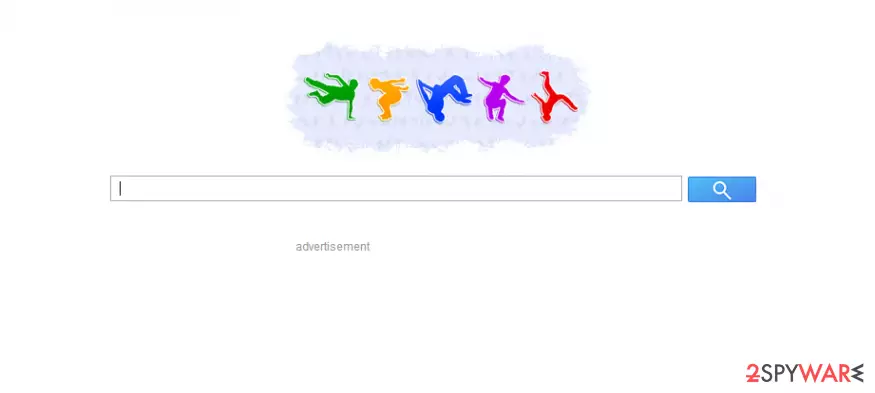
Dosearches.com (also known as Do Searches) is an untrustworthy search engine, which is mostly used for promoting affiliate websites and third parties that control them. That's why it may try to return irrelevant search results during your searches.
Also, people who have been using this search engine for some time claim that it may also start displaying an increased amount of commercial ads may slow down each of web browsers, and may initiate other unwanted activities on your computer. In most cases, the affected browsers, such as Google Chrome or Mozilla Firefox, have the following functions changed:
- homepage
- new tab URL
- search engine.
We are not claiming that it's a malicious program, which can ruin your PC system. However, it can easily initiate havoc on it for making you visit specific sites. Not only it interferes with finding relevant information quickly, but it might also mislead you into buying services or products you would otherwise not.
No matter that it looks like Google or other trustworthy search engine, you should be very careful when using Do Searches Search because it may also start tracking your browsing on the web and may collect information, which is related to your search terms, mostly visited websites, data that you enter on each of web sites, etc.
If you have already noticed that this search engine on each of your web browsers (it may hijack Mozilla Firefox, Google Chrome, Internet Explorer, and other browsers), you may expect to see a new start page and default search engine.
After that, you may start suffering from Dosearches.com redirects and other unwanted activities that may interrupt each of your browsing sessions. In this case, you should waste no time and remove this questionable search engine from your computer. For that, you can easily use FortectIntego, which can also fix various system damage sustained due to infection.
PUP distribution methods and how to avoid them
Many users claim that Do Searches is a virus. They report that it has shown up on their computers without explicit permission asked and that it can't be removed from the system using a traditional method. They are wrong because this search engine can hardly infiltrate a computer through its backdoors. In most cases, it is spread using bundling.
This method is closely related to the installation of various freeware apps, including:
- PDF creators
- video streaming software
- video players
- system optimzers
- registry cleaners, etc.
In order to prevent the infiltration of suspicious apps, you should remember that freeware and shareware are always filled with optional components and may also be set to offer changes for the start page and the default search engine.
That's why we highly recommend monitoring the installation process of such programs and unchecking these check marks that suggest such changes. For that, you should always select the Custom or Advanced installation method. Once DoSearches gets inside the system, it may immediately show up instead of the start page or default search engine.
You may also notice redirects to unknown sites and commercial pop-up notifications. To get rid of them, you should remove Do Searches from the system. For that, follow a guide below.
Remove Dosearches.com and clean your browsers
As previously mentioned, users who download potentially unwanted programs are usually unaware of their distribution techniques and tricks used to mislead them. In some cases, people are not even aware that they need to remove Dosearches.com hijack in order to stop the unwanted and intrusive web browser activity for good.
However, Dosearches removal is very important, especially if you care about your online privacy and want to go back to a clutter-free web browsing experience. For that, you can either eliminate the PUP manually as described below or employ powerful security software that would do the job for you. Both of the methods can be just as effective, so pick one that suits you the most.
Uninstall from Windows
Uninstall from Windows 10/8:
- Type Control Panel into the Windows search box and open the result.
- Under Programs, select Uninstall a program.


Uninstall from Windows 7/XP:
- Click on Windows Start > Control Panel (Windows XP users should click on Add/Remove Programs).
- In Control Panel, select Programs > Uninstall a program.


Remove the unwanted program:
- In the Programs and Features window, look for any recently installed suspicious entries, select them, and click Uninstall.
- If User Account Control appears, click Yes to confirm, then complete the removal.


Delete from macOS
Remove the unwanted application:
- From the menu bar, select Go > Applications.
- In the Applications folder, look for any suspicious entries, then drag them to Trash (or right-click and pick Move to Trash).


Delete leftover files and folders:
- Select Go > Go to Folder.
- Enter /Library/Application Support and remove any suspicious folders related to the unwanted program.
- Repeat the same check in the /Library/LaunchAgents and /Library/LaunchDaemons folders, deleting any suspicious entries.

- Finally, empty the Trash to permanently remove the leftovers.

Reset Internet Explorer
Remove dangerous add-ons:
- Open Internet Explorer, click on the Gear icon (IE menu) on the top-right corner of the browser
- Pick Manage Add-ons.
- You will see a Manage Add-ons window. Here, look for suspicious plugins. Click on these entries and select Disable.


Change your homepage if it was altered:
- Open IE and click on the Gear icon.
- Select Internet Options.
- In the General tab, delete the Home page address and replace it by your preferred one (for example, Google.com).
- Click Apply and then select OK.


Delete temporary files:
- Press on the Gear icon and select Internet Options.
- Under Browsing history, click Delete...
- Select relevant fields and press Delete.


Reset Internet Explorer:
- Click on Gear icon > Internet options and select Advanced tab.
- Select Reset.
- In the new window, check Delete personal settings and select Reset.


Remove from Microsoft Edge
Delete unwanted extensions from MS Edge:
- Select Menu (three horizontal dots at the top-right of the browser window) and pick Extensions.
- From the list, pick the extension and click on the Gear icon.
- Click Remove.


Clear cookies and other browser data:
- Click on the Menu (three horizontal dots at the top-right of the browser window) and select Settings > Privacy, search, and services..
- Under Clear browsing data, pick Choose what to clear.
- Select Cookies and other site data and Cached images and files. (apart from passwords, although you might want to include Media licenses as well, if applicable) and click on Clear.


Restore new tab and homepage settings:
- Click the menu icon and choose Settings.
- Then find On startup section.
- Click Remove next to any suspicious startup page.
Reset MS Edge if the above steps did not work:
- Press on Ctrl + Shift + Esc to open Task Manager.
- Click on More details arrow at the bottom of the window.
- Select Details tab.
- Now scroll down and locate every entry with Microsoft Edge name in it. Right-click on each of them and select End Task to stop MS Edge from running.


Instructions for Chromium-based Edge
Delete extensions from MS Edge (Chromium):
- Open Edge and click select Settings > Extensions.
- Delete unwanted extensions by clicking Remove.


Clear cache and site data:
- Click on Menu and go to Settings.
- Select Privacy, search and services.
- Under Clear browsing data, pick Choose what to clear.
- Under Time range, pick All time.
- Select Clear now.


Reset Chromium-based MS Edge:
- Click on Menu and select Settings.
- On the left side, pick Reset settings.
- Select Restore settings to their default values.
- Confirm with Reset.
- This will disable extensions and reset startup pages but will not delete bookmarks, saved passwords, or browsing history.


Remove from Mozilla Firefox (FF)
Remove dangerous extensions:
- Open Mozilla Firefox browser and click on the Menu (three horizontal lines at the top-right of the window).
- Select Add-ons.
- In here, select the unwanted extension and click Remove.


Reset the homepage:
- Click three horizontal lines at the top right corner to open the menu.
- Choose Settings.
- Under Home, set your preferred homepage and new tab settings.
Clear cookies and site data:
- Click Menu and pick Settings.
- Go to Privacy & Security section.
- Scroll down to locate Cookies and Site Data.
- Click on Clear Data...
- Select Cookies and Site Data and Temporary cached files and pages, then click Clear.


Reset Mozilla Firefox
If clearing the browser as explained above did not help, reset Mozilla Firefox:
- Open Mozilla Firefox browser and click the Menu.
- Go to Help and then choose Troubleshooting Information.

- Under Give Firefox a tune up section, click on Refresh Firefox...
- Once the pop-up shows up, confirm the action by pressing on Refresh Firefox.



Remove from Google Chrome
Delete malicious extensions from Google Chrome:
- Open Google Chrome, click on the Menu (three vertical dots at the top-right corner) and select More tools > Extensions.
- In the newly opened window, you will see all the installed extensions. Uninstall all suspicious extensions related to the unwanted program by clicking Remove.


Clear cache and web data from Chrome:
- Click on Menu and pick Settings.
- Under Privacy and security, select Clear browsing data.
- Select Browsing history, Cookies and other site data, as well as Cached images and files.
- Click Clear data.


Change your homepage:
- Click menu and choose Settings.
- Look for a suspicious site in the On startup section.
- Click on Open a specific or set of pages and click on three dots to find the Remove option.
Reset Google Chrome:
If the previous methods did not help you, reset Google Chrome to eliminate all the unwanted components:
- Click on Menu and select Settings.
- In the Settings, scroll down and click Advanced.
- Scroll down and locate Reset and clean up section.
- Now click Restore settings to their original defaults.
- Confirm with Reset settings.


Delete from Safari
Remove dangerous extensions:
- Open Safari, click Safari in the menu at the top-left of the screen, and select Preferences.
- Go to the Extensions tab, look for any suspicious entries, and click Uninstall to remove them.


Clear history and website data:
- Click Safari in the menu and pick Clear History.
- Set Clear to all history and confirm with Clear History.


Reset Safari:
- Click Safari in the menu and select Preferences > Advanced.
- Enable Show Develop menu in menu bar.
- From the menu bar, click Develop and select Empty Caches.


Did this guide help?
60 comments
Richard
Nice article, but I followed all the instructions and am still stuck with this turd called Do Searches.com (may they rot in hell for eternity). according to Firefox, I have no extensions. and I have also already uninstalled everything not utterly essential on my computer. still no luck. btw, if the govt. were actually useful in any way, they would make these kind of software hijackings illegal.
yet another
Same here!!!!!!!!!!!!!!!!!!
Saikat
FOr all ppl who cant get it removed: PLZ reinstall firefox and restart. It will WORK 100% .
mira
Did not work either!
abhi
i finally managed to get rid from dosearch, but i didnt used any method mentioned above. The simplest method to delete it is just goto the "c" drive and perform a search (ctrl+f) and search for "dosearch" and delete all the entries it return as a result and also delete the registry file for "dosearch" by running "regedit" in run command and finally you will get rid from it.
roelf
once removed from plug-ins and add-ons - in firefox you can also do the following
in the URL location, type in about:config andhit enter. It will warn you to be careful so say yes.
Then, search for "DoSearch" - and you will see it will come up in "newtab.url" (or something like that) - right click and edit, and type in a URL (in my case www.google.com) and then dosearch is gone... !!!
Cheers
Software Dev
This software is installed when you install some freeware software. This is some of the shitheap method of software vendors use if you decide to use a freeware version of their software. It should be illegal and punished with fines because literally every low budget minimal use software out there comes with some sort of frigging tool bar or third party installer in order to spam your system
Ferds
Have tried the advise above with limited success. Just for the record - dosearch entered my computer when I installed Cool Timer. The installation ignored my denial requests and installed anyway. Cool Timer is the real culprit for associating themselves with such rubbish.
onikyto
Has this issue on a friends computer. Tried every step and browser still went to dosearches.com. After looking over every little thing i could think of, i right clicked on the start menu shortcut for chrome. In the box labeled target, the dosearches url was added. once i removed the info. Chrome was back to working. Hope this helps someone else.
andy
plis help me!!!! i cant remove "do searches" let me only in my home of mozilla firefox but does not appear so I can delete it as do you, plis, i have 2 virus HELP ME!!!1
ratnayake
Thank you ,reinstaling firefox fixed the problem. It is the only solution!!!
mali
best idea is to unistall your browser and install it again (at least worked with google chrome). nothing else helped
IT-Guy
yes this was obviously not too informative, the solution after UN-installing is as follow.
1- remove it in program features
2 - in IE add-ons look in search providers and remove there too
3 - right click IE explorer shortcut & properties - you will see the URL for DO SEARCH.COM there too,remove it
you should be fine now.
LOREN
I uninstalled the browser and removes the software from my computer and this crap its still there. I go to extensions on /both/ Chrome and Firefox but its not there. Im tired of this shit. Can someone give me a real solution?
Tyrone
Another way it infests your computer is by changing your links via the short-cut icons. This way, when you start up your programs, it will always come back. So you can change your settings all you want, it will come back if you do not remove it from the short cuts. So, right-click on the shortcut, look at the TARGET, and delete the references to the DOSEARCH website.... Good luck guys. It is a horrid thing to have come up all the time.
Mahmoud Fawzi
do the following remove do serache
go to your Desktop>right click chrome icon >proprieties >in Target remove the follwoing http://www.dosearches.com/?utm_source=b&utm_medium=smt&utm_campaign=eXQ&utm_content=sc&from=smt&uid=TOSHIBAXMK3261GSYN_23SPTDLUTXX23SPTDLUT&ts=1381678120
done :)
deb
what do you put in instead?
Yadi
It works!
Thanks Mahmoud
That guy
I am not paying for a program to remove anything no matter what. I want to know how to remove it myself
Bubba
Just right click on the IE icon from the start menu. Hit properties and look a the target. Remove the DOSEARCH.COM. Replace it with your preferred search engine. Next unpin the IE icon from the task bar and then go to the start menu and right click on the IE icon and re-pin it to the task bar. TADA it is gone.
Ove
Thank you Bubba, yes it is gone, thank god. Is this just a hijacker which hijacked the browser or is this a virus so I now need to be afraid it reads all my cookies, passwords etc ?
Michelle
This nasty little thing showed up on my computer....You can remove it yourself without buying anything. If anyone wants details, let me know
Pooka
It worked fine for me too! Thanks a lot.
Pooka
Just complementing my previous comment. It was Bubba suggestion that worked fine
Marissa
after you delete all that, what do you put in place of all that in TARGET
rabbit
How to remove dosearches.com
Right-click your browser’s shortcut. Choose Properties. Go to Shortcut tab and navigate to Target line. There should be only your browser’s directory in the Target line: Internet Explorer – C:Program FilesInternet Exploreriexplore.exe Mozilla Firefox – C:Program FilesMozilla Firefoxfirefox.exe Google Chrome – C:Program FilesGoogleChromeApplicationchrome.exe
Delete any text after the one posted above. Click OK.
This helped me....:)
Bob Qualls
I tried all other suggestions without success. Finally I got rid of the aggravation by deleting references to dosearches in the "Target" field in the shortcut properties dialog window. (Right click on the shortcut and choose Properties.) I changed those references to the home page I want all of my browsers to open to. Changing them elsewhere, inside of each browser, had no effect at all. Clicking on the home button in each browser took me to the home page I wanted, but the browsers always opened to "dosearches" until I changed the "Target" field mentioned above.
Leslie
Thank you so much! The Target line deletion (and, yes, DoSearches was right behind my browsers exe file) worked! I found the virus in all my browsers (IE, Firefox, and Chrome) and deleted it in each. DoSearches is gone!
Surya
Awesome....sooooper this worked for me... :) :) :)
Andreas
My f***ing hero! Finally its gone! Thanks a million times Bubba!
bricol
Ugh! Thanks so much! That was beyond annoying- I had to unpin from my start menu, delete my shortcut, and then remove the extra crap from my target line. So glad its gone - I think it may have come from Vuze-
Frank
Seek and ye shall find! Ive been searching for days on how to remove Dosearches. I did all the other stuff - uninstall, add ons, shortcuts etc but it was still there. I even read that Id have to get a tech to mess with registry files! Then I stumbled on this post, removed it from the target line (IE) and presto...Dosearches is gone! I am truly grateful for your post and this site!
Shalen
Yes!!! Finally, after 2 hrs of trying to get rid of it< doing everything listed above, then got to bubbas post and did that, and I finally worked!!! but think you have to remove all the add ons, default search, and that target description and THEN un pin and repin it, for it to work! so happy, thankyou so so much!!
Deb
Bubba has all my respect and thanks. Hours spent trying all of the other suggestions, removing the extraneous text following the Target field did the trick. I will never never never download anything free again without significant research. This program has been a nightmare.............
Jake
Dont forget to remove the " in front of the C: After that it will work!
Eileen
Thank you everyone. I am not very computer savvy but from all your instructions and helpful suggestions, especially to remove the " from the start i am able to have my home page back. Legends! I have no idea where it came from - except maybe when i downloaded MAGNET TV???
Spiros
Thank you very much rabbit. I was getting mad with the Dosearches.com. I had use anti malware programs, like Richard and like so many others, but I could not get rid of the appearance of Dosearch page whenever I opened any of my browsers. Your advice has been right on target! The "target line"! What a simple trick, how did you discover it. I don’t know how you are, but thank you. - Greece 17-11-2013
sam
thank u rabbit . that worked
Randy
I just got Spyhunter and it took care of everything. It was not in my ad and remove and could find it anywhere. Spyhunter not cheap but does the job
Neeraj
gr8t ...this thing worked .iI completed scanned my pc with antivirus and malwarebyte but no use that do-searches comes again....thanks dear so solve this issue .....
unknown
hello rebbit!..i m really thankful to u..it indeed worked
zic
thank so much ... dosearch is gone by by
Rena
Thank u so much. That was really helpful :) doresearches is gone now =)
dchris
How do I get to the target field when I have no shortcut to IE and it will not let me create one. I have windows 8, if that helps.
eagle
thank u people for the help. finally gt rid of dosearches.com
thank u rabbit
Krishna
Thank you so much... it worked. :)
Colleen
Need help removing Dosearches. Ive ran malwarebytes but is doesnt seem to rexognize it. Any help would be appreciated. Thanks
JAMGEF
Thanks to "rabbit". IMPORTANT! after deleting dosearches entries from target box of your browsers shortcut properties make sure you unpin it from the task bar, or else dosearches will still appear.
Erin
I was having trouble entering the right target code because I didnt have backslashes in between the words. it DID WORK for me when I entered the following (and thanks so much for the info!!!)- C:Program FilesInternet Exploreriexplore.exe (if for some reason the backslashes dont show up here, they are in between file&internet and explorer&iexplore.exe). Same goes for Firefox and Chrome.
As RABBIT said,
How to remove dosearches.com
Right-click your browser’s shortcut. Choose Properties. Go to Shortcut tab and navigate to Target line. There should be only your browser’s directory in the Target line: Internet Explorer – C:Program FilesInternet Exploreriexplore.exe Mozilla Firefox – C:Program FilesMozilla Firefoxfirefox.exe Google Chrome – C:Program FilesGoogleChromeApplicationchrome.exe
Delete any text after the one posted above. Click OK.
This helped me....:)"
Em
Worked for me!! Yay. Thanks!!!!
Sushi
Thank you Bubba. It works!
ibrahim
thanx RABBIT it works with me.
Royce
In Chrome, I found that
1. besides the solution above (delete text after Chrome.exe in Properties -> Target ,
2. you also need to go to Chrome settings and delete the dosearches URL from the setting On Startup it would currently be set to Open a specific page. Click that, and dosearches URL will be seen. Delete it via the X button. Then change the Startup setting to Open the New Tab Page
3. Delete Chrome shortcuts on the Homepage and taskbar, and restore them by actually navigating to the install location of Chrome and restoring the shortcut by right-click->send-to-> desktop. (The location can be reached by entering chrome in the search bar of Start menu, then rightclick->open-file-location (or simply searching your PC))
baldthunder
Rabbits advice worked for me. Thanks a lot rabbit. But what of this bit about editing the registry Ive heard of? Im curious.
Troutfishingguy2
I have the dose arches on my pc Warning if I ever find out who made this program be forewarned you have the ass kicking of a lifetime coming your way
jen
Ive tried everything here and its still there nothing works for me
szamoca
THANK YOU rabbit!!!!!!!!!!!!!!!!!!!!
Stac
this worked for me. thanks so much
HelpPlease
None of these are working for me at all. There IS no do searches anything listed under target when I right-click the browser icon, so I cant delete it. I deleted the only thing that was there, and now the field is greyed out and I cant do anything. I uninstalled the browser and that didnt take care of it, and dosearches is not listed in any file anywhere on my computer. Any other suggestions?
HelpPlease
Oh and for the record, this program came when I downloaded Python for school!