

Feven – shopping app that brings unwanted ads and tracks your browsing
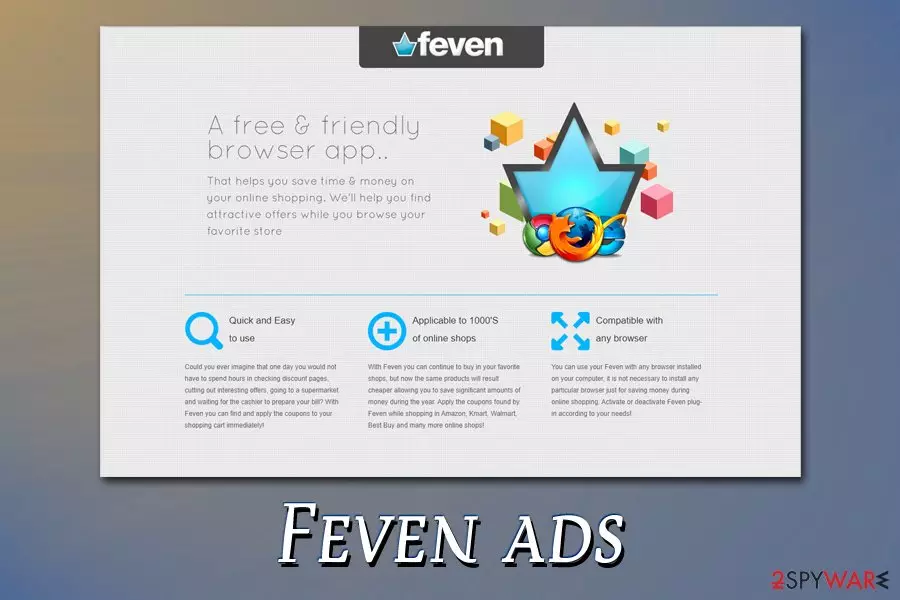
Feven is yet another potentially unwanted program[1] that promises to help save time and money during the web shopping sessions. In most of the cases, users notice the add-on attached to Google Chrome, Mozilla Firefox, MS Edge, or another web browser after they download freeware from third-party sites – this happens due to software bundling. Additionally, some might get tricked to install the Feven app after seeing a fake update prompt or a scam message on a malicious site.
Feven adware is based on Crossrider – a framework that imports various components on the infected system and also takes up space on the hard drive. Additionally, the add-on may initiate a variety of setting changes to the web browser and start delivering pop-ups, coupons, deals, offers, in-text links, and other unwanted commercial content. While users may believe that they are offered discounts, but what they truly are presented with are Feven ads from sponsors.
| Name | Feven, Feven 2.2 |
| Type | Adware |
| Developer | Brightcircle Investments Limited |
| Infiltration | Software bundles downloaded from third-party websites, suspicious links on various sites, fake updates, etc. |
| Symptoms |
|
| Risks | Installation of potentially unwanted programs or malware, sensitive information disclosure to unknown parties (cybercriminals), monetary loss due to scams, etc. |
| Related | Feven is based on Crossrider – a platform designed to import various components into the infected system |
| Termination | To delete adware from your computer, follow our manual guide below or scan it with anti-malware software |
| Recovery | In case your computer is slow and constantly crashes after adware termination, scan your system with FortectIntego |
While most users may notice Feven ads seemingly out of nowhere, some might install the app intentionally, believing that it is a great tool that would help with online shopping activities and provide discounts. This might also be due to attractive promotional messages from the developers:
Could you ever imagine that one day you would not have to spend hours in checking discount pages, cutting out interesting offers, going to a supermarket and waiting for the cashier to prepare your bill? With Feven you can find and apply the coupons to your shopping cart immediately!
However, as soon as users install Feven, they soon see the following symptoms:
- Feven web browser extension installed on the used browser
- Unknown add-ons installed without permission
- Sponsored links filled the search results
- Coupons, deals, offers, and other promotional content floods all visited websites
- Occasional redirects bring to potentially dangerous websites
Feven promotional offers and discount pop-ups might not always be secure, however. Just one click might redirect you to a malicious website that makes use of JavaScript[2] in order to download and install malware on your machine automatically. In such a case, the consequences of the infection may be disastrous – loss of money, personal file loss, or even identity theft. In other words, Feven, while not malware itself, might easily lead to its infiltration.
Various web browsing disruptions and seemingly visible symptoms – these are not all traits of the app. Some users who realized that the app is not for them struggled to remove Feven virus from their machines. This is because several components are installed on the system upon infiltration, and all of them need to be eliminated to stop the unwanted web browser activities.

If you are annoyed by alerts that are labeled as “Feven ads,” “ads by Feven,” “Feven coupons,” brought to you by Feven,” and similar notifications, it is a sign that your computer has already been hijacked. In this case, you should waste no time and perform Feven removal – we explain how below.
Because Feven is adware, which is based on Crossrider, you should also reset all the installed browsers as per instructions provided below and also scan your machine with FortectIntego to fix virus damage easily.
Potentially unwanted programs usually travel within software bundles
Potentially unwanted applications can easily infiltrate your computer without a clear permission asked. This distribution method has already initiated various discussions on the Internet because it seems that you can't be sure how many programs you will install on your computer when downloading freeware from the Internet anymore.
That's because most of them have been filled with optional components, such as browser add-ons, extensions, plugins, toolbars, and similar components that can be prevented only if you monitor the installation of the freeware. If you haven't been doing that when installing download managers, PDF creators, and similar freeware,[3] then there is no surprise that a PUP has entered your computer unnoticed.
Those who want to avoid its distribution should remember one thing: every time you install freeware on your computer, you have to monitor its installation process and keep an eye on every installation window. By saying this, we mean that you have to select Custom or Advanced installation of the freeware and then try to find these checkboxes that agree to install Feven and other browser add-ons and uncheck them.
If you missed this checkbox, there is a huge chance that now you see continuous ads from this program. No matter that they might look trustworthy and helpful, you should be careful because they mostly seek to make people visit specific domains and earn money from that.
Feven ads removal guide
If you were tricked into downloading the Feven virus or other adware on your computer, you should already be annoyed by the number of ads it is bringing to your desktop. As previously mentioned, while the ads might cause annoyance, the underlying effects of the app to the system might be by far more damaging. Therefore, you should not delay Feven removal any longer.
You can try to remove Feven adware via the Control Panel on Windows and Applications folder on macOS – you can find a detailed guide below. However, because the app also installs browser extensions during infiltration, you should also reset all the web browsers. In some cases, you could get rid of everything at once by using anti-malware software that detects Feven.
Uninstall from Windows
Uninstall from Windows 10/8:
- Type Control Panel into the Windows search box and open the result.
- Under Programs, select Uninstall a program.


Uninstall from Windows 7/XP:
- Click on Windows Start > Control Panel (Windows XP users should click on Add/Remove Programs).
- In Control Panel, select Programs > Uninstall a program.


Remove the unwanted program:
- In the Programs and Features window, look for any recently installed suspicious entries, select them, and click Uninstall.
- If User Account Control appears, click Yes to confirm, then complete the removal.


Delete from macOS
Remove the unwanted application:
- From the menu bar, select Go > Applications.
- In the Applications folder, look for any suspicious entries, then drag them to Trash (or right-click and pick Move to Trash).


Delete leftover files and folders:
- Select Go > Go to Folder.
- Enter /Library/Application Support and remove any suspicious folders related to the unwanted program.
- Repeat the same check in the /Library/LaunchAgents and /Library/LaunchDaemons folders, deleting any suspicious entries.

- Finally, empty the Trash to permanently remove the leftovers.

Reset Internet Explorer
Remove dangerous add-ons:
- Open Internet Explorer, click on the Gear icon (IE menu) on the top-right corner of the browser
- Pick Manage Add-ons.
- You will see a Manage Add-ons window. Here, look for suspicious plugins. Click on these entries and select Disable.


Change your homepage if it was altered:
- Open IE and click on the Gear icon.
- Select Internet Options.
- In the General tab, delete the Home page address and replace it by your preferred one (for example, Google.com).
- Click Apply and then select OK.


Delete temporary files:
- Press on the Gear icon and select Internet Options.
- Under Browsing history, click Delete...
- Select relevant fields and press Delete.


Reset Internet Explorer:
- Click on Gear icon > Internet options and select Advanced tab.
- Select Reset.
- In the new window, check Delete personal settings and select Reset.


Remove from Microsoft Edge
Delete unwanted extensions from MS Edge:
- Select Menu (three horizontal dots at the top-right of the browser window) and pick Extensions.
- From the list, pick the extension and click on the Gear icon.
- Click Remove.


Clear cookies and other browser data:
- Click on the Menu (three horizontal dots at the top-right of the browser window) and select Settings > Privacy, search, and services..
- Under Clear browsing data, pick Choose what to clear.
- Select Cookies and other site data and Cached images and files. (apart from passwords, although you might want to include Media licenses as well, if applicable) and click on Clear.


Restore new tab and homepage settings:
- Click the menu icon and choose Settings.
- Then find On startup section.
- Click Remove next to any suspicious startup page.
Reset MS Edge if the above steps did not work:
- Press on Ctrl + Shift + Esc to open Task Manager.
- Click on More details arrow at the bottom of the window.
- Select Details tab.
- Now scroll down and locate every entry with Microsoft Edge name in it. Right-click on each of them and select End Task to stop MS Edge from running.


Instructions for Chromium-based Edge
Delete extensions from MS Edge (Chromium):
- Open Edge and click select Settings > Extensions.
- Delete unwanted extensions by clicking Remove.


Clear cache and site data:
- Click on Menu and go to Settings.
- Select Privacy, search and services.
- Under Clear browsing data, pick Choose what to clear.
- Under Time range, pick All time.
- Select Clear now.


Reset Chromium-based MS Edge:
- Click on Menu and select Settings.
- On the left side, pick Reset settings.
- Select Restore settings to their default values.
- Confirm with Reset.
- This will disable extensions and reset startup pages but will not delete bookmarks, saved passwords, or browsing history.


Remove from Mozilla Firefox (FF)
Remove dangerous extensions:
- Open Mozilla Firefox browser and click on the Menu (three horizontal lines at the top-right of the window).
- Select Add-ons.
- In here, select the unwanted extension and click Remove.


Reset the homepage:
- Click three horizontal lines at the top right corner to open the menu.
- Choose Settings.
- Under Home, set your preferred homepage and new tab settings.
Clear cookies and site data:
- Click Menu and pick Settings.
- Go to Privacy & Security section.
- Scroll down to locate Cookies and Site Data.
- Click on Clear Data...
- Select Cookies and Site Data and Temporary cached files and pages, then click Clear.


Reset Mozilla Firefox
If clearing the browser as explained above did not help, reset Mozilla Firefox:
- Open Mozilla Firefox browser and click the Menu.
- Go to Help and then choose Troubleshooting Information.

- Under Give Firefox a tune up section, click on Refresh Firefox...
- Once the pop-up shows up, confirm the action by pressing on Refresh Firefox.



Remove from Google Chrome
Delete malicious extensions from Google Chrome:
- Open Google Chrome, click on the Menu (three vertical dots at the top-right corner) and select More tools > Extensions.
- In the newly opened window, you will see all the installed extensions. Uninstall all suspicious extensions related to the unwanted program by clicking Remove.


Clear cache and web data from Chrome:
- Click on Menu and pick Settings.
- Under Privacy and security, select Clear browsing data.
- Select Browsing history, Cookies and other site data, as well as Cached images and files.
- Click Clear data.


Change your homepage:
- Click menu and choose Settings.
- Look for a suspicious site in the On startup section.
- Click on Open a specific or set of pages and click on three dots to find the Remove option.
Reset Google Chrome:
If the previous methods did not help you, reset Google Chrome to eliminate all the unwanted components:
- Click on Menu and select Settings.
- In the Settings, scroll down and click Advanced.
- Scroll down and locate Reset and clean up section.
- Now click Restore settings to their original defaults.
- Confirm with Reset settings.


Delete from Safari
Remove dangerous extensions:
- Open Safari, click Safari in the menu at the top-left of the screen, and select Preferences.
- Go to the Extensions tab, look for any suspicious entries, and click Uninstall to remove them.


Clear history and website data:
- Click Safari in the menu and pick Clear History.
- Set Clear to all history and confirm with Clear History.


Reset Safari:
- Click Safari in the menu and select Preferences > Advanced.
- Enable Show Develop menu in menu bar.
- From the menu bar, click Develop and select Empty Caches.


Did this guide help?
Be the first to comment