

Movie4k.to – a movie streaming site that poses dangers to your privacy and security
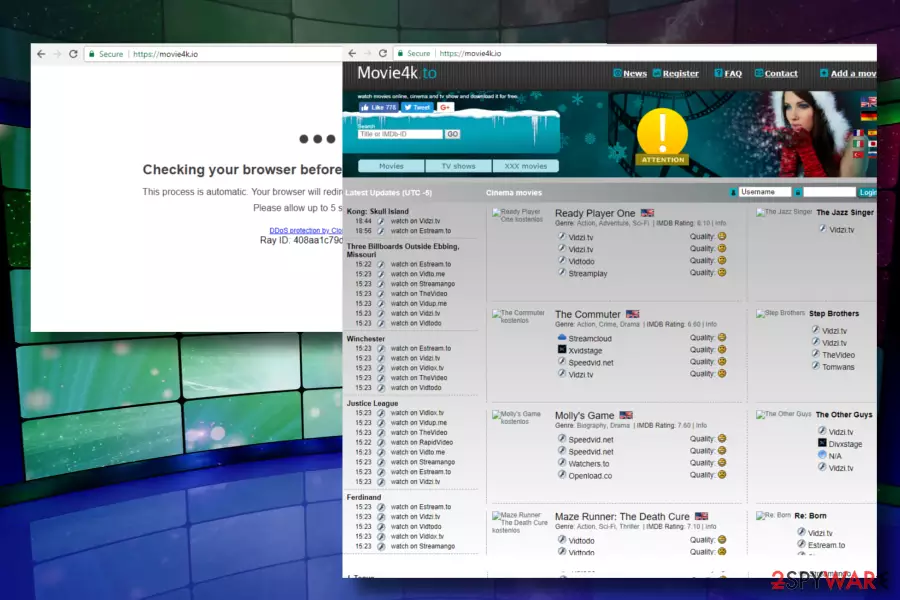
Movie4k.to is a web page that had previously been known as Movie2k.to. It was shut down due to its service – offering illegal copies of movies. Nevertheless, its Romanian owners decided to release yet another domain for the same use. Recently, they were accused of initiating malicious activities on the web.
According to cybersecurity experts, this domain may trick people into installing shady third-party programs or even malware. Its purpose is to generate pay-per-install[1] revenue. Usually, people start experiencing redirects to movie4k.to after downloading freeware, and this can be easily explained – its developers rely on bundling distribution.
| Name | Movie4k.to |
|---|---|
| Type of malware | Adware, PUP |
| Symptoms | Displays intrusive advertisements, causes redirects to new tab URL |
| Distribution | Bundling |
| Danger level | Medium. The website is not malicious on its own, though it may display ads linked to dangerous domains |
|
Elimination |
A scan with FortectIntego would eliminate adware along with its components. Nevertheless, you can find manual removal guidelines at the end of this post. |
This website, formerly known as Movie2k.to[2], was suspended in 2013 due to copyright infringement concerns[3], but it was shortly moved to another domain. Besides, this website has numerous clones with the same name.
Generally speaking, Internet sites that suggest you download free movies and TV shows are illegal, and the article's culprit is no exception. The shady site contains links to external websites such as torrent-sharing sites and other third-party pages, and we want to warn you that these can be illegal as well.
Speaking of illegal websites, we wouldn't be surprised if you would end up installing malicious programs such as ransomware[4] or Trojan from them, so please pay attention to what you click on. We strongly recommend you decline all offers to download free movies, TV shows, and in general, any type of files or programs from websites that Movie4k.to redirects you to.
Our security experts noticed that this shady advertising platform is still active and checked its review on multiple IT-related sources. It turns out that it keeps displaying catchy banners or pop-ups that originate from websites associated with it, which could be dangerous.
These ads can unexpectedly redirect you to phishing[5] websites or sites that host malware or exploit kits. If you respect your privacy and you want to keep your computer safe, better stay clear of this website and if you believe that you need to remove Movie4k.to virus because you agreed to install a suspicious file or program downloaded via that site, run a system scan with a decent anti-malware program like FortectIntego right away.

However, if you never heard about the described website but your browser suddenly started causing redirects to it, we highly recommend you initiate a full system scan ASAP. That's because your PC is infected with some kind of potentially unwanted program. If you have been suffering from continuous redirects to questionable domains, you should check your computer for adware or other PUPs that may be hiding in your PC.
Typically, people download such suspicious programs to their computers when they install freeware on them. To protect your machine, you should always try to pay enough attention to the installation process of the freeware. In addition, make sure you install reputable anti-spyware to protect your PC from unexpected infiltration. In order to avoid browser hijackers and other cyberthreats, you should try such programs as SpyHunterCombo Cleaner or MalwarebytesMalwarebytes.
Freeware can be avoided by paying attention to installation processes
The first and the most important rule you should follow is to avoid suspicious and illegal websites online. We understand that the idea of watching movies freely sounds great, but you have to understand that it is, in fact, an illegal activity.

Therefore, there's no denying that you can encounter more illegal content on such sites, not only pirated movies and TV shows. As we said before, you can accidentally download and install malware from them, which is going to damage your computer system or intrude on your privacy. You should immediately check your PC with updated anti-spyware or anti-malware program in case you agreed to install some programs or software updates offered by this domain.
Otherwise, you may allow malware to stay on your machine and initiate more serious activities, such as collect your personal information, download other viruses, and so on. Remember that running a system scan with anti-malware software can also stop continuous redirects to the indicated movie streaming site, in case that's the issue you are experiencing.
If you do not want to install adware and browser hijackers that typically cause web redirects, we advise you to choose Custom or Advanced settings to install programs you download from the Internet and do not forget to deselect additional items bundled with them.
Instructions to remove Movie4k.to virus
Bedynet.ru[6] experts rėcently reported to us that this particular domain is actively targeting Russian-speaking PC users and seeks to redirect them to suspicious Russian websites (e.g. thegaw.org). As we have already pointed out, such sites can be involved in malware distribution and other shady activities, which is why it's important to remove Movie4k.to ASAP.
You can use a reputable anti-malware tool for its removal or get rid of related programs manually. Whichever option you choose from the instructions below, don't forget to reset your web browser to disable unwanted extensions.
Uninstall from Windows
Uninstall from Windows 10/8:
- Type Control Panel into the Windows search box and open the result.
- Under Programs, select Uninstall a program.


Uninstall from Windows 7/XP:
- Click on Windows Start > Control Panel (Windows XP users should click on Add/Remove Programs).
- In Control Panel, select Programs > Uninstall a program.


Remove the unwanted program:
- In the Programs and Features window, look for any recently installed suspicious entries, select them, and click Uninstall.
- If User Account Control appears, click Yes to confirm, then complete the removal.


Delete from macOS
Remove the unwanted application:
- From the menu bar, select Go > Applications.
- In the Applications folder, look for any suspicious entries, then drag them to Trash (or right-click and pick Move to Trash).


Delete leftover files and folders:
- Select Go > Go to Folder.
- Enter /Library/Application Support and remove any suspicious folders related to the unwanted program.
- Repeat the same check in the /Library/LaunchAgents and /Library/LaunchDaemons folders, deleting any suspicious entries.

- Finally, empty the Trash to permanently remove the leftovers.

Remove from Microsoft Edge
Delete unwanted extensions from MS Edge:
- Select Menu (three horizontal dots at the top-right of the browser window) and pick Extensions.
- From the list, pick the extension and click on the Gear icon.
- Click Remove.


Clear cookies and other browser data:
- Click on the Menu (three horizontal dots at the top-right of the browser window) and select Settings > Privacy, search, and services..
- Under Clear browsing data, pick Choose what to clear.
- Select Cookies and other site data and Cached images and files. (apart from passwords, although you might want to include Media licenses as well, if applicable) and click on Clear.


Restore new tab and homepage settings:
- Click the menu icon and choose Settings.
- Then find On startup section.
- Click Remove next to any suspicious startup page.
Reset MS Edge if the above steps did not work:
- Press on Ctrl + Shift + Esc to open Task Manager.
- Click on More details arrow at the bottom of the window.
- Select Details tab.
- Now scroll down and locate every entry with Microsoft Edge name in it. Right-click on each of them and select End Task to stop MS Edge from running.


Instructions for Chromium-based Edge
Delete extensions from MS Edge (Chromium):
- Open Edge and click select Settings > Extensions.
- Delete unwanted extensions by clicking Remove.


Clear cache and site data:
- Click on Menu and go to Settings.
- Select Privacy, search and services.
- Under Clear browsing data, pick Choose what to clear.
- Under Time range, pick All time.
- Select Clear now.


Reset Chromium-based MS Edge:
- Click on Menu and select Settings.
- On the left side, pick Reset settings.
- Select Restore settings to their default values.
- Confirm with Reset.
- This will disable extensions and reset startup pages but will not delete bookmarks, saved passwords, or browsing history.


Remove from Mozilla Firefox (FF)
Remove dangerous extensions:
- Open Mozilla Firefox browser and click on the Menu (three horizontal lines at the top-right of the window).
- Select Add-ons.
- In here, select the unwanted extension and click Remove.


Reset the homepage:
- Click three horizontal lines at the top right corner to open the menu.
- Choose Settings.
- Under Home, set your preferred homepage and new tab settings.
Clear cookies and site data:
- Click Menu and pick Settings.
- Go to Privacy & Security section.
- Scroll down to locate Cookies and Site Data.
- Click on Clear Data...
- Select Cookies and Site Data and Temporary cached files and pages, then click Clear.


Reset Mozilla Firefox
If clearing the browser as explained above did not help, reset Mozilla Firefox:
- Open Mozilla Firefox browser and click the Menu.
- Go to Help and then choose Troubleshooting Information.

- Under Give Firefox a tune up section, click on Refresh Firefox...
- Once the pop-up shows up, confirm the action by pressing on Refresh Firefox.



Remove from Google Chrome
Delete malicious extensions from Google Chrome:
- Open Google Chrome, click on the Menu (three vertical dots at the top-right corner) and select More tools > Extensions.
- In the newly opened window, you will see all the installed extensions. Uninstall all suspicious extensions related to the unwanted program by clicking Remove.


Clear cache and web data from Chrome:
- Click on Menu and pick Settings.
- Under Privacy and security, select Clear browsing data.
- Select Browsing history, Cookies and other site data, as well as Cached images and files.
- Click Clear data.


Change your homepage:
- Click menu and choose Settings.
- Look for a suspicious site in the On startup section.
- Click on Open a specific or set of pages and click on three dots to find the Remove option.
Reset Google Chrome:
If the previous methods did not help you, reset Google Chrome to eliminate all the unwanted components:
- Click on Menu and select Settings.
- In the Settings, scroll down and click Advanced.
- Scroll down and locate Reset and clean up section.
- Now click Restore settings to their original defaults.
- Confirm with Reset settings.


Delete from Safari
Remove dangerous extensions:
- Open Safari, click Safari in the menu at the top-left of the screen, and select Preferences.
- Go to the Extensions tab, look for any suspicious entries, and click Uninstall to remove them.


Clear history and website data:
- Click Safari in the menu and pick Clear History.
- Set Clear to all history and confirm with Clear History.


Reset Safari:
- Click Safari in the menu and select Preferences > Advanced.
- Enable Show Develop menu in menu bar.
- From the menu bar, click Develop and select Empty Caches.


Did this guide help?
1 comment
B
Nice article, however- I believe Movie2k.to was shut down due to MPAA. They got fed up with cease and desist letters so they changed their IP address as well as their website url. A trick you can use if you still wish to surf the website I may recommend Adblock and be cautious of everything, your computer is fine, avoid clicking pop ups, and when you get adblock make sure to block every ad on the site they will not interfere with your movie watching experience.