

FilesFrog Update Checker – bogus software that aims to announce upcoming software updates

FilesFrog Update Checker, developed by Somoto, is a suspicious application that aims to provide users with upcoming program upgrades. According to users' reports, this bogus product ends up on the system after downloading third-party tools from CNET.com such as Youtube Batch Downloader/Youtube Free Downloader. Even though the app might look useful as it offers a fast and neat program, these features are supposedly only a way to lure you into using this app and maybe even opting for the downloading process of its other versions. In addition, this program might start acting as an adware application after successful infiltration and begin pushing annoying ads to the desktop, filling browsers with extensions, and so on.
| Name | FilesFrog Update Checker |
|---|---|
| Type | Potentially unwanted program |
| Sub-type | Adware |
| Developer | Somoto |
| Aim | This bogus product supposedly aims to provide users with beneficial update information and allows people to perform upgrades faster. However, its adware-related nature has a goal to collect income from ads, etc. |
| Distribution | Users reports state that this ad-supported application spreads via third-party downloading sources such as CNET.com and their products such as Youtube Batch Downloader and Youtube Free Downloader |
| Prevention | Preventing adware is quite simple, you just have to know the basics. First, get a reliable antivirus tool and keep it always active. Continuously, use the Custom/Advanced downloading technique rathet the less secure Recommended/Quick configuration |
| System scan | You can look for potentially suspicious programs, products, services, keys, and files with the help of FortectIntego software that might lengthen the removal process in the future |
| Removal | Once you have performed a full system checkup, continue to the end of the article and proceed with the manual/automatical elimination technique |
FilesFrog Update Checker virus is a term widely used between users as this app gets bundled with other freeware and has the functionality of an adware program. Users claim that this product shows unknowingly on the Windows Start menu and have been looking for ways to remove the potentially unwanted program from the machine system.[1]
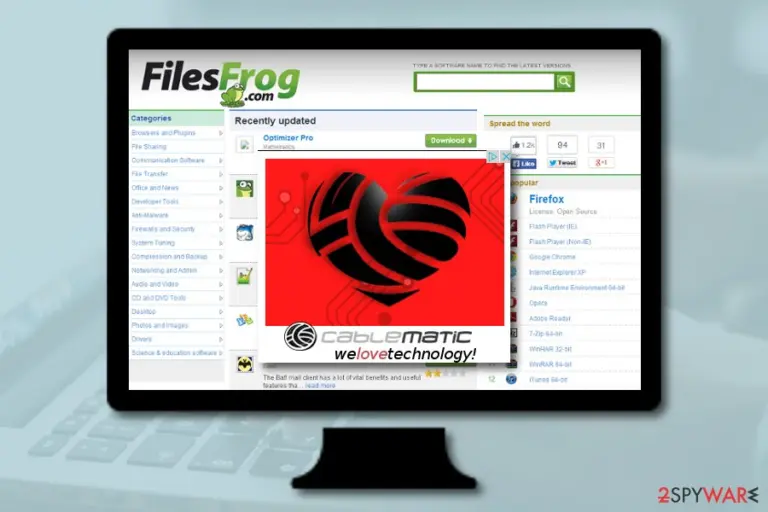
If you ever visit the official website where FilesFrog Update Checker is promoted, you will supposedly be provided by a nicely-looking description of the software. Do not get tricked by promotions like this one:
FilesFrog is a software update checker that keeps all your desktop software up to date. It was created to make it easier for you to be informed of newer versions of your favorite software and to make the entire process of transitioning to it simpler and faster.
FilesFrog Update Checker might end up promoting other third-party security software that is produced only for income and lacks true function quality. Do not get attracted to any offers that are promoted by this program as they will supposedly only try to swindle some money from you while providing nothing worth the cost.
Continuously, FilesFrog Update Checker is known to be closely related to Somoto Toolbar which is also a very untrustworthy program. Moreover, many respectable and well-known anti-spyware programs recognize the product as a potential threat that signifies the lack of security and is a doubtful product all in all.

If you ever receive this third-party application under your own consent, you should remove FilesFrog Update Checker from your Windows/Mac computer and get rid of all additional content that it might bring. FortectIntego will help you to scan the entire system and search for suspicious objects in various unknown locations.
However, manual FilesFrog Update Checker removal is also a possibility here. All you have to do is go to the end of the article where you will discover informative steps on how to take care of this process on your own. You should be able to clean both the affected operating system and hijacked browser apps also.
Note that adware such as FilesFrog Update Checker might modify some major browser settings. Adware-related changes are most commonly spotted in the browser's homepage and new tab search zones. In addition, the PUP might add some browser helper objects into the settings, for example, add-ons, plug-ins, extensions.
Nevertheless, FilesFrog Update Checker can include tracking cookies into your browser app that aim to record the browsing experience and habits of the user. Also, the developers might spy on the technicals details on your machine to provide you with even more accurate targeted ads and earn income via the pay-per-click method.[2]
One more thing that FilesFrog Update Checker might be capable of is forcing redirects to affiliate sources. Redirecting activities can happen while visiting the official website of this software or when experiencing related adverts. Pop-ups and pop-unders might take you to unknown locations some of which can be malware-laden web pages.

Adware gets transferred through third-party software packages
Experts from LosVirus.es[3] network claim that adware has a great chance to be delivered to a person's computer if he downloads products from third-party sources such as CNET.com or Softonic.com. Some adware-related products are known to be widely spread through Youtube Free Downloader and Youtube Batch Downloader software.
Bogus downloads travel through the Basic or Recommended installation technique which allows automatical download of various third-party protects. For full computer security, opt for the Advanced or Custom configuration that gives the user an opportunity to sort out all incoming objects and deselect the suspicious-looking ones.
Additionally, potentially unwanted programs can infiltrate targeted computers and browsers via infectious hyperlinks and advertisements that users might encounter while visiting unsecured networks, for example, p2p sites or free-gaming, gambling, movie-watching sources. The best way to secure yourself while visiting third-party sources is to have an active AV tool that will ensure safe browsing and install AdBlock[4] on your browser to prevent the appearance of bogus ads.
Remove FilesFrog Update Checker from your computer
In order to restore your browser's well-being, remove FilesFrog Update Checker as soon as you have noticed it. Remember that the adware program[5] might bring more than one suspicious object to your Windows/Mac computer system and all bogus products need to be eliminated to prevent the repeated appearance of the third-party program.
FilesFrog Update Checker virus might drop bogus entries, keys, files, and additional programs on your computer system in different locations. To discover all of these suspicious pieces, you should initiate a full system with reliable antimalware software. You can choose a product from our below-provided list or any of your own likings.
Afterward, continue with FilesFrog Update Checker removal. You can use professional tools for completing this task or follow the instructing steps that have been submitted by our security experts. The manual guidelines are here to help you to clean browsers such as Google Chrome, Mozilla Firefox, Internet Explorer, Microsoft Edge, and Safari.
Uninstall from Windows
Uninstall from Windows 10/8:
- Type Control Panel into the Windows search box and open the result.
- Under Programs, select Uninstall a program.


Uninstall from Windows 7/XP:
- Click on Windows Start > Control Panel (Windows XP users should click on Add/Remove Programs).
- In Control Panel, select Programs > Uninstall a program.


Remove the unwanted program:
- In the Programs and Features window, look for any recently installed suspicious entries, select them, and click Uninstall.
- If User Account Control appears, click Yes to confirm, then complete the removal.


Delete from macOS
Remove the unwanted application:
- From the menu bar, select Go > Applications.
- In the Applications folder, look for any suspicious entries, then drag them to Trash (or right-click and pick Move to Trash).


Delete leftover files and folders:
- Select Go > Go to Folder.
- Enter /Library/Application Support and remove any suspicious folders related to the unwanted program.
- Repeat the same check in the /Library/LaunchAgents and /Library/LaunchDaemons folders, deleting any suspicious entries.

- Finally, empty the Trash to permanently remove the leftovers.

Reset Internet Explorer
Remove dangerous add-ons:
- Open Internet Explorer, click on the Gear icon (IE menu) on the top-right corner of the browser
- Pick Manage Add-ons.
- You will see a Manage Add-ons window. Here, look for suspicious plugins. Click on these entries and select Disable.


Change your homepage if it was altered:
- Open IE and click on the Gear icon.
- Select Internet Options.
- In the General tab, delete the Home page address and replace it by your preferred one (for example, Google.com).
- Click Apply and then select OK.


Delete temporary files:
- Press on the Gear icon and select Internet Options.
- Under Browsing history, click Delete...
- Select relevant fields and press Delete.


Reset Internet Explorer:
- Click on Gear icon > Internet options and select Advanced tab.
- Select Reset.
- In the new window, check Delete personal settings and select Reset.


Remove from Microsoft Edge
Delete unwanted extensions from MS Edge:
- Select Menu (three horizontal dots at the top-right of the browser window) and pick Extensions.
- From the list, pick the extension and click on the Gear icon.
- Click Remove.


Clear cookies and other browser data:
- Click on the Menu (three horizontal dots at the top-right of the browser window) and select Settings > Privacy, search, and services..
- Under Clear browsing data, pick Choose what to clear.
- Select Cookies and other site data and Cached images and files. (apart from passwords, although you might want to include Media licenses as well, if applicable) and click on Clear.


Restore new tab and homepage settings:
- Click the menu icon and choose Settings.
- Then find On startup section.
- Click Remove next to any suspicious startup page.
Reset MS Edge if the above steps did not work:
- Press on Ctrl + Shift + Esc to open Task Manager.
- Click on More details arrow at the bottom of the window.
- Select Details tab.
- Now scroll down and locate every entry with Microsoft Edge name in it. Right-click on each of them and select End Task to stop MS Edge from running.


Instructions for Chromium-based Edge
Delete extensions from MS Edge (Chromium):
- Open Edge and click select Settings > Extensions.
- Delete unwanted extensions by clicking Remove.


Clear cache and site data:
- Click on Menu and go to Settings.
- Select Privacy, search and services.
- Under Clear browsing data, pick Choose what to clear.
- Under Time range, pick All time.
- Select Clear now.


Reset Chromium-based MS Edge:
- Click on Menu and select Settings.
- On the left side, pick Reset settings.
- Select Restore settings to their default values.
- Confirm with Reset.
- This will disable extensions and reset startup pages but will not delete bookmarks, saved passwords, or browsing history.


Remove from Mozilla Firefox (FF)
Remove dangerous extensions:
- Open Mozilla Firefox browser and click on the Menu (three horizontal lines at the top-right of the window).
- Select Add-ons.
- In here, select the unwanted extension and click Remove.


Reset the homepage:
- Click three horizontal lines at the top right corner to open the menu.
- Choose Settings.
- Under Home, set your preferred homepage and new tab settings.
Clear cookies and site data:
- Click Menu and pick Settings.
- Go to Privacy & Security section.
- Scroll down to locate Cookies and Site Data.
- Click on Clear Data...
- Select Cookies and Site Data and Temporary cached files and pages, then click Clear.


Reset Mozilla Firefox
If clearing the browser as explained above did not help, reset Mozilla Firefox:
- Open Mozilla Firefox browser and click the Menu.
- Go to Help and then choose Troubleshooting Information.

- Under Give Firefox a tune up section, click on Refresh Firefox...
- Once the pop-up shows up, confirm the action by pressing on Refresh Firefox.



Remove from Google Chrome
Delete malicious extensions from Google Chrome:
- Open Google Chrome, click on the Menu (three vertical dots at the top-right corner) and select More tools > Extensions.
- In the newly opened window, you will see all the installed extensions. Uninstall all suspicious extensions related to the unwanted program by clicking Remove.


Clear cache and web data from Chrome:
- Click on Menu and pick Settings.
- Under Privacy and security, select Clear browsing data.
- Select Browsing history, Cookies and other site data, as well as Cached images and files.
- Click Clear data.


Change your homepage:
- Click menu and choose Settings.
- Look for a suspicious site in the On startup section.
- Click on Open a specific or set of pages and click on three dots to find the Remove option.
Reset Google Chrome:
If the previous methods did not help you, reset Google Chrome to eliminate all the unwanted components:
- Click on Menu and select Settings.
- In the Settings, scroll down and click Advanced.
- Scroll down and locate Reset and clean up section.
- Now click Restore settings to their original defaults.
- Confirm with Reset settings.


Delete from Safari
Remove dangerous extensions:
- Open Safari, click Safari in the menu at the top-left of the screen, and select Preferences.
- Go to the Extensions tab, look for any suspicious entries, and click Uninstall to remove them.


Clear history and website data:
- Click Safari in the menu and pick Clear History.
- Set Clear to all history and confirm with Clear History.


Reset Safari:
- Click Safari in the menu and select Preferences > Advanced.
- Enable Show Develop menu in menu bar.
- From the menu bar, click Develop and select Empty Caches.


Did this guide help?
Be the first to comment